00 · Getting started & orientation
This chapter gets you signed in and oriented: how to log in securely, how the app is laid out, and the handful of screens you will return to every day. If you read only one chapter first, read this one.
What Vera AI is for. Vera AI, by Vendor Benchmark, helps you buy software at the right price: upload vendor proposals for expert benchmarking, run instant price checks, track your agreements and renewals, and work negotiations to a close. Everything else in this manual is a specific way of doing one of those four things.
Vera 3
The platform has one design, Vera 3, and everyone works in it: your contracts, reports, renewals, team and settings on screens that lead with what is due and what it is worth. There is no edition to choose and no switch in the top bar.
- Follow ups (since 1 October 2026): under a written document in the Negotiation Agent, the price benchmark in the Benchmark Agent, a finished brief in Vera AI, a renewal's file in Renewals and a contract's plan in the Contract Office, Vera lists what you are likely to want next and takes any question of your own. Ask for an email and the draft appears as an email you can type on; press Edit side by side with Vera to change it with her, version by version, with Show edits to see what moved. You send it; the platform never does. See Follow ups.
- Shall I draft the email? (since 1 October 2026): a finished line in the Benchmark Library, a vendor review or a document report ends with one line that offers the follow up email, to the vendor's sales rep, to a colleague or to your management. Press one and the email opens over the whole screen: what you were looking at on the left, the email on the right, on a page you type on, with its versions and Show edits. Vera writes it from what is on the screen (while she writes, the letter fills in line by line beside the steps and a clock, and the draft rises into place when it lands), your draft is kept when you leave, and Open in Mail puts it in Mail, the full mail client, ready to send; Outlook, Gmail and your own mail app are beside it. You send it; the platform never does. See Send it on.
- Apps open straight to their work (since 1 October 2026): the opening a chapter describes no longer plays by itself when you open Home or an app, so you land on the screen and can start at once. Replay the opening in an app's menu still plays it when you want to see it. Every other animation is unchanged.
- Home opens on the greeting and the workspace line, then the demo, Get started and Your apps (What next and the Vendor Radar card left Home on 8 October 2026). Your contracts themselves are on Contracts.
- Home as an app (since 12 October 2026): Home opens as a page. Press Open as app on the line under the greeting to open it as an app window instead, with its sheets on keys 1 to 9 (Your day, What if, the dates that commit you); Close brings you back to the page.
- Nothing opens on its own. The platform introduction film and the advisor naming do not stand in front of Home (both are still available, under Help and under Settings), and the screen tips wait behind their pill instead of appearing on a first visit.
- Telling us what you think — every screen carries the same Ask and Guide; a note through either reaches the team that builds it.
Vera 4
Vera 4 (since 25 October 2026) is a second way to work in the same platform, beside Vera 3. Your data, your organization and your plan do not change; only the frame around the screens does. You opt in yourself, from the Vera 4 chip in the top bar or from the release note, and one press takes you back.
- One frame, every app inside it. A light menu on the left: Home, Human benchmark, Mail, Deals (the Contract Office), Documents (the Document Agent) and Ask across, then the apps of your Home, then Settings and Support and you. One bar at the top: where you are, Ask Vera, Mail, the theme, the Vera 4 · Vera 3 chip and your initials. Every app opens as a page inside this frame, never as a window over the page, so the menu is always there and Home is always one press away. Inside Vera 4 an app shows only its work: its own title bar with the menus, its own left menu, its status bar and the strip of open apps are Vera 3's frame and are not drawn, so there is one menu on the left and one bar at the top, with the Vera 4 · Vera 3 chip always in view.
- Your Home. The first visit asks what you are here to do: Workflows, Benchmark, Contracts, Tools or Collaboration. Home then shows only that choice: the greeting with Ask Vera, the track of that Home (on Benchmark: Library, Ask a human, Human benchmark, the case, the competitors, the email, the deck) (the step by step journey, each step an app you open), what needs you, its apps with their pictures, Vera's facts, your deals and the Human benchmark door. Swap Homes with the chips under the greeting; What each is for shows the five again, and Change what you are here to do in the menu does the same.
- Sample until your first upload. A workspace with no contracts shows the sample workspace's renewals and deals, each marked Sample, so the first visit is never a blank page.
- Two keys. Press / anywhere to ask Vera; Esc goes back. The pill at the foot says Saved after every write the platform keeps.
- Back to Vera 3. Press the Vera 4 · Vera 3 chip in the bar, on a phone too (since 26 October 2026; Mail moves to the dock at the foot there). Vera 3 is exactly as it was for everyone who did not opt in.
The six ideas behind the platform
Watch: Vera AI: the three minute demo (3:12)
The platform is large, but it is not complicated: nearly every screen is one of six ideas applied somewhere specific. Read these once and the rest of the manual becomes navigation rather than learning.
- Analyst Benchmark turns proposals into delivered reports. You upload a vendor quote or contract as a proposal; our analysts benchmark it against the market; a delivered report comes back that you can forward. This is the expert loop, and it is the platform's oldest promise.
- The Benchmark Library answers the three questions every buyer has. What discount you are being offered, what comparable customers get for the same deal as a range, and where your deal ranks. Benchmark Library answer them self-serve in minutes, for 1,471 vendors and their product lines, no upload needed.
- Your estate is watched, not stored. Agreements carry expiry dates and notice periods; Renewals sorts every deadline; Contracts reads whole folders and files them by vendor. The point of filing document here is that dates get watched and windows never shut silently, on the alert terms you choose.
- Vera is the analyst on call. Press Ctrl/⌘ J on any screen and ask about a price, a clause, or your own portfolio. Vera's answers are grounded in your data and the benchmark evidence, and cited, so a number she gives you is a number you can stand behind.
- The market comes to you. Terms watch diffs every tracked vendor's price list and prices the change at your seat counts; the Monday Vendor Radar files the week's licensing and pricing news; Market news carries the signals in between. You should not have to hunt for the fact that changes your renewal.
- Deals are worked to a close, not just analyzed. The Renewal playbook builds the plan, a tracked Negotiation holds the mandate and the concession ledger, and Cases let Vera run a negotiation under decisions you approve. Analysis that never becomes a position is a report; the platform is built to close.
When you cannot place a feature, ask which idea it serves, or ask the direct question in Which tool do I use?
Creating your account
Two ways into the platform, both free to start, and both reviewed by our team. Access is always granted by a person, never automatically: whichever form you use, an analyst approves the request and sets up your workspace, usually within 1 business day.
Quick request (self-serve form). On /get-started, enter your name, corporate email, and organization, and select the Terms of Service. That files a request for review; we email you a confirmation right away, and once an analyst approves it (usually within 1 business day) a plain text email brings your sign-in link and a temporary password. The link opens your workspace with one click and stays valid for 7 days; the temporary password works until you set your own, so the email is good however late you read it. Check your junk folder if it has not arrived. A free 7 day trial with the sample portfolio loaded is waiting when you sign in, and answering the survey we send when it ends adds another 30 days (see Plans and limits).
Guided request. Prefer to add context, or want a specific plan? Request access on /request-access and a named analyst reviews the request and sets the workspace up for you within 1 business day. It is the same review, with room for a note.
While your request is reviewed. After you confirm your email, the waiting screen says plainly that your workspace is being prepared, and it is not a locked door. One click on Explore the live demo takes you into a working demo workspace immediately, opened on the eight step demo: uploading, the contract maps, spend, benchmarks, redlining, a negotiation run by Vera and the human analyst, each on sample data (see The demo). The demo is shared with other visitors and nothing you do in it is saved: the session runs for 30 minutes, a countdown at the bottom of the screen shows how long is left, and at the end you are signed out and the whole demo workspace is deleted and rebuilt from scratch for the next visitor. Click anything, and keep your own contracts out of it. Your approval continues unchanged in the background: when the invitation email arrives (typically within 1 business day), sign back in with your own credentials and your real workspace opens. The waiting screen also shows the dossier our analysts are preparing from your request, a get-ready checklist, and a preview of the benchmark catalog waiting inside.
One request per address. Both forms accept one request per email address. If you have already asked, the form tells you your request is with an analyst rather than filing a second one, and asking again does not move you up the queue. If the address already has a workspace, the form points you at the sign-in page instead. Where a request has been reviewed and turned down, it cannot be resubmitted from either form: only our team can re-open it and send an invitation, so write to info@vendorbenchmark.com if your situation has changed.
Tips
- If your company already runs Vera AI and has domain capture on, either form routes you to your team's workspace admin instead of creating a second workspace. A workspace owner turning down a join request is their decision about their own workspace, and it does not stop you asking us for a workspace of your own.
- Personal email domains (Gmail, Outlook, Yahoo, and the like) are not accepted; use your work address. That covers regional webmail, addresses from internet providers, and temporary or disposable inboxes. Corporate domains of the software vendors and resellers we benchmark are declined too: the platform is licensed to software buyers only (Terms of Service, Section 2).
- Every signup includes selecting agreement to the Terms of Service: the platform is licensed to software buyers only, you register with your real identity and corporate email, and benchmark data and playbooks are confidential to your organization. Teammates select the same box when they accept an invite or finish account setup, and accounts created before the Terms shipped are asked once at their next sign-in.
The free contract decoder
Try the analysis on your own paper before you have an account. Drop a PDF or Word file and the Contract Agent reads it on a live stage: every clause in plain English, what it costs you, where the deal sits against the market, and the replacement language to ask for.
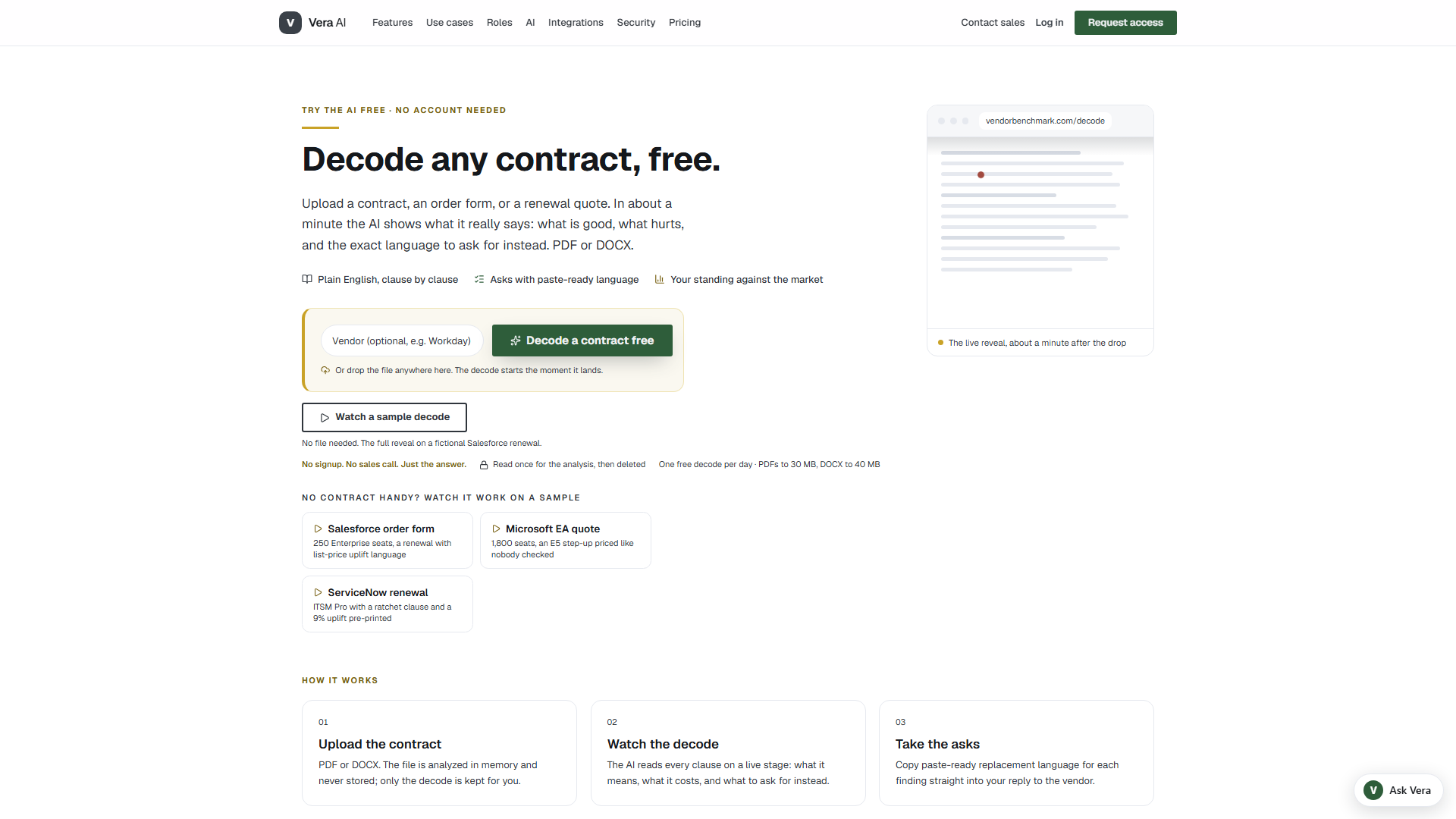
On the screen
- Vendor and Decode a contract free — type the vendor if you like (it sharpens the market comparison), then pick your file. Or drop it anywhere on the page: the decode starts the moment it lands.
- Watch a sample decode — the full reveal on a fictional document with no file needed. Three samples sit below it: a Salesforce order form, a Microsoft EA quote, and a ServiceNow renewal.
- The fine print under the buttons — no signup and no sales call; the file is read once for the analysis, then deleted; one free decode a day, PDF and Word files up to 200 MB.
- Ask Vera — the guide in the corner answers questions about the platform while you wait (see Ask Vera on the public pages).
How to use it
- Open
vendorbenchmark.com/decode, or press any decoder button on the site; the site's buttons keep you on vendorbenchmark.com. - Drop your file on the page or press Decode a contract free. The stage shows the reading steps as they run, and the first findings appear in about a minute while the deep read continues.
- Read the report. The head gives the market standing, the money On the table each year across every suggested change, and where the deal lands if the fixes land. The first three asks are shown in full, each with its yearly value, the clause it comes from, and the language to paste into your reply.
- To see the rest, enter your work email under Unlock the full decode. The remaining findings and the paste-ready language for every ask open at once. Personal addresses are not accepted.
- Keep the address in your browser bar: the report stays at that link, and Replay the reveal plays the live stage again.
Tips
- The ask list adds up to the headline. Before you unlock, its closing line says what the asks shown carry and how much more sits in the locked findings, for example $142,600 in the asks shown and $28,100 more in the 11 still locked, against $170,700 on the table.
- One decode a day is counted per connection, and a decode that fails does not count. If the decoder has reached its daily capacity, it says so; come back the next day or request access to decode without a daily limit in your own workspace.
- Inside the platform the same reading runs as the Contract Agent, with your whole estate behind it.
Ask Vera on the public pages
Questions before you sign in go to Vera too. She answers from the site's own pages (what the platform does, what the plans cost, how a benchmark works, how your data is protected) and points you to the page that covers it.
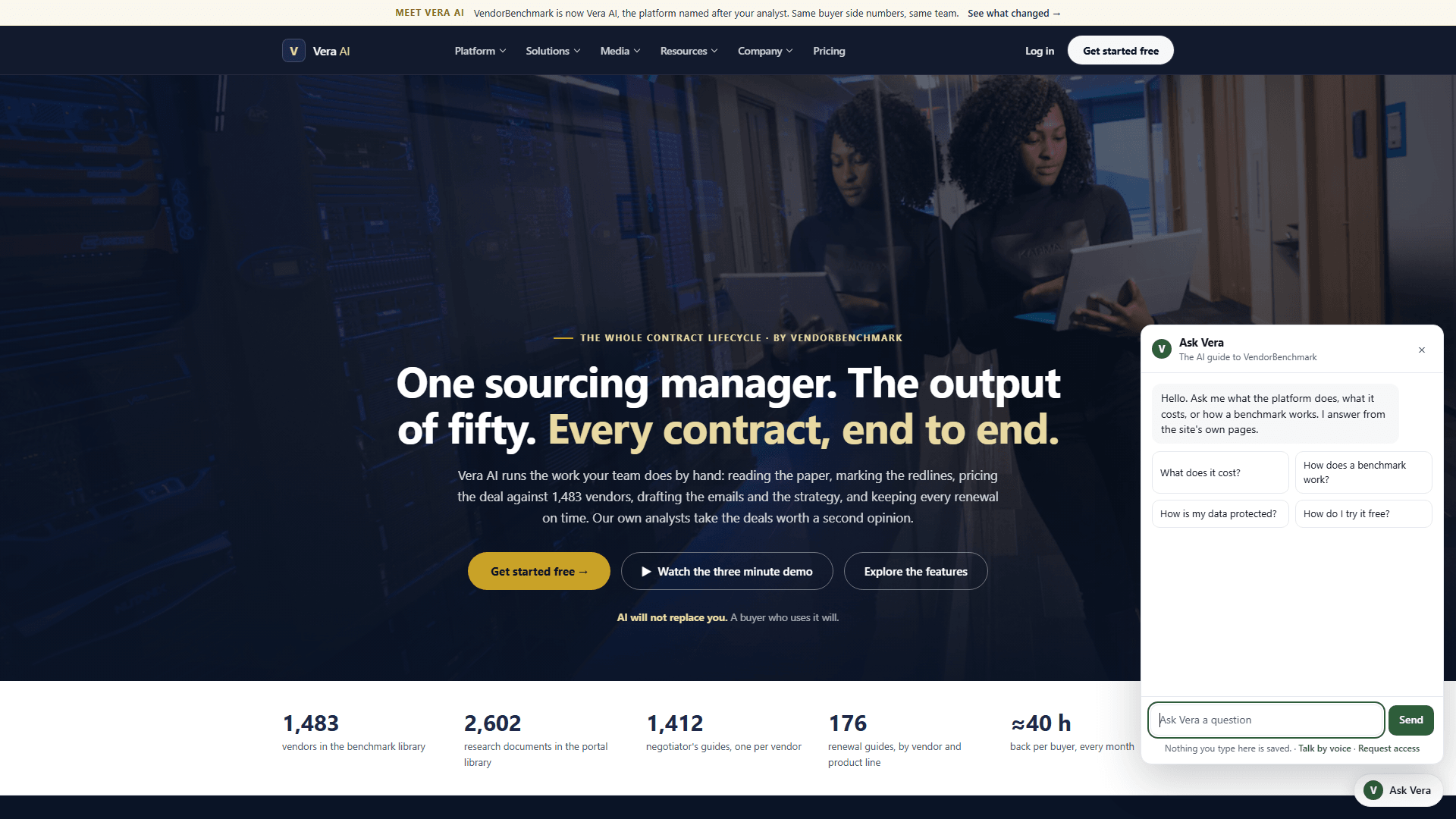
On the screen
- The Ask Vera button — opens and closes the chat. It follows the page's own light or dark look.
- Four starting questions — What does it cost?, How does a benchmark work?, How is my data protected?, and How do I try it free?. Press one, or type your own below.
- The answer — streams in as she writes it, in short plain sentences with the exact figures from the site.
- The line at the foot — nothing you type here is saved; Talk by voice opens a five minute voice line with Vera, and Request access opens the access request.
How to use it
- Press Ask Vera in the corner of any public page.
- Press a starting question, or type yours and press Enter (Shift and Enter adds a new line).
- Move between pages of the site as you like: the conversation follows you until you close the tab. Escape or the close button hides it.
Tips
- She knows the public site and nothing about any customer's data. Once you sign in, the Vera dock on every page takes over, with your own contracts behind her (Vera, your one assistant).
- Asking many questions in a few minutes pauses her briefly; she tells you when to try again.
- She does not appear inside the signed in workspace, in app windows, on the signing screens, or on printed pages.
Signing in
You sign in with your work email. The screen asks for your email first, then for the credential your account uses:
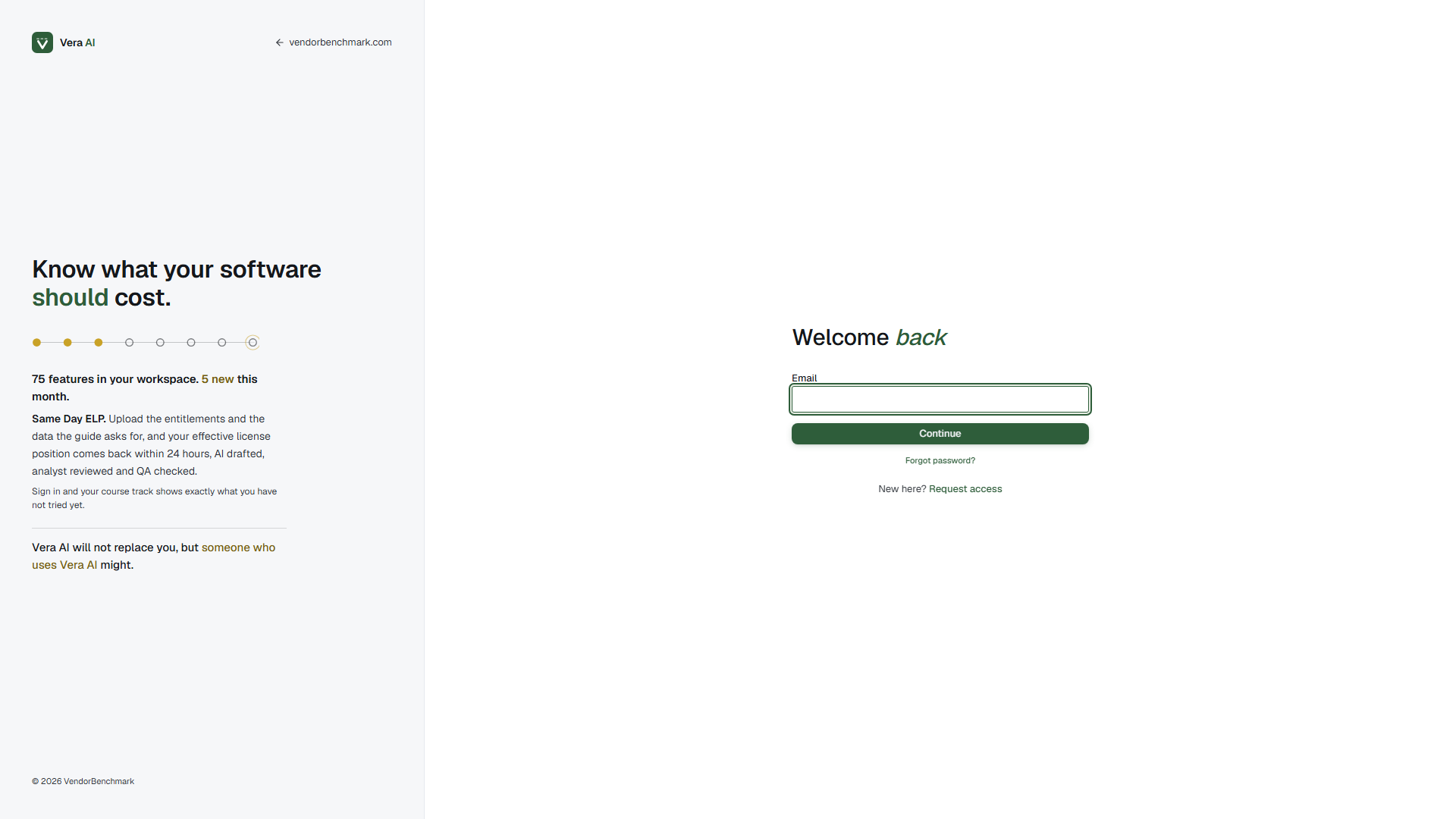
What is on the screen
- The title bar. The white bar across the top carries the product name, the gold Encrypted session chip and a link back to vendorbenchmark.com.
- The masthead. The screen's name, one line on what it does, and at the right the sign in rail: four steps (Sign in, Two factor, The terms, Set up), the current one lit. A returning account usually stops after the first two.
- Two panels. The sign in form on the left, the one box the screen exists for, and what is new in the workspace on the right.
- Moves. Request access, Forgot password and Security and trust, under the panels.
How to use it
- Go to the sign-in page and enter your work email, then choose Continue.
- If two-factor authentication is on for your account, you are asked for the six-digit code from your authenticator app; that code is your sign-in, no password step. Otherwise, type your password, or choose Email me a link to get a one-time magic link instead.
- Remember this device for 30 days is selected by default: this device stays signed in for up to 30 days. Clear it on a shared or borrowed machine and your session ends as soon as the browser closes.
Tips
- Invited by a teammate? Your invite email links to
/signup, where you set your name and password once, then land in your organization already set up. - Forgot your password? Use Forgot password? on the sign-in page; a plain text email brings a link to set a new one. Check your junk folder if it has not arrived.
- Lost your authenticator? Choose Email me a link, sign in with the link, and use one of your recovery codes at the two-factor prompt.
- A question before you sign in? Ask Vera sits in the corner of the sign in page.
Two-factor authentication
Two-factor authentication registers a rotating six-digit code from an authenticator app (Google Authenticator, 1Password, Authy, and the like) against your account. The /mfa challenge is step 2 of the sign in rail: the code boxes sit in the left panel, and the right panel lists how the second step works, including the recovery code for a lost device. The terms stop (/accept-terms, step 3) and account setup (/account-setup, step 4, for an account an analyst provisioned) wear the same frame. Once it is on, the sign-in page asks for that code in place of your password, and sign-ins that arrive another way (a magic link, single sign-on) are asked for the code at the /mfa challenge before the workspace opens. This protects your account even if your email inbox or password leaks. You turn it on and register your device in Settings › You › Sign in and devices.
Share links a guest opens
Every page a guest opens from a link you shared wears the same frame as the sign in screens: the title bar with the room's name and a gold chip (read only, the link's end date, or the response state), a masthead that names what was shared with one row of facts (who shared it, the access, how long the link lasts), and the room's panels under it. A shared report, brief, verdict or playbook keeps its own document design inside the frame, so what the guest reads is the same paper you would print. An ended or revoked link shows the same frame with a plain notice and no detail about the link.
- Vendor response portal (
/deal-room): your written position beside a reply form; a reply lands in your negotiation record. - Counterparty room (
/agreement-room): the current document, the open issues with both positions, the thread and the acceptance record. - Shared document (
/decode-room): the Contract Agent document with the guest's role, the counterparty and the date the link closes. - Security review room (
/trust-room): the confidentiality agreement first when one is required, then the compliance documents.
Your first session
Knowing what the first sign-in does, and deliberately does not do, makes it calmer. In order:
- You land on Home, and choose a need. Since 24 October 2026 Home opens on three cards, Benchmark, Contracts and Cost optimization, each showing the need at work over its photograph and the figure your workspace holds for it. Choose one (or press 1, 2 or 3) and Home shows only that need, with a switch at the top to change; the choice is remembered. Benchmark types a deal into one box (vendor, seats, discount offered) and places it on the spot, with the human benchmark as its own panel (since 25 October 2026 just the analysts, the document dragged in or browsed, and Send to the analyst) and the apps for benchmarking and research; since 25 October 2026 the first of those apps is Human benchmark, which opens the Ask a human window to send a document to an analyst, and since 27 October 2026 Competitive scenarios is among them too, so a renewal is priced against its alternatives from the same place a deal is placed (it keeps its card under Contracts). Contracts takes all your contracts in one upload, then the apps for managing them: since 25 October 2026 these include What you own, Report Studio, Vendors, Vendor Radar and the Team and files shelf, which show on Contracts only. Cost optimization lists the apps for licensing, cloud and spend; since 25 October 2026 each app shows its own systems and savings, so Home no longer repeats them. Vera's line under the greeting says what matters now. Since 25 October 2026 Your next moves sits above the needs: the three most urgent things across all your apps (a renewal to decide, a contract finding with the money to save, savings a connected system found, a contract not yet benchmarked), one per vendor, each with why now ("renews in 29 days · $240K a year to save") and the app it opens. Not now puts a move off for a week, and one you pass over on three visits waits a month. With the list selected, Enter opens a move, J and K move through the list and X puts one off. All shows up to eight. The earlier Home stays at /home?classic=1. Since 27 October 2026 the page reads faster and keeps what you did: the pill beside the greeting switches the sample on and off; every count on the status line opens the app that holds it; a View menu at the right of the head holds Open as app, Earlier Home, the sample and the keys; a second button beside the primary gives the other way in (Upload a quote beside Benchmark a deal, The register beside Upload contracts, Upload an export beside Connect a system); the status line says how many benchmarks, notes and news items arrived since your last visit and each carries a red dot; a new workspace shows Set up as three presses that tick off as they are done; and the need switch stays in reach as the page scrolls. In Benchmark, the readout under the deal box fills as you type (vendor, seats, discount) and names what is still missing; four deals to Try and your last five sit under it, one press each; the answer has Copy (one line for an email) and Benchmark another (Esc); the deals you have placed sit under the box as rows with the offered discount, the peers and the rank; the human benchmark is one band; and each research note carries its vendor's mark. The app tiles fill the row at any count and say what the app does when you hover; your five recent apps sit as chips in the panel head; Every app shows the whole of Home by shelf on the same page. Contracts shows the register's three stages as done, now and next from your own counts; Cost optimization shows the nine systems with what each holds or the one press that connects it. Your next moves has Done beside Not now. More remembers whether you left it open. Keys on Home, in the View menu, lists every key on one sheet; / goes to the deal box.
- The welcome film plays once, then the offers wait. Your first sign-in opens the welcome film over Home, 4 minutes 40 from our advisory team, dismissable at any moment with one press. After that, Home offers the setup survey (six questions that arrange the menu on the left around your work) as a link, never a gate: skip it and it waits; take it whenever you like.
- Vera is waiting under the greeting. There is nothing to set up: Vera is the platform's one assistant, her portrait stands under the greeting with two buttons, and she is one press away on every page.
- Sample data is there if your workspace is empty. Load the sample portfolio from the dashboard so every screen has something to show while you explore, and remove it before real data lands. A trial workspace starts with it already loaded.
- The workspace asks its questions once. Where money-critical alerts should reach you, and whether you want the weekly briefings by email: asked one time each, strictly opt-in, always adjustable later under Settings › Notifications.
- Three keys are worth learning in the first minute. Ctrl/⌘ K jumps to any page, tool, or vendor. Ctrl/⌘ J opens Vera over whatever you are looking at. Support, then Guide for this screen, in the top bar opens this manual at the section for the screen you are on.
From here, Chapter 15 turns the first session into a first month.
Vera, your one assistant
Vera is the one assistant on the platform. She holds every contract you upload, answers with sources, walks you through any window and sits beside you on vendor calls. Until 24 September 2026 you could name her, pick a face for her and tune her manner on a page called Your advisor; that page is gone, and every conversation you had with the advisor you named is a conversation with Vera.
- What carried over. The language you chose, the manner you set (warm or formal, headline first or reasoning shown), your standing goal and the habits she learned from your corrections all stay with Vera. The name and the face do not: she answers as Vera everywhere, with her own portrait.
- Where she is. Under the greeting on Home, with Agent Driven Experience and Talk to Vera; on the button on the right edge of every page and on Ctrl J; and in every window's Team and Help menus (Ask Vera in Help). Since 25 October 2026 an app window has no Talk to Vera button of its own: the right edge and Ctrl J are the one way in.
- Questions from the screen. The questions she offers first are written from what the screen in front of you shows: the vendor, the date and the figure, for example "Oracle: draft the notice due in 29 days?". They lead the written Ask and her card from the right edge; the app's own questions follow.
- Your memory. What she remembers about you and your workspace keeps its own controls under Settings › You › Vera and you and Settings › Workspace › Negotiation memory.
- Wanting a specialist of your own. Make an agent of your own on Specialists, choose the vendors it should know, and press Request expertise to ask VendorBenchmark to prepare that vendor expertise for it. Old links to Your advisor open that form.
The app shell
Every screen shares the same frame: a dark menu on the left, a white utility bar across the top, and your content in the middle. One behavior rides every screen: any chart, and in the playbooks any passage of text, enlarges on click into a near full screen enlarged view, with hover tooltips giving the exact figure under the pointer (see the note in Tooling for the details).
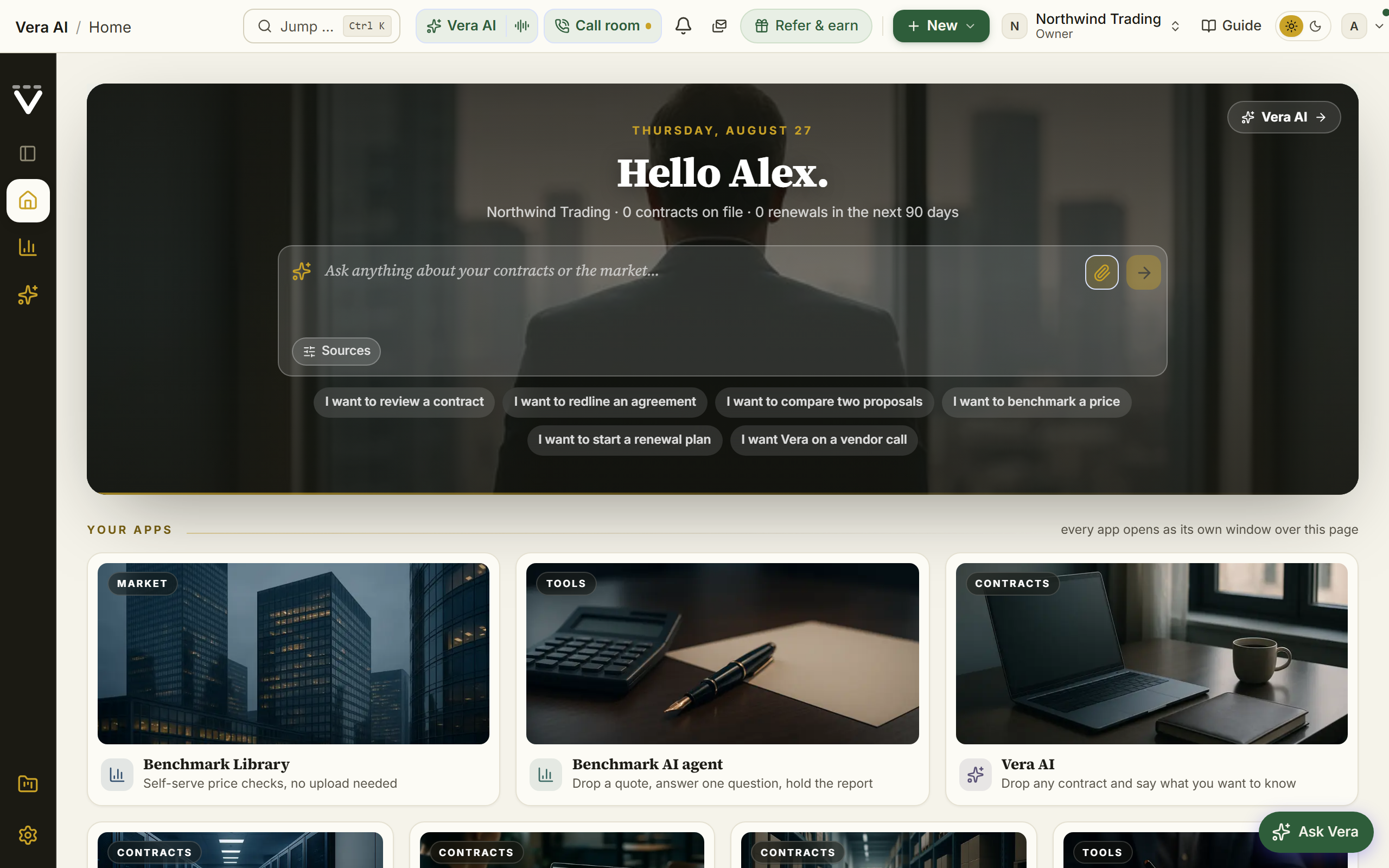
The menu on the left
The menu is your main map of the product. It groups destinations by the job you are doing:
- Contracts & documents — the document itself: proposals, agreements, clauses, and document search.
- Sourcing — future spend: intake, the RFP, scored bids, and the award.
- Renewals & deals — the deal calendar: renewals, the negotiations, the rider, and the watchdogs.
- Benchmarks & market — price checks, delivered reports, research, and the tools: All tools and the Tool finder open the whole optimizer and calculator wall from here, and the buyer community screens are listed with them.
- Spend & savings — the money: the Spend Agent, invoices, anomalies, and data health.
- Team & AI — tasks, approvals, and Vera, the AI analyst.
Six groups, two icons. The menu is the map, not the work: since August 2026 it draws Home, Benchmarks & market and Team & AI only. The two operating paths (Contract lifecycle and the Negotiation Workflow) and the four working groups (Contracts & documents, Sourcing, Renewals & deals, Spend & savings) moved to a quiet Workflows row under Your apps, one link each. The tool wall holds no icon either: open a tool from Benchmarks & market › All tools or the Tool finder, and the tool list appears beside it while you work.
Nothing was removed by the move. Each of those six still opens its own page list beside you the moment you are on one of its pages, still answers to Ctrl/⌘ K, and still has its own browse page.
On the screen
- The icons — down the left sit the brand mark, the page list button under it, Home, an icon for Benchmarks & market and Team & AI, and Reports and Settings at the foot. The active section is marked in white. Pressing an icon opens that group's page list and lands its group page.
- The page list — the page list beside the icons holds the active group's destinations in full, so nothing in a group is hidden from you unless you fold it away yourself. A dense group is cut into titled categories, and the group's browse page mirrors the same categories. Four groups read as an ordered path with numbered phase headings, the same shape as the Contract lifecycle page list: Sourcing runs Define, Go to market, Vera analyzes, then Decide and award; Contracts and documents runs Bring it in, The estate, Understand it, then Hold the line; Renewals and deals runs See it coming, Plan the deal, Run the deal, then Hand it off; Spend and savings runs See the money, Reconcile it, then Watch it. The other two groups carry small phase headings of their own: Benchmarks & market reads The market news, Benchmarks, Research, then Tools, and Team & AI reads Ask Vera, Your team, AI agents, then Advisory & support. Two browse pages differ from their page list: Team & AI opens as its own window (a screen list, a photograph for every destination, and a Delivered screen; see Team & AI), and Benchmarks & market opens as a navy stage of the group's nine apps (the photograph behind it left on 27 October 2026), each starting as its own window, with the tools and buyer community rows keeping their links in the page list and one line at the page's foot saying where they live. The tool list (shown while a tool page is open) is grouped by what you are holding rather than by which part of the product owns the tool, because choosing between two dozen tools was the hard part. It reads Reviews, Comparing two things, Planning the negotiation, Lowering the run rate, and Sizing a commitment. Not sure which tool fits your document? Upload it anywhere on the window and the chooser asks what you want done with it. No tool moved, was renamed, or was merged; the calculator long tail still lives on the All tools wall and in the Tool finder rather than as menu rows. Hover any row for a window button that opens that destination in its own window.
- The Home page list — pressing Home opens the page list that holds the whole shape of a working day, eight rows: Home, then the apps most work happens in, the Contract Office and the Negotiation Agent, then the Benchmark Library, the Contract Reader (one contract open in the reader window), Vera AI, AI agents and More. Main Apps left the page list because it is the Home page now, and Reports left it because it sits at the foot of the icons down the left; both are one press away either way. The Contract Reader and Vera AI joined it in August 2026, for the same reason as the two apps above them: a person is in those apps all day, so they sit one press from every screen rather than two groups deep. The Benchmark Library joined the same month as a shortcut: pressing it opens the library as its own window, so a price check never costs you your place. Those apps are listed here as well as in their own groups (Contracts, Renewals & deals, and Benchmarks & market), so getting back into the page you were on yesterday is one press from the page list that is already open rather than two groups away. Opening one still lights its own group's page list, so you keep the phase you were working through.
- Fold a category — every category heading in the page list is a control. Press one to fold that category away and press it again to bring it back, so a long page list can be cut down to the categories you are working in. A folded heading shows how many destinations are inside it, and each category is remembered on its own, so the page list opens the way you left it.
- Recents — your last four screens ride at the foot of every page list with a See all link, so the pages you actually use stay one click away. Recents folds like any other category.
- The More catalog — the More row on the Home page list opens the full catalog: every tool and page, searchable. A section in this manual whose destination sits outside the group page lists carries a "via More or Ctrl/⌘ K" marker on its Where line, so you know where to find it.
- Workspace summary (foot of the page list) — your organization and your role are always shown here, so you know which tenant you are in.
- Collapse — the page list opens folded since 25 August 2026, so the workspace greets you with the menu's icons and the full width for content. The page list button sits at the top of the icons down the left, directly under the brand mark: press it to bring the page list out and press it again to fold it away. Pressing any menu icon opens the page list too, and the collapse control at the page list's head still folds it. Expanding lasts your visit, and the next sign-in opens quiet again.
- On Home, All apps and Settings — Home, All apps and Settings wear the same sidebar as the agent windows (All apps since 30 September 2026, where it replaced the older icon strip and its pop-out panel). Since 29 September 2026 it lists every app: the workspace mark and Find an app (type to filter every app by name; Ctrl K searches everything), then Home and Vera AI, your Pinned apps (hover any app and press its pin; four are pinned to start), the apps you opened Recently, and All apps on the same seven shelves as Home (since 22 October 2026: Benchmarks and reports, Renewals and negotiation, Contracts and signing, Licensing and software, Spend and buying, Vendors and market news, Team and files), each folding, with only the shelf of the app you are in open, its app count beside its name; Tooling, All apps and tools and Settings sit under More. Since 30 September 2026 the sidebar wears the navy in every app, the app menu and the app's own list beneath it alike: white text on navy, the page you are on as a lighter row with a gold bar at its left edge (the title bar above it is white since 9 October 2026), and on Home and Settings your organization and role close the column. Every app's left column starts with Home and All apps, so you can always get back, and every app's title bar carries the menus, the theme switch, Full screen, Minimize, Maximize and Close and nothing else: no app name and no record line. Minimize puts the app as a tab along the top so you can open another and come back with everything kept. Full screen (since 4 October 2026, the four corner arrows just before Minimize) puts the page on the whole screen with the browser's tabs and bars out of the way, and Esc or the same button gives it back. The letters under the menu names show only while you hold Alt. Because every agent window seats the sidebar in the same place, moving between an agent, Home and Settings leaves it where it is, and only the page beside it changes. Since 2 October 2026 the sidebar on Home, All apps and Settings opens with every name showing, at the width it has inside an app. Collapse menu, the last row under More, folds it to icons, and the same row opens it again; your choice is kept on this device until you change it. Folded, it is one icon per app, the groups divided by a thin line, each app's name in its tooltip when you rest the pointer on it; the magnifier at the top opens the search for everything (Ctrl K), and a shelf opens in place as icons. On a window narrower than 1024px the sidebar is always icons.
- Inside every app (since 3 October 2026) — every app window wears one frame. Since 25 October 2026 the title bar carries the app's menus on the left, then the Sample data switch where the app has a sample, Share, Minimize, Maximize and Close. Email this screen and Take notes are rows of the Share menu, and light or dark, Zoom and Full screen are rows of the View menu (an app whose menus have no View keeps them as buttons on the bar). Vera is the tab at the right edge of the page and Ctrl J, also listed as Ask Vera in the Help menu; the bar's Talk to Vera button and the Ask Vera questions in the details column were removed so each screen has one way to her. Email is the same in every app (since 5 October 2026): press it and pick who the email is to, the vendor, your CFO or a colleague, and the email window opens beside what you were looking at, with Vera writing the draft from what the screen shows. A draft is kept for each reader, nothing is drafted from sample data, and nothing is ever sent for you. The email window has its own Minimize (since 7 October 2026): it folds to a bar at the foot of the screen with the draft kept, Vera keeps writing while it is down, and a press on the bar brings it back where it was. On Home, All apps and every other page without a window, Email is in the top bar beside Vera AI and works the same way: on Home it is written from the renewal due first, and on a page with nothing of its own to hand over the menu says the note will be general. The column down the left starts the same way in every app: the VendorBenchmark mark, Find an app (or the app's own Jump to, with its key), Home, Vera AI and your Pinned apps; the app's own sections follow, each row with its figure at the right. Recent and the six shelves stay on Home, All apps and Settings, and Find an app (Ctrl K) reaches every other app from inside one. Since 6 October 2026 the column is a little narrower, and the button beside the VendorBenchmark mark folds it to a rail of icons so the work in the middle takes the width; press it again, or Ctrl B, to open it. Folded, the rail keeps the mark, Find, Home, Vera AI and your pinned apps as icons, each of the app's rows as its dot or its first letter, and the groups divided by a thin line; rest the pointer on any of them for its name. Your choice is kept in this browser and holds in every app until you change it; with nothing chosen, the column starts folded on a screen narrower than 1,280 pixels. The details column on the right keeps every name, date and status inside it: a long value wraps to a second line rather than being cut at the window's edge. Since 25 October 2026 the same holds for the names in the left column and on the short lines under a name: a name wraps to a second line before it is shortened, and where a long one is still shortened, resting the pointer on it shows it whole. Dates read the same way in every app: Oct 25, with the year only when it is not this year (Feb 1, 2027), and a date with its countdown always as one line, Nov 23 · in 29 days. A person reads the same way too: their initials and name, or No owner in a quieter ink with Assign beside it where the app can assign one.
- On the phone — the menu button opens the same navigation as a grouped drawer. Groups fold and unfold there, each keeps its long tail behind a quiet N more row, and as you build a habit the drawer adds Used often and Recent sections below the workspace sections, so the map stays on top and the drawer still opens short instead of scrolling the whole catalog. Since 26 September 2026 the top bar on a phone carries the menu, Vera, the bell, New and your account, so it fits a phone's width; the tour, the call room, Mail and Support stay on larger screens, and Mail, Live call and Support are in the drawer.
The top bar
The bar keeps to a handful of controls; everything less frequent lives in your account menu.
On the screen
- Breadcrumb — shows where you are (Vera AI › current page).
- Waiting on you — the count each home carries beside your greeting: tasks assigned to you, approvals pending in the organization, and unread mentions. It is the same figure as the count beside My work in the menu on the left, and it links there. Renewals are not part of the count.
- Jump to… (Ctrl/⌘ K) — the command palette. Start typing any page, tool, or vendor and jump straight to it, and now run actions from the same box too: new proposal, start a benchmark, generate a negotiation brief, start a playbook, or ask Vera, each one keystroke away. Since 25 October 2026 the list is in three groups, Actions, Apps and Records, and the actions include the apps' own moves: Add a contract, Benchmark a quote, Check if a deal is good, Add a deal, Read a contract, Find a clause, Add what you own, Ask a specialist and See renewals due, and for each vendor you hold contracts with, Benchmark the vendor, Draft the vendor notice, Open the vendor deal and Email the vendor. The vendor you renew with soonest leads the empty palette; type a vendor's name for the others. A preview beside the list says what the highlighted row does and where it opens, and for a contract or a vendor shows its yearly cost, next renewal and last action. An action only opens the app at the right place with the details filled in: Email opens a draft in Mail for you to address and send, and a notice opens the renewal where the letter is drafted. Nothing is sent or saved from the palette. This is the fastest way to move around; you rarely need to hunt in the menu. A query that matches nothing always ends in an Ask Vera row carrying your exact words, so a dead end still gets an answer. Every word you type has to land on a real word of the result, so a phrase narrows instead of widening: "deal studio" returns the handful of studios rather than every page whose text happens to carry those letters. Typing go in front of a destination is understood, so "go renewals" finds Renewals rather than a page whose words include go. The list shows the fifty strongest matches. When more than that matched, a line at the foot counts the rest, and the Search everywhere row lists them all. On a trial, a benchmark row the plan does not carry wears a small lock and says Not available on the trial plan; choosing it lands in the library's notice naming the tool rather than on the tool itself, while Salesforce Sales + Service Cloud and Adobe Experience Cloud open as usual.
- Keyboard grammar — press g then a letter to jump without the palette: g d dashboard, g r renewals, g c proposals, g p the Spend Agent's Portfolio step, g s its Spend step, g t tooling, g w watch, g b benchmarking. Two more since 7 September 2026: g a brings back the last window where you left it, and g 1 to g 8 jump to that tab along the top, by position. Press ? anywhere for the shortcuts overlay with every jump grouped.
- Everything is warmed before you press it — resting the pointer on a menu row, an app on Home or a group page, a palette row or an account menu item for a moment fetches the destination in the background, so the press lands on a page that is already there. It costs nothing on a connection that is saving data or on 2g or 3g, where nothing is fetched ahead. The menu's highlight moves the moment you press rather than when the page arrives, and a loading skeleton that is replaced within a fifth of a second never shows at all.
- Human benchmark (called Ask a human until 25 October 2026) — the button with the person, left of Live call, opens Ask a human over the page you are on: a VendorBenchmark analyst reads your document or your question and answers within 24 hours. Added 20 October 2026; on a narrow bar it folds to its icon.
- Live call — the phone button with the gold dot opens the live call: Vera in your ear while the vendor talks, and the memo when you hang up. Since 8 October 2026 this is the first button after search: the Tour, the Vera AI and voice capsule, Email and the Vera drives switch left the bar (owner: a calmer header). Vera herself is Vera AI in the left menu and on Ctrl/⌘ J, the tour is on Home when one is waiting, Email stays on every window's title bar, and the drive switch rides the passenger seat once Vera has the chair.
- Notifications — the bell and the New menu left the top bar on 25 October 2026. Notifications are at
/notificationsand in Ctrl/⌘ K, and each app starts its own new work. - Refer & earn — in the account menu (until 8 October 2026 a green button beside the bells). Like the platform? Invite a colleague from there: the dialog shows your personal referral code, sends up to five personal invites, and links to the Referrals page where you track who signed up and what you have earned (10% of what a referred company spends for their first 12 months).
- Light and dark switch — the sun and moon switch beside your account menu flips the whole workspace between light and dark, on every screen, revealed as a circle of the new theme growing out from the switch. The choice is your account's appearance setting: it follows you across devices and applies before first paint on your next sign-in. The three-way picker, including the System option that follows your operating system, lives in the account menu under Theme.
- Support — since 25 October 2026 one button with two rows: Chat with the team (a person at VendorBenchmark answers, with the count of new replies) and Guide for this screen, which opens this user manual in a new tab at the section for the screen you are on (or its chapter where the manual does not cover it in depth).
- Spend category button — the small photograph in the top bar. It names the category of spend you are set up for (IT, Facilities, Services, Marketing, HR, T&E, MRO, Logistics) and switching it rearranges the workspace around that category. See Switching spend category.
- Organization name and account menu — switch organization (if you belong to more than one) and open your account menu. The account menu also carries What's new, Session activity, and the help and feedback actions (Platform introduction, Refer & earn, Report a bug, Suggest a feature, the help center & manual, and the Academy), each with a small icon in its own color and each opening inside the app, so the bar itself stays calm.
Switching spend category
The platform was built around IT and software. The spend category button widens it to the eight categories most indirect procurement teams are organized by, and arranges the workspace around whichever one you pick.
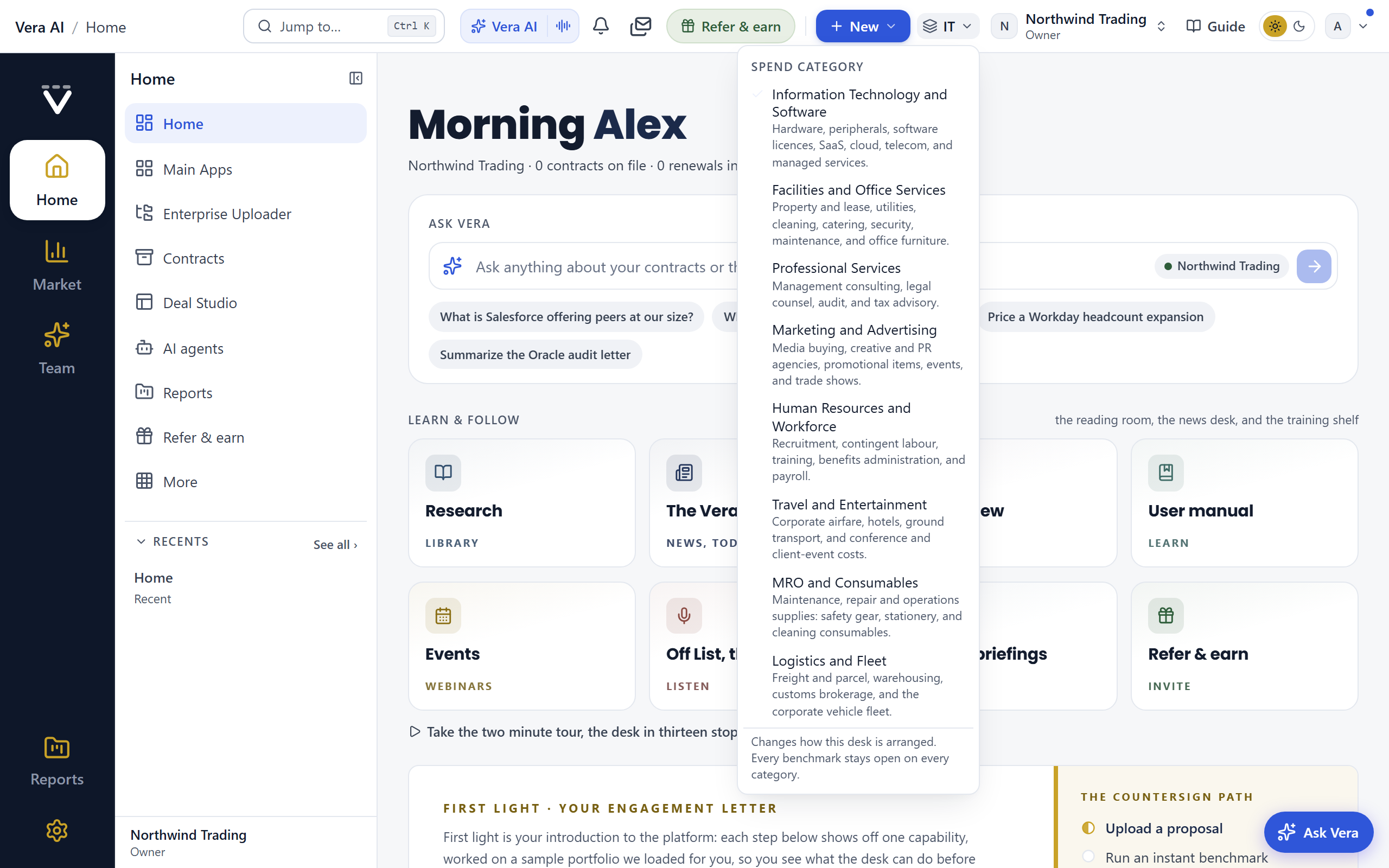
The eight categories
- Information Technology and Software — hardware, peripherals, software licenses, SaaS, cloud, telecom, and managed services. This is the category the platform opens on and the one every workspace starts in.
- Facilities and Office Services — property and lease, utilities, cleaning, catering, security, maintenance, and office furniture.
- Professional Services — management consulting, legal counsel, audit, and tax advisory.
- Marketing and Advertising — media buying, creative and PR agencies, promotional items, events, and trade shows.
- Human Resources and Workforce — recruitment, contingent labor, training, benefits administration, and payroll.
- Travel and Entertainment — corporate airfare, hotels, ground transport, and conference and client-event costs.
- MRO and Consumables — maintenance, repair and operations supplies: safety gear, stationery, and cleaning consumables.
- Logistics and Fleet — freight and parcel, warehousing, customs brokerage, and the corporate vehicle fleet.
What changes when you switch
- Your home screen opens on that category. The date over the greeting names the category you buy, and the figures and the table under it read that category's agreements. Since 27 October 2026 the greeting sits on a plain navy ground: the category photograph that stood across the top of it is gone, so nothing on Home is a stretched picture.
- The line under the greeting counts your category. It names the category and then counts what that category has on file, in that category's own words, so on Logistics and Fleet it reads "3 carrier and fleet agreements on file" rather than "3 contracts". A contract the platform cannot place in a category is not counted under any category's name, because a figure with a name on it has to be true. It stays visible everywhere else, so nothing you have filed vanishes from view. On a category you have not filed anything under yet, the line says so plainly and then names what the whole workspace holds, so an empty category reads as an opening rather than as a broken page. The renewal figure beside it counts your category's own renewals whose notice date falls in the next 90 days, on your workspace's own calendar and leaving out closed renewals, the same rule Renewals uses, and where your category has none due it says so rather than printing a zero. Beside the counts, every category except Information Technology carries a gold link, Read the <category> negotiation playbook, which opens that category's playbook in the research library: where the money actually moves in that category, which clauses carry it, which suppliers can concede at all, and how to read it beside the supplier curves.
- The benchmark shelf leads with your category's real suppliers. Facilities opens on ISS, Sodexo, Compass, CBRE, JLL and Aramark; Logistics and Fleet on DHL, Kuehne and Nagel, DSV and Maersk; Marketing on WPP, Omnicom, Publicis and Dentsu; Human Resources on Randstad, Adecco and ManpowerGroup; MRO on Grainger, Fastenal, RS and Bunzl; Travel on Marriott, Hilton and Accor. Each of those carries its own curve.
Your category's suppliers sit at the top of the library in the benchmark window, above the A to Z, and every vendor still keeps its row at its own letter below it. Nothing is moved out of reach.
- The upload picker learns your vocabulary. The contract type list gains the shapes your category actually files, so a freight forwarding agreement, a cleaning services agreement or an audit engagement letter has its own name instead of landing in Other. The vendor list gains every supplier that category benchmarks, from Kuehne and Nagel and DHL to ISS, Sodexo, CBRE, Grainger, WPP, Randstad and Deloitte, so a supplier you can benchmark is always one you can pick.
- The screen help speaks your category. The Guide and the screen assistant describe what a page does for the spend you actually buy: on Facilities a page reads "helps you buy facilities services at the right price", on Logistics and Fleet "logistics and fleet". Help for tools that genuinely are about software, the Microsoft 365 optimizer or the SAM export, keeps its own vocabulary, because swapping the word there would make it wrong rather than inclusive.
- Tools that only make sense for software leave the navigation. Vera Licensing, the cloud cost optimizer, M365 optimization, the Agentforce optimizer and VCF licensing appear on Information Technology and Software only, because an M365 optimizer is the wrong instrument for a cleaning contract rather than a lower priority one. They keep their place in All apps & tools, in the command palette and on their group pages, so nothing is harder to reach.
- Specialists offers the seats your category can use. The eight vendor negotiators and the three seats built on software's own mechanics (license audit defense, cloud consumption, AI pricing) appear only on the categories that buy them, so a facilities buyer is not offered an Oracle negotiator for a cleaning contract. The seats that are about the deal rather than the product stay on every category: the lead negotiator, contract counsel, the renewal project manager, the value and business case, security and data protection, the benchmark analyst, vendor intelligence, the executive sponsor and the vendor's chair. A vendor seat shows on every category that buys that vendor, so Human Resources keeps its Workday negotiator. The full roster is always available under Staff your next call.
- The Learn wall opens the research library on your category. Research on the wall carries the category you are working in, so the library opens on the documents written about that category's suppliers, read from each document's vendor. Clearing the cut in the window returns the whole library. Where a category has no research yet, and several do not, the library says so plainly and shows the whole shelf rather than an empty one.
- Vera's openers speak your category. The six suggested questions in Vera conversations change to your category's jobs: a facilities manager is offered "I want to benchmark a cleaning contract" and "I want to review a lease", a logistics manager "I want to benchmark freight rates" and "I want to check a fleet lease", Professional Services "I want to review a statement of work". Information Technology keeps the six it always had. They sat under the ask bar on Home until 31 August 2026 and moved into her window with it.
- The tools that lead change, on the home screen and in the launcher. Your apps on the home screen reorder so your category's tools come first: Professional Services opens on the SOW and MSA decoders, because a consulting rate is negotiated once and then leaks away through scope; Logistics and Fleet and MRO and Consumables open on sourcing, because those categories re-tender rather than renew in place; Facilities and Travel open on the spend optimizer. Two tools that are not among Your apps by default (compare proposals and the spend optimizer) are added when your category leads with them. Sourcing has been one of Your apps since 22 September 2026, so a category that leads with it moves Sourcing to the front rather than adding it again. Nothing is removed: every app you had stays, and Information Technology sees the grid it always saw. Since 4 October 2026 the Start here apps (five since 15 October 2026) keep their numbered order at the top whatever your category leads with; the reordering moves the Day to day shelves beneath them.
- Each category has its own Home (since 5 October 2026), starting with Start here. Outside Information Technology the five steps are the Contract Agent (upload your agreements and read them clause by clause), Benchmarks, the Spend Agent, then the category's way to act: the Deal Agent for Facilities, Human Resources and Travel, which renew in place, and Sourcing for Professional Services, Marketing, MRO and Logistics, which re-tender, then the Agreement Studio (since 15 October 2026), every agreement on one board. Each step's line names your own paper, for example "Upload your carrier and fleet agreements".
- Software only apps start off on Home. What you own, License position in 24 hours and the Vendor Radar are off on every category that does not buy software. Human Resources keeps What you own and the Vendor Radar, because HR systems are licensed software. Each one stays a press away under Choose apps, and one you switch on stays on.
- Software sections leave Home. The Get started checklist (which runs on a software sample) and the Read and watch shelf of software publishers are not drawn on those categories. Human Resources keeps the shelf.
- The agents speak your category (since 6 October 2026). Outside Information Technology, the Benchmark Agent, the Contract Agent, Sourcing and Vera (in the Spend Agent, the Deal Agent and every other seat) read your paper as a buyer in your category: they price it in the category's own units (per square foot or per site for Facilities, day rates by role for Professional Services, markup on pay rate for staffing, rate per lane or per kg for Logistics), check the terms where that category's money leaks first (indexation above inflation, rebates an agency keeps, fuel surcharge formulas, invoice prices above the catalog), and group spend by the category's own lines. They do not talk about seats, licenses or true ups unless the paper itself is a software agreement. The examples in their fields change too: the vendor examples name a supplier your category buys from, the Deal Agent asks for sites, workers or shipments rather than seats, and Sourcing suggests a project of your kind. Information Technology keeps every word it had.
- The agents' own screens follow your category too (since 6 October 2026). Outside Information Technology:
- The Spend Agent groups suppliers it cannot place in a software group under their own category (Facilities and Office Services, Logistics and Fleet and so on) rather than under Services and other, and its levers read Unused capacity and Overlapping suppliers instead of Unused licenses and Overlapping tools, in the window, the report, the board deck and Vera's reading of the screen.
- The Contract Agent's third view is Service compliance (what is in scope and how it is counted: service levels, volumes, usage and overage) instead of License compliance, and the Edit sheet's starter clause library is your category's.
- The Deal Agent's Terms step and its deal report carry eight protections for your category: the general ones from the Fair Renewal Rider (the uplift cap, benchmark repricing, co termination, no automatic renewal), the reduction right in your category's words, a reorganization clause, and two where your category's money leaks, for example service credits and an extra work rate card for Facilities, a fuel index and an accessorial schedule for Logistics, a fixed markup and conversion fees that fall away for staffing. The published rider itself is unchanged.
- Sourcing's RFP brief shows example answers for your kind of purchase, and the template library opens on a template written for your category (Facilities services, Professional services framework, Media or creative agency, Temporary staffing, Travel management, MRO catalog supply, Freight and parcel lanes).
- The line under the greeting counts your category, in its own words, and the Workflows row leads with your category's sections.
- The whole top of Home is your category's (since 5 October 2026). The date over the greeting names the category (the category's photograph, which stood beside the greeting until 27 October 2026, is gone). Due first, the four figures and Your contracts read only that category's agreements, placed by their contract type or supplier, so a Microsoft or Oracle agreement never stands on a facilities or logistics Home. An agreement the platform cannot place stays off every category's Home and is still on Information Technology and in Contracts. The table is named for your paper, for example Your carrier and fleet agreements, and with nothing on file Nothing due yet asks for that paper. Information Technology reads the whole estate, as it always has.
- The menu opens on different groups, and the dashboard orders its widgets for that category. Your own folds and your own saved dashboard order always win over both.
- The five setup questions the platform asks a new user change to that category's, so a facilities manager is asked about property and utilities rather than about cloud optimization.
What does not change
- Every benchmark stays open on every category. The software benchmark library is universal: switching to Facilities does not close the Microsoft or AWS benchmarks, it only stops them leading the library. The find field, Ctrl/⌘ K and search keep reaching everything from wherever you are standing.
- Nothing you have already filed moves. A contract keeps its type, its vendor and its place. The switch is a lens over the workspace, never a filter on your records.
- It is yours, not the organization's. Your colleagues keep whatever category they chose. Switching does not change anyone else's screen, and it changes nothing about permissions.
How to use it
- Press the category button in the top bar. It carries the photograph of the category you are on.
- The gallery opens: the eight categories, each with its own photograph and what it covers, and the one you are on marked Current. Pick one and the workspace rearranges behind it.
- Open the benchmark window and read the list at the top of the library: it is your category's vendors, first.
- Switch back at any time. The choice is remembered per user and follows you to your next sign-in.
Notes
- The button is hidden when a workspace is deliberately narrowed to a single category, in the same way the Switch organization list is hidden for people who belong to only one organization.
- Category owners who buy across several categories should switch rather than split: one workspace holding every contract is what makes the Spend Agent worth reading.
Apps in their own window
The work area is the width (since 25 October 2026). Inside a window, the sidebar shows every name beside its icon on screens 1280 pixels wide or wider and folds to icons below that (names on hover; fold or unfold it and the choice is remembered in every app). The details column opens closed, as a Details tab at the right edge: press the tab or I to show it, and press the button at its top or I again to fold it. Whether it is open is remembered in this browser and holds in every app. On a 1440 pixel laptop the work column is about 1,100 pixels with the names showing and the details closed.
Any destination can open in its own window over the page you are on, instead of navigating away. The window is a near full screen surface with one light titlebar in the sidebar tone (navy until 24 September 2026; the light frame since 9 October 2026) and nothing else: the page inside it runs edge to edge, exactly as it does as a full page. The titlebar names where you are (the destination's icon, its group, and the page name), and among its buttons carries these three: Apps lists every application the window can hold, so moving from one tool to another is one press; Jump to opens the palette (Ctrl/⌘ K) that reaches every tool; and Ask Vera opens the same assistant dialog you have everywhere else, right over the window, with its Forward, Collaborate, and What next toolbar on the popup's outer edge, each option opening to the popup's right. The side menu stays folded behind the menu button at the far left of the bar, and there is no tool list inside the window; you move with the menu button, Apps, Jump to, and the links on the pages themselves, so moving tool to tool never loses the page underneath.
The agent windows. Since 27 September 2026 every agent window (the Negotiation, Research and Benchmark agents, the Research and Benchmark libraries, the Contract Agent, the supplier pages and the tools that open in the same frame) wears the house look. The title bar and the status line are white, closed by a gold rule (navy with the step's color drifting through them until 9 October 2026) and a thin gold rule underneath. The tabs are numbered steps in capitals, each with its own color: the open step is written and underlined in it, and the window takes that color for its section headings, its glow and the top edge of the panel on the right. Section headings are navy bands shading into the step's color, and the head of each screen carries its title in capitals with a soft glow of the same color behind it. The panel on the right lists its Moves as cards, each with a colored edge, the first ringed in the step's color with a soft glow; a move that deletes something keeps its red. The colors stay enterprise blues, teals, greens, amber and slate; red still means risk.
Continue, Share and Saved (since 25 October 2026). Every window on the frame carries five parts the same way. Back and Continue sit at the bottom right of the work column on every window with numbered steps: Continue names the step it goes to, Finish stands in its place on the last step and closes the window (your work is kept, see Nothing typed is lost), and when a step has an action of its own in its head (Run, Upload) that action keeps the one filled button and Continue stands outlined beside it. Share sits beside Email on the title bar and opens three rows: copy the link to the screen you are on (a colleague in your organization opens it signed in), email that link, Screenshot this screen (since 25 October 2026: a picture of the window you are in, shown before anything happens, with Email it, Outlook and Gmail, which copy the picture and open a new email with the link to the screen so you paste the picture in with Ctrl V, Copy picture and Download; nothing is uploaded), and, where the app publishes a read only page, make a read only link anyone can open. The status bar ends with one live line (since 25 October 2026): what the window is doing while work runs (for example Vera checking 12 of 48 contracts), Saving while a write is on its way, then Saved with the time, for example Saved 14:02, so you can close a window knowing nothing is lost. A small dot before it pulses only while work runs. The sidebar's first group of the app's own is Continue where you were: the last five sessions this device set aside in the app, newest first, with when; a press brings that session back (the File menu keeps the full list, other devices included). Type you read is 15 pixels and rows and controls are 36 pixels tall. Print or save as PDF on the File menu (since 27 October 2026) prints the window as a document: the screen's head at the top, then each panel in reading order, one under the other, never split across a page. The title bar, sidebar, steps, details column and status bar are left off. Choose Save as PDF in the print dialog to keep a file.
How a window answers (since 25 October 2026). A press on a row in the left menu, a step or another app lights that row at once, and a thin gold line runs along the top of the window until the next screen is drawn, so you always know the press was taken. While a screen loads you see its outline, a header row and the rows it will hold with a slow sweep across them, never a blank page or a line of text. The figures in a screen's head count up once the first time you open it in a session (never again on a reload, a step change or a refresh), the Benchmark Library's charts draw from the axis the first time you scroll to them, and the first ten rows of a panel arrive one after another. Notices appear at the bottom right, at most three at a time; a thin line along each shows when it closes, pointing at a notice holds it, and Undo sits on a notice whose change can be undone. If your computer is set to reduce motion, the line stands still and nothing counts, draws or slides.
One palette (since 26 October 2026). Every app window reads the same colors and sizes:
- Text comes in three colors: the main ink, a secondary ink and a quiet ink, each readable on every surface in both themes.
- Surfaces are three: a gray ground, white panels for the work and the surface menus and drawers float on. The details column on the right sits on the ground, so the work is the one bright area.
- Selection is a light tint with a dark bar under it, on a tab, a filter, a segment or a step; the one filled blue button is always the action.
- Section heads are the title, a quiet count and the action at the right over a thin line. A status is a pill with a dot; a count is a plain number.
- Gold is the line under the title bar and the color of needs care soon; money prints in plain text. On the navy status bar, text is white or gold, and urgency is a gold dot.
- Icons are 16 pixels in rows and buttons and 20 pixels in heads and the left menu. In dark mode the frame is a step darker than the ground and panels a step lighter.
The look. Since 24 September 2026 every window, from Home and the Contract Reader to Deal Studio and the call room, opens in the Studio look: the window is a soft gray ground, the title bar, the menus and the list of pages sit on that ground, and the page itself is one white panel with rounded corners. The page you are on is raised onto a white row in the list, section labels read in plain sentence case, and the whole platform is set in the Geist typeface. The colors that mean something (green for done and savings, gold for caution, the status colors) are unchanged, and focus rings and selections are the platform green rather than your Windows accent color.
Twelve workspaces at a time
The window holds up to twelve open workspaces at once, six on a computer with 4 GB of memory or less (three until 9 September 2026, six until 23 September 2026). Open a second destination while one is already up and it takes its place beside it as a tab along the top rather than replacing it, each tab named after what is in it (the deal, the record, the app) rather than after its route. Click a tab to switch. Nothing restarts when you do; each workspace keeps its scroll, its half-written text and any analysis still running, so you can leave a benchmark working in one and read an agreement in another. Each tab has its own close, and closing the last one closes the window. Past twelve, the app you looked at longest ago parks back to its tab and reopens on its next press.
Open a destination you already have open and the window brings that workspace forward instead of starting a second copy of it. At the limit with no app to park, opening one more takes over the workspace you are looking at, never one of the others.
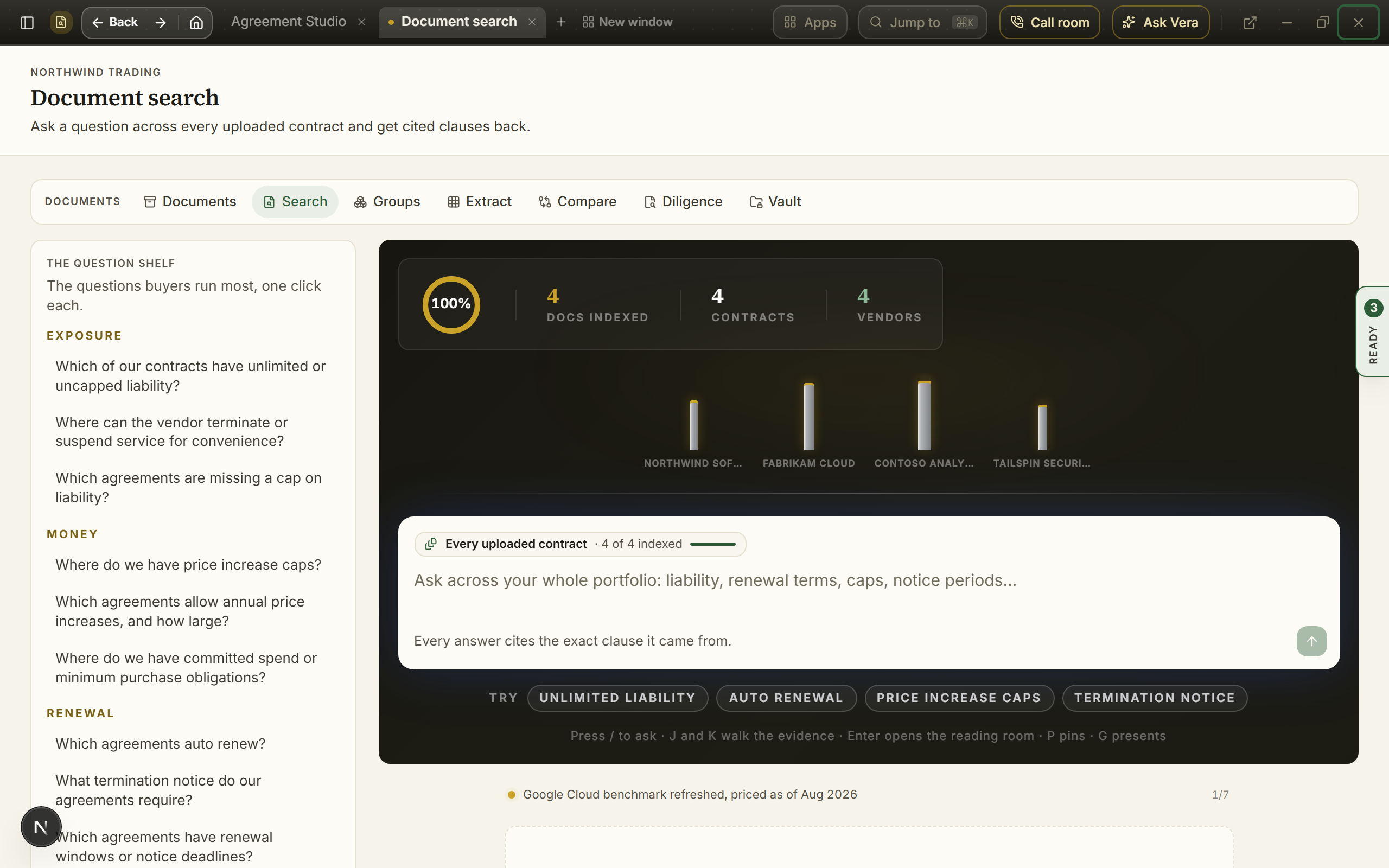
Opening one
- From Home and the group pages — the apps under Your apps (a short last row shares its width, so the grid never ends on an empty slot), the apps on the group pages, and the window button on any page list row all open their destination in the window. Resting the pointer on any of them first warms the window's own address, so a window you hovered for a moment opens with almost no boot.
- From Jump to… (Ctrl/⌘ K) — highlight any destination and press Alt+Enter, or click the small window icon on the highlighted row, to open it as a window instead of navigating. Press Shift+Enter, or the hand icon beside it, to open it with Vera driving: the seat opens with the take the wheel opening already said.
- From a link — the window records itself in the address bar (
?app=), so a copied link restores the same window for a colleague on arrival. - Some destinations always open this way — the Enterprise Uploader, the Agreement Studio, the Contract Agent, one window for the contract, the MSA and the statement of work, are applications rather than pages, so they open as the window however you reach them: the menu, the Home page list, a link in What's new, a bookmark, a typed address, or a link a colleague sent you. Add
?full=1to the address if you ever want the plain full page instead. - Five destinations draw their own window — the Contract Management Portal, the Negotiation Agent, the Contract Reader, Document Agent and AI agents open straight into a window of their own, with nothing loading behind it. They carry their own titlebar rather than the frame described below, with a labeled Minimize beside Maximize and Close, and closing one returns you to Home.
The window controls
- Minimize, maximize, and close sit at the top right of the titlebar, in that order, as quiet monochrome buttons. They keep working while a dialog is open inside the window: the title bar stays above the dialog rather than being dimmed with the rest, so putting an app down never means dealing with the sheet in front of it first. There is exactly one close button, and it turns red only while you hover it, so nothing else on the bar can be mistaken for it. Maximize toggles between the whole screen and a smaller restored size (double-clicking the titlebar does the same). Since 23 September 2026 the Maximize in a window's own title bar, and in its View menu, does the same thing, and it reads Restore while the window stands at its full size. Since 15 October 2026 every app, Mail included, opens at the whole screen, edge to edge under the taskbar, whatever size you last left it at, and its loading screen draws the window at that size so nothing jumps when the app lands. On the restored size a drag corner appears at the bottom right: drag it to set the size yourself, and Restore brings that size back for that app. On the phone the window always runs edge to edge.
- Zoom is in the View menu of every app on the shared frame since 25 October 2026 (Zoom in, Zoom out and Actual size with the figure it is at); an app whose menus have no View, and the older windows, keep it before Full screen on the title bar (since 4 October 2026), drawn as a magnifier. Press it for a small sheet:
−and+step the window's work from 80 to 150 percent and the figure between them sets actual size;Ctrl +andCtrl −do the same from the keyboard andCtrl 0sets actual size, while the browser's own zoom stays on its menu. The sidebar, the inspector and the title bar keep their size, and the figure is remembered per app in your browser. The Benchmark Library's zoom sits at the right of its status bar instead, on the same steps and keys. - Full screen is a row of the View menu (F11) in every app on the shared frame since 25 October 2026; an app whose menus have no View, and the older windows, keep it just before Minimize on the title bar (since 4 October 2026), drawn as four corner arrows that turn inward while it is on. One press puts the whole page on the screen, the browser's tabs, address bar and the system taskbar out of the way, and it works the same when the app is open over another page. Esc or the same button gives the screen back. The Contract Agent's button runs its own full screen, which also sets the analysis larger, and the Contract Office keeps its worded Full screen button and its F key. The button is not shown on a phone, where the window already fills the screen, or on a browser that cannot go full screen.
- Minimize parks the window as a tab — a quarter-second flight carries the window up to its tab along the top of the screen, and the page underneath becomes fully usable again. Everything inside the window (scroll position, half-written text, a running analysis) stays exactly as you left it. While a run inside the window is still working, its tab carries a spinner and the word Working, and it changes to Finished when the run lands, so you can watch it finish from outside. Press the tab to bring the window back; the tab's small cross discards it. See the taskbar below.
- Esc and clicking outside minimize too — neither closes the window. Your work parks on the taskbar with everything intact, and only the close button actually closes. With the palette or the Ask Vera dialog open, Esc closes that layer first and the window stays.
- Pop out — the arrow beside close moves the workspace into a window of its own: its own taskbar entry, snappable beside another application, and completely independent of the main window, so navigating, reloading, or closing the main window leaves it standing. The in-app window closes behind it, because this moves the workspace rather than copying it. In the desktop app it is a real application window; in a browser it is a separate browser window, and if your popup blocker refuses it you get the plain full page in a new tab as before. Pop back, at the right of the page name across the top of the popped-out window, closes it and leaves you where you were. The popped-out window carries its own Vera dock, so the assistant is one press away there too. This is what to reach for when you are taking a call: see the live call.
- The menu button — first on the bar, at the far left. The window runs full bleed and has no navigation menu of its own, so this is where the whole map lives: every destination grouped the way the menu on the left groups them, with where you are marked Here. An application opens as another tab beside what you were doing; an ordinary page opens in the tab you are standing in. Escape or a press outside closes it.
- The live call is on the bar — a named Live call button sits beside Ask Vera on every window, and on the platform header on every other screen. It opens the live call as another tab beside what you were doing, so reaching for it mid task never costs you the task.
- New window — beside the plus on the title bar. It opens the platform in a tab of its own and leaves the workspace you were in as the tab beside it, so you can move between the two whenever you like. Opening an ordinary page any other way retargets the tab you are standing in, which is right when you mean to move on and wrong when you mean to look something up and come back.
- Your reports, on the right edge — a shelf outside every window holds your ten most recent reports. It stays put when a window opens, closes or is minimized, so a brief that finished while you were somewhere else is one press away rather than something to go looking for. Anything written since you last opened the library is marked New, with the count on the handle, and the count clears when you open it rather than on a timer. A minimized window parks as a tab along the top of the screen instead, clear of this shelf.
- Tabs — every workspace the window holds is a tab along the top of the screen, beside every other app you have open (see the taskbar below). Each tab is a live workspace with its own frame, named after what is in it, and closable on its own, so a renewal and an intake run can sit side by side and you click between their tabs. The title bar names the workspace in front and carries a + for opening another beside it. Until 4 September 2026 the window drew a second row of the same tabs on its own title bar.
- Moving inside the window — jumping to another destination from the palette is an instant in-window transition rather than a page reload, and while a page loads the window shows the destination's name and glyph on the navy stage instead of a blank canvas.
- Upload a document on it — dragging a contract onto an open window opens the same upload chooser you get everywhere else, and it works whether you land on the app itself, on the titlebar, on the navy stage around it, or on the taskbar. The chooser paints over the window, so what you pick is always the front thing on the screen. A screen that runs an upload lane of its own, the Enterprise Uploader among them, still takes the document itself rather than opening the chooser.
The window menus
Since 1 September 2026 every workspace window that draws its own frame carries a menu row under its titlebar, the way a Windows application does: File, View, Team, Learn, and Help, opened by click or with Alt plus the underlined letter, sliding between menus on hover. Windows with their own verbs add them to these five (the Benchmark Library's Deal menu, the Research Agent's Alerts), and the five stay the same everywhere so your hands learn them once.
- File — open this window in its own browser tab, copy a link to it, print the view, close. Windows add their own file verbs above these: Specialists adds Staff the call and Open the live call, the Documents AI Agent adds copy a link to the current ask.
- View — maximize and dark mode, plus the window's own items where it has them: the Research window's coverage map and inspector live here.
- Team — the collaborative menu, the same on every window: Copy a link for a teammate puts the exact screen in front of somebody, and Draft the email about this window writes the message for you rather than leaving you a blank compose window. The sheet offers a draft per reader, for a colleague (worth a look), for a teammate (take this from here), and for your manager (where this stands), and windows with something specific to say add their own, the briefings library leading with its newest film. Pick one, edit it in place, then Open in your mail app to send it from your own address, or Copy the email to paste it anywhere; nothing sends from the sheet itself. Ask the specialists about this screen (it wears your advisor's name once you have named them) opens a specialist with your screen as the first line of the conversation; Team activity and Invite a teammate are one press each.
- Learn — what the platform holds about the thing you are looking at: the research library searched for this window's subject, the two or three briefing films that actually match it (press one and it plays), and this exact screen's section of the user manual. The matches come from the same picker the voice assistant uses, so the menu and the seat recommend the same film.
- Help — Walk me through this screen opens a live line where Vera teaches the window the way a colleague at your elbow would: two minutes, one part at a time, on your own data, driving what the tools can drive and pointing at the rest, and it follows wherever you steer. Below it, this screen in the user manual, and About, which says in a paragraph what the window is for.
The first visit to any window makes one quiet offer, at the right of the menu row: first time here, take the two minute walk-through. Yes starts it, the cross declines it, and either answer is remembered per window on your profile, across devices, forever; the offer never repeats and never becomes a notification or an email.
Menu items act or navigate; none of them quietly changes a setting. Alerts and preferences only open the screens that own them, so nothing is ever switched on by accident from a menu.
The taskbar
Along the top of the screen, the taskbar holds your tabs the way a browser's tab row does: every app you have open or have put down, side by side, so you can move from one to another. It appears as soon as there is a second app to move to, or one you put down, and disappears when the last tab goes; the page and every window start below it rather than sliding underneath. With one app open and nothing put down, it stays hidden (since 25 September 2026): the window's own caption carries its minimize and close, and leaving the app for Home no longer shifts the whole screen up by the height of the strip. Until 3 September 2026 it was a small bar along the foot of the screen.
- How it looks. Since 24 September 2026 the taskbar is light, in the sidebar tone: the app you are looking at is the white tab, open onto the window below it, and the apps you put down sit beside it as quieter tabs with a thin outline.
- What is on it. The app you are looking at, drawn as the lit tab. Apps you minimized. Workspaces you closed, which stay as tabs until you shut them rather than vanishing after a few seconds. Up to eight at a time; the oldest is removed first.
- Press a tab to go to it. A minimized app comes back exactly where it stood, at the same report, the same document, the same half-typed note. A closed workspace opens again at the address it was closed at. From the keyboard, g then the tab's position (1 to 8) does the same press, and g a brings back the last window whether or not it has a tab.
- Press a tab and that app is what you see. The tabs keep one thing in front: opening a window from a tab puts the window already open down first, and bringing a workspace forward parks the window you were standing in beneath it, so the lit tab is always the thing on the screen. Since 23 September 2026 you go straight from one app to the other; the page no longer passes through Home on the way.
- A press is a swap, not a reload. Since 9 September 2026 the first press on an app's tab keeps that app alive behind its tab, exactly as it drew itself, and every later press swaps it in with no request and nothing rebuilt: the register you were reading, the document you had open and the search you typed are still there. Until then each press loaded the app again. Up to twelve apps stay live at once, six on a computer with 4 GB of memory or less; past that, the one you looked at longest ago parks back to its tab and reopens on its next press. Minimize and Close inside a live app work as they always did, and a link from one live app to another opens it live beside the first. Since 2 October 2026 the left menu inside an app does the same: in an app that is open as a tab, the app you pick opens beside the one you are in, and one already open as a tab comes forward exactly where you left it. Until then the menu turned the tab you were in into the other app, so the app you left had to load again on its next press. A typed address, or the menu on a page that is not a tab yet, still opens the app as a page until its tab is pressed.
- No loading screen between tabs. When the app behind a tab is not live yet (the first press after a reload, or an app parked to make room), the app you are in stays on the screen and the tab you pressed lights up with a small gold spinner; the moment the other app has drawn itself, the two swap in one step, the way a browser tab does. A link from one app to another waits the same way. Since 2 October 2026 a thin line runs under the tabs (along the top of the screen when there are none) from the press until the app is shown, so you can see the press was taken, and pressing the spinning tab again changes nothing: it keeps loading, where a second press used to stop it. Press the tab you were on to stay where you are; the app you asked for carries on loading behind, so its next press is instant. An app with nothing to show after two and a half seconds comes up under its loading screen instead of as an empty window. Until 23 September 2026 each of these presses showed a loading screen with the app's name first.
- Parked apps are kept ready. While you work, the platform wakes the server behind every app parked as a tab along the top of the screen, one at a time and at low priority, so the first press on one does not wait for its server to start, which could take up to three seconds after a quiet spell. It readies each app's front screen, never the record the tab is on, so nothing is signed or recorded on your behalf, and it pauses on a data saver, on a slow connection and while you are away.
- Tabs keep their place. A tab stays where it opened until you shut it, the way a browser's do: the lit tab moves to whichever app you are looking at, the row itself does not. A new app joins at the right end, and a tab you shut gives its place up, so the same app opened again arrives at the end rather than in the gap it left. The order is remembered on this device for each organization, so it is the same tomorrow. Until 7 September 2026 the app you were looking at jumped to the front of the row on every switch, so the tabs read as a different set depending on where you stood.
- Walking away keeps the tab. Leave an app for another by the menu, a link or Jump to and its tab stays where you left it; only its own Close, or the cross on its tab, takes it off. Opening a self-drawn window from inside a workspace no longer reloads the page, so the workspaces behind it keep running.
- A put-down tab looks like a tab. It sits as a lighter tab with its own edge, and the app you are looking at is the white one.
- Press the tab you are on to put it down. The lit tab carries a small dash: pressing it is the same gesture as the Minimize button in the app's own header. A double click on a tab opens the app and leaves it open: since 2 October 2026 a press made in the first half second after a tab lights, or before it lit, is never read as putting it down.
- Each tab is a real tab. The size a browser draws them: the app's icon, its name, and the report or document under it, with its own small cross. Tabs narrow before the row scrolls, so a full set of tabs still fits the screen.
- Press the small cross to close. That is the app's own close, so anything it would warn you about, it still warns you about.
- A tab says when its app is working, and when it has finished. Since 2 October 2026 the tab of an app that is reading a document, running a benchmark or writing a brief carries a spinner and the word Working beside its name (since 27 October 2026 a tab is one slim chip, the app's icon and name, with the app's own line in its tooltip), whichever app you are looking at, so you can start a run and go and do something else. When the work lands while you are in another app, the tab changes to Finished with a tick, and keeps it until you go back to that tab. A run you watched land leaves no mark. It works for an app you put down or walked away from as well as one that is open behind another: Contract Agent reads, benchmarks and Vera briefs are followed on the server, so the tab still knows after the app itself has left the screen. Until then the one spinner on the row sat on whichever tab was in front, and nothing said that the work had finished. The marks are kept until you reload the page; the runs tray on the right edge keeps its own count of finished runs.
- The tabs sit above the windows. The top bar, the menu and every window start below them, so you can reach a tab from inside an app rather than only between them, and a tab is never covered by the thing it opens.
The tabs are per browser and per organization: they are a record of what you have on the go on this device, so switching organization switches them.
- Apps switches applications — the Apps button on the titlebar lists every application the window can hold: the apps, the three decoders, and Second opinion, grouped the way the menu groups them. The application you are standing in is marked Current, one already open in a tab is marked Open, and picking either brings it forward rather than opening a second copy. Picking a new one opens it as another workspace, so the tool you came from keeps your place. And the document moves with you: a document you handed one tool in the last few hours is offered by the next tool's upload stage, read with one press and no new upload. On the phone the palette carries this job.
- Jump to opens on your own work — press Ctrl/⌘ K inside the window and it opens on three short sections before you type a thing: Carry on, the last few screens you worked in and how long ago; Your vendors, the suppliers you hold agreements with, each showing when it next renews; and the rest of the group you are standing in, so the neighboring tools are one press away. The row you are already on is marked Current. Start typing and the whole platform is reachable again, every tool, report, page and vendor benchmark. Matches are counted beside the box, and the keys are written along the foot: arrows to move, Enter to open, Esc to close.
- On a phone — the title bar carries the page name and four full sized controls: Jump to, Ask Vera, minimize and close. There is no keyboard shortcut hint and no pop out, because neither belongs on a touch device.
- Every app window on a phone (since 25 October 2026, below 768 pixels wide): the window is the whole screen. The strip of open apps and the Minimize, Maximize and Close buttons are not shown. The bar at the top carries a back arrow, which puts the app down and returns you to Home or the page that opened it, the app's name, the Sample data switch where the app has one, and a menu button that shows the app's menus as a row under the bar. The title sits on its own line and wraps, its status under it, then the facts two to a row. The head shows its main button and More, which lists the other actions under it. Tables show each row as a short block of label and value, with the row's action at the end. A view switch or a row of tabs wider than the screen, such as the Benchmark Library's Simple, Standard and Advanced, scrolls sideways in its own row. The bar at the foot of every page, Home, My work, Vera, Search and More, sits at the foot of every app window too, and the page scrolls above it. Vera opens her panel; her tab on the right edge of the screen is not shown on a phone. A larger screen is unchanged.
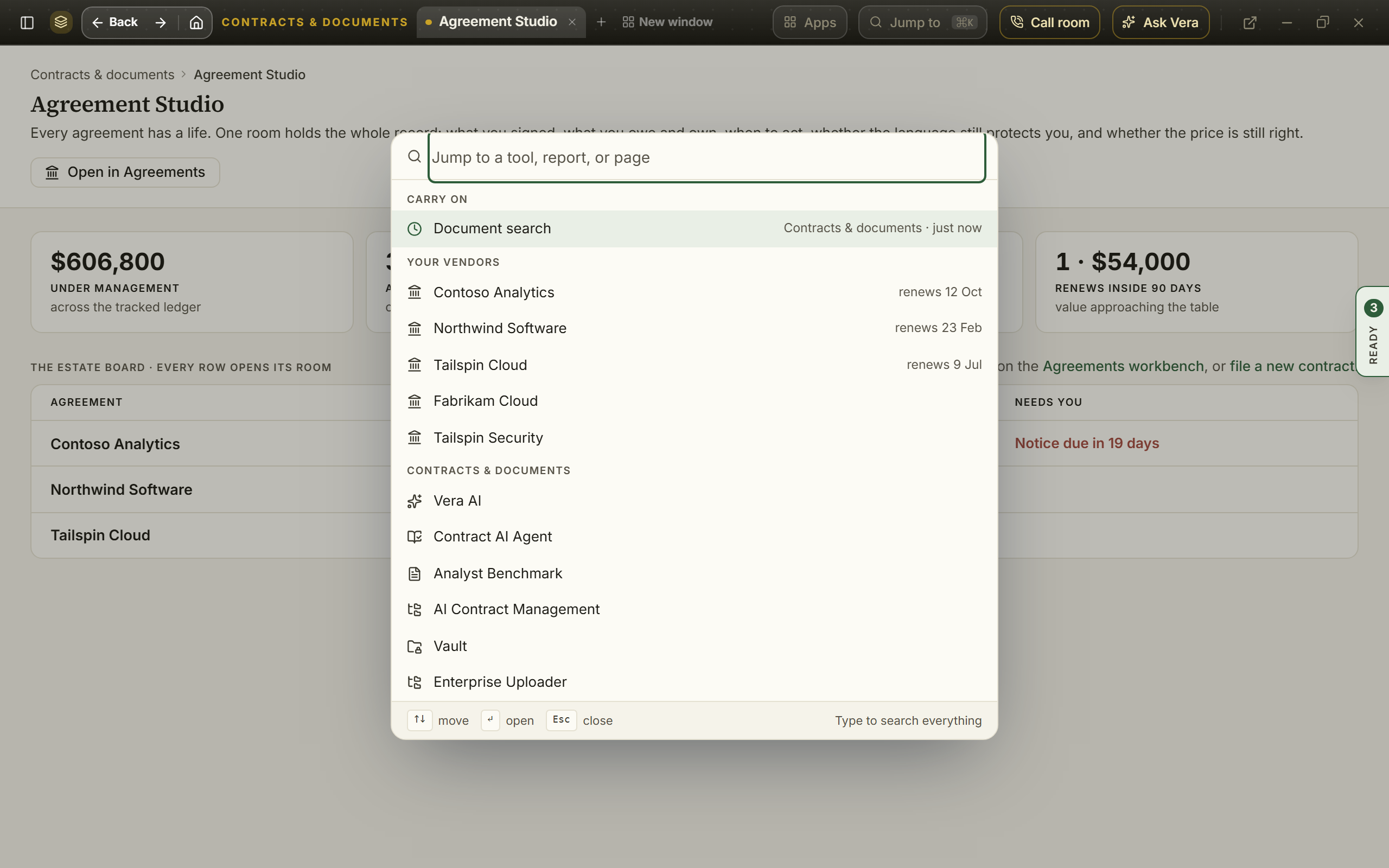
- The way back — once you have moved off the screen the window opened on, a second line appears under the titlebar reading Agreement Studio / where you are. The app's name is pressable and returns you to it, so you never have to leave the window to get back to where you came in. On the window's own front screen the line is not there, and the bar stands alone.
- Back and forward work — your browser's back button steps back through the screens you visited inside the window, one at a time, and forward returns. It only leaves the application from the first screen, so back is never the thing that closes your work.
- Closing takes you somewhere — close returns you to wherever you opened the window from, or to your home screen if you arrived by a link. It does not leave you on the same screen without its chrome.
- Closing asks when there is something to lose — if the workspace holds unsaved work or a run that is still going, closing asks once and names what it is, so you can keep it open. When there is nothing to lose it closes straight away without a dialog in the way.
- Reopen what you just closed — for a few seconds after closing, Jump to offers the workspace back by name, so Ctrl/⌘ K then Enter takes it back.
- The browser tab names the workspace — while a window is open the tab reads the name of the workspace in front of you, so two open windows are tellable apart and a bookmark says what it points at.
- When a workspace does not load — if something inside fails to start, the window says so by name and offers three ways on: try again, open it as an ordinary page, or close just that workspace and keep the others running.
- Reopening picks up where you left off — come back to an app and it opens on the screen you were last working on rather than its first screen, with a line saying so and Start at the front beside it. A link that names a particular screen, act or record always wins over what was remembered.
Sending from one app to another
Most apps end in a button that takes what you are holding to the app that does the next job: Take it to the negotiation, Benchmark it, Open the renewal, Send to, Save to. Since 1 October 2026 every one of them was checked end to end, and three things hold for all of them.
- The other app always opens, beside the one you are in. The app you came from keeps its own tab along the top, with your work as you left it. This is true however you opened the first app: from Home, the menu, a link or the tab strip.
- What you were holding arrives with you. The receiving app opens on the vendor, the contract or the renewal you sent, not on its front page.
- A send never overwrites work. When the receiving app already has something open, that is kept first and offered back under Continue where you were.
Do next, when a job is done
A Do next card appears when a job finishes, with the deal carried so nothing is typed twice.
- After a benchmark: in the Benchmark Library's result, in Upload a quote once its report is ready, and in Ask a human when the analyst's report lands. Negotiate it in the Deal Agent opens Add a deal with the vendor, the product, the annual value and the discount offered filled in; Add the deal puts it on the board with those figures on its record, and the quote can still be uploaded beside it. Email the vendor opens the screen's own draft email (in Ask a human, a draft in Mail with the peer range, the offer and the ask).
- After a contract is read: the Contract Agent's overview offers Benchmark this contract, the Benchmark Library with the vendor and the yearly value, and Add the renewal to the Deal Agent, the deal on that contract or Add a deal with the vendor filled in. Not shown on a sample.
What each app opens on
| You send to | It opens on |
|---|---|
| Negotiation Agent | A negotiation with the vendor you sent, on the contract when you sent one. The negotiation you had open is kept. |
| Renewals | That renewal when you sent a renewal, otherwise the vendor's renewal, the most pressing one when there are several. |
| Deal Agent | The deal on the contract you sent, or the vendor's open deal. With none on the board, Add a deal with the vendor, and the product, annual value and discount when you sent them, filled in. |
| Benchmark Agent | The contract's own stored document, ready to benchmark. The agent reads a document, so a send from Cost Review, the Negotiation Agent, the Contract Reader or Vera hands the document over rather than a vendor name. |
| Benchmark Library | The vendor's line when the library holds a discount curve for it, otherwise the library's list searched for that vendor. |
| Research Library | The shelf cut to that vendor, matched by name however your contract spells it, or searched for the name when the shelf holds nothing under it. A link to one note opens the note. |
| Vera | Your question waiting in her line, unsent, with the contract held when you sent one. Nothing runs until you press send. |
| Contract Agent, MSA read, SOW read | A read of the contract you sent, filed or staged. |
| Vendor Changes | The change the link names. |
| AI Managed | The start window on the contract you pressed Hand over on. |
| Sourcing | The purchase the link names, on its offers. |
| Ask a human | A new request with what you sent already in it: the vendor, the figures and the finding from a benchmark sheet, the clause from the Contract Agent, or the vendor alone when that is all the sender holds. A request you already sent stays under Requests. |
| A Teams Room, a renewal or a contract (Save to) | A note on that record with the finding and a link that opens it. In a Teams Room the link is a press. |
Tips
- Ask Vera, the search field and Talk in an app's top bar work the same in every open app, on the screen you are looking at.
- The left menu inside an app opens the app you pick beside the one you are in. Home closes the app you are in. My work, The feed and Learn & follow take you to that page and keep your open apps on the tab strip.
- If a send lands somewhere you did not expect, the tab you came from is still there. Press it and nothing is lost.
Related: The taskbar · Apps in their own window
The AI agent in every app
Since 1 October 2026 the left menu of every app, and of Home, opens with AI agent: two rows above the list of apps.
- Talk to Vera. Opens the voice line on Vera, about the screen you are looking at. She arrives knowing your open deals, your renewals and what you and she worked out before.
- Invite a specialist. With a call running, it takes you to the call's own Bring a colleague onto the line control, where you pick who joins. With no call running, it opens the specialists so you can choose who takes the call.
- The same in a tab. Both rows work whether the app was opened from Home, the menu or the tab strip.
- Without the voice line. On a workspace whose plan has no voice line, Talk to Vera opens the written Ask and Invite a specialist opens the specialists.
The app you are in is always on its own list of apps, lit, so the menu shows where you are as well as where you can go. In Analyst Benchmark, Agreements and a purchase's record the column now closes with the same AI agent rows and apps as every other app.
Related: The live call · Sending from one app to another
The studio shell
The workspace is the studio shell: the menu's icons down the left carrying the map, with a white page list beside them listing the active group's destinations, so the workspace reads like a desktop application: bigger content, shorter menus. (It replaced the wide grouped menu in August 2026; everything that menu reached, this shell reaches, drawn from the same navigation.)
- The page list — click a menu icon to show that group's destinations; every page list also carries your Recent screens. Hover any row for a window button that opens that destination in its own window.
- Group pages — an icon press also lands the group's own page (
/browse/contracts,/browse/renewals,/browse/market,/browse/spend,/browse/tooling,/browse/team). The header leads with the group's stake in your own workspace, computed from your records: Contracts states your agreements on file and the money under management, Renewals the renewals due and the value renewing inside 90 days, Spend the tracked spend and the savings proven so far, and so on per group; while the workspace is still empty the header falls back to counting the tools instead. One primary action sits beside it, the group's most useful way in (Open your contracts, Start a sourcing event, Open the renewal runway, Benchmark a contract, Open the portfolio, Decode a contract, or Open your tasks). Below, every destination in the group, in the same quiet white as home, with each tool's icon tinted in its own color (a tool keeps one color on every screen), each opening in its own window. Two groups do not use that page at all:/browse/marketopens the app stage (see Benchmarks & market), and/browse/teamopens Team & AI as its own window. - Fold a category — the category headings inside the page list are controls of their own. Press one to fold that category away and press it again to bring it back, so a long page list shows only the categories you are working in. A folded heading carries the number of destinations inside it, each category is remembered on its own, and Recents folds the same way.
- Collapse — the page list opens folded since 25 August 2026, so the workspace greets you with the menu's icons and the full width for content. The page list button sits at the top of the icons down the left, directly under the brand mark: press it to bring the page list out and press it again to fold it away. Pressing any menu icon opens the page list too, and the collapse control at the page list's head still folds it. Expanding lasts your visit, and the next sign-in opens quiet again.
- The foot — your organization and role stay visible at the foot of the page list, so you always know which tenant you are in.
- On the phone — the menu button opens the grouped drawer, the same navigation in phone form.
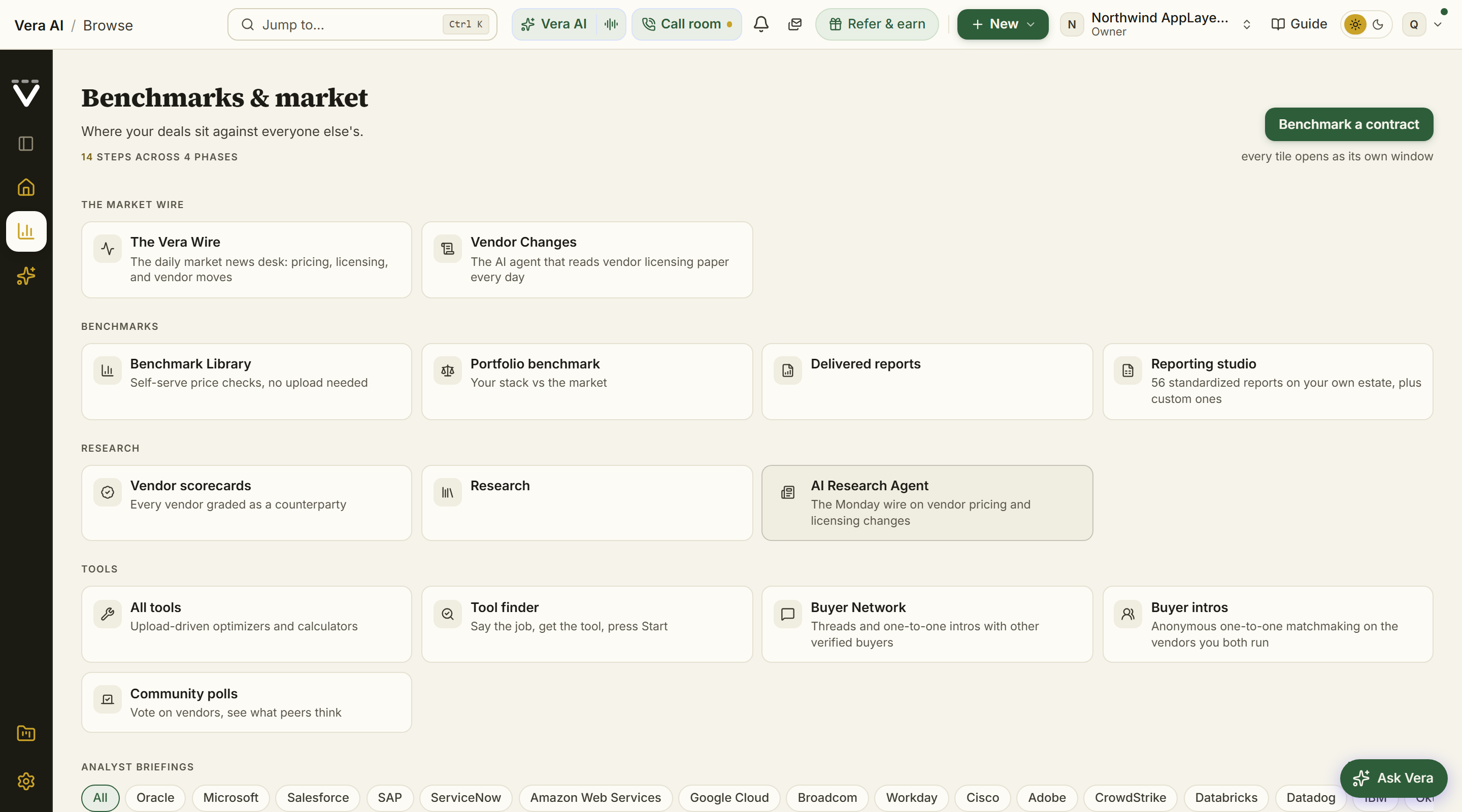
Home
Sign-ins land here. Since 27 September 2026 the page opens in the house dress: the photograph of your spend category fills the greeting under a deep navy, and the words read down its left side. The date in gold capitals, your greeting, the workspace line (your contracts on file, what they cost a year, and the notices due within 30 days), then the specialists line under it. A gold to blue rule closes the greeting. From 24 September 2026 until then it was a light panel with the photograph as a slim band across its top. On every spend category except Information Technology, the counts end with a link, Read the <category> negotiation playbook (see Switching spend category).
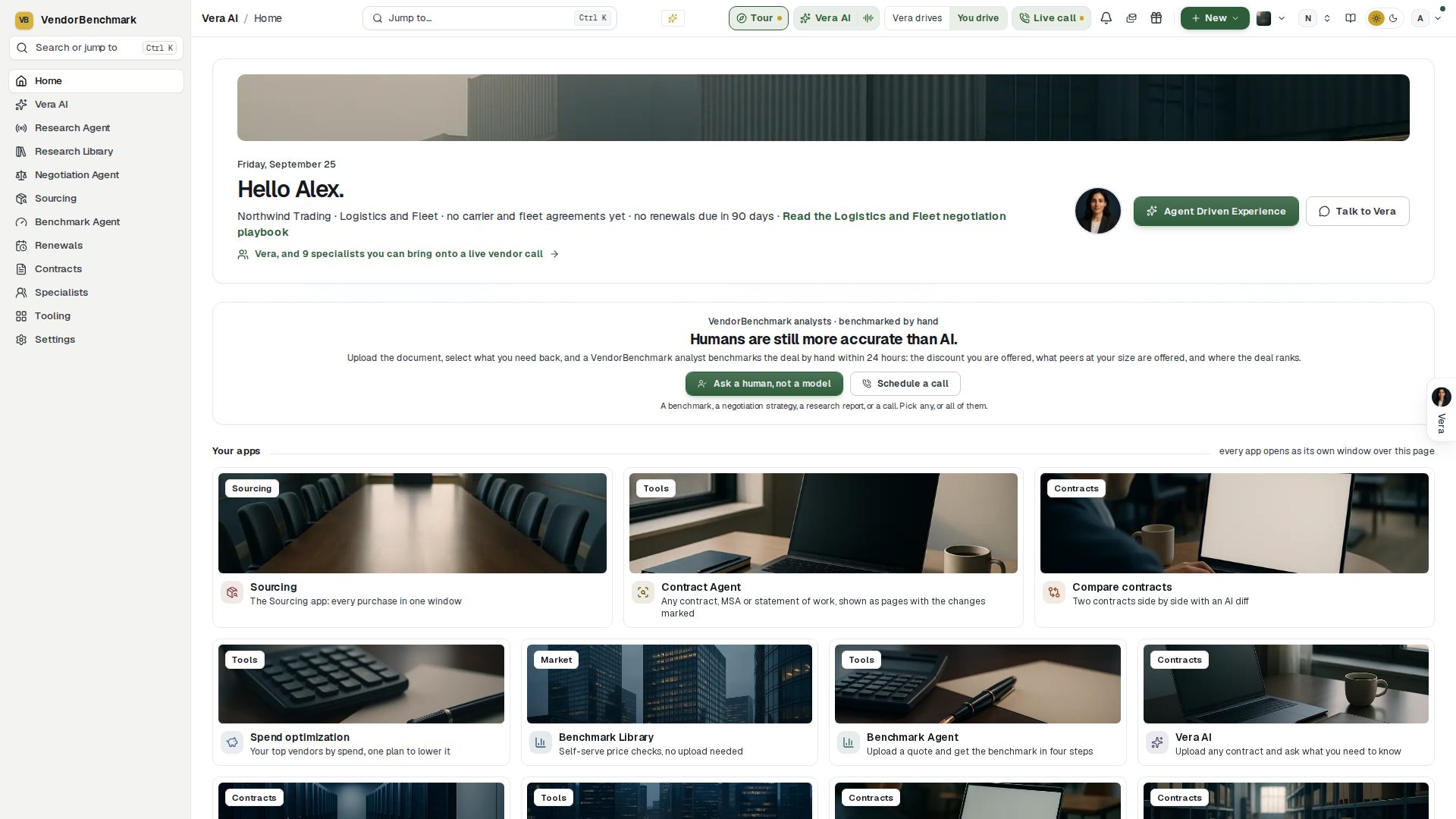
Every word on the stage stays readable. Since 27 September 2026 the words sit on the photograph again, on its navy side; from 24 September 2026 until then no line sat on the photograph at all. Since 23 September 2026 each line over the photograph (the date, your greeting, the workspace counts and the playbook link at their end, and the panel under the greeting with its buttons) is measured against the pixels of the picture it actually sits on, and passes only when at least 95 percent of that picture clears the WCAG AA contrast bar: 4.5 to 1, or 3 to 1 for large type. The measurement runs on every change to the app. It covers every category photograph, every state the panel can take, both themes in a browser and in the Desk, and four widths from a phone to a desktop screen, and a line that lies over another line fails it too. The Benchmarks & market page (/browse/market) wears the same stage over its own photograph and is held to the same measure.
Since 6 October 2026 Home no longer carries the Due first panel, the four figures or the Your contracts table: the renewal due first leads What next, and every contract with its status is on Contracts.
The page arrives in motion (since 13 October 2026). Nothing moved and nothing was added; the page says the same things in fewer words (the demo's line, the human benchmark band's line, the apps line) and comes in as you read it. The counts under the greeting count to their values and the gold rule draws across the greeting. The demo's eight steps land one after another, Get started's bar fills, and the four checkboxes of the human benchmark band pop into place. Your apps, Learn & follow and the feed wait below the fold and arrive as you scroll to them: the heading band, then the cards with their photographs and step numbers, the six doors, the lenses and then the day's rows. A light follows the pointer across a card or a row, a card tilts towards it, every press ripples from where you pressed, and Start the demo and Ask a human throw a short gold burst. Ticking a checkbox or choosing a lens pulses the count it changed. Every motion runs once and settles; with reduced motion on in your system the page simply stands still, exactly as before.
Vera is one press away on every screen: Vera AI in the left menu (Ctrl/⌘ J) opens her window, and the tour with Vera waits on Home where you left it. Vera conversations is in the menu, and the Benchmark Agent, the app that reads an uploaded contract, quote or invoice and comes back with the benchmark, sits under Your apps.
The specialists line sits under the workspace counts, beside the category photograph: one line naming Vera and counting the specialists you can bring onto a live vendor call, the seats your spend category can actually use. Press it and Specialists opens, where the faces are, with the speciality, the seat's own line, the craft, the standing library and the briefing pack, and where each specialist now carries the two marks a face used to: put that seat on a renewal, or hand it the wheel. The twenty one portraits stood under the greeting itself from 31 August 2026 until 21 September 2026, two rows a finger apart; they came off so the first screen carries your own figures and Vera rather than a staff directory, and nothing about Specialists itself changed when they moved.
The overnight drive's morning appears between the greeting and Your apps on the days it has something to say: what last night's drive found, the renewals inside your window worst first, each with its verdict line, a Replay of the night's moves, and Pick it up, which opens Vera with that renewal as your first word. It renders only when you have turned the overnight drive on under Settings › You › Vera and you and a night has run; everyone else never sees it.
The human benchmark sits between the specialists line and Your apps since 4 September 2026: one band with a gold edge that says Humans are still more accurate than AI, with two buttons, and since 27 September 2026 four checkboxes beside them: A benchmark (selected to begin with), A negotiation strategy, A research report and A call. The foot counts how many you picked. Ask a human, not a model carries your selection: the Ask a human window opens with them already selected (selecting A call asks for the call as well), and anything you had already selected in the window stays. It opens the window where you upload the document, select what you want back (a benchmark, a negotiation strategy, talking points, research, a full analysis, a call, any combination) and send it to a VendorBenchmark analyst, who writes the answer by hand within 24 hours. Schedule a call opens the same window with the call already asked for. Both open as a window over Home, and Close brings you back here.
Your apps follows the greeting: the apps as photographs, the five Start here steps first, documented just below. Each section opens on a navy heading band with its note at the right of the same row. Then the Learn & follow wall, six photographs in one row on a wide screen (three across on a narrower one), for Research, Market news, What's new, events, the Off List podcast, and the analyst briefings, exactly as before. Every one of these opens inside the app, not a new browser tab: events and the podcast are in-app pages (documented just below), and the analyst briefings open as their own window. The user manual and Refer & earn were on this wall until 25 August 2026 and now live in the account menu at the top right, one press either way.
Read and watch sits under the wall, before the feed: the films, analyst briefings, research papers and guides the library holds on one of your vendors, laid out exactly as in the agents. It opens on the vendor with the largest annual value on your agreements that has something filed (when the largest has nothing yet, it moves down the list to the first that does), and your other vendors sit under the head as choices; press one to switch. A row opens its piece: a film plays at its full widescreen size, a paper or guide opens to read. The section loads only when you scroll to it, and a workspace with no agreements yet does not show it.
The feed closes the page: everything the workspace should hear about in the last 30 days in one stream, what we shipped, what we published, and the licensing, pricing and vendor moves the market made, with lenses, an estate filter and a search that all run without a round trip. On any spend category other than Information Technology the feed is that category's own market: the news filed to the category, the research written about its suppliers, and the release notes, over the last 120 days rather than 30, because a category's market is swept once a week. Each category's news is found every week by a web search on that category's own subjects (freight rates and carrier capacity for Logistics and Fleet, agency fees and media prices for Marketing and Advertising, staffing markups and HR systems for Human Resources, and so on), and an item is kept only when its figures match the article it came from; a quiet week adds nothing rather than filler. Your own trail moved to Activity in the menu on the left on 31 August 2026: Recent activity, the signed ledger of the workspace's latest uploads and deliveries with its Whole org or Only mine lens, Pick up where you left off, your unfinished drafts and the screens you were reading, each one press from resuming, and the open commitments. When your workspace buys in more than one spend category, each row also names the category it belongs to, so you can see which category a movement came from. The ledger itself is never filtered by category: it stays newest first across the whole workspace, because a feed that hides other categories would show a colleague an empty feed on a day their own category was quiet. A row the platform cannot place in a category carries no label rather than a guess. Both stood down from the page briefly on 25 August 2026 and returned the same day with the redesign. The old /dashboard and /front-of-desk addresses both redirect here, links and bookmarks included.
Your apps
Your apps is a section of the Home page rather than a page of its own, so the greeting, the specialists and everything work starts from are on one screen. It replaced the Main Apps index on 25 August 2026: the same apps, now photographed.
Start here leads Your apps since 4 October 2026, top left: the five apps to work through first, in the order to use them, across the full width with each step's number on its photograph and the one line of what you do there. The fifth step, since 15 October 2026, is the Agreement Studio: every agreement on one board with the notice dates, the letters, the rights and the money. Under the Contract Agent's line a live line appears once there is something to say: how many contracts were read this week and are waiting in Your documents, and how many your templates found off your standard. It is read after the page has painted, so Home opens as fast as before.
- What you own: upload your contracts and see every product, price, term and limit.
- Contract Agent: read each contract clause by clause and see the changes worth asking for.
- Benchmark Library: benchmark your contracts against what comparable customers pay.
- Spend Agent: analyze your estate, where the money goes and what to take out.
These four always show, in this order, whatever you choose in Choose apps and whatever your spend category leads with, and they are not repeated further down.
Day to day follows: every other app on shelves by category, seven since 22 October 2026, so benchmarking, negotiation, contract, licensing and spend tools do not sit mixed together: Benchmarks and reports (Vera AI, Self Drop Benchmark, Report Studio), Renewals and negotiation (Deal Agent, AI Managed, Case Rooms, Competitive scenarios, Proposal comparison since 23 October 2026, Monday brief, Playbooks), Contracts and signing (Contract Office, Document Agent, Compare, E-sign, Check before you sign), Licensing and software (License position in 24 hours, Microsoft 365 Optimizer, Salesforce Optimizer, the SAP Suite, SaaS Manager, Software Discovery and, since 23 October 2026, the Java Scanner), Spend and buying (Sourcing, and the category agents a spend category leads with; the Spend Agent itself is step 4 of Start here), Vendors and market news (Vendors, Vendor Radar), and Team and files (Vera on calls, Delivery rooms, Teams Room, File Share, All apps & tools). Since 25 October 2026 apps that did the same job are one app. Self Drop Benchmark, Is this a good deal? and the Benchmark Agent are inside the Benchmark Library (its sidebar lists them under In Benchmark Library: Upload a quote, Is this a good deal?, Your benchmark reports), and Human benchmark sits beside it. Vendor Radar and Vendor Changes are inside Vendors; Report extract and the Monday brief inside Report Studio; Delivery rooms and Case Rooms inside Rooms (until then Teams Room); and Software Discovery+ is the Agentless collector inside Software Discovery. Each host lists its parts in its own sidebar, and every old address still opens the same screen. From 29 September to 22 October 2026 there were six shelves: Benchmarks, Licensing and software, Contracts and signing, Renewals and deals, Market news, and Team and files. Each shelf is headed by its name and its count, and two short shelves share a row. A shelf whose apps are all off does not show. Before the shelves the apps ran in one fixed order: Benchmark Library, the Benchmark Agent (the Benchmark tool under its new name), and Vera AI lead; then What you own, the Document Agent, Contract Management Portal, E-sign (since 23 September 2026, the app for signatures: what waits for your signature, sending, tracking and the signed archive), Check before you sign (since 29 September 2026, for workspaces that sign in DocuSign: Vera reads each envelope before it is signed, writes a two page signing brief, routes it to the people who approve and files the signed contract), the Contract Agent, the Renewals Agent (the renewal calendar), the Negotiation Agent, Teams Room (since 24 September 2026, a private room per renewal, negotiation or project), Sourcing (since 22 September 2026, the app where a purchase runs from the first list of needs to the signed contract), Playbooks, Vendor Changes, and the Research Agent, then All apps & tools, the full searchable catalog, and last File Share, your organization's secure file space. Each app carries a real photograph with the family named on the picture, the app's mark tinted in its own color, and its one line job. An app's name and description are the menu's own, so a rename there renames it here, and an app your organization does not have (Contract Office is switched on per organization) simply does not render.
Choose apps (since 29 September 2026) sets the Day to day apps. Home shows the core apps and leaves the tools off until you choose them. Shown to begin with: the benchmark apps, the contract apps, the renewal and deal apps, and the market news. Since 22 October 2026 Sourcing shows as well, so the Spend and buying shelf is on Home from the start. Off until you tick them: License position in 24 hours, E-sign, Check before you sign, Teams Room and File Share. The five Start here apps are not in the picker, because they always show.
- The button — Choose apps on the navy heading band of Your apps, at the right of its note, with how many of the apps are on as a count of the total.
- The picker — every app on its shelf with a tick box: tick a tool to show it, untick a core app to hide it. The choice saves to your account as you tick, so it follows you to any device. Back to the default and Show every app sit at the top.
- What is off — one line under the shelves names the apps that are off, with Choose apps beside it.
- Your spend category — a tool your category leads with shows anyway, marked in the picker as shown for your spend category.
- Always one press away — All apps & tools always shows, and every app stays in the menu, the catalog and Jump to, whatever you choose.
Every one opens its destination in its own window over the page, so Home stays where you left it, and hovering one quietly loads its destination in the background, so the window opens nearly immediately when you press it. Under the grid, one quiet Workflows row keeps the six links that were icons in the menu until August 2026: the two operating paths (Contract lifecycle and the Negotiation Workflow) and the four workspace sections (Contracts & documents, Sourcing, Renewals & deals, and Spend & savings). These open as full pages rather than windows, because a path and a section are places to work from; the apps inside them open the windows.
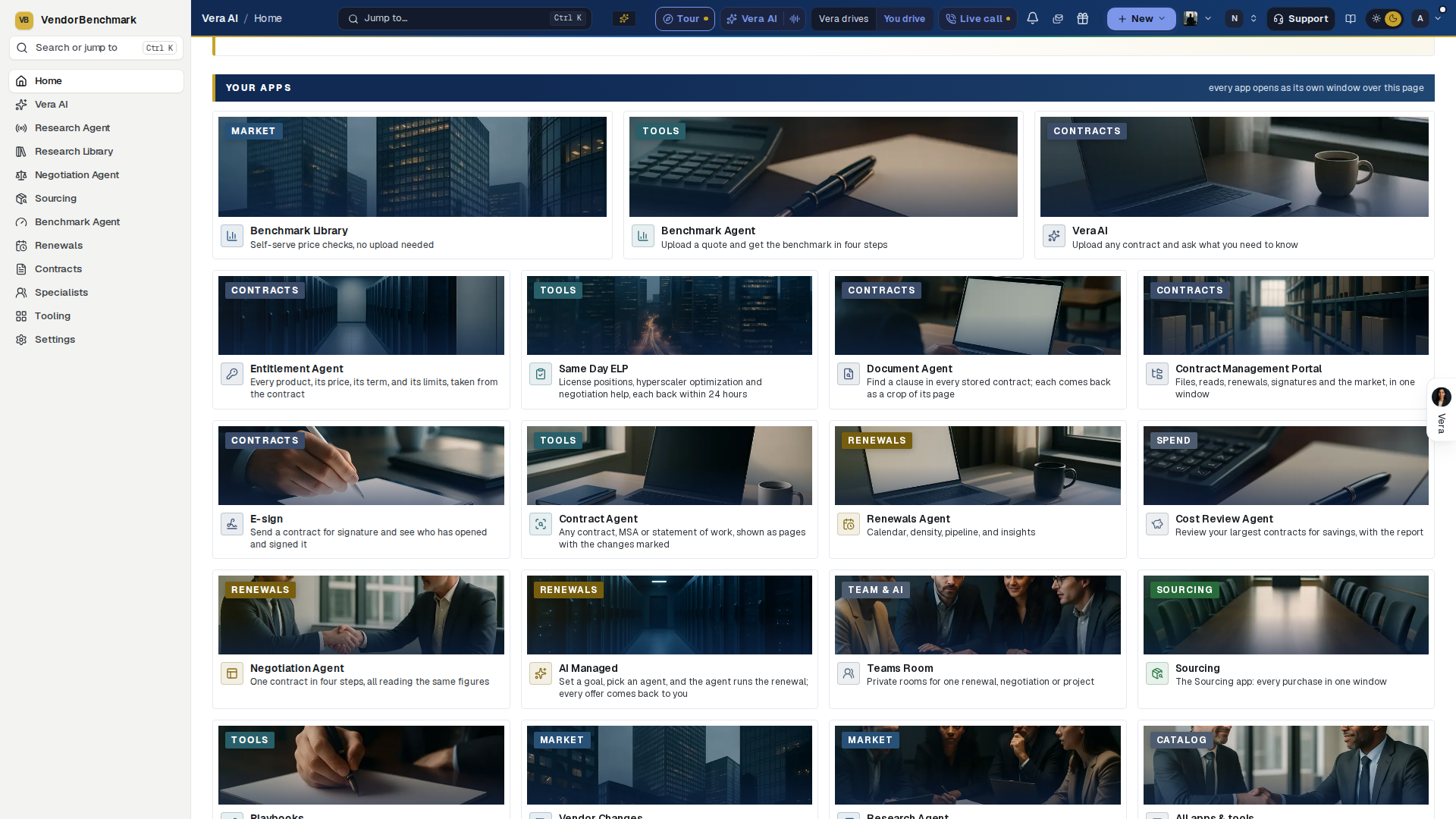
Benchmarks & market
The page the Benchmarks & market icon opens: a banner over a photograph, then the group's nine apps in three rows of three. Every app opens in its own window.
On the screen
- The banner — the heading Where your deals sit against everyone else's, then a line with the number of licensing documents checked every night for changes and the number of vendors they cover. Once a benchmark has been delivered on one of your own documents, the line ends with how many. Under it, Benchmark a contract opens the Benchmark Library and Ask Vera opens Vera AI, side by side in one row. On a wider screen a note beside them says every app opens as its own window.
- The market news — Market news, Vendor Changes and the Research Agent.
- Benchmarks — the Benchmark Library, Portfolio benchmark and Delivered reports.
- Research — Vendor scorecards, Research and Analyst briefings.
- What left this page — a line at the foot: All tools and the Tool finder are under Tooling, and the Reporting studio is the Generate tab of Delivered reports.
Readability. Since 23 September 2026 every line on the banner is held to the same check as the Home stage (see Home): it must clear the WCAG AA contrast standard over the photograph, in light and dark, in a browser and in the Desk, from a phone to a desktop screen, and no line may lie over another.
Reports
Everything Vera delivered, shelved with drawn document thumbnails and filterable by family: Briefs & reports, Playbooks, Exports. The shelf wears the house dress: the masthead counts it by family, the families are numbered steps each with its count, and the inspector carries the Moves (the latest deliverable, ask for a new brief, the Reader, the library). Pressing a document opens it in its own viewer. An empty shelf tells you how to fill it.
Each document is signed on its foot line, after the date and the kind, with the person who asked Vera for it: You for your own, a colleague by name for theirs. The Showing control sits at the end of the family steps: Whole org is the whole workspace and the default, Only mine narrows the library to the documents whose current version you asked for. Your choice is remembered and carries to the other screens that offer it, so you only set it once. It is a filter and never a permission: switching to Only mine hides nothing from anyone else, and switching to Whole org reveals nothing that was private. The count in In the library follows the lens and reads Yours while you are in Only mine, so the number always matches what you can see.
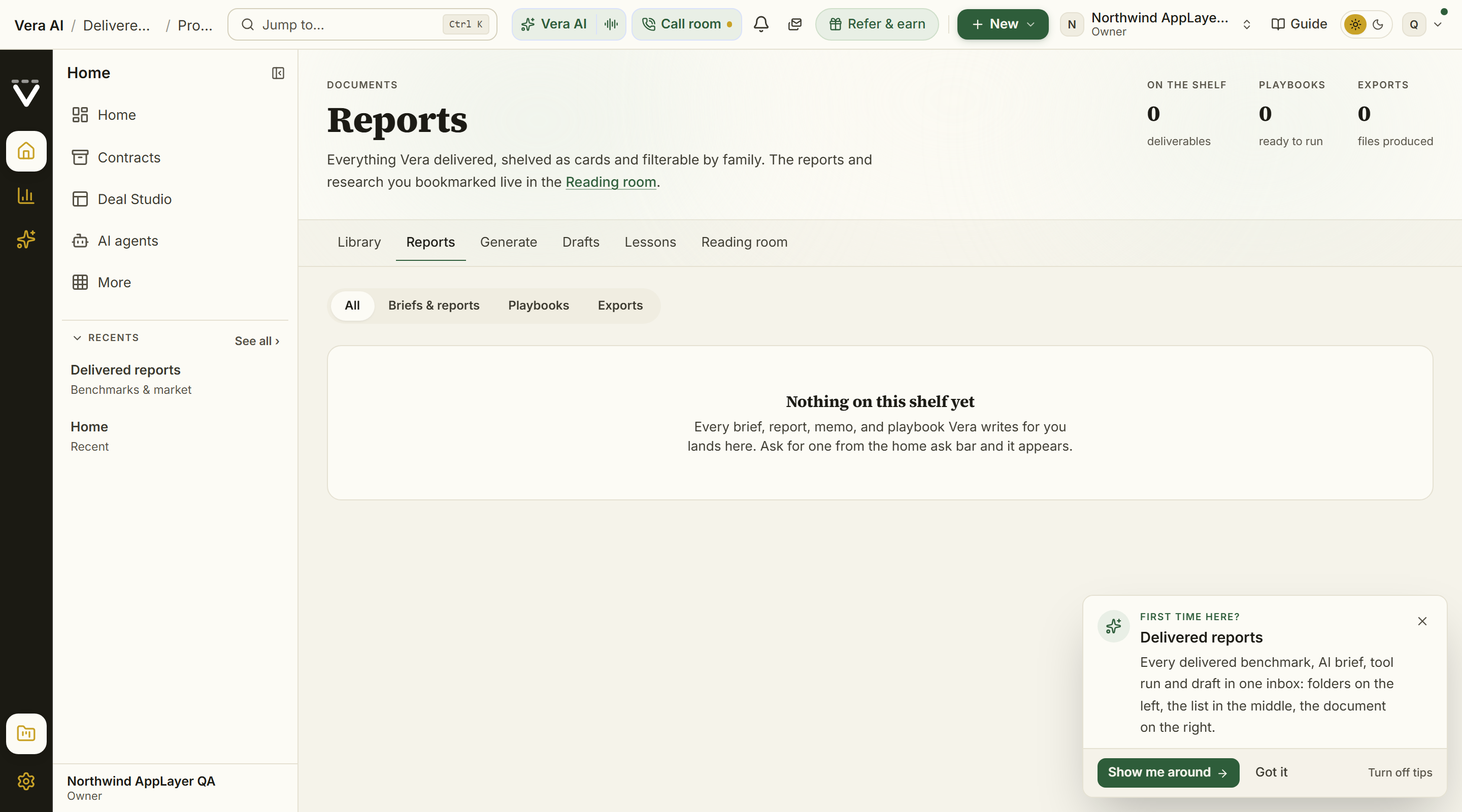
The Learn & follow shelves
Everything to read and watch on the home wall opens as a real page inside the app. You browse, filter, and read or play without leaving the workspace, and the app's own navigation (the menu, the breadcrumb, or your browser's back) returns you.
Media and knowledge, one app in seven screens. Analyst briefings, Events, Demo videos, the podcast, the blog, the Monthly briefing and Advisory share one head. Seven numbered steps across the top (Films, Webinars, Demos, Podcast, Blog, Monthly brief, Advisory), each in its own color, move between them (Analyst briefings draws the same seven as numbered tabs in its window, with its own head and details column, described below). Under the steps the screen is named with Media and knowledge beside it, then the screen's status line, the gold line with the screen number and the date, and one quiet row of the screen's own figures. A row of Moves under the head carries the screen's next steps, the first one lit. Each screen also carries a what if on its own catalog or records: move the lever and the answer moves, and the same setting always gives the same answer. Posters, the cinema player and the introduction session keep their dark ground on purpose.
Events
The events gallery opens on the introduction session, on the navy stage with its own picture from inside the recording as the framed screen. Introduction to Vera AI runs twenty two minutes: what the platform is built from, a live sign in and walk of the workspace, a vendor order form read and redlined on camera with the replacement language drafted, an instant benchmark, and one question asked across every agreement you hold, with short briefings from the advisory team between the demos. The first three minutes play for everyone before the form to request the full session appears. Press Watch the session to play it inline, or The 30 second trailer for the countdown teaser. Below it, the ten session webinar series follows in broadcast order, and beneath that, Sourcing in practice, the problem sessions, each one a sourcing or procurement problem worked live on the sample workspace. That run opens with The ServiceNow Renewal and ten vendor sessions, then turns to the challenges themselves rather than a named vendor's document: being brought in too late, the category strategy on one page, should-cost, the bake-off that creates leverage, savings that survive the year, and holding the line with your own building. Every session wears a real frame from inside it, so each recording looks like itself, with the session number and its runtime printed on the picture; sessions play inline in the cinema player, and an Up next row under the player carries the rest of the series in order, so one session rolls into the next.
A search box and a series filter sit above the shelves. Type a vendor name or a topic like renewal or discount to narrow to the matching sessions across both series, or press one of the series filters (All, Introduction, Webinar series, Sourcing in practice, each with its count) to show a single series. While you search or filter, the gallery collapses to one dense grid with a count of how many of the sessions match; clear the box and return to All to bring back the introduction session and the full shelves.
Read and watch sits under the sessions: the webinars are about buying in general, so this shelf is about your own vendors, the films, analyst briefings, research papers and guides the library holds on each, laid out as in the agents, the largest agreement first. It loads when you scroll to it, and a workspace with no agreements does not show it.
Session plan sits under the shelves: move Sessions a week and read how many weeks both series take, with the introduction and the two series drawn beside it. The Play the introduction move scrolls to the introduction session.
Blog
The field notes on buying, benchmarking, and negotiating software, newest first, as an index with a lead story on top. Open any post to read it in full on its own in-app page (/blog/<post>), with Back to the blog and your browser's back both returning to the index.
Read and watch sits under the posts: the blog is about buying in general, so this shelf is about your own vendors, the films, analyst briefings, research papers and guides the library holds on each, laid out as in the agents, the largest agreement first. It loads when you scroll to it, and a workspace with no agreements does not show it.
Catch up sits under the posts: move Days back and read how many posts fall in that window, counted back from the latest post, with the posts of each of the last six months drawn beside it. The head counts the posts, the ones in the 30 days to the latest, and the authors.
Off List, the podcast
These shelves follow your spend category, and keep almost everything. Most of the podcast and most of the recorded sessions are about the craft rather than about a vendor, and that work is worth as much on a cleaning contract as on a license, so it reaches every category: 6 of the 14 episodes and 20 of the 29 sessions are on every shelf. Only the ones whose subject is a named software vendor, the Microsoft EA, RISE with SAP, the AWS commit, VMware after Broadcom, sit on the software category alone. Information Technology and Software keeps every one.
The Off List show on its own page: the mark, the tagline, Play the latest one press away, and the season's figures beneath them, episodes to play, what is coming, the minutes on air, and the four at the table. The season reads as a ledger beneath it, every episode numbered with its title, summary, and runtime; press Play on any episode with a recording and it plays in the cinema player with the next episodes waiting under the audio controls, so the season plays through. Episodes still in production read as coming soon, so the run of the season stays honest. The recurring hosts are introduced at the foot of the page.
Read and watch sits under the episodes: the show is about the craft, so this shelf is about your own vendors, the films, analyst briefings, research papers and guides the library holds on each, laid out as in the agents, the largest agreement first. It loads when you scroll to it, and a workspace with no agreements does not show it.
Listening plan sits under the episodes: move Episodes a week and read how many weeks it takes to hear every recorded episode, with the season (recorded against coming soon) drawn beside it. The head counts the episodes, the recorded ones, those coming soon and the hosts; The table of hosts sits under its own band.
Analyst briefings
The negotiation film gallery: 174 films across 23 vendors, in its own window. Each one walks the moves that decide a renewal, the same three questions every deal turns on: what discount you are being offered, what comparable buyers get, and where a deal ranks. Opening Analyst briefings from anywhere, the Learn wall, a vendor page, a link in a renewal, lands you straight in the video library window rather than a workspace page. The window wears the frame every app shares: along the title bar the menus, Share (with Email this screen and Take notes), Minimize, Maximize and Close (which returns you to Home); the seven sheets of the library as numbered rows at the top of the column at the left, with your queue, the vendors you hold and the seven screens of Media and knowledge under them; a head with one row of the screen's figures, Share the newest film and the one blue button, which plays the next film for your soonest renewal; and a details column on the right. The menus are File, Watch, View, Team, Learn and Help, reached with Alt plus the underlined letter: Watch holds the whole shelf and every series so any run is one press away, View carries the sort and the details column, Team holds the two ways to share described below plus the workspace's own (a link for a teammate, team activity, the invite), and Learn opens the research and this manual.
The sheets. Since 11 October 2026 the left column opens on seven numbered sheets, keys 1 to 7: Library, Series, Vendors, Watch queue, Shares and notes, What if and History, each with its figure at the right. Under them Your queue lists the films you queued (a brick dot when one is wanted within 14 days) and Your vendors lists the vendors you hold with their notice dates, soonest first; press one to see only its films. Media and knowledge and Related follow. The head names the sheet with one status tag, one row of label and value pairs, and one blue button; the status bar at the foot says what the list is showing and follows the sort.
The films cover software vendors today. Every briefing in the library is about a software vendor, so the gallery opens only on the Information Technology and Software category. On the other seven the page says so and sends you to the written analyst work for your category, which is in the library now: every supplier we benchmark has a document behind it in the research library. Films are filed by the vendor they are about, so a briefing filmed on a facilities or freight supplier will appear on that category without anything being reconfigured.
The library. It opens on For your renewals: each agreement with a notice date in the next 120 days, soonest first, with the next film to watch on that vendor (a film you queued first, then a film you started, then the next episode of a run you began), how many of its films you have watched, its value a year, Play or Resume at the minute you stopped, and Queue. A workspace with no agreements sees where to add one in Renewals. Then The films: every film in a table (the poster, the title with its vendor and its place in a run, the length, the chapters, the release date, your renewal, your progress, and Play, Queue and More) or as posters. Filter by Your vendors, Series or Standalone and by length, pick a vendor, search across titles, blurbs, vendors, series names and chapter names (a chapter the search found is named under the title with its time), and sort Newest first (a run stays in episode order), A to Z, Shortest first or Your renewals first, twenty films to a page. A vendor picked opens its shelf above the table: the agreement, the notice date, the term end, the value a year, what you have watched and Open the vendor record; Read and watch for that vendor loads under the films. The eleven series follow as cards with your progress.
A film's record. Press a film's title or poster for its own page: the head carries the film's state (Not started, a percent watched, In your queue or Watched), its vendor, length, chapters, release date, series and your renewal, with Send to a teammate, Add to queue and Play (or Resume at, or Watch again). The poster opens the cinema player; the bar under it shows how far you got with a mark for every chapter, and pressing a mark plays from that chapter. Chapters lists the outline with a tick on each chapter you have passed (the catalog files no transcript, so the chapters are the outline; a film without chapter marks says so). Notes and shares pins a note to a moment (where you stopped, the start, or any chapter) and lists the shares of the film. What it means for your agreement gives the notice date, term end and value a year, with links to Renewals, the research library, Vendor Radar, Cases, Calls, Specialists, the Deal Agent and the Monday brief. Up next lists the rest of the run in episode order, then the vendor's films. The details column opens with the film to watch next and closes with Next (mark watched, draft the email, copy the film or vendor link, open the vendor record or the series, Vera) and Ask Vera. Keys on a record: Space plays, Q queues, W marks watched, N takes a note, [ and ] step through the films, Esc steps back.
The film menu. Every film row carries a More button, and any film answers a right click, with the same menu: Play the briefing, Open its record, Open the series, add to or take out of the queue, Send to a teammate, Draft the email, Copy the film link, Copy the vendor link, Only that vendor's films, and Open the vendor record when the vendor is on your estate.
Share a briefing. The share sheet opens from the film menu, from the send button beside Watch now at the top of the page, or from the Team menu, and it has two tabs. To a teammate is the hand off: pick the colleague, add a line if you want one, and send; a watch task lands in their queue with the film one press from playing, and the link goes to their inbox with your note. Send it to yourself and it is the email alone, the "email me the link" move. Draft the email is for when the words should travel under your own name: the sheet writes the message from the film itself, the runtime, the chapter list, the link, and its series when it belongs to one, and then it is yours: edit it in place, Copy the email, or Open in your mail app. Nothing sends from that tab, so what goes out is exactly what you approved, from your own address. The picker at the top of the sheet moves the same send or draft to any other film without starting over.
Series and Vendors. Series lists the 11 runs in a table with their episodes, running time, your progress and your renewal, with Start with episode 1 or Play episode the next one you have not watched; press a run for its record, its episodes in order and what it means for your agreement. Vendors lists every vendor on the shelf, the vendors you hold first by notice date and then the rest by films: films, series, running time, your agreement a year, the notice date, what you have watched, Show films and the vendor record. Anthropic and OpenAI / Anthropic are one vendor on the shelf.
The player. Films play in a cinema player over the window. Chapters are listed under the film with their timestamps: select one to jump straight to that point, and the chapter you are in stays marked as the film plays. Up next under the chapters lists the films that follow in episode order. The player keeps your place: the next Play resumes where you stopped, and a film watched past 90 percent is marked watched.
Watch queue, Shares and notes, What if, History. Watch queue lists your films in the order you set, each with the date to watch it by (a teammate's watch task by its due date, a film on a vendor you hold by its notice date), who added it, the time left and your progress, with Play, move up, move down and remove; Suggested for your renewals offers the standalone films for the next notice dates, and Your pace sets minutes a week against the dates and names overdue watch tasks. Shares and notes lists the watch tasks waiting for you with Play and Mark watched (which closes the task), every note you pinned, and what you sent with whether it was watched. What if moves Days ahead, Minutes a week and which films count against the agreements with a notice date in the window: the value a year at stake, which are watched before their notice date, by how many minutes the rest fall short, a lane per agreement, and Queue what is short; the watch plan stays beneath it, the vendors you hold first in its picker. History goes week by week since the first release: your minutes, the films you finished, your notes, what you sent and the films released, with your activity and the shelf by release date. Your queue, watched marks, resume points and notes are kept for your workspace in this browser.
Where else they appear. You do not have to come here to find the right film. A renewal record and a renewal playbook each carry the briefings for that vendor under Watch before you negotiate, playing in place, with the full series for that vendor listed underneath and a link to the rest of the library. A vendor record goes further and carries the whole shelf on its Watch tab, films, series, recorded sessions and podcast episodes together (The vendor record). The match reads the vendor name on your own document, so VMware document finds the Broadcom films and an Amazon Web Services entity finds the AWS ones.
Escape steps back. Esc closes a film's record, then a series, then clears the search, the vendor and the filters, then returns to the library; only from the library with nothing to clear does it close the window.
Beyond the films. Pick a vendor in the library and a Read and watch section appears under its films: the analyst briefings, research papers and guides the library holds on that vendor, laid out as in the agents. It loads when you scroll to it.
The head and the watch plan. Inside the window the pane opens on the Media and knowledge head: the films, series and vendors on the shelf and what the wall is showing, with Moves to share the newest film with a teammate, open the first series, and go on to Webinars or the research library. Under the wall, Watch plan takes minutes a week and a vendor (the one picked in the library list when there is one) and reads how many weeks that vendor's films take and how many the whole library takes, with the films per vendor drawn beside it.
Demo videos
The narrated demo library, in the app. Search it, or filter by function and by role, then play any film inline. Every video shows its length and narrator; closing the player returns you to the gallery.
Read and watch sits under the demos: the demos show the platform, so this shelf is about your own vendors, the films, analyst briefings, research papers and guides the library holds on each, laid out as in the agents, the largest agreement first. It loads when you scroll to it, and a workspace with no agreements does not show it.
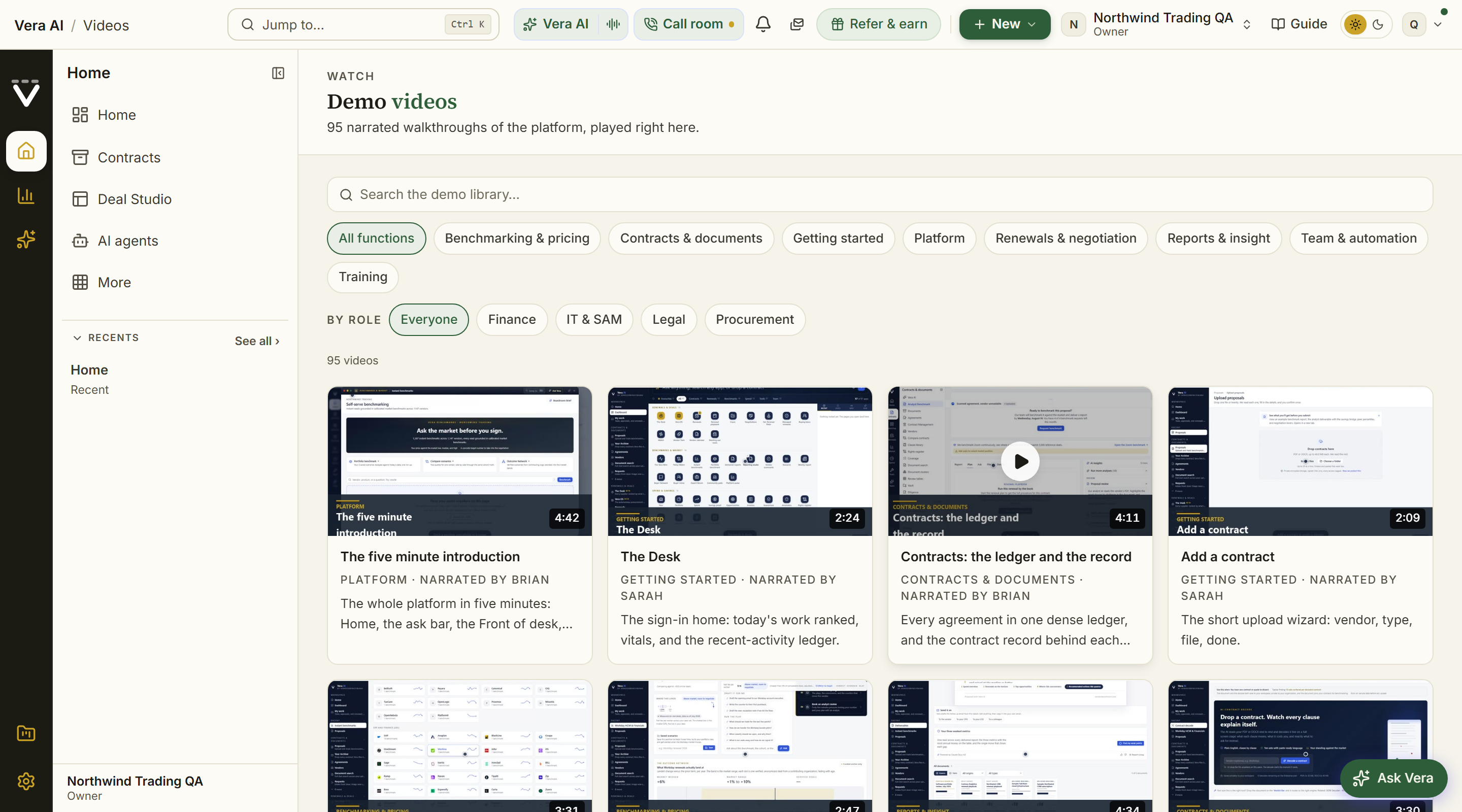
Watch plan sits under the gallery: pick a function, move Minutes a day, and read how many days its demos take and how many the whole library takes, with the demos per function drawn beside it. The head counts the demos, the functions and the running time.
Help and feedback (in the account menu)
Every item in the menu carries a small icon in color, the same hue as the page it opens, and the help dialogs open wide: the promise on color to the left, the form on white beside it.
- Platform introduction — replays the welcome film (see The welcome film) any time, it is a good way to show a new colleague around.
- Feature tips — opens today's three tips (see Feature tips), and turns them back on if you stopped them.
- Report a bug — pick how badly it hurts (blocking, annoying, or minor), describe what happened and what you expected, and send. The page you were on, your browser, viewport, and timezone are attached automatically and shown to you before sending, so nothing is captured invisibly. You get a reference code to quote in follow-ups; bugs are typically fixed within 24 hours.
- Suggest a feature — tell the product team what to build: the area it belongs to, the idea, the problem it solves, and how much it would matter to your work. Every suggestion is read, and shipped ideas are announced in What's new. The dialog opens nearly full screen.
- Help center & manual — this manual, opened in its own window over the page you were on, so reading a chapter never means leaving your work.
- Academy — the narrated demo library at Demo videos, played inside the app.
Saved views
A saved view is a filter you keep: name the way you have a list set up, and it becomes a one-click link in the Views row beside that list's filters. Views are personal and saved to your account, so they follow you across browsers and devices, and each list keeps its own (an Analyst Benchmark view never turns up on Vendors). They live on the list page itself; the menu does not carry them.
On the screen
- The Views row — every view saved for this list, each a button. Click one to apply it; the view matching what is on screen is highlighted. The row shows once you have saved a view or set a filter.
- Save this view — appears at the end of the row while filters are active and that exact setup is not saved yet. Press it, name the view (up to 60 characters), and confirm. What is saved is the list as it reads right now: everything the filters have put in the page address.
- Shared — an organization owner can share a view with the whole team using the people icon beside its name. A shared view appears on that list for everyone, carries a Shared marker, and stays owner-managed: only an owner can unshare or delete it.
- Delete — the × beside a view's name removes it, with an Undo in the toast that puts it back.
How to use it
- Filter the list the way you actually check it, for example Analyst Benchmark on In review, or the audit log on downloads.
- Press Save this view, name it, and confirm. The view joins the Views row.
- Next time, open the list and click the view's name. The filters apply and the page address updates, so a view is also a link you can send a colleague.
- Owners: the people icon beside a view's name shares the view with your team, or makes it personal again.
Tips
- The lists that carry the row: Contract Office, Agreements, Vendors, and the audit log.
- A teammate cannot remove a shared view, only an owner can; save your own copy under a new name if you need a variant (see Troubleshooting).
Related: The studio shell
Vera suggests, on a right click
Anything in the product that is a real thing, a vendor on the Benchmark Library shelf or the Vendors list, a product line on the sheet, a proposal row, a renewal, a negotiation thread, a sourcing project, a search result, a research paper's vendor, answers a right click with a small menu: the entity's name, Vera suggests, and the items that already lead somewhere (open the record, open it in the Benchmark Library, the vendor page). Everywhere else the browser's own menu is untouched, and on the phone the same menu opens with a half second press.
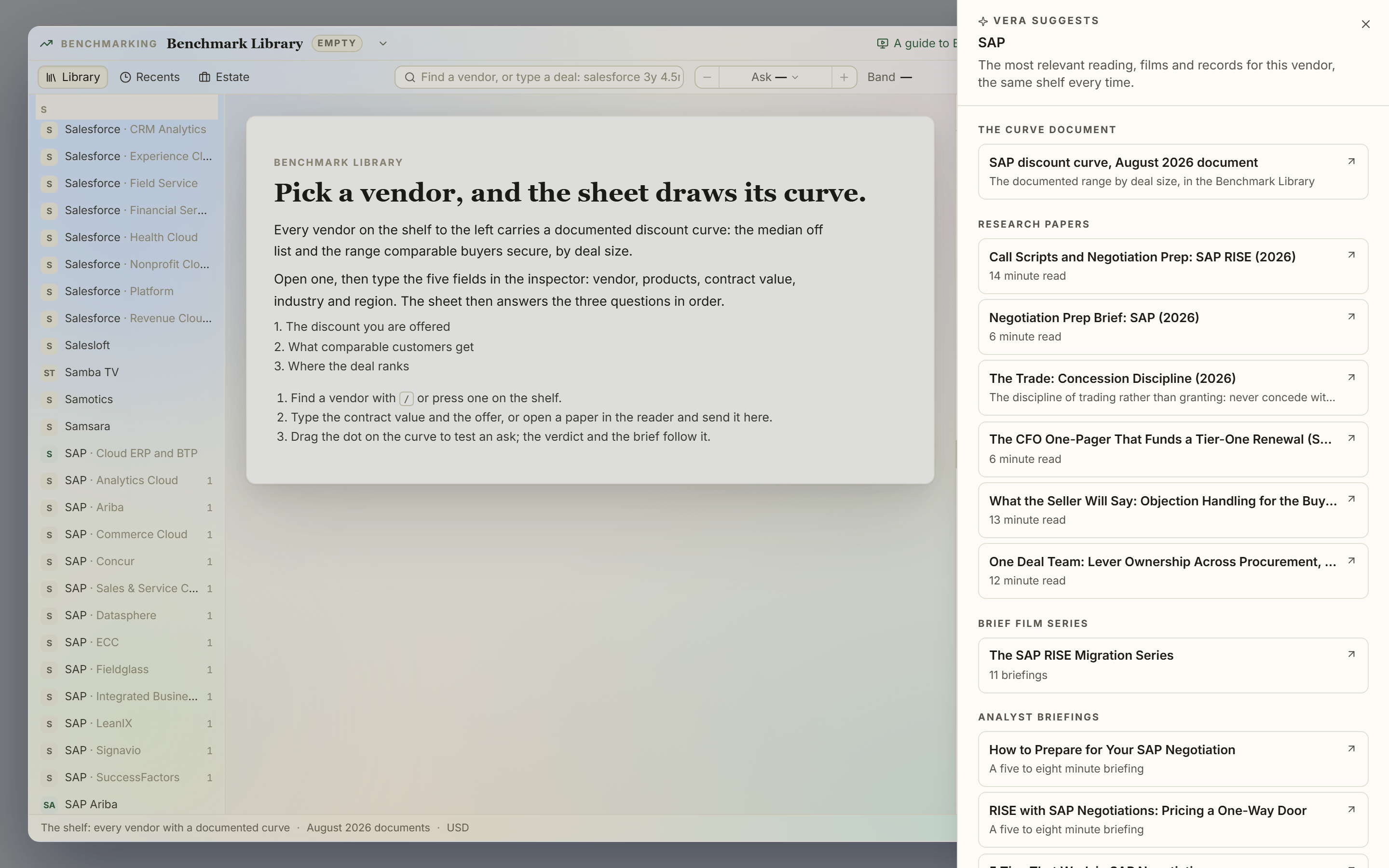
On the screen
- The entity menu — right click a marked row and the menu opens at your pointer: the kind (Vendor, Product line, Contract, Renewal, Negotiation), the name, Vera suggests first, then the other items. The same menu opens with a half second press on touch, from the ✦ button that appears when you rest on a row, or with Shift+F10 on a row you have focused from the keyboard.
- Vera suggests — opens the gallery: the most relevant research papers with their reading time, the brief film series, the analyst briefings, the vendor's discount curve document, recorded sessions, and your own related records (proposals in your book, saved benchmark positions). The same entity always shows the same shelf, every item opens where the work happens (the research reader, the briefings player, the Benchmark Library placed on the line), and each section orders by what buyers across the platform actually open, refreshed once a night.
- When the library has nothing — the gallery says so plainly, offers nearby reading from the same category when there is any, and carries one button that asks the research library agent to write the missing brief. New documents land in the research library as they are written.
- Your reading allowance — on plans with a research reading cap the documents section states the allowance and what is used, in words. A document you have already opened never counts twice.
- Go deeper with Vera — one press and Vera reads the library and orders it: the three to five items to open first, each with one plain sentence on what you get from it. Every pick is an item the library already shows, never an invention, and the same vendor reads the same for everyone for the day. Beside it, Ask Vera about this opens the conversation window with the question already written. Both run inside your workspace's AI allowance; when AI is off or the allowance is used, the gallery says so in words and the library stands on its own.
How to use it
- Right click any vendor on the Benchmark Library shelf, or any proposal row on Analyst Benchmark.
- Press Vera suggests and read the library. Press any item; the gallery closes and the destination opens placed.
- On a vendor with no research yet, press Ask the library agent to write the brief and check the research library in the coming days.
Tips
- The keyboard route: focus a row, press Shift+F10, then walk the menu with the arrow keys.
- The gallery is deterministic on purpose: it reads the library and your own records, never a guess, so what it shows a colleague is what it shows you.
Related: Benchmark Library · Research · Analyst briefings
Five minutes to oriented
The shell in prose, for reading once rather than referencing. The dark menu on the left is the map and only the map, with the active group's destinations and your recent pages in the white page list beside it; the paths and the working sections live on the Workflows row under Your apps, and when a page seems missing it is in the More catalog or one keystroke away in the palette, never gone. The white bar across the top holds exactly one of each thing that matters: one search (Jump to…, which is the command palette wearing a field), one AI control (the Vera cluster), one inbox (the bell), one New menu for starting things, one Guide button for this manual, and your organization name and account menu so you always know which tenant you are in. Everything rarer lives in the account menu.
Moving around rewards two habits. Ctrl/⌘ K then typing beats any amount of hunting through the menu: pages, tools, vendors, and actions all answer to it. And the keyboard grammar, g then a letter, jumps without the palette (g r renewals, g d dashboard, g b benchmarking; press ? anywhere for the full list of shortcuts). When a screen itself confuses you, its help is layered: Ctrl/⌘ / explains the screen in place, the Guide button opens this manual at that screen's section, and Ctrl/⌘ J puts the question to Vera directly. The order to try them when stuck is written up as Get unstuck.
If you remember three things from this page: Ctrl/⌘ K to go anywhere, Ctrl/⌘ J to ask anything, Guide to read about wherever you are.
How it works, in every app
Every app explains itself before it asks you for anything, and all of them share one screen. The Contract Management Portal's reads your estate and says something different depending on what you hold: an office with nothing in it, one with a notice date inside thirty days, and one with neither each get their own sentence and their own figure. The first time you open one, it opens on its How it works screen instead of on an empty drop zone or a table header. After that it opens where you left off, and the screen stays one press away.
In plain words: what this window is for, in three steps, without reading the manual first.
On the screen
- The head — the app's name with two short tags, and the button that starts the work at the right. Under the gold rule, one sentence says what the window is for in the buyer's terms, with the one figure that matters in a box beside it: how long a benchmark takes, how many reads Vera holds, how many screens the portal has.
- The panels — everything below the head is a white panel on the gray ground. Each panel's header names it, counts what it holds, and says one thing about it at the right.
- The steps — numbered columns, in the order they actually happen, each with a quiet line under it for the thing people get wrong. The Benchmark Agent's second step is where it says what happens when your document prints no list price.
- What you get back — the screens or the documents this app produces, as rows, with the key that opens each at the right. Pressing a row takes you straight there, so the explanation is also the way in.
- What this does that the obvious alternative does not — three plain facts side by side, each under a gold label. A spreadsheet for the Benchmark Agent, a template for the Negotiation Agent, a search result for the research library.
- What next — one line and the one button that starts the work.
- The look — since 5 October 2026 the screen is drawn like Ask Vera, in light and in dark. Every step, key and link is where it was. In the Benchmark Library it is set at full size although the library's pages open at 90 percent, and it follows the zoom from there.
How to use it
- Open any app. If it is your first visit it lands here. If it is not, press How it works in the list on the left, among the tabs, or under Help.
- Read the steps, then press a row under What you get back to land on the screen that makes it.
- Press the blue button to start. The screen never blocks you and never asks a question.
Which apps carry it
- The agents — Benchmark Agent (
/benchmarktool, key H), Contract Agent (/tooling/contract-decode, the foot of the list on the left), Negotiation Agent (/deal-studio, key 7), Renewal Agent (/renewals, key 9). - The offices — Contract Management Portal (
/office, under Help, and where a first visit lands; its version reads your estate), What you own (/entitlement-office, key 0). - The libraries and Vera AI — Benchmark Library (
/benchmarking, under Help), research library (/research, under Help), renewal library (/renewal-library, under Help), Vera AI (/vera, under Help). - The instrument wall (
/tooling, key 9) — the last tab, and under When none of them fits in the index. - Vendor Changes (
/wire/policy, key 4) — the fourth screen, and under How this agent works on the menubar. - Ask a human (
/human-benchmark, key 1) — where the screen comes from, and the first to open on one. Its version keeps the clock counting down the answer time, and the list of what you can ask for is the ticks themselves, so pressing one chooses it and takes you to the form. - The Research Agent (
/wire/weekly, key 4) — the longest of them, because a standing agent has more to answer for: all six stations of the Monday pass, the six signals it looks for, everything it files and when, and the three things it will not do.
Tips
- Turning tips off turns these off too: the Turn off tips switch in the screen assistant silences every first-visit introduction in the platform at once.
- The screen is per person, not per browser, so it does not reappear on your laptop after you have read it on your desktop.
Related: The app shell · Five minutes to oriented
The contract lifecycle
Watch: The contract lifecycle (2:24)
The whole platform as one operating path: three phases and ten steps, in the order they pay off. Phase 1 loads the estate (upload, indexing, benchmarks, the renewal calendar), phase 2 finds the money (the overspend review, a play per major renewal), phase 3 wins the renewals (tiering with the agent on the tail, negotiations, the negotiation), and the loop proves the savings against invoices and rolls the calendar forward. Every step names the tools that do it and carries one action.
In plain words: where to start, what comes next, and how far you have come, on one page.
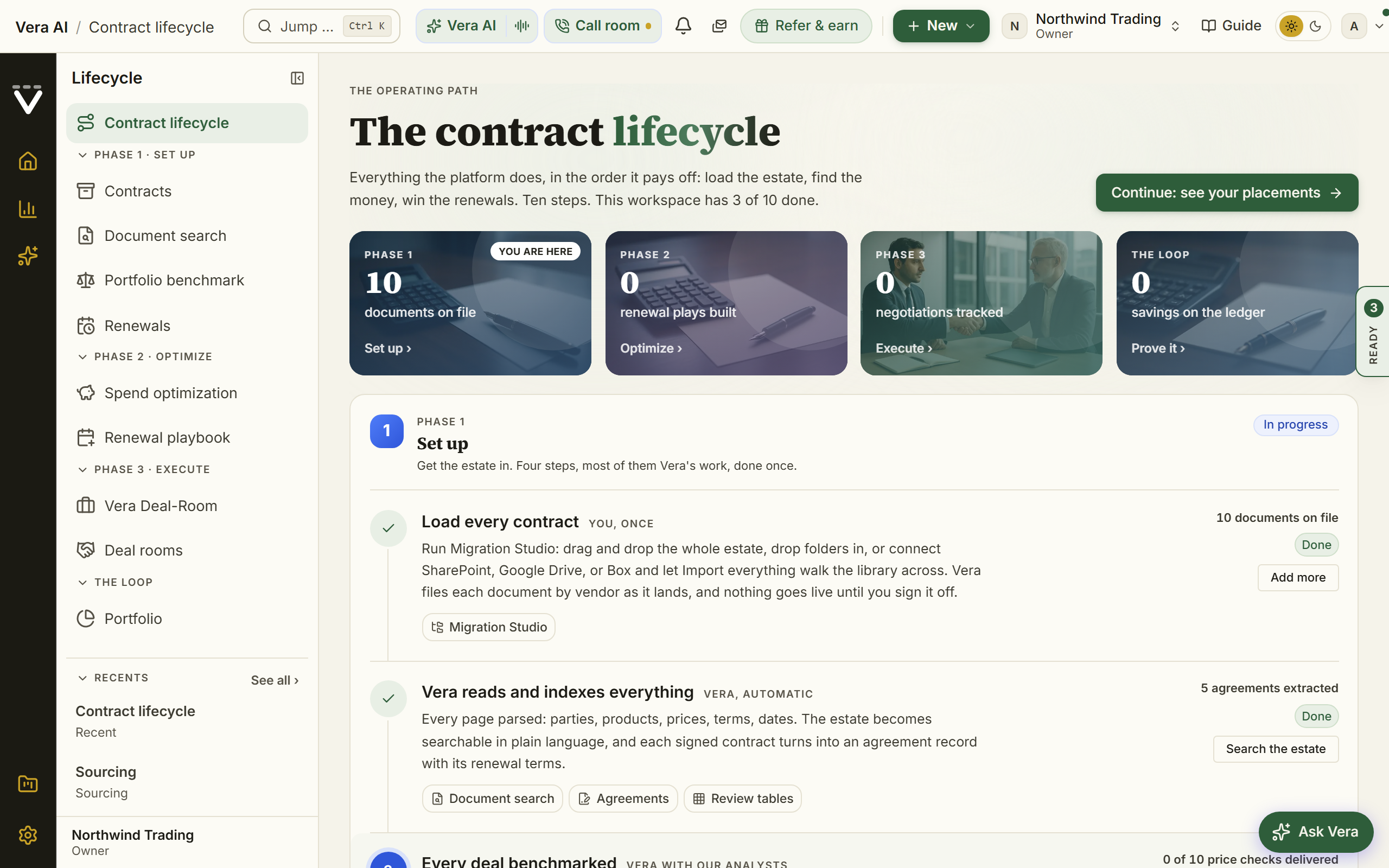
On the screen
- The masthead — the page in the house dress: steps done, documents, plays built, negotiations and savings proven on one row, all counted from what your workspace holds, with Continue at the right.
- The operating path — the ten steps as one path: done steps in green, the step you are on lit in the page's color. Pressing a step jumps to it.
- The phases — Set up, Optimize, Execute and the loop, each a band with its state over its steps. Each step names who does it (you, Vera, or both), links the tools it runs on, shows what your workspace has produced so far, and carries one button. Loading contracts points at Migration Studio, the one tool built to carry a whole estate.
- Continue — the primary at the right of the masthead jumps to the first step that is not done, which is always the right next thing to do. The inspector's Moves list the next three.
How to use it
- Press Contract lifecycle on the Workflows row under Your apps on Home. The page list on the left shows the path's tools grouped by phase; the page carries the full path.
- Read the path to see which phase you are in, then press Continue and do the step it lands on. Opening a step's tool keeps the Lifecycle page list beside you with your place on the path highlighted, and the destination shows a small Step N of 10 marker naming the next step, one press from continuing. The page list only changes section when you pick another icon in the menu.
- Come back whenever the question is "what should we do next". The page recomputes from what the workspace actually holds; sample data never counts as progress.
Tips
- Done is measured honestly: a step shows Done only when the workspace holds the thing it produces (documents, agreements, delivered benchmarks, savings on the ledger).
- The path ends where it starts: an awarded sourcing project and a signed renewal both land back in Documents and on the calendar, and the loop begins again.
Related: Contracts · Renewals · Spend Agent
The screens you will use most
The welcome film
Since 22 October 2026 the film is the first tab of a welcome tour, and the tour opened once more for every account, new or long standing. Since 25 October 2026 it opens on the two ways to use Vera, then follows with its pages in three groups, named along the tab row:
- Two ways: Benchmark only, with nothing to upload, or All in, with every contract uploaded. Each page of the tour is listed under its group, and a press opens it.
- Benchmark only: send a quote and an analyst's report is back within 24 hours, or look the price up yourself in the Benchmark Library.
- All in:
- Your contracts: upload them and see where you pay too much and what renews next.
- Search: a question across hundreds or thousands of contracts, each answer beside its page.
- Vera AI: ask her anything about your contracts, or have her join your Zoom, Microsoft Teams, Google Meet or Webex calls.
- AI negotiates: Vera writes each counter and each email to the vendor; you run it, approve each one, or let her run it inside your limits.
- Strategy: the target and the walk away for every deal, set from what comparable customers pay, with the talking points.
- Email: emails to vendors drafted from your benchmark or playbook, and replies read and answered.
- Tools:
- Cloud cost: upload any cloud bill and see each saving, priced at the vendor's own list price.
- License position in 24 hours: a license position by tomorrow.
- Compare: two contracts side by side, every change lit red.
- Review and redline: the Contract Agent lists what to fix with what each fix is worth, and writes the redline.
- Integrations: Vera in DocuSign and Coupa, and every system you can connect, by group.
Each page has:
- A screenshot of the live app with numbered callouts on what matters (the first page shows the groups and the integrations page the systems instead).
- Three points and one thing to try first.
- A button that opens the app and closes the tour.
Press a screenshot, or More about this screen over it, to see the screen large with each numbered callout explained beside it, the first thing to try and the button that opens the app. Back to the tour or Escape returns to the same page.
To move through the tour:
- Use the tabs along the top, Back and Next, or the arrow keys.
- Go to Home or Not now closes the tour from any page.
The pages arrive with motion: the screenshot swings into place, tilts with the pointer and drifts toward what matters, and the callouts land one by one. Reduced motion on your device turns it off.
Welcome to Vera: 4 minutes 40 from our advisory team, Daniel, Tom and Claire with animated explainers, on what Vera is built from (the benchmark data, two decades of buy side craft, the AI that makes both usable) and the ten things a buyer does with it, from the instant benchmark to Vera running the deal. It opens over Home once for every account, new or long standing, and starts on its own where your browser allows it; otherwise press play. Go to Home closes it, Not now, the X or Escape dismiss it, and either way it never opens by itself again. If you dismissed it, Home keeps a quiet link to it under Learn & follow until you watch it, and the account menu replays it any time. Since October 2026 it is the same film the website plays; it replaced the three minute film of August 2026, which had replaced the five minute narrated tour. Nothing else about the first days changed: your first result still comes before any survey or offer.
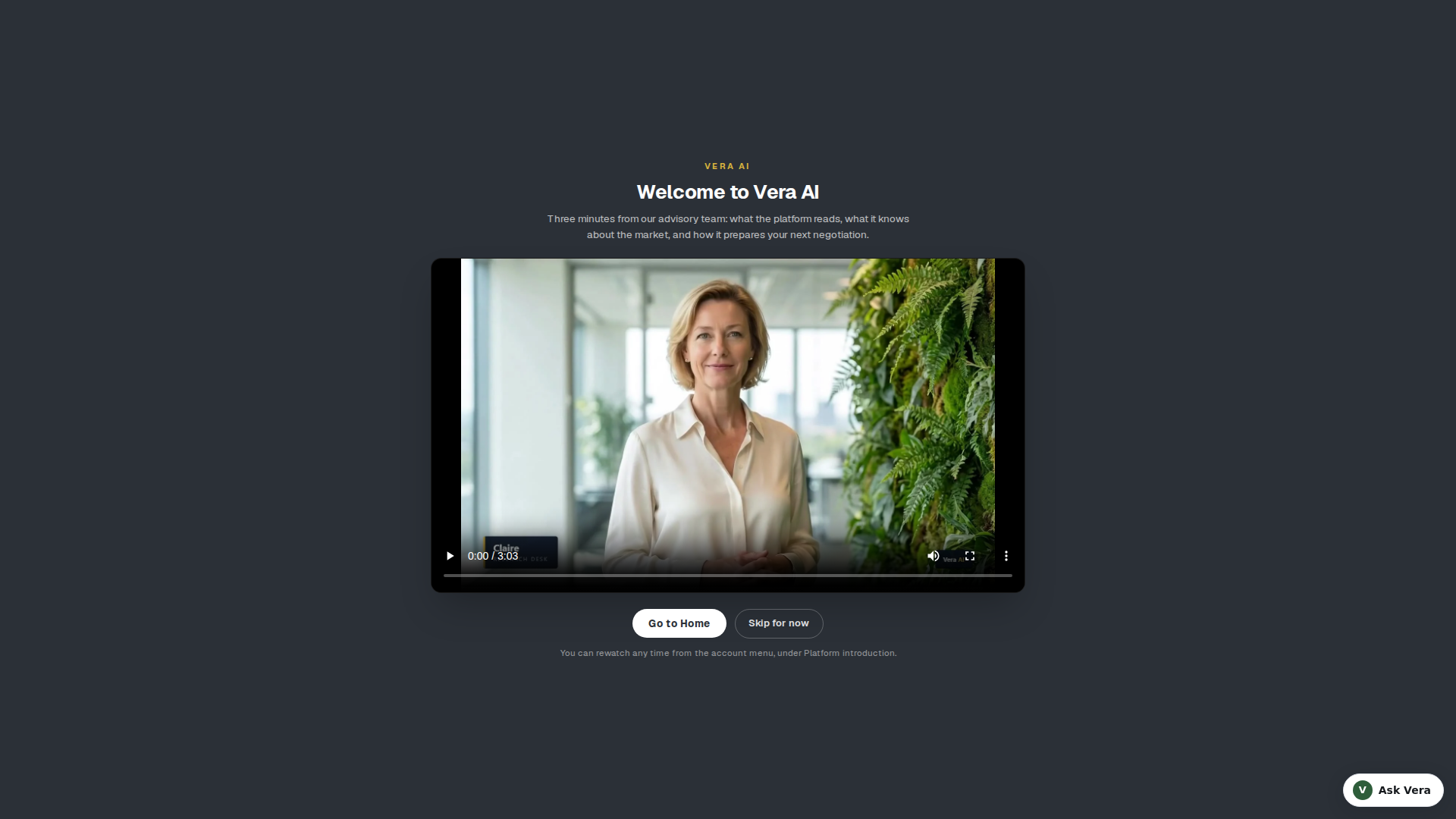
Feature tips
What it is: three tips, one at a time, each on one app you may not have tried yet: a picture of the app with the sample data, what it is, what it is worth to a buyer, and one thing to try first.
- When it opens: the first time you open Home after 24 hours without a showing, so in practice once a day when you sign in. It never opens in the 24 hours after the welcome tour, and never with it.
- Seventeen tips in turn: each showing starts where the last one stopped, so the whole list goes round in about six days. An app you opened from a tip is skipped from then on.
- The tip that fits comes first: before the tips open, Home checks your workspace and puts the most useful tip at the front: the Benchmark Library when a renewal inside 90 days has no benchmark, Vera on calls when a vendor meeting is booked in the next 7 days, the Contract Agent when contracts on file were never read. The rest of the showing follows the rotation, which keeps its place.
- Moving through it: the tips turn every nine seconds and hold while your pointer or keyboard is on the panel; the arrows, the dots, the left and right keys and Next tip move by hand. With reduced motion on, nothing moves by itself.
- Open the app: the blue button opens the tip's app and closes the tips. Done, the X or Escape close them.
- Stop showing tips: turns them off for good, on every device. Feature tips in the account menu opens them again, with Turn tips back on.
The first visit (Getting started)
The first screen of a new workspace, in the same window as the agents: the title bar with its menus, the icon rail, the tree on the left and the details on the right. It keeps everything that helps on day one in one place. Sign-ins land on Home, not here; the moment you open your first app, /welcome becomes the Estate Report.
On the screen
- Header: Getting started, with your workspace, the number of apps, the vendors you follow and how much of the setup is done. On the right are Watch the tour, Open Home and one filled button, usually Upload a contract.
- First result: upload a contract or quote, PDF or DOCX up to 200 MB, by pressing the area or dragging a file onto it. The file goes straight to private storage, the decode opens when it is in, and it is read once and then deleted. If a decode you ran before signing up followed you in, this section shows it instead, with its market standing, where it would stand if the suggested changes land, the money on the table and the number of changes; Open the decode takes you to it.
- Setup: three items, asked once each: the setup survey, where money-critical alerts reach you (in the app only, or by email as well), and the weekly briefings by email, offered once the alerts channel is chosen. The briefings are strictly opt in; change any of it later in Settings › Notifications.
- Apps: Run the introduction (First Light, offered for your first 30 days) and every app on your home screen, three to a row. Hover an app to see when to use it. The first app you open sets your workspace up for it.
- Market news: the latest five items, each with its vendor, whether it is confirmed or reported, and its date. Open Market news shows the full feed.
- The tree (left): the ways to start, the three setup items with their status, the vendors you follow with whether the benchmark library covers each, and related pages.
- The details (right): what to ask Vera, the security basics with Security answers (the seven answers from the security FAQ, in a dialog), the main moves, the two ways to run the platform, and Don't show this screen again, which makes the dashboard your sign-in landing.
- Menus and keys: File, View and Help in the title bar. U uploads a contract, T opens the two minute tour, D opens Home and I shows or hides the details.
How to use it
- Upload a contract for the fastest first result, or press an app.
- Choose where money-critical alerts reach you, and take the survey when you have a minute.
- Press Open Home to go straight in. Nothing is recorded, and this screen stays until you open an app.
The setup survey
A short survey that arranges your menu around your work, in the same window as the welcome screen. It never blocks a sign-in, and it never repeats unless you retake it.
On the screen
- Step 1, interests and vendors: five interests to mark (benchmarking, contract terms review, IT cost optimization, cloud optimization and optimization tools), each naming the menu section it opens, and the vendors you follow: the 20 largest, Show all 50 vendors for the rest, and a field to add any other vendor. The vendors you follow go on watch with benchmark coverage, and their fiscal calendars feed your alerts.
- Step 2, the menu arrangement: three arrangements of the same menu, each drawn as it will open from your answers, with the number of pages in every section:
- Focused menu: only your sections; one press on Show all sections in the menu brings everything back.
- Relevant first: your sections lead the menu, open; the rest stays present but folded.
- The full menu: every section open from the start; you fold what you do not need.
- Header: the step you are on, how many interests, vendors and menu sections your answers cover, and Continue, Back and Finish.
- The details (right): what your answers change (the menu and the dashboard; nothing is removed) and the sections they opened.
How to use it
- Mark your interests and vendors, then press Continue.
- Press the arrangement you want, then Finish. Skip for now leaves the survey for later.
Tips
- Nothing is ever locked away: whichever arrangement you choose, the command palette (Ctrl/⌘ K) and the More catalog always search the whole platform.
- Change your mind later from Getting started, Retake the setup survey, or just use the menu's own Show all sections.
The launcher home (retired)
The concierge launcher retired in August 2026: its address lands on Home, and Your apps and the group pages carry every app it held.
The classic home screen (the Estate Report)
The screen that was the sign-in landing before July 2026, kept one press away and rebuilt in July 2026 as a daily report on your estate. Signing in now opens Home.
It reads like a report because that is what it is. Market news leads it, since the market is the only part of this screen that changed since yesterday: the lead signal gets a headline and Vera's read of it. Your workspace figures sit beneath. Every one of your apps runs down the right hand side as a directory, so nothing is hidden below the fold and any tool is one press away. Use an app, press Home in the menu (or the brand mark in the corner), and you are back here.
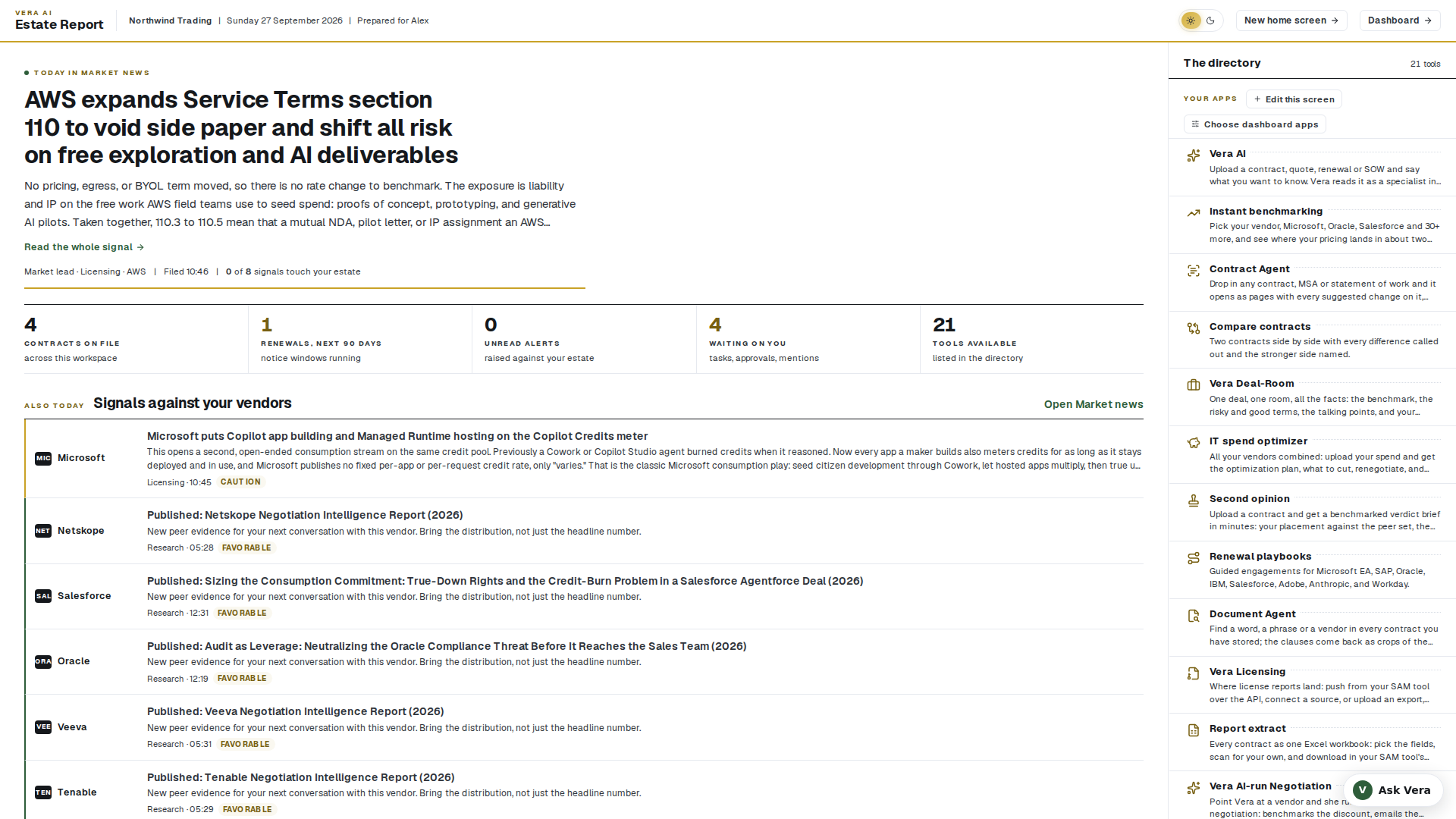
On the screen
- Masthead — Vera AI over Estate Report, then your organization and today's date. It stays put while you read: on a desktop screen the masthead never scrolls away, so the way through to your dashboard is always in the same place.
- The lead signal — the most significant thing in Market news today, with its headline, Vera's read of what it means for you, and a byline naming the category, the vendor, when it was filed, and how many of today's signals touch a vendor you actually hold. Press the headline to open it in the Market news.
- Key figures — four live numbers between rules: contracts on file, renewals closing inside 90 days, unread alerts, and the number of tools in your queue. Press one to open its page; the renewals figure turns gold when something is on the clock.
- Signals against your vendors — the rest of today's market news under the figures, each named by vendor with its category, the time it was filed, a Caution or Risk tag where one applies, and a Touches you marker on the ones that concern a vendor in your estate. Open Market news leads to the full feed.
- The directory (right) — every app on your home screen as a ruled list, grouped under Your apps, each with what it does and a live count where one applies (Renewal calendar carries what is closing in). Every app opens in app mode: the menu on the left disappears and the tool owns the screen, with Back to apps on the left and the app's name as a gold label. The tool keeps your appearance setting, light stays light and dark stays dark. Hover any entry (or tab to it) and a small tooltip tells you when to use that app.
- Run the introduction — the cream button at the top of the directory starts First Light, the guided walkthrough that arranges the platform around you. It is a first-days affordance, not furniture: it retires on its own once you run the introduction, or 30 days after your workspace opens, whichever comes first. Hover it and it says exactly that.
- Light and dark switch (masthead) — the sun and moon capsule flips the whole workspace between light and dark, revealed as a circle of the new theme growing out from the switch. The choice is your account's appearance setting: every app follows it, it travels across devices, and it applies before first paint on your next sign-in. The same setting lives in the account menu under Theme, alongside the System option that follows your operating system.
- Dashboard button (masthead) — a standing shortcut to Home with the menu on the left.
- Edit this screen — compose the directory itself: press an app to remove it, press Add apps to put any tool or page on the platform here (searchable), and Restore defaults brings the original set back. Every tool also carries an Add to apps button in its top bar.
- Choose dashboard apps — flip the directory into a picker, highlight the apps you want, and your dashboard carries exactly that clean set under Your apps. No customization means all of them; a Change link beside Your apps on the dashboard leads back here.
- Apps and Dashboard switch (top bar) — every screen carries the mode switch in the top bar: Apps opens this screen, Dashboard opens Home with the menu on the left, and the active mode is highlighted. Either one can be your sign-in home.
- What about security? — a control at the foot of the directory that opens the security answers in a popup right here: tenant isolation, file handling, the AI data flow, deletion, sign-in security, and SOC 2 status, taken word for word from the full security FAQ. A button inside opens all 60 answers in a new tab, so you never lose your place.
- The two minute tour — a quiet line under the report opens the tour as a film in a centered dialog: Claire, Tom, and Daniel, the same advisors who present the webinar series, walk the platform and its fifteen apps over live product footage. The film runs a little over two minutes and keeps the tour's thirteen stops as a row of chapter buttons under the player: Welcome, Home and the ask bar, Benchmark Library, the deal apps (Benchmark Agent, Negotiation Agent, Renewals), the reading apps (Contract Agent, Document Agent, Contract Management Portal), the market agents, and Your work. Press any chapter to jump straight to that beat, turn on captions with the player's CC control, and use Escape or Close to leave at any point; Go to Home closes the show onto your workspace. Every figure on screen is labeled sample data; your numbers take over the moment you upload.
- Optional follow-ups — until taken or dismissed, this screen offers the welcome film replay and the setup survey as quiet links under the report. Links, never gates: they wait as long as you like.
- Footer choice — "Prefer the dashboard? Make it your sign-in home" turns this screen off as your landing: from then on, sign-ins go straight to the dashboard. If you have already done that, the same footer offers to make this screen your home again.
- One-time asks — the screen asks two questions, once each and never together: where money-critical alerts should reach you, and whether you want the weekly briefings by email (price list updates per vendor, vendor licensing news, the knowledge summary). Both are strictly opt-in, both stay adjustable in Settings › Notifications, and every briefing email carries a one-click unsubscribe.
- On a narrow screen — below a laptop width the report stacks from top to bottom: masthead, the lead signal and figures, then the directory underneath as a grid. Nothing is uploaded.
How to use it
- Read the lead signal and the byline. If it says signals touch your estate, that is usually your first stop.
- Check the figures: a gold renewals number means something is on the clock.
- Press the app you came to use in the directory. When you are done, press Home in the menu to come back.
- Want the full picture instead? The dashboard is in the masthead, or g d on the keyboard.
Tips
- Your very first visit looks different: see The first visit. The app you choose there also arranges your workspace, and from then on this screen is the Estate Report described above.
- If you turn this screen off as your landing and miss it, the command palette (Ctrl/⌘ K) still finds "Home".
- Holding a document and want proof before you explore anything else? Open the Benchmark Agent under Your apps on Home and upload the file on its screen: the document is read on the upload, and the benchmark runs the moment you have checked the fact sheet and pressed Run. To ask about it in your own words instead, open Vera from the menu and attach it in her window, where it stays in hand for the next three questions and survives a reload.
The example report
A complete, illustrative benchmark report on a fictional Workday agreement, so you can see exactly what an analyst deliverable contains before you upload anything of your own. The page opens on the house masthead with the example's headline figures in one row (proposed, right sized, signed, the net value, the discount off Workday list and the rank), and the paper below keeps its document design. The Present button in its header plays the report screen by screen, from the masthead to the bottom line, which is the fastest way to show a colleague what a delivered report looks like; the show starts from the first screen on every open.
- Download the reference report (since 27 October 2026). The Salesforce reference carries Word, PowerPoint and PDF in its head. All three are written from the same report as the screen, so every figure, headline and verdict matches. The PowerPoint deck has a slide per finding with editable charts, and long tables run on to a second slide rather than shrinking.
- A second example, the reference advisory report (since 27 October 2026). Press The Salesforce reference in the head (or open
/example-report?doc=salesforce-roles) for a seven section Salesforce role and licence optimization report: it opens on the three questions it answers and an at a glance list, every section's headline is a sentence stating its finding, the tables carry verdict and confidence pills, and it ends on the decisions and the inputs still open. Every report the platform writes follows this shape. Since the same day its charts print the value at the end of every bar, bracket a gap ("1,650 unassigned"), draw the line the rest is measured against ("estate 76%") and colour a bar by what it is (gold under the line, brick for the outlier); its tables total, weight by confidence and group from their own rows, and every figure a chart shows is also in the text.
Related: Delivered reports · The benchmark report
Dashboard
The dashboard's job moved to Home in August 2026, and the old address redirects there with links, bookmarks, and window deep links intact. The feed it carried appears for new workspaces inside First Light; the market stream lives on Market news.
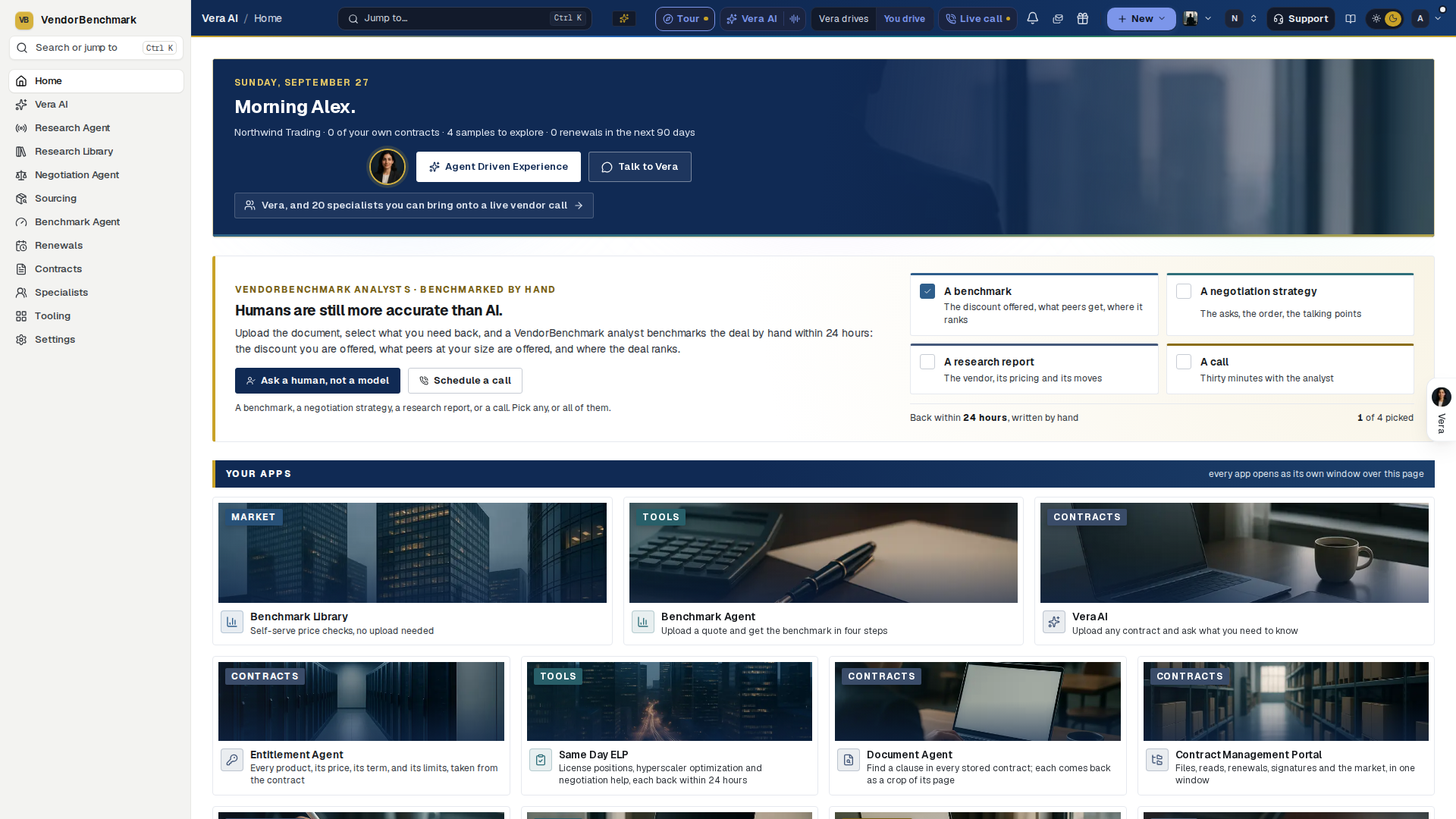
On the screen
- Your greeting — the hello on the launcher masthead, beside the Ask Vera kicker, with today's date on the right. It changes with the day and the hour.
- Ask Vera — the AI question field, directly under the greeting: ask a question about your portfolio, search every application by name, or attach a contract. Typing here also filters the application grid below, so the same field is both the question and the search.
- Main Apps — at the top of the applications, the eight instruments most work starts from (Vera AI, Compare contracts, Benchmark Library, Document Agent, Research, Contract Agent, SOW Agent, MSA Agent), each with its own mark, a one line description, and its family label. Hover one and a small explanation of what it does pops up; click to open it. Main Apps steps aside while you search or filter, so results are never pushed down the page.
- The applications — below Main Apps, every app you have as a ledger: each family under its gold kicker and navy rule, and every app on its own row with its icon, its name, and a one line description of its job. Hover any row and a tooltip explains the app in full before you spend a click. A gold number on a row is a live count of things that need you (proposals in review, open tasks, renewals inside 90 days). Press the star on a row to keep the app under Favorites, and use the group filters across the masthead (Favorites, All, Contracts, Renewals, Benchmarks, Spend, Tools, Team) to narrow the ledger. Arrow keys move through the rows, Enter opens one.
- Your context — on the right, in four tabs: Recent (the pages you last opened), Saved (research and reports you bookmarked), Market news (the newest market signals), and New (what shipped and what was published).
- The feed — one scroll down, the last 30 days in one stream: what we shipped, the research we published, and the licensing, pricing, and vendor news the market made. See below.
The feed
- Lenses — the filter row across the head: Everything, New in the product, Research, Licensing, Pricing, Vendor news. Each carries its own count for the window, so you can see what is in there before spending a click. A lens with nothing in it is not shown.
- Your vendors — a filter beside the lenses that narrows the feed to items touching a vendor you hold a contract with. It appears only when at least one item does. A lens or filter that is on is marked in gray, like every choice on the platform, and the Your estate flag is a plain gray tag.
- Filter the feed — free text search across every title, summary, and vendor in the window.
- The day, in four parts — since 21 September 2026 each day is a short briefing rather than a flat list, because a flat list drew a price move on a vendor you hold contracts with exactly like the twelfth research note of the afternoon. The day opens with its own count (items, how many are on your document, how many are research notes), then:
- On your document — anything touching a vendor you hold a contract with, at full size: the lens, the vendor, the Your estate flag and the verdict on one line, the headline set as a headline, the opening of the read under it, and Open it on the right. The bar down its left edge takes the verdict's color, gold for caution, brick for risk, green for favorable, plain where the item carries none. A day with nothing on your document simply opens on the market.
- The market — pricing, licensing and vendor news, one line each: the lens, the vendor, the headline, and on a wide screen the one line worth acting on beside it, with the verdict on the right. Narrow the window and that line folds away; press the row for it in full. The full market news opens all of it.
- From the library — the research notes published that day as one list of vendor names rather than a run of near-identical paragraphs. Press a name for that note's read; The research library opens the library.
- New in the product — what shipped, one line each, with Every release note beside it.
- The read — press any row, line or name and it opens in place: the summary in full, the one line worth acting on (Vera's read on a market item, the "try it" on a new feature), the source where the item is a verified market signal, and a link to the item itself.
- Show more — the feed loads 25 rows at a time and tells you how many are left. At the foot, links to the complete record: every release note, the research library, and the full market news.
How to use it
- Start at the top: ask Vera a question, or press the application you came for.
- Star the four or five applications you open every day so Favorites becomes your working set.
- Scroll once to the feed and read the On your document part of each day. That is the shortest version of "does anything this month affect my contracts"; the Your vendors lens narrows the whole window to the same question.
- Switch to the New in the product lens when you want to catch up on what we shipped, and open a row for the one thing to try.
Tips
- Sign-ins land on Home; this page stays reachable from the Home footer of old links and the palette.
- On a brand-new account, load sample data first so every screen has something to show while you explore. Remove it before you start entering real contracts.
Control screen
The second reading of the same workspace: where the Dashboard is built to start work, the control screen is built to supervise it. Open it when you want to know what is about to stop being possible, what is waiting on a person, and what your agents are currently allowed to do. Your Dashboard is untouched and stays the default.
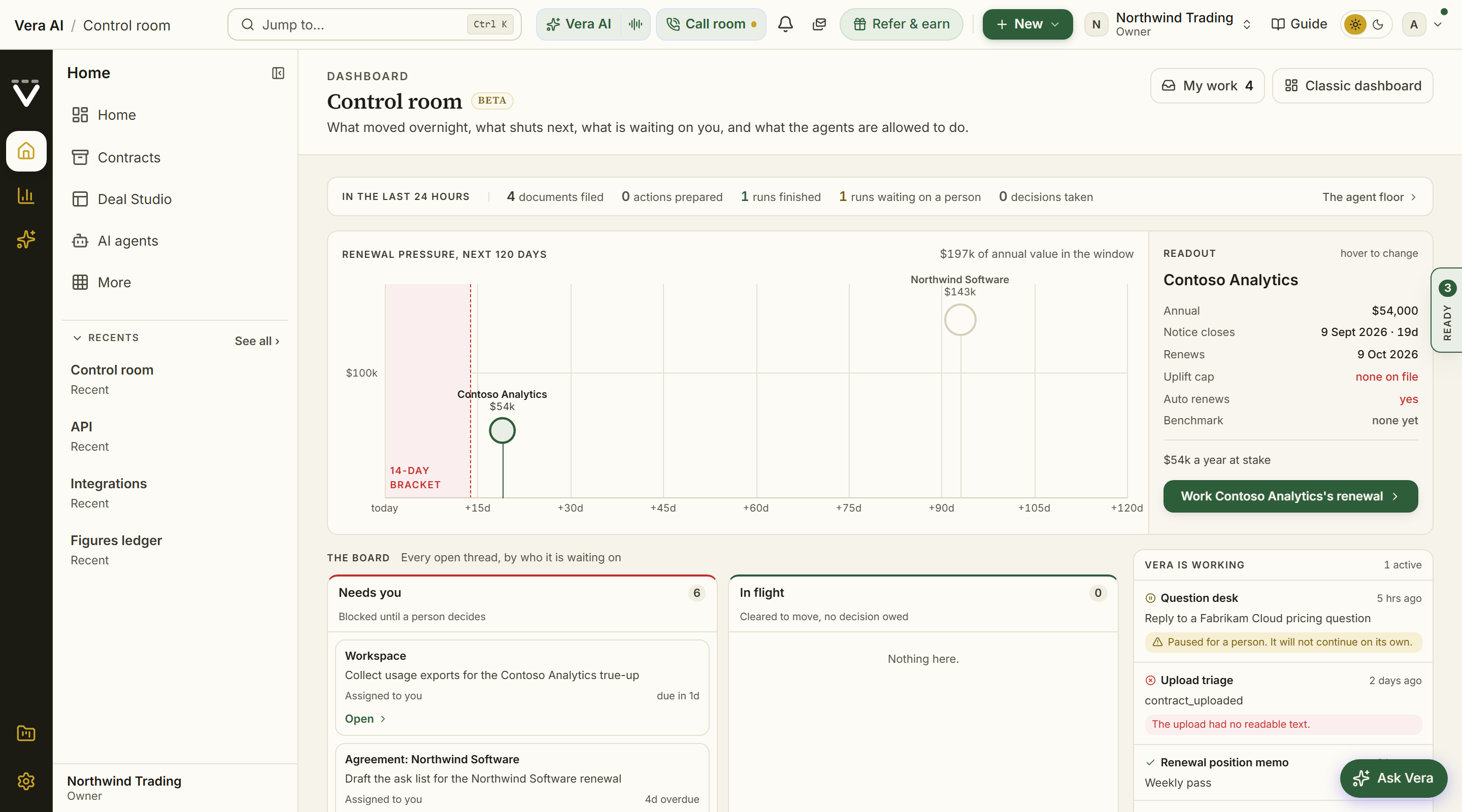
On the screen
- The last 24 hours — the counts across the top: documents filed, actions prepared, workflow runs finished, runs waiting on a person, and decisions taken. A zero is never colored as movement, so a quiet night reads as quiet rather than as bad news.
- Renewal pressure — every notice window shutting inside the next 120 days on two axes: days until it shuts across, annual value up. Marker size follows the same money, so the renewal that is nearest and biggest is the largest circle furthest left. The red shading on the left is the 14-day bracket, the fortnight inside which noticing a deadline later stops helping you. Only agreements that carry both an expiry date and a notice period appear, because only those have a window to miss.
- Readout — the details beside the timeline, driven by whichever marker your cursor is on: annual value, the notice and renewal dates, the uplift cap or the absence of one, whether it renews itself, what the vendor has asked for as a percentage, and whether a benchmark exists. Click a marker to pin it so the readout survives the mouse leaving.
- The board — every open thread in four lanes, sorted by who it is waiting on rather than by what kind of thing it is. Needs you holds prepared actions the guardian escalated or blocked, actions awaiting your approval, and tasks assigned to you. In flight holds actions cleared to send. On watch holds ranked vendors with a real deadline and nothing owed today. Cleared in 24h holds what was sent or closed since yesterday.
- Vera is working — the workflow runs that have actually executed in the last seven days, newest and most urgent first. A run paused for a person is flagged in gold and will not continue on its own; a failed run shows its error.
- Authority — the mandates in force, the rope they give (advise, check with me, or just run it), the target, the largest single amount an agent may commit, the first expiry, and how many prepared actions are waiting on you. With no mandate signed it says so plainly: your agents can prepare work, but nothing reaches a vendor unless you send it.
- The dock — every app one press away at the foot, honoring the same picks as Choose dashboard apps on your home screen.
How to use it
- Read the timeline left to right and stop at the first circle inside the red bracket: that is the deadline with the least time left.
- Hover it to fill the readout, and check the uplift cap line. No cap on file means nothing bounds what they can ask for at renewal.
- Click Work \<vendor\>'s renewal to open it, or clear the Needs you lane first if something there is blocking a send.
- Glance at Authority before you leave: if Waiting on you shows actions, nothing in that queue moves until you approve or decide.
Tips
- Nothing here is estimated. An empty control screen means the rows are missing, not that nothing is happening: add an agreement with an expiry date and a notice period and the window appears on the timeline.
- The board reads your workspace's own guardian verdicts, so an action lands in Needs you exactly when the mandate you signed says a person has to decide.
Related: Dashboard · Renewals · Workflow agents
Getting started (the course)
The page opens with an onboarding spine: four ticks covering the platform introduction, the setup survey, the engagement letter, and first light, each linked, with one line naming your next undone step.
A guided tour matched to why you are here: benchmarking one contract, understanding a single contract, connecting your data sources, or running the full platform. Pick a path and mark steps done as you go; progress is saved to your account and syncs across your devices.
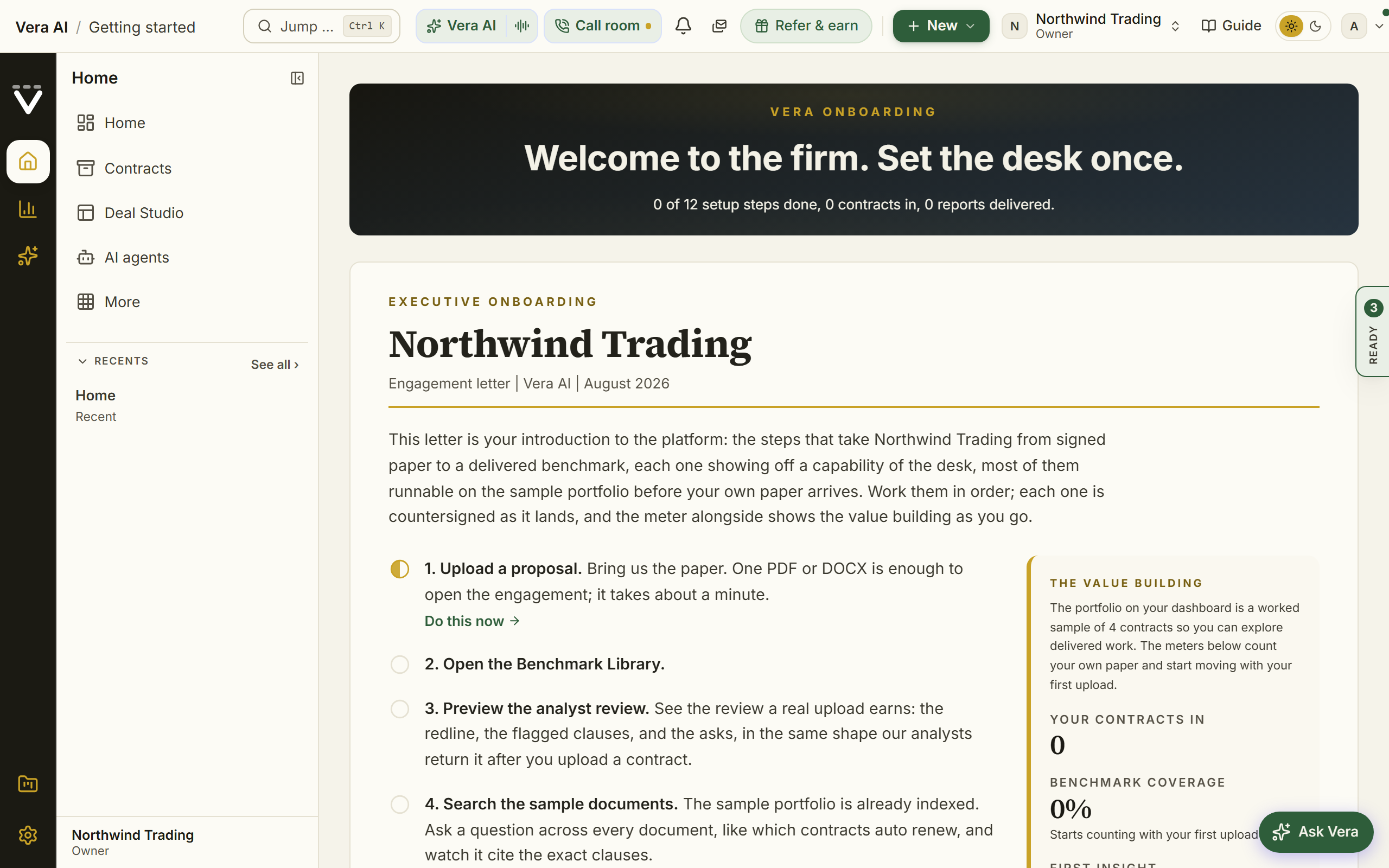
On the screen
- Your workspace (preset picker) — four arrangements of the same workspace: Renewals app (one or two vendors, a renewal on the clock), Deal check (pressure-test a quote), Portfolio command (the whole estate), and Explore everything. Your pick decides which menu sections start open, whether the menu begins simple or full, which tools are pinned to your dashboard, and where the course begins. If you answered the goal question at signup, the matching preset carries a Suggested marker. A preset only changes emphasis: every feature stays available in search and the More catalog, and you can switch presets anytime here or from the foot of the menu.
- Four paths — benchmark one contract, understand a contract, connect your data, or run the full platform. Change paths anytime with Change path.
- Role and use-case questions — the full-platform path asks your role and what you want to get done, then builds a personal track from your answers.
- Progress path — the row of numbered dots shows your whole track: green dots are done, the blue one is your next step.
- Next up — your single next step, promoted to the top with what you get out of it.
- Your own vendor, carried through — the vendors you named when you set up the workspace steer three steps. The Benchmark Library step opens the grid already filtered to your vendor, the research step opens the library filtered the same way, and the Meet Vera step opens with the question about your renewal already written in the composer, ready to send or change. The step text is the same either way: only the destination arrives knowing who you buy from.
How to use it
- Check under Your work: if the menu does not fit how you work anymore, retake the setup survey from there.
- Pick the workspace preset that matches your situation; the sidebar and dashboard rearrange immediately.
- Pick the path that matches why you are here.
- Answer the role and use-case questions if prompted.
- Do the "Next up" step, then mark it done. Repeat down the track.
Tour with Vera
Vera shows you around the platform herself, in a conversation beside the screen. She asks what you care about, explains what each part of the platform is worth to a buyer, opens the screens for you and points at each part in turn. Nothing moves until you say you are ready.
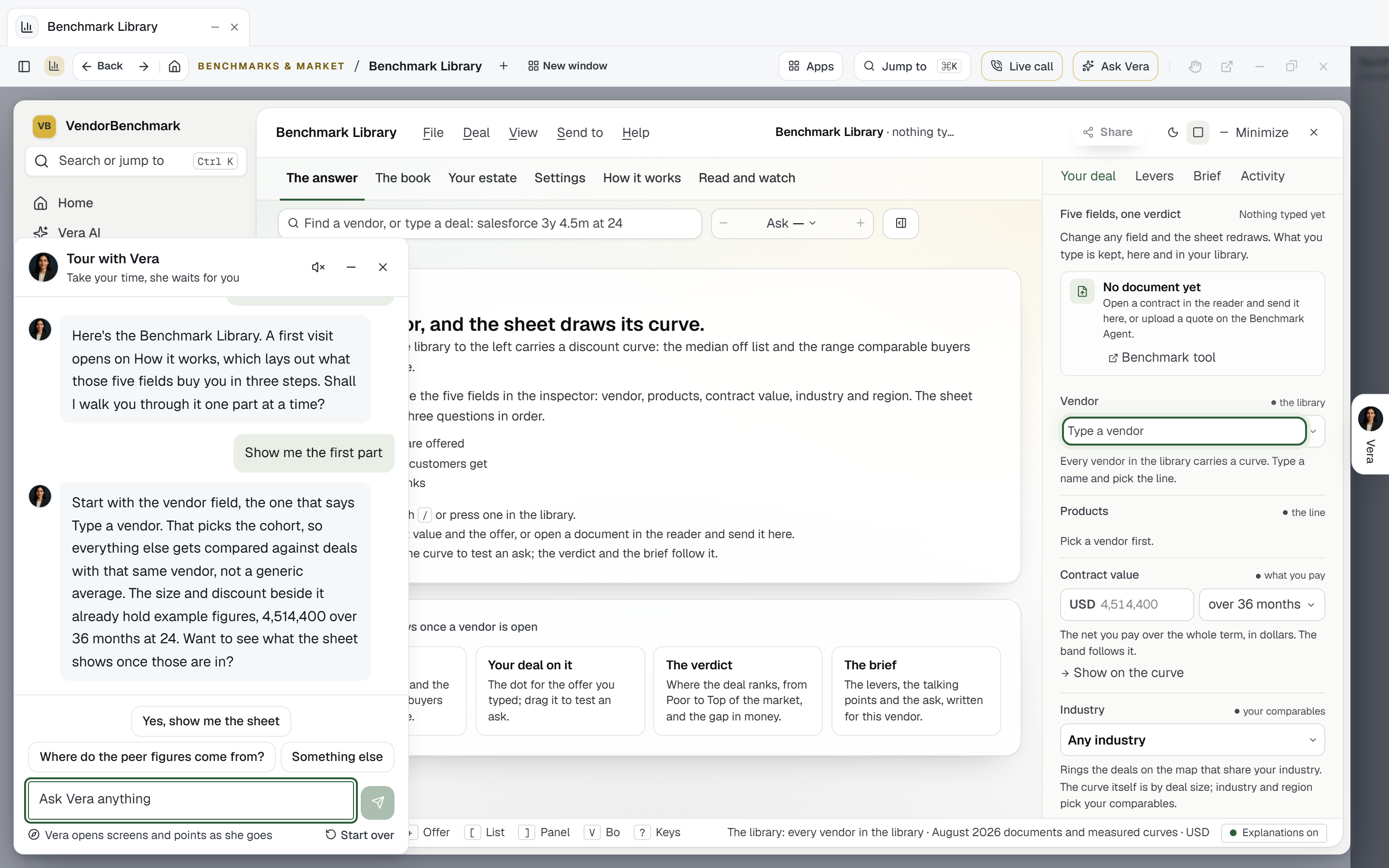
On the screen
- Only when you ask — the tour never opens on its own. Start it from Home's tour card (the Tour button left the top bar on 8 October 2026). If you leave a tour part way, Home shows Your tour with Vera is waiting where you left it, with Continue the tour and Start over; the cross hides it.
- The conversation — opens in the bottom right corner and follows you from screen to screen. Vera says hello and asks how you are first, then which part you would like to see: benchmarking, contracts, document search, research, or contract management.
- Her pace — she thinks for a moment and types her line at a reading pace. Click a line she is still typing to show it whole. The replies you can press appear once she has finished.
- The replies to press — two to four short answers in your words, such as I'm ready, show me or Tell me more first. You can always type your own question instead.
- She drives the screen — when you say you are ready, she opens the screen, and on it she lights up one part at a time with a ring and a small pointer. She never presses anything that changes your data; where a press is needed, she tells you where it is.
- Read aloud — the speaker button reads her lines aloud in Vera's own voice, the same one she speaks in everywhere on the platform. Off until you turn it on.
- Minimize, close and Start over — minimize folds the tour to a Tour with Vera button in the corner. Close puts it away with your place kept. Start over begins again with a fresh hello.
How to use it
- Press Start the tour on Home's tour card.
- Answer her hello, then tell her what you want to see, by pressing a reply or typing.
- Read what she says about why it matters, and press the reply that says you are ready when you want to see the screen.
- On the screen, follow the ring. Ask anything along the way; she answers and then offers to carry on.
- Tell her when you have seen enough, or close the panel and come back later: Continue the tour picks up on the same screen, the same question.
Tips
- Your place is saved with your work, so the tour continues on another device too.
- A screen that is empty because nothing is loaded yet is normal on a new workspace; Vera says what would fill it.
Related: The top bar · Vera AI
Sample data (the switch in the title bar)
Any app can be shown on its sample data and switched back to your own. The switch is yours alone and kept per app: switching it on in one app changes nothing for a colleague and nothing in another app, and it stays as you left it the next time you open the app, on any device.
On a trial (since 22 October 2026) every app opens on its sample to begin with, so each screen has something to show. Switch it off in an app to work on your own data there; that app stays off and the others stay on. Software Discovery, Software Discovery+ and Check before you sign add their sample for the whole workspace, so they still wait for a press. When the trial ends or becomes a paid plan, the apps you never switched go back to your own data.
On the screen
- Sample data — the switch in the title bar. Lit gold, the app shows its sample; off, it shows your own data. Point at it for what the sample holds.
- The status bar — says Sample data once while the sample is on. Nothing else in the window repeats it: the sidebar's groups carry no sample label. Every app's sample is the same company, Northwind Trading.
- The File menu — the app's own sample item (Sample data in What you own, See the sample deals and Back to your deals in the Deal Agent, See the sample tickets and Back to your tickets in License position in 24 hours) is the same switch.
How to use it
- Open the app and press Sample data in its title bar.
- Use the app on the sample. Anything that would save (an upload, a stage change, a filed link) says it is a sample and saves nothing.
- Press Sample data again to go back to your own data. Your own contracts were never touched.
What each app's sample holds
- What you own — 58 documents from ten vendors, read, linked and placed, with 13 license lines and an Oracle audit case.
- Deal Agent — eleven deals from eleven vendors, from the first notice to the signature.
- Benchmark Library — Your library and Money on the table on a sample estate of 13 contracts from 13 vendors, each placed on the market and ranked. See it on a sample estate and Back to your contracts are the same switch, and switching it on from another screen opens Your library. Try a sample deal still loads one deal to test on its own.
- Sourcing — three purchases (one scored in full at evaluation, one at go to market, one at requirements) and five requests in intake, read only. The Sample button beside the tabs is the same switch.
- Spend Agent — an estate of 63 vendors and 36 months of ledger rows, every figure adding up to its rows. Plan choices, board decisions, comments and share links are not saved on it, and the Excel and PowerPoint exports carry the sample while it shows. A workspace with no contract carrying an annual value opens on the sample with the switch on; switched off there, the window lists what the review needs instead.
- Software Discovery — 590 machines across six sites, with the lines a company pays for. This sample is added for the whole workspace: switching it on loads it for everyone in it, and switching it off removes it for everyone. Machines your own scanners sent stay either way. Load the sample estate and Remove the sample on the window are the same switch.
- Check before you sign — one envelope, an Oracle Fusion order form with its benchmark report and its two page signing brief, as if it had arrived from DocuSign. This sample is added for the whole workspace: switching it on puts it in everyone's inbox, and switching it off removes it for everyone. Load the sample envelope and Remove the sample on the window are the same switch.
- Contract Office — seven documents from five vendors (Microsoft, Salesforce, Workday, ServiceNow and Oracle), read, with their renewal and notice dates, shown in place of your estate even when your own contracts are filed. See a sample estate on an empty estate is the same switch, and a document you drop on the sample switches it off and files into your own estate.
- Contract Agent — seven read documents: three orders and quotes, two statements of work and two master agreements, each with its changes. My template on a sample document opens on a check already run against the Sample policy: each rule falls short, is silent, is unclear or meets it, and Redline it puts the policy's wording in place in this browser only. Back to my documents on the start, shown while the sample is on, is the same switch. Opening one sample document on its own (Open a sample, or the Get started task) leaves the switch as you keep it.
- Research Library — the same library, ranked for Northwind Trading's eight sample agreements (Salesforce, Oracle, Snowflake, Microsoft, ServiceNow, Workday, SAP and Adobe), with their renewals in the vendor dossiers and on the coverage map. Saving, liking, forwarding and requesting a document say it is a sample.
- Research Agent — the real weekly findings, read against the same eight vendors: their findings marked as yours, six renewals on the Timeline, two colleagues to send a week to and a follow list. Saving the follow list, sending and running the agent say it is a sample.
- Vendor Changes — the real change ledger, read against the same eight agreements in the reports and exports, with alerts on the bell for those vendors. Changing a signal or emailing the report says it is a sample.
- Monday brief — a sample week in all four sections: three notice dates, three amounts to claim, two invoices and one renewal ask over the cap, and three deals behind the market. A renewal, a capped ask or a deal behind the market opens the Deal Agent's sample deal for the same vendor.
- License position in 24 hours — four tickets, one at each point of the clock: a request paused for a missing file, a negotiation in analyst review, a Microsoft 365 position in QA, and an Oracle Database license position delivered with its lines and levers. Sending, uploading and messaging say it is a sample, and a sample file has nothing behind it.
- Case Rooms — six contracts from five vendors, three of them open as cases with a plan, a thread, the people and a Teams Room. A sample contract opens only in Case Rooms.
- Playbooks — five renewals with their plan states, the vendors on file, two team projects and 18 clause positions, beside the guided and category playbooks, which are the same for everyone.
- E-sign — seven envelopes, two waiting for your signature, each with its audit trail, a signed archive in two folders and the settings. Nothing is sent, and a sample envelope has no PDF to open.
- Contracts (Analyst Benchmark) — seven proposals at every stage from upload to the delivered report, three of them priced against peers. A delivered sample opens the example report.
- Vera AI — four documents, three of the team's briefs (one handed to you, one waiting on a teammate's sign off) and two teammates. Write the brief and every sample brief open the worked example of that kind of brief.
- Vera on calls — three schedules (a weekly Oracle call, a one off Salesforce review, a paused ServiceNow steering call), what became of each booked call, and a saved template.
- Teams Room — your own sample room on an Oracle renewal, seen by you alone: files, posts, meeting notes and actions, a request, a plan and Vera's read. Switching it on opens the room, opening it for you the first time; switching it off takes you back to your own rooms.
- Specialists — a book of six renewals behind their specialists, three conversations this quarter, a pinned setup, an agent of your own and a recorded Oracle roundtable.
- Document Agent — Northwind Trading's 52 documents across 14 vendors: the eight main agreements (Salesforce, Oracle, Snowflake, Microsoft, ServiceNow, Workday, SAP and Adobe) with the master agreements, orders, addenda and statements of work around them, and six more vendors (Google Cloud, Amazon Web Services, Atlassian, Zoom, Okta and DocuSign), every answer quoted from the page it stands on, so the results, the table, the report, the mind map, the workflows and the file previews all have something on them. A search of words, a phrase or clause:renewal reads the sample's own pages, and the team's shared template is there to run. Saving a template, downloading a file, opening the reader, asking Vera about a clause and sending it to the owner say it is a sample; the sample's searches are kept apart from your own.
- Enterprise Uploader — a finished run of Northwind Trading's: six contracts brought in (four from this computer, two by email), read, checked against the register with three exceptions settled (a vendor name, a date the register disagreed with, a value taken from the register), signed off and live, with its acceptance certificate, its files and its report. Every step has something on it. Uploading, loading the demo data, connecting a source, pausing, deleting the run, scanning the text, saving a report view and downloading the PowerPoint say it is a sample; your own run is untouched underneath.
- Ask a human — five requests from Northwind Trading at different points: one just sent, one with an analyst building the comparison, one where the analyst has asked a question and the 24 hours are paused, and two delivered. Two signed reports stand in Reports, a Salesforce renewal ranked Below market and a Microsoft renewal ranked Good, with the conversation and one booked call. Send, uploads, replies, answers, sharing and meeting requests say it is a sample, and no analyst review is used.
- File Share — Northwind Trading's file space: four folders (vendor contracts with an Oracle subfolder, renewal quotes, board packs) holding twelve files, one more in the trash, two colleagues and an outside counsel guest with their roles, two shared links, a folder synced to the Contract Office, and the audit log with its IP addresses. Every step has something on it. Uploading, sharing, making a link, moving, renaming and changing a setting say it is a sample, and a sample file or link opens nothing.
Tips
- In Software Discovery and Check before you sign the switch shows whether the workspace holds the sample, so it can be on when a colleague loaded it.
- A Get started task that runs on a sample estate turns the switch on in the app it opens; it stays on until you switch it off.
- Every app has the switch, in the same place in each title bar.
Get started (the guided tasks)
Ten tasks that teach the platform by doing it, each run on sample data so nothing you press changes your own contracts. Start a task and the app opens with a guide card beside it: the card rings the control to press, says what the screen is for, and moves on when the press has happened. You can stop at any step and continue later, on this device or another.
On the screen
- The checklist — one row a task: the task and what it covers, the app it runs in, what you find out, the five steps as marks, the minutes it takes, and Start, Continue or Do it again. The count and a bar in the head show how many are done; Start the tour (or Continue the tour) runs the first open task, and Hide folds the list to one line with Show the checklist to bring it back.
- The ten tasks — Bring in your contracts and Understand what you own (What you own, on its sample estate), Search across your contracts (Document Agent, on its sample documents), See what you leave on the table (Benchmark Library: the benchmark data first, then a sample deal and a sample estate placed on it), Ask Vera and bring her on a call (Vera AI), Redline a contract (Contract Agent, on its sample master agreement), Run a renewal in the Deal Agent (on its sample deals), Find where the money goes (Spend Agent, on its sample estate), Write an email with AI (Vera AI: Briefs, a brief Vera wrote, then the email to your CFO under it), and Ask a human analyst.
- The guide card — names the task and the step (Step 2 of 5), says what the screen does and what to press, and keeps to the right of the screen, moving to another corner only when it would cover the control it rings. Drag it by its title bar to put it anywhere; the minus beside the cross folds it to its title bar so the whole screen shows, and pressing it again opens it. When the press has happened it says what it showed and Next moves on. Where a screen opens with something already selected (the first search result, the change in hand on a contract), the card does not count that as your press: it asks for one the screen has not had yet, or asks you only to look. Away from the step's app it offers Take me there; where the step needs a tab opened first it says so and rings the tab.
- This page — the first time a screen comes up in the tour, the card carries a box that names the screen, says what it is and lists its parts. Press a part and the ring shows where it is. Hide puts the box away; About this page brings it back.
- Do it for me — on a step whose press only opens or shows something, the card can press it for you. It never presses anything that sends, uploads, spends a credit or writes to your workspace: those steps point at the control and say what it would do. On Ask a human the tour stops at the box that asks before a request is sent, and asks you to press Cancel. In the Contract Agent it points at the three views and leaves them switched as they are, because a view switched off stays off on your own documents.
- Running a task again — Search across your contracts and Redline a contract start on a clean sample each time they start from the first step, so no step is already done. Your own work is never touched.
- Pause and continue — the cross on the card, or Escape while the card has focus, pauses the tour. A Tour paused chip stays at the foot of the left edge with Continue, and the checklist keeps the place. The cross on the chip closes it; the checklist on Home still keeps every place.
- Between tasks — a box says what the task showed in three lines, marks the tasks done so far, and offers the next task, Back to the checklist or Stay on this screen.
- Advanced — a second list beside Get started, with its own count: ten more tasks for when you know the basics. Manage a contract record and Never miss a notice date (Contract Office), Build the board pack and Email your CFO (Spend Agent), Make a boardroom deck and a brief and Put one question to every contract (Vera AI), Prepare the negotiation (Deal Agent), Benchmark a vendor's offer (Self Drop Benchmark), Run a vendor meeting (Teams Room) and Read the market before you negotiate (Research Library). The card is the same; a press that sends, downloads, shares or saves is only pointed at. Starting a task in one list pauses the other, and each Advanced task opens its app fresh.
How to use it
- On Home, press Start the tour, or Start on any task. For the Advanced list, press Advanced in the panel's head first.
- Follow the card: press the ringed control, read what it showed, press Next.
- Press the cross whenever you want to stop. Continue later from the chip or the checklist.
- When a task is done, press the next one in the box, or go back to the checklist.
Tips
- The samples save nothing, so try anything. An app the tour opened on its sample stays on it, with Sample data lit in its title bar, until you switch it off there.
- Steps that use AI (Vera's answers, the email draft) count toward your plan's AI use like any other question.
Related: Tour with Vera · The training tour
The demo
The platform in eight steps, as a demo you read. Each screen opens by itself on sample data with a short note beside it, and Next moves on. Nothing in it changes your own contracts. Get started, under it on Home, is the same platform taken by doing; the demo is the one you read.
The eight steps
- Upload every contract (What you own): where a whole estate goes in, how each contract is read, how it is filed under its vendor, and the report on the run.
- See how the contracts connect (What you own and Document Agent): the contract map with each master agreement and what was signed under it, the agreement nobody uploaded, and the mind map of one term across every document.
- Analyze spend (Spend Agent): where the money goes, what moved in a year, what to take out, and the written review.
- Benchmark your whole library (Benchmark Library): every contract placed against comparable customers in Your library, the five facts, and Money on the table.
- Benchmark one deal (Benchmark Library): the library of vendors and lines, the finding on a sample deal, the three questions, and an ask tested on the curve.
- Redline a contract and hold it to your policy (Contract Agent and Contract policy): what the agent found in a sample order, a change approved and struck on the page, the order checked against the Sample policy rule by rule, a rule redlined with the policy's wording, and the policy terms themselves.
- Let an AI agent run the negotiation (Deal Agent): a sample renewal Vera runs, every offer against the target, a round played to the gate where she stops for approval, and Who runs it.
- Send a benchmark to a human analyst (Ask a human, on its five sample requests): the request form, the one press that uses a review, the requests and where each stands, one request tracked on its seven steps, and a signed report opened.
On the screen
- The band on Home — the eight steps across the width, the minutes it takes, and Start the demo. Press a step to start there. Once started the button reads Continue the demo, and a finished step wears a tick.
- The list of steps — the demo opens on all eight, each with its app, one line and its number of screens. Start the demo begins at step one; any row starts at that step. All 8 steps on the card brings the list back.
- The card — names the step and the screen, says what the screen does in two or three lines, and rings the part it is about. A line of eight marks shows where you are, and a mark is a press to that step. Next opens the next screen, in the next app when the step changes; Back goes the other way, across steps too.
- Try it — most screens name one press to try (a contract, a vendor on the map, a category). Press it yourself, or Show me presses it for you where the press only shows something. Show me never uploads, sends, shares or uses a review.
- Opening a screen — the demo opens each app and its tab itself. Where it cannot (a window that was already open on something else), the card says which tab to open and rings it.
- Pause and continue — the cross on the card, or Escape, pauses. A Demo paused chip stays at the foot of the left edge with Continue, and the band on Home keeps the place.
- The close — after the last screen, a box lists what the eight steps showed. Add your own contracts switches the sample data off and opens the Uploader; Read it again starts over.
How to use it
- On Home, press Start the demo, then Start the demo again on the list, or press any step.
- Read the card, look at the ringed part of the screen, and press Next.
- Press the cross to stop. Continue from the chip, or from the band on Home.
- At the close, press Add your own contracts to carry on with your own.
On a trial
- A trial workspace opens on the trial tour instead (the next section): the first time you reach Home, the tour's welcome opens by itself, once. The demo stays on the band on Home and starts from there; it no longer opens its list by itself.
- Nothing waits on the demo or the tour: every app in your trial is open from the first sign in.
- A trial the VendorBenchmark team set up for you opens on the demo's list of steps, as before.
The demo workspace
- The demo workspace behind
/demoopens straight on the list of steps, with sample data already on in every app the demo visits. Entry needs the demo password from your VendorBenchmark contact, or one press on Explore the live demo while your own workspace is being prepared. - It is shared and nothing done in it is kept: the session runs for 30 minutes, then signs you out and rebuilds the workspace. Its close offers a workspace of your own instead of an upload.
Tips
- One screen has no sample: Contract policy shows your workspace's own terms, and the demo changes nothing there. The check in step 6 runs against the Sample policy, the starter terms a new workspace begins with.
- An app the demo opened stays on its sample, with Sample data lit in its title bar, until you switch it off there or press Add your own contracts at the close.
Related: Get started · Sample data
The trial tour
Twelve stops through the platform, done by you with the card beside each control. The welcome says what a trial is and what was loaded: the account is a trial, and it was loaded with sample data (58 contracts from ten vendors, 63 vendors of spend, 13 contracts benchmarked, 11 deals, 9 renewals the AI runs, 28 vendor changes), so every app opens on a worked estate. Nothing in the tour changes anything real.
The twelve stops
- Upload all your contracts (What you own): step 1 Upload, press Scan, step 2 Scanned, and the contracts filed one folder a vendor.
- Search and filter across every contract (Document Agent): the search box across every stored document, a clause kind to narrow, the chips, and the table.
- The Benchmark Library: standard, advanced and simple: the library of vendors and lines and the three answers; the Advanced view with the levers; Is this a good deal? in three steps.
- Submit a contract to a human analyst (Ask a human): the request form, upload or write, the Send that uses a review, and a request tracked to its signed report.
- Contract review and the AI overview (Contract Agent): what the agent found in a sample order, AI overview, a change approved and struck on the page, and Ask Vera about the document.
- Compare two contracts, with the AI summary (Compare): two contracts in the slots, the pairs offered, Compare, the changes lit on the pages, and the summary with every difference.
- Find the savings with the Spend Agent: where the money goes, the savings slider, and the written review.
- Find research in the library (Research Library): the search box, Vendors, a vendor opened, and the negotiator's guide read (free on every plan).
- Run a deal with the Deal Agent: today's list, a renewal Vera runs, a round played to the gate, and Who runs it.
- Set up AI agents to negotiate for you (AI Managed): the contracts to hand over, the approach, the value threshold, and the emails that wait for your approval.
- Set up an AI agent to join your calls (Vera on calls): Add a call, the meeting link, who joins, and Seats and templates.
- Set up Vendor Radar: the tracked vendors, the sweep, the changes priced, and the alert rules.
On the screen
- The welcome — the account and what was loaded on the left, with how the tour works in three lines; the twelve stops on the right, each with its app, its screens and its minutes. Start the tour begins at stop one; any stop starts there; Not now closes it. It opens by itself once and never again.
- The card — names the stop and the step, says what the screen does in two or three lines, and rings the control it is about. Away from the app, Take me there opens it. A line of marks shows the steps in the stop.
- The press — the card says what to press. Do it for me makes a press that only opens or shows something (a row, a tab, a scan on the sample, a round on a sample deal). A send, an upload of your own file, an email approval or a comparison scan is always yours; the card points at it and says what it would do.
- Between stops — a box says what the stop showed and offers the next. At the close, Add your own contracts switches the sample data off and opens the Uploader.
- Pause and continue — the cross on the card, or Escape, pauses. A Trial tour paused chip stays at the foot of the left edge with Continue, and your place is kept at the next sign in.
How to use it
- Sign in to your trial. On Home, press Start the tour on the welcome, or press any stop.
- Follow the ring: press what the card asks, or press Do it for me where it is offered, then Next.
- Press the cross to stop. Continue from the chip.
- At the close, press Add your own contracts to carry on with your own.
Tips
- Starting the tour switches Sample data on in every app it visits; the close switches it off. The switch in each app's title bar does the same for one app.
- The research stop opens the negotiator's guide, the one note that is free on every plan, so the tour spends none of a trial's ten notes.
Related: The demo · Get started · Sample data
The training tour
A training workspace is a classroom copy of the platform on sample documents, provisioned by the VendorBenchmark team for a training cohort (see Training workspaces). Inside it, the training tour walks you through eleven stops in order, and stays with you from screen to screen until the eleventh is done.
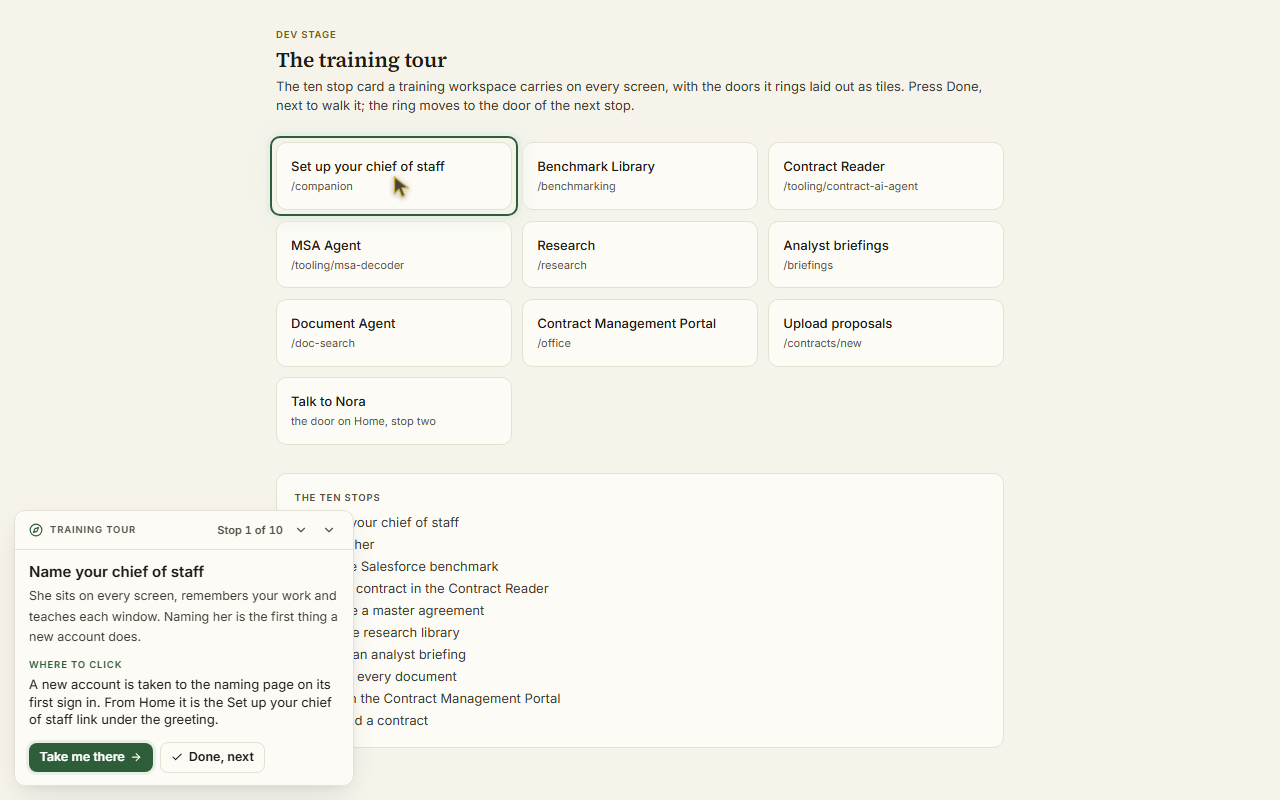
On the screen
- The stop — the heading names the stop you are on and the count, Stop 3 of 11, with one line on why the stop matters.
- Where to click — one sentence naming what to press: the app on Home, the link in the menu, or Jump to with the words to type. The same app or link wears a ring on the screen, and a small pointer sets off from your own and arrives before you do. When no such app or link is on the screen, the ring stands on Jump to.
- Take me there — opens the stop's destination the way you would have, as its own window or as a page.
- You are here — once the destination is open the tour switches to the two to four things to do there, numbered, and the ring moves to the control the first move names.
- Done, next — closes the stop and opens the next. One stop closes itself: uploading a contract, which closes when the proposal page opens.
- Back and the list — Back reopens the previous stop without losing its tick; the chevron in the header opens all eleven stops with their ticks, and any stop can be reopened from there.
- The collapse control — folds the tour to a button reading Training tour, 4 of 11. The button reopens it.
The eleven stops
- Make an agent of your own on Specialists, add the vendors it should know, and press Request expertise to ask VendorBenchmark to prepare it.
- Talk to Vera, from the Talk to Vera button under her portrait on Home.
- Talk it through with Vera Demo: the live call opens with the demo persona on the line, the voice a prospect meets. Press Start talking, tell her what you buy and which renewal is next, and ask what the platform can do for you and whether it replaces anyone (see The live call).
- Run the Salesforce Sales and Service Cloud benchmark in the Benchmark Library. Every other vendor in the library wears a lock in a training workspace.
- Read a contract in the Contract Reader, on the Salesforce renewal quote already on file.
- Decode a master agreement in the MSA Agent, opened on the sample SaaS master agreement.
- Visit the research library and open a document.
- Watch an analyst briefing.
- Search every document with the Document Agent.
- Work in the Contract Management Portal, through its ten screens.
- Upload a contract: the sample Salesforce quote is one link away in the tour.
How to use it
- Sign in. The tour at the foot of Home opens on stop one.
- Read Where to click and follow the ring, or press Take me there.
- On arrival, do the numbered moves, then press Done, next.
- Repeat to the eleventh stop. The last stop says the tour is done and offers Start the tour again.
Tips
- Your place is kept on your account, so a reload, a destination opening in its own window and tomorrow's sign in all reopen the same stop.
- Everything in a training workspace is sample document. Nothing you try there can go wrong, and the workspace can be reset by the team between cohorts.
Related: Vera, your one assistant · The Benchmark Library · Training workspaces
My work
Everything assigned to you personally: tasks, renewals you own, and approvals waiting on you. This is your answer to "what needs me?"
On the screen
- The masthead — My work in the house dress: one row of facts under the title (waiting, past the line, due today, this week, cleared this week), and Boardroom Brief at the right.
- Today, This week, Later — one band per group with its live count and how many are past the line, over the rows its real deadline puts there. Each row keeps its home as a colored edge and a mark (renewals amber, approvals green, tasks blue, engagements slate, mentions teal); task rows carry Defer to next Monday and Mark done in place, with an undo.
- Your pace — what you cleared in each of the last six weeks as bars, and the what if beside them: move Items you clear a day and read the working days to an empty docket and the date it lands.
- The inspector — your items by kind and the Moves: the items past their line first, then the task list, approvals and the renewal calendar.
- The all clear — when nothing waits on you, the page splits into two halves: the docket is clear, and one forward move, the next renewal to reach its notice window with links to the renewal record and Ask Vera, or a price check prompt when none is upcoming.
- When the queues are short — with fewer than eight items waiting, the page adds your latest contracts with their status and annual value, and the renewals coming up with the days out, the notice date and the annual value, in US dollars, then How work reaches this page in four short facts. Under them, Vendors on file lists your largest vendors by the annual value their contracts state: the contracts on file, each vendor's share of that stated spend and its next renewal date. Each row opens the vendor.
How to use it
- Open My work at the start of the day and clear each queue.
- For team-wide to-dos rather than just yours, see Tasks.
The More catalog
The full, searchable catalog of every tool and page, including everything the short menu hides. When you cannot remember where something lives, this is the place to browse or search.
Since 9 October 2026 All apps and tools opens as a window: the ten screens are numbered rows in the column at the left, the search sits under the title, and every group lists its pages as rows with the moment to reach for each and an Open button. Pressing a row fills the details column at the right with what the page does, where it lives, a picture of the screen it opens and the next moves; Open or Enter in the search goes there. Since 13 October 2026 the catalog arrives in order (the head, the search, then the wings and their rows, the details column on every press), a wing lights under the pointer, and the note under a row is one line; the details column carries the whole of it.
On the screen
- The masthead — the catalog in the house dress: destinations, self serve tools, vendor benchmarks and groups on one row, and the search box at the right. While you type, the line under the title shows the number of matches.
- The numbered groups — one step per area (Contracts & documents, Sourcing, Renewals & deals, and so on) with its live count. A step shows only that area; All shows every area in order, each under its own band.
- Main apps — Vera AI, the Contract Agent and the Benchmark Agent, shown larger at the top of the All tab.
- Screen tiles — each tile shows a picture of the screen it opens, its name, and what it does. AI marks a tool that needs AI in your plan; Plan marks one your plan does not include, and pressing it explains the upgrade.
- Also in — pages without a picture yet, listed as plain rows under the tiles.
- Benchmark library — vendor price benchmark pages as rows, with a link to the full library.
How to use it
- Open More and search, or pick a group.
- Press a tile to open that screen.
- Faster still: press Ctrl/⌘ K anywhere and type what you want.
Search (the card catalog)
Global search across everything the platform holds for your organization: proposals, vendors, agreements and renewals, benchmark metrics, contract clauses, tasks, and AI deliverables. The command palette answers "take me to a page"; this screen answers "find me a record".
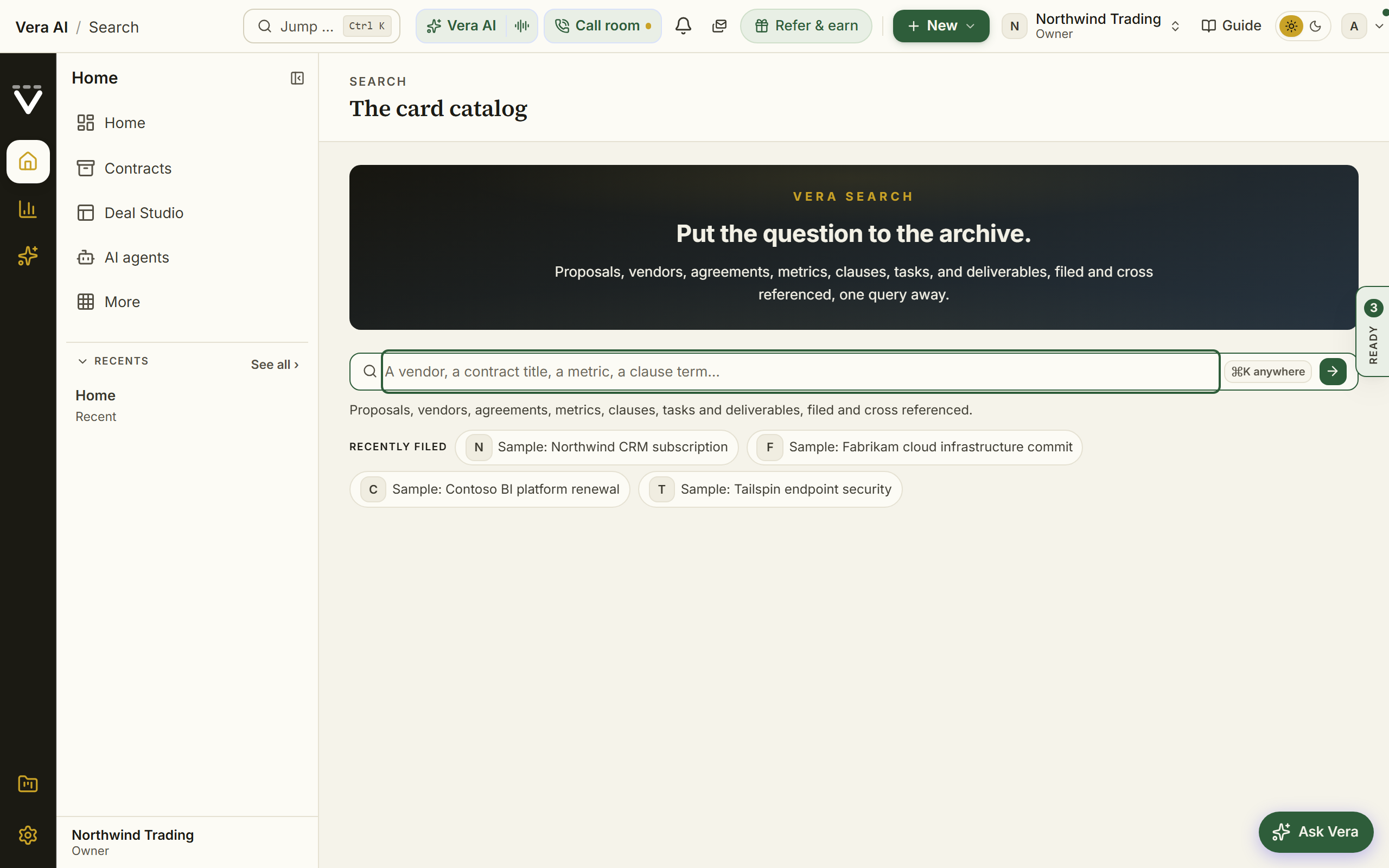
On the screen
- Messages and calendar: Search is screen 5 of Messages and calendar. The masthead counts the results, how many of the seven kinds matched, and the contracts, agreements and clauses among them; before a query it counts your recent contracts. The inspector on the right carries Moves: ask Vera about the query, open the contracts, the chat or File Share.
- The search toolbar — the field, and under it a line telling you how many cards were pulled from how many drawers. Before you type, Recently filed lists the records you last touched, one press each, so the proposals you were working on are one click away rather than a blank box.
- Before you search — under the toolbar, your latest contracts with their status and annual value, and the renewals coming up with the days out, the notice date and the annual value, in US dollars, then What a search reaches in four short facts. Under them, Vendors on file lists your largest vendors by the annual value their contracts state: the contracts on file, each vendor's share of that stated spend and its next renewal date. Each row opens the vendor.
- Best match — when one record clearly answers the query, it floats above the rest with a one line, fully grounded verdict.
- Result drawers — matches grouped by type (Vendors, Analyst Benchmark, Agreements & renewals, Benchmark metrics, Clauses, Tasks, AI deliverables), each row linking straight to the record. A list on the left shows how many of each type matched before you scroll.
- Ask Vera about these results — the line that closes the page. The records answer where; this asks what they mean, opening Vera with the question already written about that term across your agreements, and running it straight away. It shows even when nothing matched, because an empty result is often the most useful thing to ask about.
How to use it
- Press Ctrl/⌘ K, type your term, and choose the search row; or open the Instant search app on Home.
- Open the group that matches what you are hunting: a clause term lands in Clauses, a vendor name in Vendors and Analyst Benchmark.
- Nothing filed under your term? Press Ask Vera about these results, or try a vendor name, a contract title, or a clause term like "auto renewal" or "liability".
Tips
- For full-text search inside the documents themselves, use Document Agent; this screen searches the records the platform keeps about them.
Related: Document Agent · The More catalog
Enterprise Uploader
Since 9 October 2026 the Uploader is step 1 of What you own, at the Agent's own address (/entitlement-office; /migration forwards there). The line is: 1 Upload (upload a folder or files, then press Scan), 2 Scanned (each contract as the scan lands), then the Agent's other steps, with the checks and the one press that files it all on Report. The run, the staging, the sign off and the rollback window below are unchanged.
The Enterprise Uploader is the one tool for bringing an entire contract estate onto the platform in one guided run. Use it once, at the start, when you have hundreds or thousands of agreements to bring across. For a handful of documents use Upload a proposal, and for a folder you want read and filed straight away use Contracts.
The part worth understanding before you begin: everything a migration loads is held in staging. While the run is in progress it is invisible to the rest of the platform. No renewal alert fires, no digest counts it, and no agent reads it. Your estate becomes real only when you sign it off.
Since 30 September 2026 the Uploader wears the Simple dress the other Simple views wear: the work sits in white sections on a gray ground, navy marks the one main action and what is selected, gold underlines the step you are on and rules off the counts, and green means done. Every state opens with the masthead: the state named with Uploader beside it, its status tag and one factual line, one row of counts over a gold rule, and the actions at the right. The whole run is one page: /migration is whatever the run needs next. The run's documents are the page itself: a table of every file with its size, its SHA-256, its transfer and its status, above whatever the run needs next, so the document never hides behind a fold. The table works like a file manager: a click selects a row, and the document opens in the reader four ways, all one gesture: press the file's own name, press the View button at the row's end, double click the row, or press Enter on the selected row. A right click on any filed row offers the rest of what the explorer offers: open in the reader, Benchmark this contract, and Send this contract to Contract Agent, the MSA Agent, the SOW Agent, the Benchmark tool, or the Vera Workspace, each opening already loaded with that exact document. The reader is a document analysis window, not a viewer. The titlebar names the document, its vendor, and its lane (Staged or Live), and carries a Recents switcher that reopens any of the last five documents you read in one press. The command bar under it holds Find in document (Ctrl+F or /, a live count such as 3 of 14, Enter and Shift+Enter walk the hits, every hit painted amber on the page), the zoom cluster (minus and plus, presets Fit width, Fit page, 100, 150, 200), a page box you can type into, Night reading, the reading Ruler, Rotate, Send to (the two sends to people first, Send by email to any address and Send to a colleague, which puts a task in their queue and emails them; then the tools, Contract Agent, the MSA and SOW Agents, the Benchmark tool and the Vera Workspace, for a staged document, since a live document's tools open from its own Reading Screen so the record travels with the document), and buttons that mint a fresh link for Download, Print, and Open in new tab, a Share link that opens this window with the reader already on this document, and ? for the keyboard sheet. Pages and Outline open on the left: page thumbnails (the current one lit, find hits counted in the corner) or the document's headings. The inspector on the right reads the document five ways. The read carries the document's full deep read once What you own has read it: seventeen answers, the parties, the term, the renewal and its notice window, the money, the uplift cap, the audit clause and the rest, each with the verbatim line it was read from, the page it sits on when the index locates it, and a Show on the document button that jumps to the line and flashes it; beneath them, every product line priced from the document's own table, quantities, units and unit prices intact, with the table exactly as printed one press from its page, then the standing questions. A document verified in the Entitlement Office wears its Verified by a person label here, the coverage line states how many answers were read and at which read version, and a document the deep read has not reached keeps the plain figure sheet, term, annual and total value, currency, notice, renewal and the standing questions; a figure the document does not carry reads "not stated on the document". Notes holds the marks you leave: select any passage, right click it, and choose Comment, Highlight, Redline, or Copy as citation from the offer that opens at your cursor (Escape closes it, and a right click anywhere else opens your browser's own menu; on a phone or tablet the offer opens on the selection itself, because there is no right click to give it); a mark anchors to the words themselves, paints on the page (comments violet, highlights amber, redlines brick), and lists here with its page, author, and date, a Jump, and Delete for your own. AI carries Vera's read (what the document is, what it costs, what binds you, what to do first) and Ask this document, a question box that answers from this document only and shows the passages the answer rests on, each one opening its page when you press it. Redline is where the work happens: press Mark up this contract and Vera returns the changes worth asking for, worked one at a time since September 2026. The finding in hand is set out whole (the severity word, the clause it governs, why it matters, their exact words quoted from the document and painted brick on the page, and the language to put in its place as a field you edit) with Ask for this and Let it stand and their keys; the rest wait underneath in working order, worst first, each row with its rank ring. The tab opens on the first undecided finding with the document already on its words, a decision moves to the next, and j, k, y, x and e work the queue while the tab is open. A matter head above the finding names the document and its parties and states the term, the money and the count of changes, from the read, in ink. Save changes keeps the markup against that contract as a version, so you can close the window and carry on tomorrow. Send the redline picks teammates, adds a line for them, and puts it in their queue as a task and in their inbox as an email carrying the asks in order, sent under your name so their reply reaches you. Only people in your workspace can be picked. Properties states the file name, pages, size, the full SHA-256 with a copy button, the upload date, the vendor, the lane, and the record's Reading Screen link when one exists. The keys run the window: j and k or PageDown and PageUp move pages, Home and End jump to the ends, plus and minus zoom, 0 fits the width, / finds, t and o open the page thumbnails and the outline, n and r toggle night and the ruler, Escape closes the find bar and then the window, and ? shows the sheet. Under the titlebar the window carries its screens as tabs, keys 1 to 9, a and 0: Reader (the document and the inspector above), Contract Agent, MSA Agent and SOW Agent (the platform's decoders run on this document, in the window: press Decode this document and the report lands beside the document with every clause to change painted on the page, the ask list with its triage, the second lens on demand, your own redlines, Redlined file for the document itself with the accepted changes tracked, and PDF or Word exports of the report; a read from the last hour is reused rather than paid for twice, and Run again reads from scratch), Compare (seat any live document beside this one from the B picker, press Compare these two, and every differing term is painted on both pages in the tone of whoever holds the edge, with the verdict, the findings term by term, the watch-outs and the options; press either side of a finding to land on its passage; a staged document waits for its run to be signed off, because the scan reads live documents), Comments (one ledger of everything you did on this document: the marks, the redline asks and what you left standing, and the thread, each quoting its passage and one press back to it, and a Copy that hands you the digest as plain text; a mark you make on the document beside it appears here the moment it saves), Ask Vera (a conversation about this document that answers from its text and shows the passages each answer rests on), Collaboration (three tabs on the one question of who is on this document: People lists everyone in your workspace who can open it, ranked by what they have actually done to it, with their role, their marks and posts and when they were last on it, plus the seats asked for and not yet taken up; an organization owner invites somebody straight onto the document by email, picking their role, and the invitation carries the link to this document rather than to the workspace in general, while anyone else is offered the two sends instead, because a seat is a billing decision; Chat is the document's thread with @mentions, in the window; History is the full record of the document, every mark, redline, read, send, invitation and post, newest first, each line naming who did it and when, filterable by person), Vera AI (the workspace page itself, with Generate from this contract to start a brief on this document in one press), Agent, key a (an agent that works this document to an assignment: say what you need out of the document in one sentence, or take one of the four standing assignments, and it plans the three to six things it has to settle, works them one at a time against the text, and closes with the finding, the moves in the order they are worth doing, and what the document leaves open; each step shows the verbatim passages it rests on and pressing one opens it on the page, Pause after this step stops it where it stands and Carry on resumes from the step it reached, and the runs are kept, so the screen offers the earlier runs on this document in a list and New run sets the current one aside rather than throwing it away), and Search, key 0 (type a term and every document in the workspace that carries it lists with the lines that matched, the terms marked, quotes matching a phrase; press a line to land on it in this document, or to open the document it belongs to in the same window on that passage; Ask Vera reads the matches across the documents and answers with citations; documents not yet read into the index say so, with a press to read the next batch). The Share menu at the end of the tab row opens the same two sends the command bar's Send to does, forwards the document by email or sends it to a colleague as a task and an email, copies the direct URL of the document's Reading Screen or a reader link that opens the window on this document, and drafts an email from the document for the reader you pick. The inspector collapses from the titlebar and resizes by its edge, and the reader remembers both. The reader opens from any screen in the Contract Management Portal, documents of a run that has not gone live open exactly like live ones, and every opening is on your audit log. Every document also has a reading address of its own, /read/<contract>: the reader opens on arrival with the document's title and vendor behind it rather than a record page, which is the address to send someone when the document is the point, and the one the desktop app's Reader opens.
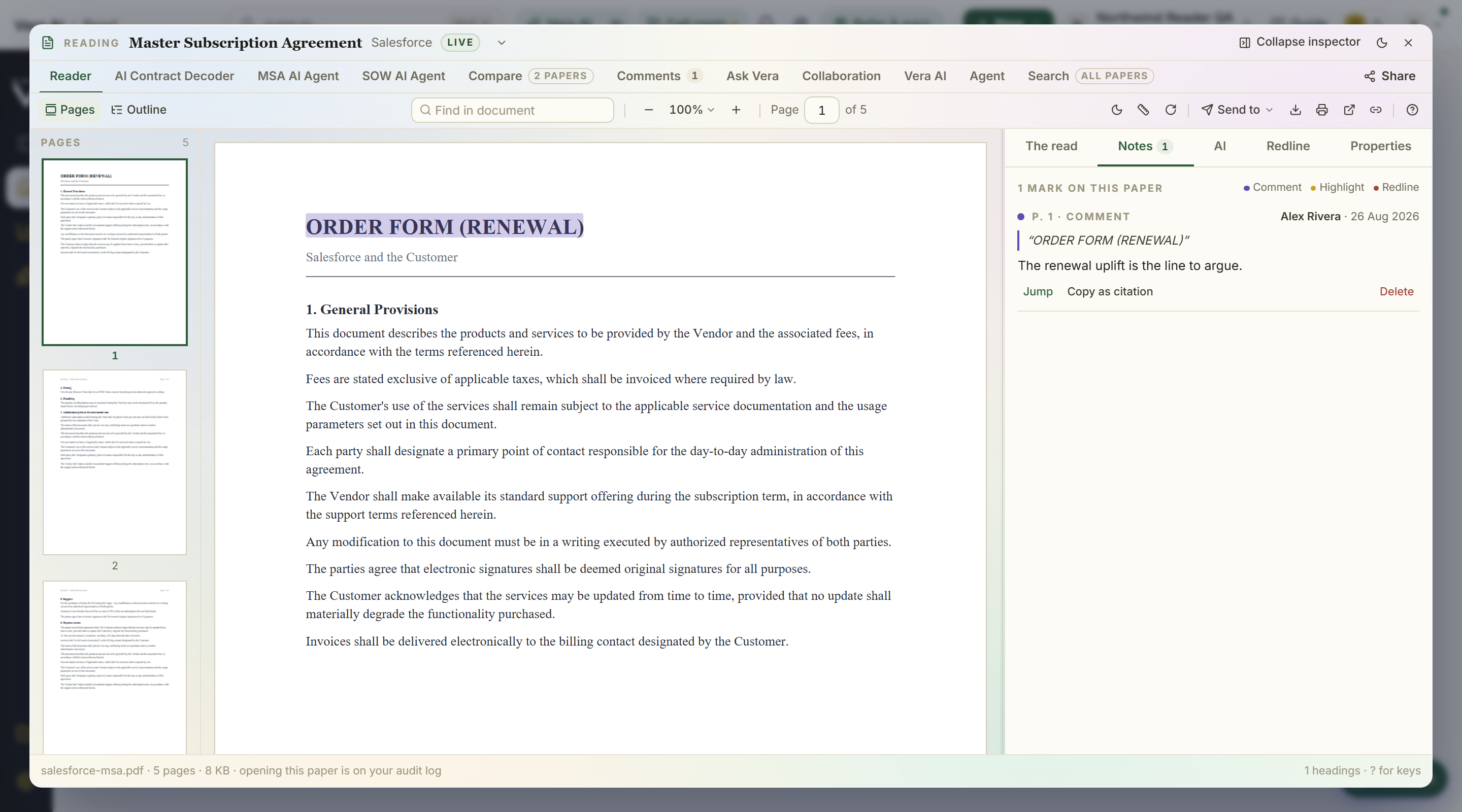 A row that was skipped or refused says so instead of opening, because nothing was filed behind it. It is the uploader when the run is empty, the estate explorer filling in while Vera reads, and the sign-off the moment the estate is readable, moving between those states by itself; there are no steps to walk and no Continue buttons to find. Once you have signed an estate off and no new run is open, the Enterprise Uploader asks which you want first: read the acceptance certificate of the estate you brought in, or start a new run. While a run is in flight it never asks, because there is only one thing to do: continue it. The Enterprise Uploader entry in the Contracts & documents group in the menu on the left opens the run itself, and its hub sits in the page list beside it: The run, Files, and the Certificate, one press each, with your recent pages beneath. An upload keeps running while you move between pages, with a Transferring button that follows you and the tab title reporting progress from the background; and while a run is open, one quiet item on your home feed says exactly where it stands. The only two things a person does are load document and sign.
The Uploader opens as a window, the same frame the agents and the Contract Management Portal wear. The title bar carries File, Run, View and Help: File uploads files or a folder, loads the demo data, and opens Files or Your Archive; Run pauses or resumes the upload, opens the certificate, and holds Delete this run; View shows or hides the tree and the details panel (the choice is remembered), maximizes the window and switches dark mode; Help lists the keys and opens the manual and the release notes. The tree on the left lists this run (this computer, with the run's live count), the five Sources (SharePoint, Google Drive, Box, Email in and API intake, each marked connected or not connected), your Previous runs, and the related screens: the Contract Management Portal, the File Explorer, the Ledger and Your Archive. Pressing a source opens it in place: the drives ask for their credentials in a dialog over the run, Email in connects in one press and hands you the address with a copy button, and API intake creates a key and shows it once. Each dialog keeps a link to the full settings page. Under the title bar the five steps are the tabs, and the window moves along them with the run: Bring them in (the Read press, the files as they land and where they come from), Read (once a run is open: the reading drawn at the top while it runs, over every document in the run), Check (once reading is done: what Vera did on her own and what needs you, every agreement, and the audit log), Go live (the checks and the one press; after go live, what went live with its certificate) and Report (always). Keys 1 to 5 do the same; a step that is not open yet says why when you point at it, and the step you pick holds until the run moves on. The File Explorer and the certificate are also on the Related list on the left. Every screen opens with a short header: the title and its status, one row of counts, and the actions on the right with one main action in navy. The details panel on the right states the run's counts (queued, uploaded, duplicates, failed), the checks every file passes (SHA-256 in your browser, straight to encrypted storage, PDF and DOCX only with everything else listed with its reason, archives unpacked in the run, signatures checked at upload and again before reading), the upload presses, and Delete this run while a run is open: one confirming press removes every document and register row the run staged, and nothing live is touched. After go live the panel states the run that went live instead: the date, its agreements and contracts, and the rollback date, with Benchmark results, Renewal calendar and Certificate under them (New run and Certificate once the summary has closed). A status bar closes the window with the keys and the live transfer state. Keys: U uploads files, F uploads a folder, P pauses or resumes, I shows or hides the details panel. While a run is open, files dragged anywhere on the run join it, folders and ZIP archives included. At review the run's files stay on screen above the review, so confirming never means losing sight of the documents. A member who is not an owner sees the same window with nothing in it that would fail: who can start an upload, and the way to Your Archive for a handful of contracts.
Checking and going live. At Check, three views sit one press apart: What Vera did and what needs you (first, What Vera did for you: duplicates removed, vendors merged, documents linked to their agreement and papers replaced by a newer version, each in plain words with Undo; then the items only you can settle), Every agreement, and The audit log. Go live has its own screen: four checks (every document read, the checks run, the scorecard ready, nothing blocking), Benchmark on go live, and Go live; when something blocks it, Show what blocks it in Check takes you there. Once live, the same step shows the run stamped LIVE with the date, the contracts, the rollback date, Open the certificate, See the report, and what comes next.
Help while you work. Above the run and the report, under the five step tabs, one line says how the run works. Three presses sit on it, and nothing opens by itself:
- Walk me through it (key W) spotlights the real parts of the window one at a time: the strip, where to drop files, the sources on the left, where the reading shows, the tabs where you check what Vera did, the Go live press and the report. Each stop says what to do, and two carry the press that does it (Upload files now, Open the report). Next, Back, the arrow keys and Escape move through it.
- Ask the guide (key G) opens a side sheet with plain answers to what people ask about bringing an estate in: how to get contracts in, what happens when files land, whether the data is safe, why vendors were merged, what Go live does, what Vera can do once everything is in, and how to move thousands. Answers carry the press that does the step; type anything else and Ask hands it to Vera.
- Talk to Vera (key T) opens the voice line with Vera on the seat dock, already told you are in the Uploader.
The report. The sixth tab, Report (key 6, or /migration/report), reports on every contract your organization holds, not only this run. Everyone in the organization can open it, and each person sees the contracts they can open anywhere else.
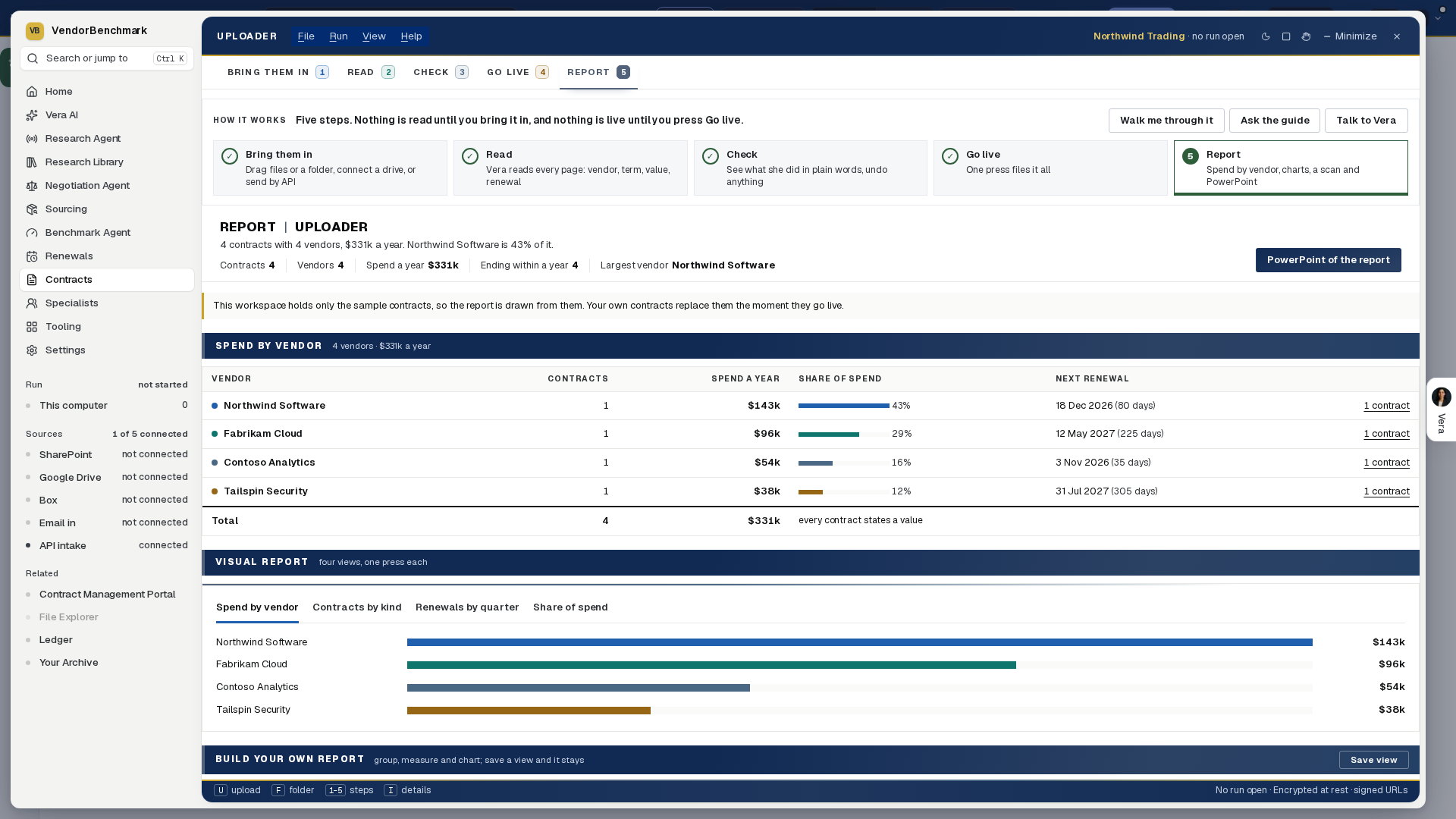
- The head says how many contracts you hold, with how many vendors, what they cost a year and how much of it the largest vendor is, with one row of figures (contracts, vendors, spend a year, ending within a year, largest vendor) and PowerPoint of the report on the right.
- Spend by vendor puts every company that signed for a vendor on that vendor's one row: Salesforce, Inc., SFDC Ireland Limited and Salesforce UK Limited are one Salesforce, and the row names the companies it holds. Each row shows its contracts, its spend a year (USD), its share of spend and its next renewal; press the count to list the contracts under it and press a contract to open it. A contract that states no value is counted, never priced at zero, and the total row says how many did not.
- Visual report draws four views, one press each: spend by vendor, contracts by kind, renewals by the quarter they end over the next two years, and share of spend as a donut. Pressing a vendor's bar sets the report below to that vendor.
- Build your own report groups by vendor, kind of contract, the quarter it ends or the company that signed; measures spend a year or contracts; shows bars, a donut or a table; and narrows to one vendor. Save view keeps it by name for your next visit; the × beside a saved view removes it.
- Scan for anything searches the text of every contract for what you type, or for one of seven presets (auto renewal, price increase cap, termination for convenience, liability cap, data protection, audit rights, change of control), and says how many contracts carry it, one line each with what it says and the page; press a line to open the contract at it, or open every clause in the Document Agent.
- What happens now shows where your contracts went when they went live (your contracts, the renewals calendar, the benchmarks, and new contracts that file themselves), and what Vera can do with all of them, one press each: benchmark every vendor, watch the renewals, prepare a negotiation, find the money, answer anything across every contract, and brief the board with the PowerPoint. Talk it through with Vera opens the voice line.
- PowerPoint of the report downloads the deck in the firm's design: the cover, the summary, spend by vendor, every vendor, what ends quarter by quarter, contracts by kind, and what to do first, all from the same figures as the screen.
Before you begin
- You need the owner role in your organization to start a run, because it writes thousands of records. Ask an owner to start the migration; they can hand you the work afterwards.
- Know where the documents live. A folder tree drags straight in; a SharePoint library, Google Drive folder, or Box folder connects from inside the run; and your contract register (the master spreadsheet, CSV or XLSX) simply rides in the same upload and maps itself; documents alone still produce a portfolio.
Load: upload everything, connect anything
Press Enterprise Uploader in the Contracts & documents group of the menu on the left, or open it from Ctrl/⌘ K. With no run open the screen is New upload: the four columns your estate will fill (name, last updated, type, size), one row to drag and drop files onto, three facts on one row, and the other sources. Upload files, Upload folder and Load demo data sit in the header. The scan settings sit below, so the read runs under your choices from the very first upload. Drag and drop files, whole folders, or a ZIP archive anywhere on the listing, press Upload files for a handful, or Upload folder for the tree, in any order and as many times as you like. The upload is the add: an archive unpacks in your own browser first (its internal folders filing exactly like the same folders uploaded loose, and an archive that will not open, a password or a truncation, is named rather than swallowed), documents go straight to encrypted staging the moment they land, the run opens itself on the first upload, and nothing is read until you press Read. The Bring them in step shows Ready to read with how many documents are staged and one press, Read N documents; after it the window moves to Read, and anything you add later joins the read on its own. Your register spreadsheet (CSV or XLSX) goes in the same upload and maps itself after the documents land. Load demo data stages six demonstration documents, read exactly like real documents, so you can walk the whole flow risk free and clear them with the reset afterwards.
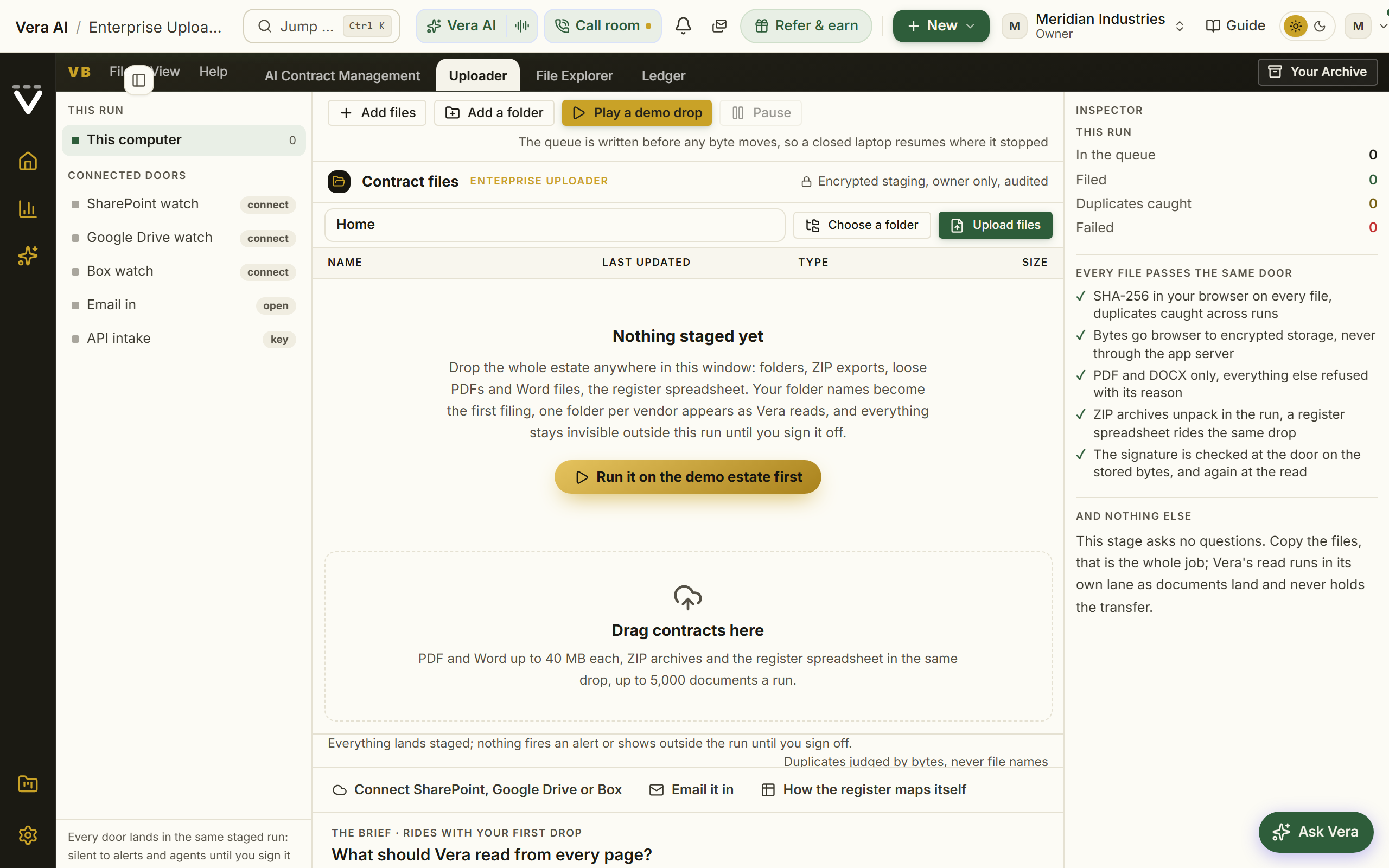
Each drop is still surveyed on your own machine first, and the survey only speaks when it has something to say: a note above the drop zone appears solely when files stayed behind or an archive would not open, naming how many and why (unsupported types, files over the size limit, each listed). Everything taken appears at once in the estate explorer, which leads the page and is the run's one file surface: one folder per vendor, with the columns a file manager would show, packed left. Each row carries the document's name, its vendor, its end date (Perpetual when the document says the license never expires, N/A when a read document states none), its total contract value over the stated term (derived in code from the annual figure and the term, or the fee schedule summed; a figure marked /yr means the document gave only the annual value and no term to total it over), its size, and its live state: waiting to transfer, transferring, under the beam, then a green Indexed check mark the moment the document is read. A document only says transferring while its bytes are actually moving; one still in the queue says waiting to transfer, and says waiting for a re-pick when the run needs you to choose the folder again. The value cell always answers with one of three things: the figure, reading… once the document has landed, or a Needs you button when a read document states no value; tapping it opens the document with a small form beside it, your typed figure settles the row, resolves the matching sign-off decision by itself, and stands over any later re-read.
The explorer behaves like the file manager you already know, because it is one: a window with its own titlebar, an address bar showing where you stand, the folder tree down the left (The estate at the top, then every vendor folder with its document count, the one you are in lit), the listing under Name, Last updated, Type, Size and Annual value with the read's status beside them, and a status line counting what you hold. Annual value is the figure the read found on that document; a read document with none offers Add value, which opens it at the field, and a folder leaves the column blank because an agreement and its amendments each state one. The listing wears the run table's own type scale, so the two screens read as one application, and there is no upload bay here: loading document is the Uploader's job, and uploading files anywhere on the listing (or Upload files in the Actions menu) still takes them in. Press a name in the tree to open that folder, and upload files straight onto a name to file them under that vendor without opening it first. Folders follow the company, not the signing entity: documents signed with Salesforce UK Limited, salesforce.com inc and Salesforce all file under one Salesforce folder, because that is the company you negotiate with. A folder you make or move a document into keeps exactly the name you gave it. Search covers the whole run by name, vendor, and the path you uploaded; every column header sorts (press it again to flip the direction; Annual value starts with the largest); a right-click on any row or folder offers exactly what it can do; and clicking a stored file opens it in the preview beside the listing (more on the preview under Files below), while the View button at the row's end, a double click, or Open in the reader on the right-click menu opens it in the reader: the same full window the run table opens, the document on the left with the AI read, the document's comment thread, and the redline beside it. Select rows for the bulk actions: Move to… another folder, a New folder, back to Unfiled (filing is two-way; unfiling clears the folder hint so the document genuinely returns to the tray), Re-read, Benchmark (up to 20 at a time), Download, or Remove (armed before it deletes, like every destructive control here). Uploading files straight onto a folder row uploads them filed under that vendor. A skipped duplicate names the exact file it matched, Duplicate of Main Contract.pdf; skipped., with Import anyway beside it when the copy is genuinely wanted (a kept copy is never re-questioned at sign-off), and a failed row keeps its reason with a Retry in place: a failed read queues for reading again, a failed transfer rejoins the upload queue. Every move, rename, removal, and download is audited.
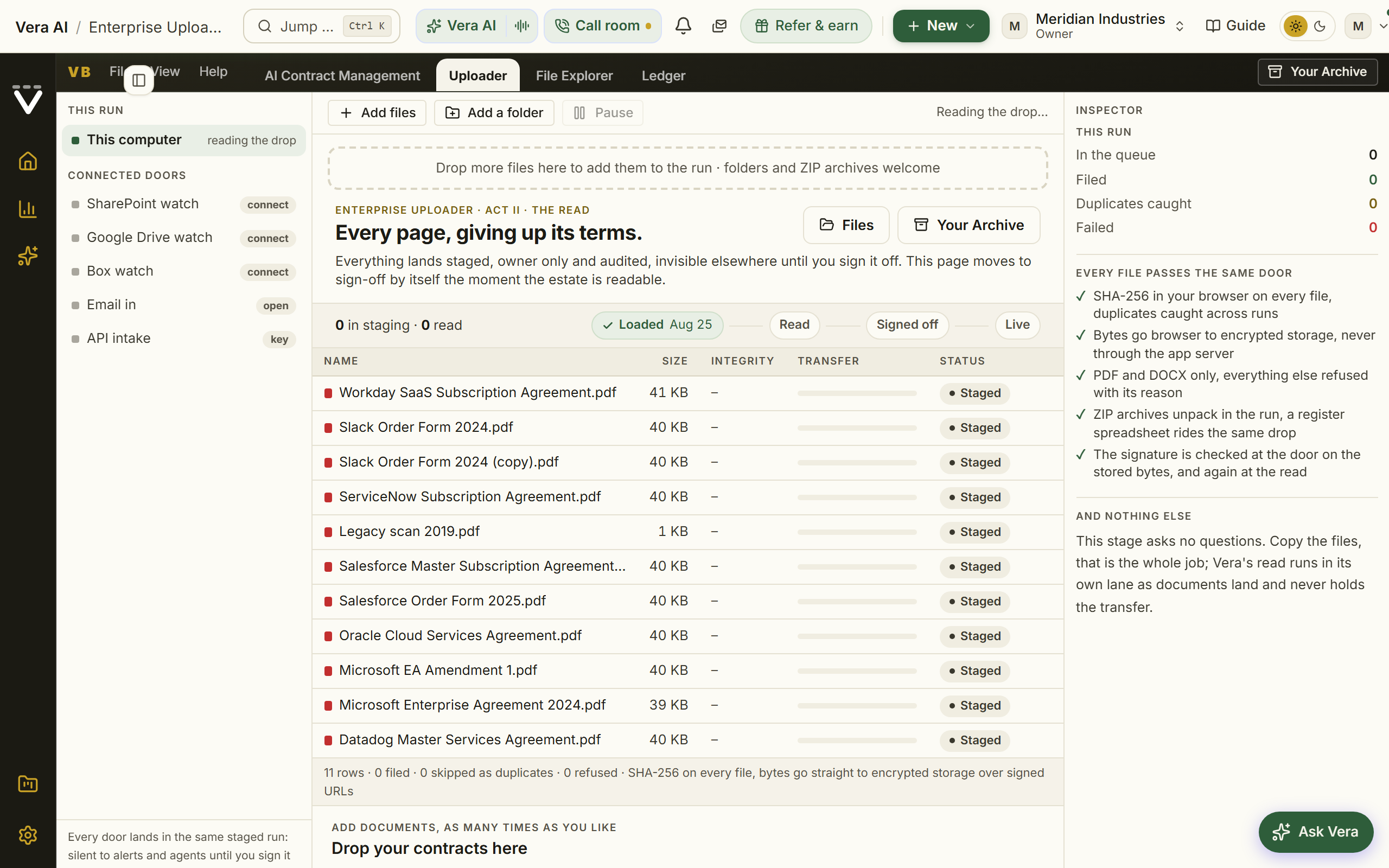
Under Scan settings sits Scan options, a disclosure whose defaults are what most estates need. Under Additional fields, untick a renewal field (price increase cap, auto renew, notice window, seats) and it is honored for real, never rolled up onto a contract; Date format sets how dates read on your documents (detect per document, day first, or month first). Standard questions are eight questions asked of every document, all selected by default: the customer legal entity the document is made out to, use restrictions ("limited use", "may only be used for"), annual uplift or renewal price protection and what a stated 0% applies to, special rights such as most favored pricing or true-down, the term length as written, the product types covered, the vendor audit right, and divestment or assignment rights. Under Custom questions you can add up to eight of your own, for example termination for convenience or data residency. Every question, standard or yours, is asked of every document, and each answer includes the passage it was read from and is filed with the document. The choices travel with each drop, so the read always runs under what was on screen when you dropped, and they are remembered per organization: a later run opens under your saved defaults, with the disclosure saying so and Change one press away.
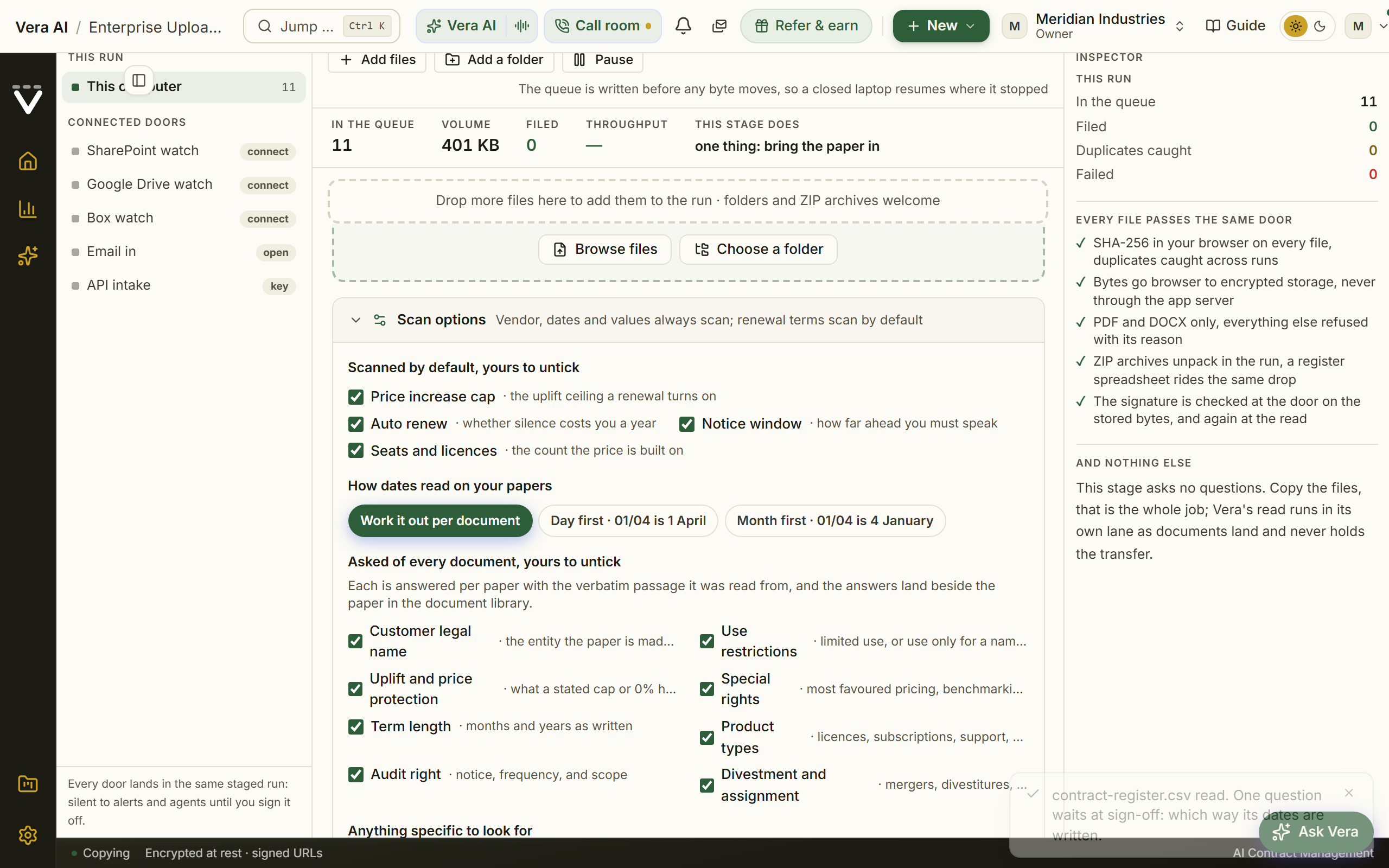
While documents move, the console leads the page like a countdown: the percentage over the bytes actually moved, the time left counting down at the pace your connection is holding, and duplicates skipped on arrival. A failure never hides off to the side: the failed row sits in the explorer itself with its reason and its Retry. Once the queue rests, the console collapses to one quiet line: how many documents are in staging, the bytes across, and the skipped duplicates, downloadable as a CSV. Pause and resume at will, or close the tab entirely; the work list is held on our side. Returning in a new tab, press Re-pick the folder so the browser can find your files again; a partial re-pick moves everything the new tab holds, and the count that remains is exactly what still waits.
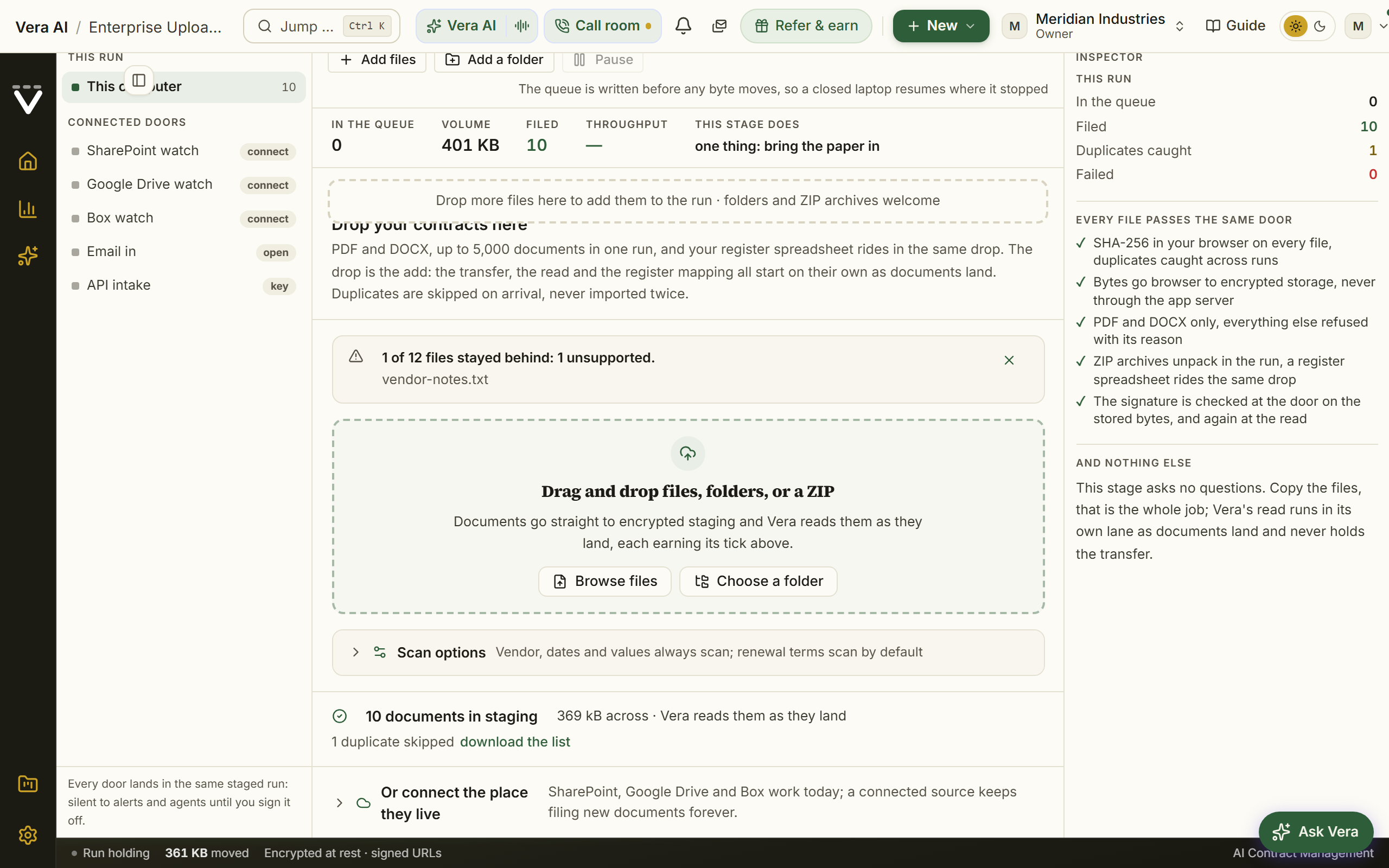
Two more ways in: email it in, or post it
Not every estate arrives as a folder on somebody's laptop, so the Uploader has two more ways in beside the upload. Both are listed in the Sources list with their true state, and both file documents into your run staged and silent, read as they arrive, and live only when you sign the estate off.
- Email in. Under Settings, Integrations, connect Email-in for the Enterprise Uploader and it gives your organization a private address. Forward contracts to it from anywhere, up to ten attachments a message, and they land in the run; the run opens itself if none is in flight. By default only mail sent from a teammate's address is accepted, and you can widen that to anyone in the Email-in settings. The address copies with one press from the Sources list. If your deployment has not enabled inbound email Email-in says so plainly rather than showing an address that goes nowhere.
- API intake. With an organization API key (Settings, API),
POST /api/v1/intakefiles up to five documents a request, base64 encoded, 3 MB each. The answer is per document: what was filed, what was a duplicate of document you already hold, and what was refused with the reason. Because a key can file documents as well as read them, only an owner can issue one, and every call is on your audit log.
Both ways in pass exactly the same checks as an upload: the file must prove it is a real PDF or DOCX by its own bytes whatever it is called, the malware scan runs before anything is written, identical document is caught as a duplicate, and your plan's contract limit is respected. A refusal is always named, never silent.
At the foot of the page one line, Connect a source, opens the connector shelf: once connected, SharePoint, Google Drive and Box file new documents as they arrive. A connected source shows Import everything into this run: the whole library, subfolders included, walks into the run's staging in background chunks that survive the browser closing, deduplicated by content on arrival, with the read starting itself as documents land. A team's Files tab in Teams is a SharePoint library underneath, so it arrives through the SharePoint connector, and a private forwarding address files anything you email in. Add more whenever you find more; the page itself moves on when the estate is readable.
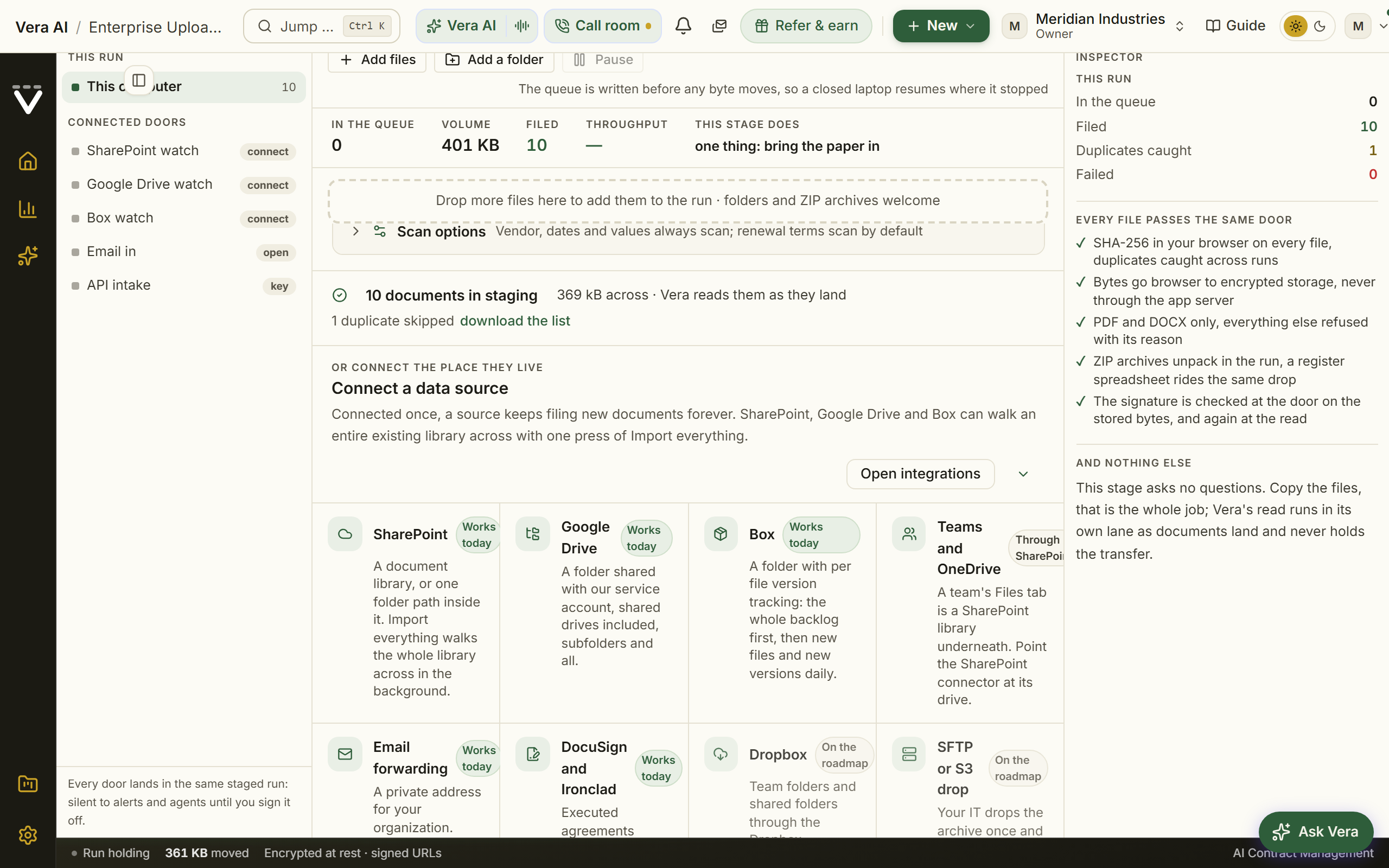
The ambient read: nothing to watch, nowhere to go
Reading is not a step, and it is not a separate page: the estate explorer simply fills in. The progress, centered at its head, shows how far the read has got, the document under the beam, and the time left at the observed pace (several documents read side by side, so a small estate is readable in minutes), and says plainly that your part is done: Vera reads on the server, files each document under its vendor as terms land, and the page moves to sign-off by itself. Hovering the Starting or Scanning status explains what is running at that moment. Each row flips to its green Indexed tick as its document is read, end dates and values appearing beside the names. One quiet line under the listing keeps the running totals: agreements filed, vendors identified, values found, and one annual value in USD at today's rate, converted from every signing currency. It is safe to close the tab; the read runs on the server in passes, scans read as images, the tab title reports the percentage from the background, and an unticked box offers exactly one email when the estate is readable, sent once, only if you select it. Reading log beside the progress opens the log over the window, headed since 28 September 2026 by the run stage: the document being read at the top, your vendor folders as columns filling as their documents are read, and each document flying from the one being read to its vendor's tile, the large ones rising by their annual value, with the documents read counting beside the ring. Under it, the recently read documents with their vendor, end date and annual value, and each vendor folder with how many of its documents are read; Close or Escape returns to the explorer, and the upload itself always stays there. The moment the read finishes, the page moves to sign-off by itself.
Every document row works like its own small workspace. A View button at the row's end opens the document beside the listing (the row itself stays clickable too), and a Comments column takes a typed note directly in the table, saved as you leave the field and kept on the contract itself. Right-click any file for the full menu, including Send this contract to: hand the document to Contract Agent, the MSA Agent, the SOW Agent, the Benchmark tool (which opens its fact sheet on the document and writes the full reference-format report), the Vera Workspace (the document lands beside the conversation), a Second opinion, or Ask Vera, or pick Compare against another contract and choose the second document from the estate; the chosen tool opens in its own window with the document already loaded. And the whole listing takes an upload: drag files or folders from your desktop anywhere onto the table and they upload into the run and file themselves, under the folder you are standing in or by vendor at the root.
A document the document cannot fully explain is never a dead end. A stated term length becomes an end date, derived in code from the start date (an agreement signed for three years dates itself, with the verbatim passage as evidence); a vendor a scan hides is read from the file name or the folder you filed it under, carrying its source on the record; and a half-read scan queues its own transcription and fills in when the pages have been read image by image.
Files: the document beside the list
The separate library page is gone; there is one surface. Files (/migration/documents) hosts the same estate explorer full page, sized to fill the window whatever the estate holds, kept reachable while the run page is showing sign-off, and every Open the document link lands there in its own window on the exact document. The listing carries a Last updated column beside the size, and an Actions menu beside New folder holds every move it can make: new folder, upload files, upload a whole folder, move, download, read again, benchmark, and delete last after a rule (the moves that need a selection stay visible and inert until you tick some rows). Uploads from the menu take the same path an upload takes, so a picked folder files itself under its vendors exactly as a dragged one does. Click any stored file, on either page, and it opens in the preview beside the listing, the index collapsing to a slim name-and-status list so the document takes the width: PDFs in the house document viewer with zoom steps and selectable text, Word documents through Microsoft's Office viewer, previous and next (or j and k on the keyboard) walking the folder, and Escape closing the preview. Every link the preview hands out is minted fresh at the moment of the press, so open in a new tab never lands on an expired one.
The preview is also where a document turns into action. Where the figures came from shows the read's values with the verbatim lines they cite, and when the scan carried your own questions, each document shows its answers behind one press. The header menu renames the document (its title follows), downloads it, reads it again, removes it for good (armed first, staged documents only, audited), or sends it to a tool with the document attached: Contract Agent, the MSA or SOW Agent, the Benchmark tool, and the Vera Workspace each open already holding the exact file you were reading, never empty and asking for the file, with the tool's own limits and audit trail applying as if you had uploaded the file there yourself.
The explorer wears the Studio dress: the folder you are in, the rows you select and the document you have open are marked in a quiet gray rather than the accent green, file and folder marks sit in ink, and anything still in motion (scanning, starting, placing against the market) carries the blue of In review. The Email me when it is readable box ticks in ink too. Down the rows, each benchmark verdict reads in ink beside a gavel in the verdict's color (green for Good or Top of the market, gold for At market, red for Below market or Poor), so a column of verdicts stays calm. The verdict in the preview pane carries the same color as its row. Green is kept for the one primary action, for links, and for the highlight that shows where a dropped file will land.
The moment a row shows its green Indexed tick, the preview offers the move that proves the estate is worth having, safe while everything is still staged. Benchmark this contract places the deal against the market in about a minute: the five-band verdict, your position, the range comparable buyers land in with its midpoint, and the money between this deal and the supportable floor over the term, all kept inside the run (never a report or a notification) until you sign off. Renewals are not armed here: loading files is only loading files, and every end date the read finds travels with its contract to Contracts for the Renewals screen to work once the estate is live.
Folders stay the explorer's spine: one per vendor, keyed on the company rather than the spelling, so all Oracle is one folder and all Salesforce is one folder, never two. Rename a folder (right-click it) and every contract inside follows; delete an empty one behind a confirmation; re-read or benchmark a whole folder from the same menu. Benchmark this folder places every read document in it against the market, and the answer comes back where you pressed: the toolbar counts the run while it works, the folder row says how many of its documents are placed, and each document's row wears its verdict, Poor through Top of the market, with the whole placement in the preview when you press the row. A staged run keeps its verdicts inside the Studio, so they appear here rather than in your reports until the run goes live. The read confirms every vendor from the document itself, which always wins; the folders are for browsing and correcting by hand, and every move is audited.
Review: the open items on one board
The moment the estate is readable, the Run tab becomes Review: the header states how many items are open, and one line above the board says what Vera read and the annual value at today's rate. The duplicate, bind, and gap checks run themselves the moment you arrive, and until they have finished the verdict says so plainly and holds go live rather than showing a clean pile; a check pass that stops midway names the step that failed and retries itself. Once they have run, the judgments above the confidence bar have already applied themselves: byte-identical duplicates, same-company vendor merges (one vendor per company, always: regional and legal entities like Salesforce UK or SFDC Ireland fold onto the parent for every vendor, stated on the ledger rather than asked about), the paper trail (documents of one company printing the same contract number file as one agreement, the number named in the evidence), confident binds, and loose documents with nothing of their vendor to bind to (kept as their own contracts) land on the Changes tab as Automatic changes, every judgment with its evidence, who or what decided it, and Undo on anything reversible. An undone judgment returns to the inbox and asks a person forever after; an uploaded duplicate says plainly that its bytes are gone and why that loses nothing. A document that genuinely has no home says what it does state, the customer it is made out to and the contract number it carries, so it reads as evidence rather than a shrug.
Everything that genuinely needs a person is a row on one board, grouped Blocking, Questions, Not blocking and Suggestions, the money at stake in front within each group. Press a row and its evidence, its fixes and Mark resolved, Waive and Escalate to Redress open in the details panel on the right; the whole board answers to the keyboard: j and k walk it, r resolves, w waives, e escalates. The register's one question comes first when it has one (which way its dates are written, answered with one press and applied on the spot); vendors read from filenames and folders fold into a single decision confirmed in one press with inline corrections; an unknown vendor is named right on its row; a missing annual value argues from the document itself: the row offers the document's own figures as one-press answers (the stated total over its term with the per-year figure already derived, and the largest money lines from the first page, each quoting the verbatim line it came from) plus a field to type the value straight off the page, and accepting either writes the figure onto the record with its evidence so the estate totals pick it up at once; and any row offers Read it again, which queues its document for a fresh read under the current reader, with Re-read the blocked documents doing the whole blocking queue at once. A row whose document the run never received says so plainly, Not uploaded, and offers the two honest moves: Upload it again (pick the readable file off your own disk and it uploads, reads, and clears the row by itself) or Remove from the run (armed with a second press; the counts stop including it). A copy that arrived but could not be opened, encrypted or oversized or a bad scan, offers Read it from this device the same way. And the pile clears in bulk: a checkbox on every exception, Select all at the head of the board, then one press resolves or waives the whole selection, armed with a second press and recorded on the certificate as decided by you. The small tail is one decision: the estate proposes its own value floor from its distribution, one press with the reason recorded on every record, and the manual floor stays for a figure of your own.
Renewals are not armed during intake. Loading an estate is only loading an estate: the read captures every end date and notice window from the document and carries them with each contract, and the moment you sign the estate off those dates land on the Renewals screen in Contracts, which leads with the one renewal to take first and counts down every notice deadline. Alerts remain strictly opt-in per person under Notifications, so nothing you load can email anyone by itself.
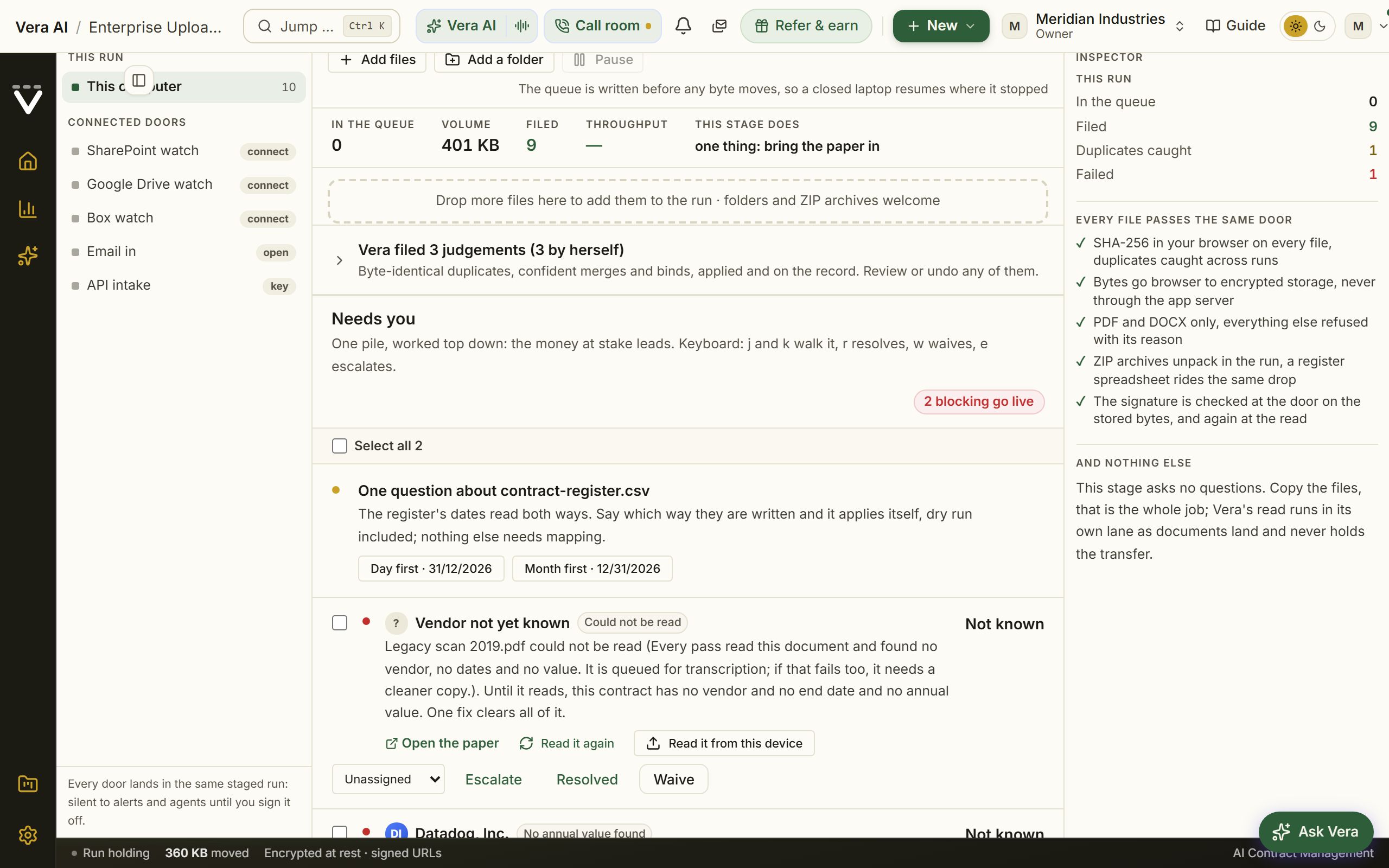
The supporting material has two tabs of its own. Agreements holds the estate as the documents state it, the renewal table (soonest ending first, each row able to open its document, vendors wearing their monograms); Go live in waves, a ranked vendor table for big estates, where one press ticks the clean top ten and Promote N vendors now moves them out of staging in one transaction while the run stays open for the tail, a vendor with open blocking work saying so and unable to ride; Source documents, every stack with Show the lineage expanding the full history of each live figure, including claims that were superseded and claims that never applied because the governing document outranked them; and the Scorecard, every computed line with the stated-spend field it reconciles against. Changes holds the automatic changes and the Audit log, every add, judgment, decision, wave, and sign-off with its name and time.
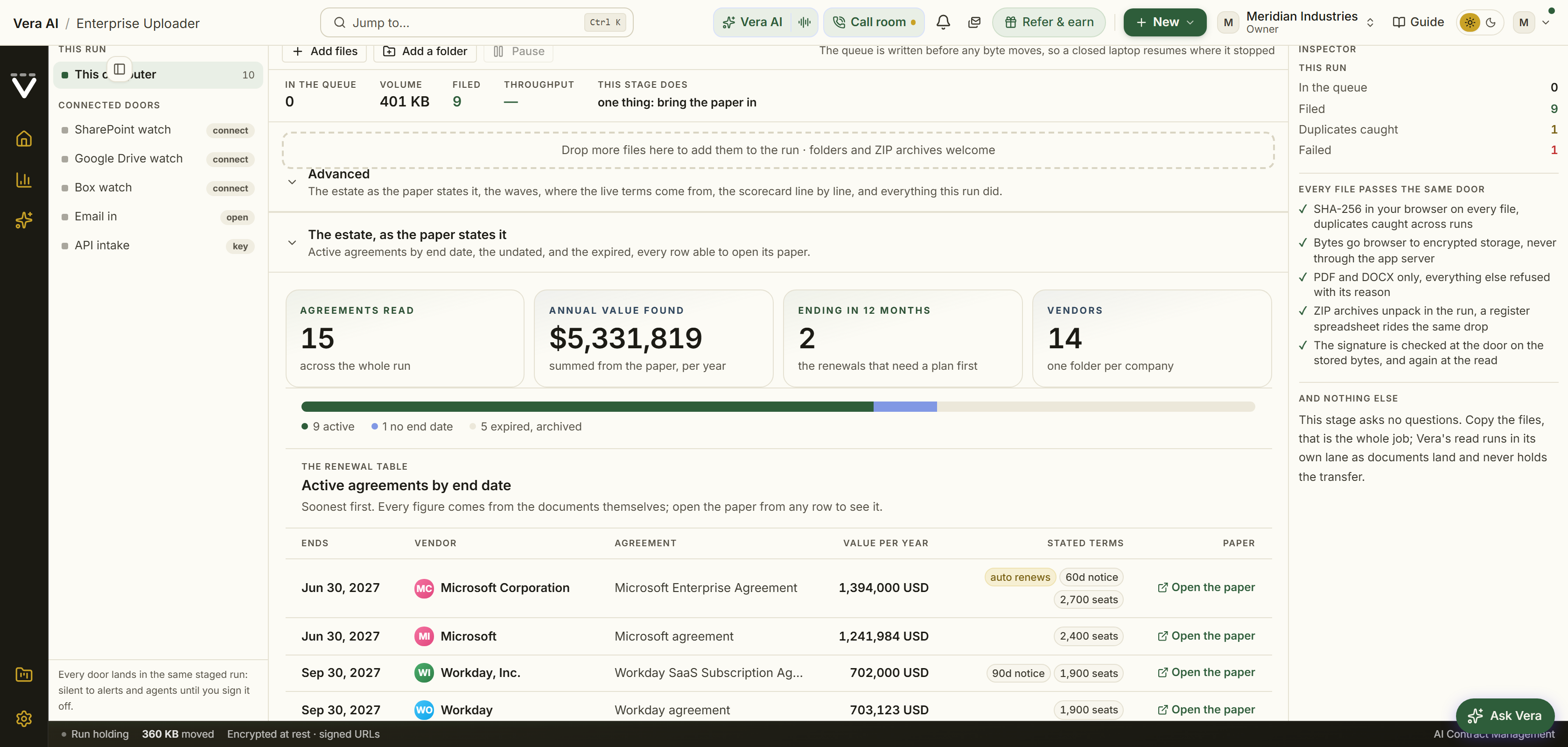
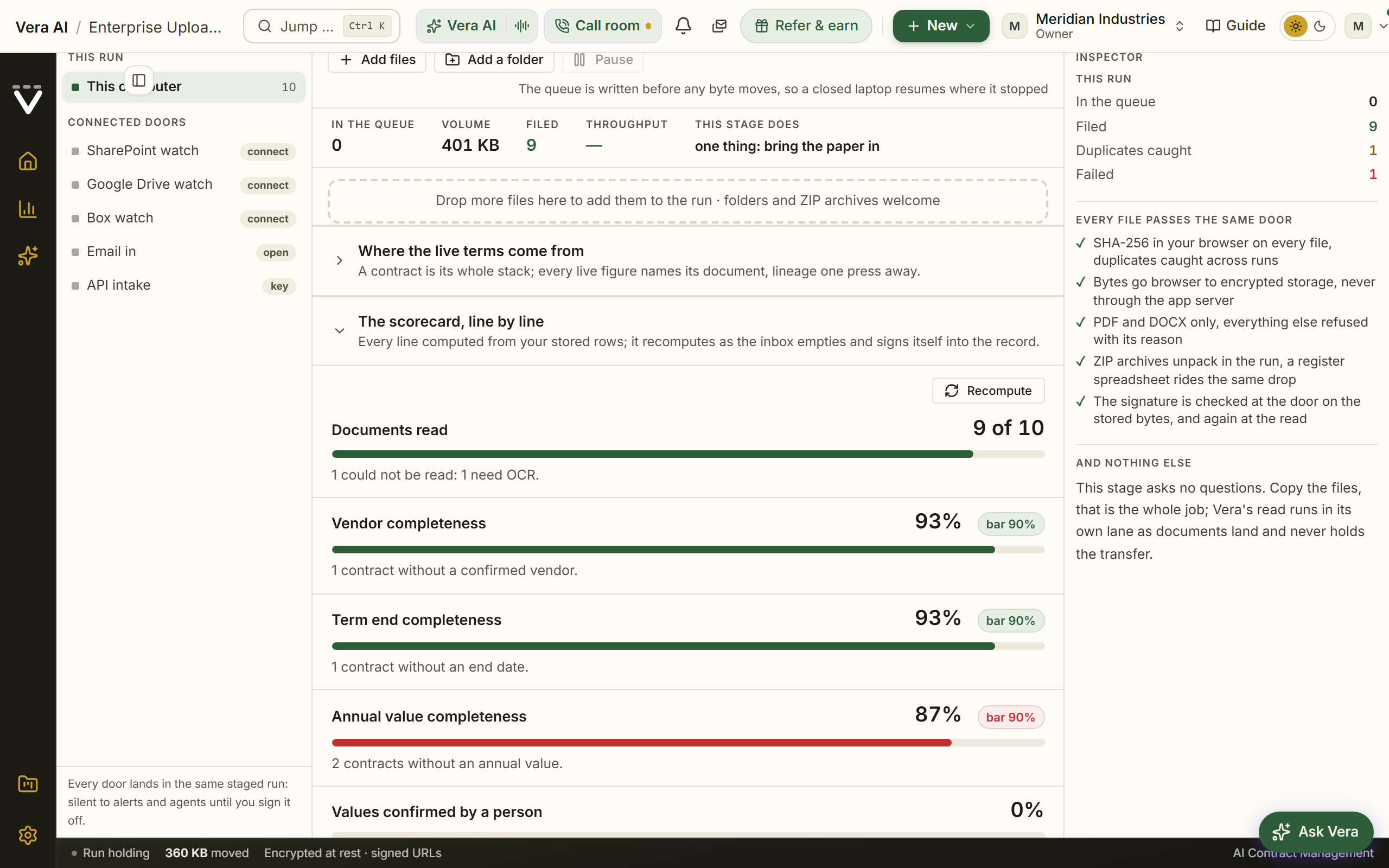
Then the one irreversible button, in the header of the review: Go live, with Benchmark on go live as a tick beside it. While the checks have not finished or the scorecard is still computing the button holds and says why on hover; while something blocks it stays disabled and Show blocking items selects the first blocking row on the board, and a short note under the board keeps the honest line: one press promotes the whole estate out of staging in a single transaction, and until that press nothing has fired an alert or been seen outside the run. The button only ever opens on a clean bill the checks actually issued, and the server refuses a sign-off or a vendor wave outright when no completed check pass is on record. The page dims while the transaction commits, then the Run tab becomes the Summary: the header states when it went live, the agreements and contracts it promoted and the rollback date, one row links to the benchmark results, the renewal calendar, your contracts and the certificate, and the facts under it state what fired and what did not: your contracts are now visible everywhere, every end date is on the renewal calendar, the acceptance is on your audit log with the scorecard attached, and until that press nothing here had fired an alert or sent an email.
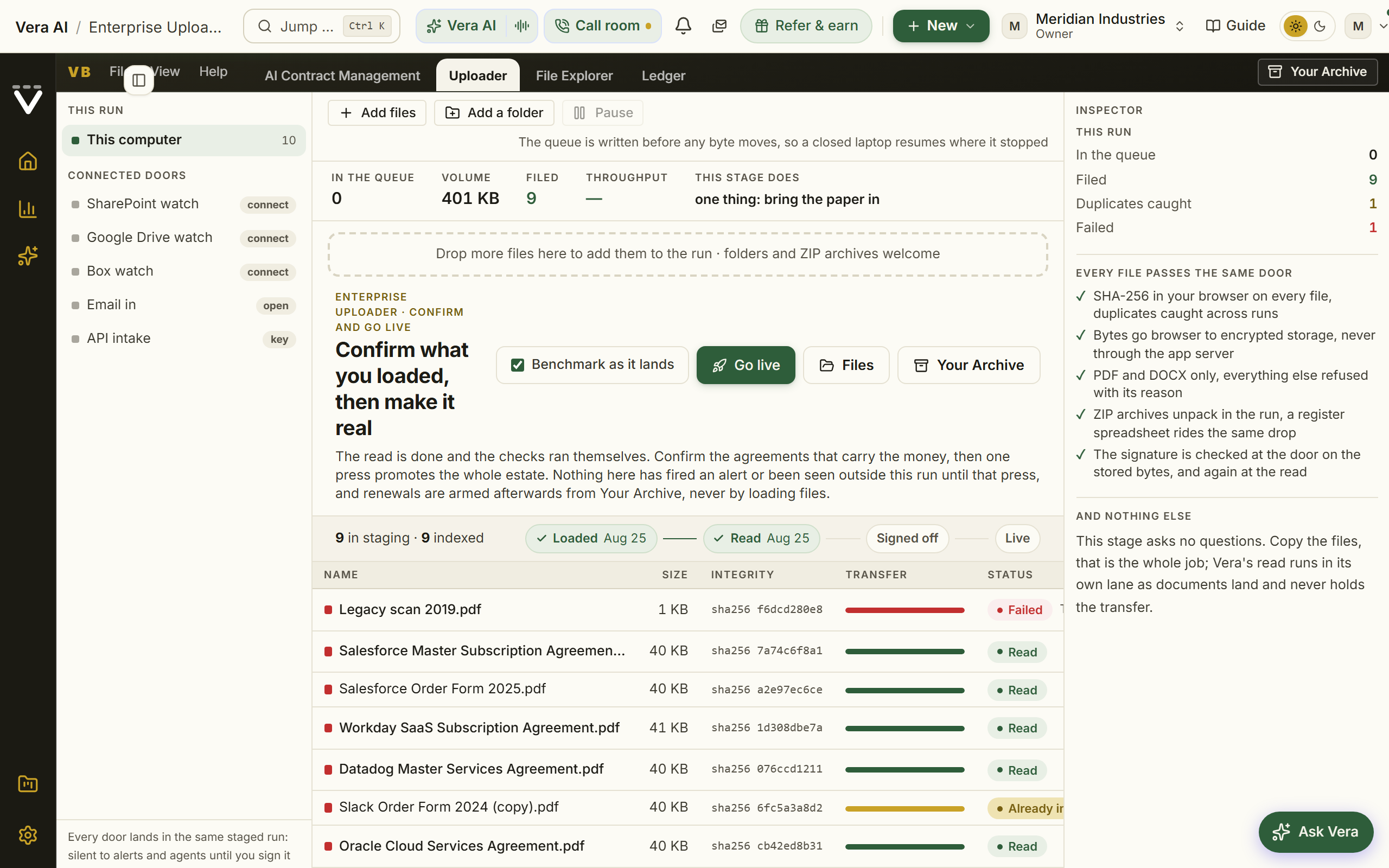
With Benchmark on go live ticked, the summary's benchmark link shows the verdicts landing: Vera places every agreement against the market in the background, from poor to top of the market, with the savings available over the term, and the results land on the Contract Management Portal's Market screen. Where a document cannot be placed, the verdict says so rather than inventing one.
After go live: the certificate and the rollback window
Every run produces its acceptance certificate at /migration/certificate: the scorecard exactly as signed with waivers named, verification coverage by spend tier (what share of contracts above $250K a year carry a confirmed vendor, an end date, and a value), the promotion history wave by wave, every exception with its disposition and the name that settled it, and the approver on the record. It carries a filing reference on its masthead, a real signature block with the approver's name and a countersign line, and prints clean in the house brief theme; Download as Word produces the same document through the shared deliverable theme, ready to file as the formal acceptance record.
And going live never erases the run's memory: the loader keeps the finished run on record, naming when the estate went live and what it promoted, with buttons for the acceptance certificate, your contracts, and the renewal calendar. That record stays even when the next run opens. For seven days after any go-live it also carries one reversible step: Roll back this go-live returns the whole promoted estate, waves included, to staging in a single transaction and reopens the run at sign-off. Alerts already sent stay sent; everything else is exactly as it was. When the window closes only the rollback goes; the record remains.
The reset
On the loader, under the run, sits Reset all contract data: owners only, armed by typing RESET, it removes every contract in the workspace for good, rows, stored documents, agreements, and any run in flight, which is how a test estate is cleared before the real one. The reset is audited and there is no undo.
Tips
- Duplicates are detected by content, not by file name, so re-exporting the same archive twice is safe. Identical documents are counted and skipped, never imported twice. Two order forms with the same name a week apart are two real order forms, and we leave them alone.
- Only PDF and DOCX are imported as documents, and each file must be under 200 MB. A CSV or XLSX in the upload is recognized as the register rather than rejected; everything else is named in the upload summary so you know what was left behind.
- The loader carries the run's timeline like a shipment tracker: Loaded, Read, Signed off, Live, with the rollback window counting down on the last stop.
- A browser cannot remember your files across a reload. The work list survives, but re-picking the folder is what lets a new tab carry on uploading. A partial re-pick moves everything it holds; the console then counts exactly what still waits for the rest.
- A column headed something like Contract Value is read as the total over the term, not the annual figure, and divided by the term to get the annual value. If it is already annual, map it to Annual value instead.
- Columns we do not recognize are kept on the contract as custom fields, exactly as you wrote them. Nothing in your register is thrown away.
- Binding is what makes a renewal date correct. A master agreement often says the term ends years before the amendment that extended it, and only the bound contract shows the real date. Binding is reversible: move a document to a different contract at any time and the terms in force recompute immediately.
- Overlapping agreements with one vendor are never proposed as superseded, because enterprises legitimately run several at once.
Related: Contracts · Upload a proposal · Plans, allowances & limits
What's new
Release notes in two levels: curated highlights in the journal, and the full changelog of every small change behind the Full changelog button in the header. Since 6 October 2026 both pages open in one window with Market news, Help and Referrals, on the frame every app shares (the title bar with the menus, Share and the window controls; the sidebar with Find an app, Home, Vera AI, the four pages under Workspace and Settings and the user manual under Related; the keys behind the ? in the status bar): the four pages run along the top as numbered tabs (1 to 4), and the head names the page with the record's counts as its one row of facts (headline releases, changes on the record, the latest release date; on the changelog, changes, ship days and areas of the platform). Below the head, a toolbar works on every release at once:
- Search finds a release by any word in it: an app, a vendor, a report, a button. Press
/to start typing. - The areas (Benchmarks, Negotiation, Contracts, Renewals, Licensing and spend, Vera AI, Reports, Integrations, Workspace) filter the journal to one part of the platform, each with its count.
- New for you keeps only the releases shipped since your last visit; they also carry a New mark that clears once you have read them.
- Cards or List: cards show each release with its picture, the list puts every release on one dense row with its date, area and the screen it opens.
The latest release leads with the picture of its screen and what you can do with it. Older releases follow one month at a time, twelve at first, with Show all to see the rest of the month; on large screens a month index on the left jumps to any month. The latest 50 releases carry a picture of their screen taken with the sample data; older ones show the icon of their area.
Reading a release. Press any card, row or Read the release and the release opens in a large window over the journal:
- The picture of the screen on the left; press it to see it at full size. Try it sits under it: one concrete first move.
- What changed: what is different now, in a few plain lines.
- What you can do: the moves you can make with it, naming the screen or control.
- The way in (the button opens the screen) and the guide in this manual where one covers it.
- Also shipped that day: the other changes from the full changelog, each linking to its screen.
Newer and Older (or the left and right arrow keys) walk the releases in the order the journal shows them, so a search or an area filter is walked as filtered. Copy link copies an address that opens this release directly. Esc closes. The full changelog reads as a full width ledger: each ship day holds its date and change count on the left, with every change on one line showing its category, title, and detail, and a summary on top counts the changes, ship days, and areas covered.
Read and watch follows the releases on the highlights page, and closes the full changelog after the last ship day: the films, analyst briefings, research papers and guides the library holds on your own vendors, laid out as in the agents, the largest agreement first. It loads when you scroll to it, and a workspace with no agreements does not show it.
Next: Chapter 15 · Your first 30 days for the guided ramp, or Chapter 01 · Contracts & renewals to start the screen reference.
Was this page helpful?
Thank you. Your note goes straight to the team that writes this manual.