04 · Insight
The intelligence layer over everything you have uploaded. It turns your proposals, agreements, and invoices into spend and concentration analytics, ranks the savings still on the table, proves negotiated savings against the invoices that followed, reads your documents for search and grouping, and connects you to an anonymous community of other verified buyers. Where a screen leans on AI, it is marked below and needs an AI plan.
Your organization
Your organization is now the Spend step of the Spend Agent: what the whole company spends with every vendor, by category, vendor and business unit. /org opens it there, and so does the Estate step of the money screens.
The house dress (27 September 2026). The money screens share one frame: eight numbered steps across the top, each in its own color, take you between Estate, Portfolio and Over time (all three open the Spend Agent, on its Spend, Portfolio and Over time steps), Unit prices, Invoices, Anomalies, Reconcile (/spend/reconciliation) and Savings (/savings/statement), with the one you are on underlined. Under the steps, each screen opens on the house masthead: the screen named with Spend and savings beside it, one sentence on where you stand, a gold line with your organization and the month, one quiet row of facts, and the screen's one figure beside its actions at the right over a step rail. Section heads are navy bands carrying the section's name, one line and its action. Unit prices opens in its own window and wears the same frame there; Estate, Portfolio and Over time open the Spend Agent.
Market news
The filter you pick (every vendor or only the vendors you follow) is marked in gray and ink, never the accent green.
Since 20 October 2026 Market news is a reader. Browse on the left, read on the right. The earlier feed opens at /wire?classic=1, and the sections further down describe it.
- Read these first - the three stories that matter most from the last three days, one a vendor, ranked by impact and whether they touch a vendor you hold.
- The toolbar - the search (press /), All, Needs a look or Good for you (each with its count), Today, 7 days, 30 days or All, Newest or Read first, the vendors in view as chips (a dot marks the ones you hold), and every active filter as a chip you take off, with Clear all.
- The left column - every filter once, with live counts: All news, Unread, On your vendors, Vendors you follow, Saved, the four topics and the spend areas.
- The stories - one row each, grouped by day: an unread dot, the vendor, Yours on a vendor you hold, the topic, how long ago, the headline in two lines, Vera's first line, and the impact (Risk, Watch, Good for you, For the record).
- The story - Vera's read first (What it means for you, with Ask Vera about it and the vendor's page), the story in two short paragraphs with Read the rest, the source with Open the source, more on the same vendor, and Previous and Next story. Save, copy a link and read or unread sit in its corner.
- Catch up (C) - the five to read first from the last three days with two lines of Vera's read on each, and Mark these five read.
- Keys - J and K move through the stories, S saves, U marks read or unread, / searches, C catches up.
The always-on market news app. Every licensing, pricing, and vendor move the platform tracks lands here in one feed, newest first, each item read for what it means for your estate. It writes itself: Market news aggregates Terms Watch price changes, the Price Index, newly published research, the weekly vendor report, and the Vendor Changes agent's document changes every day, so it stays current without anyone curating it. The lead and the next signals also ride on your dashboard under the Ask bar and on the welcome screen. Pressing Market news starts the app: it opens as its own window with nothing behind it, and Esc or Close returns you to Home.
Market news follows your spend category. The feed carries the suppliers of the category you are working in, so a facilities buyer reads facilities market news and a software buyer reads software market news: 50 suppliers each on Facilities and Office Services and on Professional Services, 25 each on Marketing, Workforce, Travel, MRO and Logistics, and the whole software estate on Information Technology. Items with no named vendor, which is where market and policy news sits, stay in every category. Switch category in the header and Market news switches with you. Two places deliberately do not filter: a vendor's own page and the negotiation plan, where you have already chosen the subject and news about that vendor should reach you whichever category you are in.
Where the non-software items come from. Every supplier the benchmark library covers has a curve document behind it, and each one records the dated market event that set the current commercial regime: an acquisition, a margin move, a published target, a valuation. Those are in Market news, each dated, attributed to the document and linked to that supplier's benchmark. They are market context rather than a daily ticker, so an item may be some months old; the date on it says which.
On the screen
- The window — Market news wears the frame every app shares. Along the title bar: the menus, Share, light or dark, Minimize, Maximize and Close. In the column at the left: Home, Vera AI and your pinned apps, then The feed (every signal, on your vendors, on vendors you follow), By lens with a count beside each, and Related (Vendor Radar, Vendor Changes, Price lists and invoices, the Research Library). A row there, a figure in the head and a chip above the feed are one control: press any of them and the other two follow.
- The six screens — Market news is screen 4 of Vendors and market: Portfolio, Vendor record, Intelligence, Market news, Benchmark and Calendar run across the top as numbered tabs. Press one to go to that screen.
- The head — Market news, one tag that says whether anything in the feed touches your estate, and one row of figures: signals, those that touch your estate, vendors named, vendors you follow, and what the feed is showing. Press Touch your estate to see only those; Read what touches you at the right does the same.
- Signals by lens — one bar per lens, the part on vendors you hold drawn solid over the rest. Press a bar to filter the feed below to that lens; press it again to clear it. Beside it, Vendors in the news: the vendors named in the feed, yours marked, each opening its vendor page.
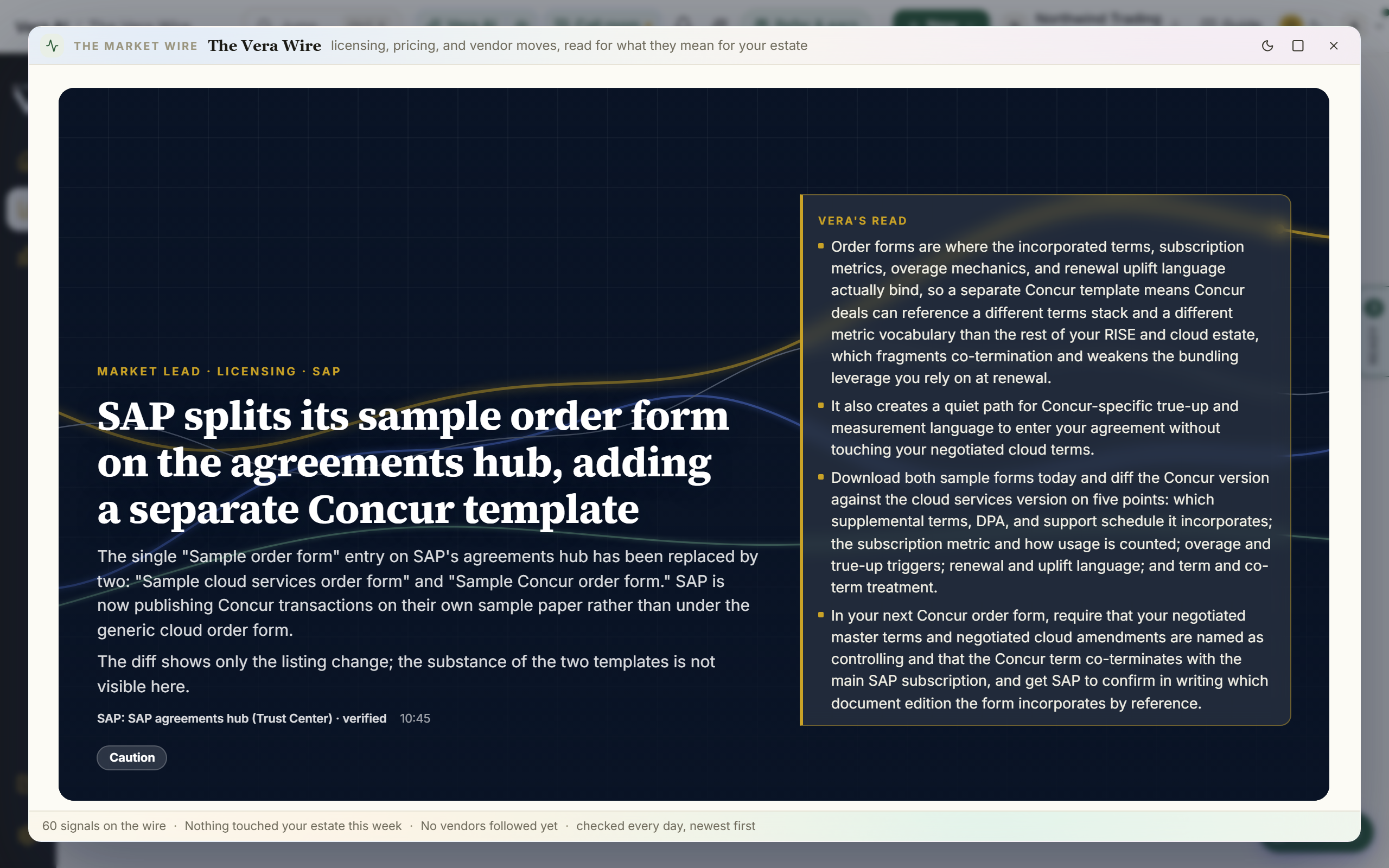
- The lead — the lead story of the day as the first card: the category and vendor, the headline, the summary and the source, with Vera's read on what to do about it beside it on a wider screen.
- The next stories — three cards under the lead, each summary held to three lines with Read more opening the rest in place. The research row under them lists newly published reports that are not already on screen above it, and steps aside when there are none.
- Lenses — one tap filters Market news to Licensing, Pricing, Vendor news, or Research.
- My vendors only — a toggle that narrows the feed to vendors you hold a contract with.
- The feed — a dated timeline of every signal; a colored dot marks the category, the verdict reads Favorable, Caution, or Risk, and a Your vendor label marks your vendors.
- Vera's read — tap any item to expand Vera's read, set as short points rather than a paragraph: what changed, why it matters, and the move to make, grounded in your numbers.
- Your move — an item touching a vendor you hold ends with a Your move line: the vendor screen, that vendor's benchmark, and Ask Vera seeded with the headline.
- Details, on the right — On your vendors lists up to five signals on vendors you hold; press one and the feed scrolls to it with Vera's read open. Under it: Price movers, Terms watch and New research, each linking to the source, then Next (your vendors only, one lens, the Vendor calendar, talk it through with Vera) and three questions to ask Vera. Press I to hide or show the column.
- Keys — M shows only your vendors, V talks to Vera, I shows or hides the details, Esc closes the window. They are listed along the foot of the window.
- Read and watch — at the foot of the feed: the films, analyst briefings, research papers and guides the library holds on the vendors in the news, laid out as in the agents. Vendors you hold come first, then the ones you follow, then the rest by how often they appear. A row opens its piece, and it loads when you scroll to it.
How to use it
- Read the cover story and Vera's read for the headline move of the day.
- Tap a lens to focus on Licensing, Pricing, Vendor news, or Research.
- Turn on My vendors only to narrow Market news to your own estate.
- Tap any item to expand Vera's read, then follow its Open link for the detail.
Tips
- Your dashboard and welcome screen show the same lead and the next signals, so the headlines meet you before you open the full market news.
Related: Vendor Radar · Research · Vendor Changes
Vendor Radar
In plain words: the radar tells you what your vendors changed and what it costs you, before the renewal does.
The Vendor Radar is where the Research Agent now lives, beside Vendor Changes, as seven steps across the top on keys 1 to 7. It reads your own contracts (every one with an annual value) and the registry of public documents the platform reads every day (the Microsoft Product Terms, the Oracle policies, the AWS service terms and the rest), matches each change the sweep catches to the contracts of that vendor, and prices it where the figures are on the contract. A workspace with no valued contract opens on the sample estate, Northwind Trading, and the Sample data switch in the title bar swaps between the sample and your own.
Since 9 October 2026 the seven screens are the numbered rows under Vendor Radar in the left column, each with one short figure; since 21 October 2026 only the open screen shows its own pages, nested under it on a guide line (for example Briefing archive and Vendor research under Research). Every screen's details column begins with the one thing to do now and the button for it, then that screen's facts, the radar's figures and the next moves.
On the screen
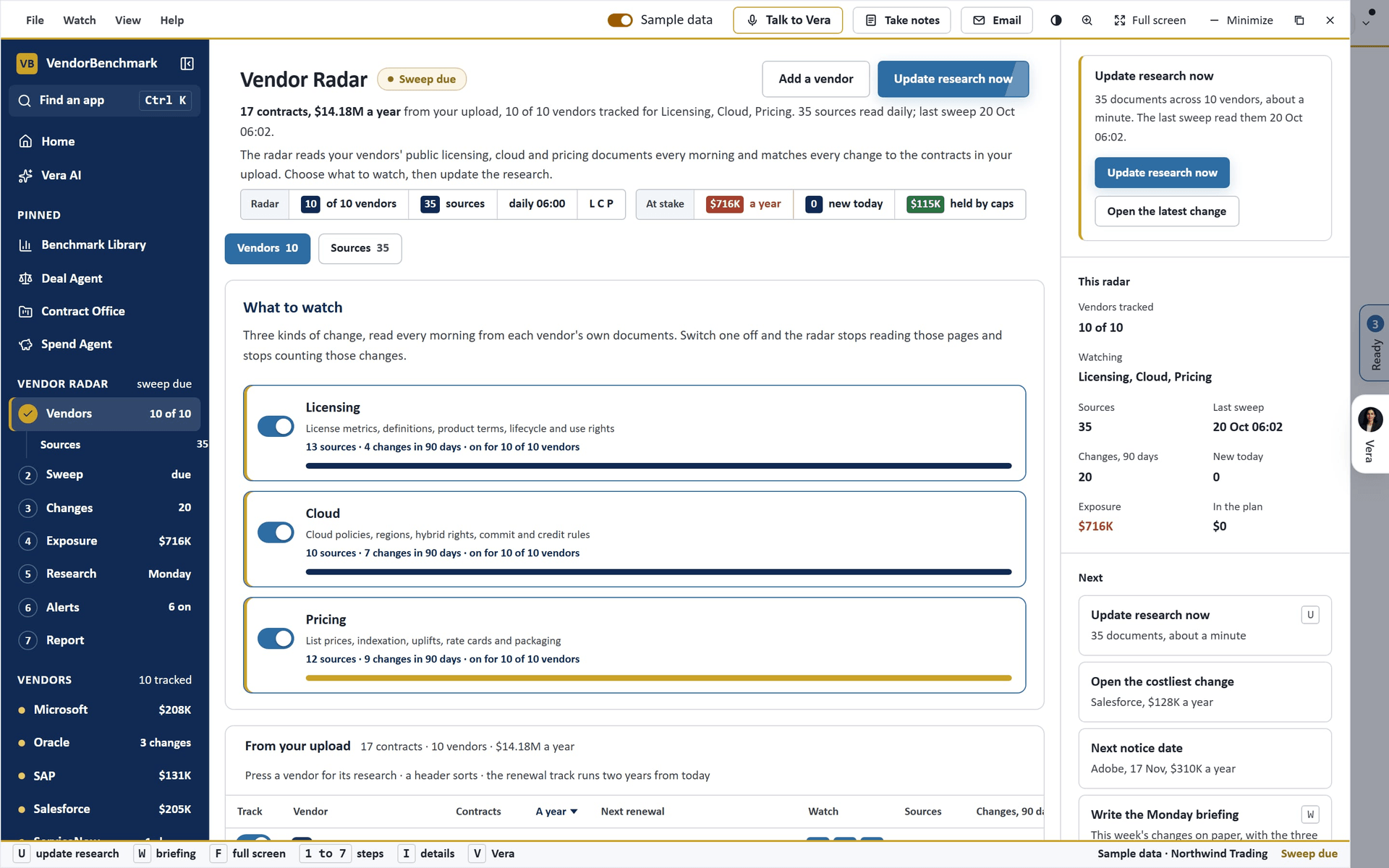
- The window. The title bar carries the menus (File, Watch, View, Help), Sample data, Share, light or dark, minimize, maximize and close. The left column reads Vendor Radar with a row a step and its figure (the open step with its own pages under it), then every vendor with its exposure (a red dot when a change is new), then Related. The details column (I) holds the radar in figures, the next moves and three questions for Vera. The status bar lists the keys.
- Vendors (key 1). The vendors from your upload with their contracts, money, next renewal and exposure. Since 13 October 2026 the next renewal sits on one two year track the whole list shares (a brick pin inside ninety days, gold inside six months, navy beyond, the quarter and the half year marked) and the exposure is a bar on one scale the list shares, the part held by caps in your contracts hatched in green. Every header sorts: press once for the column's first order, again to turn it; the arrow keys walk the rows and Enter opens the vendor's research. Under the title two joined groups carry the radar's facts (Radar: vendors, sources, the schedule, what is watched; At stake: the money a year, new today, held by caps), each chip opening the screen its figure lives on. Three switches choose what to watch: Licensing, Cloud, Pricing, each with a bar of the vendors it is on for; each vendor has its own track switch and its own L C P chips. Add a vendor tracks one outside the upload. The schedule: every day at 06:00, Mondays only, or paused. Sources lists every document the radar reads, with its address and the changes it caught.
- Sweep (key 2). The radar: your organization in the middle, every tracked vendor a dot, nearer the center the sooner it renews, the size the money. Update research now (U) sends the arm round; as it passes a vendor its documents are read, the five stations count up and a change found pops as a red blip. On your own estate each vendor's documents are read for real as the arm reaches it. Normal or fast, Skip to the end, and Full screen (F). Schedule shows the next runs and the last ten sweeps.
- Changes (key 3). The ledger, costliest first or newest first: the vendor, the day found, the change, its kind, the verdict (Risk, Caution, Favorable, For the record), the contracts it touches, the exposure a year as a figure with a bar on the ledger's shared scale and "held by your cap" where the contract states one, the status, and Read at the end of the row. Filter by kind, verdict, vendor and new today. One press on the row, on Read or Enter opens the change in the reader: the page before and after, Vera's read, each contract hit with the clause, the page and the line of arithmetic, Open the source (the vendor's own page) and the moves: Add to the plan, Email the vendor, Tell the CFO, Ask Vera, Snooze, Dismiss. A right press is the same menu. Timeline draws every change on the day it was found and the day it takes effect, with each contract's renewal, and lists the next 120 days. The ledger shows the last 180 days unless you pick another period. With Sample data on, the contracts are a sample company's, but the changes are real ones the vendors published from May to October 2026, each on its own date, linked to the page it is on and quoting it; only a price that lands on a whole contract is priced, so most read as not priced.
- Exposure (key 4). Bars by vendor, the table by contract, and three levers that move every figure: years ahead, the cap you negotiate onto contracts that have none, the share of the estate a metric change reaches. By vendor and kind is the matrix; press a cell to open those changes.
- Research (key 5). Write the Monday briefing (W) writes the week's changes on the briefing template: three things to know first, the week by vendor with the arithmetic, what takes effect in 90 days, what your caps are doing, the bottom line. Before it is written, What the briefing will say lists the six sections with what each will carry this week and its figure, beside The changes it will carry and Last Mondays (press one for the archive). Archive holds the past Mondays. Vendor research is one page a vendor: what matters now, the documents read daily with their addresses, the next dates and the contracts, with Update this vendor now, which sweeps that vendor alone: the Sweep page then shows that vendor's documents, its log and its finds, with Back to the vendor and Sweep every vendor.
- Alerts (key 6). When to tell you (a change touches a contract, from which verdict, above which floor; the Monday briefing; a vendor's quarter close), who, and where (email, Teams, Slack, in the app), with what these rules would have sent in the last seven days. Preview shows the alert as the email and as the Teams card.
- Report (key 7). The dashboard draws itself in: the stations count up, the pack slides in, the charts grow. The pack is what leaves the radar: the written report on the firm paper (Download Word), the Excel workbook, the boardroom deck (present, or download as PowerPoint), the email draft, a share link with an expiry, and an expert review. A period switch (30, 90, 180 or 365 days) redraws everything. The plan holds the moves you added with their worth; Emails the drafts; Activity the record.
- The reader. Every change opens in its own window. Across the top, four figures: a year at stake (or saved), what caps in your contracts hold, the contracts touched, and when it takes effect. Under them the actions: Read more at the source opens the vendor's own page in a new tab at the passage the change quotes, so the page scrolls to the words and marks them; the words it lands on are listed under The source as Lands on. A change with a page of its own (an announcement) opens that page, a price list PDF opens at the top, and where no address is on file The page as read shows the page the sweep kept, Save keeps it on your radar, Forward opens the email room on a draft for a colleague, Add to the plan, and Copy link puts a link that opens this change on your clipboard. Then the passage: a change the sweep caught lists every line that went and every line that came, a change priced by hand reads before and after. Then Vera's read, each contract hit with the arithmetic, Do, the source on file (the document's name and its address are both links; Also lists the pages behind an announcement, such as the price list a blog post rests on), and More from the vendor, its other changes by money. The arrow keys walk the ledger (Earlier and Later do the same), S saves, F forwards, Esc closes.
- The right press. On any change, in every ledger: Read more, Read at the source, The page as read, Add to the plan, Email the vendor, Tell the CFO, Ask Vera, the vendor's research, Save, Forward to a colleague, Copy link, To a contract, To the renewal, To a case room, Snooze 30 days and Dismiss. On a vendor's row on Vendors: Open the research, Update this vendor now, Its sources, Track or Stop tracking, Read or Stop reading licensing, cloud and pricing, and Ask Vera.
- Keep a change. Under Do on every change, and on the right press menu: Save keeps it on your radar (its status reads Saved), Email a colleague opens the email room on a draft with the change, the arithmetic and the source, and To a contract, To the renewal and To a case room write it where the work happens: a comment on the contract's discussion, a note on the vendor's renewal thread, or a step and a date on the contract's case room plan. The pickers list the contracts the change touches first. The toast carries the way there.
- Home. Until 8 October 2026 a Vendor Radar card stood on Home with the last 30 days and the four costliest changes; the radar is now opened from the apps, More or Ctrl/⌘ K.
- Email. Every email opens in the email room: what you were looking at on the left, the email on the right with the editor, Vera's rewrites (Direct, Warm, Formal, Shorter) and every version kept.
What the money means. A price rise is priced at the next renewal of each contract it hits and held to the cap the contract states, or to the cap the lever negotiates where the contract has none. A metric or entitlement change is the share of the annual value it reaches, from its effective date. A favorable change is a saving. A change the daily sweep catches on your own estate is matched to your contracts but not priced until an analyst prices it, and the screen says so; the radar never guesses a figure.
How to use it
- Open Vendors, switch off what you do not need to watch, and press Update research now.
- Read Changes costliest first; open the top one and read the arithmetic under the contract it lands on.
- Move the levers on Exposure to see what a negotiated cap is worth, then add the moves to the plan.
- Write the Monday briefing, set the alerts, and take the report out as Word or the deck for the board.
Tips
- The Changes step's Export CSV carries every change with its source address.
- Keys: U update research, W briefing, F full screen, 1 to 7 the steps, I details, V Vera, the arrows walk a table, Enter opens a row, Esc closes. In the reader: the arrows walk the ledger, S saves, F forwards.
- The screens move: a screen arrives in order, the figures count up, the bars and the renewal pins draw, the radar's vendors blip in behind the arm. Reduced motion in your system settings turns it all off.
Related: Market news · Deal Agent · What you own
AI Agents - Vendor Changes
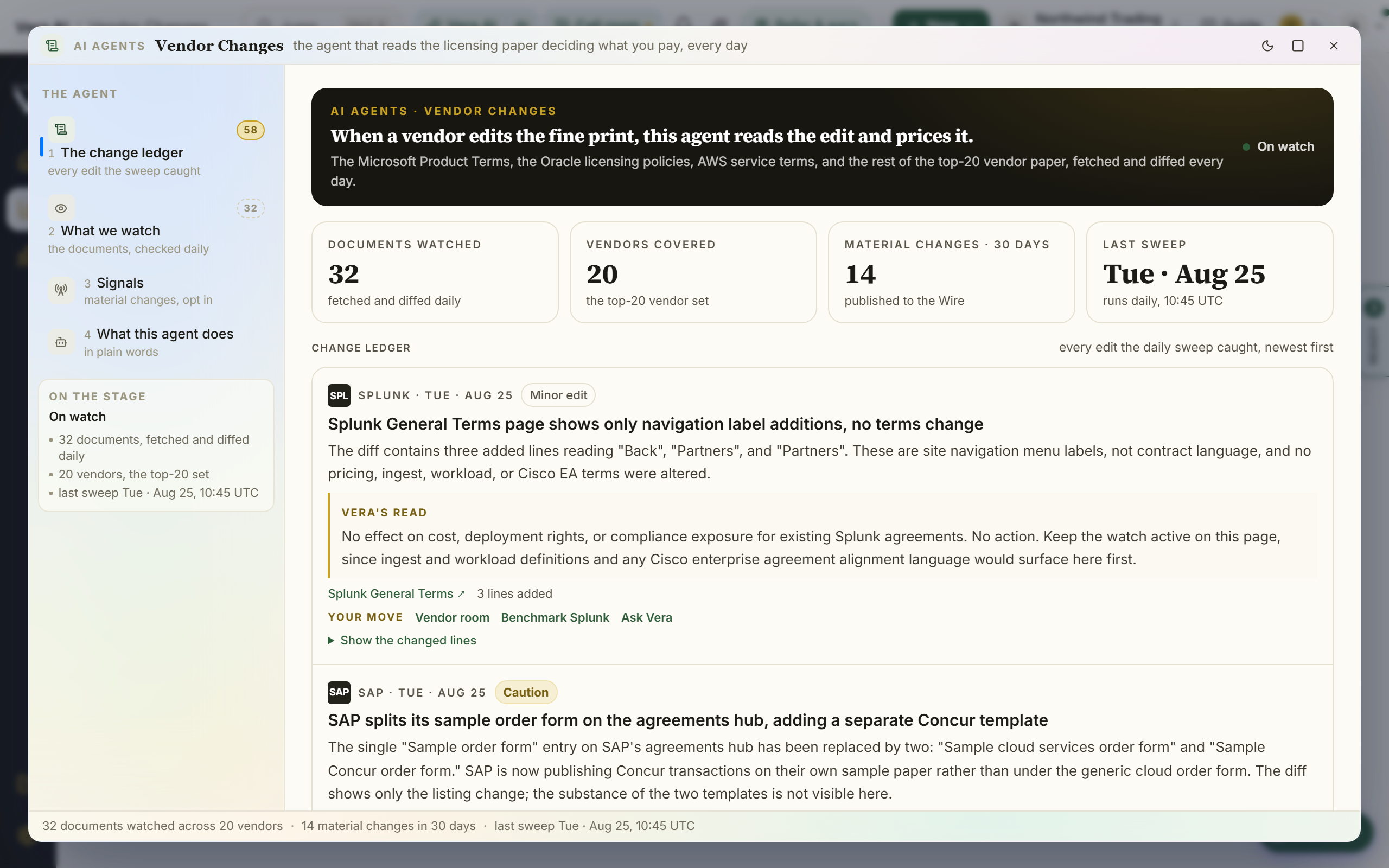
Vendors reprice you through their documents, not just their price lists. The Vendor Changes agent fetches the public licensing and cloud policy documents of the top-20 vendor set every day, 32 documents in all, and diffs each one against yesterday's copy: the Microsoft Product Terms and Universal License Terms, the Oracle partitioning, cloud licensing, support, and Java SE policies, AWS service terms, the Google Cloud terms, and the standing agreements of SAP, Salesforce, IBM, Adobe, ServiceNow, Workday, and their peers. When the fine print changes, the change is logged with the exact lines that moved and Vera's read on what it means, and material changes publish to Market news under the Licensing lens.
Since 11 October 2026 every change is read on your own paper: the agreement it reaches (from your contracts and the renewals record), the date to answer by, the money once you set the rate it moves, and a response with an owner, a status and a drafted email.
What you see
- The title bar — the six menus (File, The watch, View, Team, Learn, Help), the Sample data switch, Share, Minimize, Maximize and Close (light or dark is in View). The window's name is not written on the bar.
- The left column — the navy column every app carries: Find an app (Ctrl K), Home, Vera AI and your pinned apps, then Vendor changes (the ten sheets with their figures), Act on first (the open responses in the order to act in, each with its vendor, the money where it is priced, the title and the date to act by; a red dot means 14 days or fewer), Your vendors (the vendors you hold, with their open responses or notice date; press one for its record) and Related (Market news, Vendor Radar, the Research Agent's week, the Research Library).
- The ten sheets — on keys
1to9and0: Change ledger, By vendor, Responses, What if, History, What we watch, Signals, Reports, Read and watch, and How it works. - The head — the sheet's name with one tag, the buttons at the right with one filled blue button, and one row of labels and values under it (on the ledger: changes, material in 30 days, on what you hold, at stake, act on in 30 days, documents reachable). On every sheet but the ledger a gold line names the latest material change; press it to open that change.
- The change ledger — the last 30 days as a block a change (brick for Risk, gold for Caution, blue for Favorable, quiet for a minor edit), beside On what you hold: the vendors you hold that a material change reached, what you hold with each a year, what is at stake on the open responses and how many changes; press a vendor to filter. Under them Every change: a search, a vendor list, the verdict, the response, three orders (newest first, most on your contract, soonest to act on), All, Material and Minor edits with their counts, and Vendors you hold. Each row shows the vendor, the change with the first line of Vera's read, the verdict, the money on your contract, when it bites (the date to act by), and the response with its owner. Newest first groups the rows by the day caught; the table pages at 25. Press a row to open the change's record.
- A change's record — What changed (Vera's read, the words, the lines struck and added, the document, Copy the read); On your contract (the agreement, a year, term end, notice date, owner, and the money: the yearly value times the share of the agreement the change touches times the rate it moves, over the months to the term end, at least 12 and at most 60). The sweep reads words, not prices, so type the rate the change moves and the share it touches; until then the record says plainly what is missing (the rate, an annual value, or an agreement). Move the figures opens it in What if. When it bites draws caught, today, the notice date and the term end on one line. The response carries the ladder (Open, Assigned, Drafted, Sent, Answered, Closed, and Not exposed), the owner, the move, and the drafted email to the vendor's account team, which you can edit, copy, open in Mail or reset. Around it links Research library, Vendor Radar, Renewals, Cases, the Deal Agent, Briefings, Specialists, the vendor screen, a benchmark of the vendor and Ask Vera. Every change to this document lists the document's history.
- By vendor — the vendors you hold as cards (open responses and the notice date), then all 20 vendors in a table: edits caught, material in 30 days, last change, your agreement, notice date, at stake and whether you follow it. Press a vendor for its record: your agreement with Open in Renewals, Open the contract and Take it to the Deal Agent, the routes around it, its changes and its documents.
- Responses — who owns what (each person's open responses, the money and their next date), where they stand (a count per status), and every response in the order to act in, with an owner list and the next step on each row. Open, Done and All switch the list.
- What if — one change on your contract (the rate, the share and the months, with a three by three sensitivity table) and across the estate (the rate scale, a rate for changes not yet priced, the horizon, how many days ahead an answer must go, open responses or every priced change), with the totals by vendor and by owner. Leave a change out and the totals follow. The same inputs always draw the same figures.
- History — every week since the first change on the ledger: changes caught, material, on what you hold, money surfaced and the team's moves; press a week for its changes and its moves.
- What we watch — the documents by type (press one to filter), then every document with a search and an Unreachable filter: the vendor, the document with a link to the live page, its type, its rhythm, its last check, its last change and how many changes were caught on it (press the count to see them on the ledger).
- Signals — your alert subscriptions, on a sheet of their own (see below).
- Reports — the Excel workbook, the Word report and Email the report on every change, with a preview of the rows the report carries. The same exports sit under the ledger.
- Read and watch — the films, analyst briefings, research papers and guides the library holds on the vendors on the watch, the vendors with material changes first.
- The details column — on the right, opening with what to do now (the change to answer first, with its date, the money and who owns it, and buttons to open it and take the next step), then the sweep or the change's facts, your signals or your responses, what a change is (or how the money is figured, on What if), Next, the three latest material changes and Ask Vera. Press
Ito hide it. - The status bar — the keys on the left, the documents and when the sweep runs on the right, and Sample data when the switch is on.
Signals: alerts per vendor or all
- Channels — two cards side by side, each with a switch that reads On or Off: Email sends one brief per sweep with the changes on the vendors you follow and a one click unsubscribe that touches nothing else; Notification bell lands each material change on your bell, tunable like every other alert kind in Settings. The card that is on is outlined in navy.
- Vendors you follow — one table of the 20 vendors: the checkbox, the vendor, how many documents are watched, the edits caught, the material changes in 30 days, the day of the last change, and whether alerts reach you (Followed, Not followed, or Followed, no channel). Select a row or its checkbox to follow or unfollow. Follow all 20 puts every vendor back.
- Both channels are opt in and off by default, carry material changes only, and share one vendor list. At least one vendor stays followed; to stop every alert, switch both channels off.
How to use it
- Open the change at the top of Act on first; it is the open response with the soonest notice date or term end, then the most money. A response already sent never leads.
- On the change's record, set the rate the change moves to price it, pick an owner, and edit the drafted email; open it in Mail, then press Mark sent.
- Press
3for Responses to see who owns what, and4for What if to move the figures across the estate. - In Signals, switch on the channel you want and clear the vendors you do not hold.
Tips
- Responses, owners, drafts and the rates you set are kept for your organization, so closing the window loses nothing. With Sample data on they stay in the tab and never touch your own work.
- A document shown as unreachable means the vendor moved or blocked the page on the last check; the platform keeps checking and the history stays intact.
Related: Market news · Watch · Research
Spend Agent
In plain words: see where the money goes, take Vera's ranked savings into a plan, and send the board three real files.
Since 27 October 2026 the Spend Agent opens on Where to start (key 1) and runs ten screens on keys 1 to 9 and 0: Where to start, Overview, Explore, Savings, Vendors, Plan, The guide, Dashboards, Reports, and Data on 0. The column at the left is the review's own index: the seven screens as numbered steps in the order the work happens, Data first, with a tick once a step is done, a brick dot where it wants you, and one figure a row (what needs you, or the money at your ambition; Explore carries none). Under them Needs you lists the savings dated inside 30 days, the open ledger checks and the board decisions waiting, each a door; it steps aside when nothing is due. The screens are not drawn a second time above the work: the tabs there belong to a vendor's file alone. Every figure comes from your contracts, renewal dates, line items and ledger. A workspace with no valued contract opens on the sample estate, and the window says so. The plan, its stages, the board's decisions and the checks looked at are your workspace's: a colleague sees what you approve. The ambition and the increase at renewal are yours.
On the screen
- Before there is an estate (since 27 October 2026). A workspace with no contract carrying a value a year opens on one box: put every contract there (a folder, a zip or the files, PDF and Word) and each is filed as a contract and read for its vendor, its value a year, its dates and its clauses, with the run shown as it goes; three quiet doors sit under it (connect the ledger, Contract Management, see a sample). The sample is a door, never the default.
- Where to start (key 1). Three doors with their figures: Largest spend (the ten largest vendors, their share of spend and what they hold a year), Renewing this year (the vendors with a notice or end date inside 12 months, the money under notice and the first date) and A category (every category as a chip with its spend). Pressing one sets the lens: Savings, Vendors, Plan and every file then read through it, the lens shows beside the title on every screen with a press to clear it, and the status bar names it. Under the doors, Templates: Find me 20 vendors to save money on, Every vendor paying above comparable customers, Products we pay for and never rolled out, Increases coming at renewal, Tools we already own that replace another, Everything renewing in the next 6 months, Commitments against real use, and The tail into one channel, each with what it does, what it needs on file and what it holds now; Run sets the lens and the lever in one press. Or type the ask (what renews before our year end) and it is matched to a template before it runs; what no template fits goes to Vera. While the Contract Agent is still reading what was uploaded, The read fills a table at the top, contract by contract, and the estate refreshes when the last read lands.
- The window. The title bar carries File (Where to start, add spend data, find more savings, Jump to, the workbook, the report and the deck, the review as PDF, the savings register, the renewal calendar, every file, Share a link, Sample data), View (the eight screens, Details, Motion, and Advanced: count unused seats), Savings (do the top recommendation, find more savings, Floor, Target, Stretch) and Help, then Talk to Vera and the window controls. The head states the screen in one line of figures, with its one main button at the right (S presses it). The details column leads with what to do now, then the facts and three questions for Vera. The status bar carries the keys, your ambition and the organization; the figures live in the head and the panels, once each.
- Every figure is a door (since 27 October 2026). Press the spend in the head, a vendor's spend in the ledger, a product line's spend in a vendor's file, a category's spend on Explore or the spend in a saving's evidence and a sheet opens with the ledger rows behind it, newest first: the largest vendors in those rows (press one to open it), every row with its date, reference, vendor, wording, GL account and amount, and Save as CSV for every row. Esc closes it.
- Undo (since 27 October 2026). Every change you make carries Undo in its notice: approving a saving, moving it on, putting it in or out of the plan, raising or dismissing a check, a board decision, and a change of ambition.
- Overview (key 2). It opens on Do now: the first saving with a date inside 120 days (else the strongest), with the money a year at your ambition, its four facts (the spend, the market, what is in use, the contract and the date), Vera's one line on why, and Approve (or Move it on), Draft the email, The rows, Evidence and the vendor. The details column carries Getting started as a checklist until it is done (the spend is in, set your ambition, approve the first saving; Hide puts it away for good), then the next saving after the one on the card, then the ambition. Vera recommends: the savings ranked by her score out of 100, from how sure the figure is, how little effort it takes, how much it is worth and how soon its date is; press a row for the evidence, Approve puts it in the plan. This year: what comes out a year, the share of spend, the increases avoided, what is realized, and the figure at floor and at stretch, with the ambition beside it. What moved: the largest changes on last year, split into price and volume. Where the plan takes you: spend, less each way to save, to spend after the plan. Where the money goes: a treemap by category (press one to explore it). Renewals in the next 120 days.
- Explore (key 3). Every dollar four ways: By month (the largest 18 vendors over the last twelve months as a heatmap, the darker the cell the more that month cost, with a trend line each, the 36 months below and the categories with their change), By unit (category by business unit), Treemap (every vendor sized by its spend) and Table. Filter by category; press any row to open the vendor.
- Savings (key 4). Every saving in the ranked list carries Work on it, which puts it on your list for the guide. The ambition from floor to stretch with what each comes to. Every way to save as a filter with its count and its value, in the order a buyer acts on them (since 27 October 2026): Rate above market first, then Downgrade the edition (seats on a higher edition that use none of what it adds, moved to the edition below at the lower edition's published list against the higher one's; Microsoft 365 E5 to E3, Salesforce Unlimited to Enterprise, Atlassian Premium to Standard and more, with the share of seats that can move as an assumption under Assumptions), Shelfware (a product or module paid for and never rolled out), the increase at renewal, Switch to a tool you own (two vendors doing one job, the smaller moved onto the one already paid for), A cheaper product (a credible alternative from the platform's own register, priced against what you pay as the position at the renewal or the move, with what it lacks and what moving costs said in the same line), commitments, then the checks and the estate wide finders; Vera's score weighs the lever the same way. Counting unused seats inside a product that is in use is an advanced view, off until you turn on View, Advanced: count unused seats. Find more savings (F) runs the fifteen detectors in front of you, built on screen since 25 October 2026: each detector a step with its time and what it found, the ring the share of detectors run, and Savings found on the left filling with the largest savings as each detector finishes; when the check is done a notice gives the count and the money a year, with Open the list. The detectors are the twelve kinds of saving and three more finders: renewals near the vendor's fiscal year end, vendors with several contract end dates to co-term, and small vendors to consolidate in one category (its figure at a 15 percent consolidation discount, labeled as an assumption). The savings show three ways: Ranked (score, saving, way, certainty, effort, act by, stage, the figure a year, and a switch to keep it in the plan or leave it out), Heatmap (way to save by category; press a cell to list its savings) and Quick wins (value against effort, a bubble a saving). Vera also found lists the timing, co-terming and consolidation opportunities with what each rests on. Press a saving for the evidence in the details column: Vera's read with its certainty and why (what is on file: the contract, the ledger rows, a usage source, the peer count, the date), the evidence (the spend, the peers at this size with where the range came from, what is in use and from where, the contract, the date and the range), then, on a rate finding, The three questions (what the line costs and how that compares, the peers at this size as a ranked band with your estate placed in it, and the rank with the gap in points and in money over the term), then Sources (since 27 October 2026: the benchmark curve with its deal count and cohort or the Software Price Index cell with its quarter, the contract, the ledger rows, the usage counts, the research library and Vendor Radar for the vendor, and any working assumption the rule rests on, each a door), with Approve it, Move it on and Draft the email, then Talk to Vera about it (Vera is asked with the saving's evidence and sources in the question) and Ask a human (a request to a human analyst with the evidence pack filled in: the saving, its figures, the peers, the contract and the sources; the answer within 24 hours). Assumptions under Savings in the menu lists every figure the rules carry (the increase at a renewal with no cap, the cap asked for, the cost of capital, the consolidation discount, your standard payment terms), each with its source and a slider; a moved one reads as your setting wherever it prints.
- Vendors (key 5). The ledger above the tail (or the vendors in the lens), largest first: the spend with its bar, the change on last year, the market rank, what is on file (Defended, Thin or Blind from contract, usage, market and invoices), the notice date and what it saves. Concentration shows how much of spend the largest vendors hold; What is on file counts the vendors by coverage.
- A vendor. Press a vendor anywhere and its file opens with six tabs (keys 1 to 6): Product lines (market rank, licenses in use, contract end, what each line saves, the last twelve months and what to take out), 36 months (as used against as invoiced, Price and volume, the change on last year a line at a time, split into price and volume where the invoices carry unit prices, then year by year), Savings (ranked by Vera), Contracts and market (Published changes, what Vendor Radar caught on the vendor's pages, then the contract a line, its reference opening the contract, with the range comparable customers pay and where you sit in it) and Ledger rows (the latest 24, Every row for all of them). The details column carries The renewal clock: the days to the notice date on a year's ring, brick inside 45 days, gold inside 90. [ and ] step to the previous or next vendor; Esc goes back. Approve its savings approves every open saving on the vendor.
- Research, on a vendor (key 2, since 27 October 2026). The platform's own research on that vendor set against your contracts, never an outside source. The memo: press Write the vendor memo and the analyst session writes where you stand, where the leverage is, what to ask in order with the money each is worth, the dates that decide it, what could go wrong and the bottom line, from this estate's figures, the clauses the Contract Agent read and the research below, in about a minute; it is kept for that vendor with Copy and Write it again. Your renewal, dated: each contract with the day to open talks, the notice date and its days, the end date, the vendor's quarter or year end the signature lands in, the ask (hold the cap, or ask for one where none is on file) and what is at stake a year. What changed since you signed: Vendor Radar's dated changes to the vendor's prices and terms, with what each moves a year on this vendor and how many of your contracts it hits. How they sell: the negotiation dossier, one line a section. The levers: what the vendor concedes and the points each is worth, when to ask, the terms to ask for, what to say and what to watch for. The renewal guide (the posture, what the renewal is priced against, the window) and The alternatives (each priced against what you pay). The foot names everything that was read.
- Motion (since 27 October 2026). A screen arrives the head first, then the panels in order, every figure counting up to its value, bars growing and lines drawing; a change pulses the figures it moved; the savings check ends with the column's figures landing. View, Motion turns it off; so does reduced motion in your system.
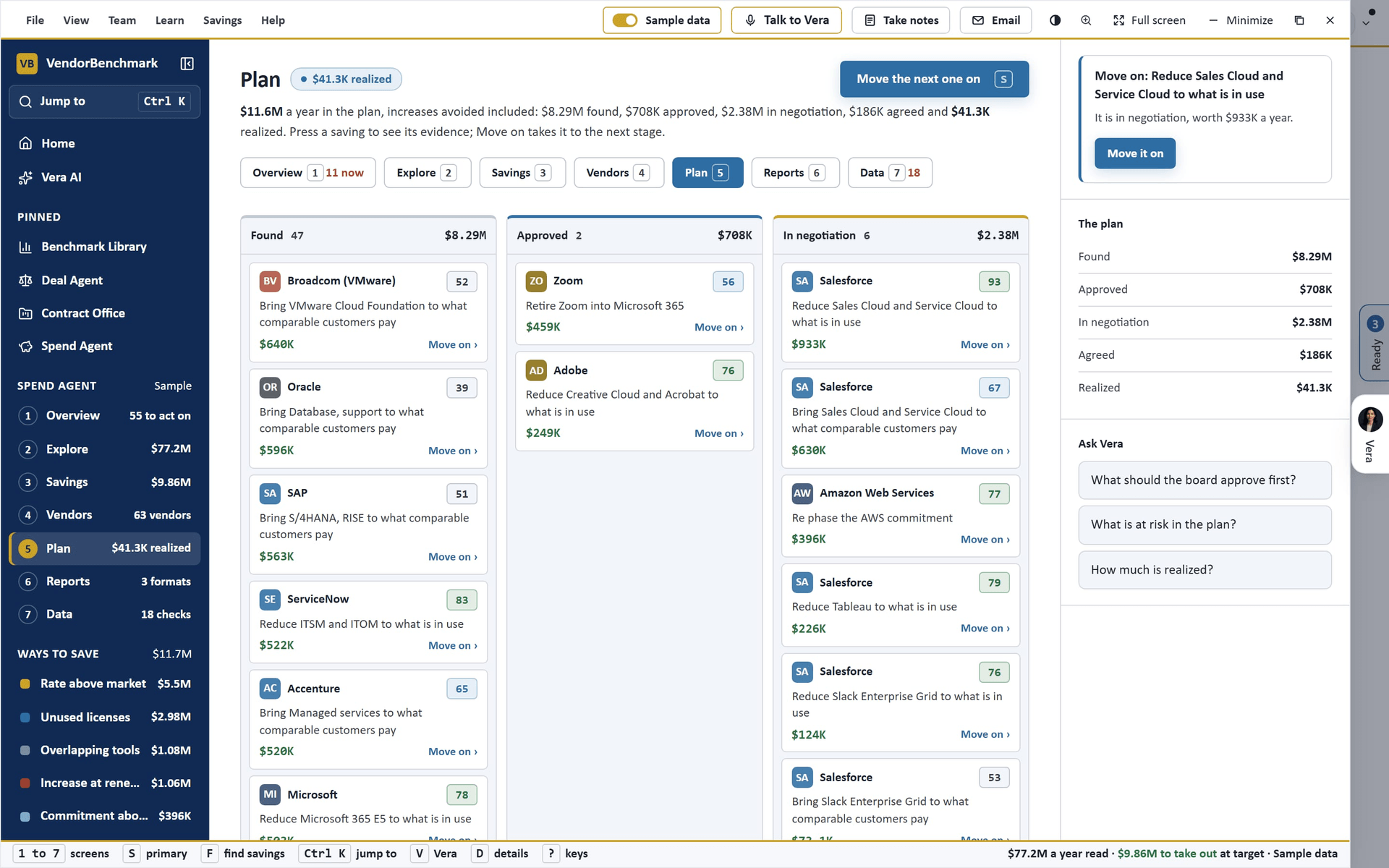
- Plan (key 6). The plan in five stages, Found, Approved, In negotiation, Agreed and Realized, with what each holds; Move on takes a saving to the next stage. The next twelve months as things stand against with the plan, with the increase at renewal as a slider; 1 year, 2 years, 3 years and 5 years above it run the same figures over the years ahead, the increase compounding at each renewal and the plan taken from its dated month, with a table by year. Decisions for the board: what the board is asked, by when, what it is worth and Vera's recommendation, with Approve and Defer.
- What the Contract Agent read feeds the review (since 27 October 2026). Where a contract has been read, its notice period, its cap on increases, an auto renewal, the discount printed and the payment terms come off the contract when the record carries none; the read's own benchmark of the discount places the contract against comparable customers where the library has no band for the vendor; and every saving on that contract carries The contract, page N in its evidence, the clause the read found with its words, and in its sources with a press that opens the read. A vendor's Contracts and market tab lists the clauses the read found on each contract with their page and what each is worth.
- What it finds in your contracts (since 21 October 2026). On your own estate the review holds each uploaded contract against the ledger and the market:
- Billed above the contract: the ledger paid more than 10 percent above the contract's value a year; the ask is to reconcile the invoices to the contract.
- Billed above the cap: invoices rose faster than the contract's cap on increases allows; the ask is a credit for the difference, counted once.
- Paid after the end: payments carried on after a contract ended with no renewal on file; the ask is the renewal order and a credit for anything above the old rate.
- Auto renewal: a contract that renews by itself, with its notice date in the next 12 months; the ask is notice before the date, then the renewal negotiated. It takes the place of the cap ask for that contract.
- Rate above market for a contract that prints no discount: its price a unit a year (the line items' value over their count) against what comparable customers pay on the Software Price Index at that many units, rate against rate.
- Overlapping tools: two vendors under contract for one job (video meetings, project management, analytics and more); the smaller is moved onto the larger, and a vendor with contracts for other work is never flagged.
- The cap ask at renewal now covers contracts whose notice period is not on file.
- The guide (key 7, since 27 October 2026). The Savings Guide, on the firm document: the headline at floor, target and stretch, the money by lever in the order to work them, when the money lands by quarter, The first 90 days (what needs no vendor: notices, shelfware, invoices paid twice, payments after the end, each with its date), The twelve months (every notice, every vendor year end and the money on each month), and a chapter a vendor in the order to work them: what you have, where each product ranks against comparable customers, the levers with floor, target and stretch, the ask, three talking points with the clause they rest on, the fallback, the walk away, the opening email and the analyst memo where one is written. Under a category lens the category has its own chapter. Each chapter ends with Research and the memo, Open the email, Have an analyst confirm this chapter (Ask a human, with the evidence) and Have VendorBenchmark negotiate it. Above the document, Working on: the savings you chose with Work on it on Savings, in your order (Up, Down, Remove), each with tags (Q1, Legal, Finance, CFO asked and more), Save the set under a name and load it again, and Send to a colleague (an email with the list, the tags and a link to the guide). Your list leads the guide's chapters. Since the version you kept says what moved since you last pressed Keep this version. The head saves the guide as Word, and the same figures as PDF, Excel and PowerPoint; when a read of uploaded contracts lands, the window opens here.
- Dashboards (key 8, since 27 October 2026). Three, each on one screen: The CFO (to take out a year, the run rate after the plan, increases avoided and realized so far, by lever and by quarter, and the twelve months), The estate (every vendor by spend against where it ranks, press a dot to open it; the categories; the value under notice by month) and The work (the money and count at each stage, what is past its date, what each owner holds, and Working on). The head saves them as slides or a workbook.
- Reports (key 9). One studio for three files. Pick the format (Excel workbook, Word report or PowerPoint deck), the audience (CFO, board, procurement or IT) and the sections (executive summary, where the money goes, the savings ranked, the vendors, the heatmaps, renewals, the plan and the years ahead, what the review read); the preview follows. Download builds the file from the figures on screen. The workbook holds up to nine sheets (Summary with live formulas, Savings with data bars, Vendors, By month and By unit with color scales, Renewals, Plan, Forecast and Ledger) with frozen headers and filters. The Word report is the firm document: the summary figures, numbered sections, tables, Sources (the market reference with its provenance, the contract, the usage source and any assumption behind the five strongest savings) and the bottom line; the workbook carries the same as a Sources sheet. The deck has a slide a point with native charts you can edit. Email it opens a draft in Mail. More files, under the preview, lists nine more, each built from the same figures with the audience and sections you picked:
- Savings register (Excel or CSV): every saving, in the plan or not, with its contract, reference, way to save, stage, owner, act by date, floor, target, stretch and evidence.
- Contract by contract (Excel or CSV): every contract with its value, dates, notice, auto renewal, cap, licensed and used counts, market place, what was found and what is missing from the record.
- Vendors (CSV): every vendor with its spend, change, market, what is on file, contracts, next notice and saving.
- Renewal calendar (.ics): each notice date and term end in the next 18 months as an all day event, with reminders 30 and 7 days ahead; open it in Outlook or Google Calendar.
- One page summary (Word): the year, the five strongest savings, the next dates and the asks.
- A page for each vendor (Word): the vendors with the most to take out, each with its facts, savings and ask.
- Letters to the vendors (Word): one letter a vendor with an ask, each on its own page, ready to send.
- The review as PDF: the Word report's sections on the firm document.
- Short deck (PowerPoint): five slides, the year, the waterfall, the savings that make the case and the asks.
The details column carries the PDF, the register and the calendar as one press each, Share a link (a read only link to the review for 30 days, copied to the clipboard; not on the sample), and Jump to finds every file by name.
- Data (key 0). What the review could not see, priced (since 27 October 2026): each gap (no ledger, contracts with no deployed count, contracts not placed against the market, contracts with no file on record, files not yet read) with the spend it covers, what it typically holds a year at target as a working assumption, and the press that closes it, so connecting a source reads as a figure. Where the data comes from: the ledger, a ledger import or Coupa pull, Contract Management and usage (the deployed counts on contract line items; no sign in source is connected, and the screen says so), each marked On file or with Connect. What the review read: the share of spend under a contract, the rows, vendor names, vendors, product lines and contracts; the details column lists what the run read, what it matched to a benchmark curve or the Software Price Index, and which detectors did not run on this estate and why (the same log closes the savings check). The checks: paid twice, a step up in price and use above commitment, each with Raise it or Not an issue (Undo puts it back); Invoices and Anomalies open the two checks with their own address.
- A right press on a saving or a vendor offers what can be done with it: the evidence, in or out of the plan, approve or move on, open the vendor, draft the email, ask Vera.
- Jump to (Ctrl K). A vendor, a saving, a category, a screen or a file.
- Keys. 1 to 9 the screens in the order of the column, Where to start to Reports, 0 Data (1 to 6 the tabs on a vendor), S the main button, F find more savings, Ctrl K jump to, V Vera, D the details column, [ and ] the vendors, Esc back, ? the keys.
Step by step: from the spend to the board
- On Where to start, press Largest spend (or run a template); on Overview, press the first row under Vera recommends and read the evidence in the details column; press Approve.
- Press Find more savings (F) and watch the fifteen detectors run; read Vera also found.
- On Explore, choose By unit and press a category; open its largest vendor and its Savings tab.
- On Plan, move a saving on with Move on, set the increase at renewal, and approve a decision for the board.
- On Reports, choose For the board, clear a section you do not need, and download the workbook, the report and the deck.
The earlier window. File, Earlier window (or /spend-agent?classic=1) opens the window of 3 October with its nine steps, the review's run, the boardroom deck, comments and share links. Links that window made open the matching screen here.
Freight Agent
In plain words: what each carrier costs you against comparable shippers, what that is worth, and which invoices to check.
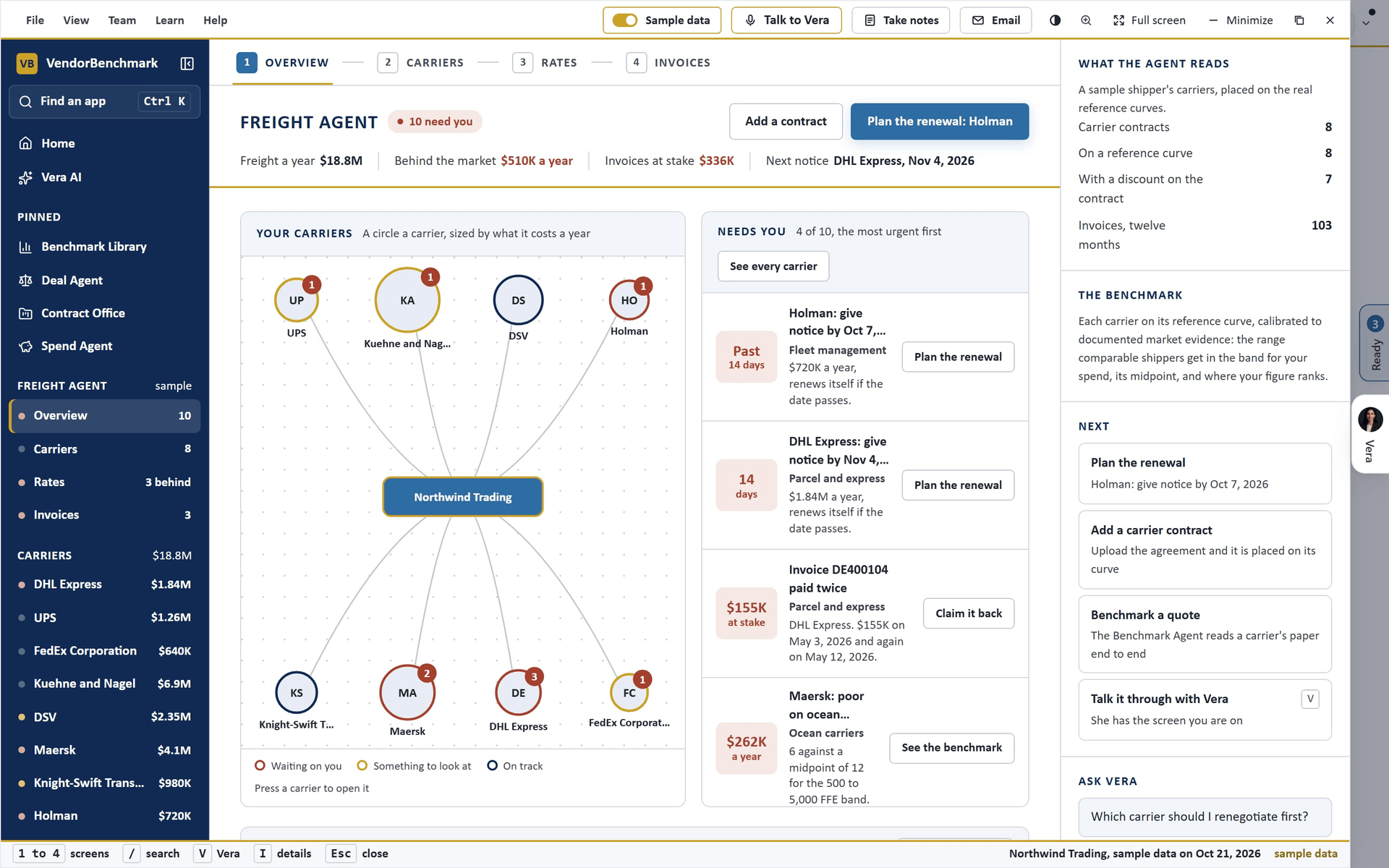
The Freight Agent reads your carrier contracts (the logistics contracts in your workspace, placed by their contract type and supplier), the discount their line items state, their notice dates, and twelve months of carrier invoices from your connected ledger. Each carrier is matched to its reference curve, calibrated to documented market evidence, and placed in the band for its spend: the three questions of every benchmark, what you get, what comparable shippers get with the midpoint, and where you rank from Poor to Top of the market, with what moving to the midpoint is worth a year in USD. A carrier whose contract states no discount is not placed until you enter one.
On the screen
- Overview (key 1). Your carriers: a circle a carrier around your organization, sized by what it costs a year and ringed by its state (brick waiting on you, gold something to look at, navy on track), with a count of what needs you; press a circle to open the carrier. Needs you: the most urgent first, one button each (plan the renewal before a notice date, see the benchmark of a carrier behind the market, claim back an invoice billed twice). The next twelve months: each month with its notice dates and term ends.
- Carriers (key 2). Every carrier in a table: the mode, what it costs a year, its rank with your figure against the midpoint, the money to the midpoint, the notice date and its state. Filter by Needs you or by mode, or search (/). Where freight money leaks lists the terms every carrier contract should carry.
- Rates (key 3). Every carrier on its curve: the measure and the band, the range comparable shippers get with the midpoint and your figure on one bar, and the rank with the gap a year; then how many carriers sit at each rank.
- Invoices (key 4). What the audit found: an invoice billed twice (the same carrier, reference and amount on two rows), a month billed more than a quarter above the run rate of the contract, and a carrier paid with no contract on file; each with Draft the claim, Open the carrier or Ask Vera. Under it, the invoices of the last twelve months, the flagged ones marked.
- A carrier. Press a row, a circle or a carrier in the left column and it opens in place, with Back to the carriers in the head. Today: where it stands on its curve, what needs you, the road to the renewal (signed, today, the notice date, the term end) and its latest invoices. Rates: the band (pick the one your volume sits in where the curve bands on volume) and each measure on its curve with a slider and a box for your figure; the rank and the money move as you type, and the window keeps what you set. Invoices: its findings and every invoice against the monthly run rate. Terms: the six terms that hold a freight rate (a fuel surcharge tied to a published index, accessorials limited to the schedule, billing on the pickup weight, a cap on general rate increases, repricing to the market, no automatic renewal), each with Draft the clause, and Plan the renewal in the Deal Agent.
- Details. What the agent read, how the benchmark works, the next moves (the Deal Agent, the contract, the reference curve, Vera) and questions for Vera.
- Sample data. With no carrier contracts on file the window lists the carriers that have a reference curve, by mode, and offers See it on sample data: eight carriers of a sample shipper on their real curves, with a year of invoices and one finding of each kind. Switch it off in the title bar to return to your own.
- Keys. 1 to 4 the screens, / searches the carriers, V talks to Vera, I shows or hides the details, Esc goes back from a carrier or closes the window.
Rate Card Agent
In plain words: what each firm and each role costs you against comparable buyers, what that is worth over the work, and which invoices and terms to fix.
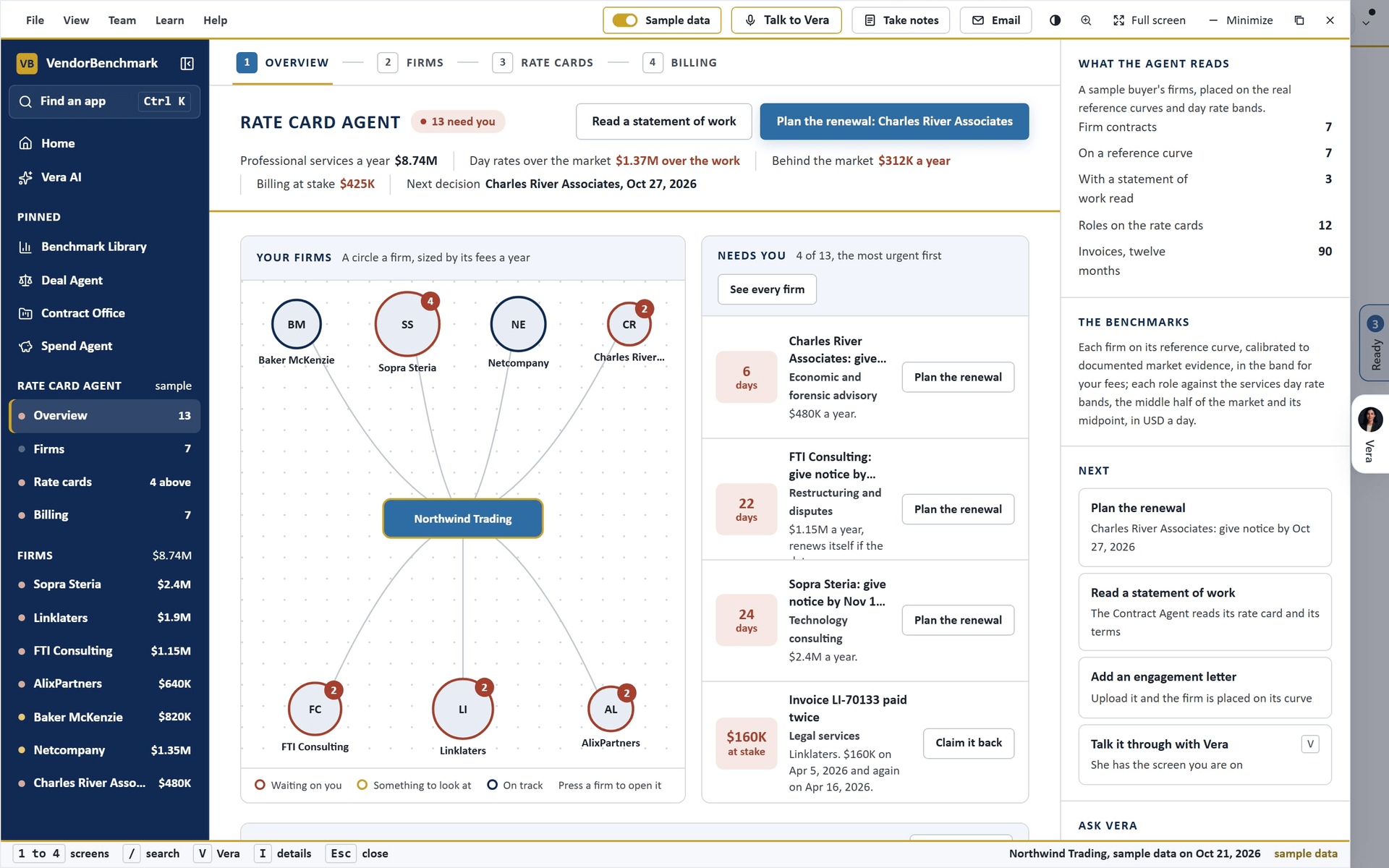
The Rate Card Agent reads your professional services contracts (consulting, legal, audit, engineering, search and the rest, placed by their contract type and supplier), the discount their line items state, the latest statement of work read on each by the Contract Agent (its rate card and its terms), their notice dates, and twelve months of invoices from your connected ledger. Each firm is matched to its reference curve, calibrated to documented market evidence, and placed in the band for your fees. Each role on a rate card is converted to a day rate in USD and placed against the market for the role: the middle half of the market and its midpoint, with what the rate above the midpoint costs over the days the work states.
On the screen
- Overview (key 1). Your firms: a circle a firm around your organization, sized by its fees a year and ringed by its state; press a circle to open the firm. Needs you: the most urgent first, one button each (plan the renewal before a decision date, see a rate card with roles above the market, claim back an invoice paid twice, fix the terms of a statement of work). The next twelve months: notice dates and engagement ends.
- Firms (key 2). Every firm in a table: the practice, the fees a year, its rank on its curve, its blended day rate, the decision date and its state. Filter by Needs you or by practice, or search (/).
- Rate cards (key 3). Every role on the rate cards: the firm, the role and the market role it matched, the market for the role with its midpoint and your rate on one bar, and the rank with the cost over the work; the most money first. Every firm on its curve: the measure and the band, the range comparable buyers get, and the rank with the gap a year.
- Billing (key 4). What the checks found: an invoice paid twice, a firm billed more than a tenth above its engagement in twelve months, a firm paid with no contract, and each term a statement of work leaves open (time and materials with no cap, rates not held, no written change order process, no acceptance criteria, expenses with no cap), each with Draft the claim, Draft the clause, Open the firm or Ask Vera. Under it, the invoices of the last twelve months.
- A firm. Press a row, a circle or a firm in the left column and it opens in place, with Back to the firms in the head. Today: where it stands on its curve and on its rate card, what needs you, the road to the next decision and its latest invoices. Rate card: every role with a box to type the day rate you will ask for; the rank, the cost over the work, the blended day rate and the saving move as you type, and the window keeps what you set; under it, the band and each measure of the curve of the firm with a slider and a box for your figure. Billing: its checks and its invoices against the engagement. Terms: what the statement of work says on the engagement model, the rates, change orders, acceptance and expenses, then six terms that hold a professional services rate, each with Draft the clause, and Plan the renewal in the Deal Agent.
- Details. What the agent read, how the benchmarks work, the next moves (the Deal Agent, the Contract Agent for the next statement of work, the contract, the reference curve, Vera) and questions for Vera.
- Sample data. With no professional services contracts on file the window lists the firms that have a reference curve, by practice, and offers See it on sample data: seven firms of a sample buyer on their real curves, three rate cards against the market, a year of invoices and one finding of each kind. Switch it off in the title bar to return to your own.
- Keys. 1 to 4 the screens, / searches the firms, V talks to Vera, I shows or hides the details, Esc goes back from a firm or closes the window.
Agency Agent
In plain words: what each agency costs you against comparable buyers, what your media agencies keep on top of their fee, and which invoices to check.
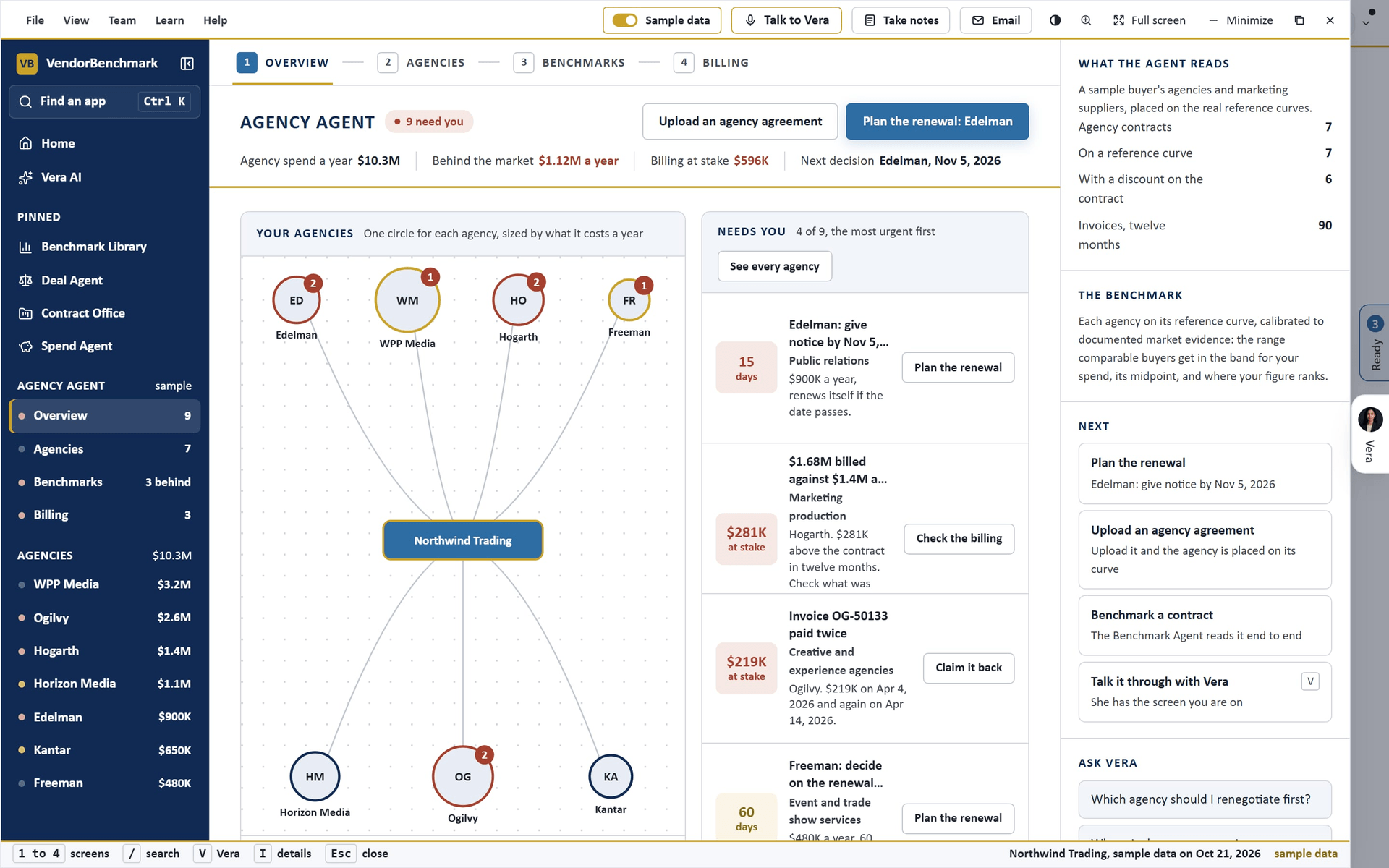
The Agency Agent reads your marketing contracts (media and creative agencies, production, public relations, research, events and the rest, placed by their contract type and supplier), the discount their line items state, their notice dates, and twelve months of invoices from your connected ledger. Each supplier is matched to its reference curve, calibrated to documented market evidence, and placed in the band for its spend, ranked from Poor to Top of the market with what the midpoint is worth a year in USD. A media agency is paid on the media it places, so it is placed on that media rather than on its own fees: the media is estimated from the fees and its curve, and you can type your own figure.
On the screen
- Overview (key 1). Your agencies: one circle for each supplier around your organization, sized by what it costs a year and ringed by its state; press a circle to open it. Needs you: the most urgent first, one button each. The next twelve months: notice dates and term ends.
- Agencies (key 2). Every supplier in a table: its kind, what it costs a year, its rank with your figure against the midpoint, the money to the midpoint, the decision date and its state. Filter by Needs you or by kind, or search (/). Where marketing money leaks lists the terms every agency contract should carry.
- Benchmarks (key 3). Every agency on its curve: the measure and the band, the range comparable buyers get with the midpoint and your figure on one bar, and the rank with the gap a year. What the all in remuneration hides: for each media agency, the media placed a year, the disclosed fee midpoint, the all in midpoint, and the gap between them in points of media and in USD a year, with Draft the clause for disclosure and rebate pass through.
- Billing (key 4). An invoice paid twice, a supplier billed more than a tenth above its contract in twelve months, and a supplier paid with no contract on file, each with Draft the claim, Open the agency or Ask Vera; under it, the invoices of the last twelve months.
- An agency. Press a row, a circle or an agency in the left column and it opens in place, with Back to the agencies in the head. Today: where it stands, what needs you, the road to the renewal and its latest invoices. Benchmark: for a media agency, the media you place a year (type your own figure) and what its all in remuneration hides on it; then the band and each measure of its curve with a slider and a box for your figure, the rank and the money moving as you type. Billing: its checks and its invoices. Terms: six terms that hold an agency price (rebates passed through, audit rights, principal media disclosed, retainers with defined scope and hours, ownership of creative work and data, production at cost), each with Draft the clause, and Plan the renewal in the Deal Agent.
- Sample data. With no marketing contracts on file the window lists the suppliers that have a reference curve, by kind, and offers See it on sample data: seven suppliers of a sample buyer on their real curves, two of them media agencies, with a year of invoices and one finding of each kind.
- Keys. 1 to 4 the screens, / searches the agencies, V talks to Vera, I shows or hides the details, Esc goes back from an agency or closes the window.
Facilities Agent
In plain words: what each facilities supplier costs you against comparable buyers, what an open book clause would save, and which invoices to check.
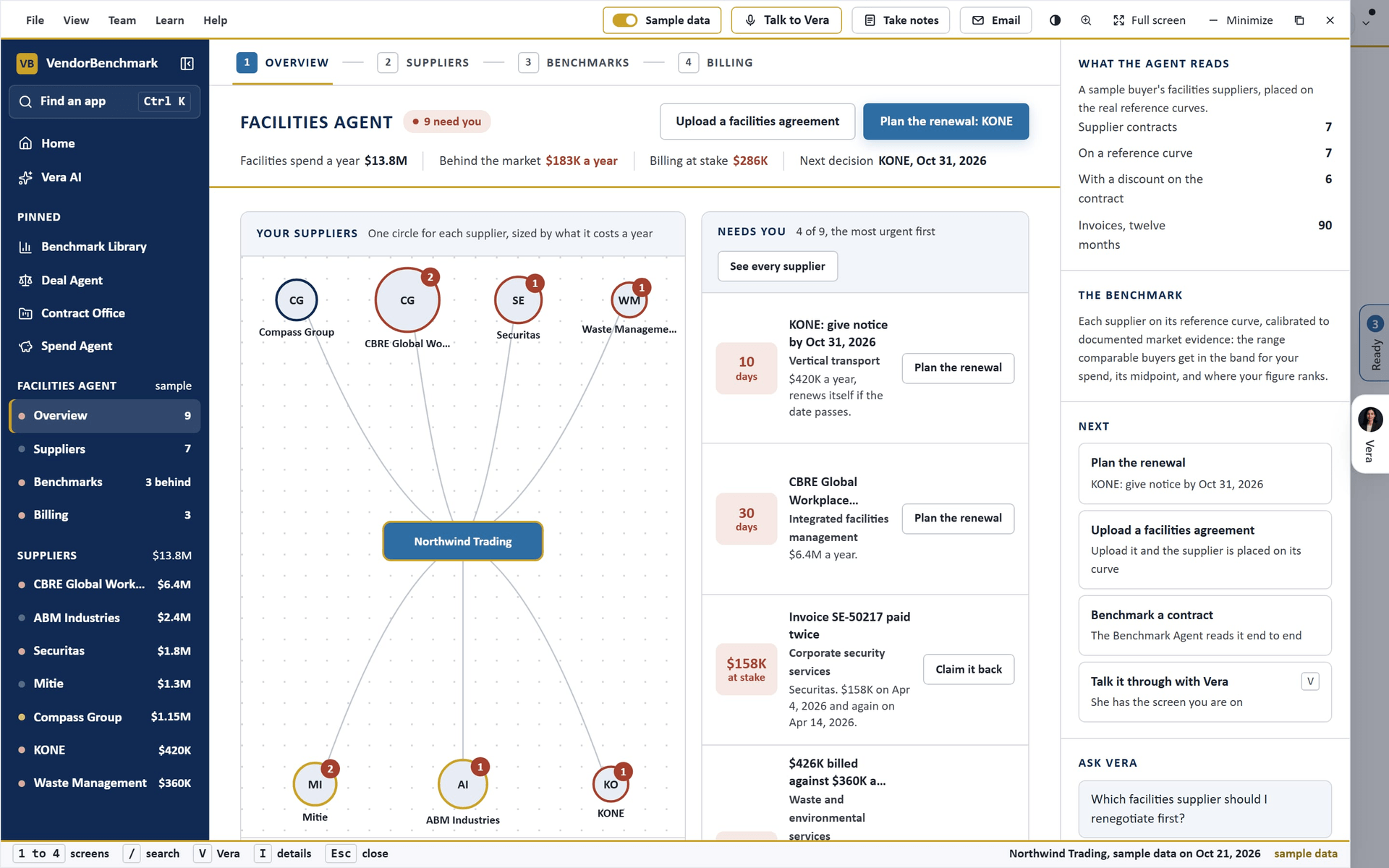
The Facilities Agent reads your facilities contracts (integrated facilities management, cleaning, security, catering, technical maintenance, lifts, waste and the rest, placed by their contract type and supplier), the discount or fee their line items state, their notice dates, and twelve months of invoices from your connected ledger. Each supplier is matched to its reference curve, calibrated to documented market evidence, and placed in the band for its spend, ranked from Poor to Top of the market with what the midpoint is worth a year in USD. Cleaning, security, catering and integrated facilities suppliers are mostly paid a fee over a cost base, and their curves carry two measures: the fee on a closed book, where the supplier sets the cost base, and the fee comparable buyers get on an open book with an audited cost base.
On the screen
- Overview (key 1). Your suppliers: one circle for each supplier around your organization, sized by what it costs a year and ringed by its state; press a circle to open it. Needs you: the most urgent first, one button each. The next twelve months: notice dates and term ends.
- Suppliers (key 2). Every supplier in a table: its kind, what it costs a year, its rank with your figure against the midpoint, the money to the midpoint, the decision date and its state. Filter by Needs you or by kind, or search (/). Where facilities money leaks lists the terms every facilities contract should carry.
- Benchmarks (key 3). Every supplier on its curve: the measure and the band, the range comparable buyers get with the midpoint and your figure on one bar, and the rank with the gap a year. What open book is worth: for each supplier paid a fee over a cost base, its closed book measure and the open book one it is set against, your figure, the open book midpoint, and the gap in points and in USD a year, with Draft the clause for an open book cost base.
- Billing (key 4). An invoice paid twice, a supplier billed more than a tenth above its contract in twelve months, and a supplier paid with no contract on file, each with Draft the claim, Open the supplier or Ask Vera; under it, the invoices of the last twelve months.
- A supplier. Press a row, a circle or a supplier in the left column and it opens in place, with Back to the suppliers in the head. Today: where it stands, what needs you, the road to the renewal and its latest invoices. Benchmark: the band and each measure of its curve with a slider and a box for your figure, the rank and the money moving as you type, and what open book is worth on it, which moves with the fee you type. Billing: its checks and its invoices. Terms: six terms that hold a facilities price (open book over an audited cost base, service levels with credits, indexation capped at CPI, extra work at the contracted rate card, sites added and removed at contracted rates, exit and transfer of staff planned), each with Draft the clause, and Plan the renewal in the Deal Agent.
- Sample data. With no facilities contracts on file the window lists the suppliers that have a reference curve, by kind, and offers See it on sample data: seven suppliers of a sample buyer on their real curves, three of them on a closed book fee, with a year of invoices and one finding of each kind.
- Keys. 1 to 4 the screens, / searches the suppliers, V talks to Vera, I shows or hides the details, Esc goes back from a supplier or closes the window.
Staffing Agent
In plain words: what each workforce supplier costs you against comparable buyers, what a staffing markup above the market costs on every hour worked, and which invoices to check.
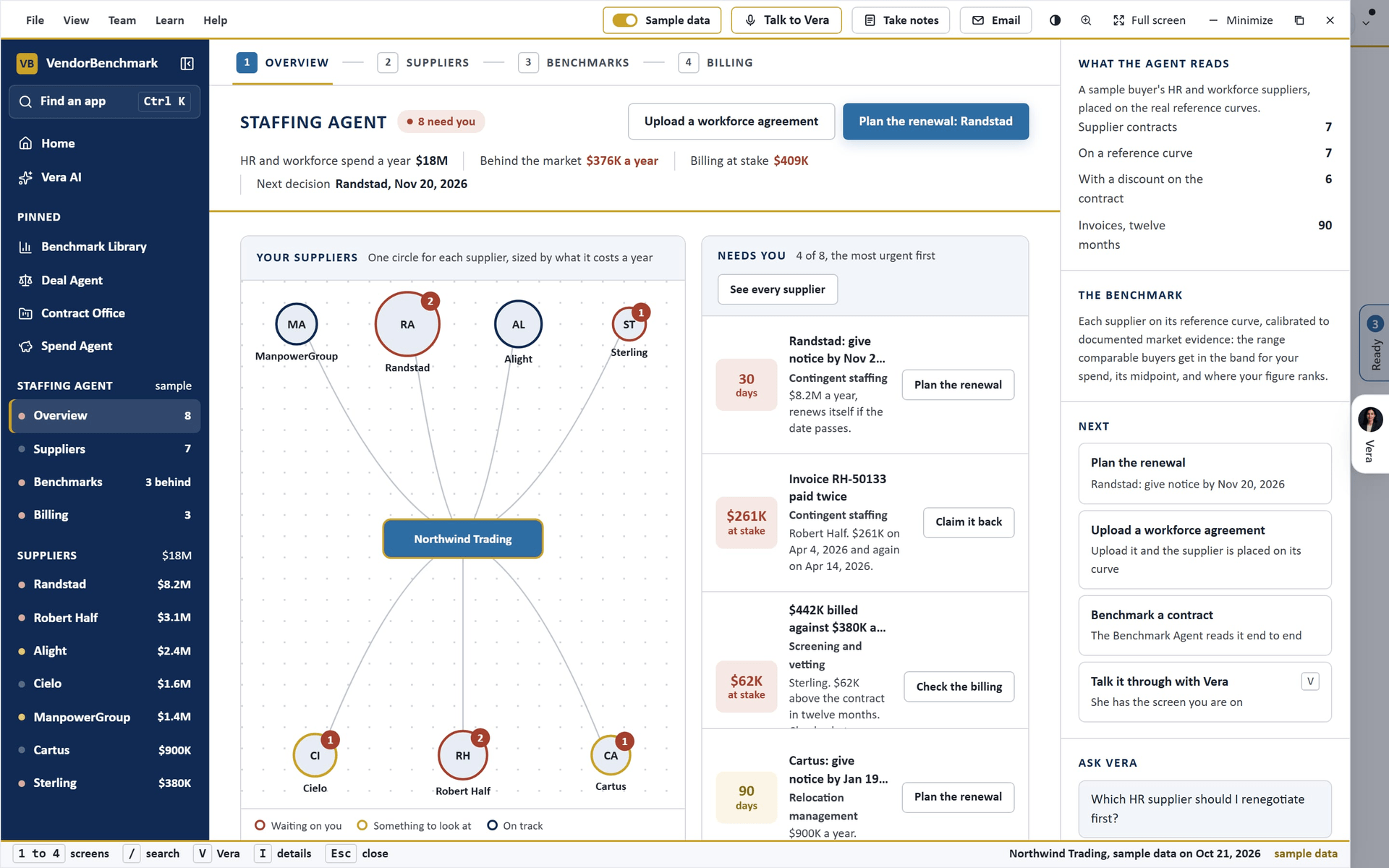
The Staffing Agent reads your HR and workforce contracts (staffing agencies, recruitment outsourcing, benefits administration and broking, screening, relocation, employer of record and the rest, placed by their contract type and supplier), the discount or markup their line items state, their notice dates, and twelve months of invoices from your connected ledger. Each supplier is matched to its reference curve, calibrated to documented market evidence, and placed in the band for its spend, ranked from Poor to Top of the market with what the midpoint is worth a year in USD. A staffing agency bills the worker's pay rate plus a markup, and its curve measures that markup, so the app also shows it as a bill rate an hour.
On the screen
- Overview (key 1). Your suppliers: one circle for each supplier around your organization, sized by what it costs a year and ringed by its state; press a circle to open it. Needs you: the most urgent first, one button each. The next twelve months: notice dates and term ends.
- Suppliers (key 2). Every supplier in a table: its kind, what it costs a year, its rank with your figure against the midpoint, the money to the midpoint, the decision date and its state. Filter by Needs you or by kind, or search (/). Where workforce money leaks lists the terms every workforce contract should carry.
- Benchmarks (key 3). Every supplier on its curve: the measure and the band, the range comparable buyers get with the midpoint and your figure on one bar, and the rank with the gap a year. The markup on the hour: for each staffing agency, your markup and the midpoint, the bill rate on a $30.00 pay rate at each, and the gap an hour and a year, with Draft the terms for a markup on a verified pay rate.
- Billing (key 4). An invoice paid twice, a supplier billed more than a tenth above its contract in twelve months, and a supplier paid with no contract on file, each with Draft the claim, Open the supplier or Ask Vera; under it, the invoices of the last twelve months.
- A supplier. Press a row, a circle or a supplier in the left column and it opens in place, with Back to the suppliers in the head. Today: where it stands, what needs you, the road to the renewal and its latest invoices. Benchmark: for a staffing agency, a pay rate and a bill rate to type; the markup they imply is placed on the curve and the gap an hour and a year moves with it. Then the band and each measure of its curve with a slider and a box for your figure. Billing: its checks and its invoices. Terms: six terms that hold a workforce price (markup on a verified pay rate, conversion to permanent at no fee after 13 weeks, pay increases passed through with the markup held, overtime billed at the pay multiple, volume tiers on total spend, broker commission disclosed and credited), each with Draft the clause, and Plan the renewal in the Deal Agent.
- Sample data. With no workforce contracts on file the window lists the suppliers that have a reference curve, by kind, and offers See it on sample data: seven suppliers of a sample buyer on their real curves, three of them staffing agencies, with a year of invoices and one finding of each kind.
- Keys. 1 to 4 the screens, / searches the suppliers, V talks to Vera, I shows or hides the details, Esc goes back from a supplier or closes the window.
Travel Agent
In plain words: what each travel deal costs you against comparable buyers, what it is worth once travelers book around it, and which invoices to check.
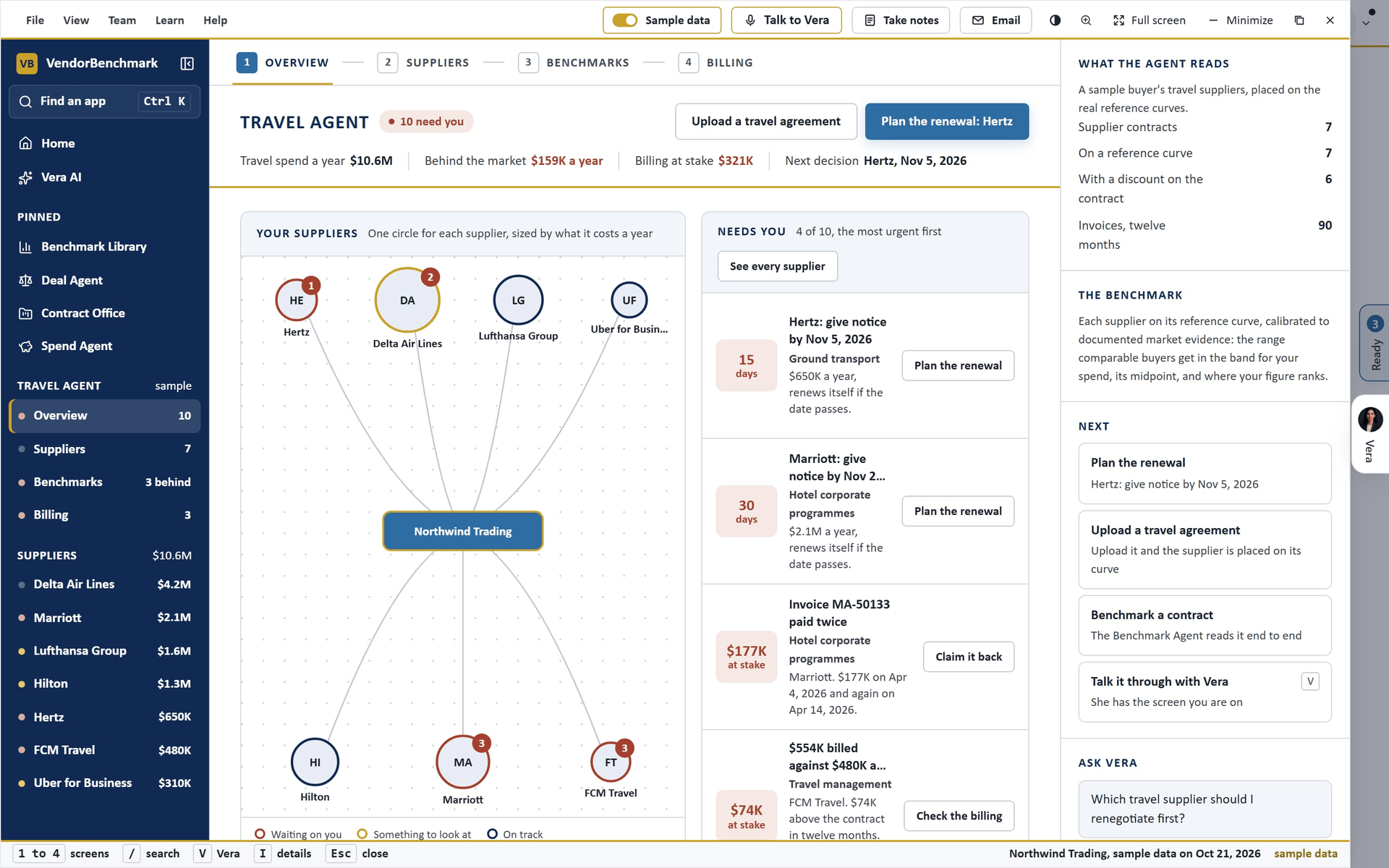
The Travel Agent reads your travel contracts (airline and hotel programs, car rental, rail, ground transport, serviced apartments, the travel management company, payment and the rest, placed by their contract type and supplier), the discount their line items state, their notice dates, and twelve months of invoices from your connected ledger. Each supplier is matched to its reference curve, calibrated to documented market evidence, and placed in the band for its spend, ranked from Poor to Top of the market with what the midpoint is worth a year in USD. A negotiated fare or rate applies only to what travelers book on the deal: a fare bought in another channel, a fare class the deal leaves out or a hotel off the program pays the published price. So the discount you realize is the deal times the share booked on it.
On the screen
- Overview (key 1). Your suppliers: one circle for each supplier around your organization, sized by what it costs a year and ringed by its state; press a circle to open it. Needs you: the most urgent first, one button each. The next twelve months: notice dates and term ends.
- Suppliers (key 2). Every supplier in a table: its kind, what it costs a year, its rank with your figure against the midpoint, the money to the midpoint, the decision date and its state. Filter by Needs you or by kind, or search (/). Where travel money leaks lists the terms every travel contract should carry.
- Benchmarks (key 3). Every supplier on its curve: the measure and the band, the range comparable buyers get with the midpoint and your figure on one bar, and the rank with the gap a year. What the deals deliver: for each airline, hotel, car, rail and serviced apartment deal, the deal's discount and the midpoint, then the discount realized and its rank at 90, 75 and 60 percent booked on the deal, with Ask Vera for how to raise the share.
- Billing (key 4). An invoice paid twice, a supplier billed more than a tenth above its contract in twelve months, and a supplier paid with no contract on file, each with Draft the claim, Open the supplier or Ask Vera; under it, the invoices of the last twelve months.
- A supplier. Press a row, a circle or a supplier in the left column and it opens in place, with Back to the suppliers in the head. Today: where it stands, what needs you, the road to the renewal and its latest invoices. Benchmark: for a booked deal, the share booked on the deal as a slider and a box (100 percent until you type the share your booking data shows), with the realized discount, its rank, what is paid at published fares and the gap to the midpoint moving as you type. Then the band and each measure of its curve with a slider and a box for your figure. Billing: its checks and its invoices. Terms: six terms that hold a travel price (the discount on every fare class you book, last room availability, the deal loaded in every booking channel, share targets measured on your data, travel management fees per transaction with rebates returned, ancillaries and surcharges fixed), each with Draft the clause, and Plan the renewal in the Deal Agent.
- Sample data. With no travel contracts on file the window lists the suppliers that have a reference curve, by kind, and offers See it on sample data: seven suppliers of a sample buyer on their real curves, six of them booked deals, with a year of invoices and one finding of each kind.
- Keys. 1 to 4 the screens, / searches the suppliers, V talks to Vera, I shows or hides the details, Esc goes back from a supplier or closes the window.
MRO Agent
In plain words: what each MRO supplier costs you against comparable buyers, what putting your most bought items on a core list would save, and which invoices to check.
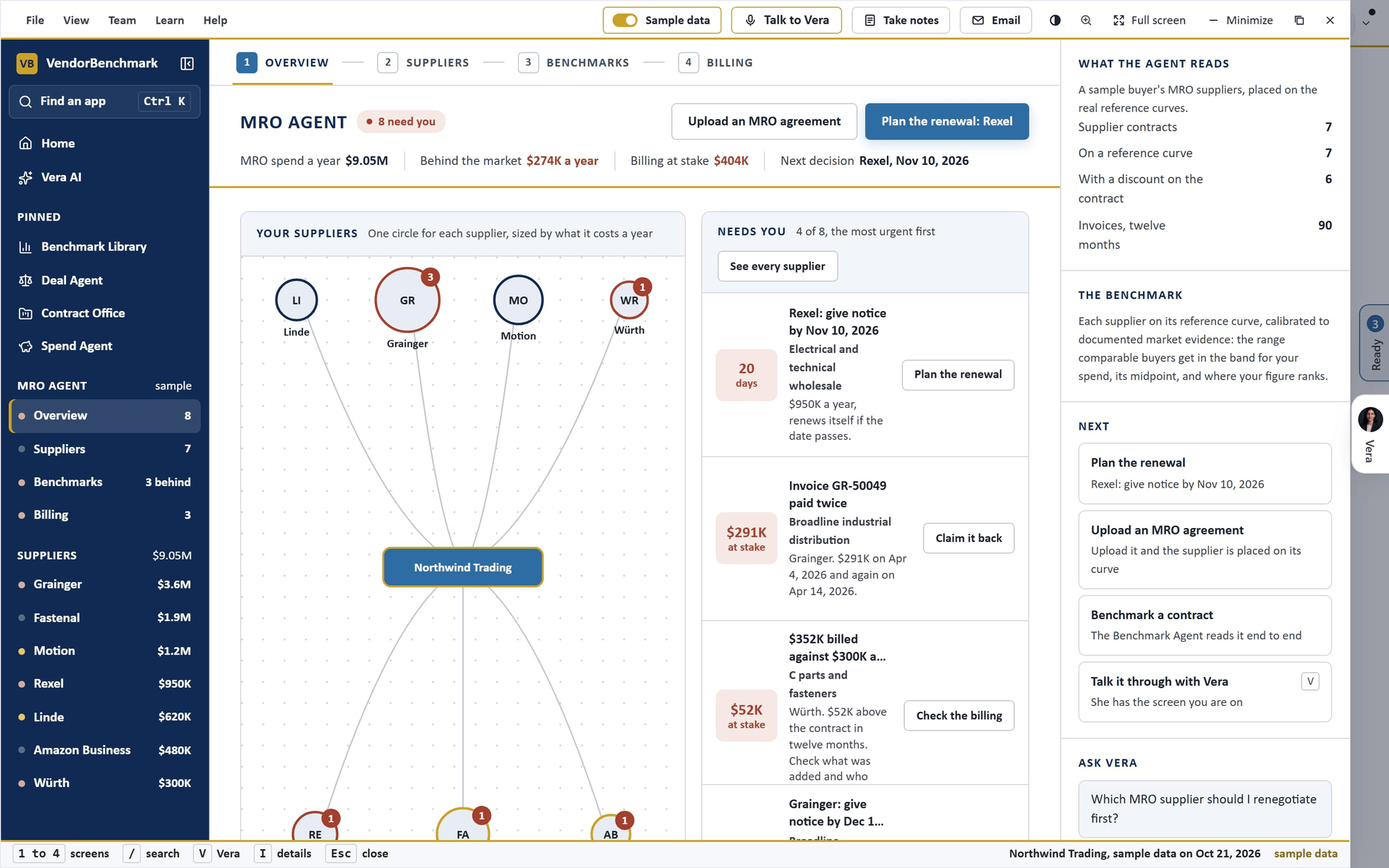
The MRO Agent reads your maintenance, repair and operations contracts (broadline and electrical distributors, bearings and power transmission, fasteners and C parts, gases, consumables, tail spend platforms and the rest, placed by their contract type and supplier), the discount their line items state, their notice dates, and twelve months of invoices from your connected ledger. Each supplier is matched to its reference curve, calibrated to documented market evidence, and placed in the band for its spend, ranked from Poor to Top of the market with what the midpoint is worth a year in USD. A distributor's discount is a blend across thousands of items, and where the curve prices a negotiated or stocked core list deeper than the catalog, moving spend onto the core list raises the blend.
On the screen
- Overview (key 1). Your suppliers: one circle for each supplier around your organization, sized by what it costs a year and ringed by its state; press a circle to open it. Needs you: the most urgent first, one button each. The next twelve months: notice dates and term ends.
- Suppliers (key 2). Every supplier in a table: its kind, what it costs a year, its rank with your figure against the midpoint, the money to the midpoint, the decision date and its state. Filter by Needs you or by kind, or search (/). Where MRO money leaks lists the terms every MRO contract should carry.
- Benchmarks (key 3). Every supplier on its curve: the measure and the band, the range comparable buyers get with the midpoint and your figure on one bar, and the rank with the gap a year. What a core list is worth: for each distributor whose curve prices a core list, your catalog discount and the core list midpoint, then the blended discount and what it is worth a year with 30, 50 and 70 percent of the spend on the core list, with Draft the request.
- Billing (key 4). An invoice paid twice, a supplier billed more than a tenth above its contract in twelve months, and a supplier paid with no contract on file, each with Draft the claim, Open the supplier or Ask Vera; under it, the invoices of the last twelve months.
- A supplier. Press a row, a circle or a supplier in the left column and it opens in place, with Back to the suppliers in the head. Today: where it stands, what needs you, the road to the renewal and its latest invoices. Benchmark: for a distributor with a core list, the share of spend on the core list as a slider and a box (it opens at 50 percent, the middle of the table), with the blended discount, its rank and what it is worth a year moving as you set it. Then the band and each measure of its curve with a slider and a box for your figure. Billing: its checks and its invoices. Terms: six terms that hold an MRO price (a core list at a fixed discount, invoice prices held to the contract price file, list price changes on notice, private brand offered where it is equal, vending and stores services priced apart, freight and small order charges waived), each with Draft the clause, and Plan the renewal in the Deal Agent.
- Sample data. With no MRO contracts on file the window lists the suppliers that have a reference curve, by kind, and offers See it on sample data: seven suppliers of a sample buyer on their real curves, four of them distributors with a core list, with a year of invoices and one finding of each kind.
- Keys. 1 to 4 the screens, / searches the suppliers, V talks to Vera, I shows or hides the details, Esc goes back from a supplier or closes the window.
Savings Proof Statement
Every claimed saving reconciled against the vendor invoices that followed it, as one document built for forwarding to finance.
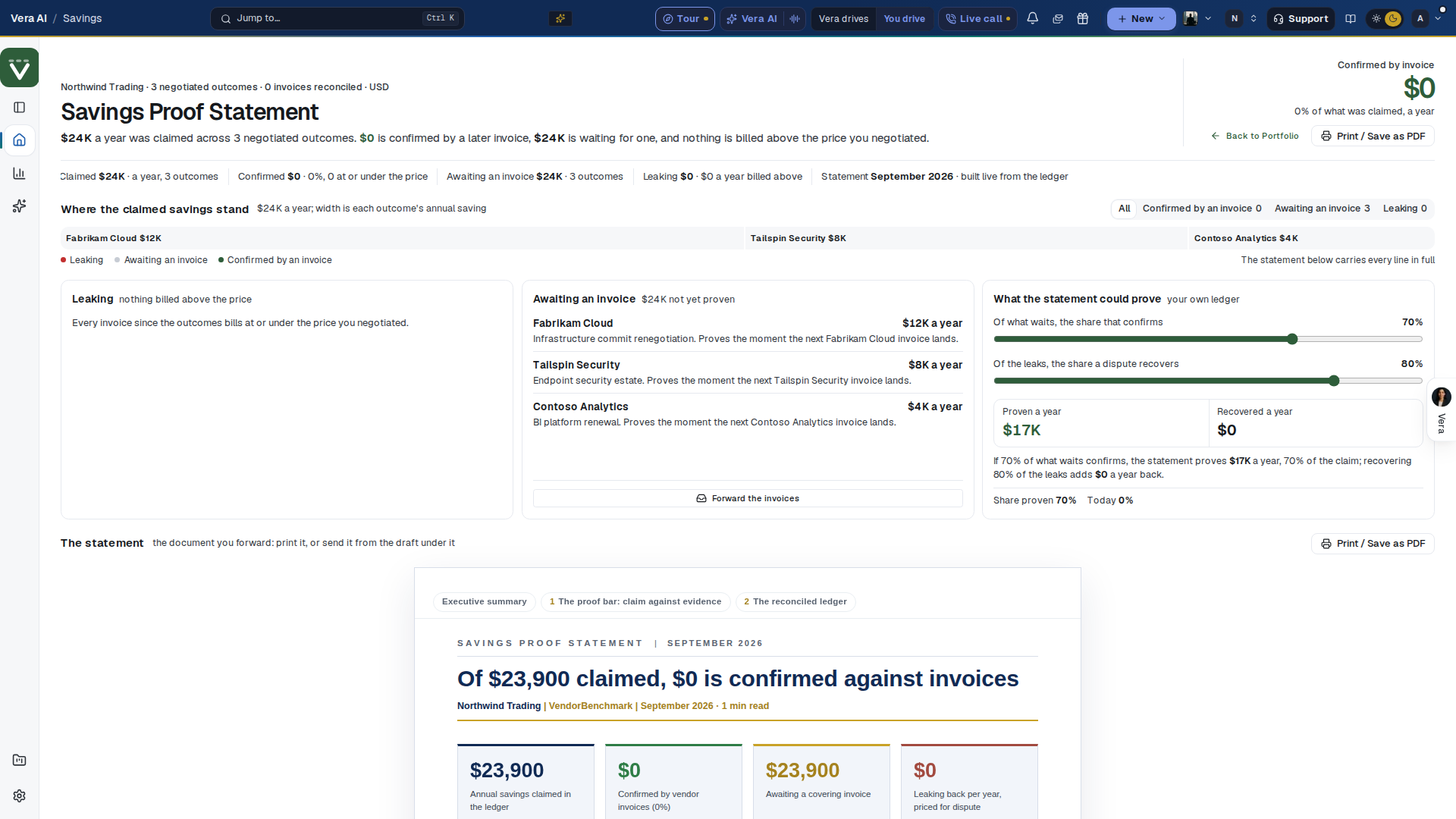
Since 27 September 2026 it is step 8 of the eight Spend and savings steps, and its head is the house masthead: the statement named with Spend and savings beside it, the gold line with the outcomes, invoices reconciled and currency, the facts as one quiet row, and Confirmed by invoice as the one figure beside the actions. The steps and the head stay out of the printed copy.
On the screen
- The head — since 26 September 2026 one sentence states where the claim stands: what was claimed a year, how much a later invoice confirms, how much waits for one, and how much is leaking with what it bills above the price you negotiated. Confirmed by invoice is the one large figure, with Back to the Spend Agent, Print / Save as PDF and, when anything leaks, Dispute the leaks under it. Under the head the figures read as one quiet row: claimed, confirmed, awaiting an invoice, leaking, and the statement's month.
- Where the claimed savings stand — one strip with each outcome as wide as its annual saving: green confirmed by an invoice, gray awaiting one, red leaking. All, Confirmed by an invoice, Awaiting an invoice and Leaking dim the rest.
- The cards — three across: Leaking (each vendor billing above the price, what it bills above a year, the note and the invoice, and Dispute the leaks), Awaiting an invoice (the outcomes not yet proven and Forward the invoices), and What the statement could prove (the share of what waits that confirms and the share of the leaks a dispute recovers; what that proves and recovers a year; the setting stays put when you leave).
- The statement — the document itself, with In this report beside it to jump between its parts. It opens on its headline (how much of the claim is confirmed against invoices), four figures across (claimed, confirmed, awaiting a covering invoice, leaking back per year), and an executive summary.
- The proof bar: claim against evidence — the annual savings claimed, split into confirmed against invoices, awaiting a covering invoice, and leaking above the negotiated price.
- The reconciled ledger — one line per outcome: what was negotiated a year, what the vendor bills a year, the verdict, and the invoice that is the evidence.
- Leakage detail and the dispute step — each line billed above its negotiated price, priced per year for a dispute.
- What next — under the draft: dispute the leaks, forward the invoices still due, and record another outcome, each with its money.
- Read and watch — at the foot of the page, the films, analyst briefings, research papers and guides the library holds on the statement's vendors, the largest saving first. Like the rest of the page around the statement, it stays out of the printed copy.
- Send it on — Vera drafts the follow up email from the statement, to the vendor, your CFO, your CIO or a colleague. You edit it and send it from your own mail.
- Before the first line — with no outcome recorded, the ledger's columns stand empty with Record an outcome beside the title, which opens your delivered contracts, then How each line is counted (claimed, confirmed, awaiting an invoice, leaking) and Contracts that can carry a saving: your latest contracts with their status and annual value, and the renewals coming up with the days out, the notice date and the annual value, in US dollars. Under them, Vendors on file lists your largest vendors by the annual value their contracts state: the contracts on file, each vendor's share of that stated spend and its next renewal date. Each row opens the vendor.
How to use it
- Record the result of each closed negotiation on its contract; each becomes a line here.
- As invoices arrive, each line moves from awaiting to confirmed, or to leaking.
- Print the statement, or press Send it on, at quarter end.
Related: Spend Agent · Invoices · Prove and share your savings
Monthly briefing
Your portfolio as a five minute spoken brief, one per month: what renewed, what is landing, where the leverage is, and the one number that matters. Chaptered, skimmable, and grounded in the same data as every page in the app. Restored in August 2026: the agent records on the 2nd of each month, and the page holds the latest recording.
In plain words: the month, spoken, in five minutes.
When to reach for this
- The commute, the treadmill, the five minutes before the leadership call.
- The monthly cadence between quarterly board packs.
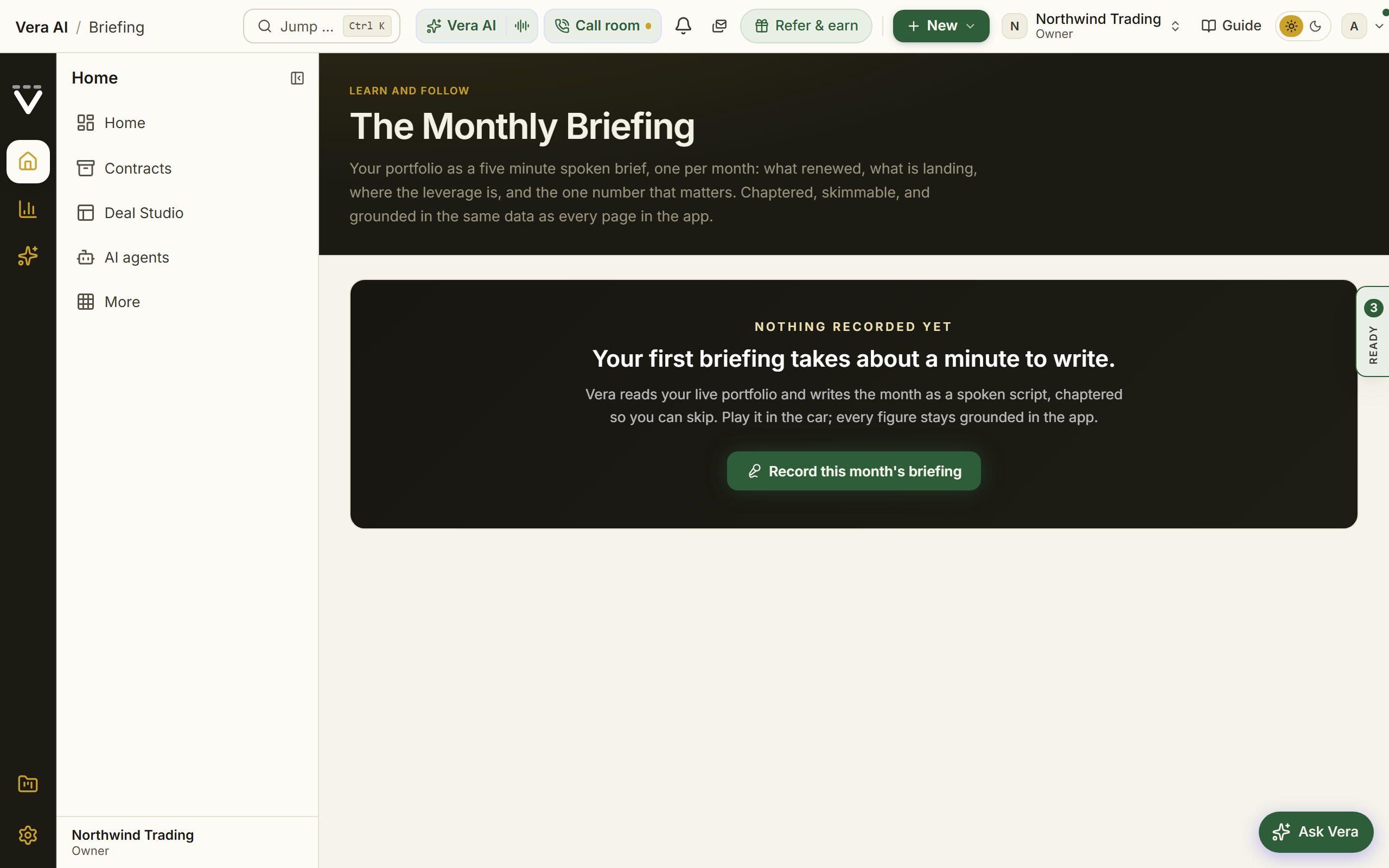
On the screen
- The head — step 6 of the Media and knowledge app (see Learn and follow): Monthly brief | Media and knowledge, the month and its one line, the gold line, and the brief's own figures (the month, the chapters, the running time and the words). Moves open the chapters, your renewals, Advisory and the analyst films.
- Player — the current month's brief, split into chapters so you can jump to the part you want.
- Open the workroom — the button above the player lays the current briefing out as a five document workroom: the month, every chapter as a timed ledger, the full script verbatim, a provenance sheet, and a What now sheet. What now, in the inspector, plays the recording, re-records it with today's numbers when AI is enabled, forwards the briefing to a colleague as a drafted note, copies a chat ready summary or the full transcript, and follows where the script points into your renewals, the market news, or your dashboard. Ask Vera answers from the briefing's own script.
- Generate — builds this month's briefing from your live portfolio when one is not already waiting. Before the first recording exists the page says so plainly and offers the one press that writes it, which takes about a minute.
- Listening time — the what if under the player: move Playback speed from 1x to 2x and read the listening time, with each chapter's minutes drawn at that speed. Chapters are timed at about 150 spoken words a minute, the estimate the briefing itself uses.
- Transcript — the full script under the player, set at a reading line length rather than the width of the window, so you can read the month instead of listening to it.
- Before the first recording — what the briefing will read: your latest contracts with their status and annual value, and the renewals coming up with the days out, the notice date and the annual value, in US dollars, then How a briefing is made in four short facts. Under them, Vendors on file lists your largest vendors by the annual value their contracts state: the contracts on file, each vendor's share of that stated spend and its next renewal date. Each row opens the vendor.
How to use it
- Open the Monthly briefing from the Agent Center's market news and press play, or generate the current month if the player is empty.
- Skip between chapters to reach renewals, spend, or leverage directly.
Related: Spend Agent · Your AI agents
Reconciliation
One board across the whole estate: where billed differs from contracted, contracted differs from market, and terms drift from what was signed. Every figure is arithmetic over stored rows, and where a source has no data the cell says why rather than showing a zero.
On the screen
- The head — the house masthead: Reconciliation | Spend and savings, the estate's position in one sentence, the gold line, and one row of facts that each open their ledger (the estate under management, exceptions open, recovered this year, open findings). Monthly bleed detected is the one figure, beside Invoices and Open the billing watch.
- What the drift costs if nobody acts — the what if. Move Left unresolved from 1 to 12 months and read what the billing drift open today costs at this month's rate, in total and per vendor, largest first, with this month, last month and the new findings beside it. Nothing is assumed to close by itself, and the setting stays put when you come back.
- The board — one row a vendor: contracted a year, billed over 12 months, the market median, billing drift, invoice exceptions, terms exposure, recovered this year and when it was last reconciled. Search it, sort it, and export it.
How to use it
- Read the head, then move the months lever to the date your next vendor review falls on.
- Work the largest drifting vendor first: its drift cell opens the billing watch, its exceptions cell opens Invoices.
Anomalies
Since 6 October 2026 Anomalies is step 11 of the Spend Agent and opens in its window, under Checks on the left; links to /anomalies, with a tab in them, open it there.
What the watchdog found while scanning your portfolio: a missed notice window, a right about to expire unused, billing above the contract, software nobody has a contract for, an uplift with no cap, unused seats, and other things worth a look. It runs itself every Tuesday at 05:00 UTC, and you can run it here whenever you like.
Since 22 October 2026 it opens on six screens, each listed under Anomalies on the left: Overview, Findings, Clause outliers, Closed, The scan and What it watches. Every finding keeps the evidence it was raised on. With Sample data on in the title bar, the screens show a sample workspace with every kind of finding, and nothing you do there is saved. ?classic=1 keeps the earlier screen.
In plain words: the sweep's findings: what looks wrong in your portfolio, with the proof, worth a human look.
When to reach for this
- The weekly glance: findings arrive ranked by urgency and money, not alphabetized.
- Straight after an upload: run the scan and see what the new contract changes, rather than waiting for Tuesday.
- Before renewing anything: check whether the watchdog already flagged the vendor.
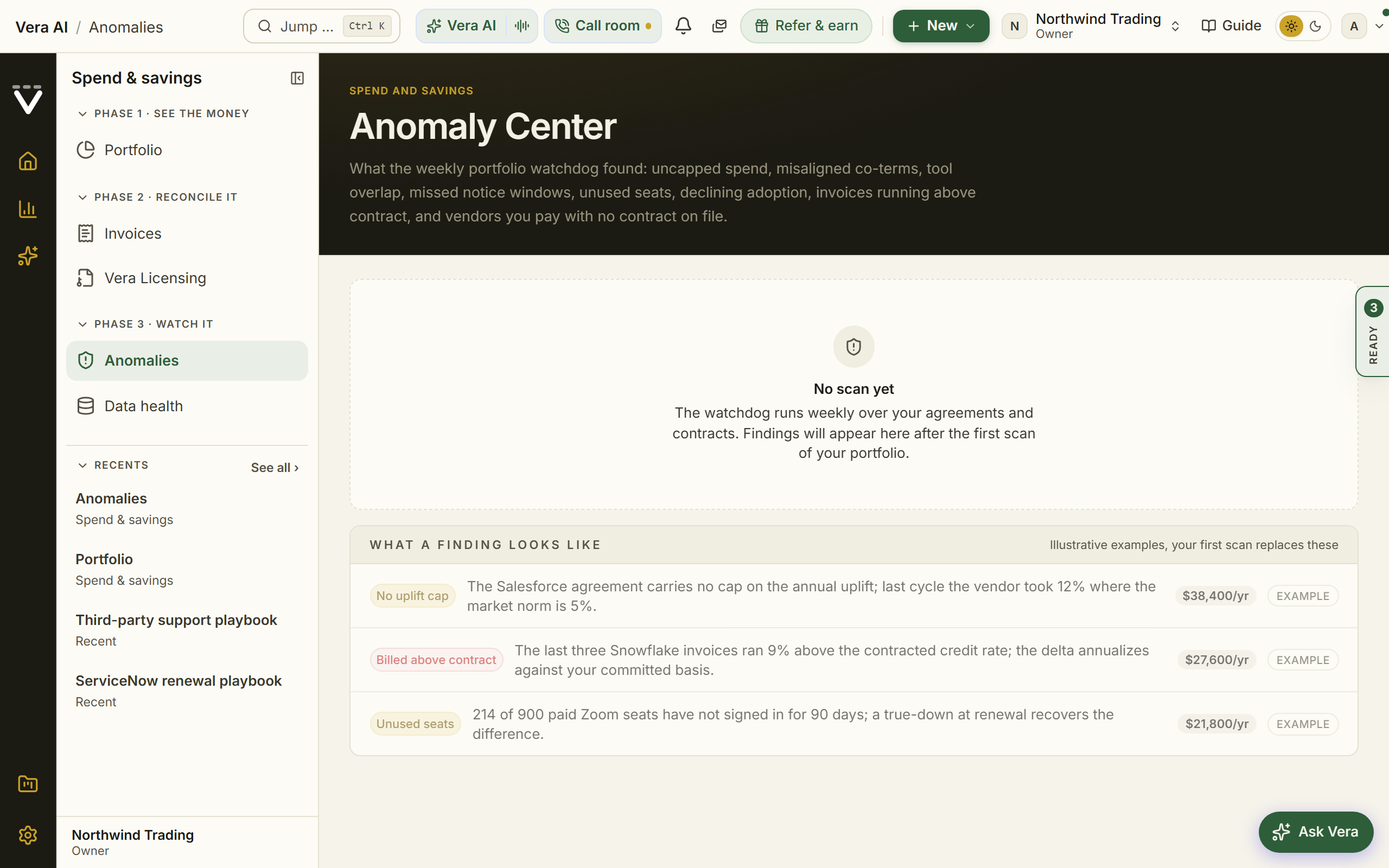
On the screen
- Overview — the head reads at risk a year, act now, new this scan, AI verified, unassigned, recovered and the next scan, with Run the scan, Export and Work the first finding. Where the risk sits draws every priced finding as wide as the money it puts at risk: brick to act now, gold to review soon, steel for housekeeping; the legend opens Findings on one urgency, and unpriced findings are named beside it. What runs out first lists the dates in the next 120 days, By kind and Who has it split the money, Act now lists what needs you this week, and What closing them is worth moves the share you recover and shows a year and a three year term. The column on the right says what changed since the last scan, what is new, when the next scan runs, and three questions for Vera.
- Findings — every open finding on the left, grouped by urgency, with search, By money or By date, and the urgency filter. The finding in hand fills the rest: its tags, the vendor and what was found, a row of facts (at risk a year, found, runs out, owner, AI check), and the moves: Draft the fix (E), Assign (A), Resolve (R) and Dismiss (X), with J and K for the next and previous finding. Under it: What was found and why it matters, What the AI checked, The evidence (the clause from the contract with the words marked, the figures as a table, and a chart against the contract line or the notice runway), The fix (the drafted email to open in your mail or copy, or the screen that settles it), and What happened with notes for the team.
- Assign — pick a teammate and a due date (a week, two weeks, a month or none); it lands on their tasks and they hear about it. Resolve records what happened and the money recovered a year, with a note. Dismiss records why, and the scan stops raising it.
- Clause outliers — a row a clause in your contracts that sits outside the market position: the vendor, the clause, what yours says, the market position, how far off it is, and the contract one press away.
- Closed — what was recovered by month over six months and by kind, then every resolved and dismissed finding with how and when it closed, the note or the reason, and Reopen.
- The scan — what it reads, with the count on file for each source, every run with who ran it and what it found, closed and dismissed, and the five steps of a run. Run the scan shows each step as it goes.
- What it watches — the ten kinds of finding, each with when it is raised and its urgency: switch off a kind you do not want raised, and choose who new findings of a kind go to; a new finding of that kind arrives assigned to them as a task. Save applies it to the next scan. Who hears about new findings is each person's own choice in Settings, Notifications.
- Software with no contract (since 3 October 2026) — two checks raise a vendor with no contract or agreement on file: paid two months or more at 5,000 USD a year or more, or five or more people signing in through Okta or Entra ID. Each one also files a task, Upload the <vendor> contract, assigned to whoever the card or expense line names.
- Before the first scan — the head says no scan yet with how many agreements and contracts are on file, How the watchdog works in four steps, three example findings from the sample workspace, and the ten kinds it watches; Run the scan starts it, or Upload a contract when nothing is on file.
How to use it
- Press Run the scan if the page is empty or you have added a contract since the last pass.
- Open Findings, read the evidence, and draft the fix.
- Assign it, then resolve it with what it recovered, or dismiss it with why.
Tips
- Running the scan yourself emails nobody and pings nobody; anything it turns up is still raised on the next weekly pass to whoever asked to be told.
- The scan is limited to four runs an hour per organization. Owners and analysts can run it, assign and resolve; approver and viewer seats read the findings.
- A finding raised before 22 October 2026 shows its evidence after the next weekly scan.
Related: Billing watch · Invoices
Vera Licensing
The page your license reports land in. A license management tool pushes a report over the API, a connected SAM source syncs or imports one, or you upload a CSV export by hand; every arrival files into the ledger with its rows and a computed summary, updates your live license position, and can be read by Vera as an exec brief.
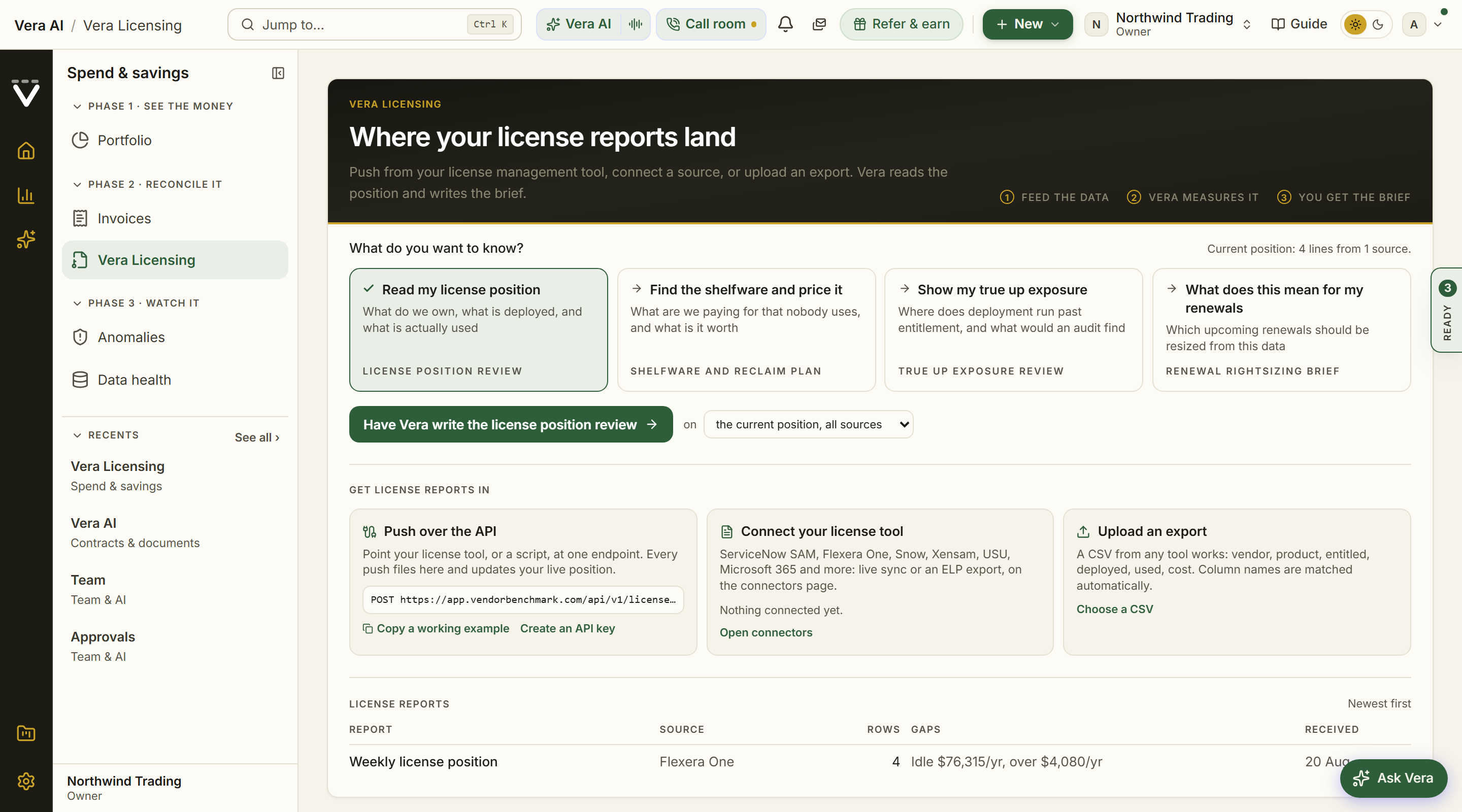
Since 26 September 2026 it opens in the same window the agents wear, and since 27 September in the house design: your reports down the left, newest first, the four screens as numbered steps across the top, each in its own color, the read in hand in the inspector on the right, and a status line at the foot. 1 to 4 change screen, I hides the inspector, and Escape closes the window.
On the screen
- The head — the house masthead: the screen named with Vera Licensing after the rule, one line on where the screen stands, the gold line with the screen and the lines in your live position, and one row of facts: reports, lines in the position (uploads included), sources, connected tools, and what the latest report's idle licenses cost a year. At the right, Upload an export and the one filled button, which writes the read in hand, over the rail of the four screens.
- Reclaim — on Reports, over the ledger: move the share of idle licenses taken back, 0 to 100 percent, and see what it saves a year, in all and report by report. Only reports whose source priced its lines count. The lever is kept for your next visit.
- Reports — the ledger, newest first: the report, its source, its lines, the idle and over entitlement gaps (in USD a year where the source stated unit costs, in license counts where it did not), and when it arrived, with Read it to run a read on that exact snapshot.
- Reads — four requests in buyer words: Read my license position, Find the shelfware and price it, Show my true up exposure, and What does this mean for my renewals, each with what it answers and what you get. Select one and it goes to the inspector.
- The inspector — the read in hand as facts (the brief it writes, what it runs on, the reports and the license data), then the Moves: write the read, choose another read, upload an export, open the Entitlement office and connect your license tool. Under them, what Vera does, what you get and what it runs on (the current position, every source combined, or exactly one report). A read takes a few minutes; its progress shows at the top of the window, you can leave while it writes, and the brief opens by itself.
- Ways in — push over the API (the endpoint and a working example to copy; keys are created at Settings › Connections › API keys, 12 pushes an hour per key and 5,000 rows per report), connect your license tool on the connectors page, or upload a CSV (vendor, product, entitled, deployed, used, cost; up to 5,000 rows and 5 MB).
- A report — opens in the same window: its lines worst first, over entitlement then idle, filtered to either with the chips; the line in hand in the inspector with its position; the four reads on that exact snapshot; and Delete, which removes the snapshot only, never the live position.
- Read and watch — its own screen: the films, analyst briefings, research papers and guides the library holds on the vendors behind your largest gaps.
How to use it
- Feed it once: upload a CSV export from your license tool, or connect the tool on the connectors page, or hand the API example to whoever runs your SAM platform.
- Open the report when it lands and scan the positions: brick rows are deployment past entitlement, the audit side; gold rows are licenses bought and idle, the savings side.
- Run Read my license position first. It states the whole estate in one document and tells you which of the other reads matters most.
- Before a renewal, run What does this mean for my renewals: it joins the usage numbers to your tracked contracts and writes the resize ask per vendor.
- Schedule the push from your tool weekly. Every push updates the live position, so shelfware analysis, audit exposure, and vendor pages stay current without anyone exporting anything.
Every figure in a licensing brief is computed from the rows your source sent, converted to USD at the current rate; where the source priced nothing, the brief says so and names what to ask your tool for rather than inventing a rate. A pushed report also raises the license_report.received webhook event for your connected channels.
Related: Integrations · API keys · Spend Agent · Data health
Software Discovery
What every machine in the company has installed, on one map. Two small read-only scanners, one for Windows servers and desktops and one for Linux, push each machine's programs to the workspace; every title is named, the installs are held against the lines you pay for, and the window shows where an audit would start and what you could remove.
Since 20 October 2026 the window is four places named for what you do, in the frame every app shares: Get started, Overview, To do and Inventory, as big tabs under the head (keys 1 to 4) and as rows in the navy column, with Scanners and keys below them. The Ask bar under the tabs answers from the machines that reported. The eight step window below is still there: The eight step window in the left column or the File menu, or /discovery?classic=1.
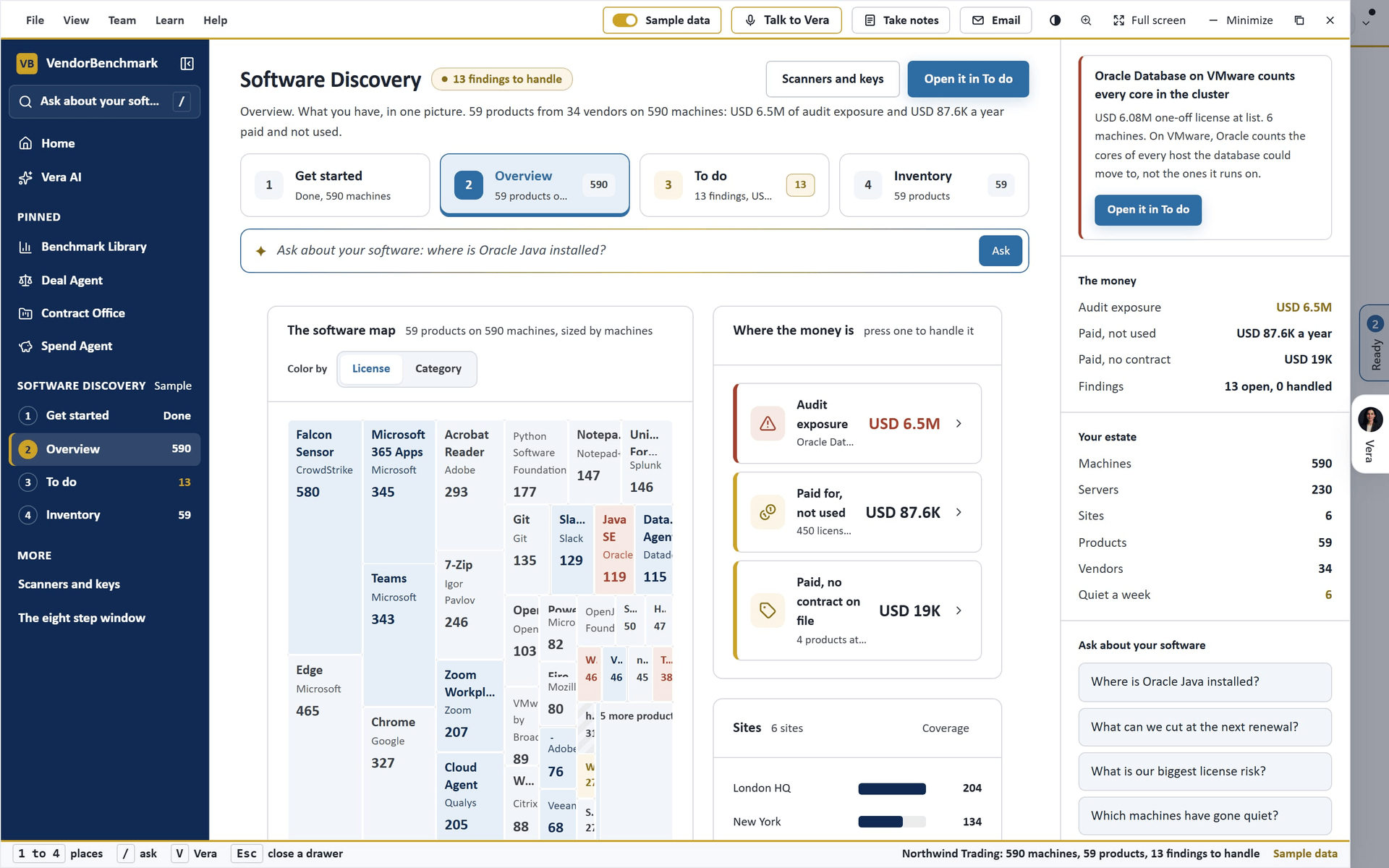
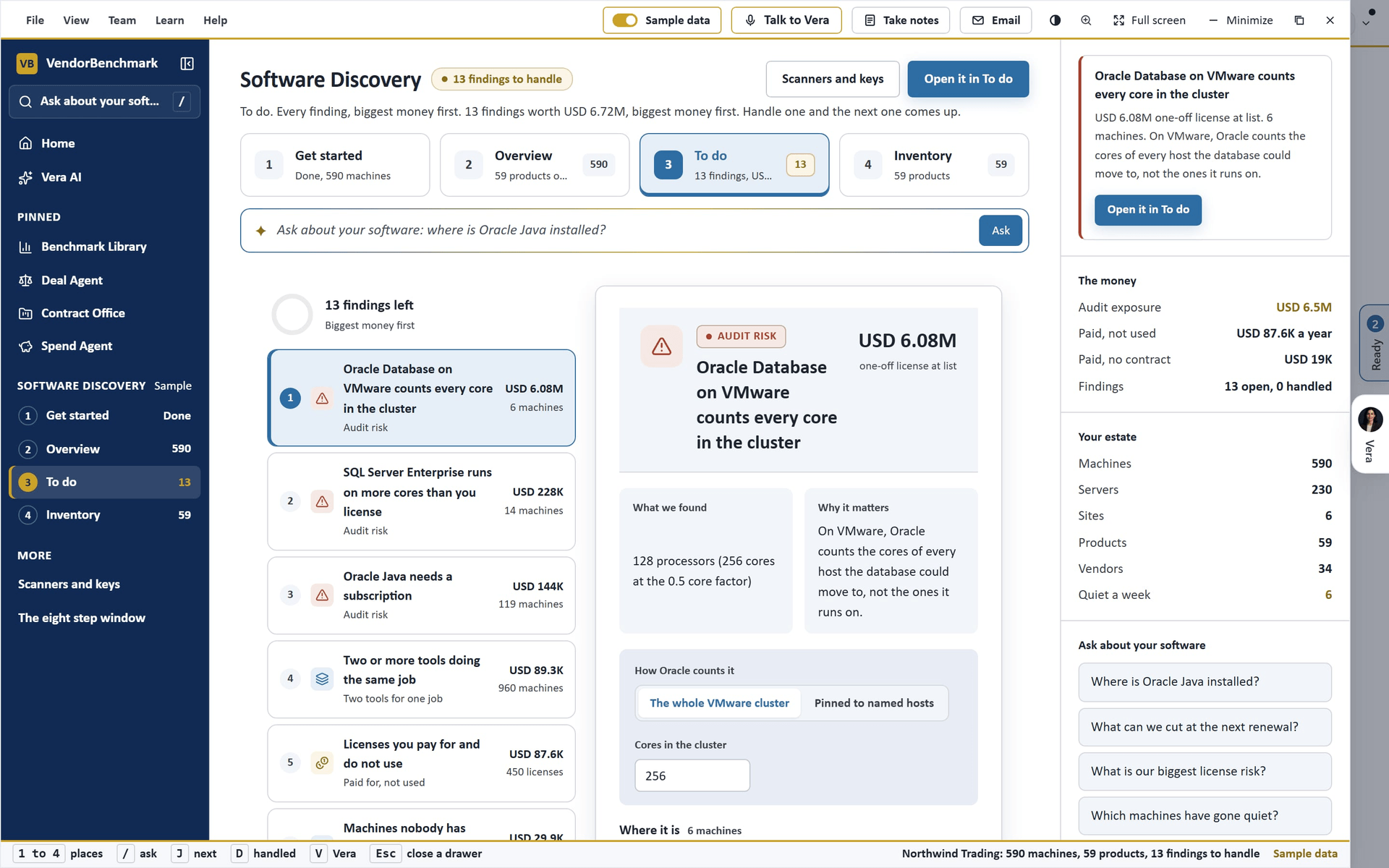
- Get started — three steps, one at a time, each one row: its name, one line, the time it takes, its status and its button at the right (since 25 October 2026). Create the scanner key (owners; the key is shown once, with Copy, and it can only add scans). Scan one machine: pick Windows or Linux, download the scanner, copy the one line with your key in it, run it, and press Listen; the page checks every few seconds and opens the Overview when the first machine lands. Roll out to every machine: pick the tool you already use (Intune, Group Policy, Configuration Manager, WinRM, Ansible, cron or SSH) and copy its line, or upload a scan file from a machine off the network. See it working first turns on the sample. Once machines report, the same place shows coverage: machines reporting by site, the machines quiet for a week (with a download), and the line to add more.
- Overview — the software map (every product a tile sized by its machines, colored by license or by category; press a tile for the product), Where the money is (audit exposure, paid for and not used, paid with no contract on file; press one to open it in To do), sites, vendors and categories.
- To do — every finding in one queue, biggest money first: the audit risks (Oracle Java, Oracle Database on VMware, SQL Server Enterprise cores, Docker Desktop, remote access tools, WinRAR), lines installed beyond what you pay for, licenses paid for and not used, paid software with no contract, idle machines, two tools doing one job, software past the end of support and titles still to name. One finding at a time: what we found, why it matters, the lever where there is one (employees and which machines move off Oracle Java, how Oracle counts the VMware cluster, moving small SQL Server Enterprise to Standard, idle days, the standard to keep for each job), the machines or contract lines behind it, and its one action (the Deal Agent, the renewal, the removal or reclaim list, add a line you pay for, name the title). Mark as handled (D) moves it under Handled, where a press brings it back; Next (J) goes to the next. The levers are the same as in the eight step window.
- Inventory — Products or Machines, a search, filters (audit risk, paid with no contract, under a contract, free, not named; servers, laptops and desktops, quiet a week), a site filter and Download. A product opens its contract line, where it runs, its versions, the names the scanner read and its machines; a machine opens what is installed on it.
- Scanners and keys — your keys with the scans each received (owners revoke them here), the five scanner downloads, the roll out lines, and the Sample data switch.
The eight step window
Since 9 October 2026 the eight steps are numbered rows in the left menu with their figures, with a tick on Deploy and Scan once machines report. The line under the title says what the step found, and the card at the top of the details column gives the next move.
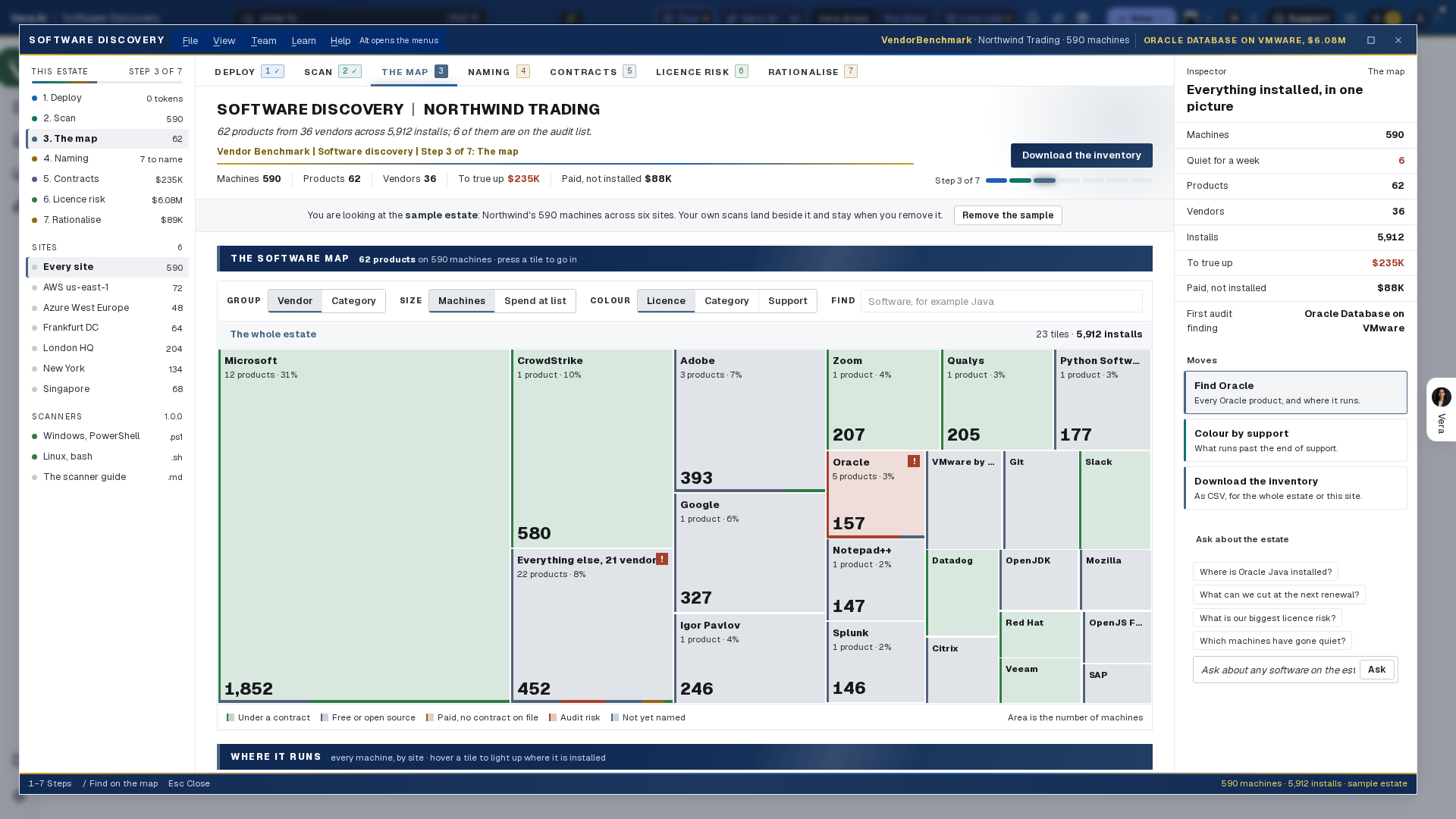
It opens in its own window, and since 5 October 2026 it wears the frame every app shares: the menus, Share and the window buttons in the title bar; one navy column on the left with the eight steps as numbered rows and their figures, your sites and the scanners to download; and the details on the right. / jumps to the search on the map, V talks to Vera about the step you are on, I hides or shows the details, and Escape closes the window.
No machines yet? Press Load the sample estate: 590 machines across six sites, with the lines a company like yours pays for, so every step shows a full example. A line under the head says you are looking at the sample, and Remove the sample takes out exactly what it added; machines your own scanners sent stay. Sample data in the title bar is the same switch: on loads the sample and off removes it, for everyone in the workspace.
On the screen
- Deploy — the two scanners with the command to run each, their size on the network and a download; Upload scan files for a machine off the network or a first try on your own laptop; the exact line for Intune, Group Policy, Configuration Manager, WinRM, Ansible, cron and SSH; what the scanners read and never read; and your discovery tokens. A token is push only: a scanner can add scans with it and cannot read the workspace. It is shown once, only its hash is kept, it expires in a year, and every push is written to the audit log.
- Scan — machines by site, reported this week against quiet for longer (press a site to open its map); the estate by kind; how old the latest scans are; the path from the scanner to Vera; the latest scans; and Scan every, which shows what six hours, a day or a week costs in scans and data.
- The map — every product as a tile, grouped by vendor or by category, sized by machines or by spend at list, colored by license position (under a contract, free, paid with no contract, audit risk, not yet named), by category or by support. Press a tile to go in, from vendor to product to version; the path above the map takes you back. Find lights the tiles and machines that match. Under it, Where it runs: every machine as a square, grouped by site, lit where the tile under the pointer is installed. Press a machine to see everything on it.
- Naming — the funnel from rows read to products and vendors, the rule that named each install (the catalog, a pattern, the component the scanner read, your own name), titles from your estate beside what they became, and the titles that still need a name. Name it sets the vendor, product, category and license; it is kept as a rule, so every later scan of that title arrives named.
- Contracts — every line you pay for against what is installed: paid and installed on one bar, over (a true-up), under (paid and unused) or matched, with the money a year. The next renewal with seats to cut leads the page. Count each person as moves every per person line, because the scanner counts machines and not people. Add a line takes the product, the contract, how many you pay for, the price and the metric. Below, paid software installed with no contract on file.
- License risk — what an audit would find first, ranked by what it would cost at list: Oracle Java SE (priced per employee since 2023, so the saving is zero until the last paid install goes), Oracle Database on VMware (the whole cluster against named hosts), SQL Server Enterprise cores against the agreement, Docker Desktop, remote access tools and WinRAR. Each has its reasons and a lever to try the fix.
- Oracle Java — every Java runtime the scanners found, each with its license: Needs a subscription (an Oracle build Oracle licenses for business use, priced per employee since 2023), Free, old license (Java 8 up to Update 202), Free while current (Oracle's No-Fee Terms, paid a year after the next long-term release), Covered by an Oracle product (Oracle's JDK inside an Oracle Database or another Oracle product), Free OpenJDK build, or Builder not read. Beside it, where each came from (installed on its own, bundled inside an application, running when scanned, running with Oracle's commercial features on) and the exposure: employees times Oracle's monthly rate, with the lever to replace the paid builds on the servers or everywhere (the number only moves when the last one goes). Every build is a row you can press for its machines, and The fix list puts each paid runtime beside what to do: replace it with Eclipse Temurin, or ask the application's vendor whether its license covers a bundled Java. Download the fix list saves it as CSV. The Oracle Java scanner (
vb-oracle-java.ps1,vb-oracle-java.sh) is on the same step: it walks the disks for bundled copies, reads each build's release file and version stamp, and sees what is running; a Java scan replaces only the machine's Java. - Rationalize — one tool per job: choose the standard for collaboration, remote access, PDF, archive and browsers and see the removals and the license saving; paid seats on laptops and desktops nobody has signed in to for 30 to 180 days; and versions past the end of support.
- The details column — the step's next move with the button that does it, then the estate's figures, what the step is about with the first audit finding and the titles still to name, the next moves for the step, and Ask about the estate, which answers from your machines: where a product runs, the next renewal cut, the largest risk. The head above the step says in one line what the step found; the vendors, the installs, what is paid for and not installed, and paid products with no contract on file sit in the details column.
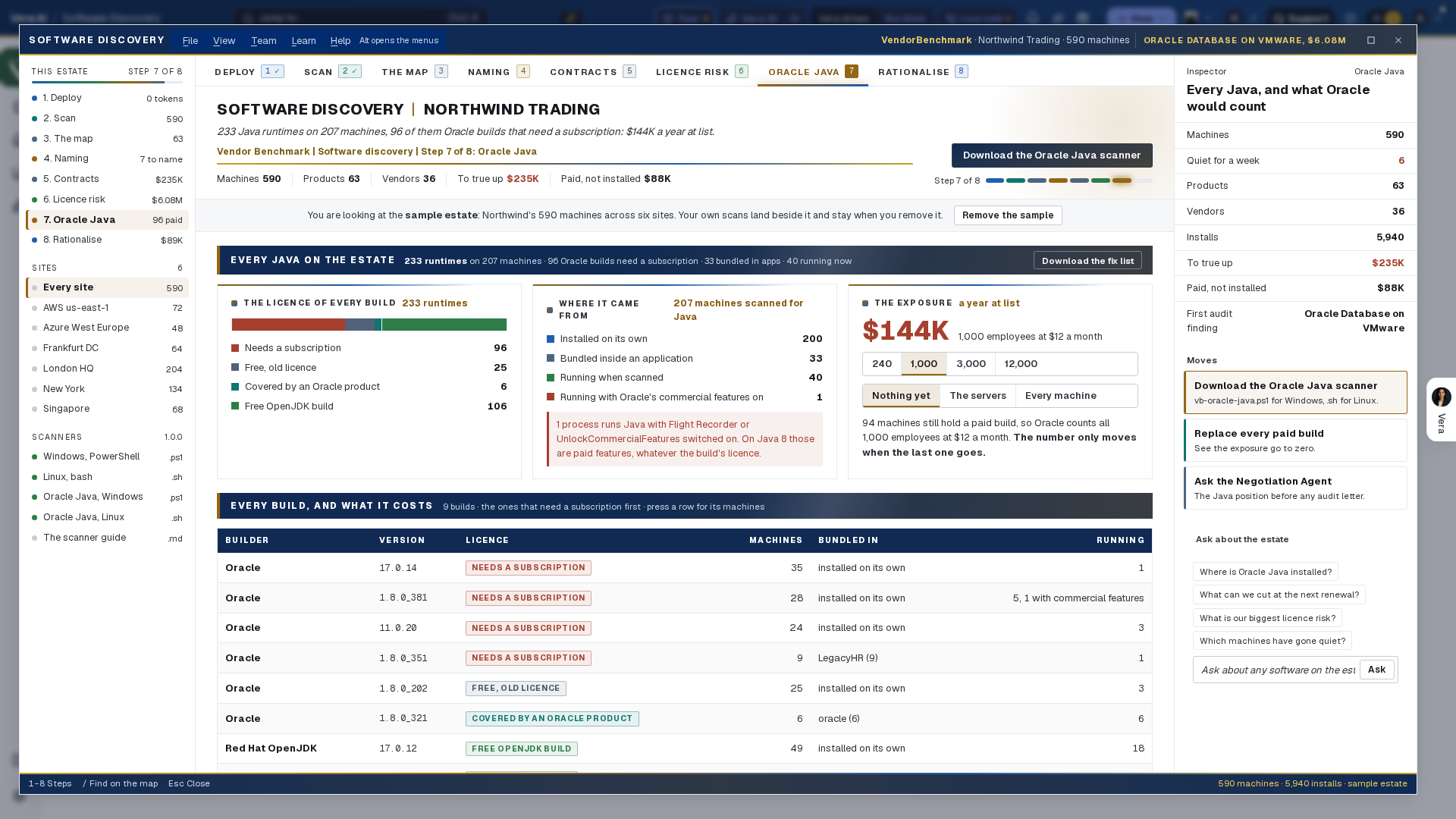
Shall I draft the email? (since 2 October 2026): on License risk, under the ranked findings. It is written from the estate, what is installed against what you pay for, and the findings, and it is not offered on sample machines. Press a reader and the email opens beside what you were looking at; see Send it on.
How to use it
- Load the sample estate to see the whole thing, or upload one scan: run
.\vb-discover.ps1on your own machine with no endpoint and upload the file it writes. - An owner issues a discovery token on Deploy. Copy it once and store it where only the system account can read it.
- Roll the scanners out with the tool you already use (the lines are on Deploy), scheduled daily.
- Open the map, color it by license, and press the brick tiles first: those are the audit risks.
- Name the titles on Naming, add the lines you pay for on Contracts, and take the cut into Renewals before the next renewal.
The scanners change nothing on a machine and need no administrator rights. They never read file contents, user names, email or IP addresses; the machine identifier and serial number are sent only as hashes. Prices on the risk and rationalize steps are published list prices in USD, marked as such, never what you pay.
Related: Vera Licensing · Spend Agent · API keys
Software Discovery+
Managed (since 25 October 2026). The eleventh page is managed licensing. Under management lists every publisher found on your machines with its products, machines, spend a year, exposure, savings open and position in one word (Exposed, Over licensed, In balance, Nothing paid for); a workspace owner selects the ones to manage, sets Off, Weekly (and the weekday) or Monthly (and the day) and presses Save. On that day, in the night, the platform reads the estate as these pages read it, writes one licensing report per publisher on the firm document (the position, what changed since the last run, what you run, what you own against what you run, the savings and the risks, the renewals ahead, what the scan cannot see, what to do first) and mails it to the members who asked, each report as a Word file; a publisher's first report brings its manual as a PDF (how the publisher is read, how its license is counted, what to supply beyond the scan, the report section by section, the schedule). Who receives the reports: each member presses Send me the reports for themselves, nobody is added by another, and Stop the reports ends them. Reports and manuals downloads any publisher's report (Word or PDF) or manual at any time, with what moved since the last run beside it. Runs lists every run with its figures and how many people were sent the email; Run now (owners) runs it today. For the major publishers you manage, the facts the scan cannot see are listed below with where each comes from.
Publishers (since 25 October 2026). The tenth page lists every publisher the scan covers, 179 of them: the product families, how a title is recognised (installed title, service, process, console export or sign in), the metric the license is sold on, and whether your estate holds it today. Under it, for every major publisher, what a true license position needs beyond the scan (infrastructure such as cores and clusters, entitlements such as the agreement and the license statement, identity such as named users, and the vendor's own consoles), each with where it comes from and why the position is wrong without it. Find a publisher, or filter to the majors or your estate; the workbook carries the list as a sheet.
The files (since 25 October 2026). Reports writes the Excel workbook (every table on the pages, one sheet each: the cover with the figures and the levers, Inventory, Machines, Installs, Licenses, Compliance, Savings with the basis of each, Renewals, Usage, Idle by site, Sites, Operating systems, Support ended, Not yet named and Java) and the board report on the firm document as Word, PowerPoint or PDF: the executive summary, where the money goes, the savings ranked, the compliance position, the renewals ahead, the estate and what to do first. Both are built on the server from your own estate and the levers as they stand, so the file never disagrees with the screen. The CSV files stay.
Ten pages (since 25 October 2026). The window is a wizard on the stepper, keys 1 to 9, Back and Continue at the foot of the work column: Connect (the sources, the agentless collector, the install packages and manuals), Run (the collector at work: the share of machines that reported this week, by site, the quiet machines; before the first machine, Listen), Summary (the AI summary of the estate in five cards, what you have, what you can save, compliance, renewals and usage, each opening its page; then where the money is, the license position, the software map and what was found lately), Savings, Compliance, Renewals, Usage, Inventory, Devices and Reports (the inventory, the machines, the reclaim and removal lists as CSV, Report Studio, the Deal Agent and the manuals). Titles and labels stand alone; the sentence that explains one is on its i mark.
Who: everyone (issuing and revoking scanner keys is for workspace owners)
The software asset management view of the machines Software Discovery scans: whether you are compliant, what sits idle, what to save and what each renewal should cost. It reads the same scans and contract lines as Software Discovery, so nothing is set up twice; Software Discovery under More in the left column or the File menu goes back to it.
Eight places in the order you work, as rows in the navy column with their figures (keys 1 to 8): Overview, Discover and Usage (your estate), Compliance, Savings and Renewals (your licenses), Devices and Connect (the setup). The Ask bar under the head answers from the machines that reported, your contract lines and the peer prices. N opens the next saving.
- Overview — Where the money is: the savings found a year as one bar by kind (reclaim idle, right size at renewal, cheaper edition, consolidate), each license counted once, and the audit exposure beside it. License position: how many paid products are under licensed, over licensed, adequately licensed or have no contract on file. Do these first: the next six, biggest money first. Your software, by what it costs: every paid product as a tile sized by its spend a year and colored by its position. Found lately: paid software with no contract and titles nobody has named. With nothing reported yet, Overview shows the three steps to start.
- Discover — every application with a search and tabs: under a contract, paid with no contract, audit risk, free or open source, not yet named; each with its machines, the share used in 30 days, the contract line it rests on and its position. How each title is named shows the raw names the scanners sent beside the product, vendor and version they became and the rule that named them. Needs a name lists the rest with Name it; a name you give is kept, so every later scan arrives named.
- Usage — every paid product by installs used in the last 30 days against installs on idle machines, the most idle money first; press a row for its sites, used against idle. Reclaim from idle machines is the control: the idle days before a license comes back, 30, 60, 90 or 120, and the licenses back, the money a year and the machines move with it; Download the reclaim list saves those machines. Idle machines by site counts the endpoints idle 30, 60, 90 and 120 days or more at each site.
- Compliance — the four positions as tiles that filter the table: every paid product with its metric, what you own, what is deployed, short, spare or even, and the exposure or the spare money. How the position is counted says how each metric counts, and If an auditor came today lists the audit findings with their money at list.
- Savings — every saving once, biggest first, as cards with what it is, why, and the money a year: reclaim idle, right size at renewal, a cheaper edition (SQL Server Enterprise cores inside Standard's limits), consolidate (two tools for one job), price against peers (what comparable customers pay for the same product at your size, on the licenses you keep), buy under a contract, and the audit risks. The first button does the work: the removal, reclaim or change list downloads, or the Deal Agent opens with the figures. Mark captured (or Mark fixed for a risk) adds it to the captured total, with Undo. The bar at the top shows captured, in progress and open.
- Renewals — the next 12 months as one runway, each contract on its renewal date with its value a year, red inside 60 days and gold inside 120. Every renewal lists each line with its use and what to take out at renewal. Prepare opens the Deal Agent with the line, the price and the use.
- Devices — every machine with its kind, operating system, site, cores, applications and health (reporting, quiet, idle), with tabs for endpoints, servers and quiet machines and a download; machines by site; when each last reported; operating systems; and software past the end of support.
- Connect — the sources, each with its state: the VendorBenchmark scanner, the Oracle Java scanner, the contract lines (Add a line), scan files (Upload scan files). Install packages has the Windows and Linux installers with the one line to run each, its size and its SHA-256 checksum (Checksums downloads them all), and the four manuals as PDFs. Below, the three steps to start (your key, one machine, every machine) or, once machines report, who reports by site and the roll out lines for the tool you already use.
- The product — press any product for what you own, what is deployed and used, what you pay, where it runs, its versions, its savings and risks, its machines, and What peers pay (the Benchmark Library on that curve), Prepare the renewal and Download its machines.
Agentless collection (since 21 October 2026). Software Discovery+ is agentless: install the collector on one machine and once a day it scans every machine on its list remotely, Windows machines over WinRM (PowerShell remoting) and Linux machines over SSH. On each machine the read-only scanner runs once from a temporary folder, its result comes back to the collector and the folder is deleted; nothing is installed on the machines and they need no internet access, because only the collector sends scans to your workspace. Under Connect, Get started, agentless walks the three steps (a key, the access prepared once, the collector on one machine) and Install packages has:
- The Windows collector (
VendorBenchmark-Discovery-Collector-Windows-1.1.0.zip):.\Install-VBCollector.ps1 -TokenFile .\key.txt -FromAD -RunAs 'CORP\gmsa-vbscan$' -IncludeCollectoron one domain joined machine. It takes its list from Active Directory (-FromAD, enabled computers seen in the last 30 days) or a file (-Targets, one machine per line: name, site, windows or linux), runs daily as a group managed service account (no password stored), a service account or SYSTEM, scans Linux machines over SSH with-SshKeyand-SshUser, and appears in Apps and Features.Get-VBCollectorStatus.ps1shows the last collection and every machine not reached with the reason;Invoke-VBCollector.ps1 -Only <machine>retries one. - The Linux collector (
VendorBenchmark-Discovery-Collector-Linux-1.1.0.tar.gz):sudo ./install.sh --targets machines.txt --ssh-key ... --ssh-user vbscan --sudoon one Linux machine, for Linux estates over SSH, withstatus.shandvb-collector-run <machine>. - Per-machine packages for machines the collector cannot reach (laptops off the network, a closed segment): the machine scans itself once a day and needs outbound HTTPS.
- The manuals as PDFs, in every download too: the Quick Start (start here: seven numbered steps with pictures, the commands to copy, what you will see after each, and a table of simple fixes), the Installation Guide (the collector, step by step, and what each failure reason means), the Deployment Guide (the gMSA, WinRM by Group Policy, the Linux account and SSH key, sizing, more than one collector, the per-machine fallback with Intune and Configuration Manager), the Security and Data Sheet (what runs where, the credentials and how they are kept, what leaves your network) and the Software Discovery+ User Guide.
Related: Software Discovery · Deal Agent
No benchmark here (since 25 October 2026). Software Discovery+ speaks of what is installed, owned, used and renewing; what a product should cost is the Benchmark Library's and the Deal Agent's.
SaaS Manager
Every app the company pays for or signs in to, in one list. Sign ins from Okta or Entra, bills from NetSuite, Coupa, Ariba or a file, and your contracts are joined so the same app found three ways is one row, with what it costs, who uses it, who owns it and when it renews. Five places, as big tabs under the head (keys 1 to 5) and as rows in the navy column, with Sources below them; the Ask bar answers from the apps on file.
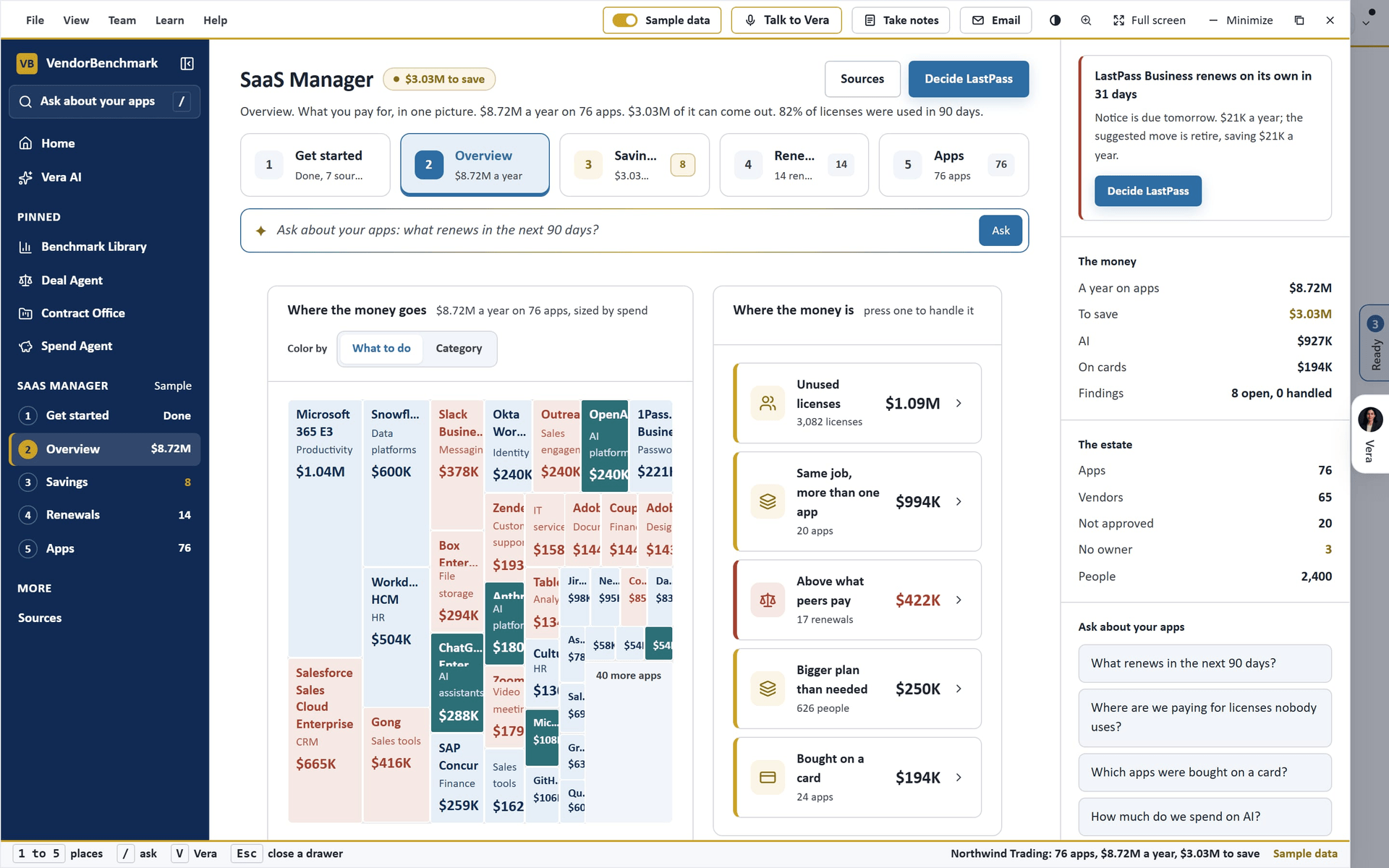
- Get started. Three connections, each read only: Connect your sign ins (Okta, Entra or a usage file), Connect your spend (NetSuite, Coupa, Ariba or a spend file) and Add your contracts (Vera reads the licenses, the rate, the term, the renewal date and the notice). Each opens the page where it is connected. See it working first turns on the sample. Once apps are found it lists the sources and how each app was found: signed in and paid for, paid for with no single sign on, or signed in with nothing paid.
- Overview. Every app as a tile sized by what it costs a year, colored by what to do (under contract and at or below market, priced above peers, AI, bought on a card) or by category; Where the money is (press one to open it in Savings); spend by month; what renews in 90 days; spend by department; apps first paid for on a card this quarter.
- Savings. Every finding in one queue, biggest money first, one at a time: licenses nobody used (pick 30, 60 or 90 days where your sources report them, and the spare to keep in each app), people who left still holding licenses, people on a bigger plan than they use, more than one app doing the same job (pick the one to keep), renewals priced above what peers pay (aim for the middle or the best peer price), apps bought on a card (approve, review or not approved), AI spend against its commitment (forecast from the last month or three) and apps nobody owns (name the owner). Each has its one action and Download the list. Mark as handled (D) moves it under Handled; Next (J) goes to the next. A finding your sources cannot support yet is not shown.
- Renewals. The next twelve months as a runway (each month's renewing value and what can be saved), then every renewal with its date, the notice date (red inside 30 days for one that renews on its own), how much of it was used in 90 days, where it ranks against peers, the saving and a decision. The decision starts as the suggested move (renew, rightsize, renegotiate, retire or raise the commitment) and holds what you pick. A renewal read from the bills, before the contract is on file, says so.
- Apps. Every app with its category, owner, cost a year, use, sources, renewal and status, a search, filters (approved, not approved, under review, no owner, AI, on cards), a department filter and Download. A row opens the app: its owner and status (set them there), who uses it, its price against peers (what you pay, what peers pay, where you rank), the move at renewal, its spend and the apps doing the same job.
- Sources. What is connected and what each source found, and the sources to add next. A workspace owner also imports two files here: a people file (a CSV with an email column and a status or left on column), so the licenses of people who left are found, and a card spend file (merchant, amount and date, with employee email and department where you have them; never a card number), so software bought on expense cards shows up as apps. Removals in Okta and Entra is the owner's switch for reclaim runs; it starts off.
- Reclaim runs. From the unused licenses or the people who left in Savings, Ask for the run. The people on it are chosen from what Okta and Entra reported: for unused licenses, everyone assigned who has not signed in over 30 days in Okta, less the spare you keep; for leavers, everyone assigned whom the people file says has left. A workspace owner approves or cancels it in the same drawer. After the wait (seven days for unused licenses, none for leavers) anyone who signed in keeps the license and the rest are unassigned in Okta or Entra, each removal written to the audit log. With removals off, an approved run marks each person and changes nothing.
An app's owner, its status and the decision on its renewal are saved for everyone in the workspace. The levers and the findings you mark handled are kept for you between visits. Sample data shows Northwind Trading, 2,400 people and 76 apps, for you only; turning it off shows your own apps again.
Related: Software Discovery · Spend Agent · Integrations
Java Scanner
Every Java on every machine, kept current, then the ELP and the exit plan built from the scan. Oracle prices Java per employee, so one install that needs a license puts the whole company in scope. Java Scanner does the whole job in one app: the scan, the ELP and the exit plan.
Since 20 October 2026 Java Scanner is four steps. The eleven tabs below open at /java-scanner?classic=1, and every screen they describe is still one press away under Also here in the left column.
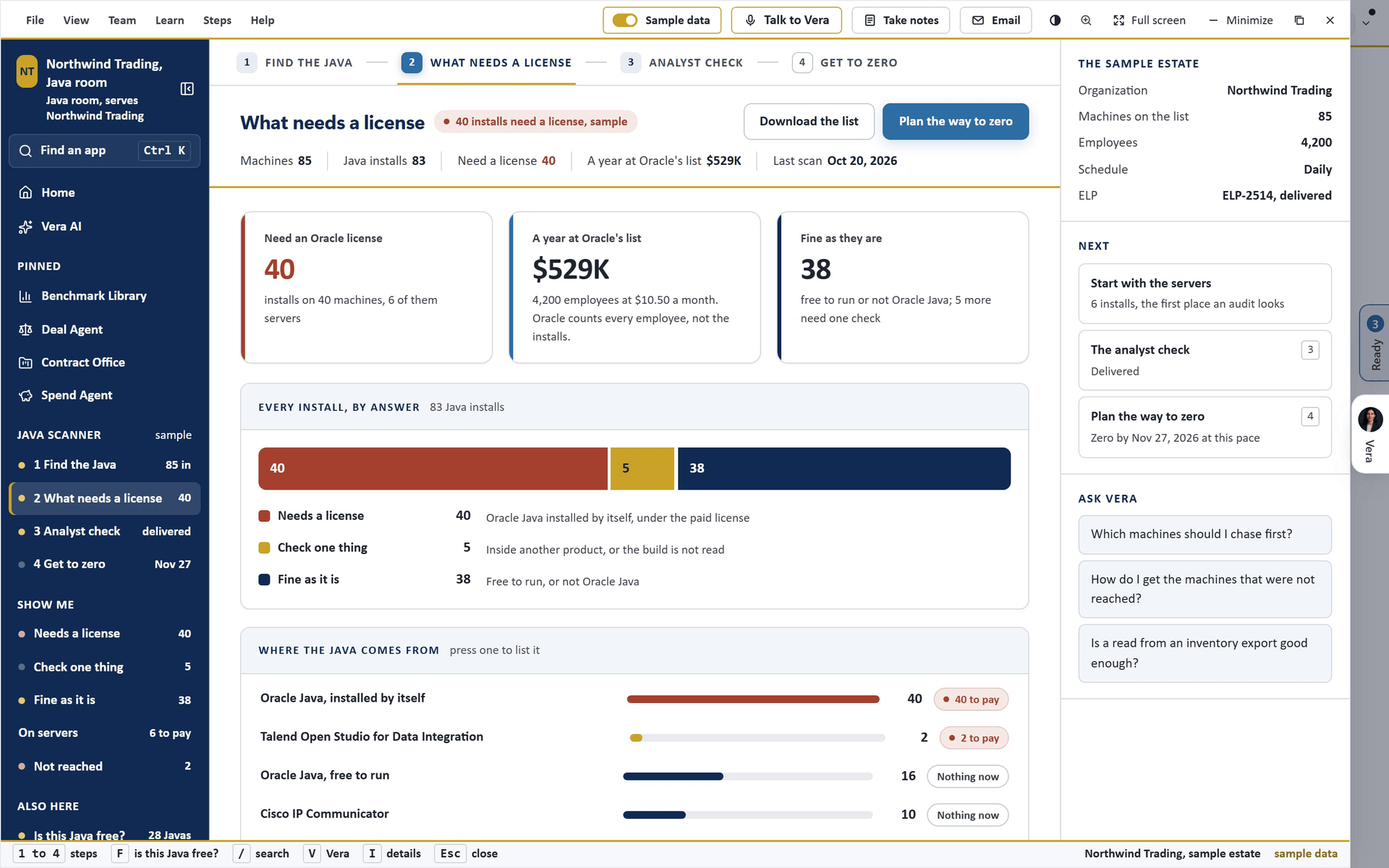
- The pages - 1 Scanner, 2 Upload, 3 License position, 4 Installations, 5 Analyst review, 6 Progress, 7 Remediation, joined by a line, keys 1 to 7 (since 25 October 2026 a wizard of seven lighter pages; four steps before). F opens Is this Java free?
- Scanner and Upload - the scanner as two download tiles (Windows, Linux and macOS) with three facts, How to run it and Roll out (the line for Intune, Group Policy, Configuration Manager, WinRM, Jamf, Ansible, cron or SSH, with Copy; the token under Tokens; and our agentless collector in Software Discovery+), then the upload zone with Template, Connect a tool and Collector beside it; with machines in, the machines by source, Schedule and the machines not reached sit under the upload zone. Before the wizard the first step held three numbered cards: 1 Download the scanner (Windows or Linux and macOS, and How to run it), 2 Upload the data (Upload files for what the scanner wrote or an export from ServiceNow, Flexera, Snow, Intune, Jamf or Tanium, the Template, and Connect a tool), and 3 Analysis (License position with the counts so far, and Analyst review, both open once machines are in). Since 25 October 2026 the steps carry their titles alone, in plain enterprise words (the four steps are Scan, License position, Analyst review and Remediation plan); the sentence that explains each shows when you rest the pointer on its card or on its i mark, and the same goes for the what happens next list, the sample strip and the analyst check's heading. With nothing scanned, what happens next follows with how long each stage takes, and Load the sample. With machines in, the machines by the way they came in (press a row to open the machines), Schedule (Daily, Weekly, Monthly, By hand) with Scan now, and the machines not reached.
- License position and Installations - page 3 holds three answers, each opening the Installs page filtered: the installs that need an Oracle license, Annual cost at Oracle list and how it is priced, and No license required. Then the bar of every install by answer, Installs by source, and one list with search (/), the answer, Servers or Laptops and desktops, and every filter as a chip you take off. A row opens the install's record.
- Analyst review - Scope, Deliverables and Recipients, with Request the review; once asked, the five stages and the due date; once delivered, the checked figures, the vendor research and the workbooks.
- Progress and Remediation - page 6 the figures and the line, page 7 the remediation actions: Remaining, Cleared per week, net, Zero date at this pace, the line of every scan with the dashes to zero, and Remediation moves, biggest first, each with its progress.
- Show me and Also here - the left column's shortcuts: each answer with its count, the servers, the machines not reached; then Is this Java free?, Applications, Every machine, Progress, Emails, Files, People and rooms and the Manual.
Every tab is set the way the Benchmark Library's Advanced view is: the answers as three tiles with a figure each, panels two across where their parts pair, tables for every list, the facts a step needs in small cards beside it, and one quiet line a panel; everything on the page says what it does when you point at it. It opens in its own window on the frame every app shares: the menus (File carries the app's own moves: Upload a file, Get the data in, Run the scan now, Build the ELP, Download the machine list, Open the workbooks, Open the manual; Tabs lists the eleven tabs with their keys; View keeps Details), Sample data, Share and the window buttons in the title bar; one navy column on the left with the tabs and their figures, the screens of the open tab, where the Java is and the ELP requests; and ten numbered tabs across the top, each with its count: How it works, then the three parts of the job in order, Get the data in, Analysis (ELP) and Exit plan, then Rooms, Users, Files, Progress, Emails, Checks and Manual. A tab with several screens shows them as chips under the head: Get the data in holds Scan, Machines found, Applications, Guides and Schedule; Analysis holds License position and Vendor research; Exit plan holds The plan and Workbooks; Users holds Users and Activity; Checks holds Java checker and Commercial features. 1 to 9 and 0 change the tabs, V talks to Vera, I shows or hides the details, and Escape closes the window. Every figure in the head opens, on a click, what it means, how it is counted and the screen with its detail.
No machines yet? Switch Sample data on in the title bar: the Northwind estate, 85 machines read four ways, with its ELP and exit plan delivered and every step filled. The sample saves nothing and is shown to you alone.
On the screen
- How it works - the three parts of the job as three tiles across the width, each with its state, the figure where this estate stands in it (the machines and Java installs in, the installs the ELP says need a license, the plan's zero date), what the part is, its screens as chips with their figures, and its one action; under them Also in the app, the other tabs in one table, one line each, a press on a row opening the screen. Once a machine has reported: Where the Java is, a map with a circle for each place a Java comes from (Oracle Java installed by itself, inside a named product, OpenJDK builds, free to run), sized by installs, red where it needs a license and gold where a vendor must answer or a build must be confirmed. Press a circle for its machines. Beside it, Needs you: what is waiting, the most urgent first, each with the button that does it. Under both, Runs and dates: the runs so far, today, the next run, and the ELP and the exit plan's dates.
- Scan (the first screen of Get the data in) - three ways to get the data in, used together or alone, each a numbered card with the ways it is done as chips: Upload an export from your SAM or inventory tool; Run our scanner (the script on each machine, or the agentless collector); Connect through an API (a connected tool read on every run, or a push to the API). Pick one and the panel below shows how, with Open the full guide at the right. Script on each machine: one read only script for Windows (
vb-java-scan.ps1) and one for Linux and Apple computers (vb-java-scan.sh), with the command to run it and the command that uploads by itself. Agentless collector:vb-java-agent.ps1, installed on one Windows machine, reads every other Windows machine over the network with nothing installed on them, and Linux and Mac over SSH. Connect a tool: the tools Java Scanner reads over their APIs (below). Upload an export: the columns an export should carry and where the rows sit in ServiceNow, Flexera, Snow, Configuration Manager, Intune, Jamf and Tanium. Push to the API: the push address, the shape of a scan or of rows from a tool, and the limits. Below: the Version strip, Upload for scan files and exports, your Tokens, and Every upload. The Version strip names the version the estate is on (1.0 to begin with) and what the next file does: Add to the version (a machine scanned again replaces what it held), or Start a new version (type its name, 1.1 by default), which begins clean from one file. A workspace owner confirms first: the version that ends keeps a last snapshot, then its machines, their Java and the install records with their comments are cleared, and the file becomes the new version. Download version first saves the estate as a workbook before it goes. Every upload, from any step, opens the uploads panel at the bottom right, which moves from the first second: the file's size and tool, where it is (Read, Check, Save, Snapshot), a bar that fills as the pieces are saved, the machines and Java installs counted so far and its own clock; then what was saved, the rows left out and why, the installs that need a license on the snapshot it kept, and See the machines and See progress. An export that lists a Java once for its folder and again for its launchers (java.exe, javaw.exe, javaws.exe), as Snow Atlas does, counts it once, and rows for Oracle's javapath shortcut are left out. Every upload lists each file uploaded, saved or refused, with when, the result (or why it was refused), the machines and Java installs saved, the rows left out, the version it went into, and who uploaded it. - Connect a tool - one row a tool, with whether it knows the folder of each Java, its state and the machines it brought. ServiceNow (Software Installations in SAM Pro, or software instances in the CMDB), Microsoft Intune (discovered apps and their devices, through Microsoft Graph), Flexera One (the devices with installed software file), Snow Atlas (Oracle Java installations), USU (the installations endpoint your USU API reference names), Lansweeper (every asset's software, through the Data API), ManageEngine Endpoint Central (the catalog's Java titles and the computers with each, cloud or your own server), Device42 (software in use with the install path, through one DOQL query), Tanium (the Installed Applications sensor, through the Gateway), Ivanti Neurons (the device inventory's software lists) and Jamf Pro (with the Java extension attribute) are read by Java Scanner: an owner presses Connect, fills the fields, and Save and test reads one page and keeps nothing; Pull now keeps the Java rows, and every scheduled run pulls each connected tool first. The connection is the same one What you own reads, so a tool is entered once; secrets are sealed and never shown again. Configuration Manager and Xensam cannot be reached from the internet, so the relay script (
vb-java-relay.ps1) reads them on site and pushes the rows. A pull or the relay keeps rows as an export is kept: machines match by name, and a machine a scanner read keeps the scanner's answer. - Guides - the manuals for every way in, searchable, in seven groups: Start here, Scan each machine (Windows, Linux, macOS), Send the scanner with your tools (Intune, Configuration Manager, Group Policy, Jamf Pro, Ansible and others), The agentless collector (setting it up, and preparing the network), Connect a tool (one guide a tool, and both relays), Exports and the API, and Reference (tokens and security, the schedule, troubleshooting). Each guide says who does it, how long it takes and what to have, then numbered steps; every command carries this workspace's push address with Copy, the Intune, Configuration Manager and Jamf guides offer Download a ready script (the scanner with the push address and your token written in, built in your browser, run as it is), a scanner's SHA-256 is shown to check the file, and Print this guide or Print all guides lays them out as a manual on paper or PDF. Copy link opens the guide for a colleague.
- Machines found - what step one brought in: every machine as a row with its Java, the first read, the application or owner, how it was read and when it was last seen. The chips show all machines, the ones with Java, the ones that need a license, the ones inside other products, the ones not reached and the ones not seen for 30 days, and the search finds a machine, site, system or application. Press a machine for its Java, and to remove it from the list. The first read is by rule, from the builder, the version and the place of each install; the ELP decides. The Action column shows what was decided for the machine's Java (To uninstall, Migrated and the rest); a double click on a machine with one Java opens that install's record.
- Applications - the application database: search by name and each match opens as a card with what we know about it. The card shows how it uses Java, what the vendor documents, our analysts' research where they have read it on a real estate (with the source and the date), the machines it is on in your estate, and what to do, in the same two steps for every application. Step 1: review the vendor's information. Does it need Oracle's Java at all? Oracle products include a restricted-use Java license for their own use, SAP products run on SAP JVM or SapMachine, and IBM products on the IBM Java they ship. Step 2: move to a free version, in one of three ways. Move to an OpenJDK build. Or downgrade to Oracle Java 8 Update 202 or 201 with the auto-updater turned off (install with AUTO_UPDATE=0, untick Check for Updates Automatically, remove jusched.exe); that is only for an application on Java 8 with no commercial feature on, and it has had no security fixes since January 2019. Or upgrade to a later free version. An application the database does not know gets the same two steps, and the search also answers a Java version or an Oracle, SAP or IBM product name. With the search empty, the list shows 1,443 known applications that bring Java (among them 90 Oracle products and 71 IBM products whose own license covers the Java they ship), searchable, each with the Java it needs and the routes to a Java that costs nothing: Oracle product (the Oracle license covers the Java inside it, for that product's own use), Ships OpenJDK (it comes with an OpenJDK build such as Temurin, Corretto, Zulu or the JetBrains Runtime), Licensed by the vendor (the vendor's license covers the Java it ships), Bring your own Java (any supported OpenJDK works), Ask the vendor, Java optional and No Java needed now (current releases no longer need Java). The chips filter the list, In your estate shows only the applications the scan found, and the search reads the name, the vendor and the runtime. The Move to a free Java column shows the most direct route; press an application for every route, numbered, the most direct first (an OpenJDK build of the version it supports, the release that bundles one, or the product's own license where it covers the Java), with what it ships, what it runs on, what newer releases need, what to do, how sure the answer is and the machines it was found on.
- The record of an install - in a machine's panel, each Java shows the application it came with and what that means, and Open the record (or a double click) opens its record: the facts of the install, and What is being done: Open, To uninstall, To delete, To replace, Waiting on the vendor, Migrated, Removed or Keep, with a note. Every change and every comment lands in the History with the person's name and the date; nothing in it is edited or deleted. The record is kept by machine and folder, so it survives every new scan.
- Commercial features - Oracle's paid Java features, which Oracle's Binary Code License never covered, so even Java 8 Update 202 and earlier need a license where one is switched on. The step shows what the scan found switched on (it reads the start line of every running Java) and a check for each feature: the commercial features switch, Flight Recorder, Mission Control, Usage Tracker, Advanced Management Console, the MSI Enterprise installer, and Resource Management with Class Data Sharing. Each has where to look, the free way off it, and your answer (in use, not in use, not sure). It also lists the questions to ask your teams, each application vendor and before an Oracle review (Copy every question copies them for an email or a ticket), and a verdict from the scan and your answers.
- Java checker - paste any Java and see whether it needs a license: a version (8u211, or loosely, java 8-2.11), an installer or package name, the output of java -version, or a folder. It names the distribution and the version and gives the answer with the reason. Oracle's own builds are judged by version: Update 202 and earlier are free, Update 211 and later and Java 11 to 16 need a license, and the No-Fee Terms lines are free inside their window. Every OpenJDK build, SapMachine and SAP JVM are free; Azul Zulu is free from the public download but not as a subscriber build, and Azul Prime needs a subscription. An Oracle product name answers license included, an SAP product runs on SAP's Java, and an IBM product on IBM's. Below sit Oracle Java price list, the Java SE Universal Subscription tiers per employee with your estate's year at list, and Every Java distribution, a table with the answer, the reason and how each shows itself, with filters and a search.
- Progress - every snapshot the workspace kept, read by day, week or month (Daily, Weekly, Monthly at the top right). A snapshot is kept on each scheduled run, on each press of Keep one now, and every time a scan or an export is uploaded through the window, so the charts move the day a scan lands; Keep a snapshot sets the schedule (by hand, daily, weekly or monthly). The head gives the installs that need a license now, the count on the first snapshot shown, the net installs cleared a week and the date zero lands at that pace. Three charts follow. Installs that need a license has one bar per period with its count. Remediation is stacked: removed or migrated, underway (to uninstall, to delete, to replace, waiting on the vendor), not started, and kept on purpose, as the install records stood when each snapshot was kept. New and cleared shows what came and went in each period; a new one is usually the Java auto-updater. Every snapshot is the history as a table, newest first: the period, what kept it, how many snapshots fell in it, machines, Java installs, the installs that need a license with the change from the period before, new, cleared, removed or migrated, and the year at list. Boardroom deck opens seven slides drawn from the same figures (the cover, where we stand, the trend, remediation, new and cleared, where the work is with the move for each, and what we do next): leave a slide out with its box, read its speaker notes, Present full screen (the arrow keys move, Exit full screen leaves), or Download PowerPoint, which writes the same slides as shapes you can edit.
- Emails - draft emails read off the estate as it stands, in three kinds. The update says where the estate stands and how it moved, for the people who follow the program. To vendors has one draft per vendor whose application brings a Java the scan cannot clear by itself, listing the Java found with it and asking whether it needs Oracle's Java SE or runs on OpenJDK, which versions it supports, whose Java it ships and under which license, which release moves on, and what the options are to run it without an Oracle Java subscription. Download all as one file writes every draft of the kind shown into one text file, each with who it is for, the subject and the message, so you can copy each into a new message and send it. To system owners has one draft per owner of a machine with an install that needs a license, naming each machine and its move: replace with the OpenJDK build of the same version, upgrade from a short release or anything older than Java 8, downgrade to Oracle Java 8 Update 202 with the auto-updater off where the application's vendor will not say, or read the version again. Edit the subject and the message in place (what you type is kept until Put back as written), then Save as Outlook draft (a .eml file that Outlook and Apple Mail open as a new message, ready to address and send), Open in your mail app (when the message fits in a mail link), or Copy.
- Lobby (since 22 October 2026, Rooms, Lobby at the top of the left column) - every room you can open, and the quickest way to start one. New room is one line: the room's name and, if you know them already, the email addresses of the people to add; press Create room and you own the room and go straight in. Anyone can open a room. A room opened from a trial workspace works the sample estate, as the trial does. Your rooms is a table of every room you can open: your access (Owner or Member), its people and machines and when it was last active, the one you are in marked, Go in on any other, and on a room you own Give access (type email addresses; each person joins as a member and sees that room alone) and People (roles, password resets, two-factor, remove). The rooms you are in are listed under Lobby in the left column too, one press to go in. Before 22 October 2026 the screen was called Rooms and only an Enterprise owner or a platform admin could open a room. It is also the list a room's person lands on from the Java Scanner sign in, and the fifth tab for everyone: Your rooms, the rooms you belong to as large rows (the mark, the name, what it serves, its people and machines, when it was last active), the one you are in marked, and Go in on any other, which switches you into that room and reloads. A platform admin also sees All rooms, every room on the platform, with Manage, Activity and Join and go in on each, and the form that opens one; an Enterprise owner sees the rooms that serve the workspace and the form. Your workspaces at the foot switches between the workspaces and rooms you belong to. Outside the room, every window lists it first under File, as Rooms, with the app it belongs to; a press switches you into the room and opens the app (until 8 October 2026 the room headed the left column instead), and a new account finishing its setup is sent to Rooms first, not to the welcome page of its platform trial.
- Users - in a room, the room's people: each with their role, whether they are active or invited, whether two-factor is set up and when they last signed in. An owner invites people by email (up to 20 at a time, as owners or members), changes a role, sends a password reset (the link goes to the person's own address), removes someone, and sets whether two-factor is required for everyone in the room (on when a room opens). Under them, Other rooms seen from here and New room, beside what a room is. In an ordinary workspace it lists the rooms that serve it, with their people and machines, then New room and the workspace's own people. Each client gets a room of its own, kept apart from every other room; the sample shows a room with its people, two more rooms and the form. Every rooms table carries each room's sign-ins over 30 days and when anyone in it was last active; Manage on a row opens that room's people in the drawer, where an owner of the room or a platform admin invites by email, changes a role, sends a password reset, removes someone and sets two-factor without joining the room, and Activity opens who signed in and what they did there. A platform admin who opens a room lands in that drawer at once. Your workspaces switches between the workspaces and rooms you belong to. Everyone invited to a room that serves no client also gets a platform trial: the first invitation creates a trial workspace named for the client, the room serves it from then on, each person invited joins it (the first as its owner), and the invitation says so; a room matched to a client on a paid plan adds nobody there. Inside a room the room is the first thing in the left column, its mark and name at the very top; in any other workspace the rooms you are in head the column as Your Java room.
- Activity (the second screen of Users) - who signed in and what they did, for an owner of the room or workspace and for platform admins; a member sees what is recorded and who can read it. People: each person with their role, last sign in, sign-ins over 30 days, when they were last seen, views and actions over 30 days, and time in Java Scanner over 7 days. Everything that happened: every event of the last 90 days, newest first, with the time (UTC), the person, what they did in plain words, the detail (the file, the machine, the run, the minutes), the IP address and the device; chips filter by kind (Sign-ins, Views, Scans and uploads, Files, People and rooms, ELP, Settings and tokens), the search finds a person, an action or an address, and Download as CSV writes the list for Excel. Sign-ins and actions come from the audit log; views come from the app's own activity record while a tab is open, including each screen opened. Nothing is recorded that was not recorded before: the screen reads what the platform already keeps.
- Files - the room's or the workspace's shared folder: put files on Share files (PDF, Word, Excel, PowerPoint, CSV, JSON, text, PNG and JPEG, up to 50 MB each, 20 at a time) with an optional note, and everyone in it sees the list with who shared each file and when. Download gives a link that lasts a minute, every download is recorded, and the person who shared a file or an owner can delete it. Each file is checked for its real type and scanned before anyone can open it.
- Analysis (ELP): License position and Vendor research, and Exit plan: The plan and Workbooks - the screens of Java ELP + Java Exit Plan, the same as in License position in 24 hours, with its details column on the right. Build the ELP hands this scan to the service as a request: built by AI on the full scan, checked by the app, then by an analyst and a second analyst, delivered within 24 hours, and shown here and in License position in 24 hours alike. License position is the ELP in three answers (what needs a license, what Oracle would open with, what removing it costs) with every install by status. Vendor research is which Java each application's vendor supports, whether its own license covers the Java it ships, and the outreach to send. The plan goes week by week to zero licensable installs. Workbooks is the two Excel files the analysts deliver, sheet by sheet as they open, with the checks the app ran, the open questions and the assumptions to read before you send them on, and the downloads; every figure in its head (the sheets, the questions, the assumptions, the low confidence notes, the clock) opens what it means on a click. Before the first ELP these screens say what the build delivers. Building it is a Same Day service on the Enterprise plan; the sample shows a finished one.
- Manual (the last tab) - the user manual inside the app, the same words as this chapter, on one page that scrolls: Contents as numbered buttons, then one section per screen and one for the window, its menus (File, View, Team, Learn, Help) and its tabs. Each section says where the screen is, who uses it and what you get, shows a picture of the screen on the sample estate with numbered markers on its parts, lists the parts under the same numbers, then Step by step and Worth knowing, with Open this screen to go to the real one and Contents to go back up. Print the manual lays the whole thing out on paper or PDF.
- Schedule (under Get the data in) - opens on How regular scans work, in three parts: your scanners run on your side on their own schedule (a scheduled task, cron or your distribution tool runs the script and it uploads with a token; a connected tool is pulled at the start of each run); Java Scanner reads what arrived by hand, daily (each morning), weekly (Monday morning) or monthly (the first day of the month), keeps a run and says what changed; and the ELP follows when it is switched on. Then the settings: the cadence, Build the ELP and the exit plan on each run, the employee count, and Email me after each scheduled run, which is off until you switch it on for yourself. Below, the latest 20 runs with what was new and what was cleared since the run before, and whether its ELP was built; every one is on Progress.
How to use it
- Switch Sample data on to see the whole thing, then off again.
- Open Get the data in. The three ways in sit in a list at the top, then one section per way in order (1 Upload an export, 2.1 the script on each machine, 2.2 the agentless collector, 3.1 a tool we read, 3.2 your own tool pushes), each with its steps and commands on the left and what it reads, keeps out and needs as small cards on the right; the export section pairs the columns every row needs with a table of where to export from each tool. Press a way in the list to scroll to its section; the one in hand carries a navy edge. Pick a way: upload an export from the tool you have, or open Guides and read Quick start, download the script for your system, run it on one machine and upload the file it writes. Nothing leaves the machine until you upload.
- An owner issues a token. Add the push address and the token to the command, and send the script to every machine with the tool you already use, on a schedule that finishes before the scan runs (Sunday night for a weekly run), so each run reads a fresh scan.
- For the machines you cannot put a script on, connect the asset tool you already run, run the agentless collector from one Windows machine, or upload an export from your inventory tool. With no tool at all, fill the template from the Upload panel.
- Set the employee count and the schedule on Schedule, and switch the email on if you want it.
- Open Applications to see which applications your Java came with and which Java each one needs.
- Press Build the ELP. The build takes up to 30 minutes; an analyst then checks it, and it is delivered within 24 hours. The email that it is ready goes to you, the person who pressed Build, and to nobody else (Settings, Notifications, Same Day request delivered turns it off). Open Analysis (ELP), then Exit plan, and start with this week's list.
- As each install is dealt with, open its record from Machines found and set what was done; the history keeps who did it and when.
Java Scanner rooms. A room is a Java Scanner of its own for one client or one project: its own machines, records, files and ELP, and its own people. Every room is a separate account underneath, so two rooms share nothing, whoever is in them. A person invited to a room sees Java Scanner for that room and their own account settings, nothing else in the platform, and sets up two-factor at the first sign in. A room's people sign in on Java Scanner's own page, /java-scanner/login: the same sign in, dressed for the room (what they will see, the three parts of the job, and that every sign in is recorded), landing on Java Scanner; the invite email links to it. The owner of an Enterprise workspace opens a room from Users (up to ten for the workspace), becomes its owner and goes straight in; we can also open one for you and match it to your workspace, and then your workspace's owners are the room's owners and see it listed. Building the ELP in a room hands that room's scan to the analysts like any other request.
What we need without the scanner. One row for every Java on every machine, with four data points: the machine name, the Java distribution (Oracle, or an OpenJDK builder such as Eclipse Temurin, Amazon Corretto, Azul Zulu or Microsoft), the Java version with its security patch (1.8.0_381, or 17.0.13; the patch may sit in its own column) and the install path of the binaries (the folder, or the path to java.exe or bin/java). Recommended: the product name and the last seen date. Optional: the operating system, server or desktop, processors or cores, and the application or owner. Download the template on the Upload panel has every column and three example rows, and the guide What we need without the scanner (Guides, Start here) says where to find each one on Windows, Linux and Mac. The header names differ by tool and are matched for you; after an upload, the line says which of the needed columns the file did not carry.
A year at Oracle's list price is the employee count times Oracle's published list price per employee, in USD. It is a list price, not what you would pay, and it does not fall as installs are removed: it falls to nothing when the last install that needs a license is gone.
The scanners change nothing on a machine and need no administrator rights; the collector needs an account with administrator rights on the machines it reads. No file contents, command lines, user names or IP addresses are sent; a path under a user's folder is sent as <user>, and the machine identifier only as a hash. The scan does not read your Oracle contracts, so it never says an install is licensed.
Related: Software Discovery · Java ELP + Java Exit Plan · Vera Licensing
Invoices
Since 6 October 2026 Invoices is step 10 of the Spend Agent and opens in its window, under Checks on the left; links to /invoices, with an invoice or a tab in them, open it there. The printable summary stays at /invoices/summary.
Invoice line-item intelligence: what the vendor actually billed, reconciled line by line against what you contracted. Every line gets a verdict with the dollars at stake.
The head is the Spend Agent's compact head: Invoices with how many invoices are flagged as its tag, the actions at the right with Check an invoice the one filled button, and the facts as one row.
In plain words: every invoice line checked against the contract, with the overbilling priced.
When to reach for this
- Standing hygiene: set the forward-in address once and every invoice checks itself (the dispute recipe).
- A bill feels wrong: the line verdicts replace the feeling with a figure.
- After a price-list move: whether your invoices already reflect it is a fact, not a worry.
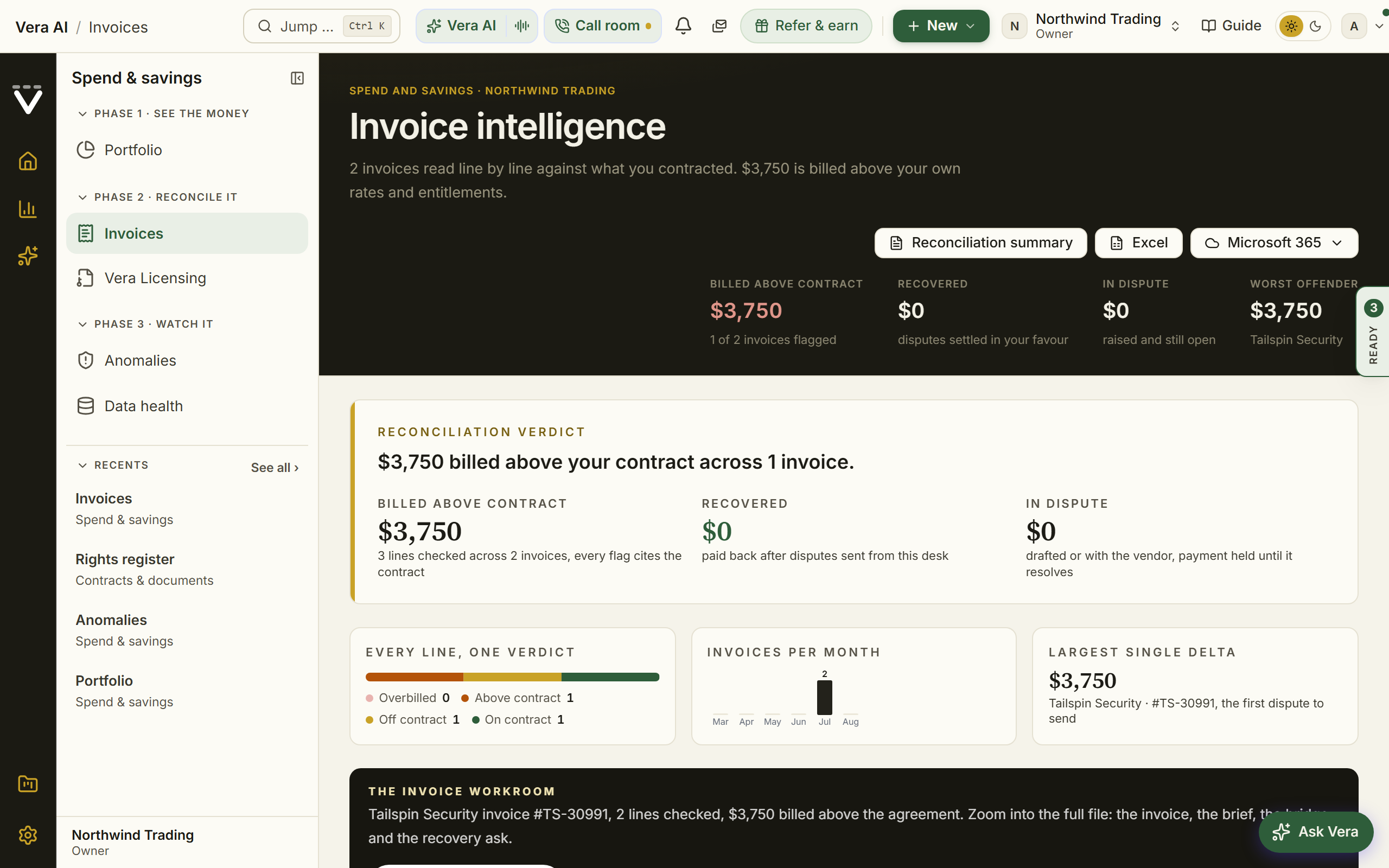
On the screen
- The head — Invoices with how many of your invoices are flagged as its tag (brick when any bill above contract), then Reconciliation summary, Excel, the Office menu and Check an invoice at the right. Under it the facts as one row of labels and figures: billed so far (every invoice on file; one with no printed total counts at the sum of its lines), above contract, in dispute, recovered, not yet disputed, lines checked (with how many had no baseline on file), and the disputes drafted and ready to send when there are any. Every figure covers every invoice and claim on file, however many there are. A dismissed invoice stays on file and out of every total and every count, and an open claim on it leaves In dispute; money it already recovered still counts.
- Money in US dollars — every total, fact and chart on Invoices is in US dollars. An invoice billed in euros, pounds or another currency is converted once with its own currency before anything is added, and its panel says the currency it was billed in; a line's note keeps the vendor's own figures and names that currency. Each claim on Disputes keeps the currency the vendor pays in, because that is what the letter quotes and what you type a recovered amount in (the box names the currency); the sums across claims are in US dollars. The note after you check an invoice and the email-in summary state what was billed above contract in US dollars too, and a line is checked against your entitlement's unit cost converted to the invoice's currency, so a pound invoice is never compared with a dollar rate. Sample invoices drop out once real ones are on file. An invoice whose only flagged lines carry no dollar gap reads Flagged, no amount rather than On contract, and it counts as flagged everywhere. The market band beside an invoice gives the range and its midpoint, never a count of deals. The Summary tab, its printable paper, Word and Excel count billed and flagged by the same rules as the head, and leave out a claim you wrote off. A saving is proved only against real invoices, and a dismissed invoice stops proving it.
- The screens — five tabs: Overview, Invoices, Disputes, Summary and Check an invoice; Reconciliation summary in the head opens the Summary tab. Press an invoice and the invoice panel beside the invoice list shows its date, period, total, flagged lines, what it bills above contract, where it stands (not disputed, draft ready, sent, recovered, written off, claim dismissed or on contract), a plain sentence on why it is flagged and whether the error will repeat, every line with its verdict, and the moves: draft or open the dispute, open the vendor's contracts, open its lines, Copy a link to this invoice, mark it reviewed, and Ask Vera. The link opens Invoices with that invoice in the panel, so you can send one invoice to a colleague. The panel sits beside the list on Overview and Invoices only, so what sits under the list keeps the full width.
- Overview — opens on Where the overbilling sits: one strip with each flagged invoice as wide as what it billed above contract, red when nobody has disputed it, gold in dispute, green recovered, gray when its claim was dismissed or written off, then the invoices as rows (verdict, total, above contract, where it stands), the most at stake first. All, Flagged, Not disputed, In dispute and On contract narrow the rows and dim the strip together. Under it six cards, three across: Every line, one verdict (each verdict's line count and dollars; press a color to open those invoices), What if you disputed it all (on the invoices with no claim yet: the smallest line worth a claim and the share the vendor credits; what comes back, and the rate error that stops recurring once corrected whatever the credit, which is not added to what comes back; the settings stay put when you leave), Disputes (draft and sent claims, recovered, and flagged invoices not yet claimed, with how much of the money in those four stages has come back so far), Largest single line, Invoices a month (the flagged share of each month in red) and Stops recurring (rate errors, which repeat until corrected, against one time items). Then the case: the invoice with the most at stake, line by line, with Draft the dispute and the workroom beneath it, then What next.
- Invoices — every invoice newest first with its leading verdict (and how many more lines are flagged), its total, what it bills above contract and where it stands. Search by vendor, invoice number or line, filter to flagged, above contract, over entitlement, off contract or on contract (every filter but All leaves dismissed invoices out), and take the list to Excel. Press a row to open its lines, each with the note behind its verdict, and mark it reviewed, reopen it or delete it.
- Disputes — one sentence on where the claimed money stands (claimed and waiting, come back, flagged with no claim yet, and how long the oldest open claim has waited) with Send the vendor dispute at the right. A strip sizes each stage by its dollars: red not yet claimed, gold draft ready, pale gold sent, green recovered; the stages then read as one row of figures. The claims lists every claim with its leading verdict, its amount and its stage; press one and its email sits beside the list: the subject, the body, the contract clause it quotes, then Prepare the claim, Copy the email, Mark sent, Record the outcome (recovered, with the amount, or written off) and Dismiss. A recovered claim offers File on the savings ledger once. Flagged, not yet claimed lists every invoice above contract with no claim yet, the most at stake first, each with its verdict and amount and Draft the dispute; Draft them all drafts every one. With nothing to claim, the screen shows how a claim moves through each stage.
- Summary — the reconciliation for the period as one table for finance: a row a vendor with its invoices, what was billed, what of it sits above contract, its share of billed as a bar, what is in dispute and what came back, an Other claims row for claims whose vendor has no invoice in the period so the rows add up, and a totals row that matches the head. Word and the Summary sheet in Excel carry the same figures; Excel also lists every invoice and line in its own currency with a US dollar column beside it, a dismissed invoice marked as left out of the totals; Printable opens the forwardable paper at
/invoices/summary: the title with Back, Word and Print right beside it, one sentence on what was billed, what of it sits above contract, what is in dispute and what came back, then the contract and, on screen only, Read and watch on the vendors of the reconciliation. - Check an invoice — the upload as one band across the width: drag a PDF or DOCX onto it or press Choose a file, with an optional vendor to improve matching. Beside each other under it: The invoice email-in address (copy it, Hand to accounts payable opens an email to them with the instruction, and an owner can manage it) and Checked so far (invoices and lines, flagged against clean, dismissed invoices left out, and how many arrived by email or upload, what sits above contract and when the last one was checked). Then what each of the seven verdicts means. Before the first invoice, the Overview and Invoices tabs show this same screen.
- Line verdicts — lines are numbered from 1, the same on the page, the exhibit and the claim letter. Per line: ok, price above contract, billed over entitlement, off-contract item, uplift-cap breach, or above MSA rate card (a consulting line billed higher than the rate on your saved MSA rate card; see Rate Card Benchmark).
- Open the workroom — once findings exist, a button above the invoice list opens the analyzed invoice with the most at stake as a six document workroom: the parsed invoice with every flag marked, an overbilling brief, the recovery bridge, the itemized recovery sheet, and a What now sheet. What now, in the inspector, drafts the vendor dispute letter and the AP payment hold note from the invoice's own lines, files the dispute in this page's Disputes list in one click (reporting the real outcome rather than a generic line), copies the dispute summary, opens the agreement the invoice bills against, and opens a negotiation dossier. Ask Vera answers from this invoice's own line items and the contract terms they should have matched. Every figure is read from the stored invoice lines.
- Send the claim — a flagged invoice prepares a served claim: billed against contracted with the gap quantified in the currency the invoice was billed in, every evidence line citing the invoice line and the term it breaks, and a letter you edit in place. Send the claim mails it from the platform with you in copy; nothing sends without that press, and a draft dispute moves to sent on the existing lifecycle. The recipient prefills from your last negotiation contact where one is on file.
- File as verified saving — on a dispute resolved with money recovered, one press writes the recovered amount to your savings record with the invoice number in the note; the recovery counts into Spend Agent's realized savings. It is counted once, as a one-time recovery, never multiplied across a term, so a recovery does not inflate your annual savings figure. The dispute then reads On the savings ledger.
- Forward-in address — connect the invoice route to get a private email address; invoices forwarded there are processed automatically.
How to use it
- Upload an invoice, or set up email-in so they process automatically.
- Work the lines flagged above contract or over entitlement, dollars first.
- When a dispute is resolved with money back, file it as a verified saving so the recovery joins the proof ledger.
Tips
- Setting up the forward-in address is an owner action under Settings › Integrations.
Related: Billing watch · Anomalies
Vendor calendar
Every vendor's fiscal year on one calendar, read against your own notice dates, in the window every app shares: the fiscal year ends and quarter closes of the top 40 software vendors. A vendor's quarter close is the one date their side cannot move, so this is when to time your asks. Since 20 October 2026 it opens as the fresh cut: the year, the runway, the pressure, the timing lab, your renewals and the briefings. The timing desk it replaced is under View, Earlier window.
In plain words: when each vendor's quarter closes, so your ask lands when their discount authority peaks.
When to reach for this
- Booking the vendor conversation: their calendar, not yours, decides the good weeks.
- The annual plan (the strategy recipe): quarter ends layered against your notice windows.
- A stalled deal: sometimes the fix is waiting three weeks for their quarter to squeeze them.
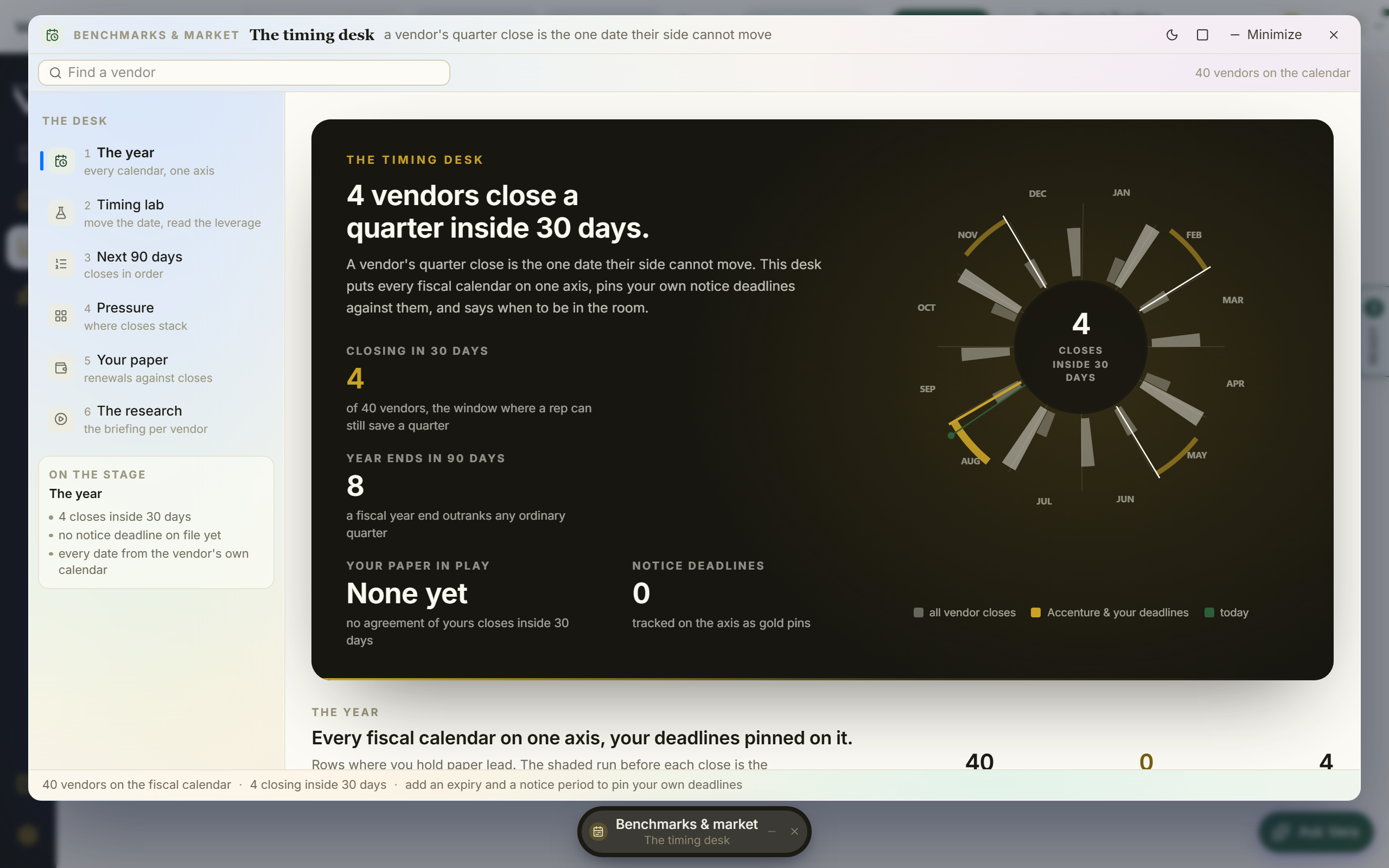
On the screen
- The window. The window every app shares: the navy title bar with its menus and Share; on the left, every vendor you hold with its next close, the days to it and what you pay (a red dot when a close or your notice date is inside 30 days), the vendors you follow beneath, and Add a contract; the six tabs and Filter the vendors across the top; the details on the right. Keys: 1 to 6 the tabs, A the next ask, F follow the vendor in hand, / the filter, I the details, Esc clears the vendor, then closes.
- The head. The name, one tag (how many of your vendors close inside 30 days, or the vendor in hand's next close), one line on where you stand, and the actions: Add to my calendar (a calendar file with every close of the vendors you hold and follow and your notice dates, for Outlook or Google Calendar), Email the calendar, and Send the ask to the next vendor of yours that closes.
- The orbit (key 1). The year as a wheel, today at the top, with a hand that sweeps the year once as it opens. A lane for each vendor you hold or follow: every quarter close is a node and every fiscal year end a gold star, the three weeks before each close are lit as an arc, and your notice dates are red pins; closes inside 30 days pulse. Round the outside, how many of the 40 vendors close each week, gold where year ends fall and a red dot where one is yours. The centre counts down to your next close. Press a lane, a node or a label to light that vendor. Beside it, Closing next (yours, or Everyone for the next 120 days) with a countdown bar each; under it, Needs you and When to ask, the pressure line for each vendor of yours closing inside 90 days with Send the ask and Time it.
- Runway (key 2). Every close over 30 days, 90 days, 6 months or 12 months, for Yours or Every vendor: the three to six weeks before a close as a pale band, the final three as a solid one (gold before a year end), the close as a node with its name, your notice date as a red pin. A vendor's name on its lane wraps to a second line rather than being cut, and resting the pointer on the lane shows it whole. Week by week lists the same dates in order beside Needs you.
- Pressure (key 3). Where the closes stack: the twelve months as bars, quarter closes and year ends stacked, your vendors marked and your annual value closing that month under each; beside them the busiest month, where your money closes and the pattern. Every vendor, every month lays the vendors (yours and followed, or every vendor) against the months, ordered by fiscal year end so the cascade falls as a diagonal, with your notice dates pinned.
- Timing lab (key 4). Pick a vendor and move Sign on (the slider, or the arrow keys: a day, a week with Shift). The track draws their closes and the windows before them with your notice date, the gauge swings to the points buyers report from signing on that date, and the reading names the close it lands before, the days to it and what it is worth on your contract. Jump to the best date puts the date a week before their next strong close; Send the ask timed opens the ask for that close. Every vendor you hold, on the same date reads the same date across your estate, each with its year in one line.
- Your renewals (key 5). Each notice date pinned against the vendor's closes and linked to the close that governs it: blue in a closing window, gold close enough to work, red and dashed off the cycle. Sign up to moves the signature up to eight weeks before each notice date and draws the better date as a green mark; the figures show what the timing is worth now, with the moves, and how many land in a window, and each renewal has Time it or Ask. The renewals lists every contract on a covered vendor with its notice date, the close it governs and its reading.
- Briefings (key 6). The film on each vendor on the calendar, your vendors first, then whose quarter closes first; press one to play it with its chapters. Under them, When to ask, vendor by vendor: the pressure line on each vendor's calendar.
- The details. With no vendor in hand: the calendar's facts, What to do now (a notice date inside 30 days, a vendor of yours closing inside three weeks, or a renewal worth signing earlier) with one button, what else is waiting, yours closing next, and Ask Vera. With a vendor in hand: its next close, year end, what you hold and your notice date, the move (Send the ask, Send the notice when your notice date is off their cycle, or Follow when you hold no contract), the next four closes, when to ask, the briefing, and the moves.
How to use it
- Read the head and the year: the tag says how many of your vendors close inside 30 days, and the lanes show where each close and notice date falls.
- Press 5 and read Your renewals: a red dashed link is a notice date off the vendor's cycle. Pull the lever to see whether signing a few weeks earlier lands it in a window.
- Press Time it on a renewal: the timing lab opens on that vendor at the better date. Move the date and watch the gauge.
- Press Send the ask: it opens in your own mail, asking for their best proposal a week before their close. Where your notice date falls off their cycle, send the notice on time and hold the number for the close.
A note on the figures. Every date comes from the vendor's own published fiscal calendar; the grade beside a vendor says when a date is reported rather than published. The point bands are what buyers report from closing inside a window (2 to 4 points in the three weeks before a quarter close, 4 to 7 before a fiscal year end, half that three to six weeks out), applied to what you pay; they are a size, not a quote.
Related: Renewals · Agreements
Document Agent
Every contract you hold, read for the ten terms that decide a renewal and searched for any words you type. Type an item such as price increase and each document's answer comes back with its reading, its figure and the clause on its page; type anything else and the stored text of every document is searched. Nothing is written for you: every clause on screen is the document's own stored text.
Since 9 October 2026 the screens (Results, Table, Report, Mind map, Workflows, Templates, Files) are the numbered first group in the left column; press one or use the keys 1 to 7. The top of the details column says what to do next on the screen you are on, with a button that does it.
In plain words: type a term, see where every contract stands on it, then take the report, the workbook or the board deck.
When to reach for this
- "Which of our contracts have no cap on price increases?" Search price increase and press Risk on the bar.
- "Which contracts renew by themselves, and which end first?" Search automatic renewal, then set Sort to Term ends.
- A dispute needs the exact language: double press the document for the clause on its page, then Copy the clause.
- A board pack needs the picture across the estate: Files gives the Word report, the Excel workbook and an eight slide board deck.
It opens as its own application, in the same window every agent wears: the title bar with the menus and Share, the left column with the numbered screens, the details on the right and the status bar at the foot. Closing it (or Esc with nothing open over it) returns you to Home. Minimize parks it as a tab with everything in it kept.
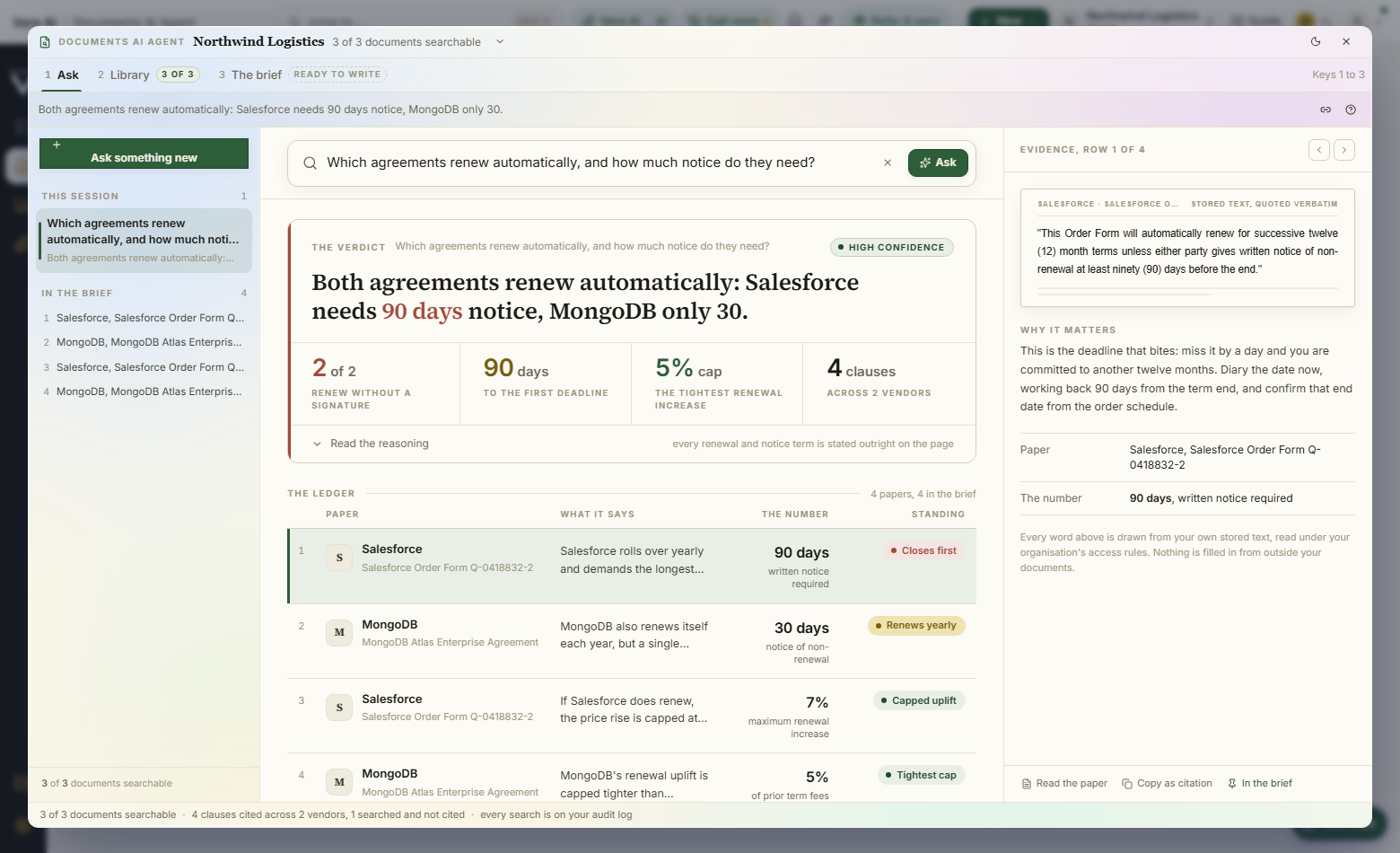
What it reads
- The ten items, read from each contract's term sheet by the background read: Price increase cap, Automatic renewal, Notice to stop a renewal, Termination for convenience, Liability cap, Service credits, Vendor audit right, Payment terms, Data protection and Benchmarking right. Type one or its usual words (uplift, auto renew, notice period, sla), or press it under the box.
- Any other words search the stored text of every document: plain words, a phrase in quotes, or the box's operators such as
vendor:andclause:. - The readings: each document's answer on an item reads Risk, Watch, Favorable, Silent when the document says nothing on it, or Not read yet while the term read has not reached it. A search of your own words reads Found or Silent.
On the screen
The title bar carries four menus, Sample data, Share and the window controls (light or dark, Full screen, Minimize, Maximize, Close):
- File: Save the search, Download the Word report, Download the Excel workbook, Download the board deck, Share a link to the report, Copy a link to this search, Close the window.
- The documents: Search the documents, Clear the filters and rules, Open the document in the reader, Copy the clause, Ask Vera about it, Send to the contract owner, and a line that reads any documents still waiting.
- View: the seven screens on keys 1 to 7, Hide the panel, Motion off, Maximize the window and Light or dark.
- Help: Keyboard shortcuts and About the Document Agent.
- Vera: since 25 October 2026 the title bar has no Talk to Vera button; the Vera tab at the right edge of the page and Ctrl J open her seat with the screen you are on.
The left column, navy: the VendorBenchmark mark, Find an app, Home, Vera AI and your pinned apps, then:
- Screens, the seven numbered rows with their figures, on keys 1 to 7.
- Saved searches, each a press away. Save the search adds the one in hand.
- Filters: Vendor, Document type, Reading for the item in hand, Term ends, Value a year, Year signed, Region and Owner, each row with its count of documents. Press a group's name to open or fold it. A count is taken over what every other filter leaves, so a group never empties itself; Show all opens a long vendor list. Region and Owner read the region and the owning function a contract record states; a record that states neither counts under Not stated.
- Your own rules: pick a figure (Price cap, percent, Notice, days, Payment, days, Value a year or Days to term end), over, under or exactly, type a number and press Add. A rule shows as a chip under the box with the filters in force; press it in the column to remove it.
- Related, at the foot: Benchmark Library and Contract Office.
The screens, the numbered rows at the top of the left column: Results (key 1), Table (2), Report (3), Mind map (4), Workflows (5), Templates (6) and Files (7).
The head, on every screen: the item and the screen (for example PRICE INCREASE CAP | SEARCH) with the documents in scope as its tag, then one sentence of figures: how many documents carry the term with their share, from how many vendors, what they are worth a year, the range of the figures with the middle, how many read as a risk and how many end inside a year, and the item's question under it, all over the gold rule. The actions sit at the right of the title, one in navy: Open the report and Save the search on Results, Excel on Table, Word, Excel and Board deck on Report.
The search row, on Results, Table, Report and Mind map: the box, Search, the ten items as chips and Save the search. As you type, the box suggests the items that match with how many documents carry each, the vendors, your templates, or a search of the stored text for the words.
Results:
- What the documents say: the finding in one paragraph (how many documents carry the term, the range of the figures, what reads as a risk and what it is worth, what ends first) and a bar by reading. Press a part of the bar to narrow every screen to that reading. On a search of your own words the bar reads Found and Silent: Silent lists the documents in scope where the words do not stand, each a press away from its page.
- The clauses: a card a document with its reading, its answer and the clause with the words marked, its page, when it was signed, when the term ends and its value a year, with Copy and Open on its page. Sort by the reading, the value a year, the term end, the vendor or the signing date; Group by vendor or reading.
- Press a card for its page in the panel on the right; double press it for the finding.
The panel on the right (] hides or shows it) opens with what to do now: the next move on the screen and its button, such as acting first on a contract that ends within 90 days or downloading the Word report. Under it, the stored PDF's own page drawn as a picture, with the quoted passage lit where its words stand and the view opened on the passage (Whole page shows all of it), then the page as text, clause by clause, with the passage lit and the term named over it, and Previous, Open in the reader and Next. A Word document keeps the text alone. Under it The document (type, signed, term ends, value a year, pages, owner, region) and What this document says, its answer on all ten items, each a press away. AI advisory, Copy the clause and Ask Vera about it close it.
One press, the pages and the insights (since 13 October 2026). Any document opens as paper over the window: Open on its page on a clause row, Open in the reader under the page in the panel, the finding's Open on its page, or Open the document in the reader in The documents menu. The reader shows the pages with the page count, zoom and Open in a tab, and What the read found beside them: the document's answer on each of the ten items, each a press to its page. A sample document has no uploaded file behind it, so the platform's sample paper for its vendor stands in and the reader's gold tag says sample paper; your own documents open as uploaded. AI advisory, the reader's one primary (also A) and the first button under What this document says, reads the pages and lays out the verdict, four figures (changes found, a year on this document, your template, the item in hand), the key terms, What is risky, What is good, Against your company template and What to do first, each row a press, with Open the finding at the foot. It is written from the readings the window already holds; nothing is sent anywhere. The window arrives in motion since the same day: the head, the search field and its chips, the band and the stacked bar, then the clauses one after another, and the page in the panel settles on every selection, its clauses rising one by one and the answer swept in gold; the table, the report's charts and the mind map follow. Motion off in the View menu or reduced motion in your system leaves the window still, as before.
The finding: double press a document anywhere and a small window opens over the screen.
- What the document says: the clause in the document's own words, with its file and its page.
- What it means: what the answer leaves you with, the value a year that rides on the document and what one point of increase costs, and when the term ends.
- Correct the reading, beside What the document says: say what the document really states on the term, a figure, no, or nothing at all, and Save the correction. The correction is yours, the background read never overwrites it, the quote and the page stay as evidence, and every screen, the files and the report redraw from it at once. A corrected answer reads corrected by hand wherever it shows.
- Where it goes: Add to the renewal plan writes the finding, with the clause and what it means, as a step of the vendor's renewal plan, due by the notice date, and starts the renewal from the document's own dates when the vendor has none yet; Open the plan follows it. Open in the Negotiation Agent opens it on the contract. Remind me sets a reminder 30, 60 or 90 days before the notice deadline, sent to your inbox.
- Every finding on this document: its answer on all ten items.
- The arrows, or Left and Right, step through the documents on screen, and Esc closes. Copy the clause, Ask Vera about it, Open on its page and Send to the contract owner sit at the foot.
Table: every document, one row, with the vendor, the document, when the term ends, the value a year and a column for each item, each cell showing the reading and the answer. Columns picks the items, Use a template sets them from a template, a tick selects a row and a double press opens the finding. Excel in the head takes the workbook.
Report, top to bottom:
- 1. How many documents hold the term: Coverage, the finding and the bar by reading with each share, and Where the figures sit, one dot a document sized by its value with the middle marked. Your policy opens at 5 percent on the price increase cap; type your own figure and your line is drawn again, with how many documents sit over it and what they are worth. A yes or no item, such as Termination for convenience, takes no policy figure.
- 2. The money and the clock: Exposure places every document that states a value and whose term is still running by its value a year and the days until the term ends, the corner that is large and soon tinted. The runway shows the value ending in each of the next eight quarters, by reading.
- 3. Where it sits: By vendor, the value a year by reading; By document type; and Your own chart, where you pick the cut and the measure.
- 4. Across the items: every vendor against the renewal items, or a template's items. Each cell is the weakest reading among the vendor's documents; Change the items picks a template.
- 5. The clauses to read first: the weakest readings on the largest documents, with All for every one.
- Share a link to the report, in the File menu: a read only link to the Word report as it stands, with no sign in, for 14 days or 30 days. The sheet shows the address with Copy and Open it; End the link stops it early. The link carries the report and nothing else from the documents.
Mind map: the item in the middle, opened By reading, By vendor or By type. Each branch carries its count and its value; the funnel on a branch narrows every screen to it, and Open every branch spreads the whole map.
Workflows: three ready, Renewal sweep, Price increase exposure and Exit and risk check, and every template your workspace keeps. Each card lists its items, the steps (Scope, Read, Extract, Check, Report) and what it writes.
- Run on reads every document in scope for the template's items, one at a time, with Found so far filling beside it and the review table filling under it. Pause stops it, Skip to the result finishes at once.
- When it is finished, a line says how many documents carry at least one risk and what they are worth, and which end first, with Open the table, Report, Word, Excel and Board deck.
- Your own workflow opens Templates to build one.
Templates: The library holds the three ready templates and the workspace's own, each with who wrote it. A template has a Name, What it is for, and The items, in the order of the columns, each with how many documents carry it.
- A ready template offers Duplicate to make it yours, Open in the table and Run as a workflow.
- New template starts one for the workspace. Add from the catalog adds any of the ten items; Write your own item takes What to call it, Words to look for, with commas, and The answer is: found or silent, a percent, a number of days, or words. Move up and Move down order the columns and Remove takes an item out.
- Everyone in your organization sees, runs and edits the workspace's templates; Delete is for the person who made one or an owner of the workspace.
Files: the three files the Document Agent writes, each drawn as it will be written, on the search and the filters in force.
- Word report: the item across the documents in the firm document style: where the agreements sit, with the strip of figures and what the risk is worth; what ends first, with the runway; and the clauses to read first, each quoted with its document and its page.
- Excel workbook: five sheets, Summary, Documents, Clauses, By vendor and Renewals, every row typed so it sorts and sums, each table with Excel's filter and its header frozen.
- Board deck: eight slides, the title, where we stand, the figures, what ends first, the exposure, by vendor, across the items and the three asks, with Previous, Next and the slide strip. Present full screen shows the deck; Left and Right step through it and Exit or Esc leaves.
- Download writes the file from your documents as they stand when you press it.
The status bar: the keys at the left; at the right the documents in scope, the clauses, Hide the panel, Motion on, and whether the work is saved (or Sample data).
Sample data: with the switch on, the window opens on Northwind Trading's sample estate: 52 documents across 14 vendors, each with a region and an owner, every answer quoted from its page. Nothing is saved and no file is written from the sample.
Nothing typed is lost: the search, the filters, the readings, your rules, the sort, the columns, the template in hand, your policy figures and the file in view hold when the window closes and are there when it opens again.
Step by step
- Type an item, such as price increase, or press one under the box. For anything else type the words, or a phrase in quotes for the exact wording.
- Read What the documents say, then press a part of the bar, such as Risk, to narrow to it.
- Press a document for its page on the right; double press it for the finding.
- Narrow with the Filters on the left, or add a rule, for example Price cap, percent over 5.
- Press Report (or 3) and type Your policy to draw your line.
- Press Files (or 7), pick the Word report, the Excel workbook or the board deck, and press Download; or choose Share a link to the report in the File menu to hand the report to a colleague.
- To ask the same items of every document, press Workflows (or 5) and run one; press Templates (or 6) to write your own.
- In a finding, press Correct the reading when the read is wrong, and Add to the renewal plan or Remind me to send it on.
- Press the Vera tab at the right edge of the page, or Ctrl J, to talk through what the screen shows.
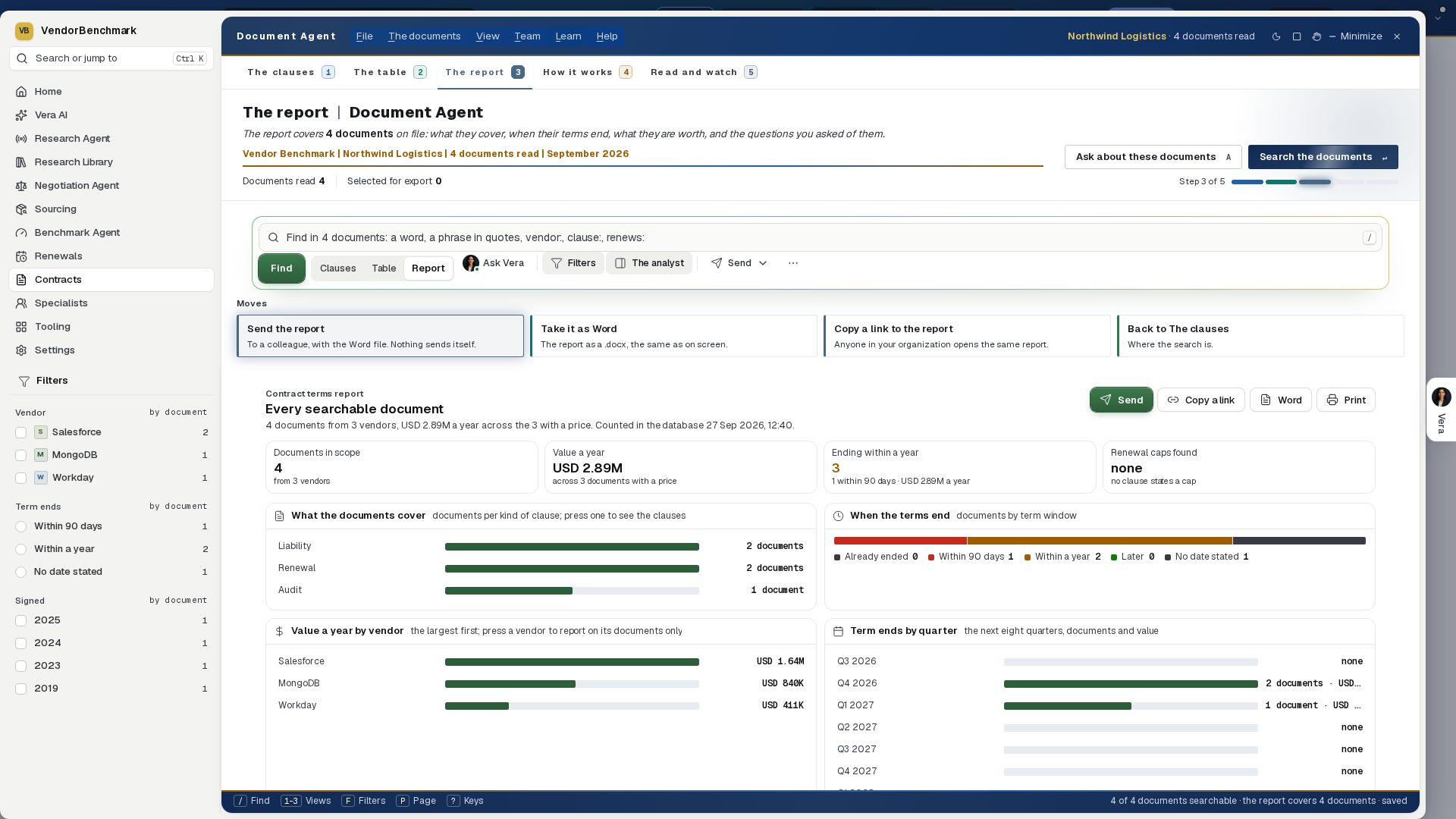
Keys: / the box, 1 to 7 the screens, ] the panel, F the vendor filter, E the workbook, ? every key, Left and Right the slides of the deck and the documents in the finding, Esc closes the finding or the deck, and the window when nothing is open over it.
Related: Document clusters · Review tables · Vera · Rights register
Reports and briefs
Every contract terms report the Document Agent kept when it was sent or linked, and the briefs its retired Brief screen wrote before 12 September 2026, kept as written.
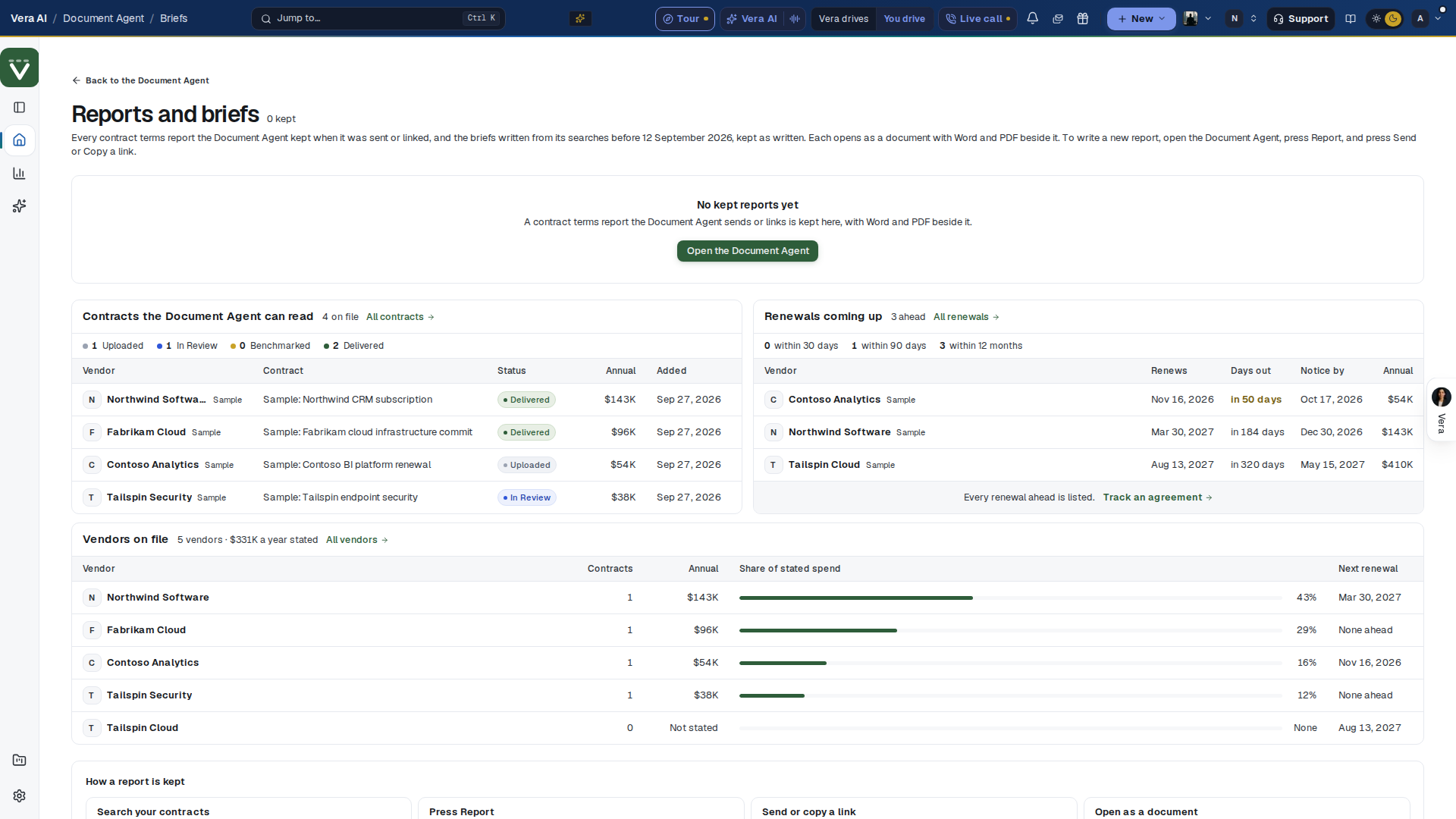
On the screen
- The head — the house head of the contract utilities (since 27 September 2026): the nine utility steps with Find lit, Reports and briefs named in the masthead, how many reports are kept and the latest one's date as facts, and Open the Document Agent at the right.
- The list — one row per question, the newest version of each: the brief, the question it answered, its version and the day it was written. A row opens the report as a document with Word and PDF beside it.
- No kept reports yet — before the first one, the page says how a report is kept and offers Open the Document Agent.
- Contracts the Document Agent can read — your latest contracts with their status and annual value, and the renewals coming up with the days out, the notice date and the annual value, in US dollars. Under them, Vendors on file lists your largest vendors by the annual value their contracts state: the contracts on file, each vendor's share of that stated spend and its next renewal date. Each row opens the vendor.
- How a report is kept — four short facts: search your contracts, press Report, send or copy a link, open as a document.
How to use it
- In the Document Agent, ask a question across your contracts and open the Report tab.
- Press Ctrl E and choose Send the report or Copy a link to the report; the report is kept here for the whole workspace.
- Open it from this list whenever a colleague asks for it again.
Related: Document Agent
Document clusters
Since 16 October 2026 it opens in the Delivery Room's design on the same frame as every agent: the workspace's mark and name at the head with the screen under it, one line that states the figures, the actions with one blue button, five screens as numbered chips that stay in view, the screens and the groups down the left, the group in hand in the details column on the right, and the keys along the status bar. 1 to 5 change screen, R groups or re-groups, I hides the details, V talks to Vera, and Escape closes a sheet and then the window. Every screen arrives in order (the title, the state, the line with its figures counting up, the chips, the panels, every bar growing to its length, every row), a panel lights under the pointer, a press ripples, and a finished run throws a short gold burst from the button. Reduced motion turns all of it off.
Your contracts grouped automatically by what the documents actually say, subject matter rather than folder names. The grouping is deterministic text math; the AI only names the groups. When contracts arrive after the last grouping, the state tag counts them and Needs you says they are not in any group yet. Nothing regroups without your press. Sample data in the title bar draws a fictional estate of 26 contracts from 20 vendors so the window is never empty.
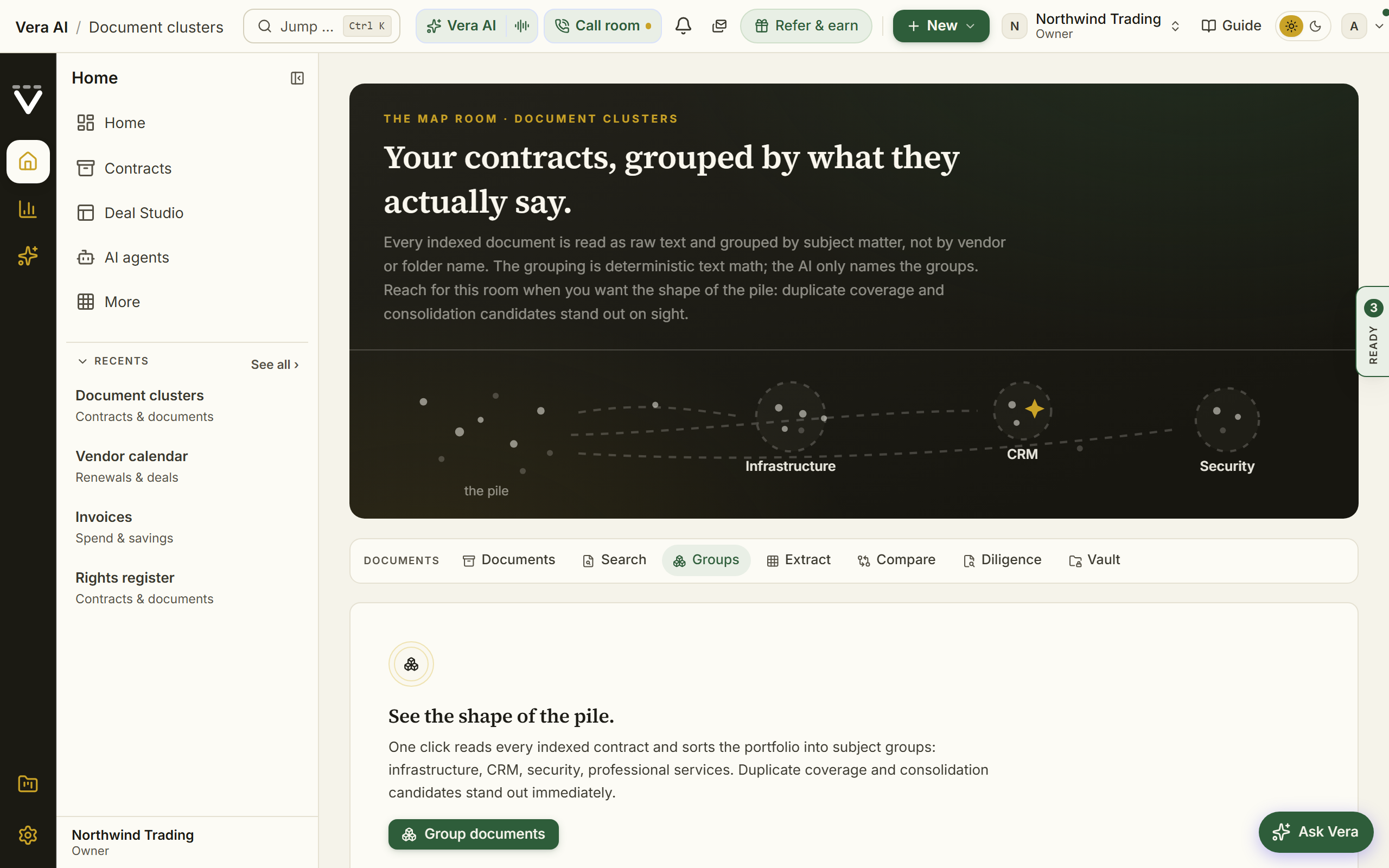
On the screen
- The head — the workspace (or the sample estate) with its mark, the screen's name under it, the state as a tag (not grouped yet, how many overlaps to price, or how many contracts are not grouped), one line with the figures: how many contracts fell into how many groups, how many span three or more vendors, how many vendors in all, when it was grouped. Price the overlap, How it groups and the blue Group my contracts or Re-group at the right.
- The left panel — the five screens as numbered rings, then Groups: every group as a row with its initials, its name, its contracts and vendors on one line and a red dot on an overlap; Needs you when contracts arrived after the grouping or an overlap waits to be priced; and the apps nearby (Spend Agent, Diligence, Document Agent).
- Groups — one strip of every group sized by its contracts, with its count, its share and a gold line for the share of vendors, then the ledger: each group's name and what unites it, the terms that tie it, its vendors and its contracts. A group across three or more vendors carries an Overlap mark: several suppliers paid for one kind of thing, the consolidation worth pricing. Contracts that share too little with any other sit in a Stand-alone row. Press a group anywhere and it opens in the details.
- Documents — every contract that took part, its vendor and the group it landed in, with a find box over the title, the vendor and the group. Press a row and the contract opens in a sheet: its group, why it landed there, the terms that tied it, the others in the same group, and the way to the contract and to the vendor. Before the first grouping the screen lists the contracts a run will group.
- Overlap — each group across three or more vendors as a panel: its theme, each vendor's share of its contracts as a bar, the terms that tie it, every contract as a chip, and Price the consolidation. With no overlap yet, the groups across two vendors are listed as the ones a third contract would turn into one.
- Vendors — every vendor against every group as a grid, a mark where a contract sits; a vendor bought for two or more kinds of thing is marked and sorted first. Press a vendor to open its file, a group to open it.
- How it groups — the four steps of a run, from reading the wording to marking the overlap, and the facts: what a run reads, needs and takes.
- The details column — What to do now first: group the contracts, re-group after new ones arrived, or price the first overlap, with its button; then the group in hand with its theme, contracts, vendors, overlap and terms; its contracts, each opening the sheet; the next moves; and Ask Vera.
How to use it
- Press Group my contracts (or Re-group, key R). A run needs at least three indexed contracts and takes under a minute. To see a finished grouping first, switch on Sample data in the title bar.
- Start with Needs you or the Overlap screen (key 3) and open each group across three or more vendors.
- Open a contract from its group, or press Price the consolidation.
Related: Document Agent
Review tables
Ask the same questions across many contracts at once. Each column is one question (termination notice, renewal cap, liability cap) and the AI fills in a quote-backed answer for every document. Since 16 October 2026 the window gives every answer a tone against market paper, maps the answers, ranks the vendors and says what to act on first.
In plain words: one question per column, a cited answer per contract, a tone on every answer, and the findings ranked by money.
When to reach for this
- The estate-wide questions ("who has an uplift cap?", "what are our notice periods?") that would otherwise take a week of rereading.
- Diligence and audits: the answer grid is the evidence table, to Excel in one click.
- Anything the Coverage sweep does not already ask; coverage is your standard, this is your bespoke question.
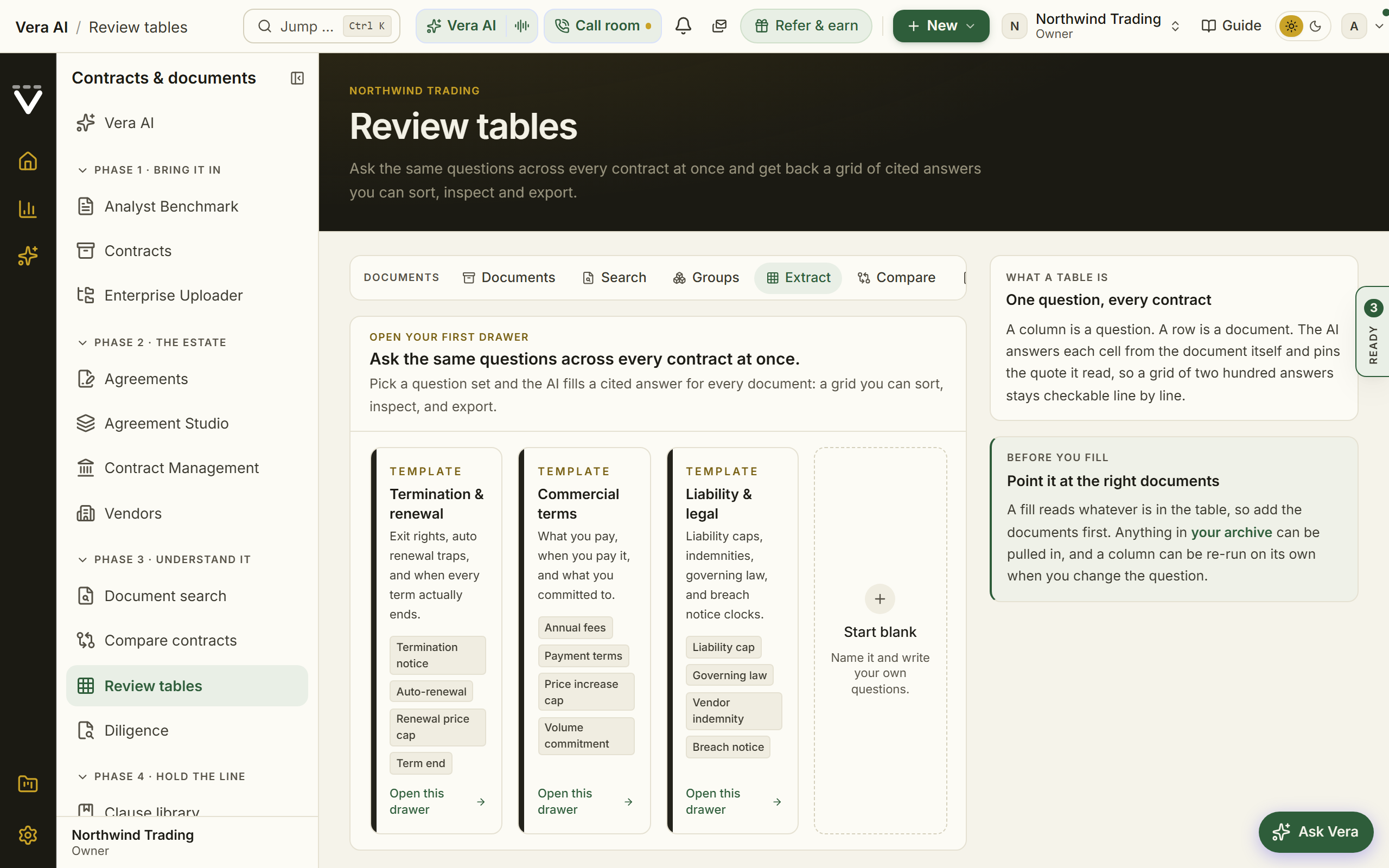
On the screen
- The window — Review tables opens in the window every app shares, filling the screen, on one table at a time. The left column carries this table's six steps with a figure each (Questions, Documents, Fill, Grid, Atlas, Act; keys 1 to 6), then every review table with how far its fill has reached, New table (N) and the nearby apps. The head names the table with its state as a pill (new, filling, the percent filled, or the risk cells), one line of facts, a lede that says where it stands (cells answered with a quote, silent, the first finding with its money, the notice windows closing within 60 days), Documents, Export and one blue button that follows the state: Add documents, Fill the table, Open the atlas or Export the workbook. The six steps repeat as chips under the head.
- Questions — every question as a row: the column name, the question as asked, its format, what the documents say as a spread bar (risk, watch, standard, good, silent) and the silent count. The composer at the foot takes a question in plain words and names the column and picks its format as you type. Beside it the starter sets with what is already on the table marked, and Vera suggests, the standard questions not yet asked.
- Documents — a heat grid of your vendors by kind of paper (master agreement, order form, renewal, SaaS agreement, amendment), the count tinted and how many are in the table in the corner; press a cell to pick. Bars by who filed the contract. The picker: In this table, Not in it, Whole estate, Not indexed, a find box, a tick a row and Add all shown.
- Fill — five stations (documents, read, answers, silent, checked) with their bars; the grid inks in a document at a time, a tone a cell, the unread ones dashed, with the log writing beside it; and how a cell is made in four steps. F fills.
- Grid — the table itself: the document sticky at the left with its risk count, a spread bar under each question (press to sort), a tone bar on every cell. Answers or Heat (H) switches the cells to colour. Risks, Watch, Silent and By vendor narrow and group; the find box reads the vendor, title and owner. Press a cell and the details column shows the sentence it came from; press a title for every answer in that document.
- The tones — every answer is read against market paper by what the column asks: a long notice period, a renewal at list price, a liability cap under 12 months of fees, no indemnity, a slow breach clock, data stored outside the EU, a spend commit with a shortfall bill, a term ending within 90 days. A cell the document is silent on is a tone of its own, and on a price cap, an indemnity, a breach clock, a data location or exit assistance the silence is the exposure. Nothing is ever invented for a silent cell.
- Atlas — every answer mapped: the table at the centre, a branch a question, the answers as nodes sized by how many documents say so and coloured by tone; press a node and that answer becomes a filter on every screen, press a question and the grid sorts by it. Vendors by risk: the loosest paper first, a cell the risk cells on that question. When the terms end: a calendar heat by month with the auto renewals as the small figure and the next three months ringed gold. Where the exposure sits: risk and watch cells by who filed the contract. Notice dates ahead: term end minus the notice period, soonest first.
- Act — the findings computed from the cells and ranked by what they cost: auto renews with no cap, notice windows closing, long notice, no indemnity, low liability caps, slow breach notice, audit at any time, a spend commit, data outside the EU, no exit assistance, and the good ones. Each row has its documents, the money a year, the vendors, See the N (a filter on the grid) and one move. Then the exports (the workbook, the calendar and the tasks, a link) and the owners to tell.
- The details column — what to do now, the table's facts, the notice dates that close next, the moves and Ask Vera. A pressed cell swaps it for the document: the question, the answer with its tone, the sentence it was read from, Open the contract, every answer in that document, what the document says (what is risky, what is good, what to ask the vendor for) and the moves.
- Sample data — the switch on the title bar shows a sample estate of 98 agreements from 24 vendors with four tables over it: one filled with ten questions, one filled on fewer documents, one 71 percent filled (Fill finishes it), one new. It is drawn for you alone and nothing in it is saved.
- The calendar and the tasks — the classic grid with its Calendar view (every dated answer as a ledger by how soon, with the letter it calls for) and Tasks for these rows stays one press away, from Act, from the details column and from the View menu.
- Export — the whole grid as an Excel workbook, quotes included.
How to use it
- Create a table from the Termination & renewal template, add the documents, then press F to fill.
- Press 5 for the Atlas and press a node on the map: the grid, the heat grids and the findings follow; press a cell in the grid to see the exact sentence it came from.
Related: Document Agent · Contract policy
Data health
What the platform cannot see for your organization and what filling each gap enables. The scan runs on every load; a prioritized plan tells you which gap to close first, and Vera reads your own stored documents to stage fixes you apply in one press.
In plain words: what the platform cannot see yet, ranked by what seeing it would unlock, with the fixes already drafted from your own document.
When to reach for this
- The migration finish line (Chapter 18): "done" is a score here, not a feeling.
- Before an audit: the exposure estimate says how defensible the entitlement picture is today.
- Monthly: one closed gap a month compounds faster than any single feature.
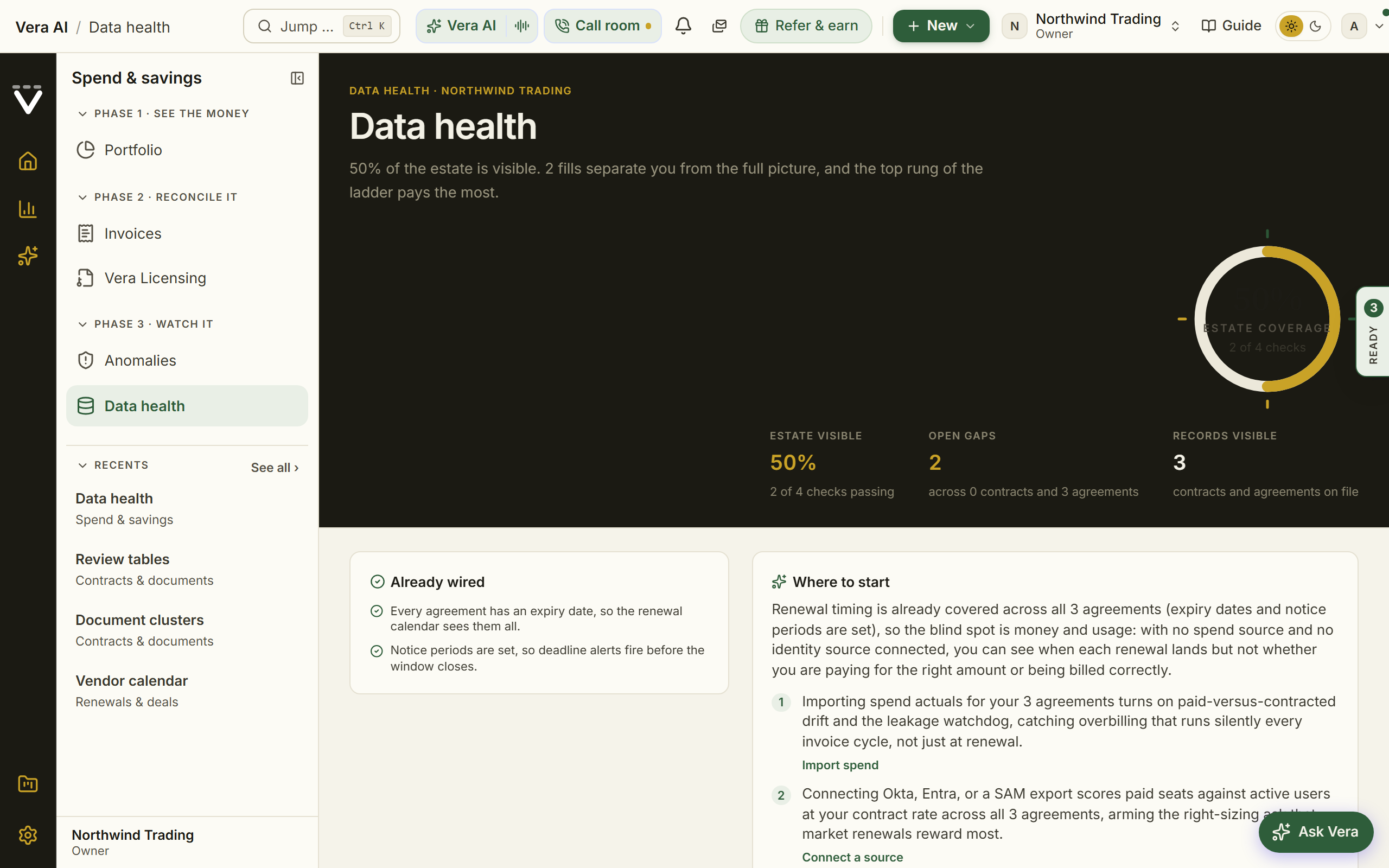
On the screen
- The head — since 27 September 2026 the house masthead, with Data health as the title and Spend and savings as its separator. The line under it says how many health checks run on how many records, how many gaps stand between you and the full picture and which to fill first, and how many fixes Vera has staged from your own documents. Estate visible is the one figure at the right, with the checks passing under it and the actions beside it: Upload documents, Connect a source where a usage source is missing, and Apply the staged fixes (or the first gap's own fix) as the one filled button. One row under it carries estate visible, open gaps, fixes staged, audit exposure and what is on file.
- The screens — five tabs: Overview, Gaps, Staged fixes, Audit exposure and Already wired.
- Where the picture is missing — the Overview opens on one tile per failing check, colored by what it blocks: red blocks alerts (missing expiry dates or notice periods), gold blocks the money figures (missing values, term dates or a source), gray sharpens a benchmark. The checks that pass follow as one line of green chips. The gaps come next as rows, in the order the scan ranks them by what fixing unlocks, each with what it blocks, how many fixes are staged for it, and the records affected.
- The gap panel — press a gap and the panel beside the rows shows its records, what it blocks, its staged fixes and its rank, then what is missing and what filling it unlocks, the staged values from your documents, and the moves: Apply the staged fixes for that gap, the fix itself (add the dates, set the notice periods, connect the source), and Ask Vera to read them to stage more.
- The cards — under the rows, in the same column beside the gap panel, side by side: Where to start (Vera's plan, refreshed whenever the gaps change), What filling them opens up (fill the first gaps in the scan's order and see the visible share after, the records filled, what turns on and what stays open; the setting stays put when you leave) and Audit exposure (the daily trend, the vendors deployed over entitlement, and how many vendors are tracked).
- Staged fixes — every missing value Vera read out of your stored documents: the record, the field, the proposed value and the verbatim sentence it came from. Apply one, Apply all, Read the documents for more, or open the review queue. The Saturday hygiene sweep stages a small batch on its own. A notice period only stages when the document states 30, 60 or 90 days, because those are the values the ledger accepts. Applying routes through the same review queue writers as every other correction, so nothing here is a second write path.
- Audit exposure — every vendor with license positions: entitled, deployed, how far over, and the exposure priced at your own contract rates, with the total.
- Already wired — every passing check and what it lets the platform see.
- Read and watch — under the page: the films, analyst briefings, research papers and guides the library holds on the vendors the page names, laid out as in the agents, the most audit exposure first, then the vendors with fixes waiting. A row opens its piece, and it loads when you scroll to it.
How to use it
- Close the highest-value gap first.
- Connect a data source to fill the entitlement gaps (an owner action under Settings › Integrations).
Related: Integrations
Next: Chapter 05 · Team, AI & assistant
Was this page helpful?
Thank you. Your note goes straight to the team that writes this manual.