03 · Tooling & playbooks
The Benchmark Library answers a few questions about one deal. The tools in this chapter go further: they read your own exports and documents, a usage report, a cost export, a signed contract, a photographed quote, and build a plan from your real numbers. The chapter closes with the vendor playbooks, full self-serve negotiation and migration engagements for ten major vendors.
The tools open from Benchmarks & market: the All tools wall, which opens as its own window, and the Tool finder live at the foot of that group's page list (the menu on the left carries two group icons, and the tool wall no longer holds one of its own). While a tool page is open, the Tooling group's page list appears beside it with the job categories; the calculator long tail lives on the wall and in the finder rather than as menu rows, and everything stays one Ctrl/⌘ K away.
Nearly every tool is free to explore with sample data on any plan; the few that only make sense on your own inputs, such as Quote Face-Off, say so on their pages instead of loading a sample. Uploading your own data, and running the AI over it, is included on every plan, within fair use; Plans, allowances & limits defines the few allowances that do exist. Every contract-family document you hand an intake tool, the three decoders, Second opinion, the Vera Deal-Room, Proposal comparison, and the vendor playbook drop zones, is kept: it saves to your workspace as a contract, stored privately and visible only to your organization, and joins your benchmarking queue automatically. Benchmarking extracts only high level data points, the vendor, the price, the term, and the key commercial terms; the document itself never leaves your organization, every saved document can be deleted from its contract record at any time, and an owner can turn the saving off entirely under Settings, Data and AI, Data controls. Three more tools now say plainly which side of that line each of their file types falls on, because they take more than one kind: the Time machine keeps both documents; Quote Face-Off keeps PDF quotes and never stores a photo capture; the Rate Card Benchmark keeps PDF and DOCX documents and never stores an XLSX rate card, because a spreadsheet of rates is a data file rather than a contract. The same owner switch under Settings, Data and AI, Data controls governs all of them, and turning it off means those tools read in memory and keep nothing. Phone captures, invoices, audit letters, and spend exports keep the old rule, read in memory and never stored, and the browser-only calculators parse your export on the page so your usage data never leaves it.
Each tool section below carries a You get line: the artifact the tool produces and roughly how long a run takes, so you know what you are waiting for before you start. In the product, every tool page opens on the same head, in the house dress since 27 September 2026: the tool named in capitals with Tooling after the separator, the line on what it does in italics, the gold meta line with the tool's group and the month, and one row of facts (the group, how many tools share it, and whether a sample ships). Under it three answers side by side: Use this when, the Typical finding, and Your data, so you can judge a tool before you feed it anything; the renewal playbooks open straight onto their phases and keep those three answers on their card on the tool wall. Across the foot of the head, since 5 October 2026, one row of Moves: the closest other instrument first, the neighbors in its group, and All tools. The title sits at the top of the page, with nothing empty above it. Every tool in a group wears the same color pair. Every tool page also carries an All tools link at its top left, one click back to the tool wall from anywhere in this chapter.
What you chose reads in grey. In every tool, the option you picked (a mode, a filter, a tab of a sheet, a step, a scenario, the slide you are on) is marked in a quiet gray, or filled dark where it sits in a row of options, never in the accent green, which is kept for the one action to take and for links. Anything still being read or written spins in the In review blue.
Every chart enlarges, and so does the playbook text. This is platform wide, not just in the tools: hover any chart on any screen and an Enlarge button appears in its corner; click it, or the chart itself, and the figure opens near full screen with its title, its description, and a "How to read this" note. Hovering a bar, ribbon, dot, or segment, on the page or in the enlarged view, shows the exact figure behind it in a tooltip the moment the pointer touches it. In the playbooks the text enlarges too: click anywhere in a passage or KPI figure that is not a button or a field and it opens in the same enlarged view with the text scaled up for reading; selecting text never triggers it. Press Esc or click outside to close the enlarged view. Charts and figures that are themselves links, such as a dashboard figure, keep navigating on click.
Your answers read in ink. In every renewal playbook's fit and signal questions, the answer you pick (No, Unsure, Yes) fills in ink or a quiet gray rather than the accent green, and so do the days you pick in the Deal Room, the providers you invite and the products you mark in scope in Third Party Support, and the move you choose per cluster in VCF Licensing, so the playbook's one primary action stays the only green button on the screen.
Tools filed to another category do not appear here. A handful of tools only make sense in the software category: Vera Licensing, the cloud cost optimizer, Microsoft 365 optimization, the Agentforce optimizer, VCF licensing and Commitment Studio, which sizes Claude, OpenAI, Copilot and Agentforce commitments. On the other seven spend categories they are absent from the menu, from All apps and tools, from the group pages and from the tool finder, so a search cannot surface a tool the navigation has hidden. Everything else is in every category. Information Technology and Software sees all of them.
All tools
The instrument wall, on the same desktop shell as the Research, Negotiation, Benchmark and Renewal agents: every upload-driven optimizer, decoder, calculator and renewal playbook, grouped by the job rather than the category. Start here when you have your own data and want a plan built from it rather than a quick market check. It opens on its own over whatever you were doing, the way the agents do, and Close returns you to Home.
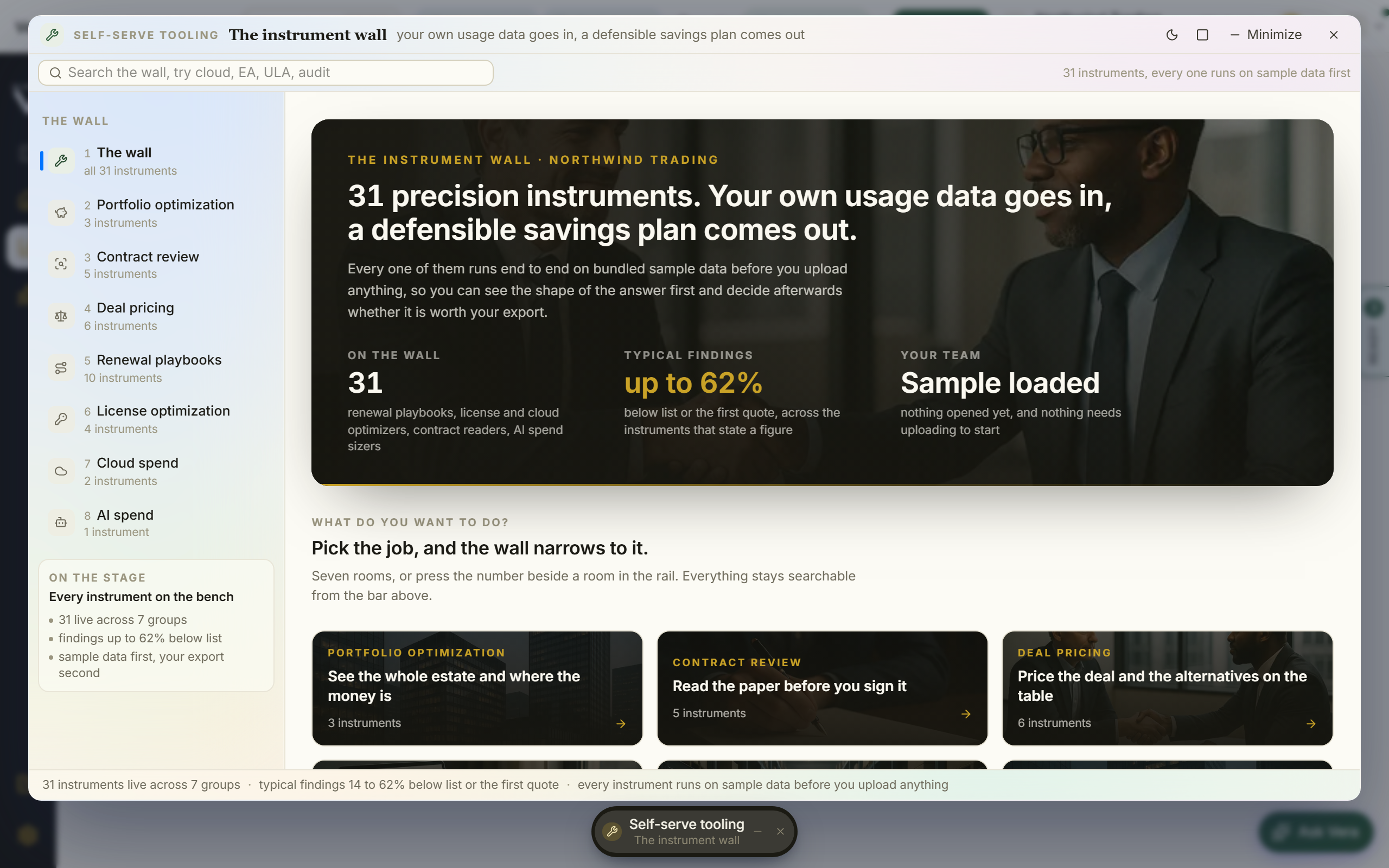
On the screen
- The title bar — the window name, the six menus (File, The wall, View, Team, Learn, Help), the workspace and what screen you are in, then the light or dark switch and the window controls. Escape closes the window, the square maximizes it, and the minus puts it in a tab along the top of the screen.
- The app icons — dark, down the far left: Home, the four agents, Contracts and Settings. The wall lives behind Home, which is lit while you are here.
- The tree — three groups. By the job lists the wall and its seven screens with the count in each. Yours lists the instruments your team has actually opened, most used first, with the open count. When none of them fits carries the three ways out.
- The tabs — the wall, then one tab per job and How it works, on the number keys
1to9, then Read and watch onL. - The head — the house masthead since 27 September 2026: the name of what is on the wall (Every instrument, a job, or Search results) in navy capitals with The instrument wall after the hue rule, one line under it saying what the screen is for and what its instruments usually surface, the gold meta line with the screen you are on, and one row of facts: the instruments, the jobs, the usual findings, and how many your team has taken down. At the right the one large figure, Worth on your spend, a year (the usual finding band applied to the spend you set, as a range), then the buttons: Every instrument when you are on a job, and the filled one, which opens whichever instrument is selected, over the step rail.
- What each job is worth on your spend — on the wall, under the head: Annual software spend is a lever, and every job's usual finding is drawn on it as a range on one axis, with the range in money a year beside it. A job whose instruments print no percentage says read and argued, no band. Jobs overlap, so the rows do not add up, and the section says so. Press a job to open its screen.
- The toolbar — one search box that crosses every room at once, over vendor, title, description, group, typical finding and the Use this when line. Typing ULA finds the Oracle ULA certification instrument from any room.
- The board — one row per instrument rather than a grid: the instrument and its vendor, the situation that makes it the right one with its description under it, what it usually finds in full, with its figure in bold when it prints one, and Yours: how many times your team has opened it, or what it runs on until someone does. Picking a row fills the inspector; double clicking opens the instrument. The vendor line under each instrument (Oracle, All vendors, Any vendor) reads in sentence case.
- The inspector — the house inspector: the selected instrument on the right with its group, its facts as rows (the situation, the vendor, what it runs on, your team's opens, whether it is the most complete in its group), what it usually finds, as one figure when it prints one and in words when it does not, then, on a job's screen, What it is worth on your spend as a lever, then its Moves: open it, find a better fit, ask Vera, and its neighbor when it has one.
- What it is worth on your spend — on a job's screen, in the inspector: move the annual spend those instruments would cover and the screen's own finding band prices it as a range. The band is what these instruments usually surface applied to your figure, and the inspector says so; it is never a claim about your estate.
- Read and watch — key
L, and in the tree under When none of them fits: the films, analyst briefings, research papers and guides the library holds on the vendors the instruments are built for, laid out as in the agents, the vendors of the instruments your team opens most first. A row opens its piece. - What next — at the foot, as cards with their icon: the three ways out when none of the thirty is the right instrument, and where a finding goes next, which is the Benchmark Agent or the Negotiation Agent.
- The status bar — the keys on the left, and on the right how many instruments are live, what they typically find, and what your team has opened.
How to use it
- Start from the screens: pick the job you came to do, from the tree on the left or from the seven tabs, and the wall narrows to the instruments that do it.
- Move the spend slider in that room to see what its instruments are usually worth on a number of your own.
- If you know the instrument you need, search for it from the command bar, or pick it from Yours in the tree.
- If you only have a document and are not sure which instrument fits, upload it anywhere on the window and pick from the chooser that opens, or upload it on the ask bar at the top of Home and simply ask about it. Escape closes the chooser without uploading anything, and a second file dropped while it is open is ignored rather than opened in place of the page.
- Try any instrument on sample data first to see the output before you bring your own.
Tool finder
Say what you are trying to do and the finder names the one tool to open. It opens as its own window in the house dress, and Close or Escape returns you to Home.
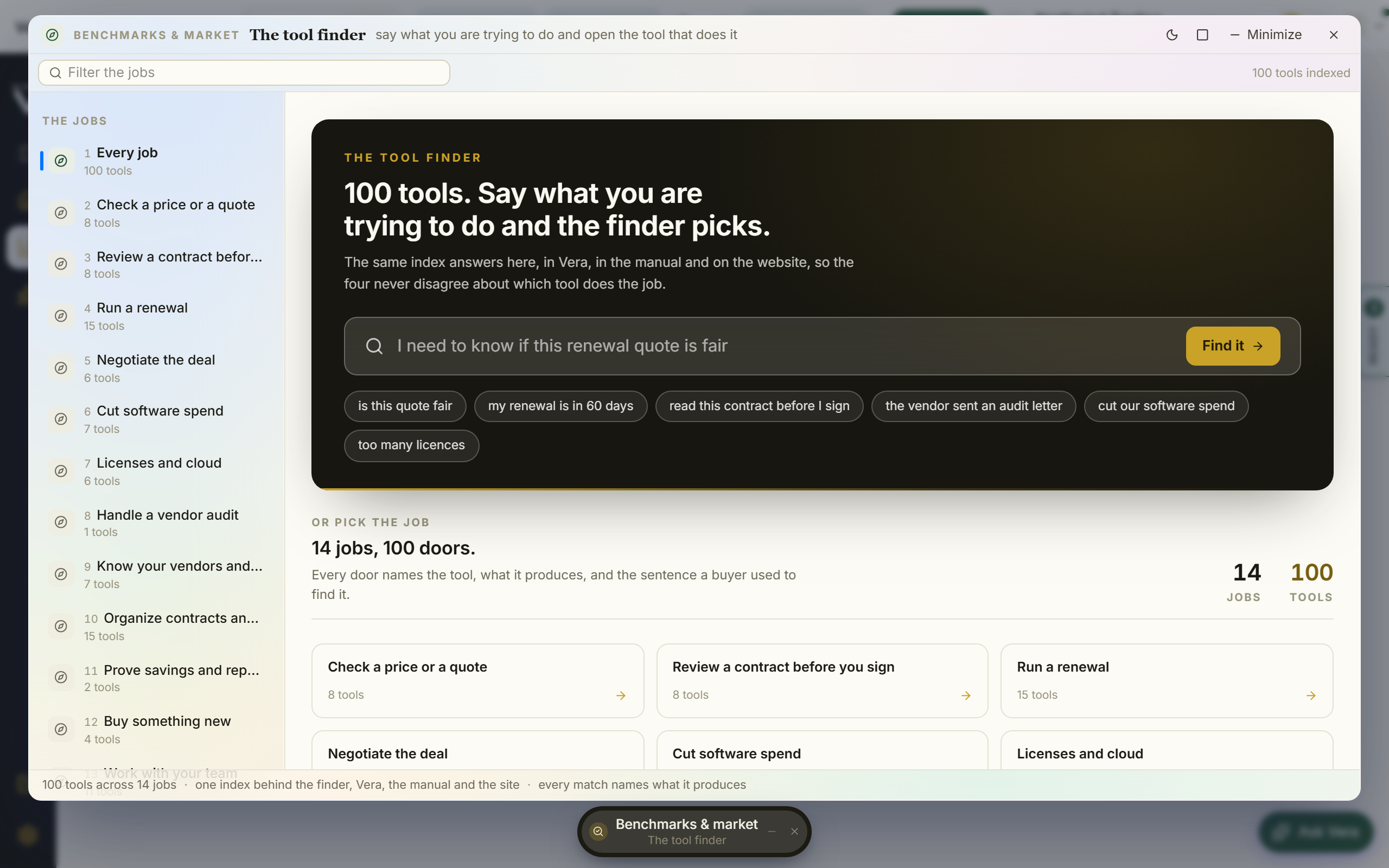
On the screen
- The steps — three numbered steps across the top: Ask, Every tool, and Read and watch. The keys 1 to 3 move between them, and the slash key jumps to the ask.
- The head — Tool finder with the step you are on, the gold meta line, and one row of facts: tools, jobs, how many match and the best match. At the right, Open on the best match once you have asked, or Find a tool before.
- The ask — one wide field. Type the situation in your own words, for example "the vendor sent an audit letter" or "my renewal is in 60 days". Six common situations sit under it, one press each.
- The answer — the one tool to open, what it produces, and the reason: the sentence from our index that matched, quoted back at you, with its fit as a percentage. Start opens it. Beside it, Match strength draws the top six as bars that move as you type.
- Also fits — up to three runners up, each with its fit and the situation that made it a candidate.
- The jobs — the side lists the fourteen jobs the platform does with their tool counts; picking one opens Every tool narrowed to that job. Before anything is asked, the Ask step shows the tools per job as bars beside a card for each job.
- Every tool — a table of every tool: its job, what it produces, the sentence a buyer used to find it, and Open.
- The inspector — the best match and its line, the index facts, and the Moves: open the best match or a runner up, browse every tool, ask Vera instead, or read and watch.
- Read and watch — the third step: the films, analyst briefings, research papers and guides the library holds on the vendors of your agreements, the largest annual value first. A row opens its piece.
How to use it
- Say what you are doing, in a full sentence if you like: filler words are ignored, so a sentence narrows the list rather than matching everything.
- Read the answer. If it fits, press Start or the filled Open in the head.
- If it does not, the runners up and the match strength bars show what came close, and Every tool holds the whole index by job.
- Still not sure how to phrase it? Ask Vera (Ctrl or Cmd J) instead; she reads the same index and names the same tool.
Tips
- The same index behind this screen also powers Vera's routing and Chapter 14, the printed "Which tool do I use?" reference, so all three always agree.
Budget draft
In plain words: the software budget spreadsheet finance asks for, drafted from your own agreements instead of built by hand.
When to reach for this
- Budget season opened and you need a defensible first number per vendor.
- Before committing next year's figure: see which renewals will move it and by how much.
- After the estate lands: the fastest way to see what the document says next year costs.
The draft reads only your stored estate. Per vendor it states this year's annual cost, the steepest uplift cap on document, when the deal reprices, the proposed number and one line of reasoning tied to those figures. Totals are summed from the lines, never written by the model, proposed numbers are clamped to a sane range of the current cost, and a vendor with no stored value is listed as unpriced rather than guessed. Draft it builds the draft; nothing regenerates while your figures are unchanged, so a second press costs nothing, and the page says when stored figures have moved since the draft was written.
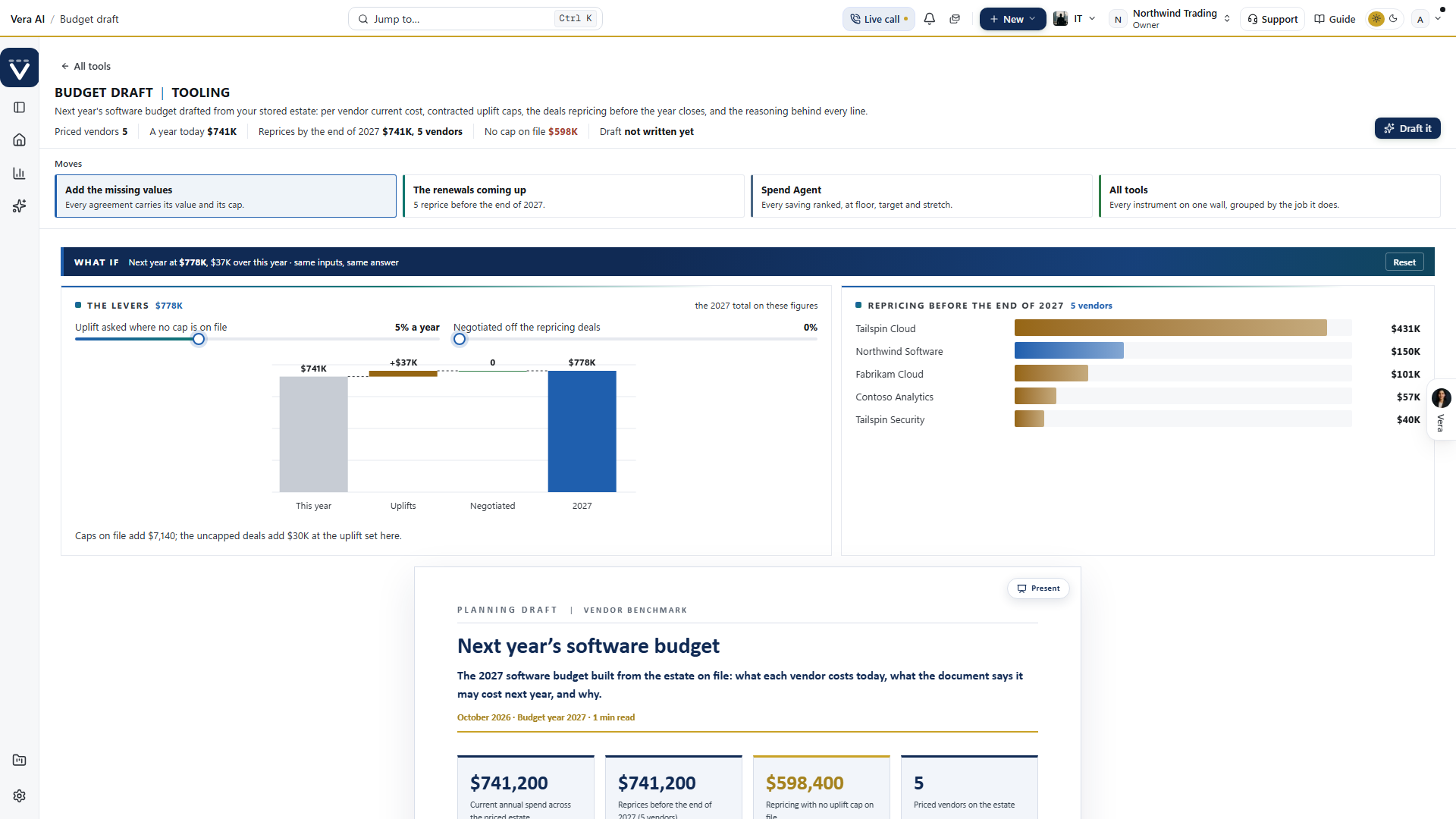
On the screen
- The head — the house masthead: Budget draft with Tooling after the hue rule, the line on what it drafts, the gold meta line with the budget year, and one row of facts read off your estate: the priced vendors, what they cost a year today, what reprices before the year closes, how much of that carries no cap on file, and whether the draft is current. Draft it (or Refresh the draft) is the one button. Across the foot of the head a row of Moves: add the missing values on Agreements, the renewals coming up, the Spend Agent and the whole wall.
- What if — two levers over the same stored figures: the uplift a vendor with no cap on file will ask for, and what the negotiations take off the deals repricing before the year closes. A written cap is applied as written. The waterfall runs from this year through the uplifts and the negotiated share to next year's total, and the repricing vendors are ranked by next year's figure, a capped deal in blue and an uncapped one in amber. The same inputs always give the same answer, and the levers stay where you left them in this browser.
- The draft — the planning document itself, below: the figures, the summary, the budget line by line with the reasoning beside each, and the unpriced vendors.
How to use it
- Open the tool; the deterministic scan renders your priced vendors and the unpriced list immediately.
- Press Draft it. The proposed numbers and reasoning arrive as one cached draft.
- Fix any unpriced vendor on its record (or apply a staged fix on Data health), then refresh the draft.
See also: Spend Agent · Data health
Contract Reader
One contract, read properly, in one window: the head that answers what it costs, the page itself under it, and a panel beside it that reads it. Since 3 October 2026 both of the reader's windows, Documents and the document, wear the frame their prototype was signed off in.
Since 9 October 2026, under the document's name, one line gives the three answers: what it costs, where it ranks and what the redline holds. The details column opens on the next thing to do, and The read starts with what each answer rests on. Documents opens with one line that counts your contracts, the ones read, the ones with a market read and the ones below the market, and its details column starts with the single next move, then your last document and questions to ask Vera.
- The title bar carries the menus (File, View, Team, Learn and Help, joined by Document and Reads once a document is open), then Share, Minimize, Maximize and Close; light or dark, Zoom and Full screen are in View.
- The column down the left starts with Jump to (Ctrl K), Home, Vera AI and your pinned apps. Under them sits the reader's own list: Documents (and, on the Documents list, Search every document), then the doors of the document you have open (or last had open).
- The status bar along the foot lists the keys, and on the right names the file, its pages and its size.
- Open the contract file sits among the head's tools on a contract of your own, and on the Document menu: the contract's file, with every benchmark, comment, action and document about it from every app (see The contract file).
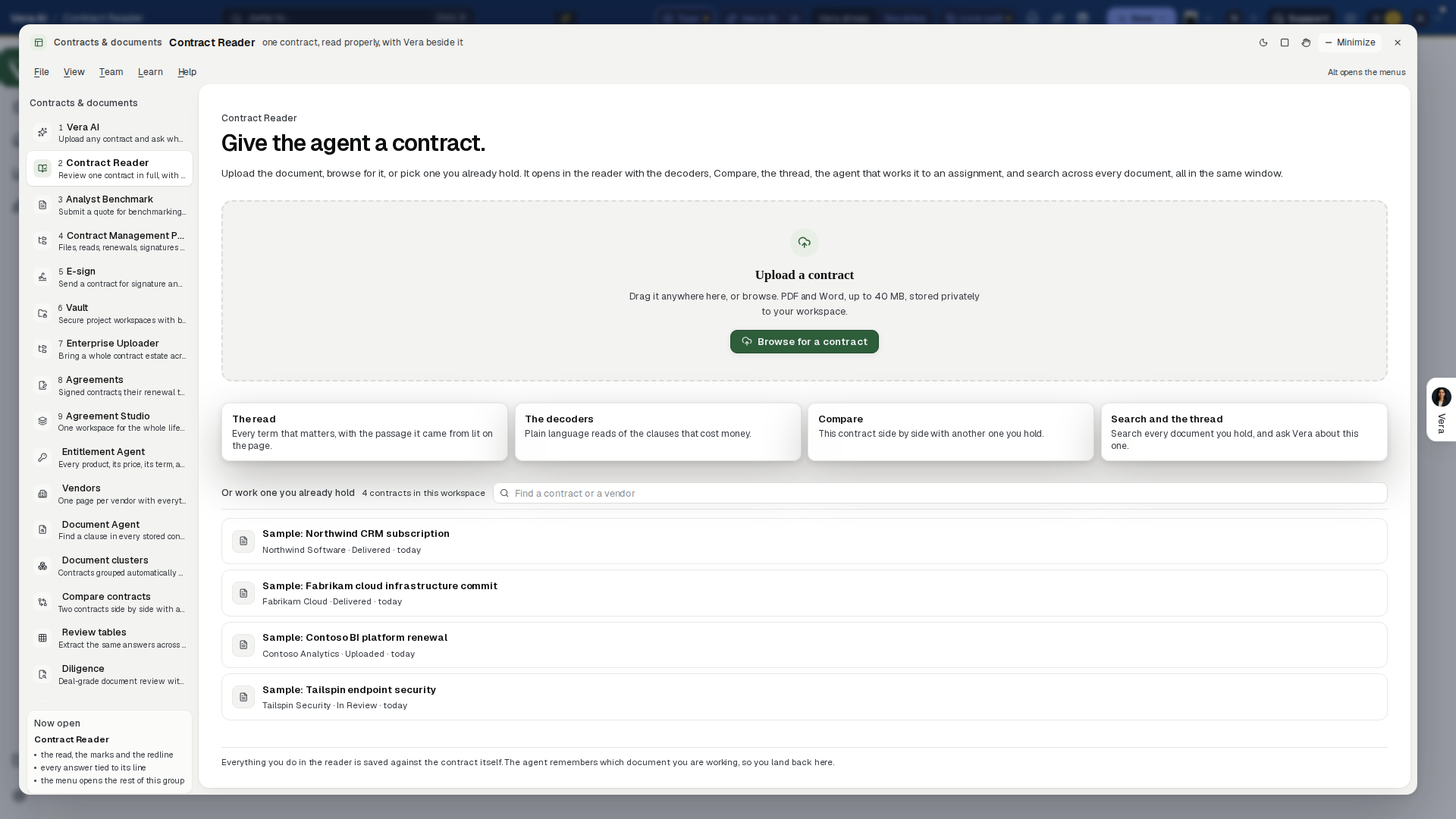
Documents. The window opens on the contracts you hold, up to 200 of them, under a head with one line that counts them: the contracts, how many are read and how many are not read yet, how many have a market read and how many sit below the market. The details column on the right starts with the single next move (redline the first contract below the market, read the first one not read yet, or pick up your last document), then your last document and questions to ask Vera. Upload a contract is the one primary action at its right.
- The drop lane across the top takes a PDF or Word file up to 200 MB, dropped on the window or picked with Browse or Upload a contract. The file is filed into your estate first, through the same checks as any upload, and then the reader opens on it.
- The list gives every contract one row: the document, the vendor, the kind, what it costs a year, when its term ends, where its read stands, how it sits against the market, its pages and when it was filed. Press a row, or Enter on it, to open it.
- The read column says Read, Reading or Not read yet, with the money to win a year when the market read found some. Against the market says Poor, Below market, At market, Good or Top of the market, from the document's newest market read.
- Right click a row (or Shift F10) to open it in the reader, open its redline, talk to Vera about it, go to its contract record, its renewal or its room (the comments), or copy a link.
- The find box over the list narrows it by document, vendor or kind.
- What next, under the list: Ask Vera what she would do, Book the analyst walkthrough and Every document you hold, which opens Contract Office.
Search every document, in the left column or the File menu, takes a clause, a vendor or a phrase across every document you hold. Each hit shows its document and the words that matched; press it and that document opens on the passage. Ask Vera answers the same question with the passages it rests on. Back to documents returns to the list.
The document. A document opens as a second window on top, with the same frame. Minimize puts it as a tab along the top of the screen while you work underneath. The left column names its doors, and the Reads menu lists the same ones:
- Reader, Redline (with how many changes are still to decide), Agent, Compare (with the comparisons you saved listed under it), Comments (with the count) and Search all documents.
- Under More reads: Market read, MSA read, SOW read, Ask Vera, Collaboration, Vera AI and Read and watch.
Every door wears the same head, the Reader included, closed by the gold rule:
- The title: the vendor's tile, the vendor and the document's name, and a tag with the verdict when a market read has run.
- The tools at the right of the title: share, download, print, more and the inspector (key p), then the one primary action of the door you are on: Review 5 changes (the number still to decide) in the Reader and on Comments (before the document is marked up, Mark it up in the Reader and Invite others to comment on Comments), Send the redline on Redline, Run the assignment on Agent, Copy the differences on Compare and Search on Search all documents. Right click the head for the document's menu.
- Where you are under the title: Documents (or Back to the app the document was opened from), the file and the door.
- The three answers, in one line under the title: what it costs, where it ranks against comparable buyers and what the redline holds. What each rests on opens The read in the inspector.
The three answers are the same wherever the document shows them:
- What it costs: the annual figure in the document's own currency, the total over the term, the priced line and the page it was read from.
- Against the market: the verdict and what comparable buyers hold on the term that decided it, or Run the market read when none has run.
- The redline: how many changes, how many approved, the money at stake a year from the market read, how many disregarded, to decide and of your own, and the comments. Before the document is marked up it offers Mark it up.
Reader. The page sits under the head, with one bar over it and the inspector beside it; a short scroll gives the page the whole pane. The document is shown page true, as it was signed, with the page thumbnails down its left.
- The bar carries the page number as a box you can type into, with the page count; zoom out and in with the percentage; Redline (untick it to read the original); Find in the document with its count (Enter for the next, Shift Enter for the previous); Add redline and Add comment.
- More, on the head, holds the redline as a file, the brief, save to a case file, the contract's record, a new tab, the ways to send the document to another app, the keyboard shortcuts and the opening.
- On the page, every change the read proposes is drawn: their words struck, dotted while the change is proposed and solid once approved, and gone when disregarded.
- In the margin, beside each change, a marker carries its rank, its weight (Costly, Caution, Minor or Yours), the language to put in its place, and Approve and Disregard (or Reopen once decided). Press any struck words or any marker and the Redline tab opens on that change.
- Comments: a passage with comments carries a comment marker with the count. Press it and Notes shows that passage's comments.
- The status bar lists the keys (j and k for pages, / to find, 1 to 9 for the reads, p for the inspector, Ctrl K to jump, ? for every key) and names the file, its pages and its size.
Marking it up yourself takes one move, three ways:
- Select any words and the passage offers Comment, Highlight, Redline and Copy as citation.
- Right click with nothing selected and the reader picks the words under the pointer and offers the same four.
- Press Add redline or Add comment on the bar: on words already selected the form opens at once; with nothing selected a line under the bar asks for the words (with Cancel), and the next words you select open the form.
A redline of your own is struck on the page at once, marked Yours, approved, and sits in the list beside the read's.
The inspector on the right opens with what to do now: the next change to decide with Open the change and Approve, Mark it up when nothing is proposed yet, or Export the redline once every change is decided. Under it are six tabs: The read, Redline, Notes, AI, Properties and Playbooks. Redline carries the number of changes still to decide, Notes the number of comments, Playbooks the number of terms off your contract policy. It opens on The read. Drag its left edge to make it wider or narrower, and press p to close or open it.
The read (since 9 October 2026 it opens on the three answers and what each rests on, then the figures). The figures lifted from this document, each with its page chip: the parties, the term, the renewal, the notice window, a year net, the total contract value, the uplift cap, termination for convenience, the liability cap, governing law, payment terms, the audit clause, divestment, acquisition and the price hold. A figure the read did not find says so.
- Press a figure or its chip and the page goes straight to its words and lights them. Where the document does not carry the line word for word, the nearest run of its words is lit, and where nothing can be marked the page it was read from opens and says so.
- Under the figures: the products priced from the document as a table (product, with what one unit costs a year; quantity; a year), each row opening the line it was priced from; the standing questions answered from it; and what is already in your favor (from the market read).
The Redline tab.
- Previous and Next, with where you are (Change 3 of 15), step through the changes in working order (costly, caution, minor) and scroll the page to each one.
- Every change sits in one list with the one in hand open in place: its weight, the clause, why it matters, their words struck, the language to put in its place as a field you edit, Approve (y) and Disregard (x). Deciding one moves you to the next still open.
- The keys: j and k step, e edits the language, a approves every change still open.
- Under the list: the tally (approved, disregarded, to decide, of your own), Approve all open, and your own lines with Remove.
- Send it to your team: pick teammates, add a line, and press Send the redline. It lands in their queue as a task and in their inbox, under your name.
- Re-read has Vera mark the document up again, and Save changes keeps your decisions. Before a document is marked up the tab offers Mark up this contract.
The Playbooks tab (since 2 October 2026). A playbook is a named set of rules you run on the open document. The tab opens on the list:
- Contract policy first: your organization's standing terms, the ones every agreement on file is read against (Contract policy).
- Your playbooks, each Shared (everyone in your organization reads and runs it) or Private (only the person who made it sees it), with its rule count and how this document stands on it (2 off policy, 3 to review, 3 met).
- Starters from VendorBenchmark: Software subscription, MSA, Data protection, NDA and Statement of work. Press one to see its rules, choose Shared or Private, and Add to your playbooks; from then on it is yours to edit. A starter is a starting point, not legal advice. Since 3 October 2026 a shared starter offers Run it on new vendor paper, ticked, under the button: added that way it runs by itself on every new document named the way that paper arrives (the MSA starter on master agreements and terms and conditions, Software subscription on order forms and renewal orders, NDA on non-disclosure and confidentiality agreements, Data protection on DPAs, Statement of work on SOWs and work orders), with no further step; see New documents below.
- Copy your policy makes a playbook out of your contract policy's terms.
- The chips over the list (All, Private, Shared, VendorBenchmark) and the search narrow it.
Writing a playbook.
- New playbook opens the editor: a name, what it is for, who sees it, and the rules.
- Each rule has a name, Must have, your standard, the language you ask for, the fallback you accept and the walk away line. Add a rule, Up, Down and Remove the rule arrange them (up to 40 rules, up to 40 playbooks).
- What you type is kept as a draft if you leave, and Continue your draft brings it back.
- Edit on an open playbook changes it. A rule you reword loses its old verdict; the others keep theirs.
Draft from this document (since 2 October 2026) has Vera write a playbook from the document you have open.
- Say what the document is. Our standard is your template, or a signed deal you want as the bar: each rule holds other paper to what this document says, in its own words. A vendor's paper makes each rule say what to hold out for on documents like it, including what it leaves out.
- Press Draft the playbook. Vera reads the document for about a minute and the draft opens in the editor with a name, what it is for and its rules, each with a standard, the language to ask for, a fallback and a walk away line, the costliest first. A note at the top says which document it came from.
- Read it, change or remove any rule, and press Save. Nothing is saved before that.
Checking the document. Press a playbook and it opens on this document.
- Check this document reads the document against every rule in about half a minute, while the rules are listed and the read moves down them. An order form is read together with the agreement it is governed by when the two are linked.
- The result is one line (2 off policy · 3 to review · 4 met, of 9 terms checked), a bar in the same three parts, and the rules in three groups, each of which folds.
- Off policy: a must have the document misses or falls short of.
- To review: short of your standard on a rule that is not a must have, or not clear from the text. When the rule sits in a document that is not on file, the row names it.
- Meets policy: at your standard or the fallback you accept.
Working a rule.
- Press a rule and it opens in place with your standard, the fallback, the walk away line, what the document says and its own words. The page scrolls to those words, and while the playbook is open they are marked on the page, brick for off policy and gold for a rule to review.
- Redline it strikes the words and puts your language in their place as a redline of your own; the row then reads In your redline and opens it. Redline all on a group does it for every rule there. Copy your language copies it.
- Mark reviewed ticks a verdict off, and each group says how many are reviewed. A document checked again asks for the review again.
- The filters over the rules are All, Redlines only and Unreviewed, with a search.
- Owners, members and analysts create, edit and run playbooks and mark verdicts; everyone reads them.
- The contract policy's verdicts are the same ones the Policy deviations screen and the nightly check carry. A named playbook is read when someone runs it, or by itself on new documents once it is switched to (see New documents below), and a document still in an Uploader run is checked once the run is live.
- The same playbooks are managed with no document open on the Contract policy window's Playbooks screen (screen 6): every playbook with how the contracts stand on it, the starters, New playbook, Draft from a contract, and each playbook's rules and Every contract.
Every contract (since 2 October 2026). An open playbook of your own has two views, switched under its name: This document and Every contract.
- Check every contract first says what the run would read, cost and take (214 contracts · about USD 3.10 · about 23 minutes), for Not checked yet (contracts with no verdict on some rule) or Every contract.
- Start runs it in the background, so you can close the window. Stop ends it with what it already read kept. One run at a time per playbook.
- A run reads the contracts the person who starts it can open, never a document still in an Uploader run, and counts toward the month's AI allowance.
- By contract: every contract checked, the furthest off policy first, with its counts (2 off policy, 1 to review, 5 met) and the day it was checked. The chips are All, Off policy, To review and Clean, with a search. Press a contract and it opens in the reader on this playbook.
- By rule: every rule with how many contracts miss it, meet it in part, are unclear on it or meet it. Press a rule for the contracts short of it, each with what its document says; press one to open it.
- You see only the contracts your own access opens, so a restricted contract never counts toward your figures. The contract policy has its own estate screen, Policy deviations.
New documents (since 2 October 2026). A playbook shared with the workspace can run by itself on every document filed from now on, which is how an NDA is redlined against your own NDA terms the moment it is uploaded. The panel sits under Every contract and says what the playbook does today.
- Run on every new document switches it on. In the box above it, type the words that pick which documents it runs on, separated by commas (for example
NDA, non-disclosure). A document is read when its title or its kind carries one of them as a whole word; an empty box means every new document. - The vendor's own wording first (since 3 October 2026): when a new document falls short of a rule, the redline asks for the wording that vendor already signed for the same rule in an earlier contract, where one meets it, and only then the playbook's own language. A position a vendor accepted before is the cheapest one to ask for again.
- Only the deviations reach legal (since 3 October 2026): a new document that falls short of the playbook gets one task, due in three days, for the person who switched the playbook on. It names each term that falls short or is missing, says where the vendor's earlier wording was used, and links to the document with its redlines. A document that meets the playbook files no task, and a document gets one task a playbook, never two.
- The redlines in Word (since 3 October 2026): the task also links the vendor's document with every redline the playbook placed written in as Word tracked changes, under your name, ready to send back. A document that arrived as a PDF is turned into Word from its text first. The file is built when the link is pressed, so a redline you edit or remove in the document is reflected the next time.
- Switched on, each new document is checked on the playbook as it is filed, usually within a minute or two of the upload. Where its words fall short of a rule, they are struck and your language is put in their place, as a redline under the name of whoever filed the document.
- Open the document and the redlines are on the page and in Redline; the verdicts are under Playbooks.
- A rule the document is silent on, or one that is unclear, gets no redline, because there are no words to strike. It shows under Playbooks as to review.
- Documents already on file are not read when you switch it on; Check every contract does those, and says the cost first.
- Each read counts toward the month's AI allowance. Nothing runs once the allowance is spent, or while a document is still in an Uploader run.
- Up to five playbooks in a workspace run this way. A private playbook does not: share it first.
- Save the words changes which documents it runs on, and Switch off stops it; what it already checked stays.
Notes, AI and Properties.
- Notes: the people on the document and those invited, Invite, every comment with who and when and the words it is on, and a box for a comment on the whole document, which goes to its thread.
- AI: the question and Ask side by side, the four suggested questions under them, and the answers, newest first, each with the passage it rests on. Under the answers sits the summary: a document with a market read shows that read's summary; one without is summarized by Vera the moment it opens, once a session, and its first section types itself in. Show all 4 sections (with the summary's own count) opens the rest.
- Properties: the file, its kind, pages, size and checksum, when it was uploaded, the read's version and confidence, the currency, the lane and the record.
Agent, Compare, Comments and Search open under the same head. A passage pressed in any of them opens the Reader on its words.
- Agent: say what you need out of the document in one line and press Run (or Run the assignment on the head), or press one of the four standing assignments under it: Prepare me for the renewal conversation, What are we exposed to if we sign this as it stands, Where is the money and what is it committed to, What to change before signing and in what order. The plan appears as numbered steps; each step files its finding with a Page 2, the passage chip that opens the page on its words. The close says what the document means for you, the moves in order and what it leaves open, with Copy the run, Mark the document up and Write the brief. New run sets a run aside, and runs already made on the document are offered under Earlier on this document with Continue.
- Compare: the terms side by side first, then every difference between this document and a second one (below).
- Comments: the people on the document with Invite others to comment, and how many comments from how many people; then the ledger, one comment a row with who and when, what they said, the change or passage it is on (press it for the page) and Reply, which answers on the same passage so the reply joins its thread in the margin; then Add a comment for the whole document. Under them, The redline and the thread: the changes asked for, the redline marks, what is left standing and the thread, with Reload and Copy the digest.
- Search all documents: the field and Search side by side, the count of documents that match and Ask Vera; each document that matches is a row with its matches as crops of the page, and pressing one opens the page on those words (in this document, or in the document it belongs to).
Compare (since 1 October 2026). Two contracts in, every difference found.
- Terms side by side (since 3 October 2026) opens the room: pick a second document from the list at its right and the same eight terms sit beside this document's (term, renewal, notice window, a year, uplift cap, liability cap, payment terms, governing law), bold where they differ, with one line on how many do. Both columns are the two documents' own reads, so the same pair always shows the same table. Copy the differences on the head copies the terms that differ. Picking a document here also puts it in seat B.
- The seats: the open document takes seat A. Seat B (or A, if you want another first document) takes a PDF or Word file you Upload, up to 200 MB and filed into your estate first through the same checks as any upload, or any contract already On file. The arrows between the seats swap them, and the cross clears B.
- Compare these two reads both documents' stored text block by block. The clauses are aligned, and every passage that was added, removed or rewritten is found.
- The figures: every figure that moved is read (money, percentages, dates, day and month counts, seat counts), and every figure both reads state (the annual value, the total, the term, the notice, the uplift cap, the liability cap, the payment terms) is set side by side.
- The weight: each change is weighed Costly, Caution or Minor. It takes the read's own weight where the change is one of its figures, otherwise the scan's, from whether a figure or a binding term moved.
- The scan plays in front of you: both documents' pages fill, lines draw between the clauses as they are aligned, the differences light up in turn, and the counters tick (pages read, blocks aligned, changes, figures moved, the money a year on the reads' figures). Skip appears after three seconds, and under reduced motion the result appears at once.
- A document with no stored text says so rather than comparing nothing.
The result opens with one sentence: what changed, in how many places, and the money and date deltas that matter most, on the reads' own figures. When neither read states an annual value, no delta is priced and the sentence says so. Then the three answers: What moved, What it costs you and What to do first. Under them:
- Side by side shows the two documents with every difference on the real page text. On A, a removed passage is struck through and a rewritten one is struck dotted; on B, the new words are marked; the reads' figures are marked on both.
- Marked up shows A with B's changes struck and inserted into it, the way a redline reads.
- The change list, on the right, gives each change a severity dot, its kind (added, removed, rewritten, or a figure the read had), the page and the figures that moved. Its filter is All, Money and dates, Terms or Wording.
- Press a change and both pages scroll to it and light it. j and k step to the next and previous change.
- What this means on any change asks Vera, through the reader's own Ask, for one plain sentence on what the change means for you. Ask Vera what it means over the sentence does the same for the whole comparison. When AI is off or unavailable, the summary stays the scan's own and says so.
Keeping a comparison.
- Save names the comparison and keeps it as its own record on both documents. It lists under Compare in the left column with its change count, and pressing it reopens exactly what was saved: on today's text when neither document has changed, or as the saved result with a note when one has.
- Remove takes it away.
- Download writes the summary as PDF or Word in the firm document look, or copies it as text.
- Right click a change, or the sentence, to save it to a renewal contract, a renewal or a Teams Room, filed as a note where the team already reads.
- A staged document (still in an Uploader run) can be compared but not saved until its run goes live.
Talk to Vera about it. Press the Vera tab at the right edge of the page or Ctrl J, or right click the document's head or a row on Documents and choose Talk to Vera about it.
- Her seat opens with the conversation already on that document: which document it is, what it costs, where the market read ranks it and how many changes wait for your decision.
- She listens and answers by voice, and a typed line joins the same conversation.
- Where the plan carries no voice seat, the same first line opens the written Ask.
Take it further, under every door, the Reader included:
- The redline: save the markup as a version, download the document with the redlines (or the PDF struck) written from the market read, open the tracked changes in the Reading Screen when an agreement record is linked, forward the document, or send it to your team.
- Share with colleagues.
- Save to a case file: its contract record, its renewal, or its room.
- The brief: the market read as PDF or Word.
The opening. The reader can read the open document in front of you for 25 seconds: the pages read line by line, the facts lifting, the changes found, each priced against the market.
- It counts the lines read, the facts lifted, the changes found, the money at stake a year and the terms in your favor as they land.
- It never starts by itself. Press Help, Play the opening again (or More, Play the opening again) to see it. Skip appears after five seconds.
It remembers the document. Every open is saved, in this browser at once and against your account behind that.
- File, Continue where you were, on the Documents window, carries the last five documents. Work another contract starts fresh after setting the current one aside.
- The sample contracts a new workspace starts with carry no stored file, so they open as their stored text on a sheet: find, marks, citations and the AI read all work; download and print need an uploaded file.
Contract Agent
In plain words: one window for the contract, the master agreement and the statement of work, where the document is the center of the window and the redline is the product.
When to reach for this
- Before signing anything: what does this document say, and what would a buyer change?
- Before a redline round: the changes drafted in paste ready language, struck on the page, ready to send back under your own name.
- When legal is a bottleneck: the MSA read is the legal review that decides whether counsel needs to look at all.
- When a consultancy sends the statement of work: the SOW read finds where the scope leaks and sets the rate card against the market.
Since 13 October 2026 the window is the simple cut: the start is one box with three ways in, a document opens on its AI advice (what the agent found, what is good, what is risky, how it stands against your company template), the panel leads with the change in hand as a decision card, the comparison opens on its own advice and takes the worse terms back in one press, Send is three doors, and Team keeps who is on the document, the comments and what happened. AI review walks you through the changes; Edit myself is the document like a Word document, with your own redlines and comments under your name.
Since 21 October 2026 a document opens on the flagship view: the left column folds to its icons while a document is open (Ctrl B opens it), one bar carries the document and its tools (since 27 October 2026 the left column is the one navigation and the bar keeps one switch, Edit myself), the pages run down the left as a map, the page takes the width the window leaves it, and every change sits in the margin level with its own words. ?classic=1 on the address keeps the earlier document view.
The window keeps one shape (since 3 October 2026):
- The title bar runs the full width of the window: the seven menus (File, Edit, View, Redline, Document, Team and Help) on the left, then Sample data (the sample estate of seven read documents in place of yours, saved nowhere; see Sample data), Share, light or dark, Zoom, Full screen, Minimize, Maximize and Close, the same bar every app wears.
- The left column is the navy column every app wears: the VendorBenchmark mark, Jump to (Ctrl K), Home, Vera AI and your Pinned apps, then This document (All documents, Changes, My template, Compare, Send and Team, each with its figure) or, on the start, the Contract Agent's own figures (your documents, open changes, worth a year, need you), then Recent documents and Related (My templates, Read and watch, How it works).
- Whole org or Only mine, under Jump to in the left column (since 27 October 2026): Whole org lists every document your organization has read, whoever ran it, and is what the window opens on; Only mine narrows Your documents and its count to the reads you ran. It is a view and never a permission, and your choice is remembered and carries to every app that offers it.
- The status bar at the foot lists the keys of the screen you are on, and on the right what the window is doing: a file uploading, a document being read, or the open document and when your work was last saved.
- My templates, Read and watch and How it works are on the View menu, and Settings on File (Ctrl comma).
The window opens on the start. A document that has been read opens on its Overview, then on Review with the change worth most in hand beside its clause.
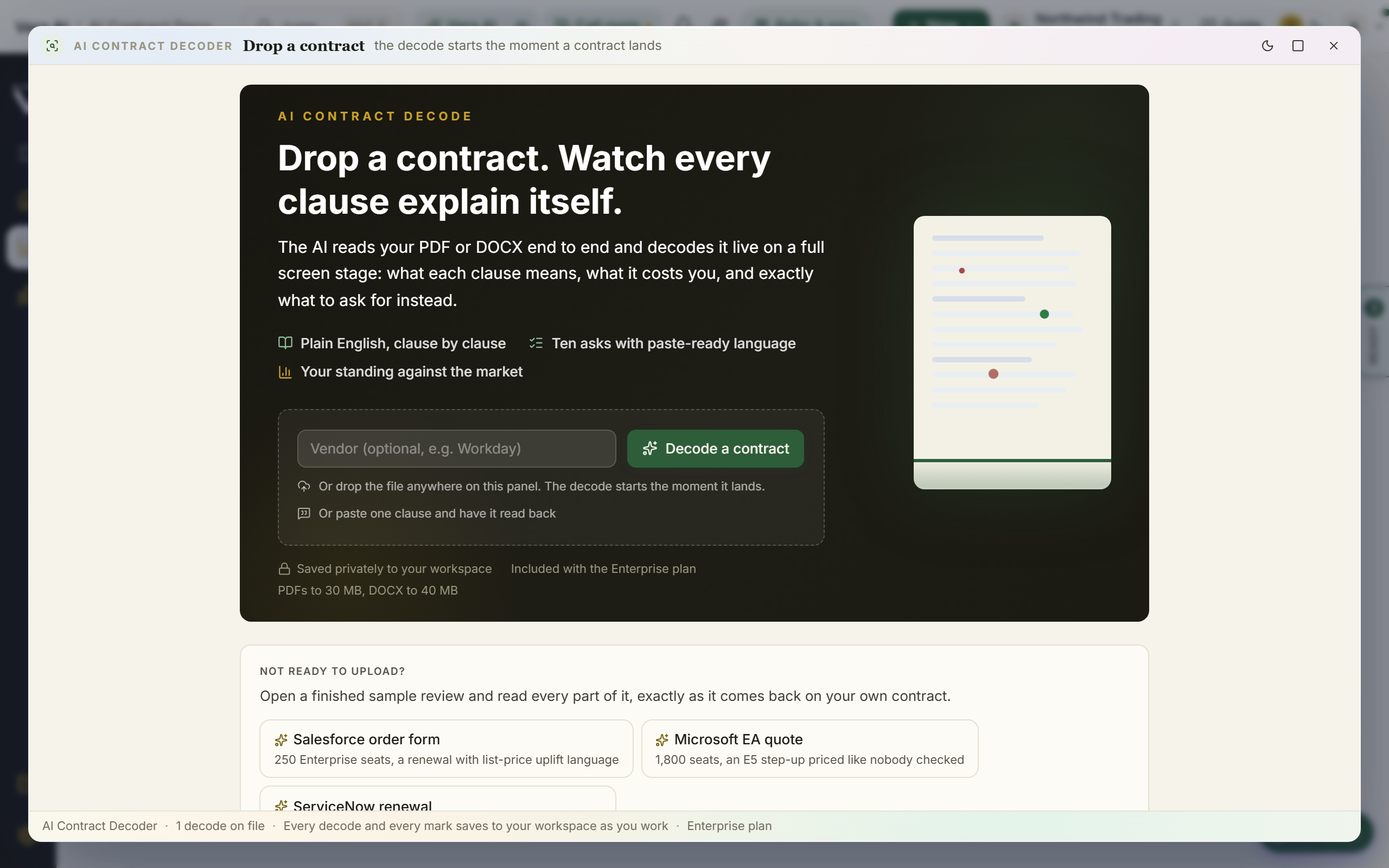
All documents (the start). With no document open, or after All documents, the window stands on the start.
- The head: Contract Agent, how many documents are on file, then a row of figures (since 27 October 2026, not a sentence): Open changes, Worth a year, Need you, Checked against a template (how many contracts your templates have read, of all on file; with no template yet it opens your templates), Off your standard (how many of them the templates found short; your templates run by themselves on every new document, so the figure is there before anyone opens a contract, and the left column carries it too) and Your templates, with Upload a contract (Ctrl O) at the right of the same row.
- The box: Upload a contract carries a sample contract until a file of yours lands on it (PDF or Word, up to 200 MB), so there is always a document to analyze. Press it to choose a file, or drag and drop one on it or anywhere on the window. The read starts the moment it lands, and the box says so. Beside it, three ways in: Check this document (every change the agent found, costliest first) and Check it against my template, each opening the document in the box on that view, and Compare two contracts, which opens the screen below.
- Compare two contracts (the third way in, or File, Compare two contracts): two slots side by side, The earlier one and The new one. Drag and drop a PDF or Word file on each (up to 50 MB), press Choose a file, or Pick from my documents for a document already on file; the document selected in the box goes into slot 2, and Swap turns the two around. Pairs on file lists the same vendor's two newest documents, older first, one press each, and the sample pair (two Salesforce order forms a year apart), which runs without spending a read. Documents to compare, under it, lists every document on file with a stored copy and the seven samples, each with Slot 1 and Slot 2; press a row and it goes into the first empty slot. Two sample documents compared this way are read on the server like files of your own. Under the two pages, once compared, the answer: one line (how many terms moved against you, how many are new or better, the money a year to take back) and every term as a chip marked Worse, Better or New; press one and both pages go to its words. Compare the two (Enter) reads both on the whole screen, every term landing as it is weighed, while the two documents open and index out of sight, then lands on them side by side as their pages, every changed passage already lit: the earlier one on the left, the new one on the right, each in the Contract Reader's own paper, with every passage the read found changed lit in red on both (the earlier wording left, the new wording right). Previous and Next walk the changes, a lit passage or a term pressed in the summary lands both pages on it at once (the page opens first, the words light as the paper reads them), Zoom sets 90, 100 or 115 percent, Scroll together keeps the two on the same page, and AI summary brings the summary under the pages into view (Pages on the summary goes back up to the documents). Both as Word writes each document as a Word file (the text as read from it, with its numbered headings) and hands both to the browser. A document on file opens through the Reader; a file from your computer opens from the browser; a Word file, or a comparison reopened after its file is gone, opens as its text on a sheet. AI summary of the differences on the strip opens the summary as a window over the pages (Esc or Close returns to them): the verdict, four figures (terms worse for you, clauses new, terms better, the money a year to take back), the bar, Every difference as one table across the summary (the term, what it was, what it is now with the ask under it, the reading for you and the money a year; the costliest term that moved against you first, then what is new, then what improved; press a row and the term opens as a card with It was and It is now, That means, Copy the ask and Show on the pages, which closes the window onto the two documents with that term's words lit), then What to do first (the asks copied one line a term; the new one opened in the Contract Agent to redline it, or read as a document when it was a file; the differences copied) and Watch out for side by side, and the four page report folded under them. Copy the differences and Email them sit on the summary. A comparison is kept with the new document when it is on file, and Compared before reopens any comparison kept in the workspace without a second read. Esc steps back to the slots, then to your documents.
- The views and the template live in the doors (since 27 October 2026): under Check this document, Review it for with Legal, Commercial and License compliance as switches, and the review opens on the views you leave on; under Check it against my template, Against picks the template a new document is checked against, or No template, beside Create my own template (or My templates once you have one).
- Your documents: every document the organization has read, as a table, what waits on you first and the costliest first inside that: the document, the vendor, the kind, how many changes the read found, how it stands Against my template (not checked yet, how many off standard or to review, or meets your standard; a sample reads Sample policy; the column head offers Pick a template until you have one, or how many are still to check), the money a year, its status (how many changes are to decide, then In the redline, With the vendor, Returned or Signed off), the day it was opened and By, who ran the read (You, or a colleague by name). A long document name or vendor is cut short with three dots so every column stays on screen; hold the pointer on it for the whole name. Press a row to select it: its name goes into the box at the top with a solid edge, the row carries a gold bar, and the three ways then act on it (press the row again, or Clear, to take it out). Open at the end of the row, a double press, or Enter opens the document at once. A filter box appears once there are more than six.
- Right click a row for its menu: open it, open the original file, export, redline the document, send it to a colleague, copy a link, benchmark it, open a negotiation on it, take a second opinion, find its clauses in every document, read it again or delete it.
- Samples: a fresh estate offers the seven samples of three kinds, which open without an upload and spend nothing: three contracts, two statements of work (one uncapped time and materials, one fixed price) and two master agreements (one SaaS license, one managed services). Under your own rows, Open a sample lists the samples of the kind you choose.
- Across your documents, under the table once anything is read: every finished read's changes folded by term, the terms still open in the most contracts and worth the most first, as a table (the term, how many contracts carry it and how many have dealt with it, the vendors, what it is worth a year, how bad the worst case is). Press a row and the contract where the term is worth most opens. The ranking is worked out from the reads already on file, so nothing is read twice. Review the N unread queues a read for every contract on file that has none yet, inside the day's allowance of reads on arrival, and the ranking fills in as each one lands. Since 27 October 2026 the review shows its progress: a strip under the heading says how many contracts are read, reading now and waiting, with a bar and the time left, updated every few seconds; each read appears in the documents table as it lands; and a message says when the review has finished. While it runs the button reads Reviewing 4 of 12. Pressing it opens a notice that a review is already in progress, with where it stands, and no second review starts; a contract that already has a read waiting is never queued twice. View on a read finished notification opens that read, even when the Contract Agent is already open; a read from another workspace says so.
- Template compliance across the estate (since 27 October 2026), under the table once you have a template: every rule of the template against the documents it has read (met, partly, missing, with a bar) beside every document against the rules (off, to review, meets it, when it was checked), the template picked at the top, and the workbook, the Word report and the email of both tables through the same cards as below.
- Reports and exports, under the table, on every document the agent has read: Board deck (PowerPoint, eight slides on the firm theme: the estate in figures, value a year by vendor, the ten changes worth most, decisions pending by document, the template, the next ninety days and what to do first), The documents in charts (value a year by vendor, terms ending by quarter, and where they stand against the market), then Excel workbook, Word report, Email the report and Shall I draft the email?.
The document. One bar runs across the top of the work, and nothing else sits over the page:
- The bar: Documents (back to the start), the vendor's mark, the title with the vendor, the kind of document and what it costs a year, then one switch, Edit myself (E), with your own marks counted; the views (Changes, Template, Compare, Send, Team) are the left column's rows, which open their panel from any mode. At the right: PDF or Word, the zoom (minus, the percentage, which goes back to fit the width, and plus), the page you are on, Overview (O), the people on the document (press them for Team) and Send. In Edit myself the bar also carries Redline (R) and Comment (C) for the words you select.
- The map: the pages down the left, each tile a picture of its page once that page has drawn (until then a faint page outline, never a blank tile), with a mark for every change on it and how many are still open; a page that carries money wears a brick edge, stronger the more it carries. Press a tile to go to the page; M hides the map. The strip down the page's own left edge (since 27 October 2026) carries a mark for every change at its page's height, in its view's colour, the one in hand ringed; press one and the page goes to it.
- The pages: the document at the width the window leaves it. Once the Overview closes the review lands on the change worth most, its card open and its clause ringed (since 27 October 2026; it opened on page 1 before). Every change still open is lit, the one in hand is ringed, an approved change is struck through and a skipped one goes back to plain text. Press a lit clause and its card opens in the margin; double click a clause for Edit myself.
- The margin (Review): every change as a card level with its own words, the costliest first in the order you work them. A card shows its view as a colored mark, the title and what it is worth a year. The change in hand opens into the decision, with a dotted line to its words: Change 3 of 9, its view, its page and its weight, one sentence that says why, The contract says and The agent suggests, then Approve (A), Skip (D) and Change the wording; Ask Vera, Ask a colleague and Show me on the page sit under them. The next change opens by itself. Cards whose words are off the screen fold into a count at the top or the foot (3 changes above, 2 open); press it to go there. Legal, Commercial and License at the top of the margin switch the views.
- The dock at the foot of the page: every change as a dot (navy once approved, grey once skipped, the one in hand ringed), Change 3 of 9 with what it is worth and its title, Previous (P) and Next (N) as labelled buttons, Skip and Approve. When every change is decided it says what is in your redline, with Overview and Send the redline. Select words on the page and it turns into Comment, Replace with your wording and Strike these words.
- Overview (O, or the button on the bar) opens by itself the first time a document opens, as one sheet over the page: the verdict, then Changes, Decided, On the table a year, Template and Worse than before on one row. Under it: Where the money is (one total bar first, approved filling in navy as each change is decided, open in gold, skipped in grey, then every priced change as a bar; on a document with no fees, Where the risk is), What to do first (the three to start with, each with Open, and three questions for Vera), Risk by page (a cell for each page and view shaded by the money on it, the figure in the cell, a key under the table), Key terms (with the dates and caps the read put a figure on, and the written analysis one press away), What is good, Against your template (the bar of met, to review and off, and the must have rules still off), Against last time (each term that moved, was and now; before a comparison, the vendor's other documents on file) and What if (the sliders start at the half of the asks a buyer typically wins, print the saving at that share, and the range from that to every ask won; the licenses against what is in use, and a line of your own). Press a row and the window goes to that change. Start the review (Enter), Check the template and Compare sit at the top; Esc or O closes it.
- Focus (F): the page and the dock, nothing else; F or Leave focus brings the rest back.
The other views. Review draws in the margin; My template, Compare, Send and Team draw in the panel on the right of the page, and the left column lists them too.
- Changes carries the number still open and opens on the change in hand as a card (since 27 October 2026 a card handed to a colleague carries their initials in gold and With their name under the line that says why, a colleague reading that page is named there too, the dock says with their name on the change in hand, the page map marks a page a colleague is on with their initials, and Mine beside the views keeps only the changes handed to you): Change 3 of 9, its page and its view, the title, one sentence that says why, what it is worth a year, then Approve (A), Skip (D) and Change the wording; the next change comes up by itself, and Show me on the page lights the clause. What it says, what to ask for, and why folds open under the card: It says, Ask for, Why, Ask a colleague about this clause and Talk it through with Vera. A decided change reads In your redline or Skipped and offers Reopen. A line of your own offers Change the wording and Remove.
- Under the card: On the table, Approved and Costs a year on one line with Approve all; Legal, Commercial and License compliance, each a switch with how many changes it holds (the page and the list follow the views you leave on); Every change, in page order and Your own, where a press goes to the change; and What if, the licenses, and a line of your own, folded: What if moves the years on this contract and the share of the asks you win, Licensed against in use reads the What you own's count where it holds one, and Write a line of your own, Copy every open change and Edit myself sit at the foot.
- Right click a change (on the card, in the list, or on its words on the page) for its menu. Beside accept, reject and the positions it carries Ask Vera about this clause (she answers in writing whether it is normal and what to ask for), Send to a human analyst (a sheet first: what is sent, the ask, whether the document is on file, that it costs 1 credit, when it is back and a note for the analyst; nothing is sent until Send, which opens Ask a human with the clause, your wording and your note in the brief, where you confirm it), Add as a rule to my template (the change becomes a must have rule of your template, with its wording) and Copy as a citation (the clause's words with the document and the page, for a note or an email). The same four are on the Redline menu.
- My template checks this document against one of your templates, or against the Contract policy: your organization’s standing terms, which start as the platform’s starter set (22 terms, from payment terms to data return) until you edit them in the clause library, which its Edit opens. Pick one, press Check this document, and each rule comes back with its verdict in the row (Falls short, Silent, Unclear, Meets it), grouped as off your standard, to review and meeting it, with a bar that shows the split. A rule whose term lives in a document this one points to that is not on file (an addendum’s governing agreement, say) is set apart in its own group named after that document, with Upload it and check again; the summary line counts them, and the rule card says so where there is nothing on the page. Press a rule and the page goes to its words, the whole quote or nowhere. Four rules decide what is checked before any read runs: a term reads only on the kinds of document that can carry it (the policy's legal terms on master and full agreements, its commercial terms on order forms and addenda too; the line under the verdicts says how many were left out for that reason), a term whose usual words are nowhere on the page or in the linked agreement is Silent at once with no quote, a quote is kept only when its words are in the document, and a verdict that names the agreement this document sits under links the two when that agreement is on file. Not for order forms, addenda and contracts (or master and full agreements) on a rule's card sets the term aside for that kind of document across the workspace: it is neither read nor listed on the next one, and Set aside at the foot of the view lists them with Bring back. Redline it strikes those words and puts your wording in their place, as a change of your own; Redline all does it for every rule off your standard. Disregard marks a rule reviewed with no redline. Edit, New template and Draft one from a contract open your templates. What your deals taught lists the wordings this workspace has accepted more than once, or taken from a vendor's counter even once, with how often and with whom; Make it the fallback puts the wording into the picked template as the matching rule's fallback, or as its wording where the rule had none, or as a new rule. A sample document opens on a check already run against the Sample policy; nothing on a sample is saved or sent.
- Compare sets this document against another: pick it (the vendor's other documents first, or Another file from my computer) and press Compare. The comparison runs on the whole window, then its AI advice opens by itself: a verdict that names what moved against you and what improved, four figures (terms worse for you, clauses new, terms better, the money a year to take back), the bar, What moved against you and What is new or better as rows (press one and the view goes to it), What to do first (Take back the worse terms, Redline the costliest one, Comment on a term for your team, Copy the differences) and Forward and share, with everyone on the document and Invite someone else. Take back the N worse terms, Forward the comparison, Comment on the page and Share with others sit at the foot. The view keeps the comparison: the verdict (Worse for you on 4 of 7 terms against last year's) with the money on the terms that moved, the bar and its legend (worse, new, better, same), Take back the worse terms (every one into your redline with the earlier wording in its place, in one press), AI advice and Copy the differences; the term you press as a card with It was and It is now side by side, That means and the money, with Redline it back, Show on the page and Comment on it; Every difference as a table (term, was, now, for you); Watch out for, Earlier comparisons and Open the full summary. The view's number is how many differences the latest comparison found.
- Send is three doors: Forward to the vendor (the redline under your name, with a message drafted from your changes), Word, tracked changes and Email a colleague (the verdict, the changes and a link that opens on this document). Above them, Before it goes out: the changes still open, the must have rules of your template still off your standard, the comments that stay with your team, and, when What you own counts what is running for this vendor, whether the order licenses fewer than are in use, each with the press that fixes it. Then Approval and signature (Who must approve, since 27 October 2026, lists the steps your organization's approval matrix routes this redline through by its value a year, each step named and marked waiting or approved, with the value against the organization's threshold; Send for approval raises a request on the approvals gate; Send for signature writes every approved change into a clean copy and opens the sign studio on it, and waits until every approval step is green when the matrix or the threshold asks for one) and Rounds (forward the redline and it becomes round 1, Share a reply link gives the vendor a guest link under which they read the redline and answer in the thread under their own name, with their replies counted on the Rounds panel once round 1 has left, or Freeze round 1; when the vendor's reply is in, every change reads accepted, countered or refused, with Take their wording and Hold ours for round 2, and Sign off closes the round). The clean copy, the brief, the change log and more folds open under the doors: The clean copy, The brief, The change log, Share this document, Copy every change, The written analysis, Decision memo (Word, one page for the approver: the verdict, the four figures, every change with your decision, the ask and a line to sign) and Round report (Word, once round 1 has left: what was asked, what came back, what is still open and what each is worth, with the next move on every countered term); the note to the vendor sits in the email window under it.
- The weekly digest (since 27 October 2026, off until you turn it on under Settings, Notifications, Contract Agent weekly digest): on Monday morning, one email with the contracts whose changes wait on a decision, the redlines waiting on the vendor and for how long, what was read and what was signed off this week, each a link into the window.
- Team is who is on this document (you, whoever is here now with their page, and the organization), the invitations with how each may work, Invite, Email a colleague and Copy a share link; Comments as one thread with the box to add one (a comment pinned to words on the page carries them; since 27 October 2026 Resolve on a thread folds it under Resolved with its count, Reopen brings it back, a comment from a guest link wears a gold edge and via the link, and a comment that names @Vera gets her answer in the thread from the clause it sits on); and What happened, newest first: every approve, redline, comment and send under its author. In the left column the Team row says N for you with a brick dot when changes handed to you are still open.
Vera inside the window. Vera on the bar opens her in a drawer over the panel: On screen now (the step, the change in hand and the document's facts, the same picture the window gives her), Five questions worth pressing on this document, and a box for your own. With Aloud off she answers in writing in the drawer; with Aloud on a question opens her seat and she answers out loud. Ask AI on the View menu (Ctrl I) opens the agent's own questions in the panel; Close gives the tab back.
Edit myself gives the document the whole width, like a Word document, with the redlines and your team's comments in its margin. The dock under the page says what to do (select words, then Redline or Comment) and counts your marks, with Back to the review (E). Select words, or right click them, for Add redline (R), Add comment (C), Replace and Strike; your marks go under your name and the agent's are left alone. The reading bar carries All markup, Final and Original, and Accept all; the Team view stays reachable from the left column. AI review on the bar, or E, comes back.
The keys. O opens the overview, F is focus and M hides the map of the pages. N, J or the right arrow goes to the next change, P, K or the left arrow to the one before, A approves, D or X skips, Ctrl B, or the button beside the VendorBenchmark mark, folds the left column to its icons and back: folded, every row is an icon with its short name beneath (Home, Vera AI, Changes, Template, Send, Team), with the full name on hover. W switches PDF and Word, E switches AI review and Edit myself, V is Talk to Vera, and Esc goes back to every document. On the start, Enter opens the first document. Each decision (approve, disregard, reopen, a new position) shows one notice with Undo over the document, above the change bar; the next decision replaces it, so a run of decisions never stacks notices over the change's buttons.
Read and watch, on the View menu, puts the library's shelf on the open document's vendor in the middle of the window.
- The first episode of the vendor's series leads with its poster, then a table each for the series, the films and briefings, and the papers and guides, with search and a filter.
- Select a row and it shows on the right with its chapters; double click to open it in the window. Press any step to go back to the document.
Keep working while it reads. Since 25 October 2026 the stage that shows a read in progress carries Keep working: press it and you are back at Your documents while the read runs on. The status bar keeps a chip, Reading and the vendor, that opens the document; when the read lands while you are elsewhere the chip turns to Read and opens it.
Read on arrival. Since 4 October 2026 a contract is read within a minute of being stored, before anyone opens it, whichever door it came in through: the upload wizard, an email forwarded to your contracts address, a connected folder or CLM, the API and the archive. The redline is waiting in Your documents, and the person who brought the document in (or the organization's owners, when nobody did) gets a notice that says who it is from, how many changes it found and what they are worth a year. A paper that was read before in your workspace is not read again: the same bytes get the same redline at once, and the notice says so. Samples are never read this way, a staged document from the Enterprise Uploader waits for its own read, a contract already read is not read twice, and an organization gets 40 reads on arrival a day; past that a document reads on the first press, as before. The written analysis is written the first time the document opens. Every read, on arrival or on a press, also writes what it found about time: the notice period and whether the paper renews by itself go onto the contract where they were empty, and onto the vendor's agreement in Renewals, whose notice deadline the reminders follow at 120, 90, 60 and 30 days; a figure someone typed stands.
The contracts inbox, and the round by email. Your workspace's contracts address (Settings, Integrations: contracts+<your token>@ the inbound domain) answers with the work done. Forward a vendor's draft to it and, once the read on arrival has landed, the reply carries what the agent found, the redline as a Word file with tracked changes ready to send on, and the door into the Contract Agent; a mail from an autoresponder files the document but gets no reply. The redline you send to a vendor from Send (Forward to the vendor) carries a reply address that names the document, so when the vendor answers with their marked up file it is read against every change you sent, by the same judge Import the vendor's reply uses: each change comes back accepted, countered or refused on the Send view, and you get a notice that says so and that the redline you send next is round 2. Decide on each counter (Take their wording or Hold ours for round 2), then Forward again. A reply with no file becomes a note to you with a little of what they wrote. A workspace with no contracts address keeps replies in the sender's own inbox, as before.
While it reads.
- While the agent reads, the right column shows the beats in order (received, the first pass, the deep read, on the pages), never a spinner, with a progress bar that moves, the minutes elapsed and the usual time left: the first changes inside a minute, the whole read in three to five.
- The read builds on screen (since 25 October 2026). On the left, Changes found fills as the first pass lands: each change with its page and its money a year, one at a time, with the count and the money at stake beside the title. On the right, The read: a ring and the four steps, each with the time it took (the first pass's time shows when you watched it land). The ring counts the steps done, 1 of 4, then 2 of 4; under it the usual time is said in words. When the read lands, a notice gives what it found, for example Contract read: Acme, 7 changes, $412K a year at stake, with Open.
- The middle of the window first shows the document as a stack of pages with a beam reading it line by line and the part being read named under it.
- The run stage takes the middle once the first pass lands: the document's pages as a strip with a beam reading across them, each change the first pass found lighting the page it sits on and landing in its tile along the foot (liability, price and uplift, renewal and term, exit, data and security, payment, everything else), the money at stake a year counting up beside the ring, and the activity on the right, newest first. The beam and the ring follow the same clock as the progress bar, so neither reaches the end before the read lands.
- Back to the documents opens every document on file while this one keeps reading, and it lands on the list by itself. All documents on the bar and Contracts on the left column do the same from anywhere.
- A read cut short by its time limit lands what it had found, says so, and offers Read it again. A read that did not finish offers Read the document again, or Upload the document again when no copy was stored.
- Once it lands, the window moves to Redline it with the change worth most selected. The beats, what was read and the verdict in one paragraph stay here, with Read it again on your own documents.
- Every answer, on its line, under the verdict, lists every change still in play, worth most first, with its page and what comparable buyers sign for the same term (or that the term was not benchmarked). Press one and the words that say it light up on the page in the middle, without leaving the step.
- The dates that bind you draws the document's clock from its own lengths: month 0 is signature, then the notice date that many days before the end of the term, then the term end or the renewal. A decode stores the lengths the document states, not calendar dates, so the clock says so, and a length the document does not state is left off rather than guessed.
Facts, Key terms.
- Three figures lead the step: what is on the table a year, the changes by weight, and the standing against the market.
- The document in facts, each value on the right: the vendor, what it is, the changes, the savings available, the standing against comparable buyers in words, and every term the read set against the market with the peer range under it. A term the read took off the document (the vendor, what it is, each benchmarked term) carries Edit: correct it and it reads Edited, with what the read said under it and Undo to put it back. The figures worked out from the rest (the changes, the money, the standing) are not edited.
- In one paragraph and The read, point by point give the read in prose.
- In plain words holds the six changes worth most as cards: the vendor's words on the front, press to turn the card to what they mean for you, the money a year and what peers sign.
- Clause by clause sets every change still in play as a card sized by the money a year it carries, with what peers sign under it; press a card to open it in the redline.
- Already in your favor lists every clause the read left alone on purpose and every term on your side of the market, or a plain sentence that nothing beats the market. What the document does not say follows.
- More on this document has three buttons, and Back to what it says returns from each.
The three buttons under More on this document:
- Against the market: every term with the change that moves it, the rate card as a ladder on a statement of work with a cap lever, the staffing mix, the must have check and the button to the vendor's research in the library.
- The team on this document: who is on it now, who is in the organization, who is invited, the thread, and Send to a colleague, Share this document and Copy a share link. Every comment on the thread carries Copy link: the link opens the document on that comment for anyone who can open the document.
- Versions and the trail: the round, what moved since the previous read of the same contract, and the trail.
Compare (V, Compare with another document on the Document menu, or Compare beside the tabs) sets the open document beside another one. It opens under the window's title bar, so the menus, Minimize, Maximize and Close stay within reach.
- Pick what to compare with from three cards: The last version (the newest other document from the same vendor, suggested when there is one), Another document (any document the organization has read with a stored copy) or A file (a PDF or Word file up to 10 MB, dropped anywhere on the view or chosen, read for this comparison and not kept).
- Under the cards the bar names both documents and Compare starts the read, about a minute. Beside it sit the open document's facts and Compared before, every comparison kept with this document, which opens again without a second read.
- While it runs, both documents are drawn as pages under a reading beam, the four stages and a progress bar run down the middle, and each term lands as it is weighed (worse for you, new in this one, better, neither way), lighting a line on both pages, with the tally and the money a year counting up.
- The result opens as a benchmark report, four pages of white paper in the firm document dress, with the page numbers, Print or save as PDF and Redline the worse terms on the bar above it.
- Redline the worse terms writes each worse term whose words can be found on the page onto Review as one of your own changes, with the other document's position as the replacement (new language is struck with nothing in its place), up to the 20 of your own a document carries.
- Print or save as PDF prints the summary alone. Esc closes the summary, then Compare. A sample has no stored copy, so Compare is on your own documents.
The four pages of the comparison:
- Page 1: the masthead naming the two documents; two verdict panels side by side, what the other document gives you and this one, with the verdict line; The terms that carry the money, a bar for each priced term a year in USD (a figure printed in another currency is converted at today's rate); and In short, the read's summary and the points that matter, each opening on a bold lead.
- Page 2, What it costs a year: every priced and money term with both positions, what it means for you and the money a year, the total a year and over three years, then Better in this one and Not priced, still costly.
- Page 3, Every term, scored: the count of worse, better, new and neither way terms, then every term grouped (money; renewal, notice and term; data, service and support; liability and legal) with its score.
- Page 4, What to ask for: every term against you, the costliest first, with what it says now, the ask (the other document's position back, or new language struck), its value a year and how to frame it; then How hard to push, Also worth knowing and the closing line.
Facts, Analysis. The full analysis of the document, written by the agent from the whole document with a web search of the vendor's current published terms, in the shape of a negotiation brief.
- What it covers: what this document does (with a table of every commercial mechanism and its assessment), the drafting defects to resolve first, the seven to ten commercial terms to change (each with its section and the precise ask), the ten clauses to look at ranked by consequence, what is genuinely negotiable, what you will have to trade for and what the vendor will not move on, and how to run the negotiation, with the sources consulted at the foot.
- When it is written: by itself once a read lands, in about three minutes, with a progress bar on this step that says how long. Where the read has used the time its own run had, the analysis is queued and starts in a run of its own, which the step says; it still lands here by itself. A document read earlier shows Write the full analysis instead.
- Until then, the analysis composed from the read opens at once: what is in this contract, what is good, what is risky, the money and where it comes from, what to think about, and the bottom line.
- The vendor's current terms: before it writes, a reader opens the vendor's own current pages (what they charge and how they package it now, their stated uplift and renewal policy, the definitions that decide what you owe, their audit practice and their fiscal year end), and what it read goes in front of the writer, so the analysis argues against the vendor's terms as they stand today.
- The sources at the foot are those pages, and only those: each one on the vendor's own site, in its main version rather than a regional or translated one, and dated inside the last three years. Where the reader could not run, or nothing it found met that test, the analysis says the current published terms were not checked and cites nothing.
- On the step itself: the three figures, Key takeaways, the sections as a list (press one to open the analysis), Talk to Vera and Ask Vera, and Forward the analysis, Share a link and Save as Word.
Read it (Ctrl Shift A) opens the analysis as a document under the window's title bar, so the menus, Minimize, Maximize and Close stay within reach. Four figures run across the top before any prose: what is at stake a year across the changes on the list, how the document reads against comparable ones, its headline term against the middle of the market, and the largest single change. Then body copy at reading size, the points as lists, and every figure grounded in the stored read. On the bar above it:
- Back to the document closes the analysis, and All documents closes it and goes back to the list.
- Ask AI puts the agent beside the page, reading the analysis on your screen and the contract behind it, with the passage each answer rests on. Talk to Vera and Ask Vera sit beside it.
- Edit turns every paragraph into a text box in place. What you type saves with the read and travels with the shared link, the forward and Vera's reading; Restore the original brings the composed words back.
- Full screen puts the whole window on the whole screen with the analysis at a larger size.
- Share a link makes a read only link that opens the analysis itself, without a seat, for thirty days. Copy a link is for a colleague with a seat.
- Open as PDF: the analysis is printed once as it lands and kept beside the read, so what you forward is the document rather than whatever your browser produced. It opens in the same reader the research library uses, with the pages as designed, a contents list read from the document's own headings, thumbnails, zoom, find and Save, and it says plainly when the analysis on screen has moved since the file was printed.
- Word opens the other files on the document, and Forward sends the analysis to a colleague by email under your name.
Talk to Vera (on the analysis and in the Ask AI conversation) puts Vera on the line with the document, the written analysis and what is on your screen in hand: the step you are on, the change you have selected, the report she can quote from.
- Ask her what the analysis says to do first, or what the selected clause means, and she reads it back.
- A microphone is never required; type in the dock and she still answers out loud.
- Ask Vera opens the written conversation on the same screen.
- Talk about this document on the View menu (Ctrl Shift T) is the older way in: the vendor's own negotiator, or Vera where none fits, with the document alone.
Facts, Against you. Every adverse term the read found, however many there are, ranked by what it costs a year.
- The findings: each has a word for its weight (Argue, Worth it, Note), the clause it rests on quoted, what it means, and the money. Press one and the page opens on the clause; rest on one and its explanation opens beside it.
- Every quote is checked against the document's own text and placed on the page where the words sit. One the read could not find in the document says quote unverified beside it, so you read the clause before you argue it.
- The three questions, above the findings: what this document commits you to (the money a year in the terms that work against you), what comparable buyers sign for the terms furthest from the market, and where the document ranks on the five words from Poor to Top of the market, on the terms as written and where it lands if the approved changes do.
- What each clause costs, under the findings, draws the money a year of each as a bar.
- The rate card, on a statement of work, follows as a ladder with its cap lever, the staffing mix and the time and materials terms. When your MSA rate card is on file for the vendor, it shows each line against the rate you already negotiated, the money over the engagement and Cap at your contracted rates.
- Your terms, on every kind of document, is the check against your organization's sheet, run by itself the moment the read lands (a document read before keeps Run the check): each term met, partly, missing or unclear with its evidence, and Add as a change for the ones missing.
- What if sets a slider on every term the read benchmarked in days, months, years or a percent (the liability cap, the uplift, the notice). Move one and the money still at risk on it moves, with Set every term to the market and Back to the document as written to jump between the two, the total moved off the table, and a chart that walks from the document as written through each term to what is left at risk. The same terms always price the same, and where you left the sliders is kept when you close the window.
- The market position, with a finding selected, says what comparable documents carry, with Ask AI about this clause and Redline it.
Review. A document that has already been read opens here, with the change worth most selected and its clause in view, so the first thing on screen is the struck words that matter. The facts, the analysis and the findings stay one press away in the list of steps.
- The head of the step states the matter: the document's title, the parties, and the facts (what it is, the savings available and how much is approved, the changes and where they stand, the standing against the market, when it was read).
- One change at a time: the selected change, with the words struck, the wording written under them, and Why the agent wrote it with what it is worth a year. Under it the rest wait in a queue ranked by what they are worth, each with its rank, page, state and money. J and K walk them in that order, and your own lines sit in the same queue, marked You.
- Approve (A) puts the change in the redline; press again to reopen it. Approve all takes every open suggestion after a confirmation.
- Edit the wording (E) opens the replacement in a box, and what you save is what the document then carries.
- Ask a colleague lists the people in your organization and hands the change to the one you press, with the thread on that change and a composer under it.
- Disregard (R) takes it out, with Undo on the notice.
- I agree, on an approved change, puts your name to it for the team. A change with an owner shows Waiting on them until they agree it.
- Your own lines: drag over words on the page and press Redline, or press Write a line of your own (W). They are listed with the agent's, with Edit the wording and Remove. Copy every open change puts the open changes on your clipboard, numbered, with their language.
- Pick up the pen: one press on a word strikes it at once, with no dragging. The pen takes the word and enough of the words after it for every export to find them again, the strike draws across them on the page, and what replaces them is written in the margin, or they stay struck. Pen up puts it down.
- Every change lists the whole redline as one table: each change with the words struck and the words asked for, what it is worth a year, and who agreed it, with Undo to take a change out of the redline (your own strike comes off the page) or Strike it to put a suggestion in.
- Where it stands, under the list, says what is approved, disregarded, your own and worth a year.
- Edit mode puts the document on the whole window with the redline beside it. When a colleague has the same document open, their name sits at the top of the page they are reading.
Send. The tab opens on The position you send: the money on the table and in the redline, the changes in, how many the team has agreed, the rank now and if it lands, where the round stands, and the three changes worth most, with a seal that stamps in when the document is sent and again at sign off.
- Forward the document emails the redlined document under your name with a message drafted from your changes. Save the document downloads it.
- Before it goes checks the redline and says what is clear and what is not, each with the one move that clears it: changes in the document, struck changes the team has not agreed (Ask the team), suggestions not yet decided, struck quotes the read could not find on the page, strikes of yours with nothing in their place, and what stays with you.
- The pack lists each file, marked Safe to send or Yours only (below).
- The cover note shows the note the forward sheet will send, as it reads now, your own draft if you wrote one. Edit and send opens the sheet, and nothing sends until you press Send there.
- What the vendor gets counts the changes in the document, the ones disregarded and the comments kept back.
- The round: our redline, sent, returned, signed off, with Import the vendor's return and Sign off.
The pack on Send:
- The document with the redlines (safe to send): a Word file with the approved changes as tracked changes, each under the name of the person who made it. It is the Word original when you uploaded a .docx, and for a PDF a Word file rebuilt from the PDF's text, with the PDF's wording but not its layout; or, for a PDF, the original pages with the changes struck and the language beside each page.
- The clean copy (safe to send): the same Word file with the approved changes in and nothing marked, for a counterparty that wants the final text rather than the negotiation. It is built from the same changes as the redline so the two never disagree; the vendor's own tracked changes in a Word original, if any, stay as they are.
- The AI analysis, The brief as Word or PDF, and The change log as a CSV (yours only).
- A colleague: the read as an email with a link that lasts thirty days. Share this document puts someone on the document.
Ask AI (on the bar, Ctrl I) opens the agent on the right.
- The questions worth pressing are read off this document: what the selected clause means, which single change to hold out for, what is good in the document, what the vendor will push back on.
- The conversation stays with the document, and a box at the foot takes a question in your own words.
- Your own document is answered as a whole from its stored read, with the passage each answer rests on and a plain line when the document is silent. A sample is answered from the clause you have selected.
- Ask Vera about this screen and Talk to Vera sit at the head of the conversation.
The document in the middle. The pages carry every suggested change struck through, with its balloon in the margin, the way Word draws a redline. Terms already in your favor, your own changes and your notes are marked on the page too.
- Press a balloon and that change is selected: on Review its card opens in the redline, where its reason is written.
- Drag over words and a toolbar floats over them: Redline (D) strikes them at once, AI line has the AI write the line for those words, Comment leaves a note for your team, Copy takes the words.
- Convert to Word shows the document as a Word page with every change as a tracked change: the words it replaces struck and its language underlined in the color of whoever made it, and a balloon beside the page naming them, with Accept and Reject on each suggestion. For a PDF the Word page is rebuilt from its text, so the wording is the PDF's and the layout is Word's. Back to the PDF returns to the original pages.
- On the Word page, select words and the same toolbar offers Redline, Comment and Copy, so a strike made in Word lands on the PDF and in every export. A change whose words the Word text does not hold is counted under the balloons and stays in the list and on the PDF. Download the Word file over the page opens the redlined document.
Edit mode (the switch on the bar, Edit mode on Review, or Ctrl Shift F) is the document on the whole window, with the redline and the comments beside it as two faces.
- Redline is the Review tab's own work, so you approve a change, edit its wording, disregard it or put a colleague on it with the clause in front of you. Edit mode opens on it.
- Comments shows the thread on the selected change, the thread on the document and the notes anchored to words on the page.
- Press a face again to put the redline and comments away and read the pages on the whole window. Pressing a suggestion on the page opens the Redline face on that change, and the page keeps the clause in view.
- Edit mode's bar also carries the round, the kind the document was read as, PDF and Word, the markup (Redline, Simple markup or Document only), Suggestions, AI redlines, Talk about it, Back to AI mode, and Minimize and Close.
- Esc, or AI mode on its bar, comes back to the tabs.
Right click opens the menu of what is under the pointer.
- Words you selected on the page: Redline the selection (D), Comment on the selection and Copy the selected words. With nothing selected, the browser's own menu stays.
- A change (a finding on Against you, a row or the card on Review): Accept, Reject and Reopen; the same for every suggestion on its page; the three positions (Argue at the open ask, Fall back, Hold the walk away); Edit the language, Copy the language, Comment and Hand to a colleague; Open the clause on the page; then Find this clause in every document, Keep this language in the library and The research on this vendor.
- The space around the page: Upload a document, Read one clause, Share this view and Reset the layout.
Share this document (Team menu, Invite on the bar, The team on this document on Key terms, or the pack on Send) is one box for everyone.
- To: type a colleague's name and pick them from the suggestions, or type anyone's email. An address in your workspace joins as a member; any other address becomes a guest and is marked as one.
- What they can do: Can redline (strike, replace, accept and reject, and comment), Can comment or Can view.
- Where it opens: the whole document, or one change, in which case the invitation also lands in that change's thread.
- How long a guest's link lasts: 7 to 90 days, shown only when a guest is in the list. Add a note, then press Invite.
- For a member the role only narrows what their workspace role allows, never widens it, and it holds on every change they try. Change a role or press Remove in the list below; Remove gives them their workspace role back.
- A guest gets a personal link to this one document, with no account, where they select words to Strike, Replace or Comment. They see the document, the changes and the comments, never the analysis, the money, the positions or the team's agreements. Remove ends a guest's link at once, and inviting them again sends a new link.
- Every change anyone makes carries their name, on the page and in the Word file.
The menus print across the title bar, and F10 opens the same seven as one list: File, Edit, View, Redline, Document, Team and Help.
- Every verb is there: the markups, the positions on a change, the vendor's round, the drafts, the second read, the must have check, the share links, the trail, the keys.
- Ctrl K goes anywhere; ? lists every key; the digits go to the start (1) and to Changes (6) and Send (7); Ctrl B shows or hides the names on the left column; F11 maximizes the window.
- With the written analysis or Compare open, the title bar and its menus stay above them, in AI review and in Edit myself.
Settings (Ctrl ,) open in the middle.
- Display: density, text size, wider step work, the theme and the layout.
- Redline: the markup the document opens in, the suggestions on the page, the organization's redline author.
- Keyboard: the keys, and the single letter verbs.
- Contract policy: your organization's standard terms. Choose from the platform's list or write your own, say which kinds of document each term is read on, and every document you read is checked against them when the read lands; the head of Redline it states how many are met.
- Policy language, and buttons to the platform's notifications, sharing, retention and members pages.
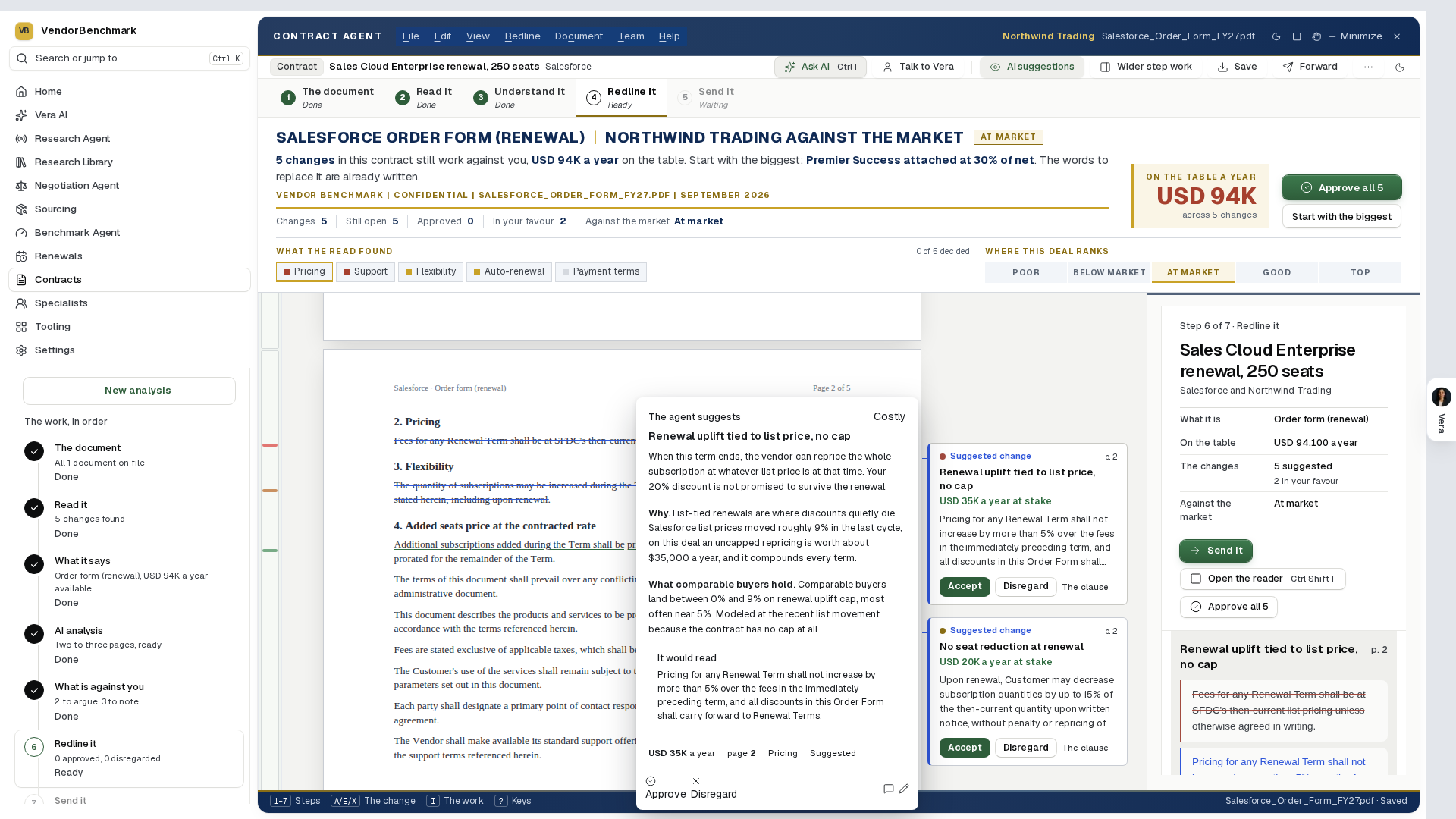
Shall I draft the email? (since 2 October 2026): on Send, under the pack, for your own documents. It is written from what the document is, where the review stands and the changes you are asking for. Press a reader and the email opens beside what you were looking at; see Send it on.
How to use it
- Open a sample first, or upload a document on the window. It opens in the middle as the agent reads it, and the list of steps on the left moves from Read it to Redline it when the read lands, with the change worth most already selected on the page. A document that was read earlier opens straight on its redlines.
- Open Facts: Key terms and Analysis for the facts, the verdict and the analysis, then Against you for what is against you, ranked by what it costs.
- On Review press Approve on the redlines you want (then I agree puts your name to one for the team; a change with an owner shows Waiting on them until they agree it), Edit the wording where you would say it differently, Ask a colleague on the ones that are theirs, and Disregard the rest. Press Open the reader to do all of it with the document on the whole window.
- On Send press Forward the document to email the redlined document under your name, or Save the document to download it; the analysis, the brief and the change log are yours only.
- When the vendor's version comes back, Import the vendor's return on Send: every change says agreed, countered or declined; take their wording or hold our line on each counter on Review; then Sign off.
Related: Vera Deal-Room · Rate Card Benchmark · Contract policy
Second opinion
Upload a software contract and Vera returns a benchmarked second opinion in minutes. Where Contract Agent reads every clause, Second opinion answers the first question: where does this deal sit against the market, what is it worth to fix, and what do I say. Use it when a renewal quote or a fresh contract lands and you need the market read before you engage.
In plain words: is this deal fine, what is it worth to fix, and what do I say.
When to reach for this
- The agreed deal is drafted and one hour of checking is still cheap (the pre-signature recipe).
- A stakeholder wants independent reassurance before they countersign.
- You suspect a deal is fine and want that confirmed in writing rather than assumed.
Second opinion opens in its own window from every entry point, the same window as the three decoders: a menu click, the launcher, a typed address, and a link someone sent you all land in the dark titlebar frame with Jump to and Ask Vera, floating over the page you were on. Close the window and you are back where you were, with nothing lost.
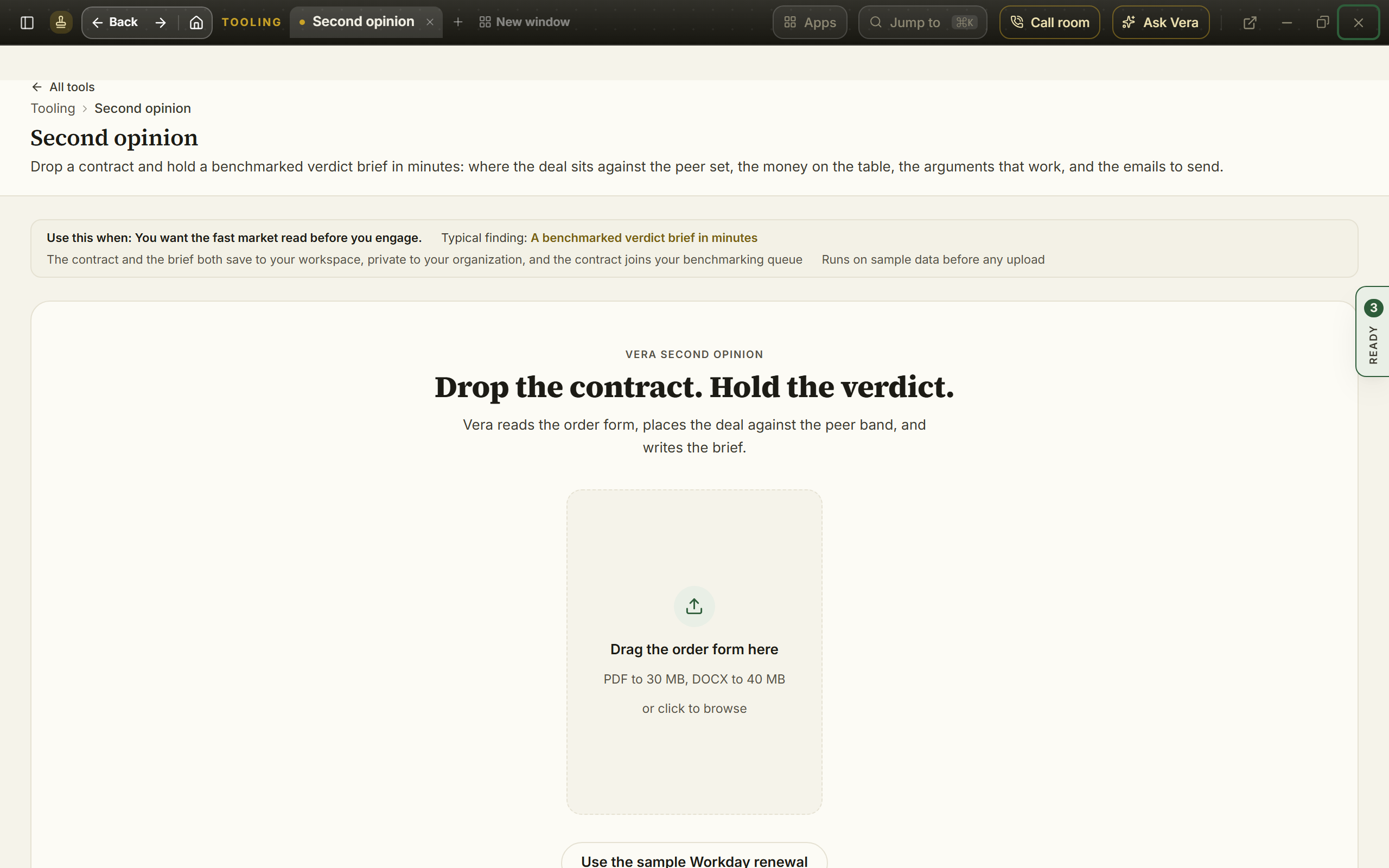
On the screen
- The drop zone: drop the contract as PDF or DOCX, or browse for it. The document is read for the terms that price the deal. When you handed a tool a document in the last few hours, a button stands beside the drop zone: Continue with that document, one press, no new upload, because the workspace already holds it, and any older documents from the same few hours wait in one quiet line under it. The Negotiation Workflow passes its working deal's document the same way.
- Under the upload: while no finished opinion is open, How a second opinion runs in four steps, then Contracts in your workspace: your latest contracts with their status and annual value, and the renewals coming up with the days out, the notice date and the annual value, in US dollars. Under them, Vendors on file lists your largest vendors by the annual value their contracts state: the contracts on file, each vendor's share of that stated spend and its next renewal date. Each row opens its record.
- The reading: since 19 October 2026 the read plays on a white stage in colour and shows only what the run has reported: two phases (reading the document, then writing the verdict brief and placing the deal once the first pass lands), a page being read with the vendor, product, term and units lifting off it as the first pass states them, the first pass's own lines landing on the board in the order it stated them (a warning line in gold), and the vendor, term, uplift and payment terms in the four cards at the right as they are found, so you see what the brief will be built on before it is written. The ring is time against what a read usually takes (about three minutes) and the clock runs beside it; past the usual time it says so and keeps running. Press Skip to the brief and the same percentage and clock follow you onto the page, so a run you leave and come back to still says where it is.
- The masthead: a finished opinion opens in the platform's studio light, filling the window. The verdict is the headline in display type, with the one line under it and the deal's meta (vendor, product, event, file, date). Under it, four figures in color state what every benchmark on the platform leads with: the discount this document offers as a percentage off list, what comparable customers get at the same size as a range with its midpoint, the savings available over the term, and where the deal ranks in one of five words (Poor, Below market, At market, Good, Top of the market), each with one line of reading under the figure. The masthead also carries the opinion's actions (replay the reveal, email a copy, download the PDF, start another opinion, delete) and the numbered tabs that run the whole opinion. The number keys 1 to 6 switch tabs, and each tab keeps its own link, so a forwarded URL lands on the exact tab you were reading.
- Verdict (tab 1): the executive read on one screen: the summary, the bottom line, the deal ledger (population, net ACV, discount, uplift, payment, flex), and where you sit in the band drawn as a meter, with the peer figures under it. When the vendor is covered by the discount curve library, the tab leads with the curve itself: the documented peer range by deal size drawn as a band, your offer placed on it as the gold dot, the ask as the diamond, and the distance between them priced in money over the term. Three levers move the drawing, all from the curve document: the curve line (for example the line with competitive alternatives quoted), the deal size band, and the ask, bounded to the documented range. The levers keep their position when you close the window and come back, and Reset to the reading returns to the midpoint. Vendors outside the curve library keep the tab exactly as before.
- The brief (tab 2): the four page document in the executive brief format: the same three figures across the masthead, your placement against the peer set on a scatter, the savings available priced, the arguments, the talking points, and the three priced paths. Under the peer figures the brief reads the position back to you in its own words: what the placement means for this contract, what the gap is and is not evidence of, and what it changes about how you negotiate. Alongside it sit the deal snapshot, every negotiable dimension with what the vendor proposed against the position the evidence supports, the market evidence naming where the band came from, and the sequencing that says which lever opens and which one closes. Where the vendor document prints no list price, and most enterprise cloud quotes do not, the brief benchmarks against the vendor's latest known list rate instead of stopping: the discount is stated as the working baseline with its source named, a working baseline callout says why the figure is credible and how to verify it against the vendor's own document, a sensitivity table prices what changes if the real rate differs, and having the vendor confirm the current list rate in writing becomes one of the asks. The same document lands on the same baseline every time, for everyone. The discount is always taken on the whole deal, total list against total net over the term, never line by line and never per unit. When no peer cohort in the reference data sits close enough to this contract to price the gap, the brief says so plainly and still gives you a read: where the document sits judged from its own terms, the uplift, the commitment shape and the flex rights it carries, marked as an analyst's read rather than a placement against our data, and the one input that would turn it into one. The docked verdict rides with the document, and Download PDF prints this document.
- Arguments (tab 3): the arguments and the talking points on one tab; every talking point carries a Draft this email that lands on that draft, open. A talking point whose draft did not come through is still shown, without the button, rather than disappearing from the list.
- Draft emails (tab 4): the five ready drafts: read the full body in place, then copy the draft or open it in your own mail app. Nothing sends from the platform.
- Negotiation (tab 5): the brief for the table. The three priced paths stand as the high level strategy ladder with the note on how to choose, followed by the tactical plays written from your own verdict figures (cap the uplift before price, ask for the band you are in, take the flex band, park the signature against the vendor's fiscal year end), how to open the conversation, and a budget posture line. Beside them sits our analysts' curated view of the vendor at the table, covering the eight major publishers: fiscal year end and quarter closes, the best signing window, what the vendor's sellers are paid to attach right now, the main competitors worth naming with one line on when each is credible, and the table notes a buyer should know before the first call. Vendors without a curated view keep the strategy and plays, with a pointer into the Negotiation Agent for live intel.
- Next moves (tab 6): the saved contract note, the line pointing to Open the workroom beside the tabs, and the handoffs.
- The opinion workroom: Open the workroom, on the masthead from any tab, puts the brief in the window the agents wear, with the five drafts, the copy moves, and the handoffs in the inspector beside the document (it opens on What now), Ask Vera grounded on the whole verdict, and your past opinions, document search, and shelf in the tree on the left.
- The handoffs: take the same contract deeper in one click: Contract Agent for the clause by clause read, the Vera Deal-Room for the full negotiation package, or Proposal comparison when a revision comes back.
- Email a copy: send the brief to yourself or a colleague; enter the address and the brief arrives as an executive brief email.
- The sample: a sample Workday renewal shows the full application immediately, no upload and no AI allowance used, so you can judge the output before you bring your own document. Trial plans use the sample to see exactly what the tool produces; upgrade to a paid plan to run a second opinion on your own contract.
- Saved to your workspace: a note on Next moves says where the contract went: it was filed under Contracts, private to your organization, and joined your benchmarking queue. The note links to the contract record and carries a delete that removes the stored document on the spot. Owners can turn document saving off under Data controls.
- Open in the editor (since 2 October 2026): on each of the five draft emails. It opens that email over the whole screen beside the result, where you type on it or tell Vera what to change, with versions and Show edits; see Send it on. Copy draft and Open in email app stay as they were. It is not offered on the sample.
How to use it
- Upload the contract, or press Use the sample Workday renewal first.
- Watch the reading extract the terms, then land on the Verdict tab: the summary, the bottom line, and your standing on one screen.
- Walk the tabs with the number keys: the full document on 2, the arguments on 3, the drafts on 4, the negotiation brief on 5.
- Open the draft that fits, copy it into your own inbox, or email a copy of the brief to a colleague.
- When the fast read earns a deeper one, follow Next moves into Contract Agent or the Vera Deal-Room.
Related: Contract Agent · Vera Deal-Room
Benchmark Agent
Since 3 October 2026 the Benchmark Agent is part of the Benchmark Library: upload a quote or a contract on Your deal, and every benchmark report it writes is listed in Your work. Its address opens Your work; a link to one of its reports still opens that report.
The agent that reads an uploaded quote or contract and comes back with the benchmark. It opens as a window with two views, switched at the right of the title bar:
- Advanced, the view it opens in: every screen of the agent. The sheets are numbered tabs, a tree on the left indexes this report, your estate and the ledger, and an inspector on the right carries the facts, what moving the deal is worth, the moves, the levers and the seat.
- Simple: three ways in and one page per benchmark, over the same reports and the same figures. It is described under The Simple view at the end of this section.
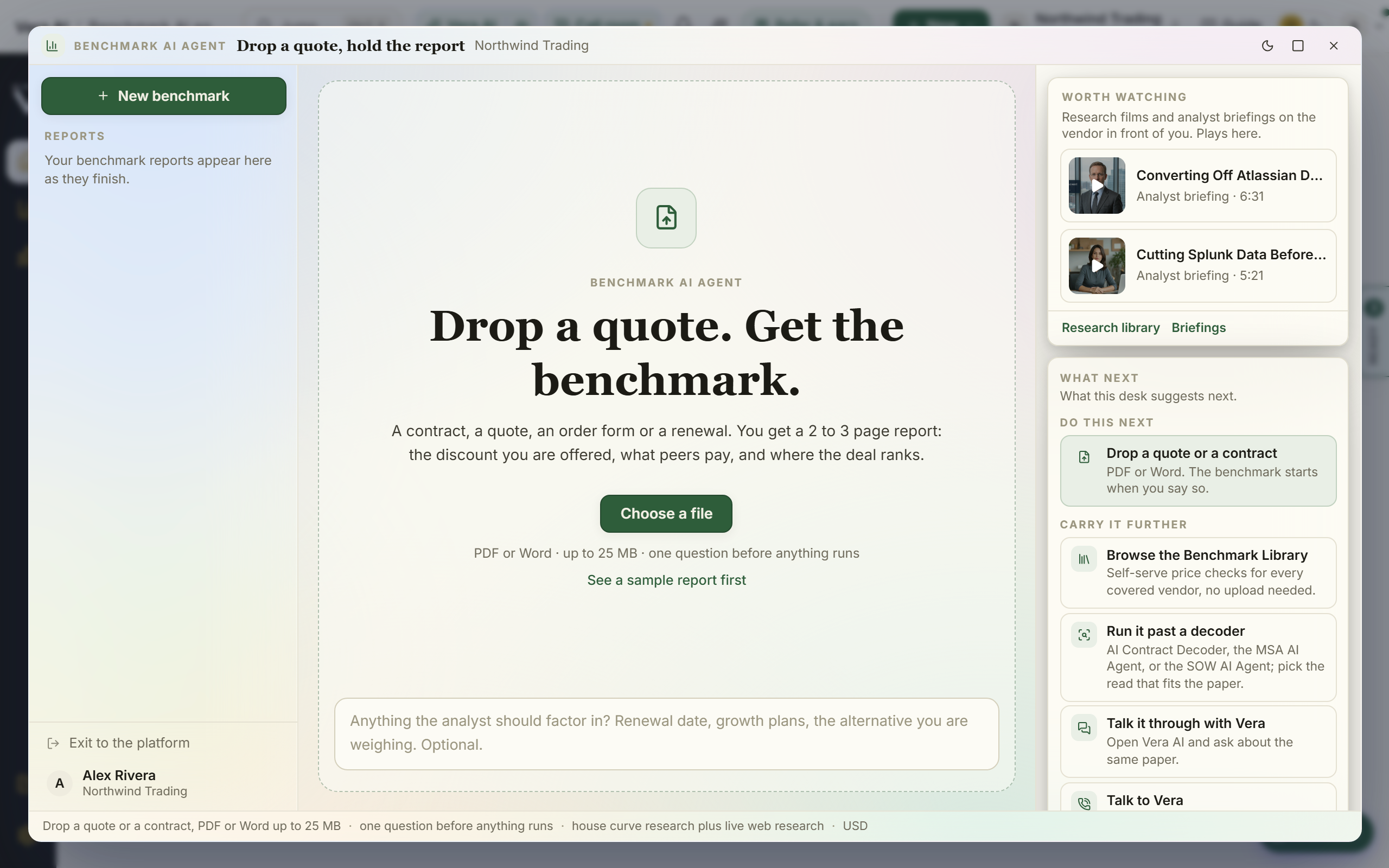
The boardroom. Since 28 September 2026, the The boardroom tab beside The ledger (or B) plays the report in hand as a slideshow, right in the tab.
- The slides: the deal and its rank, the offer, where comparable buyers land, the rank ladder, the money over the term, where to open, settle and walk, the asks in order, your leverage and the bottom line.
- The controls: previous, Play (seven seconds a slide) and next, or the arrows and Space. Present opens the same show over the whole window, where
fis full screen and Escape closes it. - Share the show opens a dialog: who can watch it (your workspace, named people who sign in with that address, or anyone with the link), how long the link works (a day, or 7, 14, 30 or 90 days), and the links already made, each with how often it was opened and an End it press.
- The link opens straight into the slideshow, view only, frozen as it stood when you made it, and every open lands on your audit log.
- With no report open, the tab offers Open the ledger or Upload a quote.
Estate benchmark. Since 29 September 2026, the Estate benchmark tab beside The boardroom (or G) benchmarks every contract in the workspace in one run.
- What it opens on: a run still going, else the last report, else the contracts in scope, each with how it will be placed.
- A contract that states list prices is set against the VendorBenchmark discount curve for the same product at the same size, or the library's peer band for the vendor where no curve matches.
- A contract that states no list is set rate against rate, its price per user a year against the Software Price Index at that size, and no list is ever derived. A contract with neither is listed as needing a rate card, with what to ask the vendor for.
- Run the estate benchmark plays the run on its own stage: each contract's list, net and discount (or its rate against the peer midpoint) roll into the registers, it drops onto the ranking board in its rank zone, the ranks fill by spend and the money to the midpoint counts up. The run keeps going if you close the window.
- The report reads as a firm document: your discount, the peer midpoint, the supported target and the opportunity over the terms across the top, then where every contract ranks, discount against the curve, discount by deal size, rate against rate, where the money is, when it can be taken, contract by contract, sensitivity, next steps for each contract, and the basis.
- Beside the report: Board deck, PowerPoint (ten slides ending on the decisions for the board), Excel workbook (six sheets with the formulas behind every figure), Print or save as PDF, and Share a read only link (14 or 30 days, every open counted, no sign in needed to read it).
- The sample: a workspace that holds only the sample portfolio runs a labeled sample estate instead, so the whole report shows before your own contracts are in. See a sample report opens that report in place without a run.
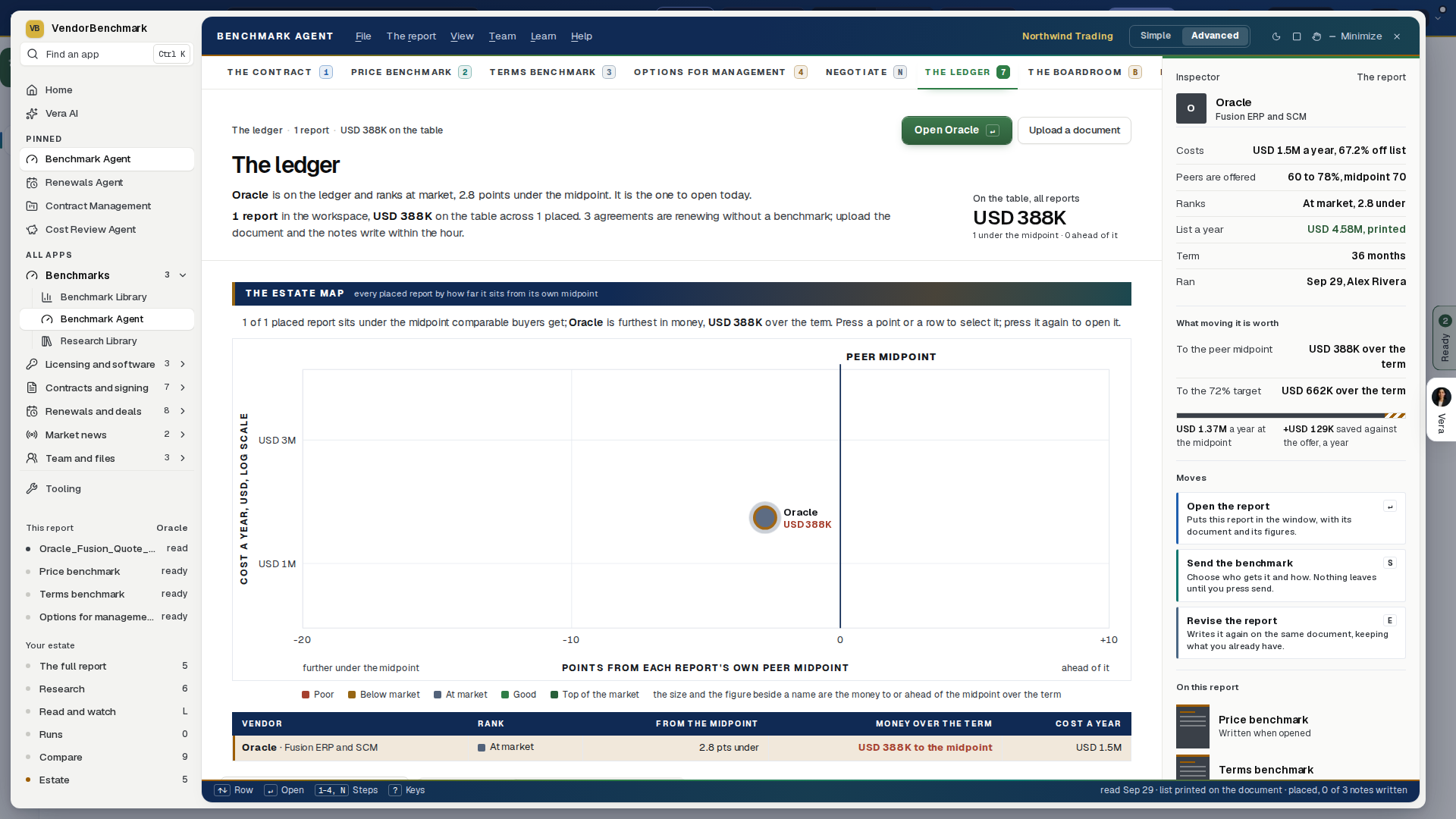
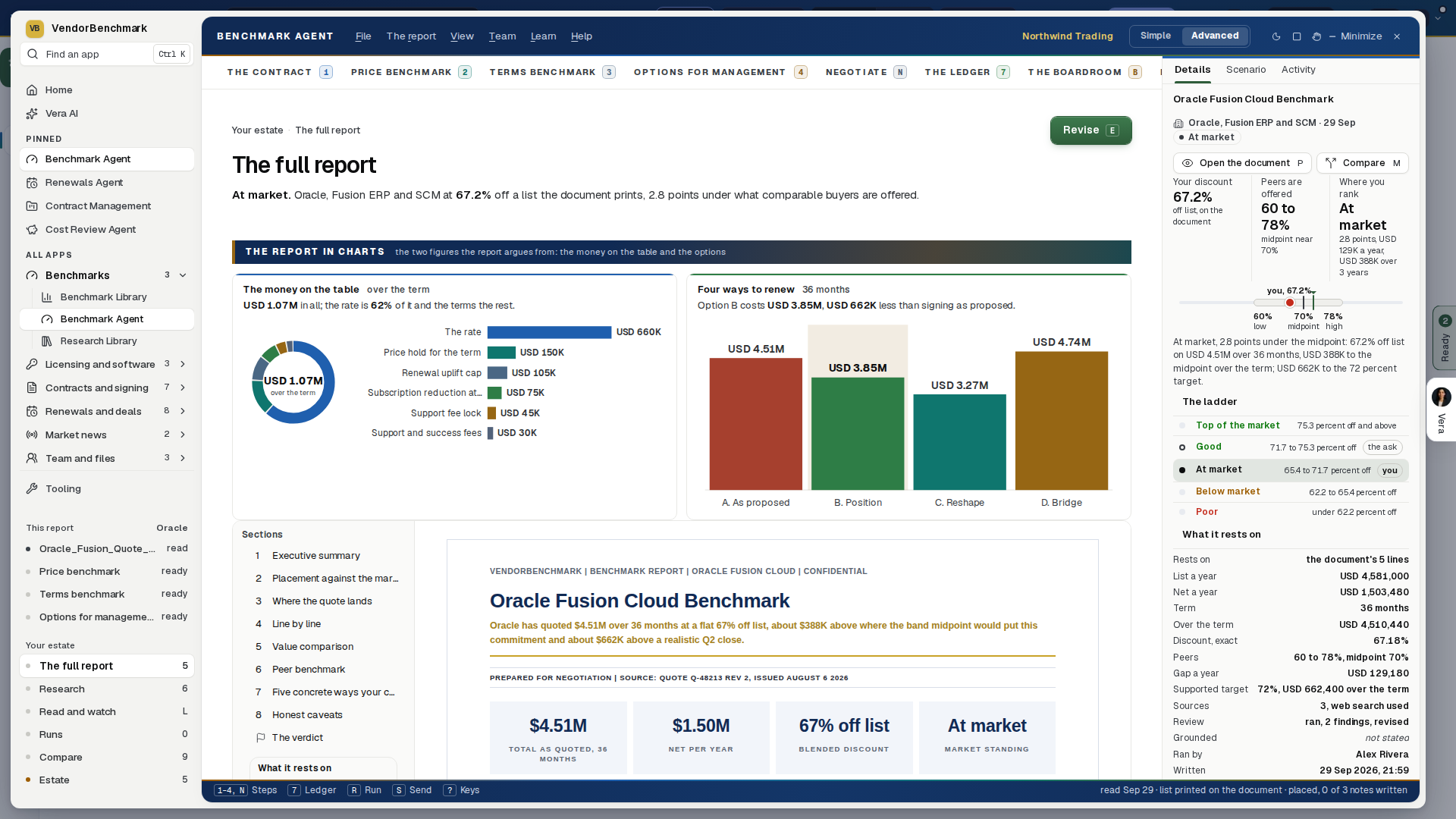
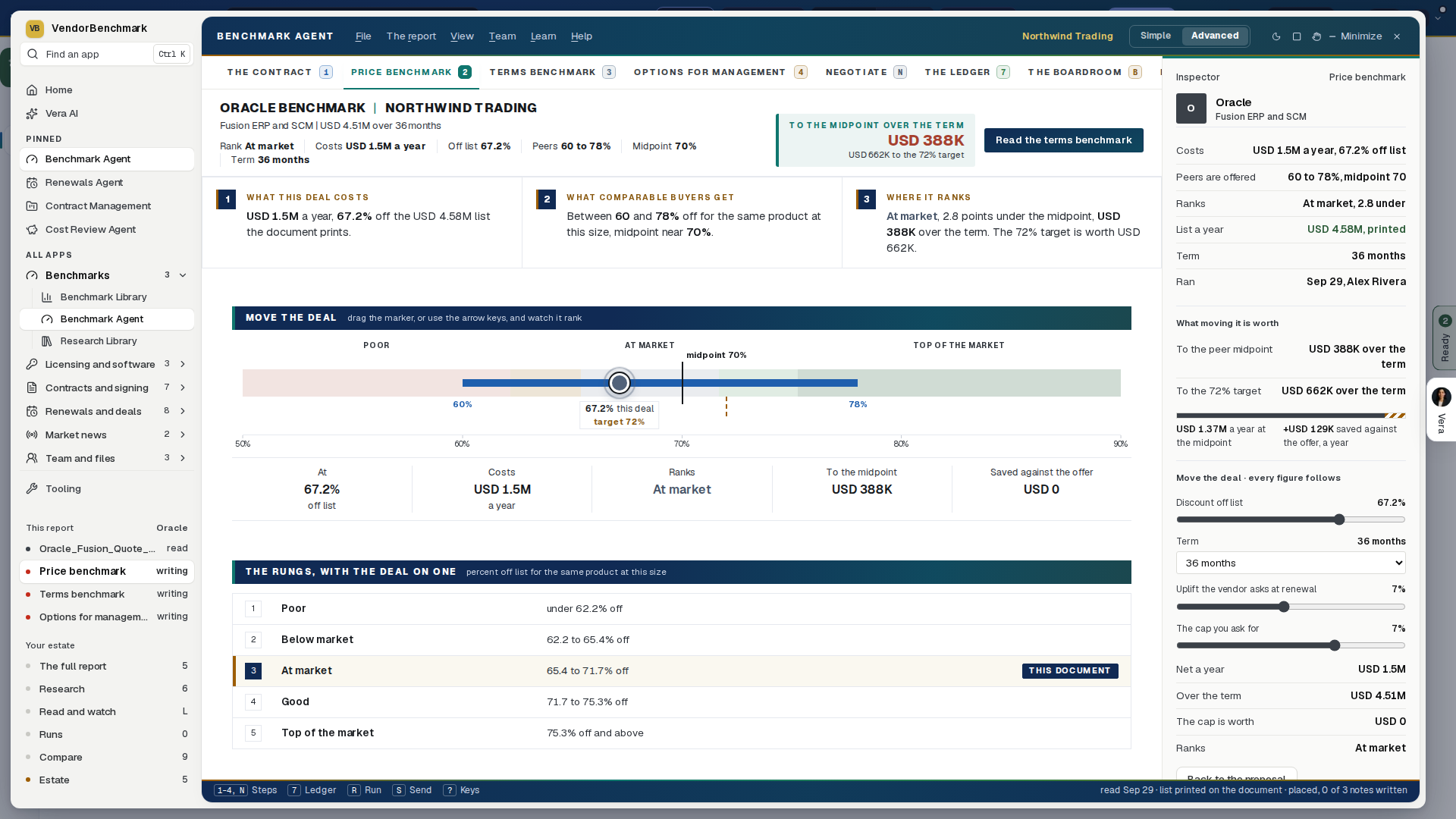
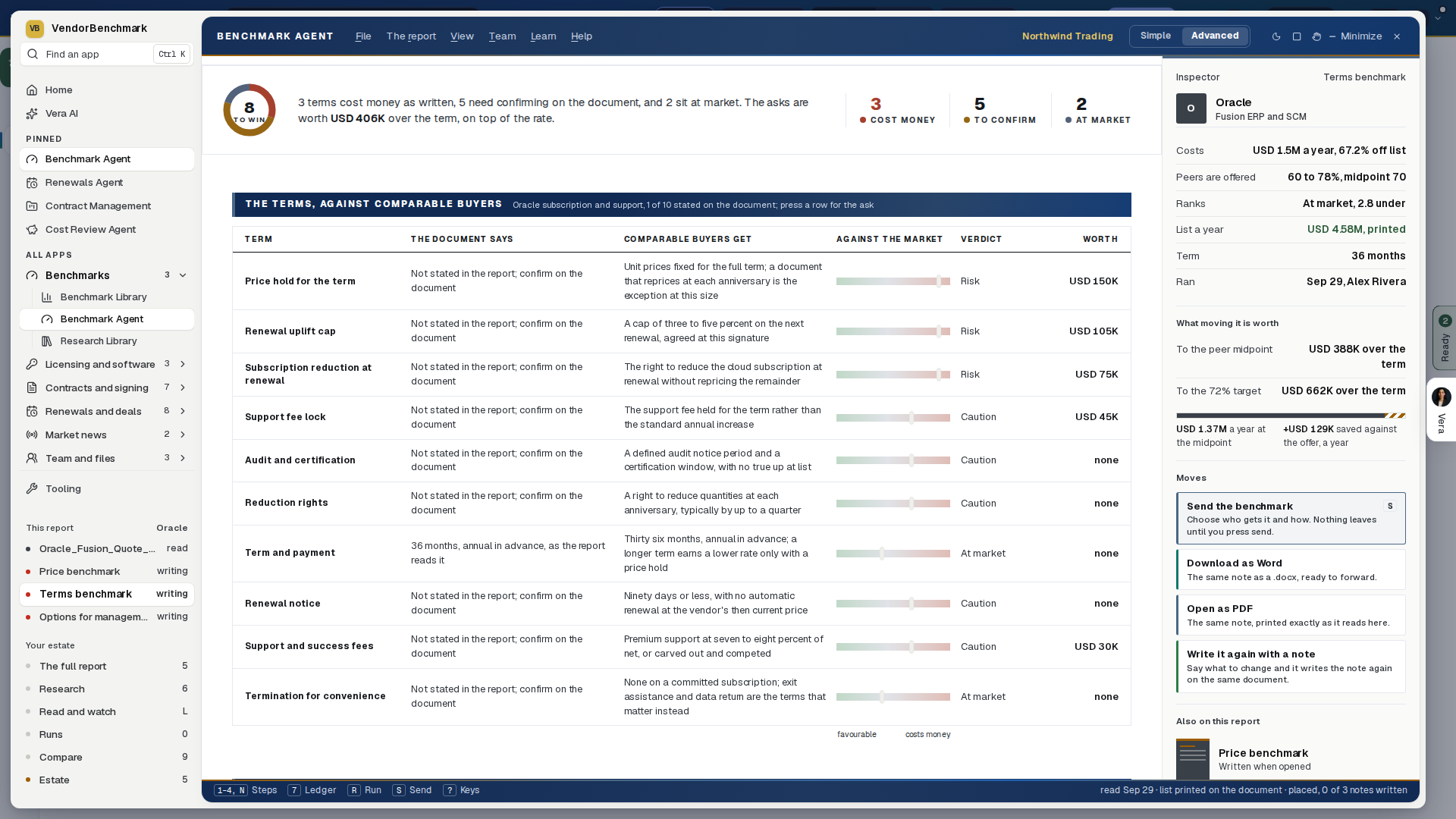
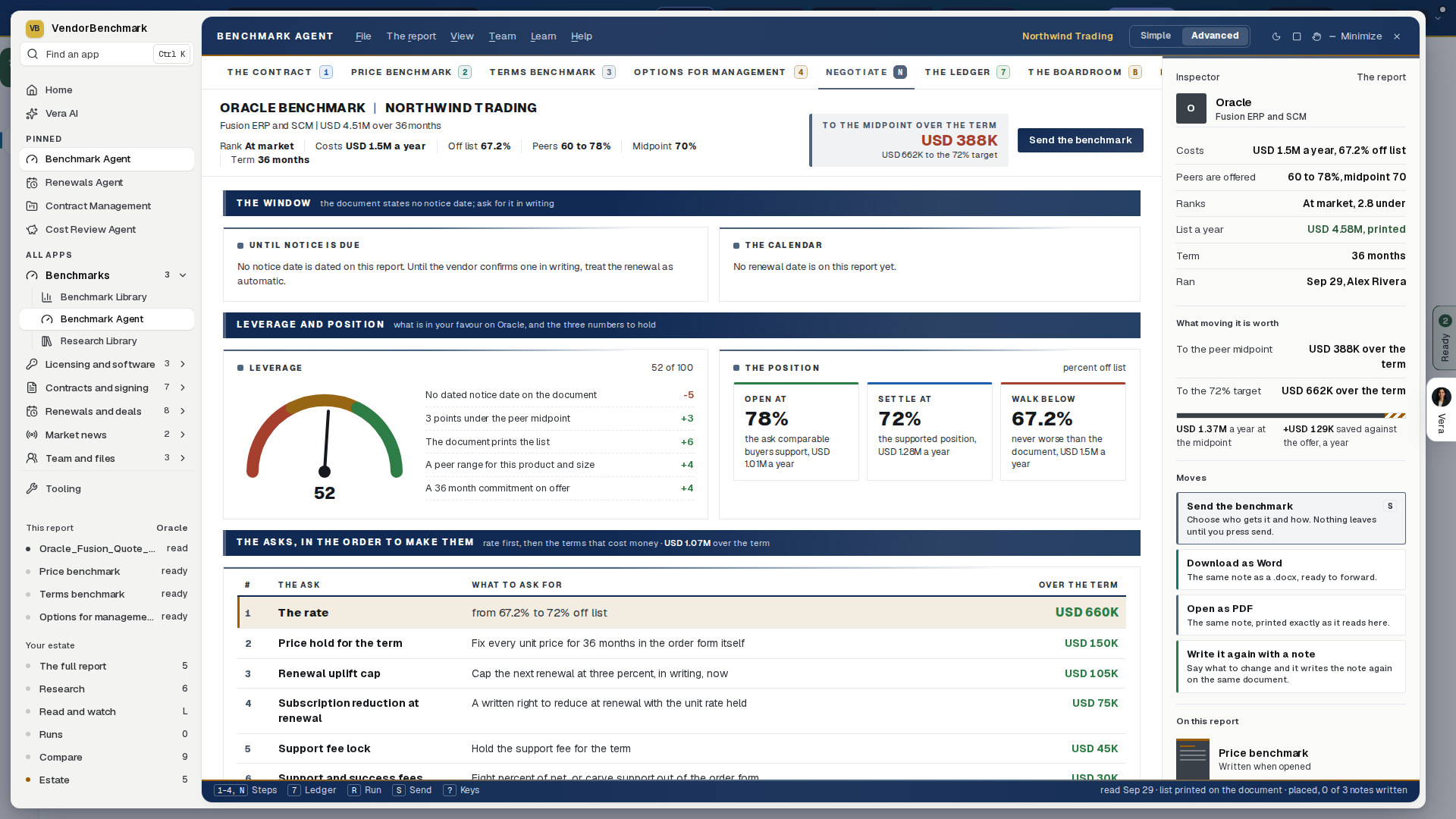
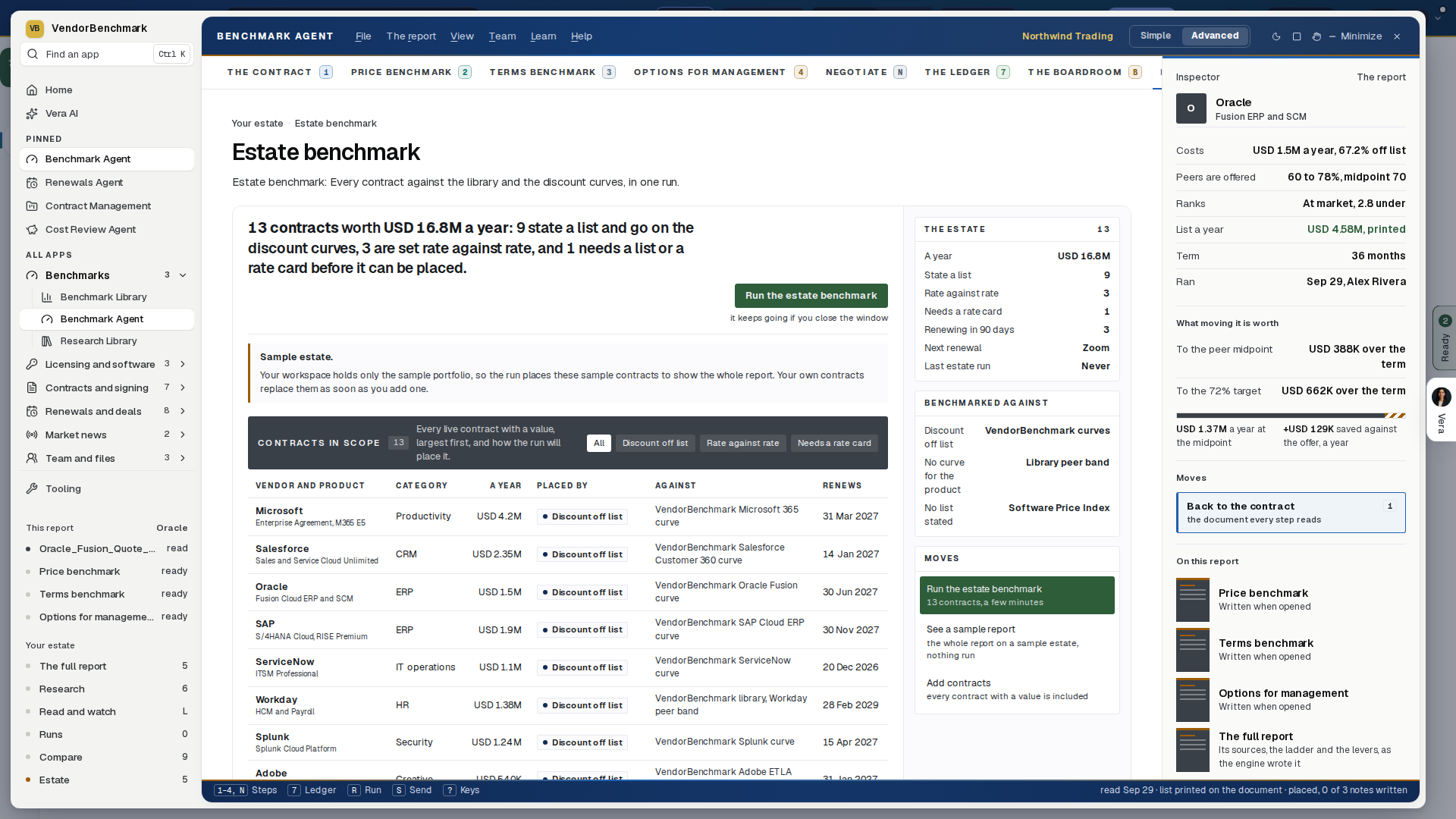
The window
- The title bar: the six menus (File, The report, View, Team, Learn, Help), then the Simple and Advanced switch, the light and dark switch, Maximize, Zoom, Full screen, Minimize and Close. It carries no app name. Alt with a letter opens that menu, and every item prints its key.
- The sidebar: at the left, the same in every app (see Getting started). Down the left, the same in every app since 3 October 2026: the VendorBenchmark mark, Find an app (Ctrl K), Home and Vera AI, and your Pinned apps, then this app's own sections. Recent and the six shelves stay on Home, All apps and Settings. A number beside Benchmark Agent counts the reports renewing inside forty five days.
- The tree: under the sidebar, this agent's own index, described below.
- The tabs: The contract (1), Price benchmark (2), Terms benchmark (3), Options for management (4), Negotiate (N), The ledger (7), The boardroom (B) and Estate benchmark (G). A step with nothing to read from yet says to upload a contract first. The other screens open from the tree or the View menu.
- The masthead and the inspector: the head of every step and the panel on the right, described below.
- The status bar: the keys that work now on the left. On the right: when the document was read, whether it prints a list or states its discount, and how many of the three notes are written.
- How it works: the first time you open the agent it lands on How it works (H, also on the View menu): three steps, the four sheets you get back, and Upload a document to begin. After that it opens on the screen you left.
The tree
- This report: the contract and the three notes, each with its state (ready, writing, or its reading time once written).
- Your estate: The full report, Research, Read and watch, Runs, Compare and Estate.
- The ledger: the twelve most urgent reports, each with its discount and a dot for its rank. Press one to make it the deal in hand.
- Renewing without a benchmark: up to six agreements on your book with no report behind them. Press one to choose its document.
- Settings: Defaults and sharing (Ctrl ,).
The masthead. Once a report is in hand, each of the five steps opens under one head.
- The title: the vendor's benchmark and your organization, with the product and the value over the term on the line under it.
- One row of facts: Rank, Costs, Off list, Peers, Midpoint, Term and Renews (flagged inside forty five days).
- At the right: the money to the peer midpoint over the term, or how far ahead of it the deal sits, beside the step's one button. The button opens the next step; on Negotiate it is Send the benchmark.
- With no report in hand, a line under the tabs names the step you are on, what it produces and the one after it.
The inspector, on the right, is never empty. Ctrl I hides or shows it.
- The report's facts as rows: Costs, Peers are offered, Ranks, List a year, Term, Renews in and Ran.
- What moving it is worth: the money to the peer midpoint and to the target over the term, or Ahead of the midpoint when the deal is past it.
- The moves, each with one line of plain words saying what pressing it does. Sending says nothing leaves until you press send.
- Move the deal, on the price benchmark: the levers Discount off list, Term, Uplift the vendor asks at renewal and The cap you ask for, with the net a year, the term total, what the cap is worth and the rank following every move. Back to the proposal resets them.
- The other notes and The full report, one press each.
- The seat: press the portrait to talk the screen through out loud (T), or type a question under it.
- On a screen beyond the steps it seats that screen's details: Details, and on a report Scenario and Activity as well.
Sheet 1 · The contract is where you start.
With nothing in hand:
- The head: the title The contract, one line saying what to add, Browse for a file, and The ledger (7) once you hold reports.
- The box, first row: the file. Drop the quote, the order form or the renewal anywhere on the window, or press Choose a file. PDF or Word, up to 25 MB, several at once.
- The box, second row: a typed deal. Vendor, Agreement, Amount a year in USD and What you want, then Price it. A typed deal is priced against the documented curve in the Library; the terms need the document.
- The box, foot: the file signature is checked, not the extension, and nothing is spent until the read lands.
- Ledger: the first six reports you hold as a table: Vendor, Result (the discount off list, or Rate where the document prints no list), Basis and Against peers. Press a row to make it the deal in hand; All in the ledger (7) opens the whole book.
- Renewing without a benchmark: the agreements on your book with no report behind them. Press one to benchmark it.
While a document is on its way, the sheet is the run:
- From the first byte of an upload each document is a phase of its own: uploading, reading, waiting.
- On the steps a dropped document runs by itself once it is read, and the window moves to step 2 to show it.
- Once the engine runs, the run stage works the benchmark out in front of you, as listed below, and the report streams in underneath as it is written.
- Every figure is one the run has produced, and a figure still being worked out shows as three dots.
- You can leave: the run continues and the report joins the ledger. A stopped run offers Retry from the stored sheet and Dismiss.
The run stage, top to bottom:
- The registers: List a year, Net a year and Your discount, or Your rate, rate against rate, where no list is printed.
- The market scale: the range comparable customers get and its midpoint, then your deal dropped on with the points between it and the midpoint.
- The five ranks from Poor to Top of the market, the one the deal lands on lit.
- The money: to the midpoint a year, over the term, and to the supported target.
- Four tiles along the foot: What it costs, What peers get, Where it ranks and What it is worth.
With a report in hand:
- First look: the runway, still, with this document on it and its rank beside the heading. The marker you can move is on the price benchmark.
- The contract in charts: the list to the net (where the document prints a list), where the money goes line by line, and the money committed by the end of the term.
- Comparable buyers, this document inside them: the ladder as a table, each rung with its number, its name, the percent off list, a reading and its standing. This document's rung and the next rung up are marked.
- What the read took off the document: the list, the net, the term, the discount, the peer range, the supported target, the renewal and the sources, as one grid of labeled figures. Where the supported target sits at or under this document's discount, the cell says so and that nothing rides on it.
- Upload another document: a second quote is read and benchmarked at once and joins the ledger beside this one.
- What next: the declared moves for where you stand, each a row with its name, one line on what it does, and its key.
Sheets 2 to 4 · the notes. Each sheet opens on its instrument, then its charts, then the written note.
Price benchmark (2):
- The three answers: What this deal costs, What comparable buyers get and Where it ranks.
- Move the deal: the runway with the peer range as the five ranks, the midpoint and the target, and this deal as a marker you drag or move with the arrow keys. Back to the offer returns it.
- The readout follows the marker: the discount, the cost a year, the rank, the money to the midpoint and the saving against the offer. So does The rungs, with the deal on one.
- The price in charts: where the report has a line in the Benchmark Library, the discount curve and the comparable deals with this deal among them; where it ranks; what every point of discount is worth over the term; and what each position costs over the term.
Terms benchmark (3):
- The terms heat: a ring with one sentence beside it and three counts, Cost money, To confirm and At market.
- The terms, against comparable buyers: every commercial term with what the document says, what comparable buyers get, a meter from favorable to costs money, a verdict and what the ask is worth. Press a row for The ask.
- The asks, in the order to make them: Write out the asks, then Copy the asks.
- The terms in charts: what each ask is worth, and the rate against the terms.
Options for management (4):
- Price your position: the discount, the term, the uplift and the cap as levers, the same ones the inspector and the runway move, with Back to the proposal.
- The four options, priced on that position, the recommended one marked, and the walk from the proposal to the position.
- The options in charts: year by year, and what each discount and term saves against the proposal.
The note, on each of the three sheets:
- Placed, the note writes itself the first time the sheet opens and streams in under the writer's own order of work: reading the document, researching the vendor, writing the note, reading it back.
- Written, it reads under a bar with the note's name and word count, with Word, Open as PDF and Send.
- Write it again, with a field to add to the brief first; the last version stays saved. Then the button to the next note.
- Not yet placed, the sheet shows the run or says what it waits on.
A chart whose figures the report does not hold is not drawn. A report placed rate against rate, with no list price and no stated discount, shows no runway and no position levers; its note argues rate against rate.
Negotiate (N), step 5. It reads the report and runs no writer.
- The window: a clock counting down to the notice date, with the advice to send notice before the first call, beside a calendar from today to the notice date and the renewal. Where the report holds no notice date it says so, and to ask for it in writing.
- Leverage and position: a dial with your leverage out of 100 and every factor behind it with its points, beside the three numbers to hold as percent off list, Open at, Settle at and Walk below, each with its cost a year.
- The asks, in the order to make them: a numbered list, the rate first, then the terms that cost money. Each row carries the ask, what to ask for, and what it is worth over the term, or Protects where the ask guards rather than saves. The terms benchmark and Price the options sit under the list.
- The negotiation in charts: how the leverage builds factor by factor, and what the asks are worth.
- No list price: a document that prints none shows the window and the leverage, and says the position is argued rate against rate on the price benchmark.
Sheet 7 · The ledger.
- The head: the title The ledger, the report count and what is on the table, and one sentence naming the report to open today (renewing soonest, placed lowest). Open that report, or Upload a document.
- The estate map: every placed report by how far it sits from its own midpoint against what it costs a year, sized by the money to or ahead of the midpoint, with a table of the placed reports under it. Press a point or a row to select it; press it again to open it.
- The toolbar: search the ledger by vendor, document or rank, and order it By consequence, Newest or Biggest on the table.
- The board: by consequence the reports are grouped by their runway (Past the renewal date, Act now, Inside ninety days, On track, No dated renewal). Each row carries the report, the placement in one line with the document and when it ran, the discount off list, the standing, what is on the table and the days to the renewal.
- A row: press it to select it and the inspector follows; press again, double click or Enter to open it; right click for every move the report has.
The screens beyond. Each opens in the same window, from the tree or the View menu, under a head with a line saying where you are, the screen's name as the title, one sentence and its first action as the one primary button.
- The full report (5): the engine's own report with its section list, its sources, the ladder and the levers, and the money on the table and the four ways to renew as charts.
- Research (6): the Benchmark Library inside the window.
- Read and watch (L): the films, analyst briefings, research papers and guides the library holds on the open report's vendor. Select a piece to see it in the inspector; double click to open it in the window.
- Runs (8): the queue on its four stations (read, research, write, review), grouped as in flight, stopped and landed.
- Compare (9): two reports side by side on the same questions, and what moved between two revisions of one document.
- Estate (0): every vendor you hold contracts with, benchmarked or not, with the filters Every vendor, Benchmarked and Renewing without a benchmark.
- Settings (Ctrl ,): for you, Display, Notifications and Keyboard; for your organization, Defaults, Sharing, Branding, Retention and The team. Everything applies as it changes.
The menus.
- File: New benchmark (Ctrl N), Add documents (Ctrl O), Open the sample estate, Settings (Ctrl ,), Continue where you were (the last five reports), Jump to (Ctrl K), Close the window.
- The report: the five steps and the full report, Run a benchmark (R), Open the document (P), Revise the report (E).
- View: the screens beyond and How it works, Hide the inspector (Ctrl I), Compact rows, Maximize the window, Dark mode.
- Team: Send the benchmark (S), Copy a link to this report (Ctrl L), Email me a copy, Copy the verdict (C), Invite a colleague.
- Learn: The Benchmark Library, research on the vendor, the manual, what is new.
- Help: Play the tour, Keyboard shortcuts (?), Ask for help, About the Benchmark Agent.
Help › Play the tour walks the report in hand through the window with a caption per sheet: the contract, the price benchmark (moving the deal to the supported position), the terms, the options, Negotiate, the ledger's map and the estate benchmark. Stop or Esc ends it and puts the levers back.
Send (the inspector's Send the benchmark move, or the Team menu).
- Forward to a colleague: pick a colleague in your organization, or yourself for a copy in your inbox, and add a note. They get a task and the email. A sent report is locked: it can be revised into a new one but never deleted.
- Share a link: copies a link that opens this report after sign in. From a note it opens that note.
- Open as PDF: the whole benchmark as one file, the report and every note.
- Download as Word, Print this screen and Copy the verdict.
Right click a report on the ledger: Open the report, Open the document, Properties, Revise, Compare against this, Benchmark the next quote against it, Copy the verdict, Draft the ask, Send to a colleague, Email me a copy, Copy a link, Export, Download the term sheet, Ask Vera and Delete. A row on Runs or Estate carries its own shorter menu.
Follow ups sit under the written price benchmark note (step 2), at the foot of Negotiate (step 5) and at the foot of a benchmark's page in Simple, on your own benchmarks and never on the sample: what to do next with the benchmark, any question of your own, and the email that follows as a draft you type on and then change side by side with Vera, version by version. See Follow ups.
What the three notes are written from. Four things, since 1 October 2026.
- Your document, read whole, and the benchmark written from it.
- The research library's notes on the vendor, read rather than listed by title. Notes about the product on your document come first. The price benchmark then takes the intelligence report, the renewal outlook and the toolkit; the terms benchmark the clause by clause terms note and the guide; the options memo the cost and exit notes. Two or three notes are read in full and every other note on the vendor stays searchable while the note is written.
- The web, searched before the writing starts: the vendor's current published pricing (its published terms, for the terms benchmark), any change in the last twelve months, its fiscal calendar and latest results, and news that changes the leverage. Up to eight searches on the price benchmark, six on the other two.
- The market range the benchmark states. A range in a research note or on a web page never replaces it, so the report and its notes always state the same range.
The Written from line at the foot of each note counts the research notes and the web searches. A note never names a research note, and your own figures come only from your document.
The contract file. A document you run here is filed as a contract when the run is queued, so it has a contract file, and the report is in that file with its three answers. A line under the report says so and carries Open the contract file (see The contract file). Filing asks for no analyst benchmark and spends nothing from your plan. If your organization keeps no tool documents, nothing is filed.
How to use it
- Open the Benchmark Agent from Your apps on Home. It opens in Advanced; press Simple in the title bar for three ways in and one page per benchmark.
- Drop the quote or contract anywhere on the window (PDF or Word, up to 25 MB), or press Browse for a file and pick several at once. Each uploads, is read and runs by itself, and the document you upload becomes the deal on the screen.
- Watch the run stage work the benchmark out, or leave; the run continues and the notes are written the moment the report lands. A document with no printed list prices is benchmarked on the rates it does state, and the note says so.
- Read the Price benchmark (2): the three answers, the runway, the rungs, the charts and the note. Drag the marker, or move the levers in the inspector, to test a position.
- Press 3 for the terms benchmark and copy the asks; press 4 for the options memo; press N for the notice clock, your leverage and the asks in order.
- Use Follow ups under the price benchmark or Negotiate for the next question and the email, or type a question under the seat in the inspector and press the portrait to talk it through out loud.
- Take the memo to the executive team with Send the benchmark.
- Come back any time: the report is saved the moment it lands, the ledger (7) holds them all by consequence, and the tree lists the twelve most urgent. When the vendor's next quote arrives, right click the earlier report on the ledger and choose Benchmark the next quote against it.
- To benchmark the whole estate at once, press G, check the contracts in scope, and press Run the estate benchmark. Open the report when the run ends; download the board deck or the workbook, or share a read only link with Finance.
The keys
- The sheets and the screens: 1 to 4 the steps, N Negotiate, 5 the full report, 6 Research, L Read and watch, 7 the ledger, B the boardroom, G the estate benchmark, 8 to 0 Runs, Compare and Estate, H How it works; Ctrl , opens Settings; Ctrl I shows or hides the inspector; F11 maximizes.
- The window: Ctrl K jumps anywhere; A asks Vera about what is on screen; T talks to the seat out loud; F10 or Alt opens the menus; Esc closes what is open; ? shows the keys.
- The selection, on the ledger: j and k or the arrows walk the rows; Enter opens the report; Alt Enter properties; P the document; E revise; S send; C copy the verdict; M compare against this; W watch the run; Delete deletes, unless the report was sent or exported. The single letter keys can be turned off under Settings, Keyboard.
- Documents and files: Ctrl N new benchmark; Ctrl O add documents; R run the staged documents; Ctrl E export; Ctrl P print; Ctrl L copy a link; Ctrl Z undo; Ctrl A select all.
What is remembered
- On this browser, per organization: Simple or Advanced, the screen you were in, the levers for each report, the inspector shown or hidden, the compact rows, and every screen's columns, sorts, filter text and chosen filter.
- On your account, on any browser: the documents you staged, the fact sheet as you corrected it, the notes you typed, a half written send note or comment, and the display you chose under Settings. Every report and its three notes are saved with the organization the moment the run lands.
- Dark mode follows the platform's theme; a note is light in both, because a printed note is.
Tips
- The report argues in USD at today's rate when the document prices in another currency, and says so.
- A document with no printed list prices is never refused: it is benchmarked on the rates it does state against what comparable customers pay, and no percentage off an unseen list appears anywhere in it.
- Where a document prints no list but states its own discount as a percentage, the deal is placed on that percentage, and the status bar says the discount is stated on the document and no list is printed.
- The terms benchmark says, term by term, whether the report states the position or you have to confirm it on the document. Strike any ask the document already grants before the first counter.
- File › Open the sample estate shows a labeled sample report, so every screen reads before your own document is in. The sample cannot be sent, revised or deleted.
The Simple view
The agent opens on Advanced, every screen as described above. Simple is two screens over the same benchmarks, inside the same window: the sidebar, the tree and the inspector stay, and the tabs give way to the two screens below.
The start screen, titled Benchmark a deal, has three ways in and every benchmark underneath. Across the top: how many are benchmarked, how many sit below market, and the money on the table.
- Upload a contract: drag a PDF or Word file onto the box, or press it to choose one. The window switches to Advanced on Runs, where the run shows on its four stations. Back to the start at the top of the sheet returns you here.
- Your vendors: the seven largest vendors you hold, each with its value a year, when it renews and its rank. Press one with a benchmark to open its page; one without switches to Advanced, where you upload its document.
- Type the deal: no contract to hand? Pick the Vendor and the Product line, type the Amount a year and, if you know it, the Discount off list, and press Benchmark it. The page that opens is the deal on its own, listed below. A typed deal is a reading, not a stored report.
- Your benchmarks: every report in one table: Contract, Your discount, Similar buyers, Where it ranks, On the table and When. Press a row to open its page.
- Reports and exports (since 2 October 2026), at the foot of the start page under Your benchmarks, once a benchmark is on file: Your benchmarks in charts (what each deal leaves to the peer midpoint, renewals by quarter, and where the deals rank), then Every benchmark, then Excel workbook (every row typed, so it sorts and sums), Word report (the same report as a document), Email the report (to up to ten addresses, your note first, the Word file attached) and, under them, Shall I draft the email?, which writes an email to the vendor, your CFO or a colleague that you send yourself. Each row answers the three questions: your discount and where it came from, what peers land at, and where the deal ranks with the gap in money over the term.
A typed deal's page:
- Three figures: the midpoint at your size, the range peers at this size land in, and where your deal ranks.
- Two charts: the vendor's discount curve with your deal on it, and the comparable deals with yours among them.
- Two sliders to move the amount and the discount.
- How to negotiate: your targets, the discount by deal size, the levers, the terms to win, what to say and what to watch for.
- Benchmark a deal takes you back to the start screen.
One page per benchmark:
- The head: All benchmarks goes back to the start. The report's own actions sit across the top: PDF, Export, Share, Present, Draft the ask, and Open the full report, which opens it in Advanced.
- The answer in three rows: You pay, Similar buyers and Where you rank, with the gap in points and in money a year, beside the report's own finding.
- Two charts, for a vendor in the Benchmark Library: the discount curve for the product line with your deal placed at its size, and the comparable deals, each dot one deal, with yours marked among them. A line your plan does not include shows no charts.
- Where you sit: the range similar buyers land in, the midpoint, your deal and a target. What if you reach: drag the target and read the saving a year and over the term.
- How to negotiate, for the vendors whose curve document carries it: the levers strongest first with what each is worth, the terms to win beyond the price, what to say at the table with Copy the talking points, what to watch for and when to negotiate. For other vendors the page points to Open the full report.
- Follow ups close the page, on your own benchmarks.
Every figure on the page is the report's own stored figure, so Simple and Advanced always say the same thing.
License position in 24 hours
An effective license position (ELP) sets what you own against what you run and prices any gap. Pick the vendor and product from the gallery, upload the entitlements and the data its guide asks for, and submit. The clock starts when every required item is in, and every step shows on your ticket.
Since 20 October 2026 Same Day opens on Start here and a request takes four steps: What you need, Your files, A few questions and Send. The six screen window described further down, with its tabs on keys 1 to 6, opens at /same-day-elp?classic=1; the negotiation composer, the Java service, the tickets and the guides are the same in both.
Start here and a new request
- Start here — one question, what you need by tomorrow, and four cards that answer it: Know my license position, Oracle Java position and exit plan, Cut my cloud bill and Prepare a negotiation, each with what comes back. A request waiting on a file from you shows in red beneath with Open it. Your requests lists each request with where it is, its 24 hours drawn as a track of five stages, and when it is due or how long it took; press a row to open it. How the 24 hours run names the five stages and the hour each lands by.
- The left column — one Same Day group: Start here, New request, Negotiation, Java position, All requests (with how many are open), Upload guides and How it works, then your requests.
- 1 What you need — the four services as a row (Java and negotiation open their own screens), then the vendors as tiles with their logos, then the vendor's products as cards with how many items each asks for; IBM asks which product families are in scope.
- 2 Your files — drop every file you have on the box, or press Choose files: each goes on the item its name matches, and the first required item still open takes any it cannot place. The ring counts the required items covered and says when the clock can start. The checklist is two panels, What you bought and What you run (for a cloud, What you committed to and What you spend and run). Press an item's name for what exactly to send and the steps to pull it. Add file puts files on one item; I don't have it (or Skip on an optional item) opens a box for the reason, which grows the row.
- 3 A few questions — Why do you need it? (the one that needs an answer), Which legal entities does it cover? (empty covers your organization and its subsidiaries), When do you need it? (Tomorrow is fine or By a set date) and Anything the analyst should know?. Each card ticks when answered.
- 4 Send — the request in one table with Change beside each part, the items you do not have with your reasons, and the clock: the time it is due if you send now and the time each stage lands. Confirm you may share the files and press Send and start the clock. While the files are checked again (where each is stored, its size, its type and a malware scan), the step shows the request on the left and the four steps on the right with the time so far; then the ticket opens and a notice gives its reference and when it is due, with Open the ticket.
- Keys — 1 to 4 move between the steps of a request; Back and Continue sit at the foot of every step with what is still needed between them.
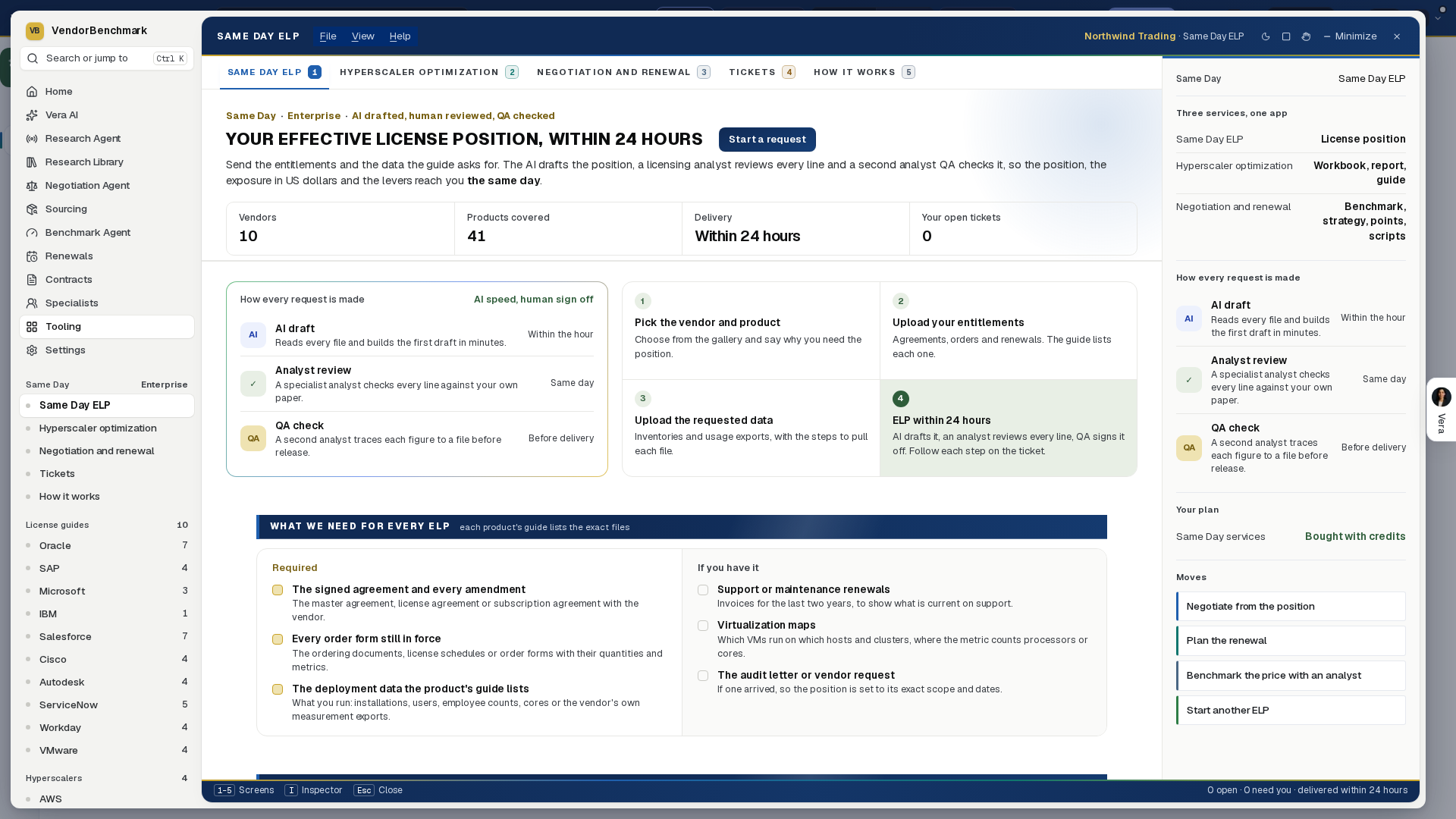
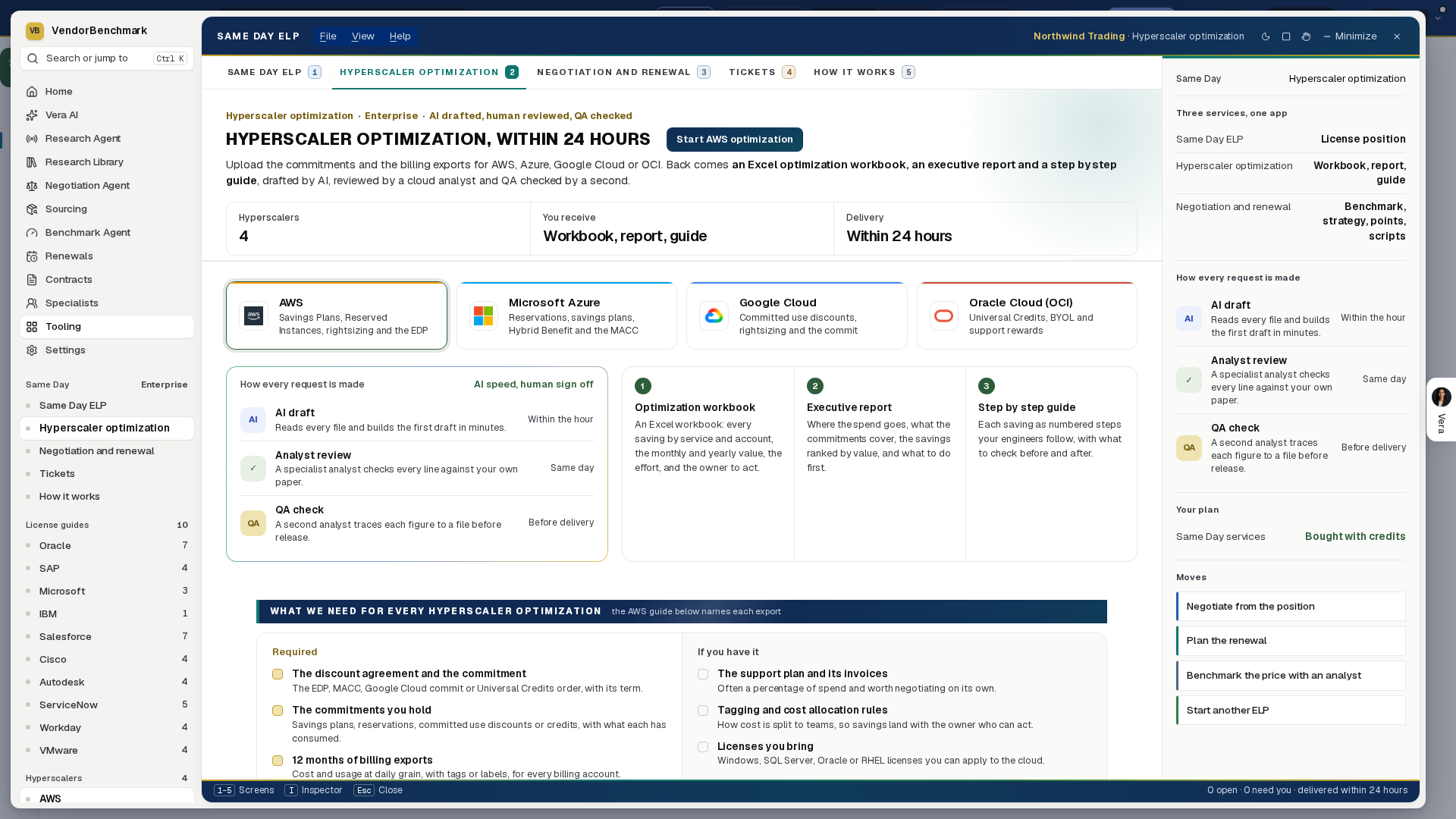
What we need from you
Every tab shows its list, required items first. The ELP and hyperscaler guides then name the exact files for each product or provider.
| Service | Required | If you have it |
|---|---|---|
| License position in 24 hours | The signed agreement and every amendment; every order form still in force; the deployment data the product's guide lists (installations, users, employee counts, cores or the vendor's measurement exports) | Support or maintenance renewals for two years; virtualization maps; the audit letter or vendor request |
| Hyperscaler optimization | The discount agreement and commitment (EDP, MACC, Google Cloud commit, Universal Credits); the savings plans, reservations, committed use or credits you hold; 12 months of billing exports with tags; the account, subscription, project or compartment structure; utilization or advisor findings | The support plan and its invoices; tagging and cost allocation rules; licenses you bring |
| Negotiation and renewal | The contract, order form or renewal quote (or what you know, written); what you want out of it, with a target and a date | What you pay today; what you actually use; the renewal date and notice period; competing quotes; the vendor's recent emails |
| Java ELP + Java Exit Plan | One export with Java evidence, from any discovery tool, as Excel, CSV or text: a Java installation inventory, a file scan for java.exe, a software inventory or Java usage data; your employee count; the plan start (a Monday), the date for zero licensable installs and the audit ready date | Hardware and virtualization; device users; the server owner list; your Oracle entitlements; the Fusion Cloud user list; another firm's position to compare with; the date of any meeting with Oracle |
On the screen
- The tabs — numbered across the top and on keys 1 to 6: ELP (License position in 24 hours), Hyperscaler (Hyperscaler optimization), Negotiation (Negotiation and renewal), Java (Java ELP + Java Exit Plan), Tickets, with how many are open, and How it works. The left column names each in full, and pointing at one says what it holds. Every card carries the vendor's logo.
- Panels — since 5 October 2026 every section of the window is a panel on the gray ground, named in navy capitals on the light strip at its top, and every table runs the full width of its panel.
- The frame — since 5 October 2026 License position in 24 hours wears the frame every app shares: the menus, Share and the window buttons in the title bar; one navy column on the left with Home, Vera AI, your pinned apps, the five screens, the license guides, the hyperscalers and your tickets; the screen's title, its figures and its one main button in the head above the page; and the details on the right.
- The 24 hour clock — on the How it works tab: the five stages every request goes through (Submitted, AI draft, Analyst review, QA check, Delivered) as dots on one line, with the hour each lands by. Watch a request go through plays one from submission to delivery. A ticket opens on its own clock the same way: done stages in navy, the current one lit, gold while the clock waits on a file from you, each with the time it lands by. In the Tickets list every row carries the same five stages as a small bar beside its status.
- Hyperscaler optimization (2) — AWS, Azure, Google Cloud and OCI as four cards, then what you receive (the Excel optimization workbook, the executive report, the step by step guide) and the upload guide for the one selected: the commitments and contracts (the discount agreement, savings plans, reservations or committed use, the support plan) and the billing and usage data (12 months of cost exports, the account or subscription structure, utilization). Start request opens the same four steps as an ELP. Delivered, the ticket shows the savings a year, every saving ranked with its effort, a what if that keeps only the effort levels you select, the executive report and the step by step guide, and Download the Excel workbook.
- Negotiation and renewal (3) — the top hundred vendors as a logo wall, filtered by search or by tier; type any other vendor to start a request for it. Pick one and the request opens above the wall: renewal, new purchase or expansion; Upload the contract or quote; Write what you want; what you want back (Benchmark, Negotiation strategy, Talking points, any or all), with Always included naming the call scripts and any vendor analysis; an optional deadline; the authorization; and Submit and start the clock. A request needs a document or a sentence or two.
- License position in 24 hours (1) — one sentence (point at it for the products and vendors covered), your open tickets when you have any, what every ELP needs, and a card for each vendor: Oracle (Java, E-Business Suite, Siebel, Primavera, PeopleSoft), SAP (RISE with SAP, ECC, S/4HANA, Digital Access), Microsoft (M365 optimization, SQL Server, Windows Server), IBM (all products), Salesforce, Cisco, Autodesk, ServiceNow, Workday and VMware. Search filters by vendor or product. Below: what you receive, how the clock runs and how your files are kept.
- Java ELP + Java Exit Plan (4, since 5 October 2026) — tells you what requires a license and which apps can move to which Java. Open it and the numbered strip becomes its own six steps, on keys 1 to 6; the left column lists them with your Java requests beneath, and the other services stay one press away under Same Day. The six steps follow.
- Java, 1 Upload — upload the exports from any discovery tool (Snow, Flexera, ServiceNow, SCCM or Intune, Tanium, Lansweeper, Oracle's scripts or a spreadsheet), as Excel, CSV or text, 25 MB a file, up to 20 files. Each file is read in your browser the moment it lands: the table says what it holds, which tool it came from, how many rows and devices, and a first read of how many Java rows are licensable by version. Change What it holds or Tool if the guess is wrong; press a row for the file's profile and the columns found. Evidence in the request shows which of the ten kinds of file you have and what each missing one would add; one file with Java evidence is enough. Client facts takes the organization, the employee count (Oracle's metric), the Oracle products you license, vendor statements, OCI hosts and decommissioned servers. Plan dates takes the plan start (a Monday), the date for zero licensable installs, the audit ready date and any Oracle meeting; Suggest dates fills them. Check a build reads any version string and says whether it is licensable. Select the box and press Send and start the clock.
- Java, 2 Build — the 24 hours as one track, then the three stages (Position, Research, Exit plan) with what the app itself checks on each workbook and the run log. While the build runs no figure is shown: the position is released when both analysts have signed off. Messages with the analysts takes a question or a file they asked for, which restarts a paused clock.
- Java, 3 Position — the position in three answers (what needs a license, what Oracle would open with at list, what removing it costs instead) beside five levers: employees, discount off list, hours a laptop, hours a server and cost an hour. Then every counted install by status, the builds the licensable Java sits on, who owns the Java by install path, the key findings, and the Action list: every install to act on, filtered by servers, desktops, vendor bundled or no decision, with a search (press /). A row opens the install: why, what closes it, the evidence, a decision (Uninstall, Swap to OpenJDK, Ask the vendor, Covered) and a named owner. Below, what each export saw and how every source row is accounted for.
- Java, 4 Vendors — one row an application that ships or needs Java: how many installs are licensable, whether it works with OpenJDK, what to do, and how sure the research is. A row opens what the research found with its source, the installs behind it, and the outreach: Draft the email writes it from the note, Mark sent today dates the two chases and the fallback decision.
- Java, 5 Exit plan — the licensable installs left, on plan, as one line from the plan start to zero, with Oracle's quarter end and your meeting marked; Start later shows what a late start costs. Then the workstreams with your progress, and the plan's sheets as tabs: Timeline, Batches (type what each has removed), This week (check off each action), Freeze controls, Oracle product servers (mark the evidence filed), Replacements and the Evidence log.
- Java, 6 Delivery — each workbook as it opens, sheet by sheet, with the first rows of every sheet; what the app checked; the open questions and the assumptions to read before you send it on. Download saves a workbook through a link that lasts 60 seconds, and every download is logged. Copy the summary copies the position, the plan dates and the open questions as text.
- Java, on every step — a right click on a file, an install or an application offers the same moves. Specialists at the foot of every step opens the Oracle negotiator, the licensing and audit defense specialist or the benchmark analyst; Talk to Vera and V hand her the step you are on. Switch Sample data on to see a finished request: a real run of the service on a small invented estate.
- Vendor analysis — the written parts the big four add to their reports, named on each guide under This report also includes and on the negotiation form under Always included:
- Microsoft: a Bill of materials (every SKU, quantity and price on the agreement) on every Microsoft position, and on Microsoft 365 the Microsoft 365 suite decision (E1, E3, E5 or E7 by group of users, where Copilot seats earn their cost, and what Copilot Cowork adds in credits).
- Azure: a MACC commitment analysis (what has been consumed, the run rate to term end, what counts against it, and the size to commit at renewal).
- SAP: Conversion credits and a Total cost comparison of each path on ECC and S/4HANA; Right sizing and the total cost on RISE with SAP.
- Salesforce: an Optimization report (paid, assigned, active and inactive users, editions and add-ons, each saving in US dollars a year) and the Agentforce commitment, three levels (Conservative, Expected and Growth, each with its credits, cost and risk).
- Every negotiation: Call scripts close the report: what to say on each call and the answer to each pushback.
- Oracle Database and Middleware are marked Beta: request and review work like every other product, and they are left out of the products covered count until they leave beta.
- Upload guides (2) — one guide per product. The left column lists entitlements (what you bought) and the right the data requested (what you run). Each item is marked Required or If you have it, carries its accepted formats, and where a file is hard to pull, How to pull this file gives the steps.
- New request (3) — four steps. Scope: the vendor, the product, the product families (IBM), why you need the position, a deadline and the legal entities covered. Entitlements and Requested data: add files against each item, or drag them all onto the box and they are matched by name; an item you do not have can be marked Not available with a reason. Review and submit: the scope, the files, what was marked not available, and the time the ELP is due if you submit now.
- Tickets (4) — every request with its status and clock. A ticket shows the five stages (Submitted, AI draft, Analyst review, QA check, ELP delivered), what has happened beside what is still to come with an expected time, Messages with the analyst, Files (open any with a link that lasts 60 seconds), and once delivered the ELP tab.
- The ELP — the exposure at list, the summary, who drafted, reviewed and QA checked it, the position by product, a what if with one slider per short line (units removed, reharvested or moved) that recomputes the exposure, and the levers ranked by value, then any vendor analysis. Download the ELP saves it as a spreadsheet, one sheet per part; Print or save as PDF prints it.
- The details column — on a request, the required items still to add; on a ticket, the clock ring, who works on it and the request; then the next moves and questions to put to Vera. Press I to fold it away, and V to talk to Vera about the screen you are on.
- Next — in the details column: negotiate from the position, plan the renewal, benchmark the price with an analyst, or start another ELP.
- Shall I draft the email? (since 2 October 2026): on a delivered ticket, under the deliverable. It is written from the position, the exposure and the levers the analyst delivered. Press a reader and the email opens beside what you were looking at; see Send it on.
How to use it
- Open License position in 24 hours on Home. For a negotiation, press Negotiation and renewal, pick the vendor, upload the quote, write what you want and submit; for cloud savings, press Hyperscaler optimization. For a license position, press a vendor card.
- Pick the product and read its guide. Pull the files it lists.
- Press Start request, choose why you need the position, and continue.
- Add each entitlement and each data file against its item, or drop them all at once. Mark anything you do not have as Not available with a reason.
- Check the review, tick the authorization, and press Submit and start the clock.
- Follow the ticket. If the analyst needs a file, the ticket says so, the clock pauses, and Upload on the ticket restarts it.
- When the ELP is delivered, open the ELP tab, move the what if, and download it.
- For Java, press Java (4). Upload the exports, fill in the client facts and the plan dates, select the box and press Send and start the clock. Watch the build on step 2; when it is delivered, read the position on step 3, send the vendor emails from step 4, run the plan from step 5 and download both workbooks on step 6.
Tips
- The 24 hours run from a complete submission and count nights and weekends; they pause only while the analyst waits on a file from you.
- A Java request needs no agreement to start: one export with Java evidence is enough, and each further kind of file closes a gap the workbook would otherwise name. Your exports go to the build's sandbox for that job only and are deleted from it when the job ends.
- Your uploads are saved as you go: close the window and the request is where you left it.
- Files stay in your workspace's private storage, are checked for type and malware on arrival, and every download is logged.
Microsoft 365 Optimizer
Three moves, in order: connect, see the results, act. The tenant comes in one of three ways, a short scan reads every user, and Results opens with the savings. The earlier Microsoft 365 Agent, with its rooms, is one press away (View › Microsoft 365 Agent, or /m365?classic=1).
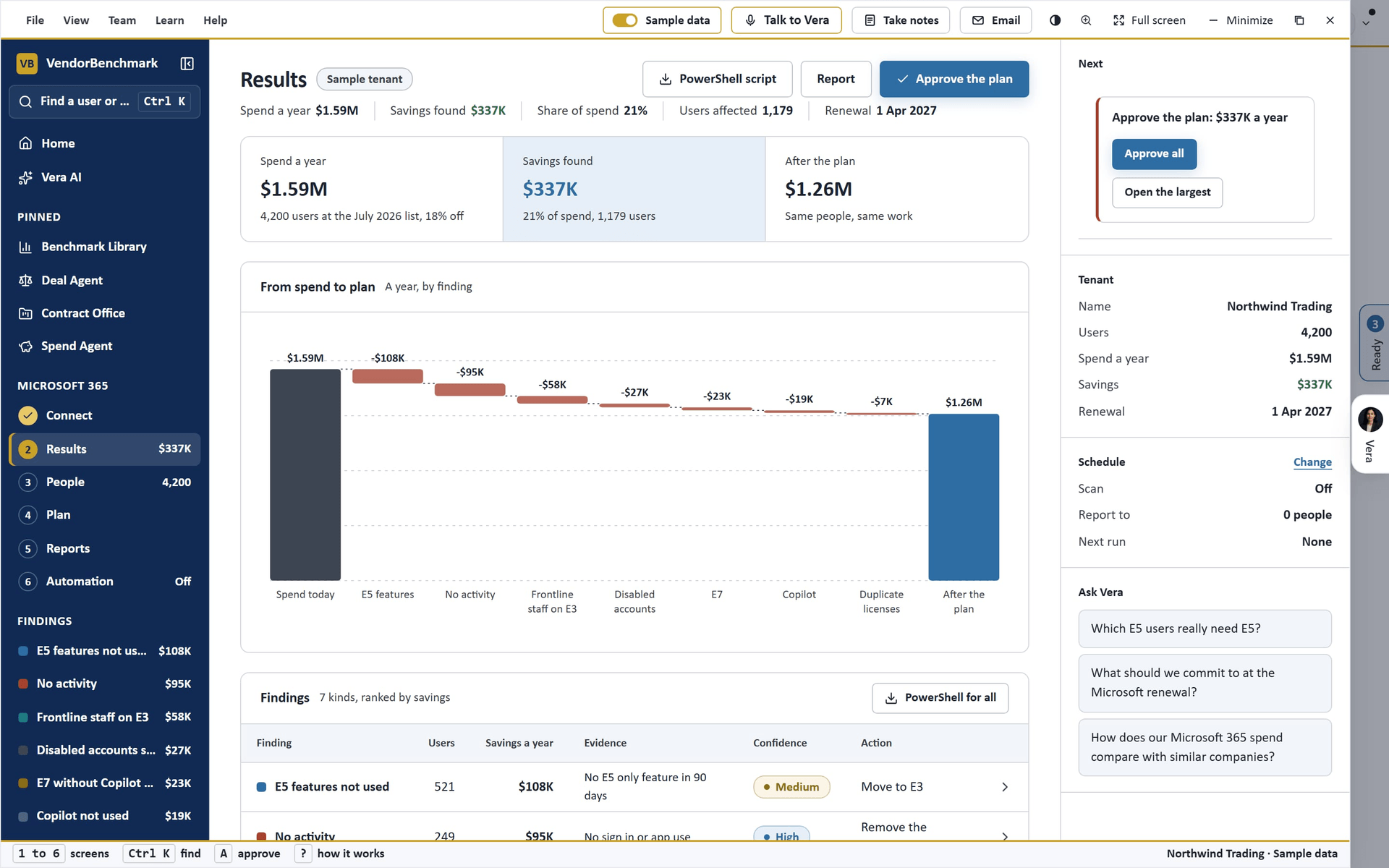
Since 25 October 2026 the six screens run as numbered pages across the top of the window, with Back and Continue bottom right; the side keeps them numbered too.
On the screen
- The window — on the same frame as every agent: the title bar with the menus (File has Read the tenant, Upload exports, Try the sample, the plan as CSV, the PowerShell script, the report in Word, Clear this tenant), Sample data, Share, light or dark, Minimize, Maximize and Close; the left column with the six numbered screens and a figure each, the top findings with their savings, and Related; the details column on the right; the keys along the status bar.
- Connect — three ways in, side by side. Connect the tenant: Microsoft Graph through the workspace's Microsoft 365 connection, read only (the usage report over 90 days, departments and blocked accounts); Read the tenant when it is set up, Connect in Settings when it is not. Upload the exports: drag in or choose the admin center CSV files (Active users, Active user detail, Copilot usage, Apps usage); each file is recognized by its columns and read in this browser, never uploaded; Download two sample exports shows the format. Try a sample tenant: Northwind Trading (4,200 users), Contoso Pharma (850) or Fabrikam Retail (12,500). Once read, the panel lists the tenant, the source, the users, the findings and, for uploads, how each file was read.
- Results — spend a year, savings found and what remains after the plan, counting up; From spend to plan, the waterfall finding by finding; Findings, ranked by savings, with users, savings a year, evidence, confidence and the action; Licenses before and after; Seats with a finding by department and license. Press a finding to open it in the details column.
- People — every user with department, license, last activity and the recommendation; find by name or address, filter by license, department and finding; 50 to a page.
- Plan — the rules as levers: No activity for 30, 60, 90 or 180 days, Disabled accounts, Duplicate licenses, E7 to E5, E5 to E3, E3 to F3 for frontline roles, Copilot not used, the Price list (July 2026 or before) and Your discount. Savings by rule moves as you change them. Save scenario keeps a set of levers to compare and load back.
- Reports — the Audience (CFO, CIO, IT admin, Procurement) picks the sections, which you can switch on and off; the Preview is the firm document. Word and Excel (CSV) download it; Send now emails the figures to the recipients on Automation, or to you when there are none. Sample data is never emailed.
- Automation — three tabs. Schedule: the scan on or off, every week or month, the day (Monday to Friday, early morning UTC; a monthly scan runs in the first week), email the report, ask before removing, the alert threshold and the recipients; Save schedule keeps it on the workspace. Savings by run and Runs list each scheduled run. API: the workspace's keys, the endpoint
/api/v1/m365(GET the findings for the connected tenant,?users=1adds the plan by user, POST analyzes exports you send) with examples in curl, PowerShell and Python. Webhooks: the endpoints that receivem365.scan.completed. - The details column — Next first (start with the sample or the tenant; once read, approve the plan or open the largest finding), then the tenant's facts, the schedule and questions for Vera. With a finding open: its users, savings, action, evidence, and Approve, PowerShell and CSV for that finding alone.
How to use it
- Open Microsoft 365 Optimizer from Home. On Connect, press Read the tenant, upload the admin center exports on Upload the exports, or pick a sample tenant.
- Read Results: what you pay, what the seven rules find and what that saves. Press the largest finding to see who is in it.
- On Plan, set the inactivity days, the rules you agree with, the price list and your discount. Save a scenario for each position you want to compare.
- Approve the findings you accept (A approves them all on Results), then download the PowerShell script for your admin, or the CSV.
- On Reports, pick the audience and the sections, then download Word or Excel, or Send now.
- On Automation, switch the scan on, choose the day, add the recipients and press Save schedule. For your own tools, create a key in Settings, API and call
/api/v1/m365.
Tips
- Nothing is written to the tenant. The PowerShell script is a list of
Set-MgUserLicenselines for your admin to review and run. - An upload uses only the evidence its files carry: without the Apps usage export, nobody is moved to F3.
- The scheduled scan reads the connected tenant; uploads and sample tenants are read once, in the window.
- The connection needs Reports.Read.All on the app registration; User.Read.All adds departments and blocked accounts.
Related: Microsoft 365 Agent · M365 optimization · Settings, Integrations
Salesforce Optimizer
Ten pages since 25 October 2026, one table or one decision each: Connect, Order form, Findings, Licenses, People, Data Cloud, Flex Credits, Price position, Renewal sheet, Action plan. Keys 1 to 9 move between them and Continue sits bottom right. Titles, labels and figures stay on the screen; the sentence that explained each sits on its i mark. Nothing is ever written to Salesforce.
On the screen
- Connect — three ways in, side by side: Salesforce API (a read only connected app; Read now once it is saved, or How to connect), Upload files (several exports at once, any order) and Sample org. Once read, one panel says what the read found and what a missing file or permission would add, with Read now, Add files and Order form.
- Order form — the renewal date, the notice period, the term, the uplift, what you pay a user a month for each license, and the Data Cloud and Flex Credit commitments; typed in once, kept for the workspace.
- Findings — Seats to take back, Seats on the wrong license and Bought, never assigned; the findings by rule, biggest saving first, with Idle after 30, 60, 90 or 180 days. Press a finding for its people.
- Licenses — By license, bought, assigned and needed with the use bars; Feature licenses, permission set licenses bought against assigned.
- People — every user with license, department, last sign in, sign ins of 90 days, finding, the saving a year and the decision; search (/), the license filter and the finding chips; Download the users.
- Data Cloud — contracted, used so far and unused at term end; Credits a month, by meter against the contract's pace; Meters; The next term with the growth you expect and the commit with 10 percent headroom.
- Flex Credits — the pool, the use so far and what your use cases need; Use cases (conversations a month, actions each, voice or text; Add a use case); Credits a month; How to buy it.
- Price position — what you pay off list, the band peers at your size get and where you rank; Peer midpoint, Upper range or Top fifth as the target.
- Renewal sheet — Renew as it stands against Renew to this sheet and Saved a year; the sheet line by line with headroom; Download the workbook (Excel, every table on these pages) and Download the sheet (CSV).
- Action plan — By when, the dates from today to the renewal, and The ask to the account executive, with Copy.
- The details column — the org's facts, Next, and questions for Vera; with a person open, their facts, why, the move and Approve or Keep.
The rules (one finding a person, the first that applies)
- Frozen, still licensed — deactivate.
- Never signed in — created more than 30 days ago.
- Same person, two accounts — the older account has not signed in for 90 days.
- Idle — no sign in for the days chosen.
- Inactive — 1 to 4 sign ins in 90 days and no record created or edited.
- Integration on a full CRM license — only API sign ins: move to the Integration license, five free.
- CRM seat, platform use only — no lead, opportunity or case in 90 days: move to Platform Plus.
A finding only uses what the read could see: an Active users export alone finds frozen (with the frozen file), never signed in, duplicate and idle; Inactive, Integration and Platform fits need the login history and the record activity.
The files we read (if you upload)
| File | Where in Salesforce | Unlocks |
|---|---|---|
| Active users (required) | Data Loader or Workbench: SELECT Id, Username, Name, Email, IsActive, LastLoginDate, CreatedDate, Department, Profile.Name, Profile.UserLicense.Name FROM User WHERE IsActive = true; or Reports, Administrative Reports, All Active Users | Licenses by person; Idle, Never signed in, Duplicate |
| User licenses | Setup, Company Information, User Licenses; or SELECT Name, TotalLicenses, UsedLicenses FROM UserLicense WHERE Status = 'Active' | Bought, never assigned |
| Frozen users | SELECT UserId, IsFrozen FROM UserLogin WHERE IsFrozen = true | Frozen, still licensed |
| Login history, 90 days | Setup, Login History, Download; or SELECT UserId, LoginTime, LoginType, Status FROM LoginHistory WHERE LoginTime = LAST_N_DAYS:90 | Integration; with record activity, Inactive |
| Record activity, 90 days | Workbench, one query for each of Opportunity, Lead, Case, Account, Contact and Task: SELECT LastModifiedById, COUNT(Id) FROM Opportunity WHERE LastModifiedDate = LAST_N_DAYS:90 GROUP BY LastModifiedById (the object is read from the file name) | Inactive, Platform fits |
| Digital Wallet consumption | Setup, Digital Wallet, the Data Cloud and Agentforce cards, Consumption, Export | The Data Cloud step, and the Flex Credits use |
How to connect the API (once, by a Salesforce admin, about 15 minutes)
- Create the integration user. Setup, Users, New User: user license Salesforce Integration (five come free with Enterprise and Unlimited), the Minimum Access, API Only Integrations profile, and a shared mailbox as the email.
- Give it read access. Setup, Permission Sets, New, named VendorBenchmark read: system permissions API Enabled, View Setup and Configuration and View All Users; for the record activity findings, Read and View All on Opportunity, Lead, Case, Account, Contact and Task. Assign it, and the Salesforce API Integration permission set license, to the integration user.
- Create the connected app. Setup, App Manager, New Connected App (or External Client App Manager, New External Client App): name it VendorBenchmark read only, turn on Enable OAuth Settings, callback URL
https://login.salesforce.com/services/oauth2/success(Salesforce asks for one; this flow never uses it), scope Manage user data via APIs (api), turn on Enable Client Credentials Flow, and save. It can take up to 10 minutes to be ready. - Set the run as user. On the app, Manage, Edit Policies: under Client Credentials Flow, Run As the integration user; Permitted Users, Admin approved users are pre-authorized, with the permission set from step 2.
- Copy the key and the secret. On the app, View, Manage Consumer Details (a code comes by email first): the Consumer Key and the Consumer Secret.
- Paste them here. In the Salesforce Optimizer, Connect, How to connect: the My Domain address (Setup, My Domain, for example
https://yourco.my.salesforce.com), the key and the secret, then Save and read. Only a workspace owner can save them; the secret is sealed before it is stored and never shown again.
It reads user licenses and permission set licenses, active users with their license, profile and last sign in, frozen users, sign ins of 90 days and how many came through the API, and records edited in 90 days, counted per person. It never writes, changes or deletes anything in Salesforce, never reads record contents, emails or files, and never signs in as a person. To revoke it: Setup, Connected Apps OAuth Usage, Block, or delete the app; File › Disconnect Salesforce removes the stored key and secret.
| Salesforce says | The fix |
|---|---|
| no client credentials user enabled | Set the run as user (step 4) |
| invalid_client or invalid_client_id | Copy the key and secret again; wait 10 minutes after creating the app |
| request not supported on this domain | Use the My Domain address, not login.salesforce.com |
| Login history could not be read | Add View All Users to the permission set |
| An object could not be counted | Add Read and View All on that object |
How to use it
- Open Salesforce Optimizer. On Connect, press How to connect and send the guide to your Salesforce admin, or upload the exports The files we read lists, or switch Sample data on.
- On Order form, enter the renewal date and what you pay a user a month for each license; add the Data Cloud and Flex Credit commitments if you have them.
- On Licenses, start with the biggest finding; open each person and Approve or Keep. Download the users for each manager.
- On Data Cloud and Flex Credits, set the growth you expect and your Agentforce use cases.
- On What to renew, pick the target and the headroom, then Download the renewal sheet and Copy the ask for the account executive before the notice date.
Tips
- Read now before the notice date, so the counts you send are this week's.
- An Approve marks the seat on the sheet; nothing changes in Salesforce until an admin deactivates or moves the user there.
- Prices are Salesforce's list a user a month (Enterprise $175, Unlimited $350, Platform Plus $100, Integration $10) until you enter what you pay; Flex Credits are $500 per 100,000 at list, 20 credits a standard action and 30 a voice action.
Related: Microsoft 365 Optimizer · SaaS Manager · Benchmark Library
Microsoft 365 Agent
Your Microsoft 365 licensing on one window. Upload the three exports the admin center gives you, or switch on Sample data for a fictional tenant, press Run, and every screen reads the same result: move a lever and every figure follows. Two views on one plan: Standard (Rooms, Data, Savings, E3, E5 or E7, Copilot, The report, History) for a quick read, Advanced (ten numbered sheets: Rooms, Data, The finding, Users and licenses, E3, E5 or E7, Copilot, The plan, The renewal, The report, History) for every lever. How it works sits under Learn in the left panel. A room, a user, a license and a move each open as a record with its own address. The tool opens on Rooms: a room is a project, with its tenant, its plan and its people, and an organization sees only its own rooms.
On the screen
- The window — on the same frame as every agent: the title bar with the menus (File has New room from a template, The organization's rooms, Save the levers as a scenario, Download the plan as Excel, Download the last used report as Excel, Download the boardroom deck (PowerPoint), Save the report as PDF and Reset the levers; Data has Upload the admin center exports, Connect the tenant, Run the analysis again, Upload the Microsoft entitlement, the price list (Microsoft today, the next list, your sheet) and Remove the tenant's users; Plan has the scenarios, Apply the plan, the fit calculator, the Copilot assessment, the Copilot and agents cost, the E7 assessment, the last used report, Draft the email to Microsoft and Ask a human benchmark; Room has the rooms, New room and Invite someone; Report has Open, Customize, Choose the charts, Schedule, Send it now, Present, the deck and PDF; View has Standard view, Advanced view, Details and Present; Sheets lists the sheets with their keys and How it works), the Sample data switch, Share and the window controls. Room also has This room's record and History. The numbered sheets in the left panel are the keys 1 to 9 and 0; V talks to Vera, I shows or hides the details column, S saves the levers as a scenario (Advanced), P presents, Esc closes.
- The left panel — inside a room its head is the room (its mark, its name and the client it serves); then This project (the tenant and the template), then the numbered sheets of the view with a figure each (what is unused, the users, the moves on, the supported target, the report's cadence), then The organization's rooms with each one's notice date (a red dot when it is within 60 days or has passed), then Learn with How it works.
- Rooms — the tool opens here. Your rooms and the rooms that serve your workspace, each with its template, the tenant, its people, its notice date (90 days before the renewal date set on the room, marked when it has passed) and your role, Go in on any; a row opens the room's record; Manage under a row invites by email, changes roles (owner or member), sends a password reset, removes a person and sets two-factor for the room. Start a room from a template shows the six templates (Full licensing review, Monthly hygiene, Renewal readiness, Copilot review, Frontline right-sizing, True-up preparation) with the moves each turns on, the report cadence and the screen it opens on. New room is one flow: the template, what it sets, the project (name, when the agreement renews, the scope) and the room (the people by email and their role); the room opens on the template's plan, its moves, threshold and report schedule already set and saved. A platform admin sees All rooms, by organization and can open a room for any organization.
- A room's record — the project (the client it serves, the scope, when it opened, its people, when the plan was saved), The clock (the renewal, the notice date and how far away it is, flagged once passed), Around it and the people with their roles, two-factor and password resets. Go in on a room you are not in. Previous and Next step through the rooms.
- Around it — on every Microsoft 365 room: Renewals (the Microsoft agreement with the nearest renewal and its notice date, its term end less its notice days; without one, the room's own renewal date), the Benchmark Library (the Microsoft bands at your size), the Deal Agent, Vendor Changes (the Microsoft changes the sweep read for your workspace), the Research library, Calls, the Monday brief, Cases and the Microsoft negotiator seat. Each door shows what the platform holds for your organization or says that it holds nothing yet, and opens the app.
- Data — two doors. Upload the admin center exports: Active users (Users, Active users, Export users: every account, its licenses, whether sign in is blocked, the department, the last sign in), the Microsoft 365 active users report (Reports, Usage, Active users, Export, 90 days: the day each person last used Exchange, OneDrive, SharePoint and Teams) and Licenses (Billing, Licenses, Export: bought, assigned, available). Drop them on the zone or choose them, in any order; the files read are listed with their rows. Connect the tenant states the read-only Microsoft Graph consent the connection will use; it is not live yet, so the door points to the exports and to an analyst. Sample tenants lists six fictional tenants to open on the sample. The price list (Microsoft's list today, the announced next list, your own sheet) prices every screen. Microsoft price moves dates each license's change on its own line (the E5 rise from 1 November 2026, the rest from 1 April 2027, sample figures), prices it on the licenses you hold, says whether it lands at this renewal or after, and shows the latest Microsoft change Vendor Changes read. Run reads the tenant on a short stage and opens on the finding.
- The finding (Advanced) and Savings (Standard) — the three answers as cards: What you pay (a year, licenses, users, a user a month, off list), What is unused (a year and the share of the spend; licenses unassigned, licenses inactive 90 days with the people who hold them, licenses on disabled accounts with the number of accounts, people over-licensed, unused add-ons, each a press to the accounts behind it; licenses and people are counted apart) and Against comparable tenants (Lean, Better than most, Typical, Above typical or Heavy, the gap to the midpoint in points and money). Under them the plan line (what the plan saves a year, over the term the levers name, a user a month after), where the money goes, licenses as bars, when people last signed in, by department, twelve months ahead, and how this was reached. Savings also carries the moves as cards with a switch each, the last used summary and the agreement.
- Users and licenses — three screens. Users: every account with its licenses (a duplicate base license marked), last sign in, cost a month and the plan's move; filters (inactive, never signed in, disabled, two base licenses, E5 without E5 use, frontline on E3, unused add-on, Copilot unused, ready for Copilot, idle Copilot seat, joined in 45 days), search, department and license, a sort and twenty a page; a row opens the person's record with the apps used in 90 days and the days since; Previous and Next follow the table's order. A license opens as a record too, with who holds it, its price move and its entitlement. Licenses: every product with purchased, assigned, in use, inactive, disabled, unassigned, the reserve, what is returnable and what it costs; feature use by license as a heat grid. Last used: idle accounts, licenses unused 90 days or more and never used; by license, how many of its users touched it and when; every user and every app with the days since, filtered and paged; Download the last used report saves it as Excel.
- Fit (E3, E5 or E7) — fourteen questions about how people work (mail, Teams, files, the desktop apps, Intune, calling, Defender, Purview, Power BI, Entra, Copilot, agents, Viva, Teams Premium), each answered from the tenant's 90 days where a usage report covers it, by you (None, Few, Most, All), or by Who: the departments with the tenant's own usage each, or a headcount. The heat map shows what E3, E5 and E7 include against what is used, the cost a user of each with the add-ons it still needs, and the recommended mix. Use the mix carries it to the renewal.
- Copilot — three parts. Assessment: who is ready for a seat (knowledge work and all four of mail, Teams, files and the desktop apps in 90 days), who should pilot first, who is not yet; the seats today, used in 30 days and idle; what a seat must save a week to pay back at your cost an hour; by department with the move (seats to add, seats to reclaim). Cost calculator: the seats on Microsoft's price points as published in October 2026 (USD 30 a user a month on the annual term, USD 21 for Copilot Business under 300 users, Copilot Chat included) and the agents in Copilot Credits (one cent pay as you go, USD 200 a month for a pack of 25,000, up to 20 percent off pre-purchased), with levers for the agents, their interactions a day, the generative share, actions and autonomous runs; the three plans by load; confirm on the quote. E7 assessment: who on E5 pays less on Microsoft 365 E7 (USD 99: E5, Copilot, the Entra Suite, Agent 365) than a la carte, with levers for the price, who qualifies and the suites needed, and Seats on E7 on the first chip (the E5 count by default, so everyone who qualifies is priced; fewer, and the people already holding a Copilot seat are priced first).
- The plan (Advanced) — the levers (inactive after, the reserve of unassigned licenses, automate the monthly hygiene, the term) with Sensitivity beside them (the discount, the inactive threshold and the term each moved one step, the plan's saving, its change, the target and its worth over the term), the waterfall from today's cost to the plan, the eight moves as a table with a switch each (reclaim inactive licenses, remove licenses from disabled accounts, remove the second base license, move E5 users who use no E5 feature to E3, move frontline staff from E3 to F3, remove unused add-ons, reassign Copilot from people who do not use it, return unassigned licenses at the anniversary) with the users behind each and what it saves a month and a year, Why (the move's record: its rule, its figures and the accounts behind it, paged, with Download as CSV) and Users on each, the outcomes, the four scenario slots A to D compared, Apply the plan (a list for your admin; the tenant is not written to) and the rules.
- The renewal (Advanced) — the three answers: What the agreement carries (the discount off list on the list value after the plan), What comparable buyers get (the range at your size and its midpoint) and Where it ranks (Poor, Below market, At market, Good or Top of the market, the gap in points and money over the term); The clock (the notice date, read from the agreement in Renewals or 90 days before the renewal and flagged once passed, the renewal, the signing month and the anniversary true up); the supported target with the opening ask; the discount scale and the gauge; the levers (the discount today, the term, payment, growth committed, the Copilot commitment, an Azure commitment); the lifts table (each lever's points, the next counting a little less); the signing month on Microsoft's year (the month strip and the timing curve); what Microsoft knows about your alternatives (the ladder and the alternative); the approval ladder; the comparable agreements with yours placed by rank; Draft the email to Microsoft and Send to the Negotiation Agent. The agreement reconciles the entitlement statement against the tenant (true up due, surplus), shows the price list and its impact, the Microsoft price moves dated license by license, and the notice date.
- The report — the blocks you switch on and order (Customize): the answers, the charts you pick (Choose the charts: the scenarios, the slope, the comparables scatter, the waterfall, department and license bubbles, the cumulative savings, the discount histogram, activity, the heat grid, the timing curve, last used; the usual six are the default), the scenarios compared, where the money goes, the plan, the licenses, the renewal, the agreement, the fit, Copilot, last used, the brief as a firm document (an executive brief kicker, four headline figures: the discount today, the peer midpoint, the supported target and the opportunity over the term; the renewal section carries the notice date and the Microsoft price moves; the recommendations name only the moves that are on; after the renewal it carries a sensitivity table: the plan's saving, the net a year, the target and its worth over the term with the discount, the inactive threshold and the term each moved one step), the email to Microsoft (Measured or Direct, the tone kept with the plan), and the schedule (off, weekly or monthly, the day and the hour, the recipients, PDF, Excel and PowerPoint). New what-if scenario saves a named scenario from a few changed levers. Present shows the slides full screen (arrow keys, Esc); PowerPoint saves the deck; Excel the plan; Save as PDF prints the report.
- History — the last numbered sheet: every week since the room opened, newest first, with its entries (the room opened, the exports read, the scenarios saved, the reports sent, the saves and this session's moves); a week opens its entries.
- How it works — under Learn: the chapters with a figure each and numbered callouts, what each part means and the steps; a quick start of seven steps.
- The details column — What to do now first (get the tenant in, the notice date when it is within 60 days or has passed, or apply the plan), then the screen's facts, the next moves, questions for Vera and Related (the doors of Around it). A record brings its own. Press I to hide or show it.
- Records — a room, a user, a license and a move each have an address (
#room-<id>,#user-17,#sku-e5,#move-reclaim) to share; [ and ] step to the previous and next, Esc goes back to the sheet.
How to use it
- Open Microsoft 365 Agent. On Rooms, press New room, pick a template, name the project, set when the agreement renews and add the people by email. The room opens with a plan of its own.
- On Data, drop the three admin center exports on the zone (Active users, the usage report, Licenses), or switch on Sample data in the title bar. Press Run.
- Read Savings (Standard) or The finding (Advanced): what you pay, what is unused, how that compares. Press a row in What is unused for the accounts behind it.
- On The plan, move Inactive after, switch moves on and off and read the waterfall; press Save as a scenario (S) to keep a set of levers; Apply the plan lists what your admin does.
- On Fit, answer the questions you know and press Who to model a capability on your own departments; on Copilot, read who is ready, price the seats and the agents, and see whether E7 pays.
- On The renewal, set the discount the agreement carries today, pick the signing month and what Microsoft knows, and read the supported target; Draft the email to Microsoft.
- On The report, customize the blocks, choose the charts, set the schedule and the recipients, then Present, PowerPoint or Save as PDF.
Tips
- Every lever, scenario and schedule saves itself to the room a moment after a change; the status bar says when, and by whom.
- The users read from the exports stay in the room's own record, names and addresses from your tenant and nothing more; Remove the tenant's users in the Data menu takes them out.
- Without the usage report the moves that rest on feature use (E5 to E3, unused add-ons, Copilot) count nobody; the finding says so.
- The Copilot and E7 price points are Microsoft's list as published in October 2026, read from pricing guides; confirm them on your quote.
- Nothing is written to the tenant: the plan is a list for your admin until the connection is live.
Related: M365 optimization · Copilot Cowork optimizer · What you own · Benchmark Library
SAP Suite
Five SAP modules on one engagement. Each module runs on its own, and each fills in the next: the license position gives RISE its user count, Digital Access gives it the document charge, and the strategy and the talking points are written from all three. Since 16 October 2026 the window wears the Delivery Room's design (the same cut as Your project): the client's mark and name at the head with the screen under it, one line that states the screen's facts, the actions with one blue button, the tabs as numbered chips that stay in view while the page scrolls, the screens as numbered rings down the left with a tick once a module has run, and the details column leading with what to do now. It keeps the Segoe UI face, the soft card depth and the charts on one steel blue series, and has the same structure as Java Scanner: a room per client, kept apart from every other room, with its own people, files and sign in page, and every screen reads at the larger, roomier scale the Java Scanner reads at.
Since 25 October 2026 the seven work steps run as numbered pages across the top of the window with Back and Continue bottom right, and the head states each step's facts as a strip rather than a sentence. Rooms, Users, Files, the Product index and the Manual open from the side menu and the keys 8, 9, 0, P and M.
On the screen
- The window — on the same frame as every agent: the title bar with the menus (File has New engagement, Open for each of your other engagements, Rename the engagement, Upload USMM exports, Download ECC license position (Excel), Download RISE model (Excel), Open Reports and Delete this engagement; View has Details; Tabs lists the twelve tabs with their keys), then Sample data, Share, light and dark, Minimize, Maximize and Close. P opens the product index, M the in-app manual. 1 to 9 and 0 change the tabs, V talks to Vera, I shows or hides the details, and Escape closes a drawer and then the window.
- The head — the client's mark and name (on the sample, the sample estate; in a room, the room), the screen's name under it, the state as a tag, and one line that states the screen's facts: how many modules have run, the production system, the units short, the document count, the FUE. The actions sit at the right with one blue button, the screen's own move. Under the head the twelve tabs as numbered chips, each with its key in a box and a count where the screen holds a list: Engagement, License position, Digital Access, RISE, Strategy, Talking points, Reports, Rooms, Users, Files, Product index and Manual. The row stays in view while the page scrolls.
- The left panel — SAP engagements, every engagement in your workspace as a row with the client's initials, the name and one line of state (open and how many modules have run, or when it was last updated), a red dot when something in it needs you, and New engagement; then This engagement, the seven working screens as numbered rings with where each stands and a tick once its module has run; then Needs you when there is something: units short in production, exports to upload, a report whose writing stopped, two-factor not set up, entitlement lines not in the index, each a row that opens its tab; then Rooms and people (inside a room, This room): Rooms, Users and Files with their figures, and Reference: the Product index and the Manual. Inside a room the panel's head is the room itself: its mark, its name and the client it serves.
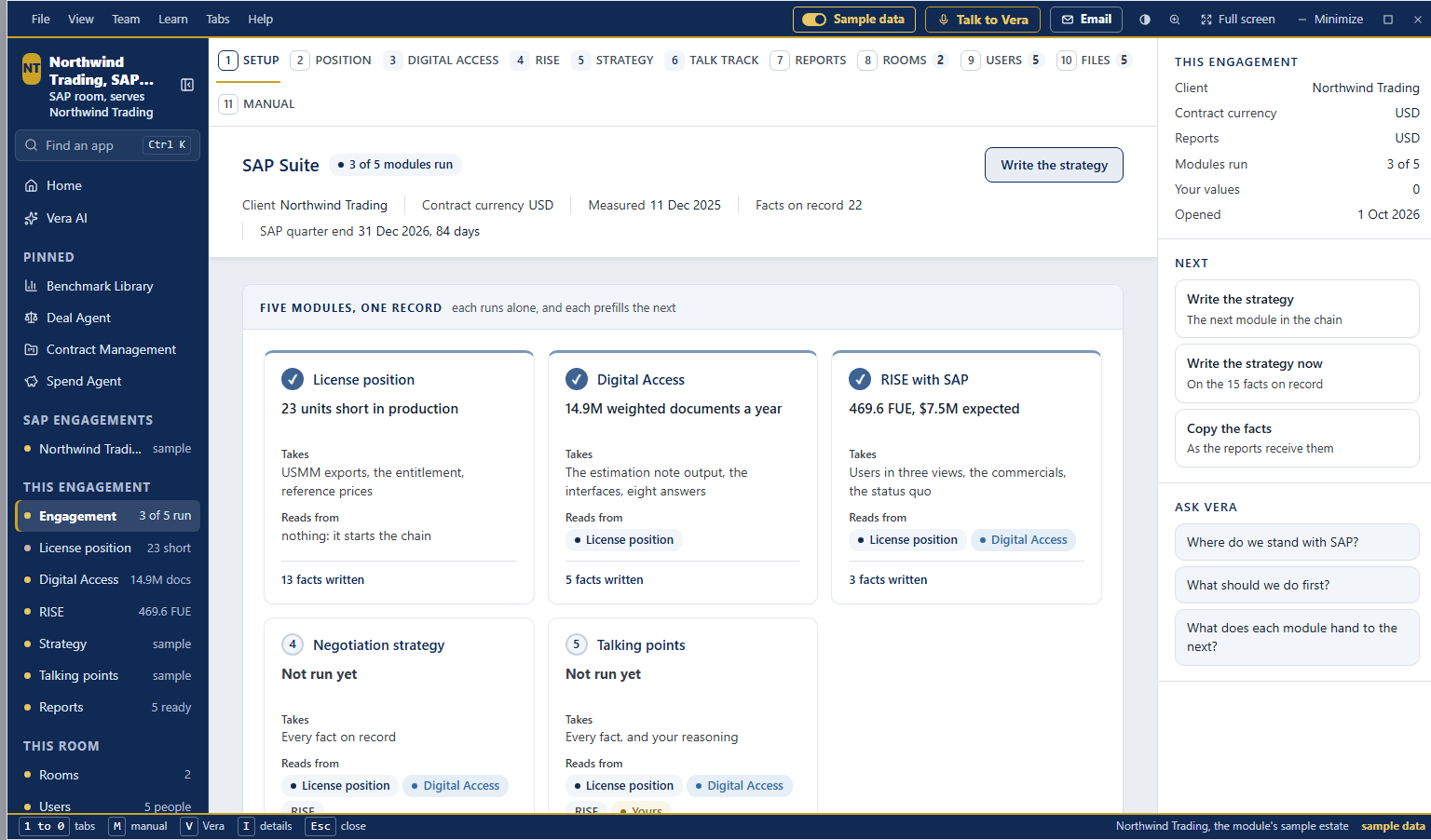
- Engagement — the client, the four dates that set the timetable (SAP's quarter end, the end of ECC mainstream maintenance, your go live and the renewal), and your reasoning in your own words. Facts lists every figure the modules found with where it came from; press one to set your own value, or Back to the module's value. Runs says when each module last ran.
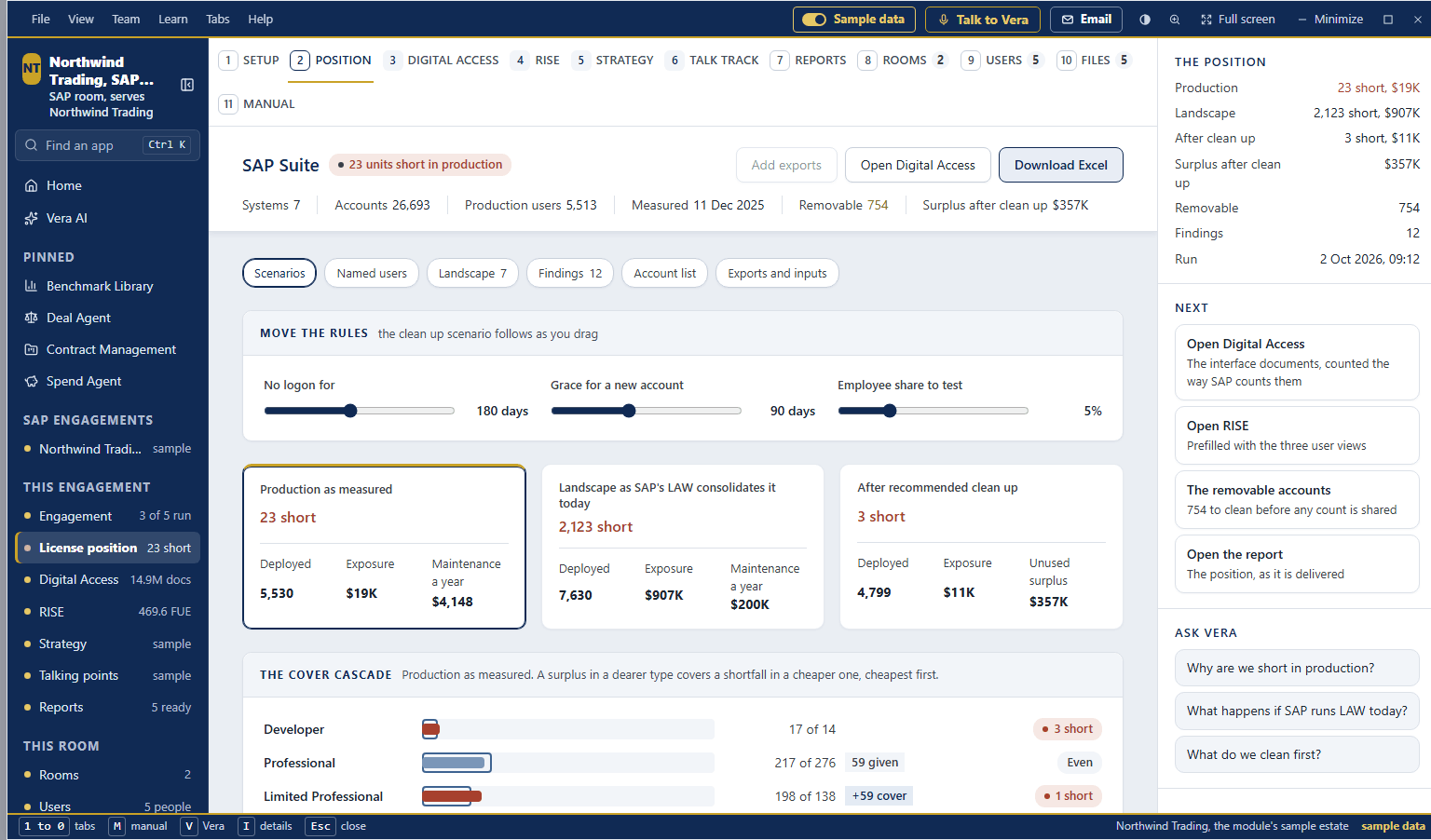
- License position — Upload exports takes the USMM exports, .TXT or .XML, or a .zip of them, up to 60 MB each and 40 in all. Every account is classified and the production system is picked for you. The screens: the three scenarios of what you own against what you use, Users (every account, filtered by bucket and system), the systems, the findings, the license lines you own (Add a line) and the files. Once the position has run, Download Excel saves the ECC license position workbook (ten tabs, no user names or email addresses). Download the clean up list saves the accounts to remove as CSV.
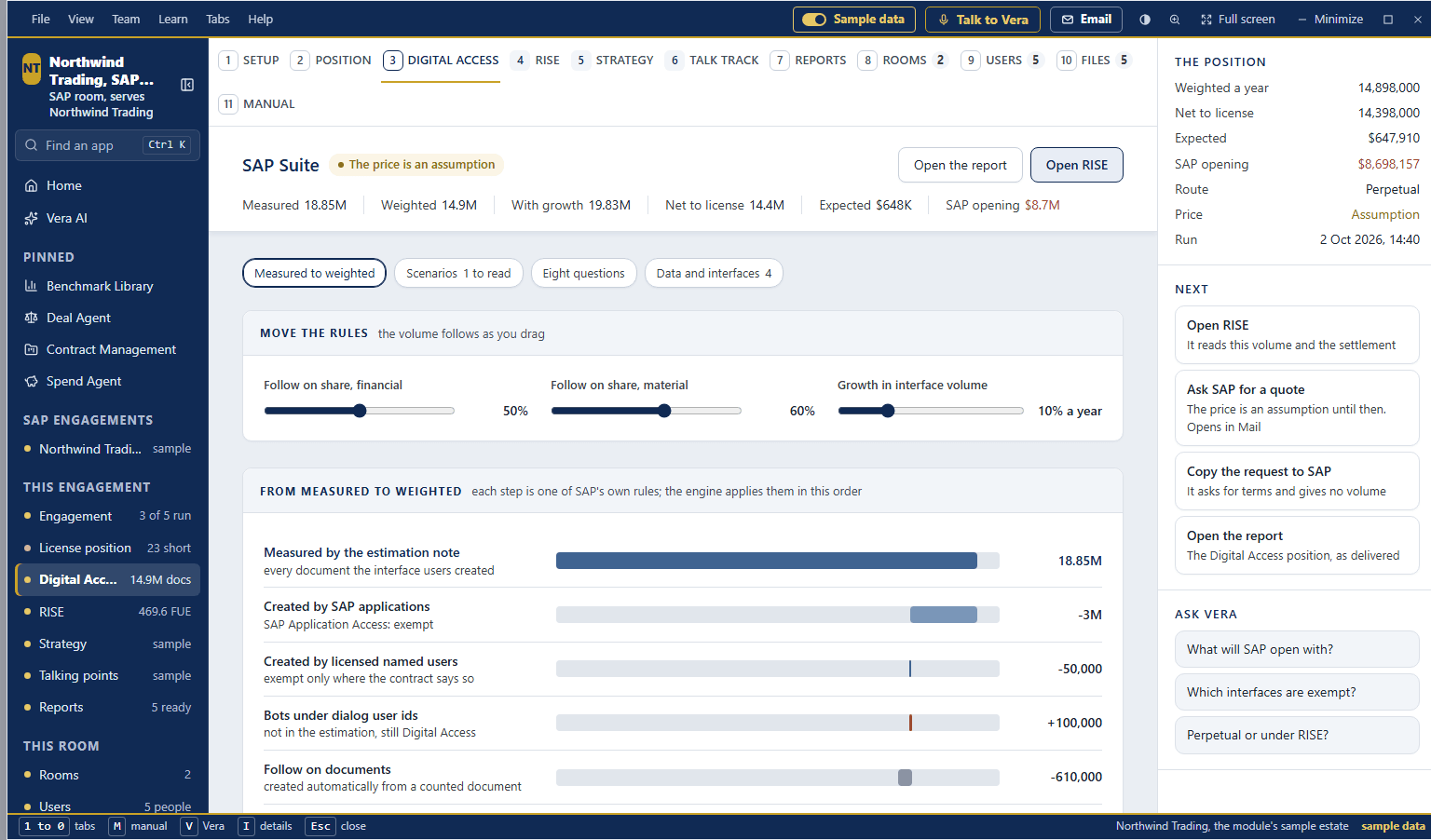
- Digital Access — the checklist of what to collect, your interfaces (Add an interface), the documents each creates by type, and the charge priced as a full Digital Access license, as the adoption program and as staying on indirect use. First estimate from USMM starts from the position; enter SAP's own counts when you have them. The questions to put to SAP are listed beside their answers.
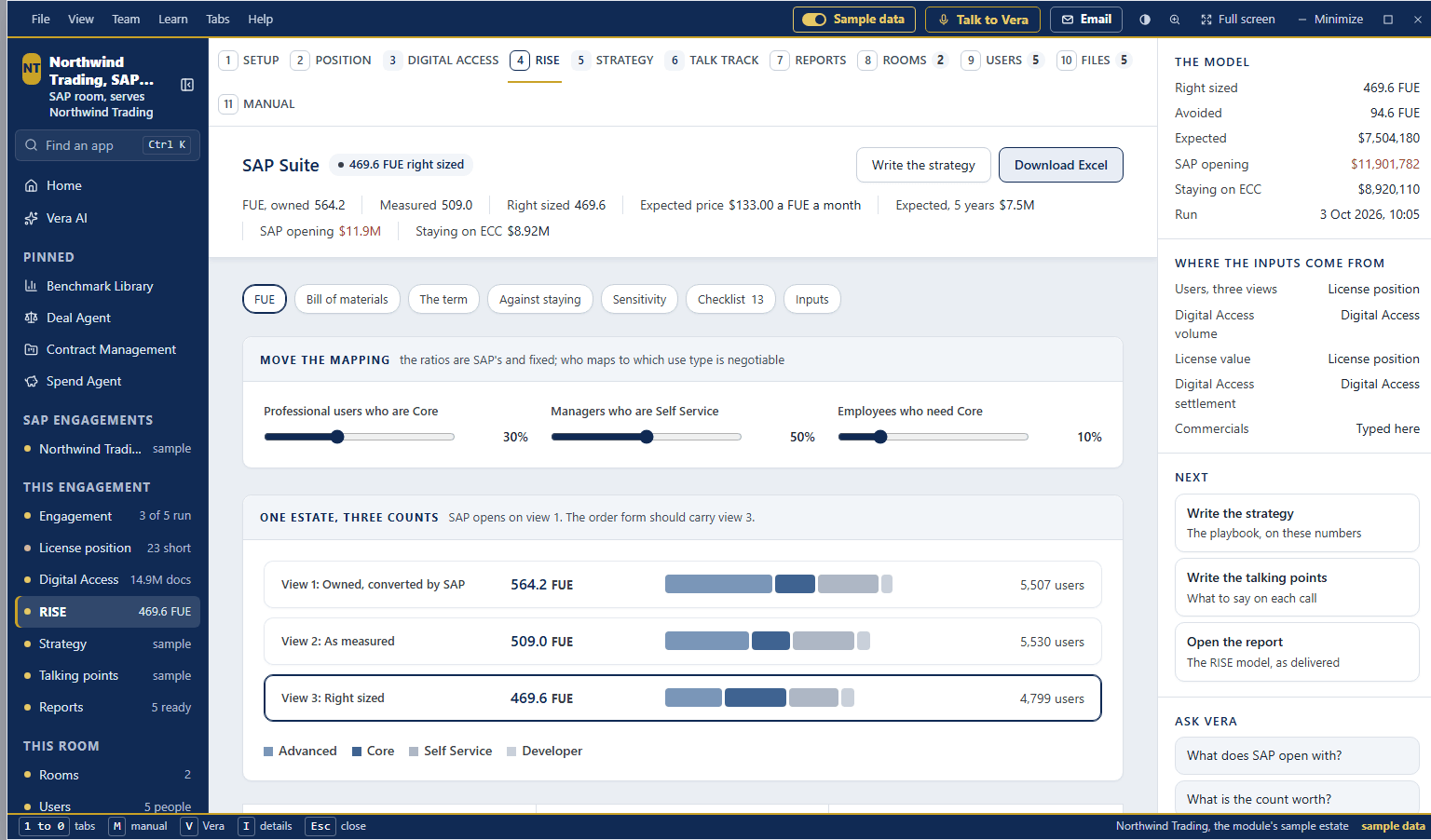
- RISE — the inputs (filled from the position and Digital Access, marked as prefilled; Back to the prefill undoes your changes), the FUE count, the bill of materials, five years year by year, staying where you are, a sensitivity table and the checklist for the order form. Once RISE has run, Download Excel saves the RISE model workbook (seven tabs).
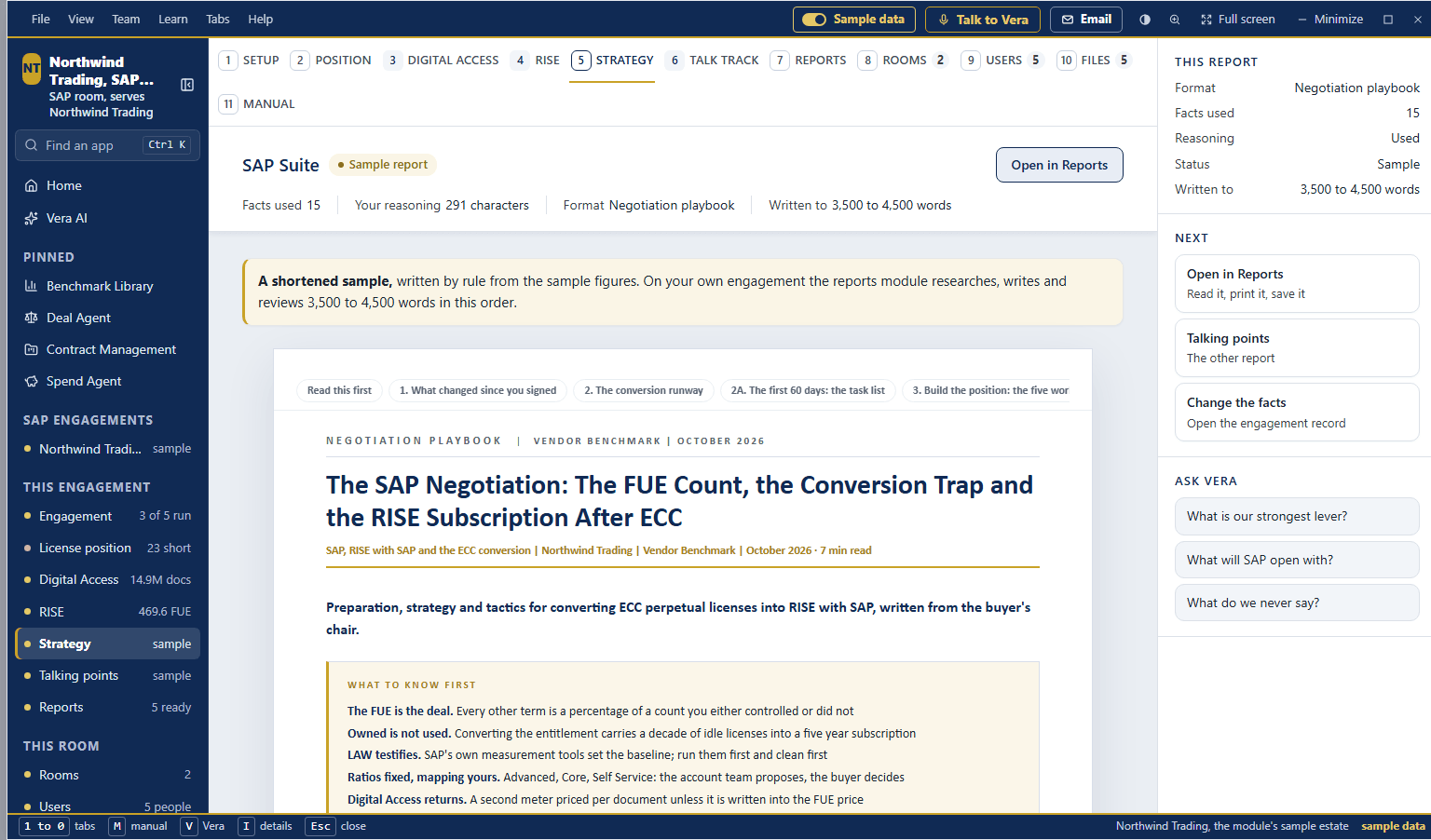
- Strategy and Talking points — what will be written and from which facts. Write the strategy or Write the talking points starts it; the progress shows research, the outline, the writing and the review, and the report appears here when it is done.
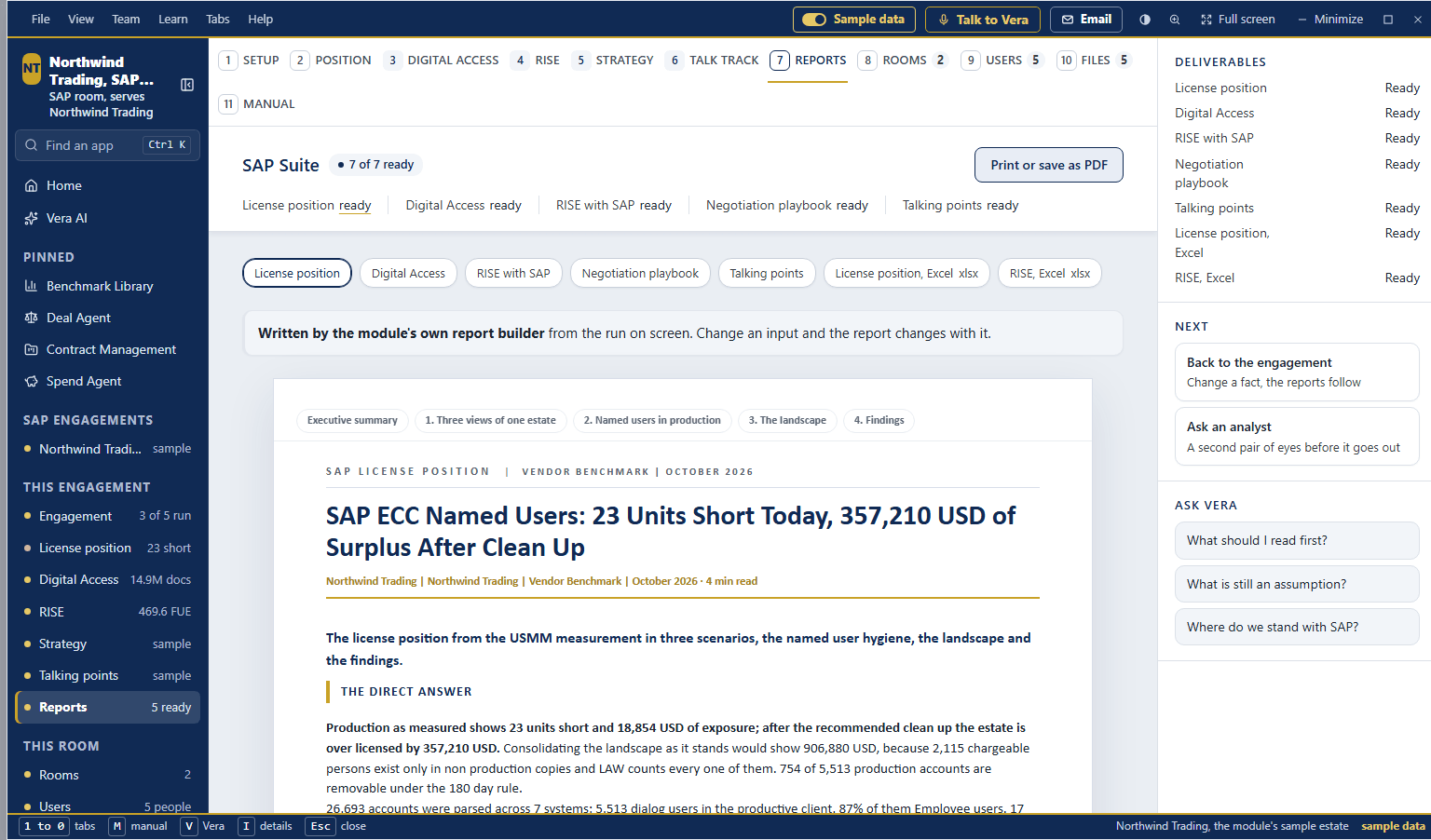
- Reports — every output in one place: the position, Digital Access and RISE papers, the strategy, the talking points, and the two Excel workbooks (License position, Excel and RISE, Excel). Print or save as PDF prints the paper on screen; Download Excel saves a workbook.
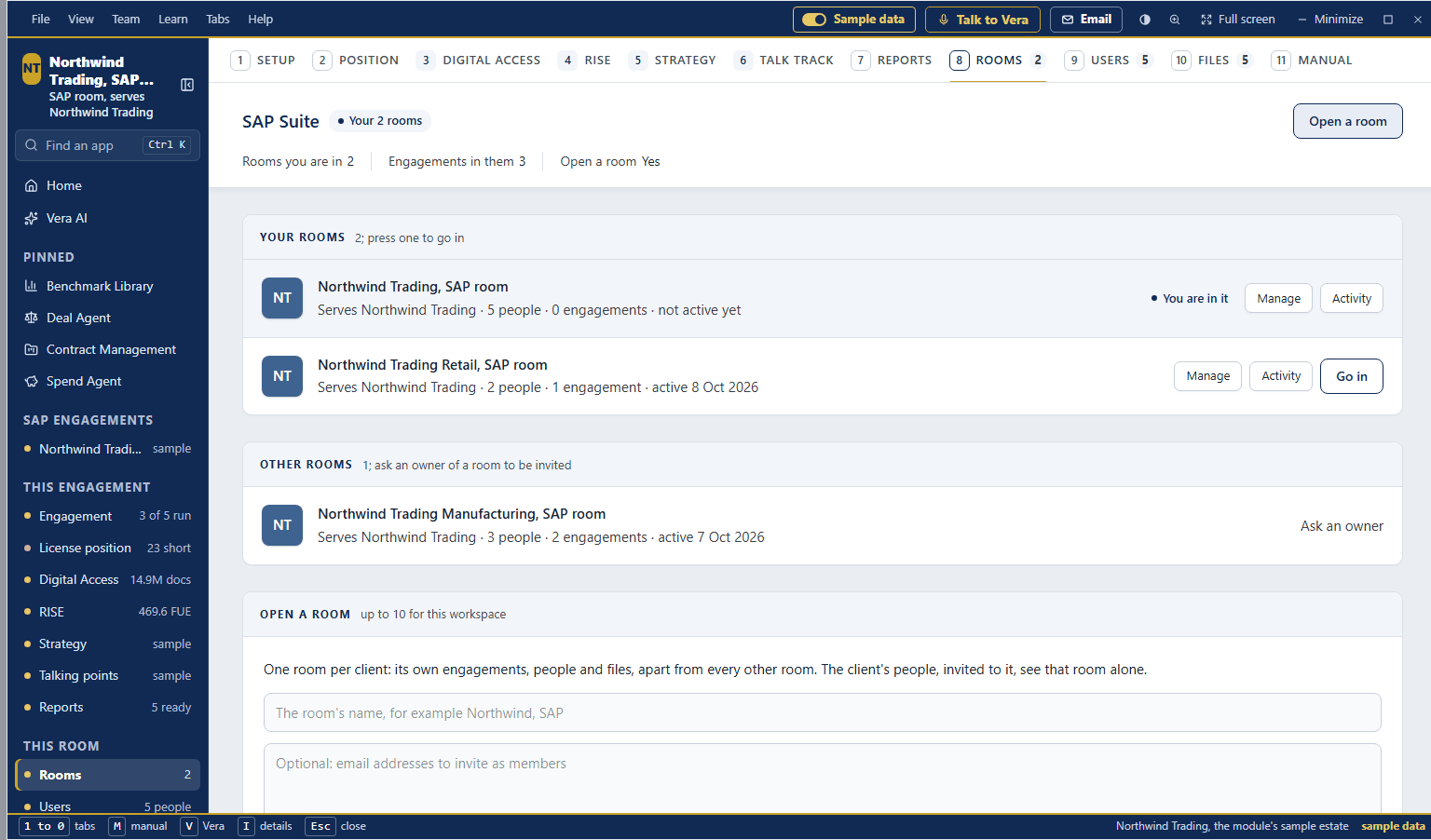
- Rooms — the list a room's person lands on from the SAP Suite sign in, and the eighth tab for everyone: Your rooms, the rooms you belong to as large rows (the mark, the name, what it serves, its people and engagements, when it was last active), the one you are in marked, and Go in on any other, which switches you into that room and reloads. A platform admin also sees All rooms, every room on the platform, with Manage, Activity and Join and go in on each, and the form that opens one; an Enterprise owner sees the rooms that serve the workspace and the form. Your workspaces at the foot switches between the workspaces and rooms you belong to. Outside the room, every window lists it first under File, as Rooms, with the app it belongs to; a press switches you into the room and opens the app (until 8 October 2026 the room headed the left column instead), and a new account finishing its setup is sent to Rooms first.
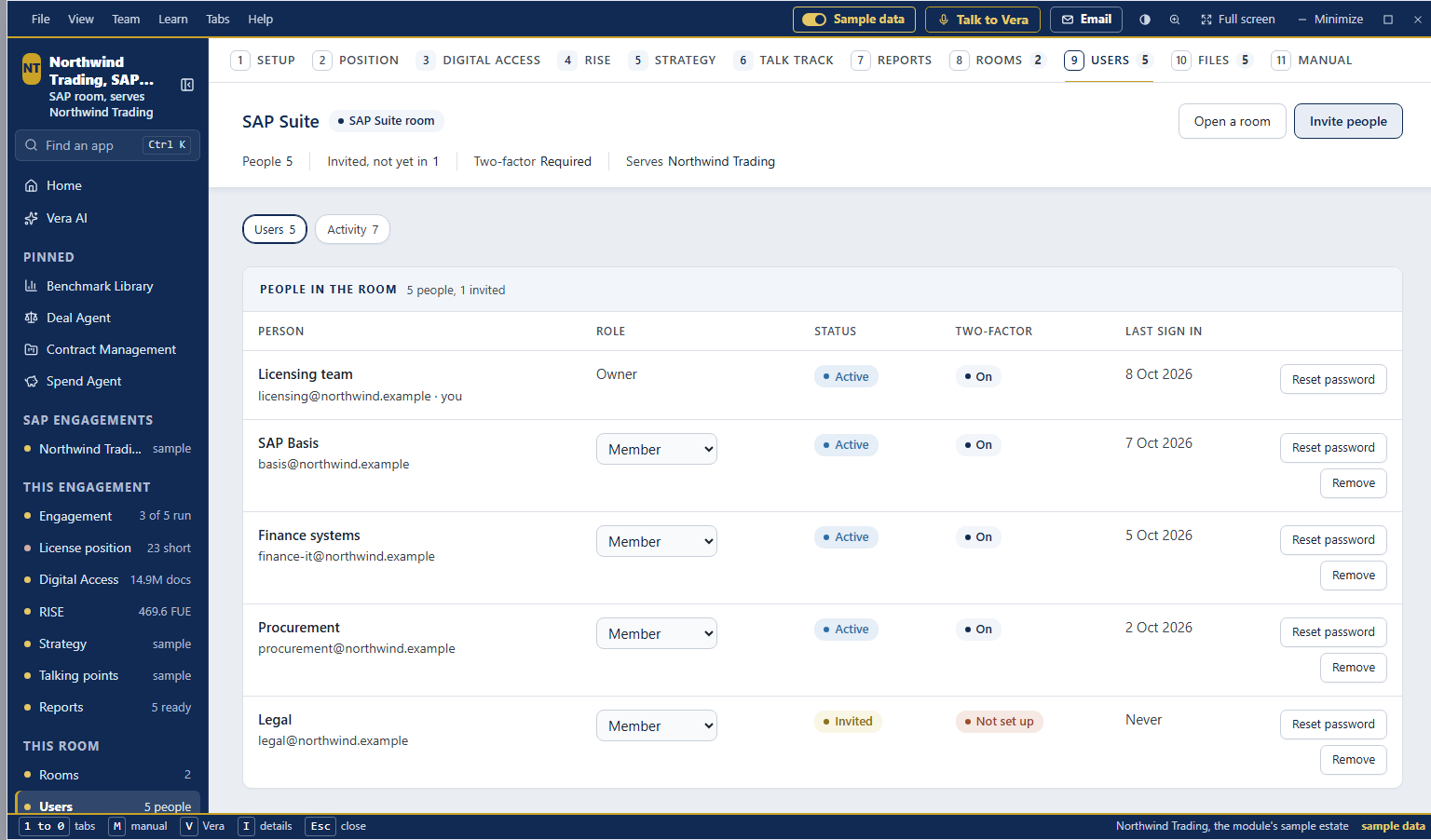
- Users — in a room, the room's people: each with their role, whether they are active or invited, whether two-factor is set up and when they last signed in. An owner invites people by email (up to 20 at a time, as owners or members), changes a role, sends a password reset (the link goes to the person's own address), removes someone, and sets whether two-factor is required for everyone in the room (on when a room opens). Under them, Other rooms seen from here and Open a room, beside what a room is. In an ordinary workspace it lists the rooms that serve it, with their people and engagements, then Open a room and the workspace's own people. Each client gets a room of its own, kept apart from every other room; the sample shows a room with its people, two more rooms and the form.
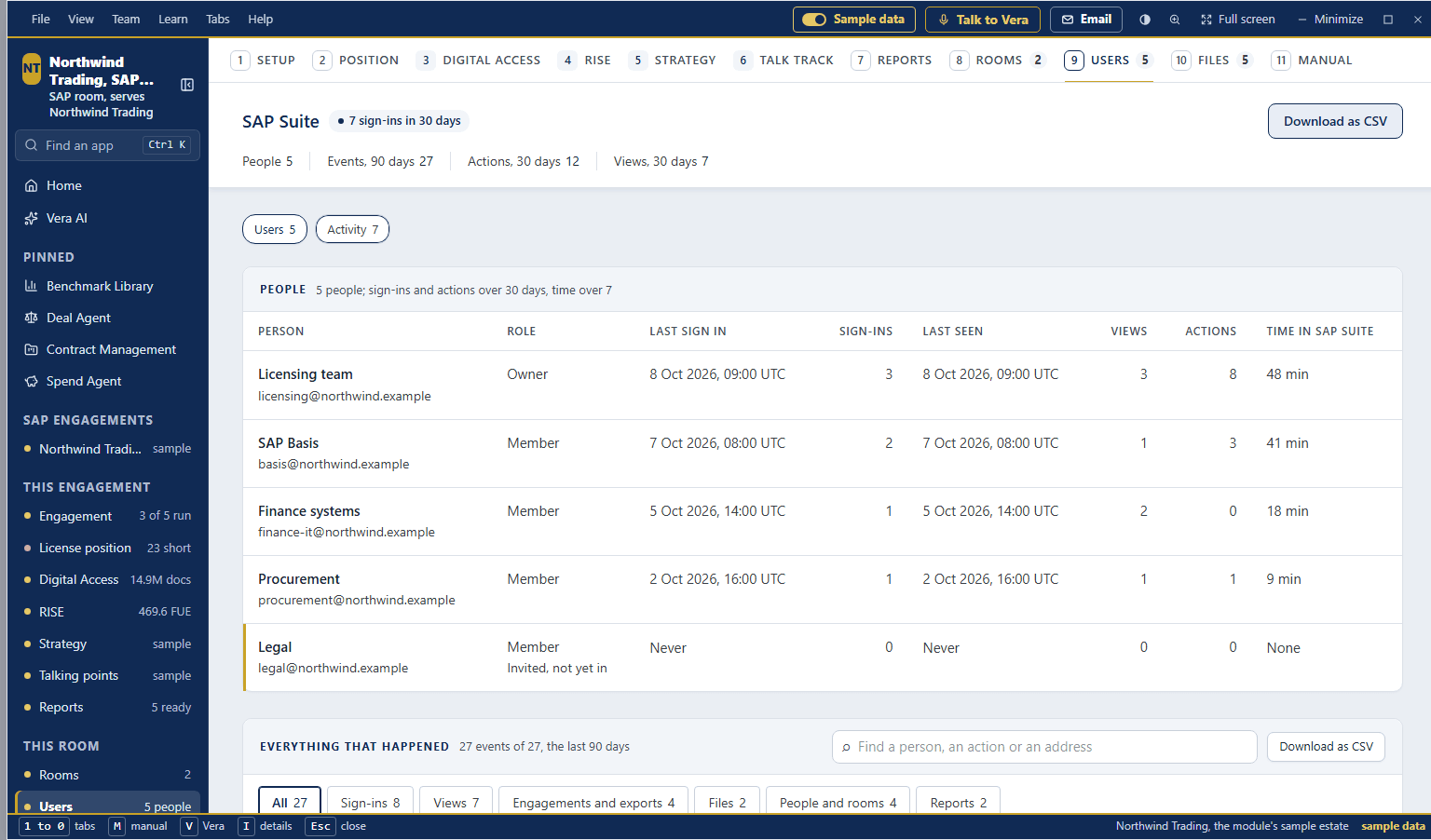
- Activity (the second screen of Users) — who signed in and what they did, for an owner of the room or workspace and for platform admins; a member sees what is recorded and who can read it. People: each person with their role, last sign in, sign-ins over 30 days, when they were last seen, views and actions over 30 days, and time in SAP Suite over 7 days. Everything that happened: every event of the last 90 days, newest first, with the time (UTC), the person, what they did in plain words, the detail (the engagement, the export, the file, the minutes), the IP address and the device; chips filter by kind (Sign-ins, Views, Engagements and exports, Files, People and rooms, Reports), the search finds a person, an action or an address, and Download as CSV writes the list for Excel. A platform admin or a room's owner opens any room's activity from its row on Rooms or Users, without joining it.
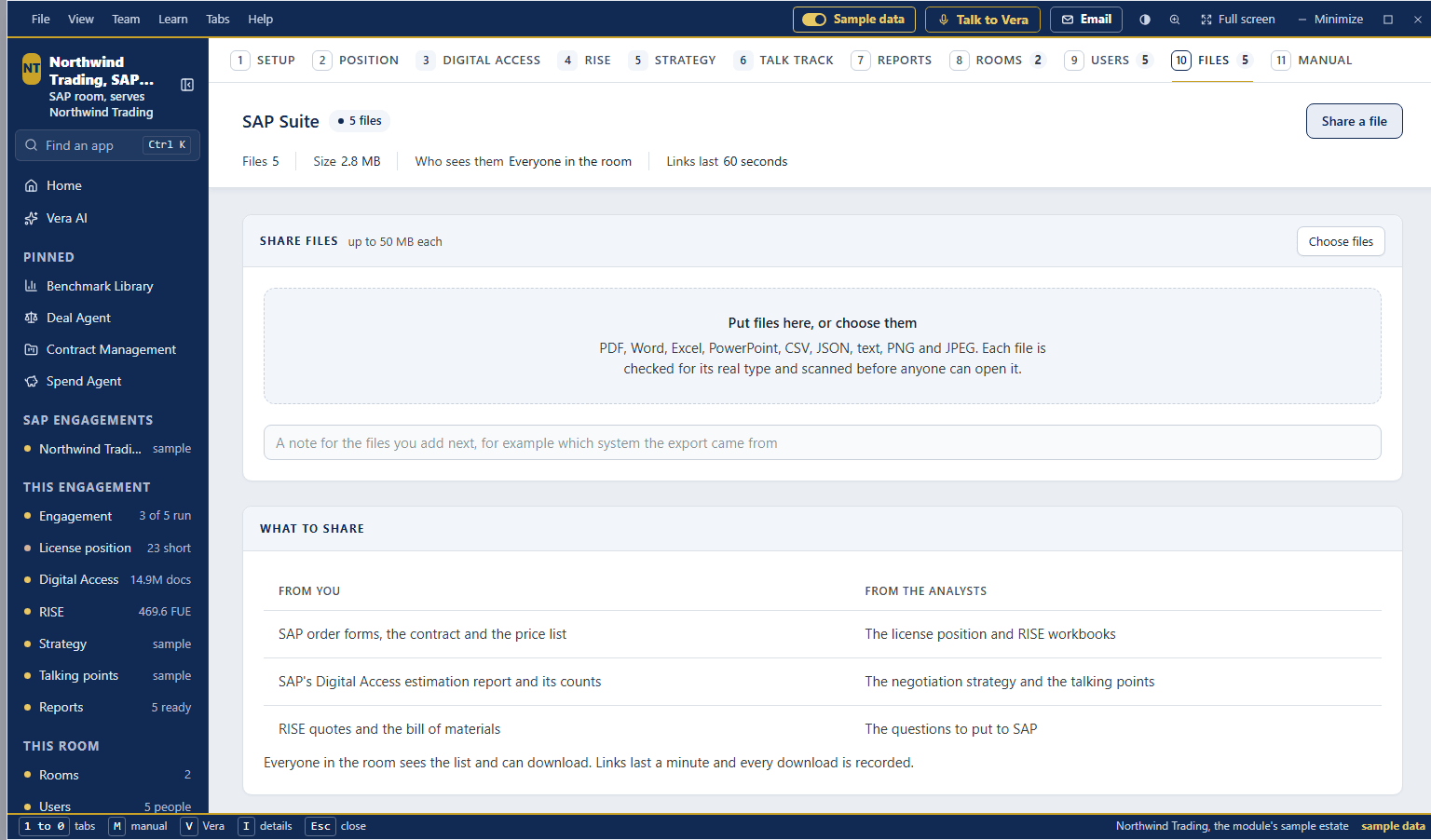
- Files — the shared folder of the room or workspace: put files in the zone or choose them (PDF, Word, Excel, PowerPoint, CSV, JSON, text, PNG and JPEG, up to 50 MB each, 20 at a time), with a note for the files you add next. Each file is checked for its real type and scanned before anyone can open it. The table lists every file with its note, who shared it, the date and the size; Download mints a link that lasts a minute, and the person who shared a file, an owner or a platform admin can Delete it. Every download is recorded.
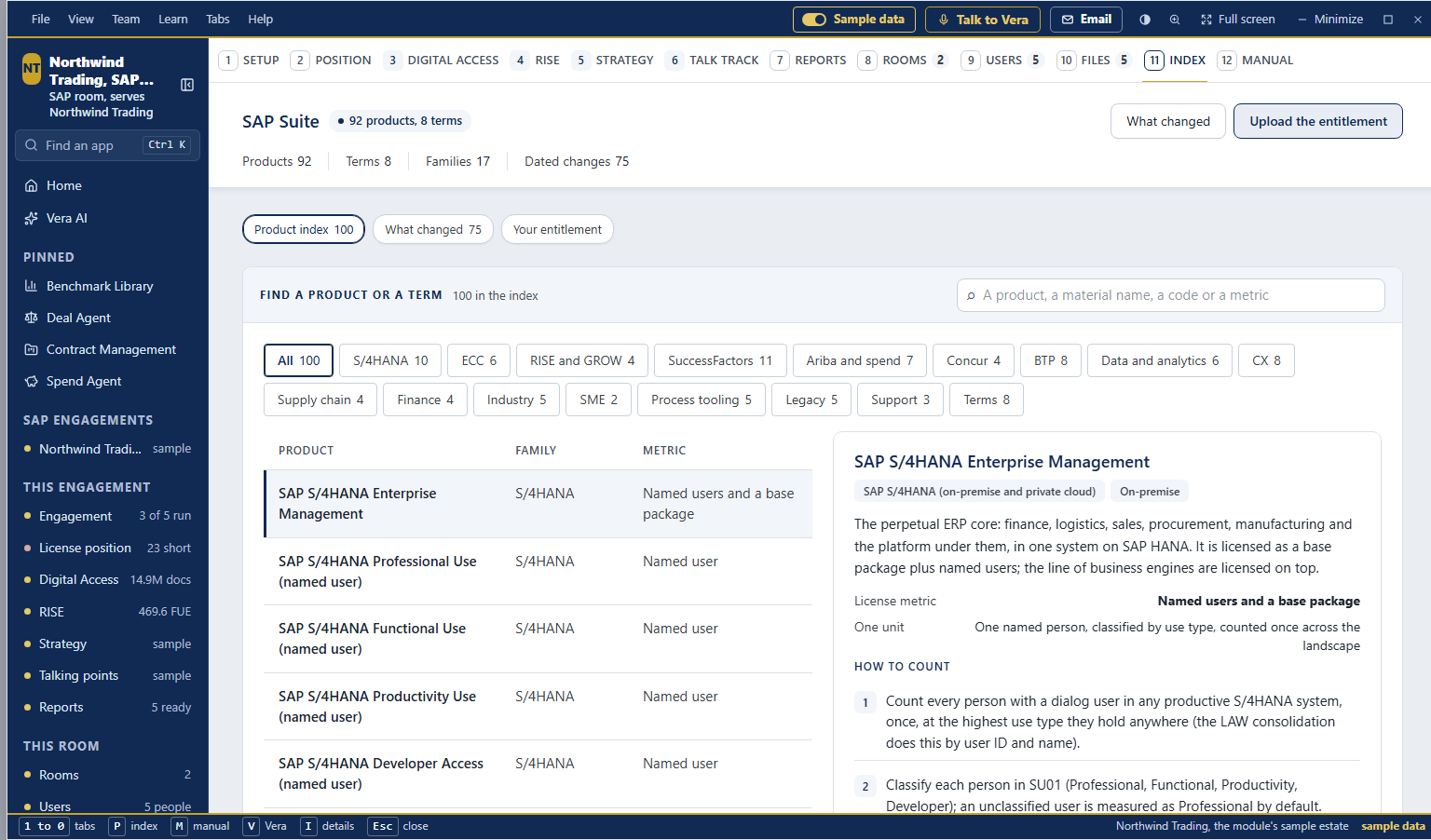
- Product index (the eleventh tab, key P) — every SAP product and licensing term in one look up, the industry solutions and the partner software SAP sells under its own name (OpenText, Vistex, Nakisa, Tricentis and the rest) included: type a product, a material name, a code or a metric, narrow by family, press a row and read what it is, the license metric, one unit, how to count it step by step, what an audit reads and what changed with the date. What changed lists every dated change newest first. Your entitlement takes a CSV, an XLSX or pasted lines (the file stays in your browser), matches every line to the index (matched on the name, matched by words to confirm, or not in the index, each with a chooser), and Build the report writes the report that explains every product on the file in the firm document design: the estate at a glance, each family and product with its metric and counting rule, the lines to resolve, what to check before the next measurement, and what changed. Print or save as PDF; download the match list as CSV.
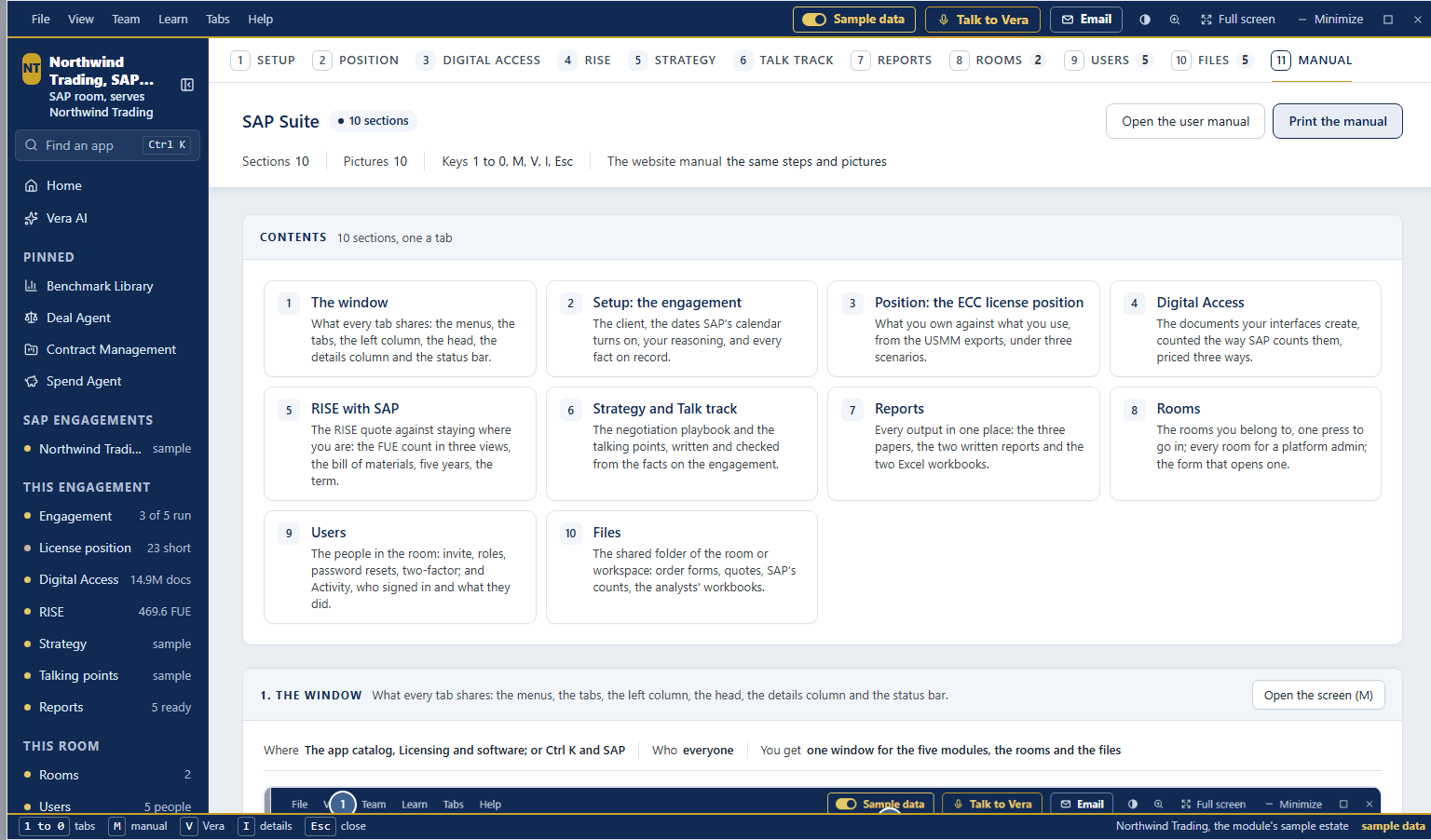
- Manual (the twelfth tab, key M) — this manual inside the window: Contents as a grid, one section a tab, then each section with a picture of the real window on the sample estate, numbered markers on the picture, The parts the markers name with one line each, How to use it as numbered steps, and a tip where one is needed; Keys at the foot. Open the screen on a section opens that tab; Open the user manual in the head opens this page. The in-app manual and this page carry the same pictures and the same steps.
- Every figure opens — press any row, bar or cell on a screen (a step of the Digital Access walk, a document type, a price cell, a FUE line, a year, a driver, a sensitivity cell, a line of the position, a license type, an activity bucket, a line of the cover cascade) and a sheet opens with the figures behind it, the inputs it reads and a button to the screen where they are changed.
- The details column — What to do now first: one card with the screen's next move and its button (upload the exports, run the position, write the strategy, open a room, share a file), in brick when something is short or has stopped; then the step's facts, the next moves and questions for Vera. Press I to hide or show it.
How to use it
- Open SAP Suite. To see a finished engagement first, switch on Sample data in the title bar: a fictional estate of 26,693 accounts across seven systems, every module run.
- Press New engagement and name the client.
- On Engagement, set the dates and write your reasoning.
- On License position, press Upload exports and add the USMM exports from each system. Check the production system, enter the license lines you own, and press Run the position. Press Download Excel for the ECC license position workbook.
- On Digital Access, press First estimate from USMM or enter SAP's counts, then Run Digital Access.
- On RISE, check the prefilled inputs, enter the quote's figures and press Run RISE. Press Download Excel for the RISE model workbook.
- On Strategy, press Write the strategy; on Talking points, Write the talking points. You can close the window: the writing carries on and the report is there when you come back.
- On Reports, print the papers or download either workbook again.
- To give a client's people SAP Suite and nothing else, open Users (or Rooms), name the room, add their email addresses and press Open the room. They receive an invitation with a temporary password and the room's own sign in page; two-factor is set up at their first sign in.
Tips
- The exports stay in a private store in your workspace and open only through a link that lasts 60 seconds. Every read is in the audit log.
- Only counts and totals go to the writer: no user names, no email addresses. The workbooks leave them out too.
- Every figure argues in US dollars. When the SAP contract is priced in another currency, set Contract currency and its rate on Engagement.
- Delete this engagement in the File menu removes the engagement, its uploaded exports and its reports.
- SAP Suite rooms. A room is an SAP Suite of its own for one client or one project: its own engagements, exports, reports and files, and its own people. Every room is a separate account underneath, so two rooms share nothing, whoever is in them. A person invited to a room sees SAP Suite for that room and their own account settings, nothing else in the platform, and sets up two-factor at the first sign in. A room's people sign in on SAP Suite's own page,
/sap/login: the same sign in, dressed for the room (what they will see, the three parts of the job, and that every sign in is recorded), landing on SAP Suite; the invite email links to it. The owner of an Enterprise workspace opens a room from Users (up to ten for the workspace), becomes its owner and goes straight in; we can also open one for you and match it to your workspace, and then your workspace's owners are the room's owners. Everyone invited to a room also gets a platform trial as that client, made on the first invite when the room serves no client yet; inside SAP Suite, Your workspaces switches between the two.
Related: License position in 24 hours · Vendor playbooks: RISE with SAP · What you own
Ask a human
The way to ask a person rather than a model. Say what you need, add the quote or write the question, and send it. A named VendorBenchmark analyst reads it, benchmarks it by hand and signs the answer within 24 hours, read by a second analyst first, and you follow every step.
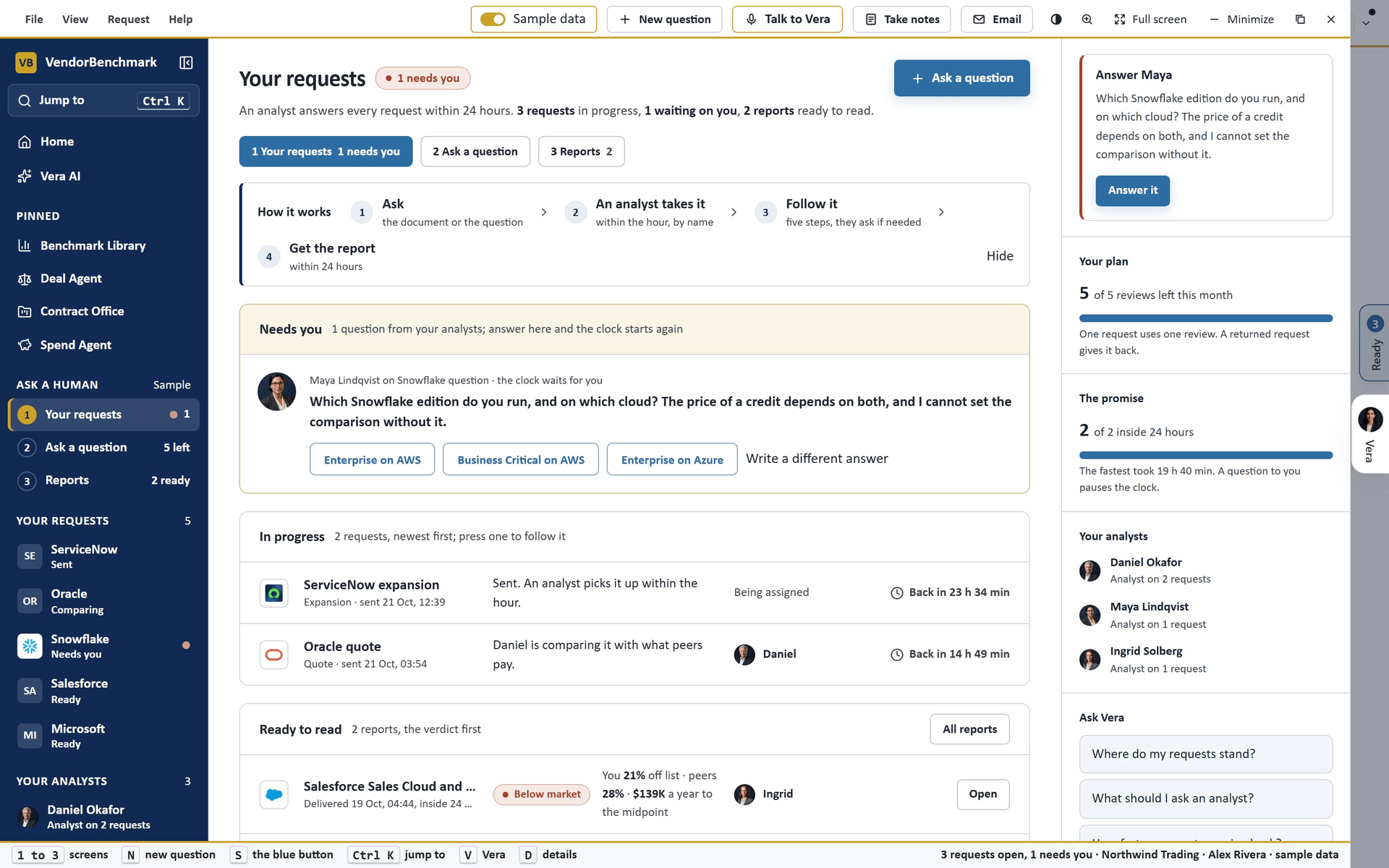
On the screen
- The window (made easier on 20 October 2026; Messages added on 26 October 2026) — five screens a buyer can name: 1 Your requests, 2 Ask a question, 3 Messages, 4 Reports and 5 History, numbered across the head and in the left panel; a request and a report open as pages of their own with the way back above the title. The title bar carries the menus (File: Ask a question, Continue where you were, Sample data, Save the newest report as PDF, Close; View: the five screens, Full screen gallery, Details, Dark mode, Maximize, Earlier window; Request: Answer the analyst, Open the latest report, Book a call with an analyst, Share the newest report, Suggest changes to the newest report, Open the contract record, Add information to this request, Escalate this request, Details of this request, Messages with the team, Meetings with the analysts; Help), New question, Sample data, Share and the window controls. The keys: 1 to 5 the screens, N a new question, M Messages, Shift F10 the menu of the row you are on, S the screen's blue button, Ctrl Enter sends, D the details column, Esc back from a request or a report. The four tab window you had before is under View, Earlier window.
- The left panel — the VendorBenchmark mark, Jump to (Ctrl K), Home, Vera AI and your pinned apps, then Ask a human with the four screens and a figure each (what needs you, the reviews left, the conversations waiting on you, the reports ready), Your requests (one row a request with the vendor's logo and the step it is on, a red dot on one that is waiting on you; right click one for its menu) and Your analysts, each with their photograph; press an analyst to write to them on their request.
- Your requests — How it works across the whole width in four equal steps with an icon each (Ask, An analyst takes it, Follow it, Get the report; the line under each shows on hover; the cross hides it). Then Needs you: each question an analyst is waiting on, with the answers as buttons; one press answers it and the clock starts again, or Write a different answer. Then In progress as a table: the request, its status (a tag, Escalated when you escalated it, and one plain sentence such as "Daniel is comparing it with what peers pay"), the five steps it walks (Sent, Reading, Comparing, Checking, Ready), the analyst and when it is back, with Message, Add information, Details and More at the end of each row. Then Ready to read as a table: the report, its verdict, your discount off list and the peers' midpoint (a signed PDF says the figures are in the PDF), the analyst and when it arrived, with Open and More. At the foot, Latest activity (the last six steps and messages across your requests) beside Ask something new with the four ways in. The details column carries what to answer first, Your plan (the analyst reviews left), The promise (how many came back inside 24 hours, and the fastest) and Your analysts.
- Right click (since 26 October 2026) — right click any request or report, in a table, on a card, in the left panel or in Messages, or press More at the row's end or Shift F10 on a focused row. A request's menu has Open, Details, Open the report, Answer, Message, Add information, Escalate, Book a call, Ask Vera about it, Copy link and Open the contract record; a report's has Open the report, Save as PDF, Share a link, Suggest changes, Talk it through with Vera, Open the request, Ask a follow up, Details and Copy link. A move that does not apply is grayed out, with the reason on hover.
- Details — a panel that slides over the page from the right, at any window width: the request's status, kind, vendor, when it was sent and is back, the analyst and the second reader, the documents and messages, an escalation if there is one, what you sent, the six checks, and the activity, newest first; Open, Message, Add information and Escalate across its top. Esc closes it.
- Add information (since 26 October 2026) — more for a request you already sent: a note, documents (PDF or Word, up to five, on a request sent with a document), or both. It lands on the request's conversation, the analyst is told at once, and the documents join the contract the analysts are reading. A written request takes a note only; ask a new question to add a document to it.
- Escalate (since 26 October 2026) — on an open request: choose the reason (Running late, The deadline moved closer, We need a call today, A concern about the answer) and add a note. The request reads Escalated on Your requests, on its page and in Messages, the team lead is told at once and leads the analysts' queue with it, and the reply arrives on the request and by email. One escalation a request every four hours.
- A request — the page for one request: an Escalated line when it is, then five moves across the width (Add information, Messages, Escalate, Book a call, Details), the verdict with four figures once it is delivered, Where it is with the five steps large and the 24 hour clock (it pauses while a question waits on you), What you sent, Activity (each step with its time), and on the right the Conversation with your analyst: a question arrives with its answers as buttons, and the box at the foot answers it or writes to them; Open in Messages takes it to the chat. The head says in one line who has it and when it is back, with Answer, Message or Open the report, and Book a call. The details column shows your analyst and when they took it, the six checks they confirm, and the second reader.
- Messages (since 26 October 2026) — the chat with VendorBenchmark: on the left every conversation (one per request, newest first, and VendorBenchmark team for anything that is not one request), with the last line, the day, a red dot where a question or a reply waits on you, and a search box; on the right the chat with day lines, your messages on the right, the analyst's on the left, a question in gold with its answers as buttons, and the box at the foot (Enter sends, Shift Enter a new line; Attach opens Add information). The chat's head carries Add information, Escalate, Open the request and More. New messages arrive on their own every few seconds while Messages is open; analysts reply here and by email.
- Book a call — three times on the next working days, 30 minutes each; press one and the team confirms it by email. Choose it on the calendar opens the meetings for any other time.
- Reports — a card for every report with its rank, your discount, the peers' midpoint and the gap a year, then Every report as a table. A report delivered with its figures opens as its own page in the firm document look, with Book 30 minutes with the analyst and Talk it through with Vera; one delivered as a PDF opens in the full screen reader.
- History (since 26 October 2026) — every request in one table with the times it walked: when it was sent, when an analyst took it (and how long after), when the report reached you, how long it took as a bar against the 24 hours (blue, brick once it passes 24 hours), the time the clock stood paused on a question to you (never counted against the 24 hours), the status and the analyst. All, In progress, Delivered and Returned filter it, the search box narrows it, a press opens the request's details and a right press its menu. Beneath it, Time to deliver draws the last eight delivered requests against the 24 hour line, and By month counts what was sent and delivered each month, the average time and how many came back inside 24 hours. The head carries the averages (to deliver, until an analyst takes it, inside 24 hours) and Export to Excel: a workbook with a summary sheet, every request with its times, and every step with its time.
- Taking a benchmark report out (since 26 October 2026) — a report drawn from the analyst's figures carries four moves in its head: Present (the report full screen, one section at a time; the arrow keys move, Esc ends it), Word (the report as a Word file in the firm document look), PowerPoint (a deck: the cover, the executive summary, the three answers, the lines, what changes if the peer midpoint moves, what to ask for, the bottom line) and Share (a read only link anyone can open without an account, ending after 7, 30 or 90 days; the link is copied as it is made, and Email it opens a draft in Mail with the link). The same moves are on the report's right click menu, and on a delivered request's. A report delivered as a signed PDF keeps Save as PDF and its own Share a link.
- Credits (since 27 October 2026) — the counter beside the title of every screen says how many credits are left (for example 4 of 5 credits left), or Unlimited reviews on a plan with no limit; it turns brick when one or none is left. Press it for the credits panel: what your plan includes for the period, the credits VendorBenchmark gave you, how many were used and how many are left, every request that used one this period, and every credit the team gave with its note and whether it was used. Ask for more credits opens Messages to the team. One request uses one credit, a returned request gives it back, a resubmission uses none, and benchmark requests made on a contract record use the same credits.
- Resubmit (since 27 October 2026) — not happy with a delivered report? Right click it (or the request) and press Not happy? Resubmit, or press Resubmit on the request's page or in the report's details. Pick what is wrong (The figures look wrong, It misses part of what I asked, Something changed in the deal, I want a different comparison) and say what should change. It is free of charge: the request goes back to the analyst, reads Resubmitted and in progress until the new report arrives within 24 hours, and the reason is on the conversation. A request can be resubmitted twice; after that, book a call with the analyst.
- Feedback (since 27 October 2026) — a delivered request's page asks Was this report useful?: press Helpful or Not helpful, tick what worked or what was wrong (Clear and useful, Figures I can use, Fast, Changed the deal; or The figures look wrong, Too general, It came late, Hard to follow), add a comment if you like, and press Send feedback. The comment goes on the conversation for the analyst; a Not helpful rating also tells the team lead at once and offers Resubmit it. The rating shows on the request, in the report's details, as Your rating in the report tables, in History and its Excel export; Change replaces it, and the newest rating stands. It is on the right click menu as Give feedback.
- Report covers — every delivered report shows as a drawn cover: the vendor, the title, the gold rule, the month, the page count and the analyst who signed it.
- Reading a report — a report delivered with its figures opens on paper, drawn from them in the firm document look: four headline figures (your discount, the peer midpoint, the supported target, the money in reach), the executive summary, what it costs line by line, what comparable buyers are offered with you placed among them, where it ranks with what changes if the midpoint moves three points either way, and the analyst's signature with the second reader. A report delivered as a PDF opens in the full screen reader: the page you are on, zoom, fit and find, the pages as paper, the contents and page cards on the left; Esc closes. Save PDF downloads it, and Talk it through hands it to Vera, who walks you through the finding, what to do first and what to ask the vendor for. The email that says a report is ready carries a Read it online link that opens it straight in the reader.
- Full screen gallery — one report's cover across the whole screen with the others in a strip beneath. The arrow keys move between them, Enter opens the report, Esc closes.
- Share — a link to one report: who opens it (anyone at your workspace after they sign in, only the people you add, or anyone with the link), when it ends (24 hours, 7, 30 or 90 days) and whether the PDF can be saved. The link is copied as it is made; the sheet lists every link with how often it was opened, and End stops one at once. Every open is on your audit log.
- Suggest changes — say what should change in your own words and press Draft the list; AI writes a numbered list, one change per item. Edit it and press Send to the analyst. The sheet shows every change you asked for and where it stands: Sent to the analyst, Being revised, Revised or Not changed.
- Ask a question (since 20 October 2026) — three short steps and one send. 1 What do you need?: Is this a good price?, How should I negotiate?, I have a question (no document needed) or All of it. 2 Add the document (a quote, a renewal or an order form, up to five PDF or Word files, chosen or dragged anywhere onto the window, with an optional note for the analyst) or, for a question, Write your question. 3 A few details, all optional: the vendor, the spend a year, when you sign, and a 30 minute call once the report is ready. The send bar at the foot says what is still missing, or that it is ready, when it is back by and that it uses one of your analyst reviews. The details column shows What the analyst will read as you type. After Send to an analyst the screen says it is with the analysts and offers Follow it.
- Meetings with the analysts and Book a time — from the Request menu. Book a time shows the next ten working days in your own time zone; choose a time, say what it is about and press Ask for this time; the team confirms or declines by email.
- Arriving from a benchmark — Ask an analyst to check this on a benchmark sheet opens Ask a question with the vendor, the amount, the term, the discount and the sheet's finding already in the brief. Nothing you have typed is overwritten.
- Arriving with a vendor (since 5 October 2026) — Send it to a human analyst in the Deal Agent, and Send to a human analyst on another vendor's row in the Benchmark Library's Your work, open Ask a question with the vendor filled in and nothing else, because the vendor's name is all that was sent. A line at the foot says Vendor filled in. A request you were already writing keeps the vendor you typed.
- Arriving after a request you sent — if the last request you sent was still on Ask a question, a send from a benchmark sheet, a clause or a vendor starts a clean request. The one you sent stays under Your requests.
- A rejected request, and a request sent back (since 14 October 2026) — when the analysts cannot benchmark a request they reject it with a reason: the request reads Returned on Your requests and on its page, the reason is the last message under You and your analyst and reaches you by email, and the analyst review is back in your allowance. When they need more from you before the work can go on, the request is sent back for information: the question under Needs you and an email, the request reads Needs you, and the 24 hours wait until you answer it.
Before it sends. Since 13 October 2026 pressing Send to an analyst opens a wide panel that states the three figures the request turns on: what this request uses, how many analyst reviews are left now and how many after it, then Cancel or Send, use 1 review. The send strip under the form keeps the button and its line at the left and the four steps after you send across the rest of the width.
How to use it
- Press Ask a human in the top bar, left of Live call, or on Home. The window opens on Your requests.
- Press Ask a question (N). Pick what you need, add the document or write the question, and add any details.
- Press Send to an analyst (or Ctrl Enter). The panel that opens says what the request uses and how many analyst reviews you have left after it; press Send, use 1 review.
- Follow it under In progress, or press it in the left panel. If it moves to Needs you, press the answer that fits: the 24 hours wait for you until you do.
- To talk it through, open the request and press Book a call, then a time.
- When the report arrives, Read it online in the email opens the reader. It also waits under Ready to read and on Reports: open it, save the PDF from the reader, or Talk it through with Vera.
- To send it on, press Share, choose who opens it and when the link ends, and press Make the link. To have it revised, press Suggest changes, write what should change, press Draft the list, check it, and press Send to the analyst.
- To add a note or a document to a request you sent, right click it and press Add information; if it is running late or your deadline moved, press Escalate and choose the reason.
- For anything else, press Messages (M) and write in VendorBenchmark team, or open the Request menu and Meetings with the analysts to ask for a meeting.
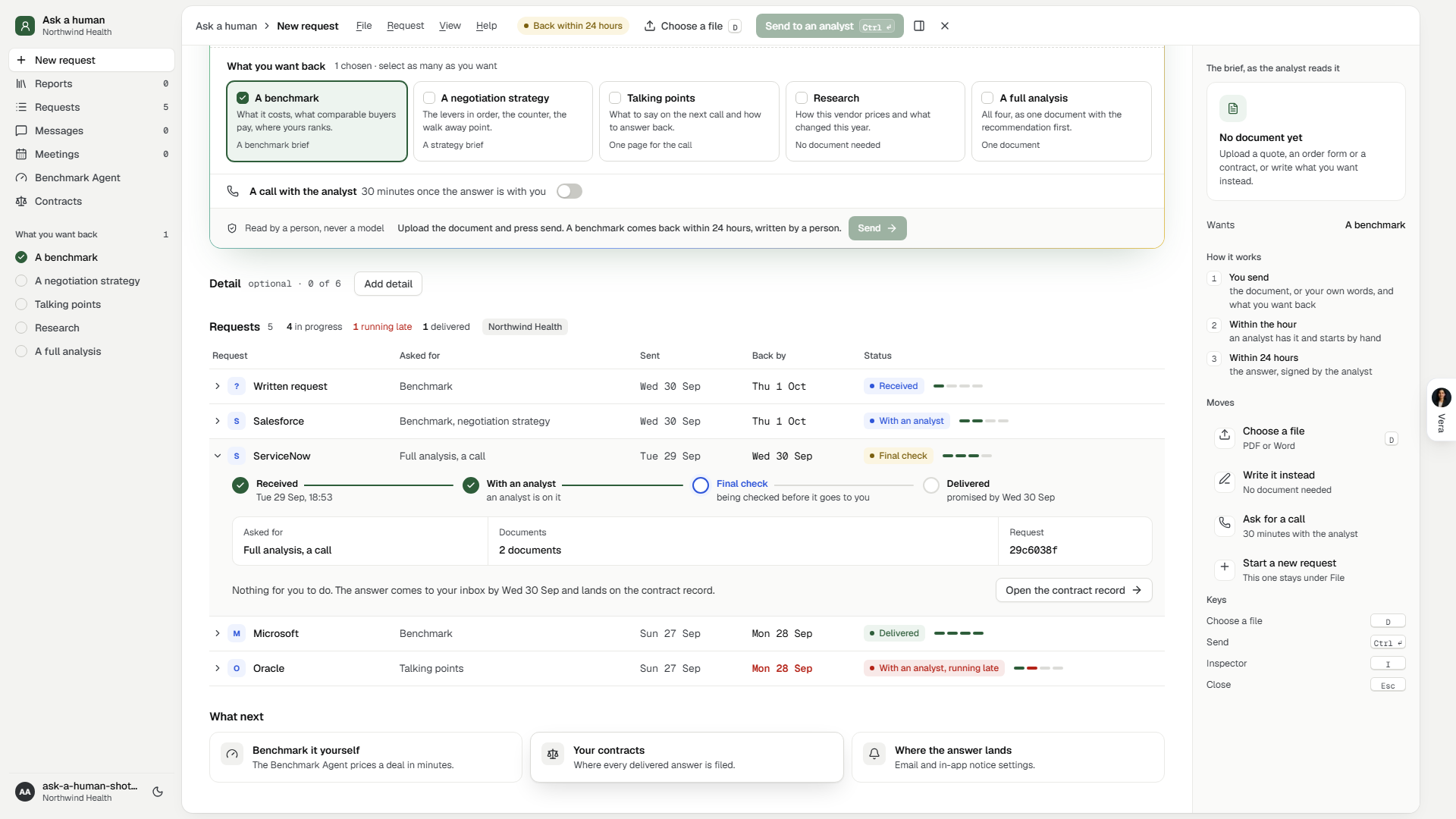
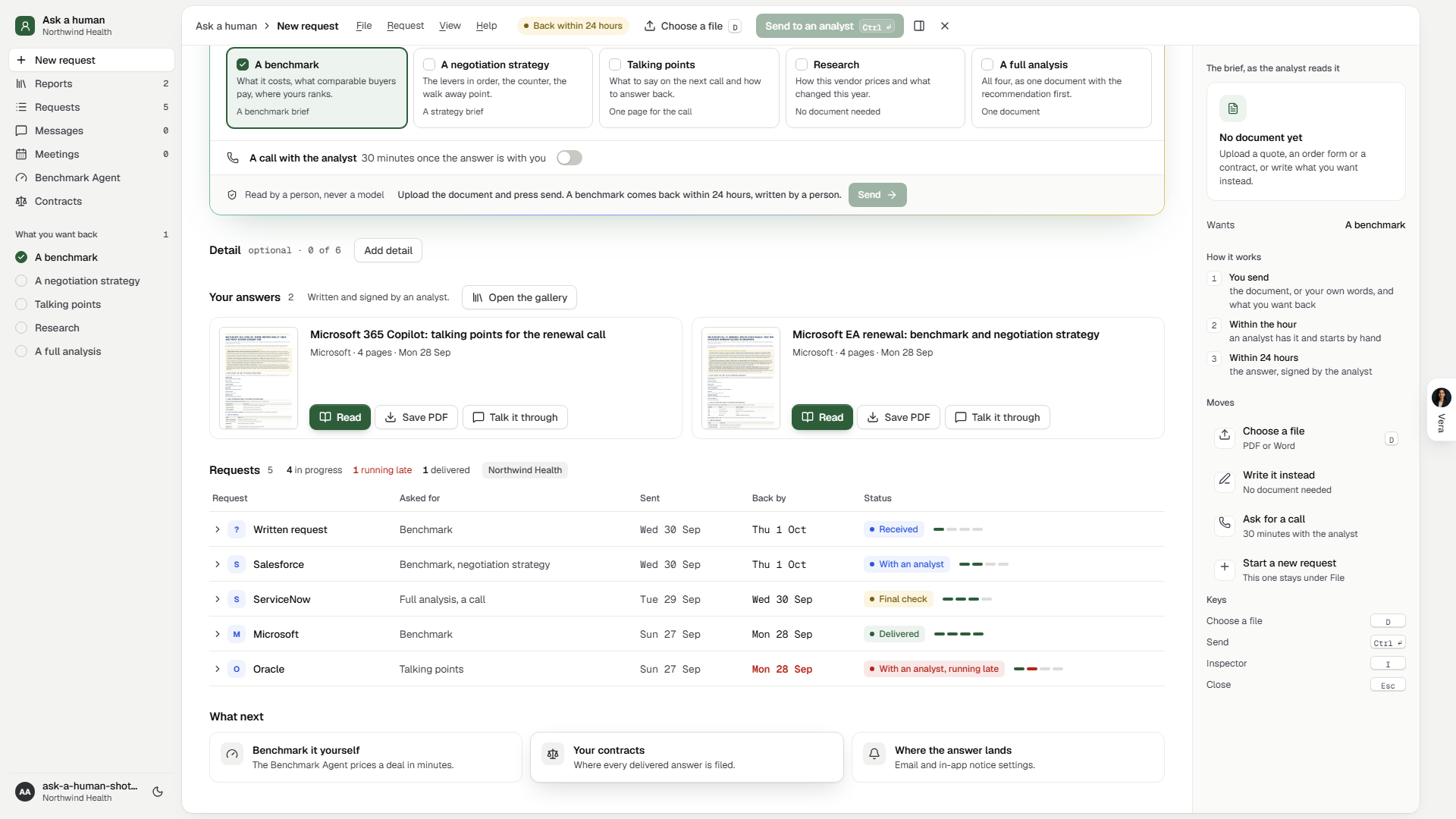
Tips
- Sample data — the switch in the title bar, and in the File menu, shows the window on five sample requests from Northwind Trading in place of your own: one just sent, one with an analyst building the comparison, one where the analyst has asked a question and the 24 hours are paused, and two delivered with their signed reports. Your requests, Reports, the conversation and a booked call all read from the sample. Nothing is saved or sent while it is on: Send, uploads, replies, answers, sharing and meeting requests each say so and stop, and no analyst review is used. Switching it off returns your own requests exactly as they were.
- A missing list price never stops a benchmark. The analyst benchmarks the rates the document states against what comparable buyers pay.
- Nothing typed is lost: a reload, Minimize, or tomorrow's visit finds the request where it stood. Start a new request shelves the current one; File brings the last five back.
- A link set to anyone opens without an account, so use it only for a person you would email the PDF to. A link for your workspace or for named people asks them to sign in first.
- On our side the document becomes a contract in the analyst review queue, every VendorBenchmark analyst is told the moment it lands, and research or a full analysis also opens a request in the research queue.
Self Drop Benchmark
Upload a vendor's offer and get the pricing benchmark back. The request is read into facts you see before anything is written. The report is then written, drawn in a fixed template and measured page by page, and only a draft that passes every check is delivered. It works for any vendor: each is placed on its own range from the Benchmark Library.
Since 20 October 2026 the window follows three moves: upload the offer, see the answer, take it to the vendor. The answer opens as soon as the offer is read, before the report is written, and four tabs carry the rest: The answer, What we read, Negotiate and The report. The five step window you had before opens at /self-drop?classic=1, and the sections further down that name Request, Facts and Asks describe it.
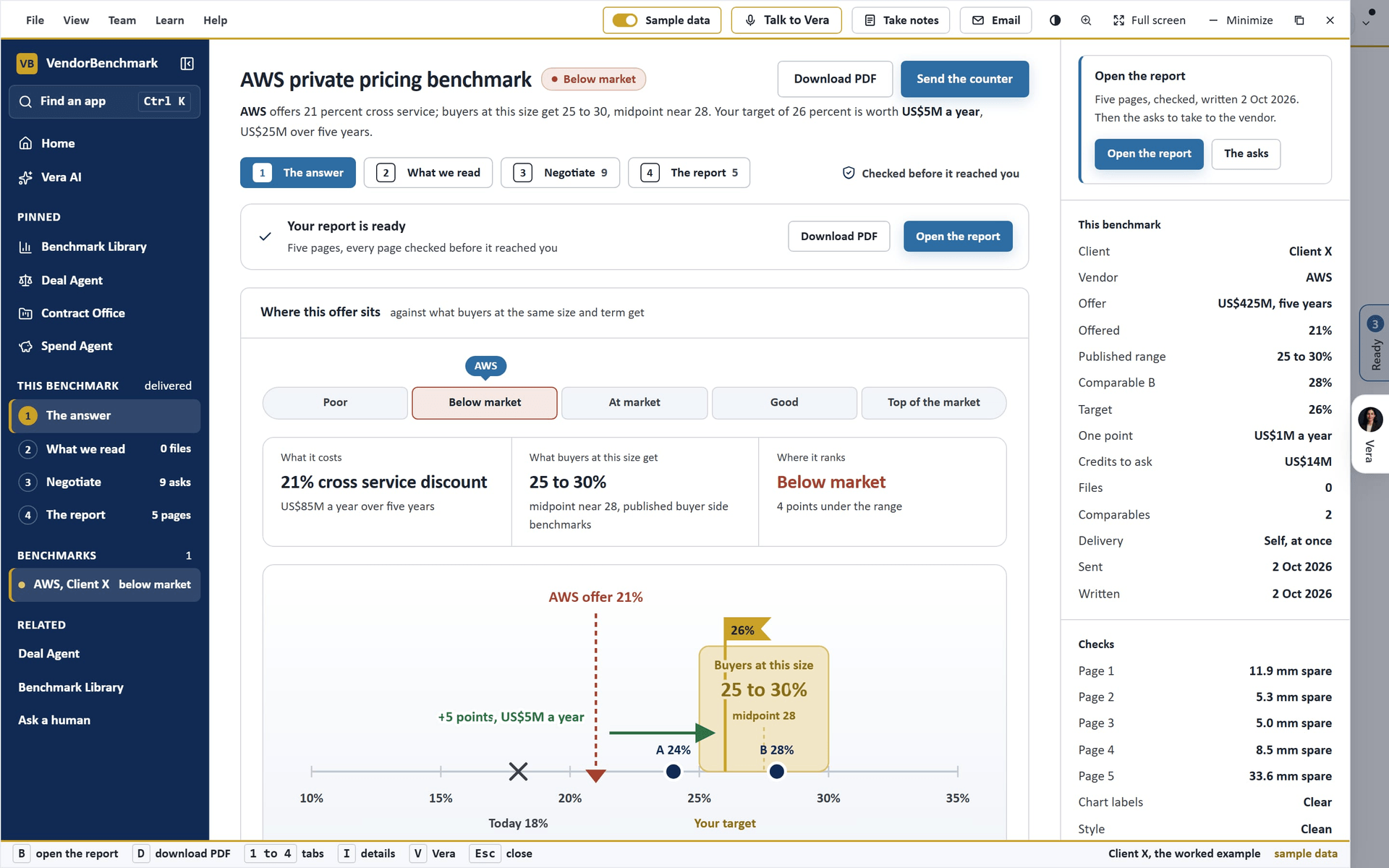
On the screen
- The window — on the same frame as every agent: the title bar with the menus (File has New benchmark, Download PDF, Download JSON, Download the notes and Delete this benchmark; View has the four tabs and Write and check), Sample data, Share, light and dark, Minimize, Maximize and Close.
- The left panel — This benchmark, the four tabs with where each stands, then Benchmarks: New benchmark and every request in your workspace with where it ranks or its status, then Related.
- New benchmark — one upload area. Drag the vendor's offer onto it, press Choose the offer, Use a contract on file, or Type the figures to write it in your own words. PDF or Word, up to three files and 20 MB in all. Have more? Add it holds three starters: The agreement it replaces, Deals you know of and Your target; each adds a line to your words for you to finish. How should it reach you? is Right away or Reviewed by an analyst. What you get shows the three answers, and your benchmarks sit as chips at the foot. Press Benchmark it (B).
- Reading — your files under a scanning beam, beside the four stages: reading the offer, placing it on the market, writing your answer, checking every page, each with its time. The ring counts the stages done (0 of 4 while the offer is read) rather than guessing a percent. You can close the window; the read carries on. When the read lands, a notice says Offer read with the vendor and the discount, and Open the answer.
- The market band (since 25 October 2026) draws from its own figures: the range for buyers at this size first, then each comparable deal as a dot in the order it was matched, then your target, and the vendor's offer lands last, all inside a second and a half; with reduced motion turned on it is simply there.
- The answer — a strip at the top says where the report stands: Write the report, Being written with Watch it, Your target moved with Rewrite at the new figure, or Your report is ready with Open the report. Under it, Where this offer sits: the rank on a five step scale from Poor to Top of the market; three answers (what it costs, what buyers at this size get, where it ranks); the market band with the range for this size and its midpoint, your comparables by letter, today's rate, the offer and your target as a gold flag, and the gap drawn with its money. Your target is a slider: the flag, the worth a year and over the term, and the rank the offer would reach all follow. Beneath it, Line by line, Credits against your comparables, Commitment against what you use today, and Do this next. An order form that prints net prices and no discount is not placed on the range: the answer shows its price, the range and the target to ask for in writing, and each priced line.
- What we read — the Facts step below: every figure read and what the request did not hold.
- Negotiate — the Asks step below: each ask Open, Asked, Agreed or Refused, and the counter.
- The report — the Report step below. Checked before it reached you, at the right of the tabs, opens Write and check.
In the five step window at /self-drop?classic=1:
- Request — the box takes files (PDF or Word, up to three files and 20 MB in all) and the request in your own words. Choose files uploads from your computer; Use a file on site lists the PDF and Word files already on your contracts, with a search by file, contract or vendor, and a copy of the one you pick goes with the request while the contract keeps its own. What this request holds ticks off the client and vendor, the expiring agreement, the offer, comparables, and your target as you type. Only the offer amount is required; a discount is used when the document states one. Delivery is Self, at once or With analyst review. Names kept off the page lists the companies behind your comparables: the report calls them Comparable A, B and so on. Every file has a × that removes it: on a new request it simply comes off; on a request already sent it is deleted and the request is read again without it. A request whose report is written keeps its files.
- Facts — every figure read from the request (for an order form, every priced line), the range for this vendor at this size with its midpoint, and Flags: what the request did not hold, which is left out of the report and never filled in. Target and worth is a slider: move the target and the gain a year, the gain over the term, the growth the commitment then needs and the ladder of discount levels all follow.
- Write and check — each draft as it was measured. Since 25 October 2026 the head of the step is the run building on screen: The five pages on the left fill as each draft is drawn, and The run on the right shows four steps (write the draft, measure every page, read the pages, deliver), each with the time it took from the run's own record, the last line of the run log under the ring, and a check that draws itself when the report is delivered, with a notice Benchmark ready and Open the report. The five pages show how many millimetres each has to spare, or how far it runs over. Checks lists six: structure, page fit, chart labels, style, names kept off the page, and the read of the finished pages. When a draft fails, The fix list sent back to the writer shows the exact list, and the next draft is measured again.
- Report — the pages as delivered, one or two across, with thumbnails at the left. Under them, The working (every calculation) and Flags. Download PDF saves the checked file; Download JSON saves what the pages were drawn from.
- Asks — the last page of the report as a list to work. Mark each ask Open, Asked, Agreed or Refused. The counter, drafted is an email built from the asks still open, with Copy.
- Analyst review — a line above the report says With an analyst while it is being reviewed, and Reviewed by an analyst with the date and the analyst's note once the reviewed report has replaced it.
- The details column — the offer, the range, the target, what one point is worth, the checks on the delivered pages, the next moves and questions for Vera. Press I to hide or show it.
How to use it
- Open Self Drop Benchmark. To see a finished one first, switch on Sample data in the title bar: it opens on the answer for a worked example, a five year AWS offer.
- Drag the vendor's offer onto the upload area, or press Choose the offer. Add the agreement it replaces and its final year use if you have them: without them the answer places the rate against the range but cannot price a discount point.
- Choose Right away or Reviewed by an analyst, and press Benchmark it (B). The offer is read, which takes about a minute.
- The answer opens. Move Your target if you want a different one, and press What we read (2) to check the figures.
- Press Write the report (B). The strip says it is being written; you can close the window and come back.
- On The report (4), read the pages and press Download PDF (D).
- On Negotiate (3), mark where each ask stands as the negotiation moves, and open the counter in Mail.
- To have a person check it, press Ask an analyst to review. The report you hold stays yours to use, and the reviewed one replaces it when the analyst publishes it.
Tips
- A request with no comparables is normal: the benchmark then rests on the range and your expiring agreement, and the comparable markers, columns and rows are left out.
- The report is written straight after the request is read. Facts stays open: check what was read, move the target, and the report is written again.
- An order form priced in net prices is benchmarked on its own prices. Where the platform's price index covers the vendor, each line priced per user is set against what comparable customers pay at that size: the middle half, the median and a rank from Poor to Top of the market, with any money above the median. The discount range for the deal's size gives the target to ask for in writing.
- Know the discount although the order form does not print it? Type it into Know the discount off list? on Facts and press Use it. The offer is then placed on the range like any other. Take the discount off returns to the order form's own prices.
- Where the order form prints list prices beside its net prices, the discount is taken from its own totals.
- A vendor priced as a rate or a yearly uplift, not as a discount off list, has no discount range. The request says so and offers Send it to an analyst.
- Amounts in another currency are converted to US dollars once, at today's rate, and the report argues in US dollars.
- Moving the target after a report is written does not change the report. Press Rewrite at the new figure to write it again. Writing a reviewed report again replaces it with one an analyst has not read; ask for a review again if you want one.
- The offer is already on a contract here? Press Use a file on site rather than uploading it again. A file over 20 MB reads Too large and cannot be picked.
- Forgot a document, or sent the wrong one? A request already sent takes files too: Choose files or Use a file on site on the request adds them, and the request is read again with them. Taking off its only file leaves the request waiting for a new file or the figures in words.
- Added the wrong document, or the same one twice? Press the × on it. On a sent request the facts are read again, because they may have come from that file.
- On Report, Email a colleague opens Mail with the finding, the asks and a link to this benchmark. The link opens it for anyone in your organization; nobody outside it can open it.
- Board deck downloads the boardroom deck about the offer as PowerPoint: the offer and the verdict, where it sits against the market, where the money goes, what the target is worth, what to ask for and the next steps.
- Save to case record adds a note to a case record: the finding, the asks and the link. The vendor's open case comes first; with none open, a new case is opened for the vendor.
- Delete this benchmark in the File menu removes the request, the files you uploaded with it, the report and its PDF.
Related: Benchmark Library · Ask a human · Deal Agent
Proposal comparison
Upload two vendor proposals and Vera shows exactly what changed. Where Second opinion reads one contract against the market, Proposal comparison reads one proposal against another and answers a different question: what moved, did it move your way, and what is the movement worth. It handles both situations. A same vendor revision, the original against the revised proposal, tells you whether the vendor's new draft actually helped. Two competing vendors, side by side, tells you which bid is stronger. Use it when a vendor sends back a revised proposal, or when you are choosing between two.
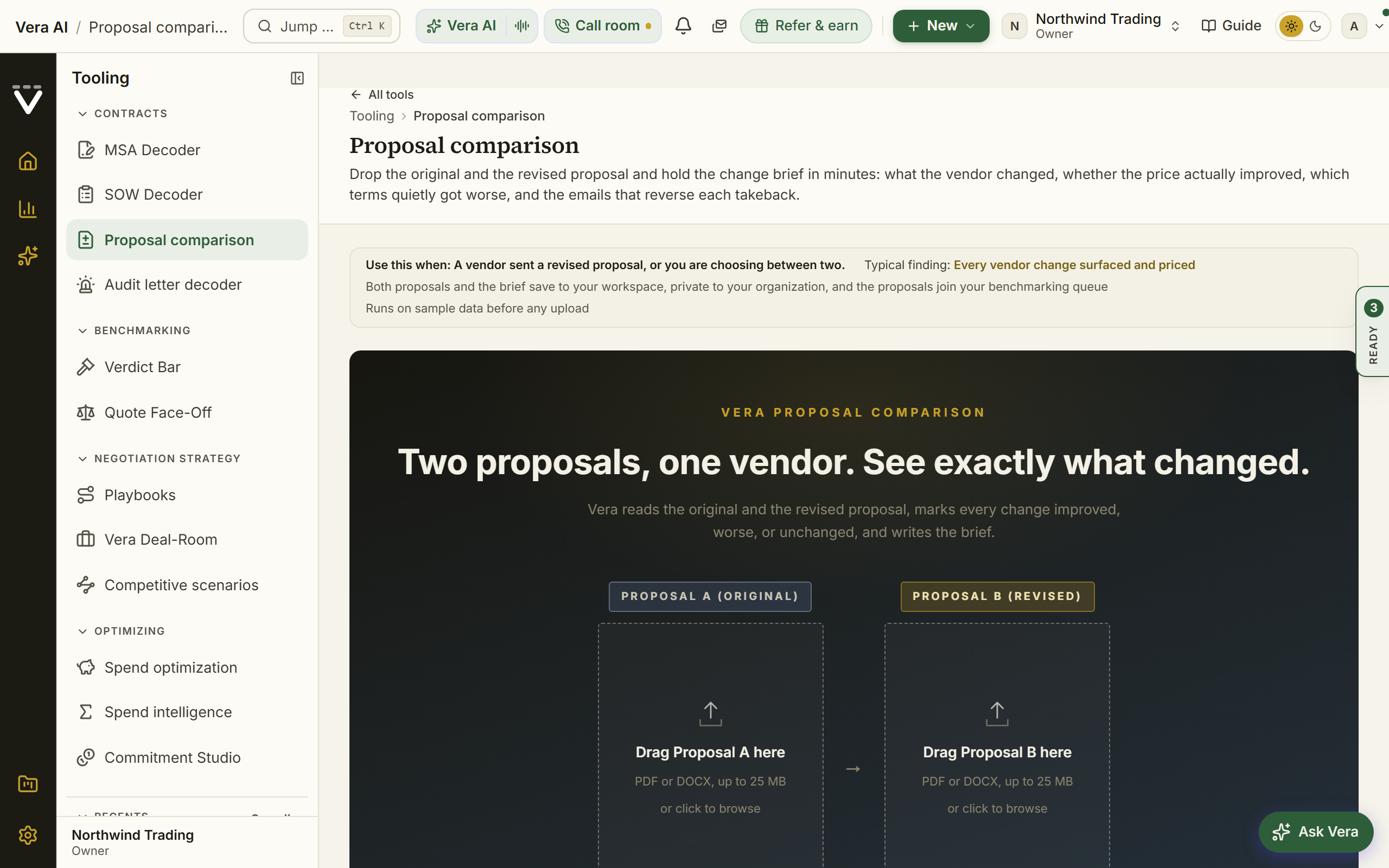
Since 23 October 2026 it opens on six screens, on the frame every app shares (keys 1 to 6), with Sample data in the title bar opening two samples: a CRM revision that cut the price and took back three terms, and a two vendor shortlist. Nothing done on a sample is saved.
- Compare: the two proposals as an upload pair, A and B, each uploaded the moment it lands (PDF or Word, up to 25 MB, drag it in or click). Compare them starts the read; the same vendor in both is compared round over round, two vendors are lined up as a shortlist. The read plays over the window: both documents scanned, each change landing in a list in its color with the counts climbing, then the verdict and See the summary. Below sit the two samples, what each screen gives you, and Your comparisons, every comparison in the workspace with Open.
- Summary: the AI summary, written in four tones you switch between: Full (the verdict line, then what got better, what got worse and what to do as three lists), For the CFO, For the vendor and One line, with Copy and Write it again. Beside it, Where it lands: the verdict on its ladder (Worse overall, A trade, Better on balance, Better throughout) with a switch for each takeback; hold one and the marker moves. Under them The three questions: what it costs, what peers pay and where it ranks, then the terms that got better and worse. Between two vendors the lists read which vendor leads on what.
- Changes: every term in a list (filter by better, worse or unchanged, price or terms) beside one term in full: the sentence from each document with the words that changed marked and the page it is on, the change and what it is worth, What it means, Against the market (where each side's term sits against what comparable buyers hold, an AI read of market practice), and The push back, the drafted email for that term with Copy and Open in email. Hold the original (between two vendors, Ask to match) puts the term in the counter. J and K walk the terms, H holds.
- Benchmark: the discount off list of both proposals pinned on the peer range from the Benchmark Library (the vendor's discount curve at the deal's size, or its library peer band), with the five ranks drawn as bands: Poor, Below market, At market, Good and Top of the market. Then the three answers in words, What to aim for (move the discount and see the seat price, the saving a year and over the term, and the rank it earns; Put it in the counter), and every term against what peers hold. When the proposals print no discount off list, or the library holds no curve or band for the vendor, it says so and ranks nothing.
- Negotiate: What if (a switch for each takeback or term to match, the discount to aim for, and a 3% renewal cap), Where it lands (the ladder, gains kept against held and still conceded, and what the counter is worth a year and over the term), The counter, which writes itself from what you set (Copy the counter, Send the counter opens it in your own email), the drafted emails, the arguments and Your options, priced.
- Brief: the four page brief in the firm's document style, as described below, with its downloads, the email drafts and Email a copy.
Comparisons run before 23 October 2026 open in the same screens; the wording from each document, the market positions and the four tones are kept on comparisons run from that day. The earlier page is under File, The earlier page (or ?classic=1); the sections below describe it.
On the screen
- The two upload slots: Proposal A original and Proposal B revised, each uploaded as PDF or DOCX or browsed for. Slot A is the baseline and slot B is what changed against it, whether that is the same vendor's revised document or a competing bid. Each proposal uploads to private staging the moment it lands, so one staged proposal survives leaving the page, closing the window, and coming back tomorrow; a staged slot shows its file name with Click to replace and Remove. When the second slot lands the read starts on its own; a pair restored from an earlier visit waits for the Run the comparison button instead, so reopening a session never spends a run unasked.
- Continue where you were: opening the tool with a proposal staged earlier puts it back where it was, no question asked. Your last five sessions wait under File, Continue where you were, and Start new in the same menu sets the current session aside, never deletes it; saved comparisons are never touched.
- The reading: the run stage, since 29 September 2026: both proposals as sheets, the two phases the run reports, and the first pass's own lines flying onto the board as the differences are found, the takebacks among them marked, so you see what the brief will be built on before it is written.
- The change ledger: every change grouped into pricing changes and term changes, each one marked improved worse or unchanged against the baseline, so the movement in the deal reads.
- Pricing changes: the price lines that moved, old value against new, with the difference priced, so a lower unit price, a higher uplift cap, or a shifted payment term each shows what it is worth.
- Term changes: the contract terms that moved, from renewal notice and price protection to liability and termination, each read in plain English and marked whether the change helps or hurts your side.
- Open the case: a finished comparison shows a green button on a white band above the brief that opens it as a seven document case file: both proposals as exhibits, a delta atlas over every compared term, the ask sheet that reverses the takebacks and banks the wins, and a What now sheet with the vendor reply and the internal note drafted from your own numbers. The case carries the inspector on the right: What now works the same moves beside whichever document is open, and Ask Vera, one press away in the same inspector, is grounded on the whole comparison, with one button per document that opens it. In the tree on the left, under the documents, sit your past comparisons, a keyword and semantic search over your uploaded documents, and your shelf of recent and starred comparisons. The sample opens the same case, marked Sample.
- What moved: above the brief, three answers: what moved on the numbers, what was taken back in the terms, and where the revision nets out on its own ladder: Worse overall, A trade, Better on balance, Better throughout. Proposal against proposal, so it never borrows the market ladder.
- What if: press a takeback to hold the original's term; the ladder, the position line and the bars move with it, and Price of B, terms of A holds all of them. Between two vendors the same panel lists the terms to ask the second vendor to match. Your choices stay for that comparison in this browser.
- Email drafts: five ready drafts behind buttons: edit the subject and body in place, then copy the email or open it in your own mail app. Nothing sends from the platform.
- The handoffs: take either proposal deeper in one click: Contract Agent for the clause by clause read, or Second opinion for the benchmarked market read on a single proposal.
- Email a copy: send the brief to yourself or a colleague; enter the address and the brief arrives as an executive brief email.
- The sample: a sample revision shows the full comparison immediately, no upload and no AI allowance used, so you can judge the output before you bring your own document. Trial plans use the sample to see exactly what the tool produces; upgrade to a paid plan to compare your own proposals.
- Saved to your workspace: a note under the brief says where both proposals went: each was filed under Contracts as a vendor proposal, private to your organization, and joined your benchmarking queue. The note links to both records and carries a delete for each. Owners can turn document saving off under Data controls.
- Open in the editor (since 2 October 2026): on each of the five draft emails in the drawer. It opens that email over the whole screen beside the report, where you type on it or tell Vera what to change, with versions and Show edits; see Send it on. Copy draft and Open in email app stay as they were. It is not offered on the sample.
How to use it
- Upload the original in slot A and the revised or competing proposal in slot B, or press Try the sample revision first.
- Watch the reading extract the terms and surface the changes, then read the change ledger and the brief.
- Check each pricing and term change against improved worse or unchanged to see whether the deal moved your way.
- Open the email drafts, edit the one that fits, and copy it into your own inbox, or email a copy of the brief to a colleague.
- When a single proposal earns a deeper read, follow the handoff into Contract Agent or Second opinion.
Related: Second opinion · Contract Agent · Vera Deal-Room
Build competitive scenarios
Name the product you are renewing and Vera researches the credible alternatives, prices three to five cost scenarios against the renewal over your term, and writes a competitive options review you can put in front of the vendor. Where Second opinion reads one contract against the market, this tool answers a different question: what are my alternatives actually worth, and what does a credible option on the table give me. Each scenario carries the license, migration, and transition cost, so renewing as proposed, repricing to market, and switching to each alternative are priced side by side. Use it when you want a believable alternative in the room before you renew, so the vendor knows you are looking.
Since 27 October 2026 the window is four places named for what you do, on the frame every app shares (keys 1 to 4), with Sample data in the title bar showing a finished Workday review:
- Renewal: your renewals on a radar of the next nine months, each notice window drawn as a bar from the notice date to the renewal date with today as the red line; press one and the vendor, the value a year, the term, the renewal date and the notice days fill the brief. The brief sits beside a live panel: what renewing as proposed costs over the term, year by year, and once a review exists, a gauge of where what you pay sits against what comparable buyers pay, with the gap a year and over the term. Sweep the market starts the research.
- Market: Vera's sweep as a radar while it runs, the incumbent at the center and each alternative landing on its ring as it is found, with the ledger and the sources beside it. Then every alternative as a scorecard: the fit ring, the license a year against yours, the total over the term with the gap, two strengths and the watch out, the move, when it pays back, and a switch that keeps it in or out of every chart. Press a card for the full read. Where each path lands plots the total over the term against the months to move, with the as proposed line and the zone that beats the market rate.
- Paths: every path as a cost curve by month on one chart; a switch starts above the renewal because the move is paid up front, and the gold dot marks the month it gets under the renewal. Hover the chart for every path at that month; press a path or a row to light it and shade its move. The levers: Renew at the market rate, today's rate or leave it out; Migration cost as a slider from half to one and a half of the estimate; While moving carry both bills or a clean cutover; Term and increase. The breakeven rate gives the yearly figure the renewal must come in under to beat the best switch. The paths as rows lists every path with its stacked bar and the payback month.
- The ask: Vera's call with a confidence meter; The ladder: open at the low of what comparable buyers pay, the target at the market middle, walk away above the rate where the renewal costs the same as the best switch with the move carried, all drawn on one scale with today and the proposal; Try a counter offer: slide the figure the vendor comes back with and Vera says accept, counter or walk, with the total, the saving and the gap; What to say (for you only, never in the review, now with the payback line); What the vendor reads with its contents and the review as PDF, Word, PowerPoint or Excel; The workbook; the emails to the vendor and to your leadership; and Email a copy to colleagues.
- The workbook: one Excel file of eight sheets on the firm document, every figure derived from the paths at the levers: the cover with the figures and Vera's call, the plan to the notice date with owners, outputs and figures, the talking points with the figure behind each and when to use it, pricing per supplier (license a year, per unit a month, against yours, the increase, the move, the total, the posture, the basis), how they compare, every path by year, the ladder with nine counter offers answered, and the assumptions. The preview on the screen shows each sheet; Download the workbook writes the file. Pricing per supplier, How they compare, Paths by year and Assumptions may go to the vendor; the plan, the talking points and the ladder are for you only, and each sheet's footer says which.
- Boardroom (B): one slide on the firm document, the curve and the four figures with the ask and the notice date, and the PowerPoint and PDF beside it. The review (R): the vendor safe review over the window, with its files. Your reviews sit in the left column and under Renewal, where a review can be deleted.
The window of 26 September is under View, Earlier window (or ?classic=1); the sections below describe it.
Since 22 October 2026 it opens as a workbook studio on the frame every app shares, in five steps:
- Workbook: every contract as a row of a sheet you work in. Select a cell or a range with the mouse, Shift and the arrows (Ctrl jumps to the edge); type to edit, or start with
=for a formula. Formulas read A1 references, ranges, whole columns (O:O) and[Column name]for the same row, with SUM, AVERAGE, MIN, MAX, COUNT, COUNTIF, SUMIF, AVERAGEIF, IF, IFERROR, AND, OR, ROUND, DAYS, EDATE, TODAY, XLOOKUP, VLOOKUP, CONCAT, LEFT, RIGHT, LEN and more; errors read as Excel prints them. Drag the fill handle or press Ctrl D to fill down (references shift as in Excel), Ctrl C and paste to and from Excel, Ctrl Z and Ctrl Y to undo and redo. Every header has a menu: sort, group by, freeze up to here, hide, and filter by value. The totals row sums each money column (press a total to switch to average or count), and the status bar shows the average, count and sum of whatever you select. Cells you edited are marked and keep what you typed; deleting one brings back the value read from the contract. Ask the sheet takes plain English (total annual value by vendor, what renews in the next 90 days, add a column after a 7% uplift) and answers with a filter, a pivot sheet, a formula column or a chart. Formula column adds a column worked out for every row, Pivot table adds a sheet by any field, and Formatting sets data bars, the notice deadline scale (brick within 30 days, gold within 90) and the rules for auto renewals with short notice and large contracts with no uplift cap. The details column shows the cell, the passage its value was read from, and the contract. - Dashboards: five figures that count up (annual value, notice deadlines in 90 days, the share that renews on its own, contracts with no uplift cap, how much document search has read), then annual value by vendor, what ends in the next 18 months by month, the share that renews on its own, uplift caps, the notice deadlines of the next 180 days and the split by agreement type. Press any bar, column or dot to open the workbook filtered to it; Ask for a chart or Chart it on a pivot adds your own.
- Search: one box that reads a grammar:
vendor:oracle,type:saas,owner:maria,value>250k,notice<60,days<=90(ends within 90 days),deadline<=60(notice deadline within 60 days),auto:yes,nocap,cap<5,clause:"liability"and"exact words", shown back as colored tokens. Facets with counts narrow the hits by vendor family, type, lifecycle, auto renewal, currency and owner; each hit shows the passages the words were found in, lit. Save a search to the left, or open the hits in the workbook. - Layouts: the workbench described below: the six layouts, the fields, your own template, custom fields and their scan. The layout you set here is the workbook's columns.
- Export: Excel workbook writes the workbook as you see it: the contracts in view in your order, your edits, formula columns as live formulas, a SUBTOTAL totals row, filters and frozen panes, a sheet per pivot, a Summary and an About sheet. CSV writes the Contracts sheet as text. For a SAM tool's import or your own template, use Layouts.
With no contracts on file, Use the sample draws 36 example contracts so you can try every step; nothing is saved, the sample downloads as CSV, and the chip above the sheet leaves it. Your edits, formula columns, pivots, charts and saved searches are kept for the workspace. 1 to 5 change step, / opens Search, Ctrl K asks the sheet, Ctrl S downloads Excel, I hides the details. The earlier window stays at /tooling/report-extract?classic=1, described below.
The earlier window: since 26 September 2026 it opened in the same window the agents wear: your reviews down the left, three screens across the top (The review, Your reviews, How it builds), the review in an inspector on the right, and a status line at the foot. The head states what renewing as proposed costs over the term against the cheapest priced path, migration and transition carried; its figures give both totals and the alternatives priced. The inspector sets out what you pay today, including the yearly uplift the review assumes when you gave none, and every path's total over the term against renewing. Opening the sample never offers to start a real case from it. Your reviews lists every review with its headline, and Delete asks you to confirm. Continue where you were and Start a new draft stay under File. 1 to 3 change screen, I hides the inspector, and Escape closes the window.
Since 27 September 2026 the window wears the house dress: the head is the house masthead, the open screen named in navy capitals with the tool after the hue rule, the line under it, the gold meta line (Vendor Benchmark, Tooling, the tool's group, and which screen of how many you are on), one quiet row of facts, and the one filled button at the right over the step rail. The inspector is the house inspector: its facts as rows, then the Moves, the same declared moves the What next close carries, the first one glowing in the screen's hue. On The review, under the head, What if moves the two inputs the review rests on: the yearly uplift the incumbent holds to, and how far each migration overruns its estimate. Every path is priced again over the term and drawn as a bar against renewing as proposed, a cheaper path in green; at the review's own inputs the totals match the review exactly. The levers stay where you left them for that review in this browser.
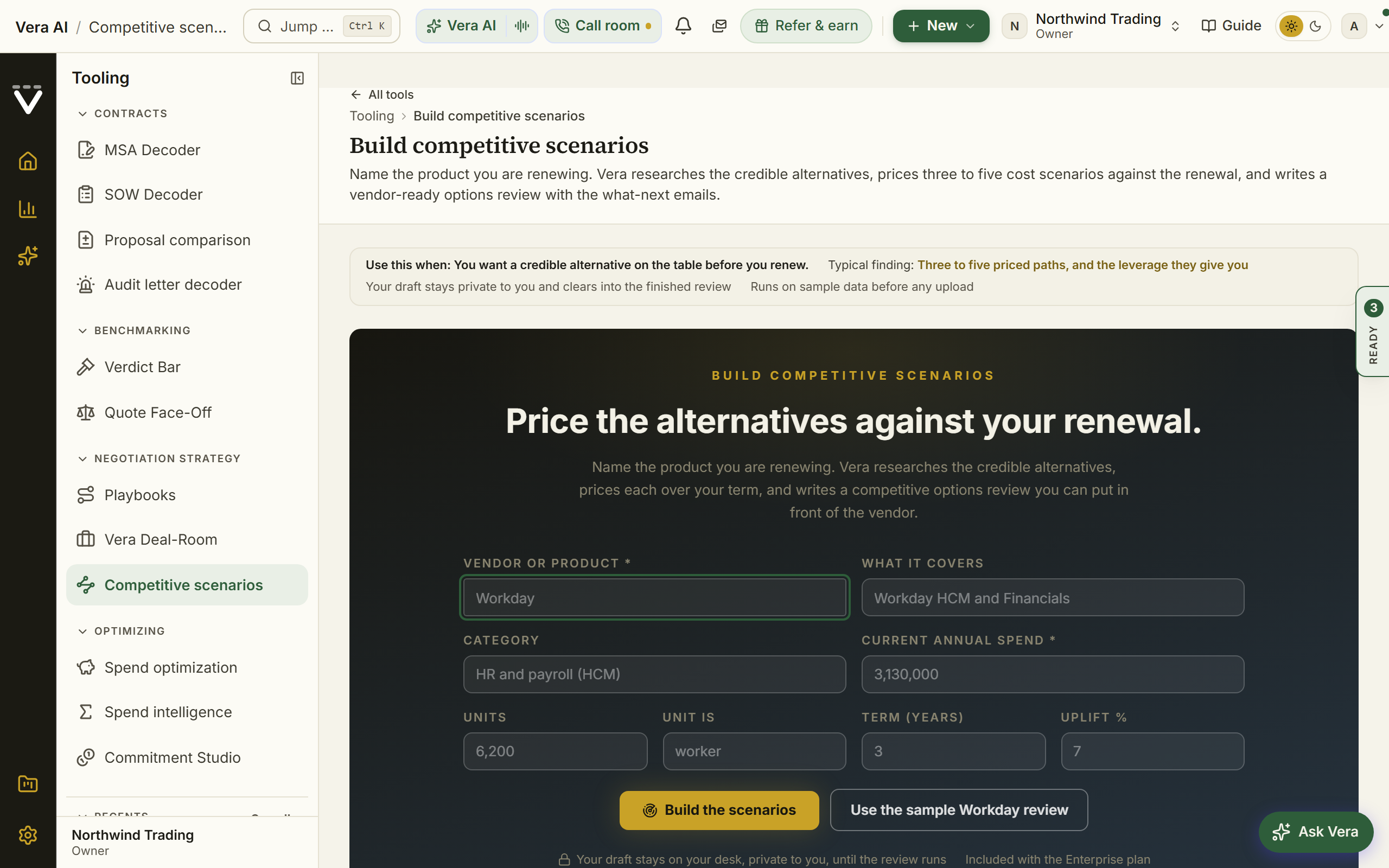
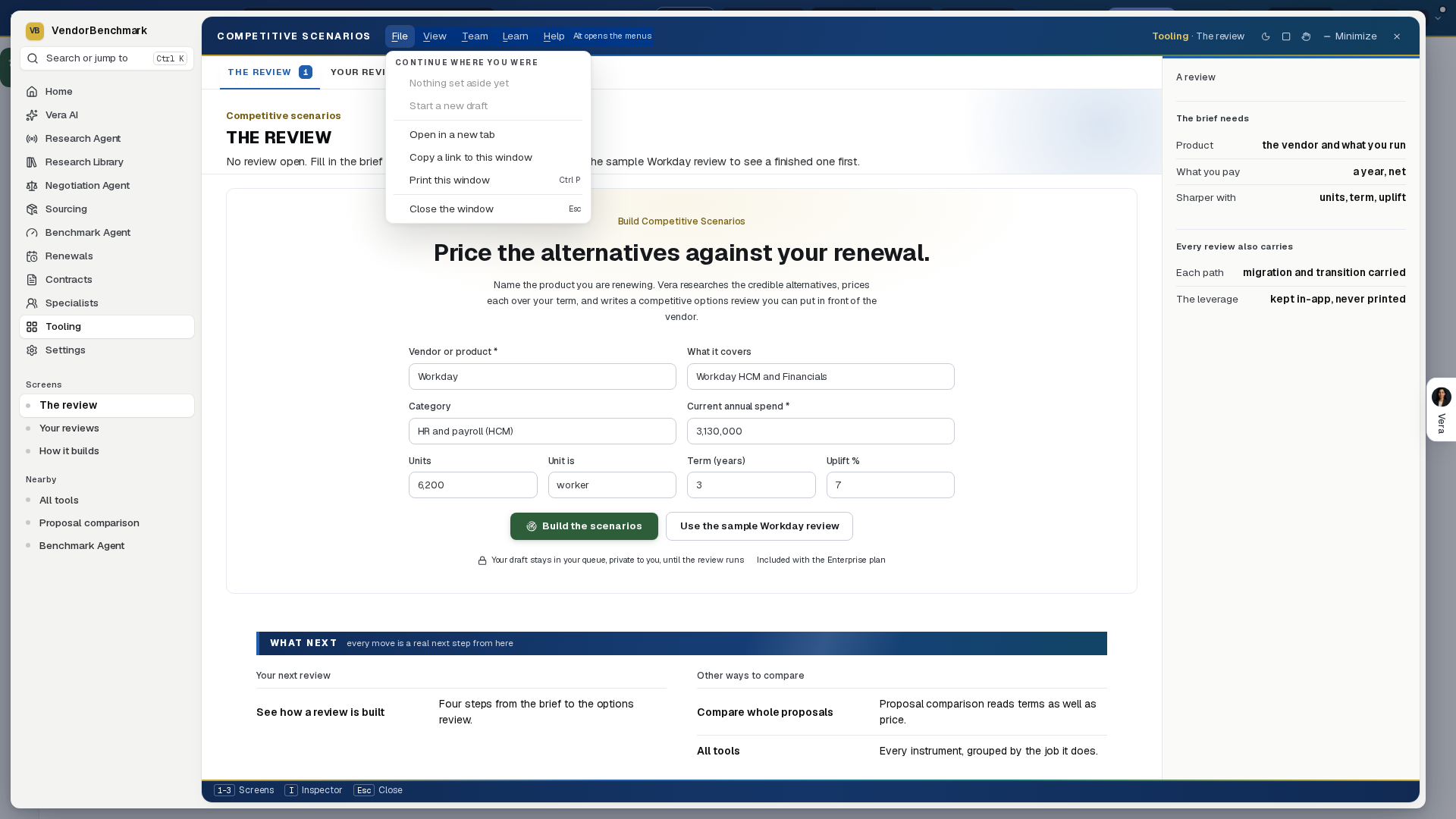
On the screen
- The brief form: name the product you are renewing, the current annual spend, and the seats and term. That is all the model needs. Every field autosaves into a private draft as you type, so navigating away, closing the window, or coming back tomorrow never loses it; the draft clears into the review when you press Build the scenarios, and Start a new draft sets the current one aside without deleting it. A sample Workday review shows the full brief before you run your own.
- Continue where you were: opening the tool with a draft in progress puts it back exactly as you left it. Your last five drafts wait under File, Continue where you were, and Start a new draft in the same menu shelves the current one. Drafts are private to you, follow you to another browser, and are governed by the same Keep this screen in my queue switch as the workroom trail: turning it off stops the saving and clears what was saved.
- Start from your estate: a row of vendor buttons above the form, read from the agreements you already store. Pressing one fills the vendor, the stored annual value, and the term, and everything stays editable before the run. A value is offered only where it is stored in a currency the tool reads, a term only where the stored dates give one between one and five years, and sample data never appears.
- The market scan: the run stage, since 29 September 2026: the scan's own lines landing on the board (the credible alternatives found, each priced at your scale with its migration cost and timeline, and the scenarios being modeled against your renewal), each alternative in its own tile, and the two phases the run reports.
- The options review: the vendor-safe executive brief: the alternatives evaluated with their fit and pricing posture, the cost scenarios priced over your term as a chart and a table, the modeling assumptions stated plainly, and a measured bottom line. This is the document you hand to the vendor.
- Use this in the room: the leverage layer that stays with you and is never printed and never in the shared copy: the moves to make with the alternatives, so you use them without bluffing a walk-away.
- The what-next emails: two ready drafts behind a button, one to the vendor rep signaling you have completed an options review and are evaluating alternatives, one to your leadership with the recommendation and the review attached. Edit in place, then copy or open in your own mail app. Nothing sends from the platform.
- Share it: email a copy to the whole team (separate several addresses with commas), or copy the workspace link that opens for members of your organization.
- The handoffs: take the deal deeper in one click: the Vera Deal-Room to run the negotiation, Second opinion for the benchmarked read on the incumbent contract, or Proposal comparison once the vendor comes back.
- The sample: a sample Workday HCM review shows the full options review immediately, no input and no AI allowance used. Trial plans use the sample to see exactly what the tool produces; upgrade to a paid plan to run your own.
- Open the workroom: the green button above a saved review opens it as one case file in the window the agents wear: the vendor safe options review as the document, the leverage sheet that stays with you, and the scenario ledger year by year. What now, in the inspector beside the document, carries both what next drafts, the copies, and the handoffs, and Ask Vera, in the same inspector, is grounded on the whole review. In the tree on the left, under the documents, sit a search over your uploaded documents and your shelf.
- Open in the editor (since 2 October 2026): on each of the what next emails in the drawer. It opens that email over the whole screen beside the report, where you type on it or tell Vera what to change, with versions and Show edits; see Send it on. Copy draft and Open in email app stay as they were. It is not offered on the sample.
How to use it
- Name the product you are renewing and enter the current annual spend, or press Use the sample Workday review first.
- Add the seats, the unit, the term, and the proposed uplift if you have them, then press Build the scenarios.
- Watch the market scan find the alternatives and price the scenarios, then read the options review.
- Open Use this in the room for the leverage moves, and the what-next emails to send from your own inbox with the review attached.
- Email a copy to the team or copy the workspace link, and follow a handoff into the Vera Deal-Room to run the negotiation.
Related: Vera Deal-Room · Second opinion · Proposal comparison
Vera Deal-Room
In plain words: one deal in, four steps out.
When to reach for this
- A renewal or a new quote you want to walk into with the benchmark, the position, the words and the alternatives in hand.
- You have the figures but no document: type the deal and the four steps are built at once.
- You have the quote: upload it and the pipeline reads it, then the same four steps read its facts.
Since 25 October 2026 Vera Deal-Room opens in the window every agent wears: the navy title bar with the menus, the navy sidebar (Start, the four steps with their state, Your deals), the numbered steps across the top, the head with the deal's facts, the details column on the right and the status bar with the keys. The six tab window it replaced (the theatre, the case file, the war plan, the team and the status report) is unchanged under File › The six tab window, or at ?classic=1; every link to a deal, a document or a tab it took still opens it.
On the screen
- Start: one intake, two ways in. On the left, upload a quote, an order form or a renewal (PDF or Word, up to 25 MB), by the button or by dropping it anywhere on the window; the file saves to your workspace and the pipeline reads it, with each stage shown as it lands (the facts, the deep read, the benchmark, the intel, the alternative, the brief, the playbook). On the right, type the deal: the vendor (suggestions appear as you type, from the Benchmark Library), what you pay a year, the discount offered (leave it blank when the quote prints none), what matters most (price, uplift, users, term, exit) and the term (1, 2, 3 or 5 years). Build the Deal-Room builds a typed deal at once from the library's own check and the alternatives registry. Under the intake, Your deals lists every deal in the workspace with its state, and the four step cards say what each step holds. Try the sample (File) opens a worked Salesforce deal.
- 1. Benchmark: the three answers across the top: what you pay a year, what peers at your size get (the range and the usual figure), where you rank (Poor, Below market, At market, Good, Top of the market), with the gap to the midpoint in points and in money. The comparable deals on a chart by size and discount, the peer band shaded, you and the ask marked. Ask for N percent off list is the lever every later step reads: move it and the year at the ask, the saving a year and over the term, and the rank at the ask follow. Basis says where the figures come from. When the library holds no range for the line, the step says so and works from a range around the quote.
- 2. Negotiation strategy: the position in three numbers, each priced a year: open at, settle at, walk below. The asks in order with your goal first, what each is worth a year and its odds. Leverage out of 100, with each factor and its points. Their clock: today, the vendor's quarter close, your notice date and the renewal on one line, and your three rounds under it with what to send and when.
- 3. Talking points: what to say in order, your goal first, each with the line to say, what they say back and your answer, and a Copy. Before the call is a checklist that remembers its ticks; On the call repeats the three numbers to hold; Have Vera join the call opens Vera on calls. The emails: to the sales rep or to leadership, with the reason you choose (asked around, budget, alternative), written from the benchmark and the position; edit the text, copy it or open it in your own mail app. Nothing is sent from the screen.
- 4. Competitive: four paths priced over the term as bars and as a table: renew as quoted, renew at the target, and two alternatives with what they cost a year, the cost to move, the months to switch and the risk; the cheapest is marked. What if moves the migration overrun and the vendor's uplift and prices every path again. Two lines: what the vendor may see and what stays with you. What now closes the room: send the position to the vendor, hand to the Deal Agent, mark it ready.
- The window: the head states the vendor, the rank, what you pay, the ask and the renewal, with the step's one button at the right. The details column holds the deal's facts, the next moves and Ask Vera. Your levers, ticks and the email you chose are kept per deal and come back when you reopen it.
How to use it
- Open Vera Deal-Room from Tooling, or choose the fourth way on Home's Benchmark tab and type the deal there.
- Upload the quote or type the deal, then press Build the Deal-Room.
- On Benchmark, read the three answers and set the ask with the lever.
- Read the strategy, copy the talking points and the email to the rep, and compare the paths.
- Mark it ready, or hand the position to the Deal Agent.
Keys: 1 to 4 open a step · N next, P previous · S starts over · U uploads · Ctrl K finds a deal · Escape closes the window.
Related: Benchmark Library · Deal Agent · Major renewals
Quote Face-Off
Upload two or three competing quotes for the same need, vendor direct, reseller, or CSP. The board aligns equivalent SKUs into one tale of the tape, benchmarks every line, marks who wins where, and builds the Franken-quote: the best mix across all documents, priced.
Since 26 September 2026 it opens in the same window the agents wear: your face-offs down the left, newest first, three screens across the top (Face-off, Your face-offs, How it works), the bout on the board in an inspector on the right, and a status line at the foot. The head states the verdict and what the best mix saves; its figures give the quotes, the lines aligned, the cheapest single quote and the saving. The inspector lists each quote as printed with the cheapest marked, the best mix, and how many lines only one quote carries. Your face-offs lists every face-off you have run, with its quotes, lines and verdict; press one to put it back on the board. 1 to 3 change screen, I hides the inspector, and Escape closes the window.
In plain words: the quotes lined up SKU by SKU, and the best mix across all of them priced.
When to reach for this
- Two or three documents for the same need, and the decision deserves a written why (the recipe).
- Direct against reseller against CSP: the alignment is exactly where those comparisons go wrong by hand.
- The endgame of a bake-off, when the bids are finally on the table.
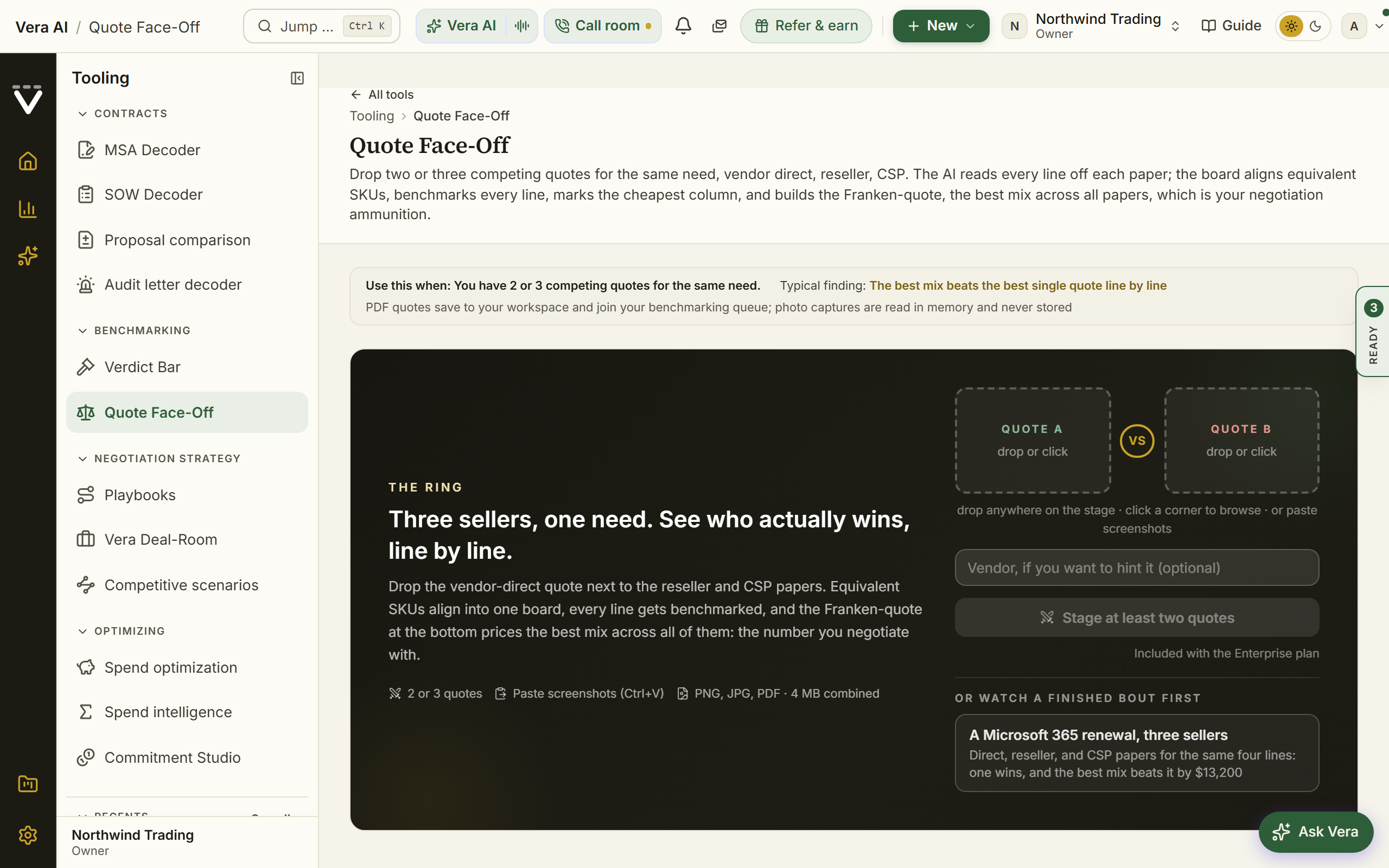
On the screen
- The ring: one corner pad per quote with the VS mark between them: Quote A and Quote B first, a third corner appearing once two are staged. Upload files anywhere on the stage, click a corner to browse, or paste screenshots (Ctrl+V).
- The vendor hint is kept: a vendor name typed before you stage the quotes waits for the read rather than disappearing when you leave the page, and clears itself once the read starts.
- What is kept: a PDF quote saves to your workspace under Contracts, private to your organization, and joins your benchmarking queue; a note under the result names it, links it, and offers to delete it, which removes the record and the stored file and writes a deletion certificate. A photo capture or screenshot is read in memory and never stored, so a phone snapshot of a quote leaves nothing behind. The result footer repeats the rule. Owners can turn the saving off under Data controls, and with it off nothing you hand the tool is kept.
- The sample bout: Or watch a finished bout first under the ring shows a judged face-off before any upload; nothing uploads and no run is spent.
- The bout: while the deep read runs: the documents facing off across the VS mark, with the judging steps beneath.
- Run summary: a finished face-off opens with its summary across the top: the run's inputs, a Run another face-off button, and the run actions (replay, forward, share, delete).
- Tale of the tape: equivalent SKUs aligned across the quotes, the winner marked per line, and each price marked against comparable deals: at or under the midpoint, above the midpoint, or well above the midpoint. Each quote's column head ranks its whole deal as Poor, Below market, At market, Good, or Top of the market. When you watch a run finish, the rows score themselves clause by clause, the Franken-quote last.
- The Franken-quote: the best mix across all documents, priced, so you can see what the ideal combination would cost.
- How the quotes compare: under the verdict, three answers: what the best single quote costs on the scope every quote prices, what the cheapest seller on every line comes to, and where the quote ranks against comparable deals on the Poor to Top of the market ladder when the whole quote could be placed.
- What if: pick the quote to counter and pull its worst lines to the cheapest seller's price one at a time; the counter walks down to the best mix, drawn beside every quote with the best mix as the marker. Pull every line reaches the best mix; the lever stays where you left it for that face-off.
- Analyst memo: which quote to take, which terms to pull from the losers, and the counter to send.
- The finish row: a judged bout closes with one-press copies of the priced counter and the top asks, and Ask Vera answers from the whole board.
- Save and export: file the whole result (tale of the tape, Franken-quote, and memo) to Deliverables, download it as a Word brief, or print it, from the actions under the verdict.
- The faceoffs: every saved face-off: the bout title, the corners, the one-line verdict, and the judgment status. Click one to reopen its board.
- Open the workroom: the green button above the judged board opens it as one case file in the window the agents wear: the cover sheet with the verdict figures, the tale of the tape as an executive brief document with the Franken-quote row, the analyst memo with its citations intact, and the padding ledger as an exhibit. What now, in the inspector beside the document, carries the counter to the winning column, a last call per losing column, the internal decision note, the copy moves, the save and Word export, and the Vera Deal-Room handoff; Ask Vera, in the same inspector, is grounded on the whole bout. In the tree on the left, under the documents, sit a search over your uploaded documents and your shelf of past face-offs.
How to use it
- Stage the competing quotes for the same need on the corner pads.
- Read the tale of the tape line by line, then the Franken-quote.
- Take the memo's counter back to your preferred supplier, and save the result to Deliverables so the comparison is on file.
Related: Quote Face-Off · Sourcing
Audit letter decoder
Since 26 September 2026 it opens in the same window the agents wear: your letters down the left, each with its business days left, three screens across the top (The letter, Your letters, How it reads), the letter in an inspector on the right, and a status line at the foot. The head states who is auditing, how many items are demanded in terms, and the business days left to respond; its figures give the time to respond, the kind of letter, how many items complying is likely required for, and the plan. The inspector names the auditor, counts the scope as likely required, unclear or not required, and says how many of your contracts are linked. Your letters lists every letter with its response date and business days left, a letter past its date first in the count; Delete asks you to confirm. 1 to 3 change screen, I hides the inspector, and Escape closes the window.
In plain words: the audit letter decoded before you reply to it: who, when, what is actually demanded, and what not to do.
When to reach for this
- The day the letter lands, before anyone replies or runs a vendor tool (the audit recipe).
- Distinguishing a formal audit from a voluntary SAM engagement dressed as one.
- Turning a threatening deadline into a business-day countdown with a plan against it.
The moment a software audit letter lands, upload it here, PDF or a phone photo, or paste a screenshot with Ctrl+V. The decoder identifies who is actually auditing you (Oracle GLAS, a Big Four firm on IBM's behalf, a voluntary SAM engagement), turns the stated deadline into a business-day countdown over a calendar that runs from today to the due date, separates what is demanded from what is merely implied, and hands you the three things not to do first. Not sure what you would get? See a decoded sample shows a fully decoded Oracle GLAS notice before you upload anything.
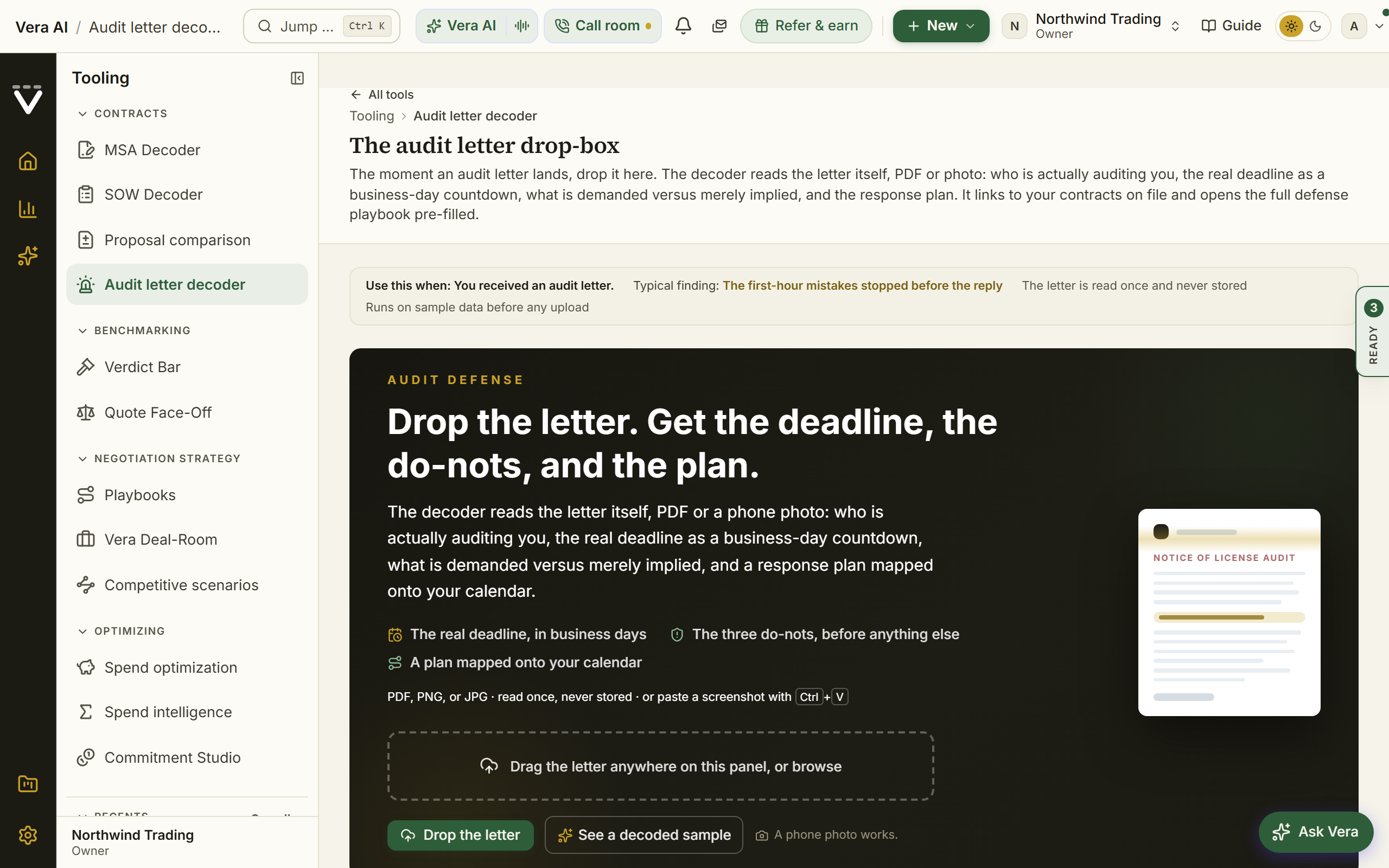
On the screen
- The audit response brief: under the decoded letter, the long form brief the agent writes from the letter's own demands and your agreements with that vendor, with a web search of how they are running audits now: what the letter actually asks for against what it merely implies, what your contract obliges you to give (the audit clause and its limits, the metric definitions that decide any count, any standstill already won), what to hand over and what to refuse with the words to use, the ten clauses that decide the outcome, what is negotiable once they price the findings, and how to run the next thirty days. Press Write the audit response brief and a progress bar says how long (about five minutes); the decode and its plan above it are unchanged.
- Dropper: the audit letter as a PDF, photo, or pasted screenshot, on the light upload panel. It is read in memory and never stored.
- Countdown wall: the business days left as a large number, the deadline date, the letter's own wording, and a calendar of every day from today to the due date with weekends dimmed.
- Who is auditing: the real party behind the letterhead, and a pressure meter for how hard the letter pushes.
- The three do-nots: the first-hour mistakes to avoid, numbered, grounded in how this vendor's audits typically run.
- Scope with a verdict: each demand marked demanded or implied, with our read of whether complying is contractually required, summarized as counts above the table.
- The response plan, on your calendar: each step mapped onto a real date inside the window the letter leaves you, linked to your contracts on file and the full defense playbook pre-filled.
- The safe first reply: a copy-ready holding reply that acknowledges receipt, concedes nothing, and routes everything through one coordinator.
- Exports: Print or save as PDF, and Send it on, which drafts the covering email for you to send from your own mail. The contract matches and the license position are deliberately left off the printed pack, so an over-deployment figure of your own is never handed out by accident with the decode.
- Open the workroom: the green button above a stored decode opens it as a case file in the window the agents wear: the cover sheet with the business day countdown and the three do-nots, the decoded letter with our read on every scope demand, and the response plan beside what your records show. The What now moves, in the inspector, run on the stored decode: brief the deal owner and legal with the full figures, send the auditor a neutral acknowledgment that concedes nothing and carries no figures, copy the one line summary and the do-nots, and draft the defense playbook on the matched contract. Ask Vera, in the same inspector, is grounded on the letter: the auditor, the deadline, the scope reads, the plan, and the license position on record. In the tree on the left, under the documents, sit a search over your uploaded documents and your shelf.
How to use it
- Upload the letter the day it arrives, before anyone replies to the auditor.
- Read the countdown wall, then the three do-nots, then who is auditing and the demanded-versus-implied split.
- Copy the safe first reply, then follow the response plan into the defense playbook.
Related: Contract Agent · Diligence
Rate Card Benchmark
In plain words: every day rate on the card placed against its market band, with the overpay priced per line.
When to reach for this
- A consulting or SI rate card is on the table, or buried inside an SOW.
- The negotiated rates deserve enforcement: the vault remembers them so every later review checks against them.
- Services spend has never had the scrutiny the software line gets; it usually pays for the look.
Upload a services rate card or SOW and see every day rate on the ladder: the market band per role, delivery region, and vendor tier, your rate as the dot, and the annualized overpay per line. Services hide 30 to 40% of software spend; this is where it surfaces. The page also holds your MSA rate card vault: record the rates you actually negotiated once and every SOW review, benchmark board, and invoice check enforces them from then on.
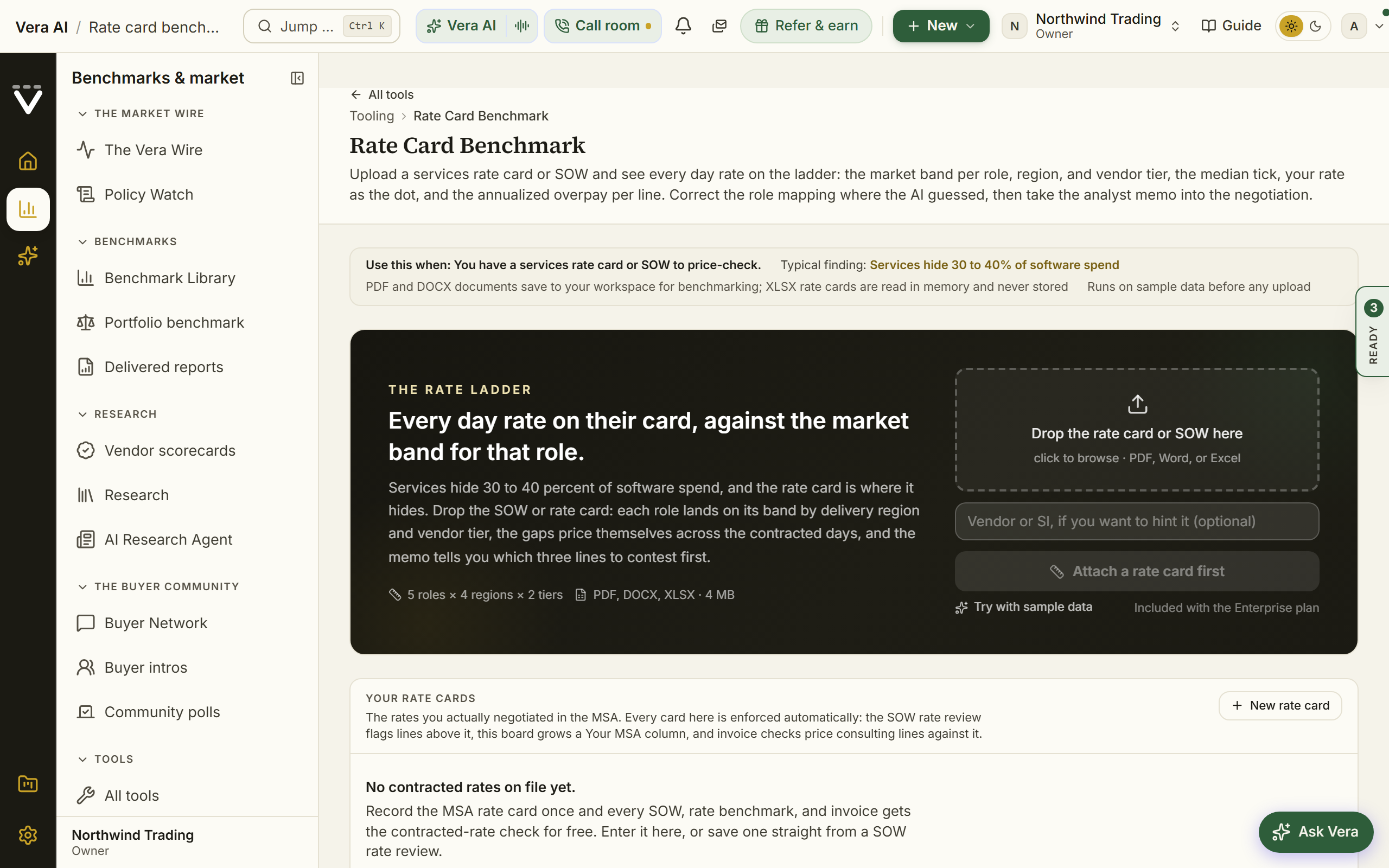
On the screen
- Upload: the rate card or SOW, dragged anywhere onto The rate ladder.
- What is kept: a PDF or Word document saves to your workspace under Contracts and joins your benchmarking queue, with a note that links it and offers to delete it. An XLSX rate card is a data file rather than a contract, so it is read in memory and never stored, and the result footer says so. Owners can turn the saving off under Data controls.
- Exports: the memo carries the shared deliverable toolbar: Print or save as PDF, Word, and Send it on, which drafts the covering email for you to send from your own mail. A sample run keeps print and Word.
- The position: the verdict line opens the result with its figures beside it: the annual amount the card runs above the market midpoint across the stated volumes, how many roles price above the midpoint, and the worst line. The Delivery default and Vendor tier controls under it reprice the whole board.
- The ladder: one row per role with the market band and your rate marked against it.
- How this card compares: under the ladder, three answers: what the priced lines cost and how much sits above the market midpoint, the band for the role that costs the most, and where the card ranks from Poor to Top of the market. The card prints day rates, so the comparison is rate against rate.
- What if: a Ceiling over the midpoint and a Program discount on the card's own figures. The waterfall runs from the card as written through the ceiling and the discount to what is left, and the lines the ceiling reprices are ranked by money. Cap at the midpoint recovers exactly the overpay on the ladder; the levers stay where you left them for that benchmark in this browser.
- Role mapping: correct the AI's role mapping inline if a title was misread; the ladder reprices as you fix it.
- Your contracted rates: when a saved MSA rate card matches the read vendor, a note above the mapping states how many lines price above what you already negotiated, and a Your MSA column appears per line: the contracted day rate, the delta, and the annualized overage, all computed in code. Contract compliance, not a market ask.
- Blended rate deconstruction: any blended or offshore-blended line gets a Deconstruct this rate breakdown: the plausible senior/standard/junior mixes at that price, the implied vendor cost per day against the billed rate, and the margin range each read implies, from a curated delivery cost basis (five roles by four regions).
- Your rate cards: the vault below the tool. List, create, edit, and delete the organization's negotiated rate cards, one dense grid per card: role as the MSA prints it, benchmark role, region, level, unit, and the contracted rate. Cards can also arrive in one click from a finished SOW rate review (Save as rate card).
- Analyst memo: which lines to contest, the blended-rate trap, and the counter-structure to propose.
- Theatre: once lines are benchmarked, the Theatre button under the verdict presents the findings to procurement full screen: the opening position, each role family against its market band, then priced negotiation targets and the analyst memo. Presenter notes guide the walkthrough, and the leave-behind prints the screens you covered.
- Open the workroom: the green button above a benchmarked rate card (real runs, not the sample) opens it as one case file in the window the agents wear: the position cover sheet, the full ladder worst gap first with the annual figure per line, the analyst memo once one exists, and the unmapped lines as an exhibit with the reason each could not be judged. What now, in the inspector, carries the rate challenge to the vendor, stating only the day rates we need per role and their own printed rates, never the band behind them, plus the internal position note with the full placement and the annualized overpay, the copies, the Word brief, and the Vera Deal-Room and vendor record handoffs; Ask Vera, in the same inspector, is grounded on the stored extraction and your saved corrections. In the tree on the left, under the documents, sit a search over your uploaded documents and your shelf.
How to use it
- Record your MSA rate card once, by hand in Your rate cards or with Save as rate card on a SOW rate review.
- Upload the rate card or SOW to benchmark.
- Fix any role mappings the AI got wrong.
- Read the Your MSA column first (already agreed, just enforce it), then the market gaps, then take the memo into the negotiation.
Related: Contract Agent · The benchmark library
Time machine
Upload last year's document and this year's for the same vendor. The machine narrates what actually changed: the terms you won, the protections that quietly disappeared, and the real price walk line by line. Renewals smuggle in term degradation, and the machine reads for it so you do not have to.
In plain words: last year's document against this year's, with every quiet change named.
When to reach for this
- The renewal draft arrived and "nothing else changed" deserves verification, not trust.
- Post-signature archaeology: what did we actually give up over the last three renewals?
- The history you kept in Contracts is exactly what this machine eats.
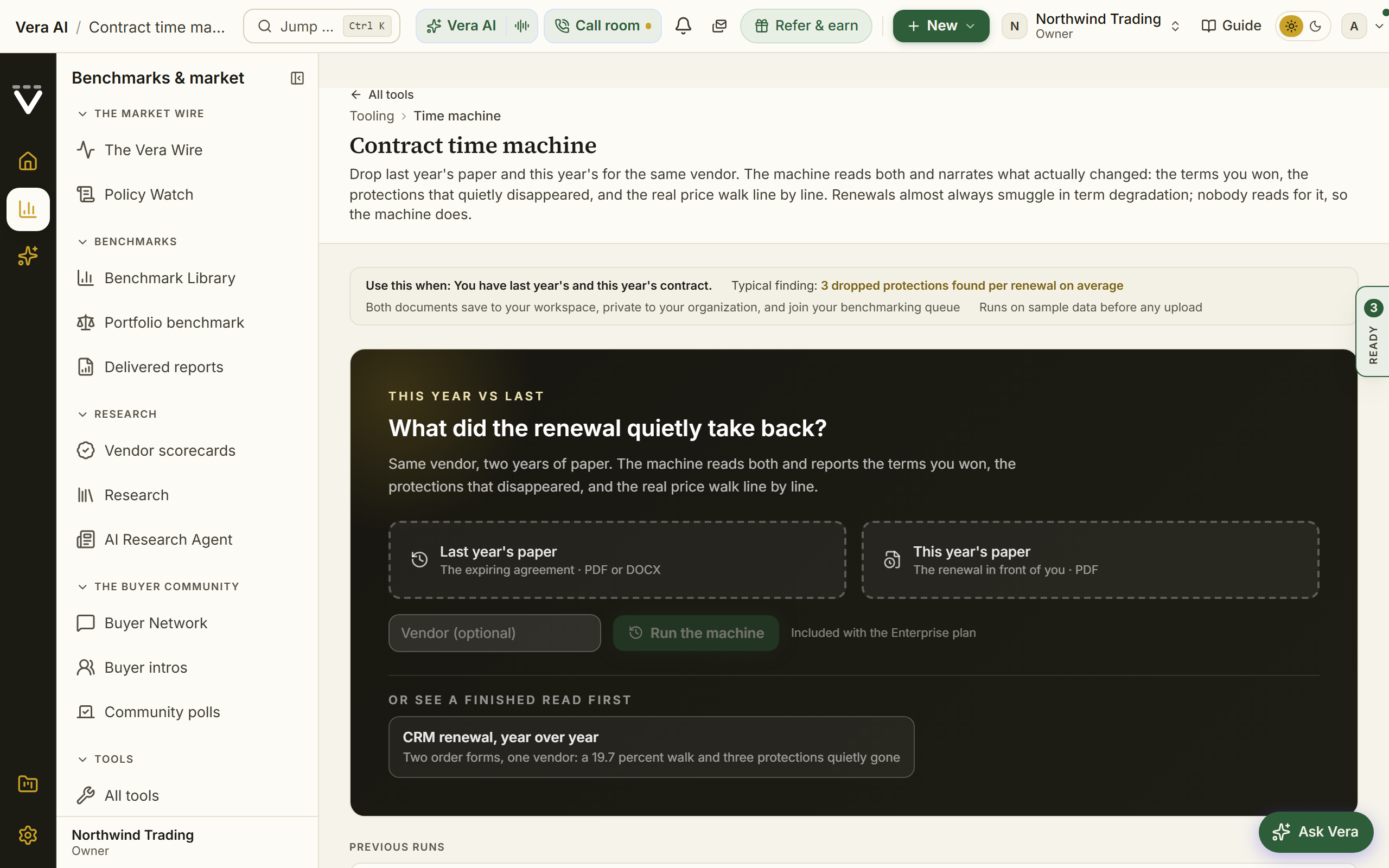
On the screen
- Two uploads: last year's document and this year's.
- The vendor hint is kept: a vendor name typed before you upload the documents waits for the read rather than disappearing when you leave the page, and clears itself once the read starts.
- Start from your estate: a row of vendor buttons above the uploads, read from the agreements you already store. Where a vendor holds two readable documents, the pair itself is offered and the comparison runs on the stored files with no re-upload and nothing new saved. Other buttons fill the vendor name only, and the line beneath says why: the workspace stores fewer than two readable documents for those vendors.
- What is kept: on the upload path, both documents save to your workspace under Contracts, private to your organization, and join your benchmarking queue, with a note that names each one, links it, and offers to delete it. On the stored-pair path nothing is uploaded and nothing is saved again. Owners can turn the saving off under Data controls.
- Or see a finished read first: a worked example under the two upload slots, two order forms for the same vendor a year apart. It walks a 19.7 percent price walk that decomposes into unit price on products you already had, added volume and one new product, and a retired line that takes money back out, plus three protections that quietly left the document. Pressing it replays the example as an already finished read, workroom included. Nothing uploads, nothing saves, and no read is spent.
- The narrative: what you gained, what you lost, and where.
- Price walk: the real increase line by line, not just the headline number.
- Saved reads: the walk delta is kept with each saved read.
- Theatre: a finished read carries a Theatre button that plays the comparison full screen for a renewal review: the verdict, what you gained and lost, the protections that quietly left the document, then the price walk a stretch of lines at a time while the cumulative figure counts up in the header. The show ends on your position and the watchouts to raise before signing.
- The timeline workroom: the green button above the read opens it as two executive-brief documents: the timeline brief, with the price walk drawn as a journey (last year, the movers, this year, every value printed at the data), what moved each way, and the quiet losses as a verdict table; and the line ledger, every priced line both years with the movement per line. What now, in the inspector beside the document, drafts the renewal reply that asks every changed term and quiet removal back to last year's language, briefs the deal owner with the full figures, and hands off to the negotiation, the vendor screen, and Second opinion; Ask Vera sits in the same inspector, grounded on the whole read.
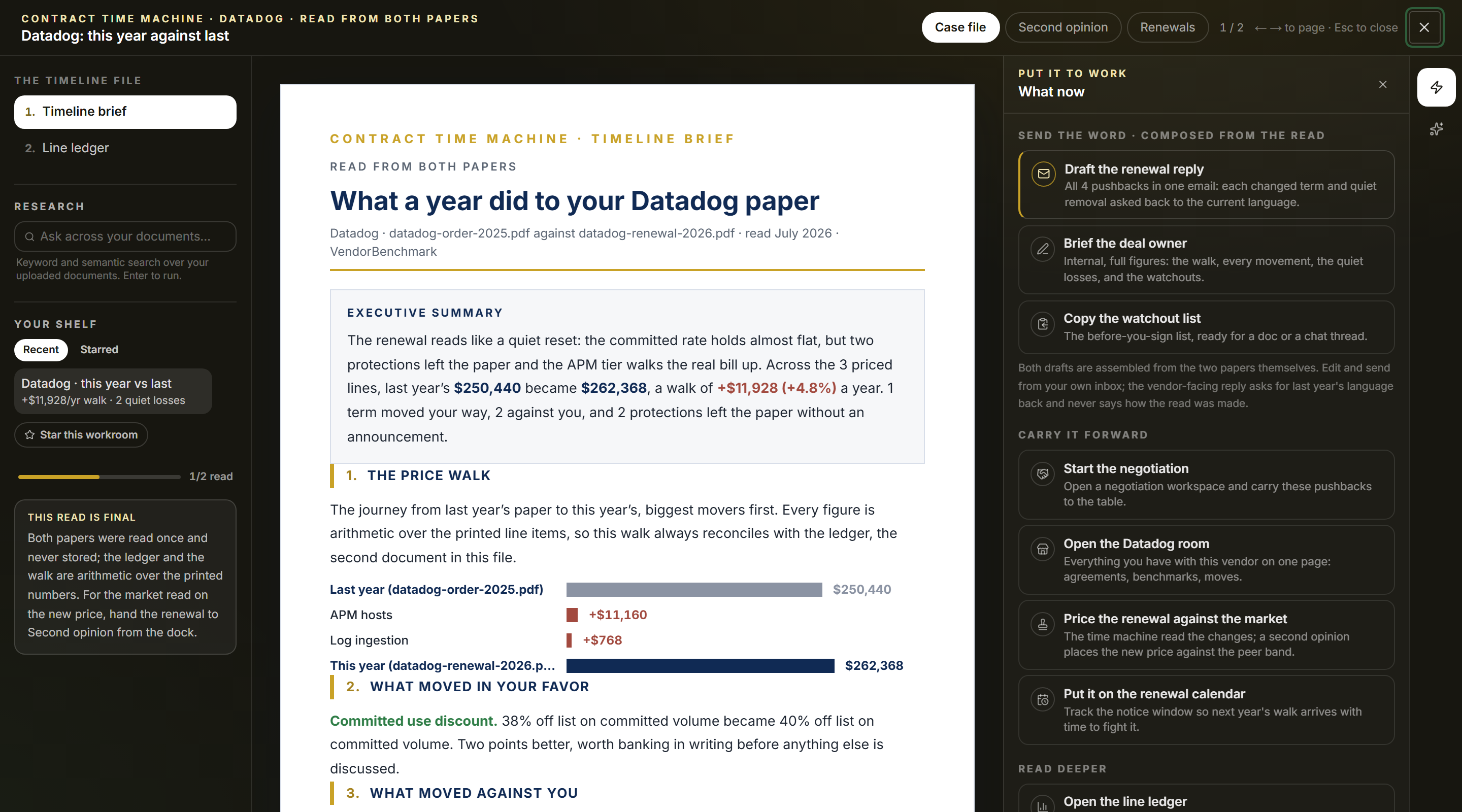
How to use it
- Press the worked example if you want to see a finished read before uploading your own document.
- Upload both versions of the same vendor's contract.
- Read the narrated diff, watching for uploaded protections.
- Take the findings into the renewal.
Related: Compare contracts · Renewal playbook
Report extract
Your layout is kept. The preset you start from, every field you tick or untick, and a custom field you are part way through describing are all saved in this browser. Downloading does not clear them; click a preset under Layout to go back to it. The uploaded XLSX template is not stored, so that is supplied again.
Everything document search has read across your contracts, exported as one workbook: one row per contract, columns you choose. Use it when you need the contract register in Excel, when your SAM tool (Xensam, Flexera One, ServiceNow, Snow, USU) wants an agreement import, or when your team's own report template should fill itself.
Since 26 September 2026 it opens in the same window the agents wear: the layouts down the left, three screens across the top (The extract, Layouts, How it works), the workbook in an inspector on the right, and a status line at the foot. The head states how many contracts the workbook carries, how many document search has read, and the layout it will take; a contract not yet read keeps its read columns blank, and the head says how many. Pressing a layout on the left, or Use this layout on the Layouts screen, sets it on the workbench exactly as picking it there does; once you have your own selection or template loaded, the left list opens Layouts instead and the button says Replace with this, so one click never throws that work away. With a template loaded the head says how many of its columns are mapped. The inspector shows the workbook's layout and how often each custom field was found among the contracts scanned. 1 to 3 change screen, I hides the inspector, and Escape closes the window.
Since 27 September 2026 the window wears the house dress: the head is the house masthead, the open screen named in navy capitals with the tool after the hue rule, the line under it, the gold meta line (Vendor Benchmark, Tooling, the tool's group, and which screen of how many you are on), one quiet row of facts, and the one filled button at the right over the step rail. The inspector is the house inspector: its facts as rows, then the Moves, the same declared moves the What next close carries, the first one glowing in the screen's hue.
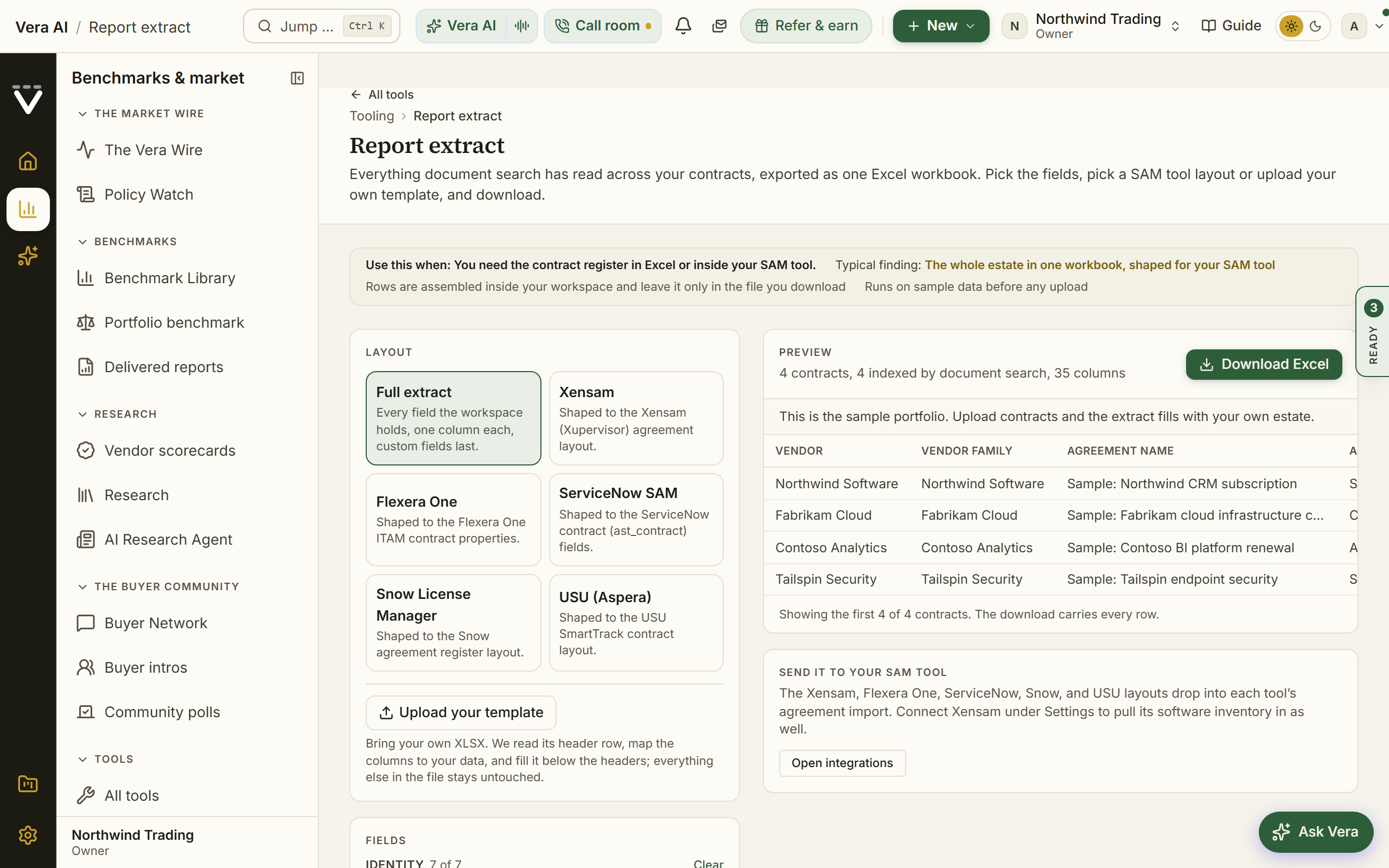
On the screen
- Layout — six starting points: the full extract with every field, or layouts shaped to the agreement imports of Xensam, Flexera One, ServiceNow SAM, Snow License Manager, and USU. Below them, upload your own XLSX template.
- Fields — every column the workbook can carry, grouped: identity, term dates, renewal mechanics, values in the original currency and in USD at today's rate, documents, detected clauses, evidence quotes, and your custom fields. Select what you need; the preview follows.
- Column mapping — with a template loaded, each of your template's columns and the field that fills it. Columns are auto-mapped by header name; fix any of them with the dropdown. Unmapped columns are left exactly as they are.
- Custom fields — anything the standard fields miss: payment terms, governing law, data residency. Add a field with a name and what to look for, then Scan contracts re-reads every indexed contract and records the value with the verbatim quote it was read from. A blank cell honestly means the document does not state it.
- The preview — the first rows exactly as the workbook will carry them, with the contract and indexed counts. The download carries every row.
- Send it to your SAM tool — the SAM layouts upload into each tool's agreement import, and the Xensam connector under Settings › Integrations syncs its software inventory into License intelligence the other way.
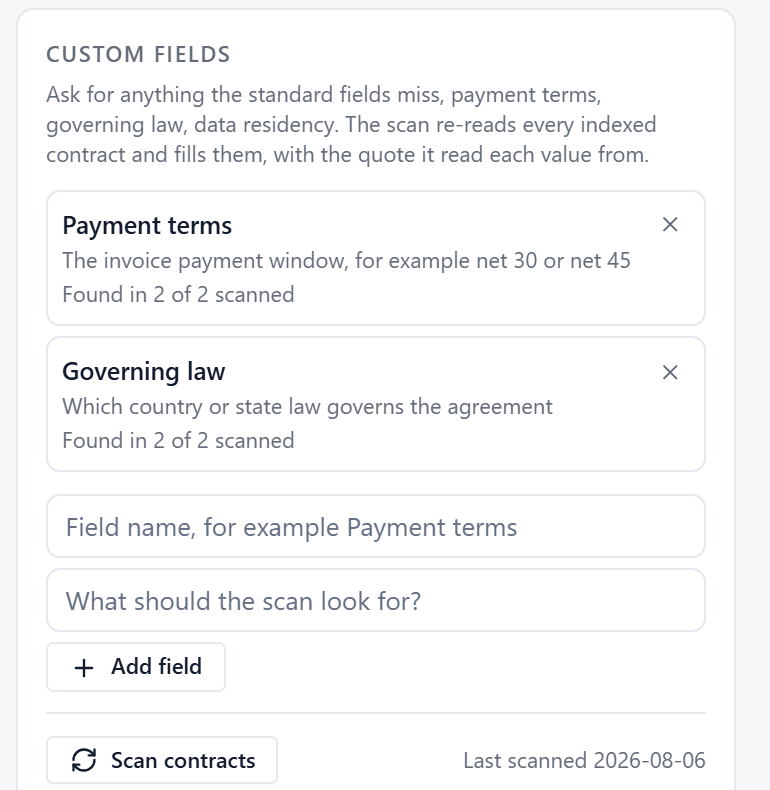
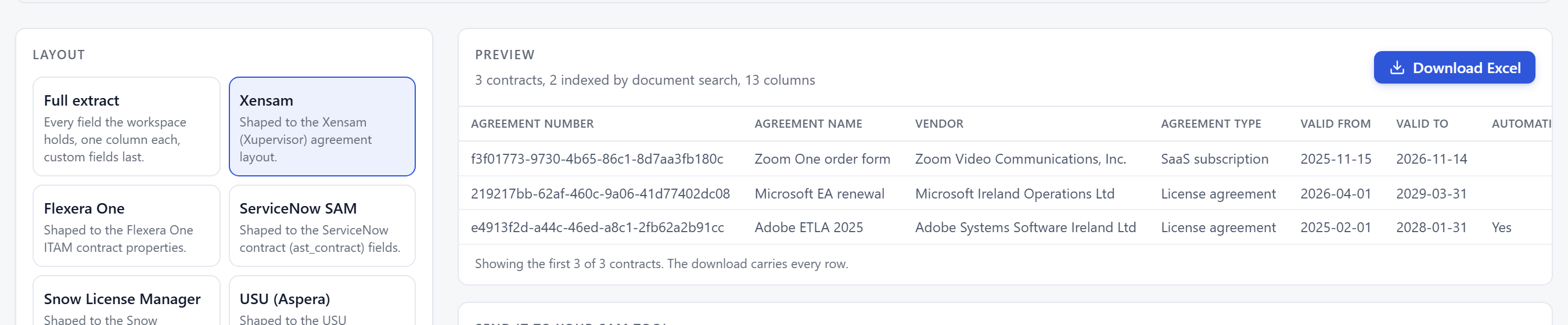
How to use it
- Open Workbook, ask the sheet a question or filter a header, and add the formula columns and pivots you need.
- Open Export and press Excel workbook.
With the workbench (Layouts)
- Pick a layout, or upload your template and check the column mapping it proposes.
- Adjust the fields until the preview shows the columns you want.
- Optionally add custom fields and press Scan contracts; the scan runs in the background and the coverage counts fill in as it reads.
- Press Download Excel. A fresh workbook carries a Contracts sheet and an About sheet; a filled template comes back as your own file with the data under its headers.
Tips
- Review the file in your SAM tool's import preview before committing the import; every tool maps a few columns its own way.
- Money exports in the original contract currency and in USD at today's rate, each as its own column, so pick whichever your report needs.
- A record joins the scan once document search has read its files; the Indexed column shows exactly which rows that is.
Related: Document Agent · Vera AI with your SAM tool · The integration catalog
Cloud cost optimizer
Since 25 October 2026 the screens run as numbered pages across the top of the window (Upload, Savings, Plan, Reports) with Back and Continue bottom right; the side keeps them numbered.
In plain words: your cloud bill as an instrument: drop the export, read the three answers, move a lever, and every figure follows.
Since 23 October 2026 the Cloud cost optimizer opens on four places, numbered down the left and across the top (keys 1 to 4). The window with every tab described further down opens at /tooling/cloud-cost?classic=1, and a room link still lands there. Both read the same estates and remember the same choices, so a recommendation set aside in one is set aside in the other.
- Upload. Upload a daily cost export: drag and drop it on the box at the top, or press Choose a file: Cost Explorer for AWS, Cost Management for Azure, Billing reports for Google Cloud, Cost Analysis for Oracle Cloud, by service or by resource. The file is read in your browser first and then saved to your organization (with Sample data on it stays in the window). Your estates lists every estate with its cloud, its run rate a year, what was found a year and where it ranks against comparable estates; press a row to open it. The prices behind every saving shows each cloud's catalog, how many prices it holds and when it was read, with Sync now.
- Savings. Every recommendation, biggest first: what to do, the area, the resources, a month and a year, the effort and the confidence (and whether it was read from the inventory or the spend shape). The box at the left puts it in the plan or takes it out. Press a row for its resources: each with its service, size, group, the evidence (for example CPU 12% peak, or 64% of objects untouched for 180 days), its spend and its saving. Area narrows the list to compute, storage, network, database or analytics. Nineteen rules run on every resource, among them a one year commitment on steady compute, Arm in place of x86 of the same size, spot capacity for non production node pools, the current disk type in place of the previous one and the archive tier for objects nobody reads; the commitment, Arm, spot and archive savings are priced from each cloud's own catalog.
- Plan. The savings a month as each recommendation lands over twelve months, planned against landed; the plan with an owner, the month it lands and its status (To do, In progress, Done) for each recommendation; The commitment: the level to commit a year, the discount, the share of the steady floor it covers and what it saves against pay as you go; Priced at today's list: the compute units the savings read, on each cloud, with the date each catalog price was read; and Cheaper homes: the resources that cost less on another cloud with its commitment, what the move costs once and how many months it takes to pay back.
- Reports. The Word report, the PowerPoint deck and the PDF carry the savings review on the firm document: the four figures across the top (run rate, found, in the plan, the first twelve months), the summary, where the money is, the recommendations, the prices, the commitment, the cheaper homes, the plan and the basis. The Excel workbook has Summary, Recommendations, Every finding with its evidence, Plan by month, Cheaper homes and Prices with the date each was read. The CSV has every finding as rows. Each file is built on the server from the estate and today's prices. Email the platform team drafts the note from the recommendations in the plan, with Copy and Open in Mail.
- The prices. AWS is read from its bulk price list, Azure from its Retail Prices API and Oracle Cloud from its price list, every night; Google Cloud has no feed, so it stays on its published list and says so. Sync prices (or Y) reads the catalogs again and prices every saving again. Nothing moves without a catalog read.
- Sample data in the title bar shows four sample estates on AWS, Azure, Oracle Cloud and Google Cloud.
Since 8 October 2026 the Cloud cost optimizer is one app in the agent frame (the white title bar closed by a gold rule, one navy sidebar, numbered tabs, a compact head, panels on the gray ground, the details column, the status bar) with two tools and two views. Benchmarking reads a daily cost export and answers what you spend, what comparable estates recover and where the estate ranks, then sizes the commitment, prices the same estate on every cloud and builds the reports. Optimization connects a read only role or uses the file, scans the inventory for waste and tracks the plan. Each tool has a Standard view of three screens (Upload, Savings, Report; Connect, Recommendations, Plan) for the person who wants the answer, and an Advanced view of every screen for the FinOps lead; the switch sits in every head, and the screen you are on maps to its nearest.
Since 12 October 2026 the first screen is Estates: every estate your organization has, ranked in the order to act on (a notice date inside 30 days first, then the most money identified), with the upload beside it. Each estate's commitment is benchmarked on the three questions (what it costs, what comparable customers get, where it ranks from Poor to Top of the market) against the Benchmark Library's cloud commit curve; where the library has no curve for that cloud or that size, the provider's commitment band is used and the screen says so. The renewal clock comes from your agreements in Renewals where one names the cloud. Findings is a worklist with search, status and paging, and a resource opens as its own record. History shows the estate in whole months with the team's moves.
When to reach for this
- The monthly cloud bill grew again and nobody can say exactly why.
- Before a committed spend negotiation: size the commitment on the scheduled floor, not on today's peak, and know what the other clouds would charge.
- The export is read in your browser, so the first pass costs nothing but the drop.
Rooms
- The tool opens on Rooms. A room is a project with people in it: its estates, levers, scenarios, plan, reports, files and the log of everything saved.
- A member sees the rooms they are in; an org admin sees every room in the organization and every member's role; a platform admin sees every organization grouped. An organization never sees another's rooms.
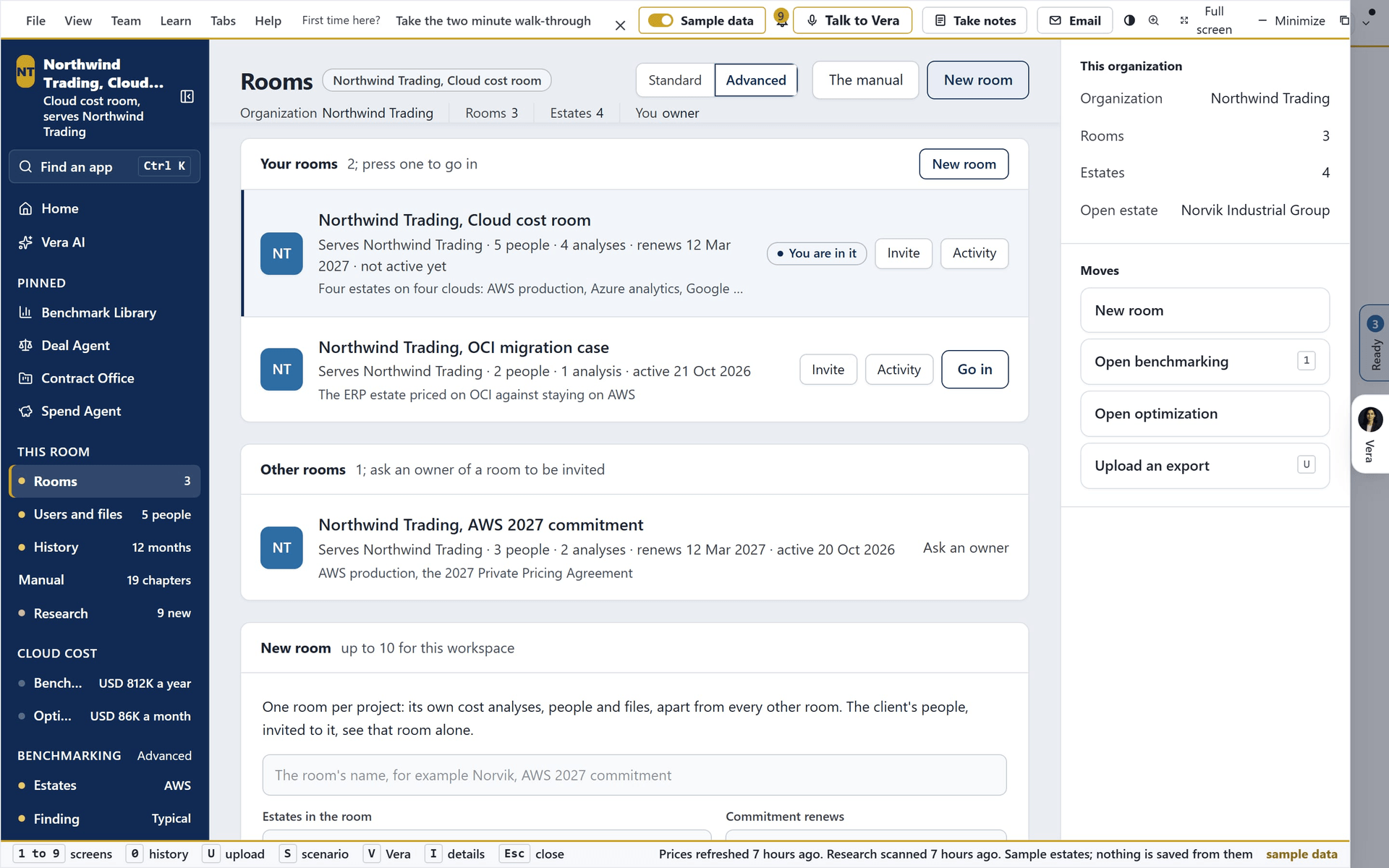
- New room is one flow: the template (five set the levers, the reports view and the schedule), the name, the estates ticked in, the first members by email with their role. Invite on a row adds someone later; Open loads the room as it was saved; Ctrl S saves it as it stands.
- The Room screen carries the members with their roles, the board of threads (Comment in any head starts one on that screen), the messages (@vera asks Vera), the files (cost exports, SKU files, reports and emails land there as they are made) and the log.
Benchmarking, one line a screen
- Estates (1): upload a daily export from OCI Cost Analysis, Cost Explorer, Azure Cost Management or the GCP billing report, or several at once to run every cloud together, beside The order to act in, the five estates to act on first and why. Every estate lists them all with the run rate, the rank, the program, the commitment against the curve's midpoint, the notice date and the optimization a month; search it, filter by cloud and rank, sort by the order to act in, the most program or the largest spend, and press a row for its record. What was read lists the file, the cloud, the shape, the period, the services, the resources, the currency and the run rate; entitlement SKUs upload beside it and read as the discount per SKU and the cover of the bill.
- Finding (2): the estate's record: the three answers in their order, what the program takes a year and over the term, the commitment you hold on the three questions, the scale with the band and the midpoint, the rank gauge, the comparable estates' distribution, the patterns priced, and Around this estate: Renewals, the Benchmark Library, the Deal Agent, Vendor Changes, research, Specialists, cases, calls and the Monday brief, each opening on its own page.
- Spend (3): daily spend by service with the median day and the spike days ringed, every service with its share, trend and shape, the category donut, the rhythm heatmap, the always on against variable table.
- Forecast (4): the bill a month for 36 months under three growth cases with the program landing phase by phase, by year, by category, and the cost of waiting.
- What if (5): every lever on one panel and the bridge from the run rate to the optimized one, a step a lever; every figure, chart and sentence on every screen follows; up to four scenarios saved with S.
- Commit (6): the commitment you hold on the three questions with the curve and your deal placed on it; the renewal clock (started, today, the notice date, the end) with Renewals, the Deal Agent, calls, cases and Specialists beside it; the order form, where you enter the vehicle, the commitment, the discount and the dates (an agreement in Renewals fills the dates, and what you type wins); What the commitment covers, the levers' figure beside Commit's recommendation with Set the levers to join them; then the floor, three ways to size it (Minimum, Medium, Growth) with the unused and the overage, the vendor's band by term, and the asks for the contract.
- Clouds (7): the same estate on OCI, AWS, Azure and GCP at list and with each cloud's commitment, the ask to stay, and the move what-if: the cloud, the share of workloads, the categories, the credits and an extra discount, with the saving over the term and the payback.
- Peers (8): comparable estates by size with the band and the midpoint, your estate placed and after the program, the eight nearest, the range moved for the industry and the country.
- Reports (9): views on the estate's own figures: the explorer, the pivot with its heat, year over year, All clouds (every cost file together, the deployment options ranked over the term, a price check on every run), the scenarios, the roadmap and plan, the entitlements, the brief in the firm document, and the schedule of weekly or monthly reports by email.
- Savings (the Standard view) composes the finding, the levers that matter, the spend, the recommended commitment level and the ask to stay on one screen, so a lever moves the same figures.
Optimization, one line a screen
- Connect (1): a read only role per cloud, or the cost file; what each source gives the scan; the inventory.
- Scan (2): fourteen rules (idle, oversized, previous generation, stopped with disks billed, round the clock non production, unattached volumes, old snapshots, cold storage, idle load balancers, reserved addresses, quiet NAT gateways, idle databases, growing logs, untagged), the largest findings and the categories; it runs nightly on a connected cloud and whenever a file is uploaded.
- Findings (3): a worklist of every resource flagged, twenty a page: search by resource, service, group or rule; filter by category and by status (open, accepted, done, dismissed; a dismissed finding leaves the totals but stays findable); sort by saving, cost or name. A row opens the resource as its own record with Back to the findings, Previous and Next.
- Recommendations (4): one card a rule naming the resources it covers, opening to the full list; accept into the plan or dismiss a resource and the total moves. A resource opens as its own record on Findings: overview, metrics over 30 days, cost by month, the research on its type, its price on every cloud, recommendations, tags and comments.
- Move (5): every resource priced on GCP, Azure, AWS and OCI with each cloud's commitment, the cheapest cell, what moving saves and costs once, the payback and a verdict; tick resources or whole workloads into a move plan and send it to the platform team.
- Plan (6): every accepted recommendation with an owner, a window and a status, planned against realized, on a timeline.
- Reports (7): the brief and the email.
History (0): the estate's spend by whole month (a partial first or last month is left out and named), the highest and the lowest month, the change first to last, and the team's moves (saved estates, reports and files) for an owner of the workspace.
On every screen
- The head: the screen's title with its rank, Comment, the Standard or Advanced switch, the actions with one primary, and one row of facts.
- The details column: What to do now first (a notice date inside 30 days, a commitment below market, a commitment to benchmark, or the two commitment figures to join), then the figures, the moves, Ask Vera, and Related, which opens Renewals, the Benchmark Library, the Deal Agent, Vendor Changes and research.
- The research bell in the title bar: what changed on each cloud (a price list change, a program change, a discount, a new instance family, an analyst note), scanned every day at 06:00 UTC, with what it means for the estate on screen and Open the screen on each item.
- Mail (M): folders, the contacts on this estate, nine templates written from the figures on screen, attachments, reply, save and send.
- Talk to Vera (V) answers from the figures; the dock at the foot of every screen reaches the specialists; P presents the finding one slide at a time with a red Exit; F is full screen; Ctrl K finds an estate, a screen or a service; Alt underlines the menu access keys while it is held.
- The price list behind the indices: the four hyperscalers' lists, when each was checked and last changed, Get the latest price list; its freshness is stamped in the head and the status bar.
The manual screen
- The last row of the sidebar, the Help menu and The manual on the Rooms page open the manual inside the app: a quick start in eight steps with a figure beside each, then nineteen chapters, one a screen, each with where it is, who it is for and what you get on one line, a picture of the screen with numbered markers on its parts, what each part means under the same numbers, the steps in order and a tip.
- A contents rail sits beside the chapters; every chapter has Open this screen and Copy the steps; Print the manual lays the whole thing out on paper or PDF; Ask Vera in the rail answers from the manual.
How to use it
- Press New room (or open one), pick the template, name the room, tick the estates and add the people.
- Upload the cost export on Estates, or several at once; read What was read and correct the cloud if the guess is wrong, then open the estate at the top of The order to act in.
- Read the three answers on Finding; the rank tag in the head says the same in one word.
- Move the levers on What if (switch non production off first and the floor falls); save the position as a scenario with S.
- Enter the commitment you hold on Commit and read where it ranks, press Set the levers or Use this level, read the asks for the contract, and read Clouds for what the alternative would charge and whether the move is credible.
- In Reports, pick the views, Save this view, schedule the monthly report by email, and run All clouds across every estate.
- In Optimization, connect or upload, run the scan, accept the recommendations into the plan and set each item's owner, window and status.
- Draft the email to the account team from the details column or Mail; the figures on screen write it.
Related: Workload comparator
Workload comparator
Since 23 October 2026 the comparator is four places, numbered down the left and across the top (keys 1 to 4); the window described further down opens at /tooling/workload-compare?classic=1.
- Your estate. Type a SKU from any cloud in the box at the top (m7i.2xlarge, D8s v5, n2-standard-8, E5 Flex) or a size (8 vCPU 32 GB) and the matches appear with their list price an hour and where it comes from; set How many and press Add. Paste a list takes one line each, a count and a SKU or a size. Upload the inventory reads the comparator's CSV and puts each row on its nearest size. The table holds what you run: the name, the cloud it runs on today, the count, the usage (always on, business hours, interruptible), Linux or Windows, the disk and the egress, and what it costs today a month.
- Your discounts. A card per cloud: your program discount across every service (AWS EDP, Azure MACC, a Google Cloud commit, Oracle Universal Credits), with the peer band for your spend from the Benchmark Library's commitment curves and where your figure sits in it (Azure has no curve yet, and the card says so), what the discount is worth a year, and A different rate for one service (compute, storage, data transfer, GPU). Private rates on one SKU takes a rate from your order form, which replaces the list and any commitment for that SKU. Compare with switches between your discounts and list prices only.
- Compare. The levers (on demand, 1 year or 3 year commit; your discounts or list only; like for like or the cheapest of any size; a month or a year), then the whole estate on each cloud racing against today's line, cheapest first, and every workload on every cloud: the price a month, the SKU, a dot for where the price came from, the cloud it runs on today outlined and the lowest in gold. Press any price to see it line by line: the list rate and its date, the commitment, the hours, your discount, compute, the Windows license, the disks and the egress.
- Your move. The ask for the cloud that carries most of your estate, with Email (the draft, Copy, Open in Mail, the workbook and the PDF beside it) and Mark as sent; The reports: the Word report, the Excel workbook (Summary, Moves, Every price with its SKU, source and date, Your discounts, Sources), the PowerPoint deck and the PDF, each built on the server from your estate and today's prices, and the CSV of every price; the moves, biggest first, with the effort and the ask for each; and the walk from today to the best mix a year.
- The prices. Every figure is the vendor's own list: AWS from its bulk price list, Azure from its Retail Prices API and Oracle Cloud from its price list, synced every night; Google Cloud has no feed, so its sizes are its published list of 1 July 2026 or worked out from Google's published per vCPU and per GB rates, and say so. Sync prices (or Y) reads the catalogs again and redraws every figure that moved. The left column and the details column show when each catalog was last read.
- Sample data in the title bar shows Northwind Trading: 8 workloads and 40 instances, mostly on AWS, with a 9% EDP and a private rate on m7i.2xlarge.
Since 26 September 2026 it opens in the same window the agents wear: the saving on each workload down the left, three screens across the top (Placement, Single cloud, How it prices), the placement in an inspector on the right, and a status line at the foot. The head states what each workload on its cheapest cloud costs a year against everything on the cheapest single cloud, and, on the workloads where you stated a cost, how far under today that is. Single cloud sets everything on one cloud side by side, cheapest first, with the gap and the workloads each cloud wins. The inspector sets both comparisons out, each on its own basis, and names the largest single saving; a workload that stays on its cloud reads as a pricing change, not a move. 1 to 3 change screen, I hides the inspector, and Escape closes the window.
Since 27 September 2026 the window wears the house dress: the head is the house masthead, the open screen named in navy capitals with the tool after the hue rule, the line under it, the gold meta line (Vendor Benchmark, Tooling, the tool's group, and which screen of how many you are on), one quiet row of facts, and the one filled button at the right over the step rail. The inspector is the house inspector: its facts as rows, then the Moves, the same declared moves the What next close carries, the first one glowing in the screen's hue. The what if switches on the comparator itself are unchanged.
In plain words: every workload priced on all four clouds, and the ones on the wrong platform named.
When to reach for this
- A cloud negotiation needs a credible alternative: the cross-cloud price is the evidence.
- Platform strategy season: where the estate would sit if placed by price rather than history.
- A consolidation question (the recipe) where workloads, not licenses, are the unit.
Save analysis files the placement verdict brief and its cost atlas to your Documents library, where it reopens at /tooling/analyses/workload-compare without a re-run. Since 27 September 2026 a saved analysis opens under the house head: Saved analysis with the tool after the hue rule, the date it was saved, Run the tool again as the one button, and a row of Moves under it; with nothing saved yet, the page sets out the three steps to file one. Your working session also stays in this browser per organization.
Describe your workloads or import an inventory CSV and the comparator prices each one on AWS, Azure, GCP, and OCI at list, then opens with the verdict: the optimal multi-cloud mix, the annualized saving, how many workloads sit on the wrong platform today, and a three sentence executive read written live from your numbers. A sample portfolio loads on arrival so every result is visible before you upload anything.
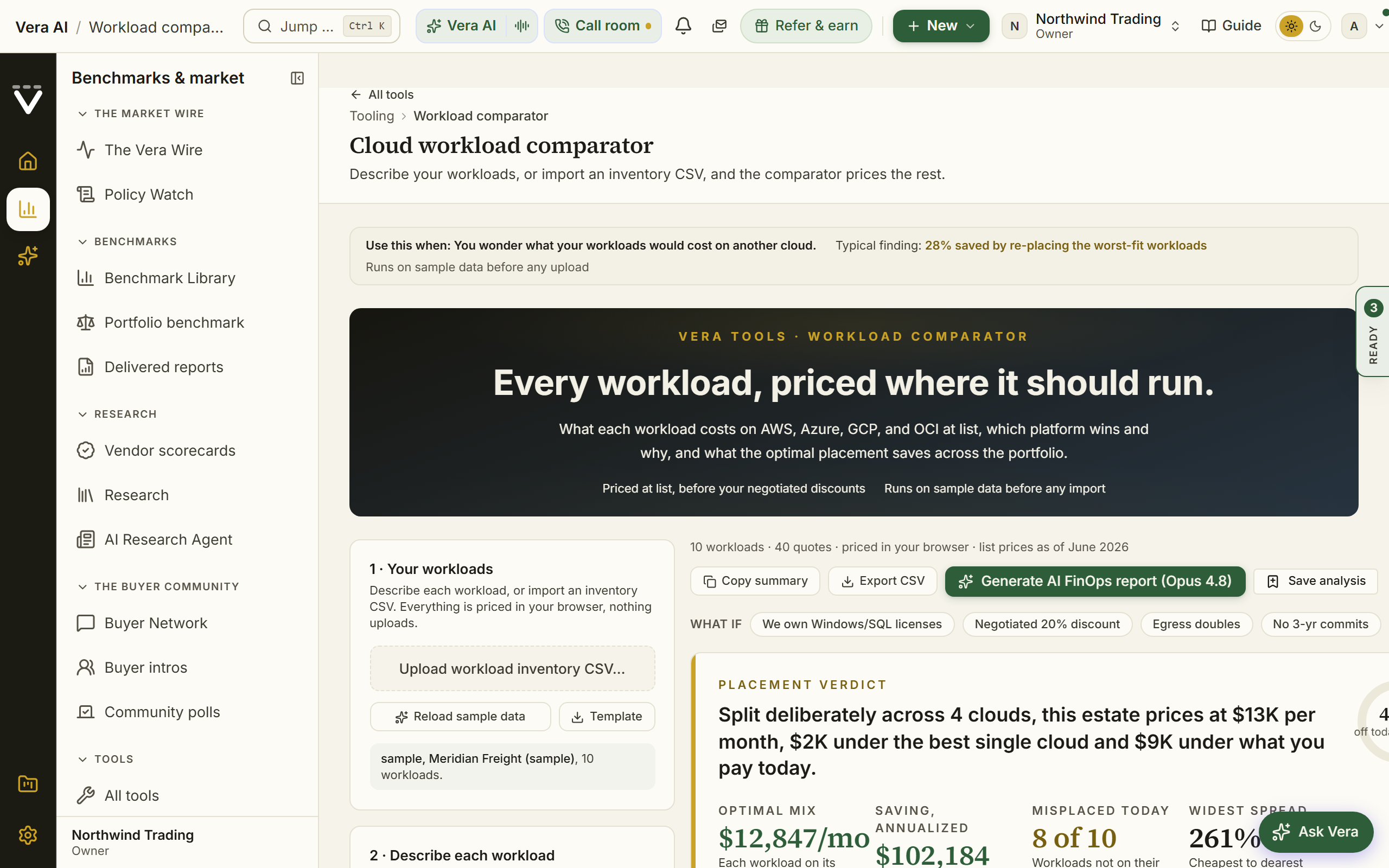
Since 25 October 2026 the screens run as numbered pages across the top of the window (Your estate, Your discounts, Compare, Your move) with Back and Continue bottom right; the side keeps them numbered.
On the screen
- Placement verdict: the optimal mix per month, the saving annualized, the misplaced count, and the widest cross-platform spread, with an estate shape line (how much spend runs 24/7, what is licensing, egress, and GPU).
- What if switches: four scenario toggles that re-price the whole estate live: owned Windows/SQL licenses (Azure Hybrid Benefit), a negotiated 20% discount, doubled egress, and a one year commitment cap. A figure beside them shows what the scenario saves or adds against plain list.
- Executive read: three analyst sentences over your numbers: what the mix is worth, the single biggest lever, and what to do first.
- Open the workroom: once results exist, a button under the executive read opens the comparison as a six document case file, recomposed live from the current comparison: all four contenders' cost lines as exhibits, the cost atlas with per line deltas, the verdict brief (with the four single platform totals and the optimal mix drawn as a labeled bar chart), the switch sheet with the one time cost, the breakeven month, and the cumulative net position at twelve, twenty four, and thirty six months, and a What now sheet with a full figures stakeholder draft and a row that opens the commitment benchmark of each cloud in the optimal mix. The same moves ride What now in the inspector beside every document, Ask Vera in the same inspector is grounded on the whole comparison, and in the tree on the left, under the documents, sit a search over your uploaded documents and your shelf. Moves copy to your clipboard or open in your own inbox; nothing sends.
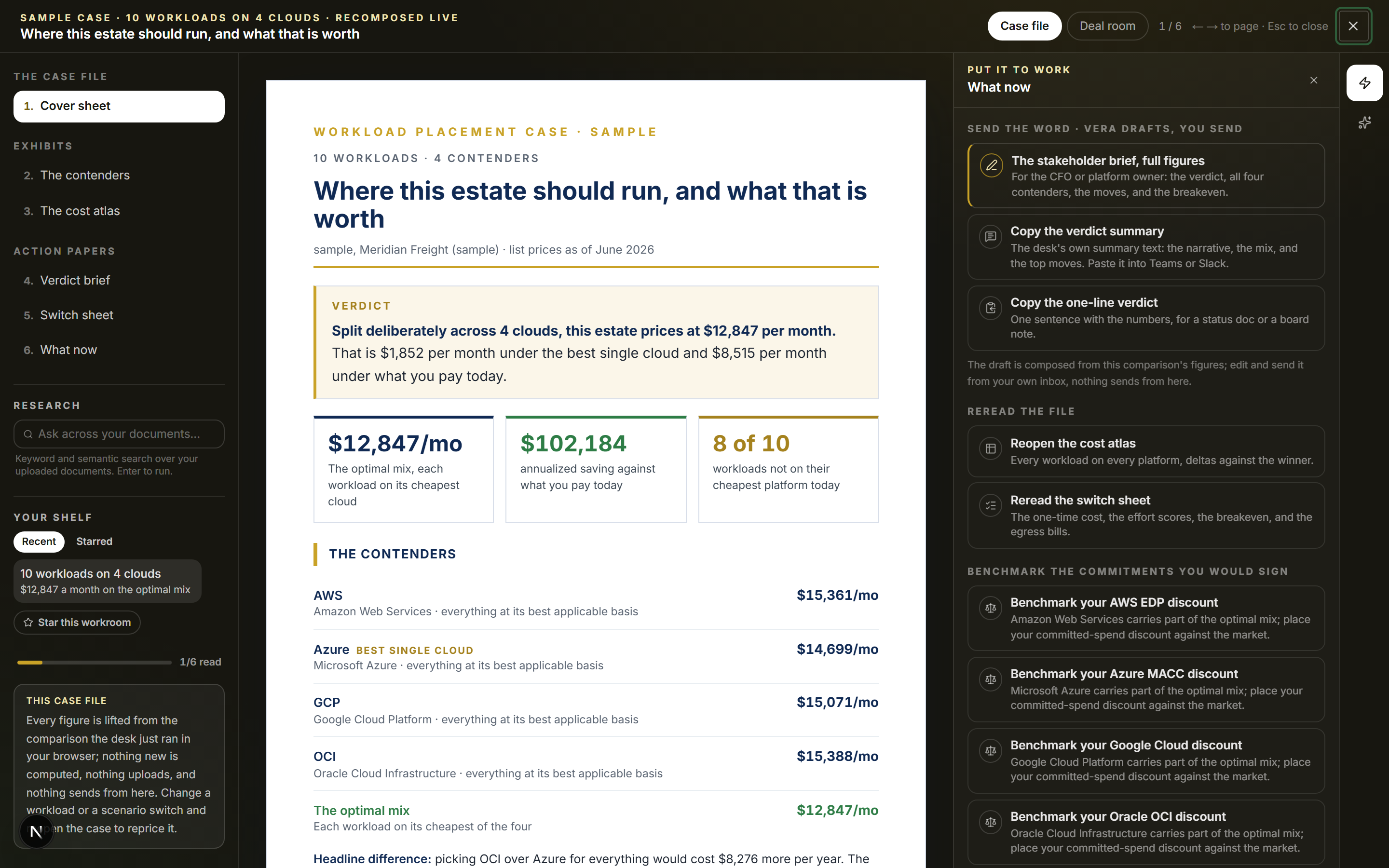
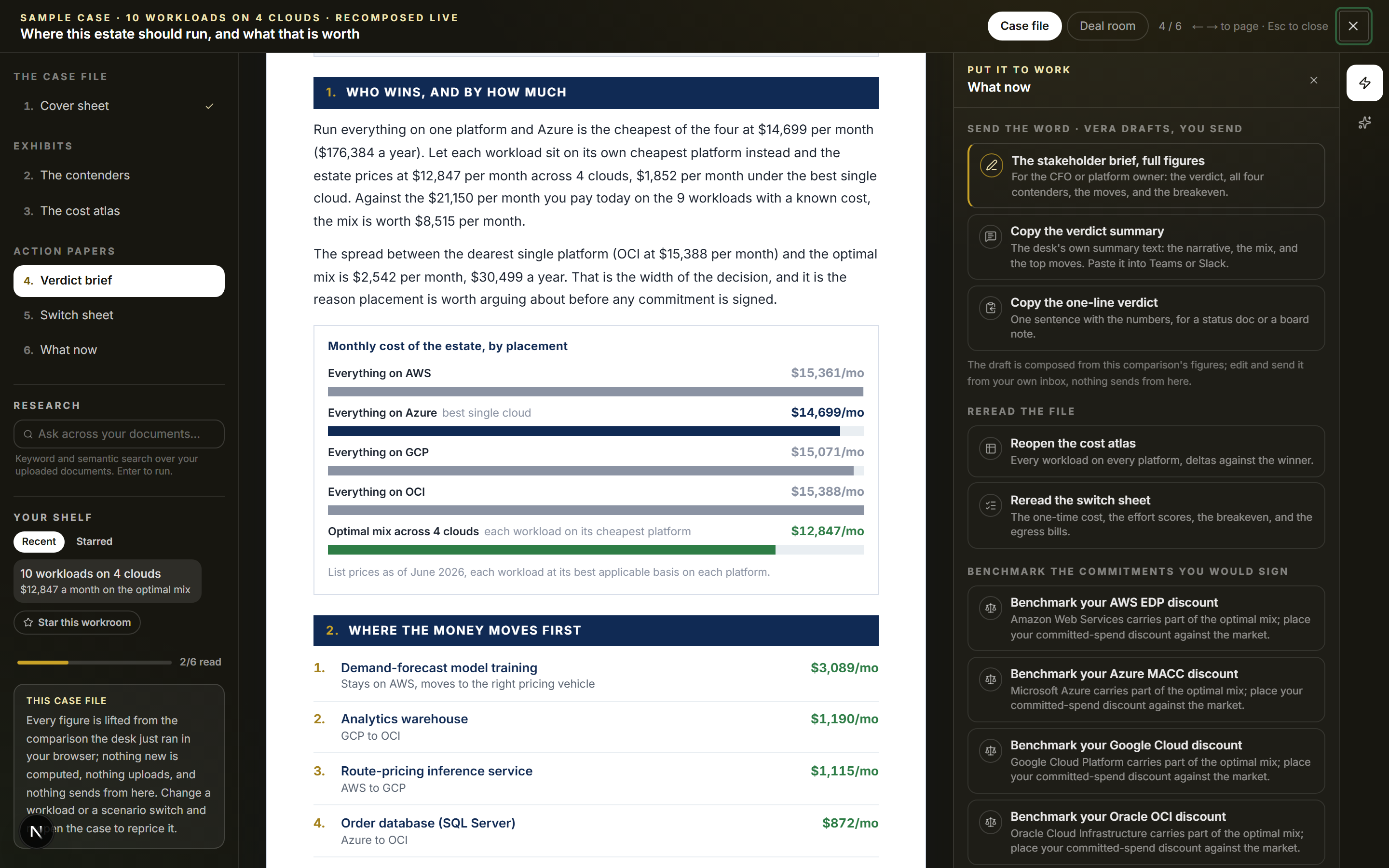
- Estate map: every workload as a rectangle sized by monthly cost, colored by where it runs today or where it should run, with the movers outlined in gold. Click a workload to open its breakdown.
- Cheapest platform per workload: the comparison matrix: cells shade with cost, non-winners show the premium over the winner, each workload names its cost driver (compute, licensing, GPU, storage, or egress led), and every column sorts.
- The full picture: the selected workload's cost anatomy on each cloud, the on-demand and commitment prices, a negotiation angle with a one to five leverage meter, and a migration effort read.
- Where the money should move: flow ribbons from today's platforms to the optimal placement, sized by monthly cost.
- Where the saving comes from: a waterfall splitting the saving between pricing discipline (commitments and spot, no migration needed) and replatforming.
- 36-month projection: cumulative spend on today's path against the optimal mix, with an adjustable one-time migration estimate and the breakeven month marked.
- Which moves to make first: each move plotted by monthly saving against migration effort; start in the quick wins corner.
- Commitment plan, data gravity, and the price of one cloud: which pricing vehicle each cloud's share rides on, the portfolio's egress bill on each platform, and the premium every single-cloud consolidation pays over the mix.
- Exports: the full quote set as CSV, a copyable executive summary, and the AI FinOps placement report.
- What next: the result ends with a What next module seeded from the run's own numbers.
- Your session keeps: the portfolio, switches, and results stay in this browser per organization, so leaving or reloading does not lose the run; Start over clears it.
How to use it
- Describe or import your workloads, honest sizes, egress, and licensing give an honest answer.
- Read the verdict and the executive read, then click through the estate map and the matrix.
- Flip the what if switches that match your reality, owned licenses or a negotiated discount change winners.
- Press Open the workroom and read the verdict brief and the switch sheet with What now open in the inspector beside them; draft the stakeholder brief from there.
- Work the quick wins corner first, and take the flows, waterfall, and CSV into your architecture and pricing talks.
Related: Cloud cost optimizer
M365 optimization
Save analysis files the playbook to your Documents library, where it reopens at /tooling/analyses/m365-optimization without a re-run. The per-user action list stays in your browser and is never part of the saved copy.
Upload your Microsoft 365 usage export to find inactive accounts, right-size E7/E5/E3/E1 tiers, and size Copilot. Generating the playbook opens the estate scan, a full screen reveal where every licensed user is a dot that colors in as its verdict lands, ending in an executive readout with the money bridge from today's spend to the optimized mix.
In plain words: your Microsoft seats against actual usage, with the surplus priced.
When to reach for this
- The EA renewal or true-up is inside a year: walk in with the surplus already found (the recipe).
- Copilot sizing is on the table and deserves usage data rather than the vendor's enthusiasm.
- Quarterly hygiene: inactive seats accrue quietly between renewals.
A worked example. The sample estate's Microsoft position is 1,800 E3, 350 E5, and 900 F3 seats, and the flagged exposure on the E3 pool alone runs $64,800 a year. That is the shape of finding this tool exists for: not a dramatic discovery, just seats nobody uses and tiers nobody right-sized, priced and turned into a per-user reassignment plan you can actually execute.
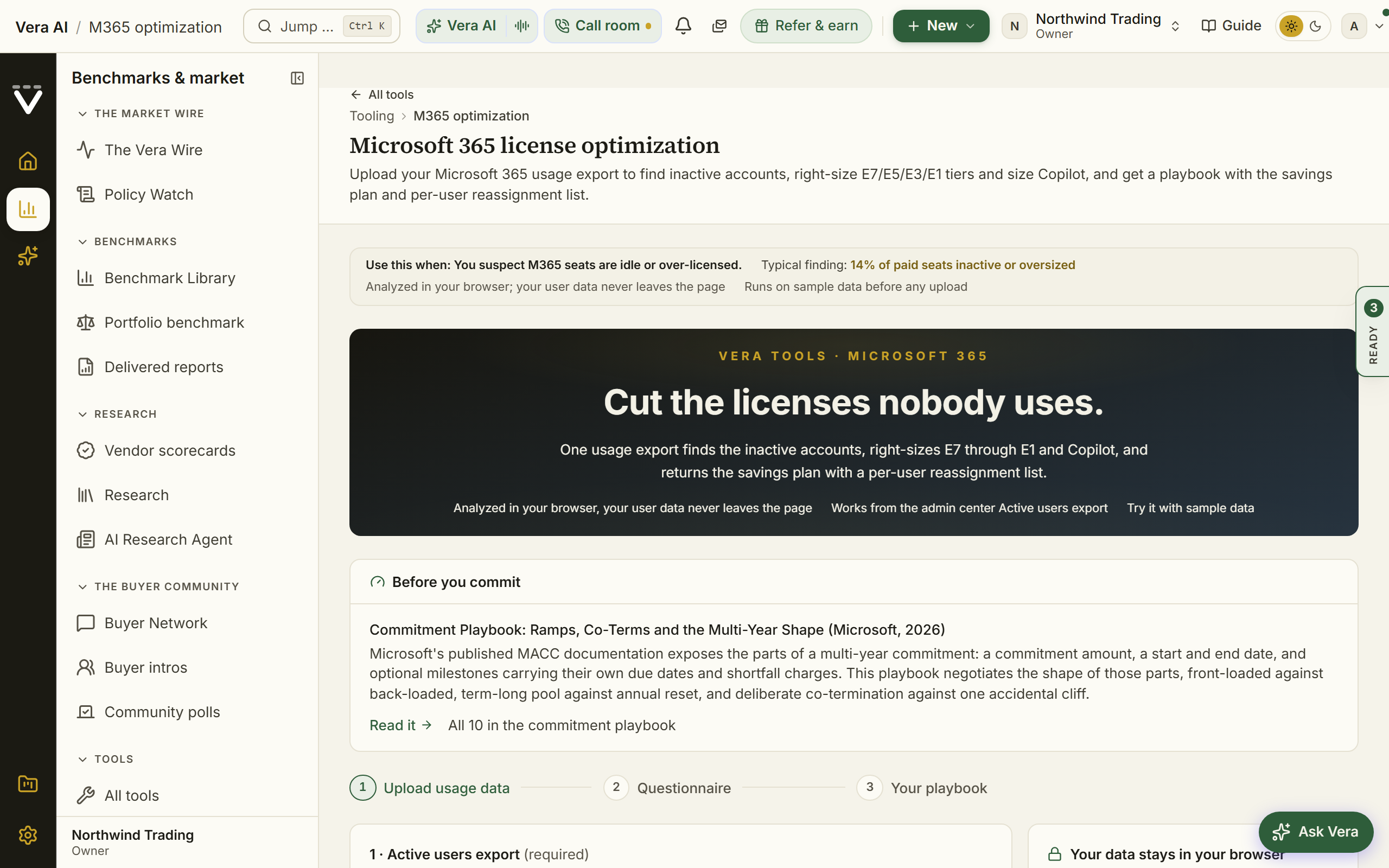
On the screen
- Before you commit: pointing at the Commitment Playbook, the ten part research series on sizing and running a committed spend agreement. On this screen it opens the Microsoft document, on ramps, co-terms and the multi-year shape, and links the rest of the series.
- Usage upload: your M365 usage export, analyzed in your browser so your user data never leaves the page. A sample 500 user estate is one click away if you want to see the result first. Your session stays in this browser per organization, so leaving or reloading does not lose the analysis; Start over clears it.
- The estate scan: the reveal that plays when you generate the playbook: the scan beam, the live findings ticker, the headline numbers with your waste share placed against peer estates, the money bridge (stamped when the math closes), the seat-flow map of where every seat goes, and the largest individual moves. A renewal inside 120 days shows a countdown. Skip it with one click or replay it any time with Replay the reveal.
- Verdict: the four numbers that matter (annual spend, identified savings, net position, accounts flagged) pinned above the playbook. Drag the inactivity threshold anywhere from 14 to 180 days, or use the 30/60/90 presets, and flip the Copilot appetite; every number in the verdict and the report recomputes in place.
- Scenarios A and B: freeze the current assumptions into a slot, change them, and read the two positions side by side with deltas. Load either scenario to put the whole playbook on its numbers.
- The playbook: the print-ready report, opening on an executive cover page: estate inventory, the silence curve, the what-Microsoft-sees table (assigned seats against the seats actually working, per tier), the per-department waste rollup with the worst offender named (when your export carries a Department column), tier right-sizing with evidence, Copilot sizing with a per-appetite return model, the savings plan line by line, and the 12-month realization curve of what lands when.
- Share readout: a 30-day read-only link to the executive readout for a CFO or a colleague. It carries aggregates only, never user names; the per-user plan stays in your workspace.
- Send to EA playbook: carries the optimized seat counts into the Microsoft EA renewal playbook, where they appear as your opening position for the quantity conversation.
- Reassignment plan (CSV): the per-user action list, ready for your admin team.
- Open the workroom: the green button above the result opens the playbook and the seat commitment sheet as one case file in the window the agents wear, with What now in the inspector beside the document and Ask Vera in the same inspector, grounded on the whole estate. In the tree on the left, under the documents, sit a search over your uploaded documents and your shelf.
- The moves in What now: draft the seat true-down ask to Microsoft (your optimized seat count against today's assignment, asking for the true-down right, price protection, and the published tier rates by name), draft the CFO savings memo, hand the three reassignment waves to IT with their counts, book the renewal into your calendar, mint the share link, export the reassignment CSV, copy the savings plan, and run the EA playbook handoff without leaving the document. No draft names a person; the user list never leaves your browser.
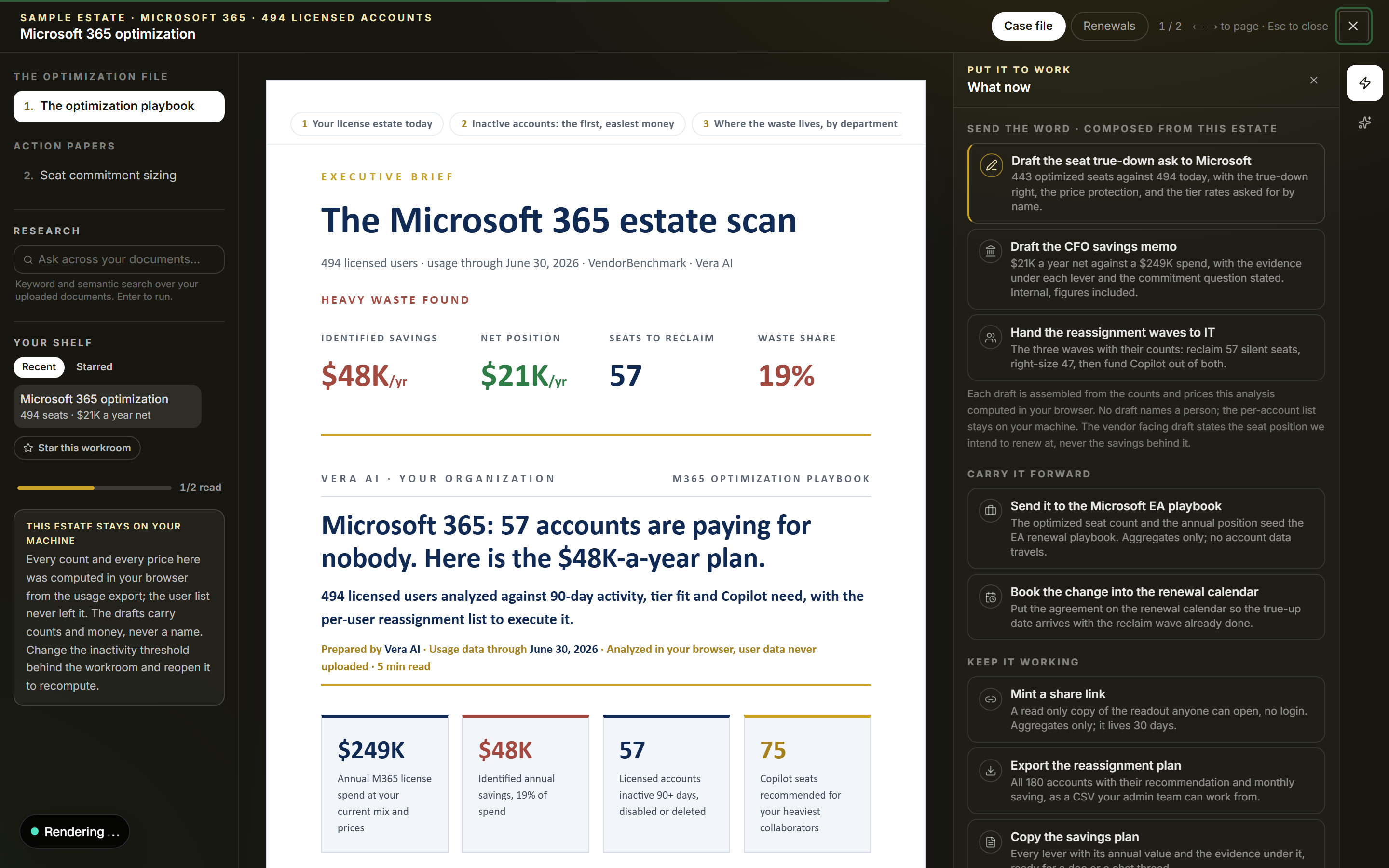
How to use it
- Upload the usage export (or start from the sample data).
- Answer the questionnaire and generate the playbook; watch the estate scan land the verdict.
- Scrub the threshold and Copilot settings in the verdict until the assumptions match your reality; freeze scenarios A and B if two positions are on the table.
- Press Open the workroom and draft the seat position for Microsoft and the CFO memo with the playbook still on screen.
- Share the readout with the budget owner, send the optimized counts to the EA playbook, and work the reassignment list into your next true-up or renewal.
Related: EA renewal playbook · Spend Agent
Commitment Studio
Commitment Studio (named Spend Studio until August 2026; the address is unchanged) is the one place to size a committed-spend deal with an AI vendor and to work the rest of your savings tools. It opens on four tabs.
Since 26 September 2026 it opens in the same window the agents wear: the four vendor books down the left, and the studio's four modes as the screens across the top (Commit sizing, Plan, Cloud, Licenses) in place of its own tab row. Pressing a book on the left opens it in Commit sizing and keeps it in the link, as pressing its card does. The inspector says whether your plan lets the books read your own exports and whether a portfolio plan is saved. 1 to 4 change screen, I hides the inspector, and Escape closes the window.
Since 27 September 2026 the window wears the house dress: the head is the house masthead, the open screen named in navy capitals with the tool after the hue rule, the line under it, the gold meta line (Vendor Benchmark, Tooling, the tool's group, and which screen of how many you are on), one quiet row of facts, and the one filled button at the right over the step rail. The inspector is the house inspector: its facts as rows, then the Moves, the same declared moves the What next close carries, the first one glowing in the screen's hue. The four vendor books are house cards across the Commit sizing screen, the chosen one ticked in its own color, and the Plan, Cloud and Licenses launch panels are house cards with the typical finding in the foot. With no book open, the inspector's Moves open the four books in a press.
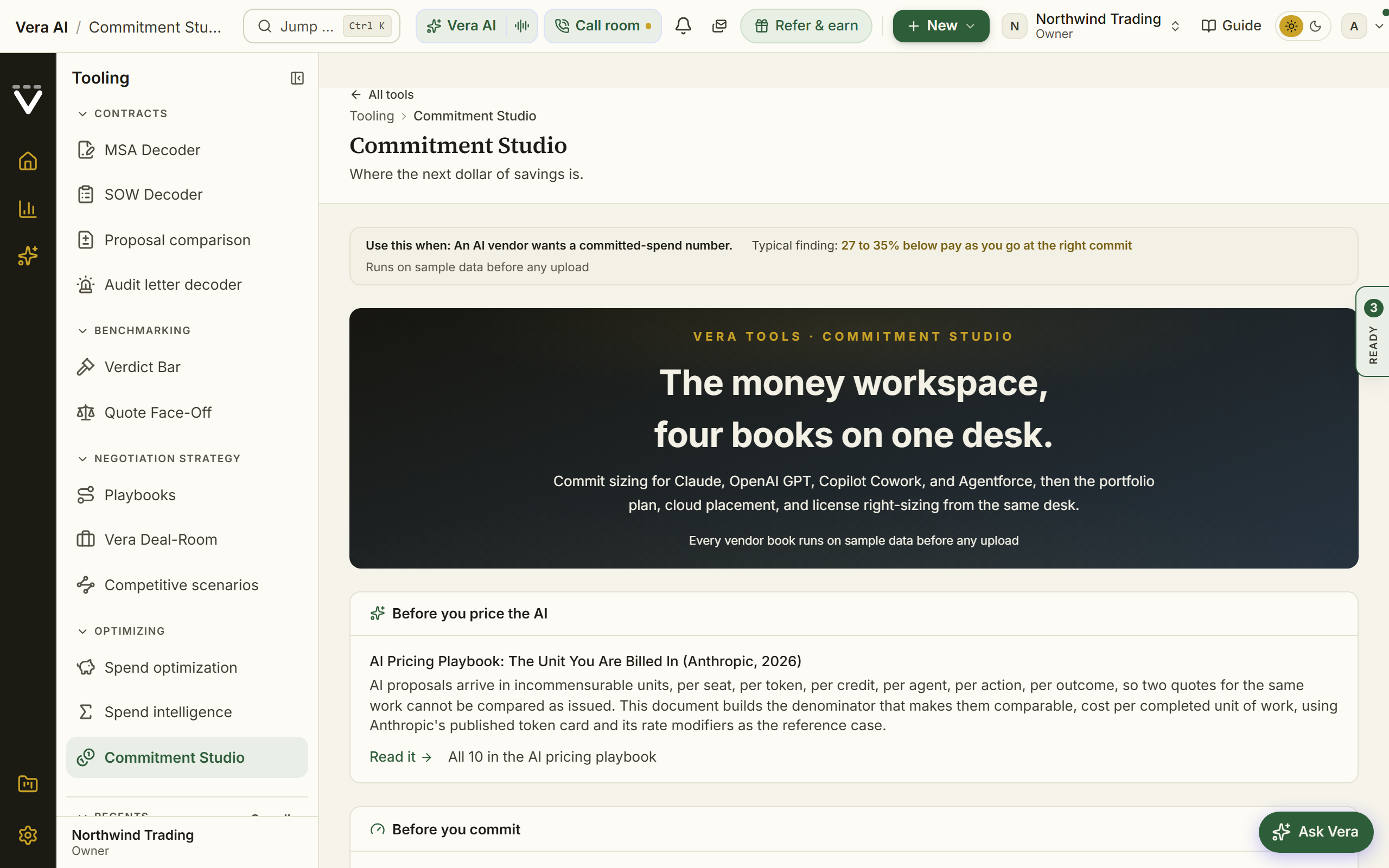
On the screen
- Before you price the AI: above the tabs, pointing at the AI Pricing Playbook, the ten part research series on buying AI when the meter is new: translating seats, tokens, credits and outcomes into one comparable number, what counts as a billable outcome, credit expiry and revaluation, the AI clause set, and what to do when the model behind the endpoint changes. It opens the document anchored on whichever AI vendor you have selected, so picking Claude, OpenAI or Copilot changes what it shows.
- Before you commit: above the tabs, pointing at the Commitment Playbook, the ten part research series on sizing and running a committed spend agreement: how to size the number off your own forecast, what a bigger commitment is actually worth, what happens to what you do not spend, and how to run the drawdown review afterwards.
- Commit sizing: pick the vendor, Claude, OpenAI, Copilot Cowork, or Agentforce, and that vendor's book opens with its own price book. Each book reads your usage export (or sizes workloads from prompt counts), adds the seat side of the contract, runs the commit-readiness gate, and prices the minimum, medium, and maximum commitment before you sign. The four books are documented in full below. Your choice stays in the link, so
/tooling/spend-studio?vendor=claudeopens straight into the Claude book and can be shared. - Plan: opens the Spend Agent, which ranks every saving across your vendors at floor, target and stretch.
- Cloud: the Cloud cost optimizer and the Workload comparator, for cloud placement and FinOps savings.
- Licenses: the M365 optimizer and the VCF licensing right-sizer.
How to use it
- Open Commitment Studio and, under Commit sizing, pick the vendor you are negotiating with.
- Upload in that vendor's usage export (or start on the sample data) and work the book to a sized commitment.
- Use the Plan, Cloud, and Licenses tabs to reach the portfolio plan and the cloud and license tools from the same screen.
Related: Spend Agent · Cloud cost optimizer
Agentforce optimizer
The Agentforce book inside Commitment Studio sizes a Salesforce Flex Credit commitment from your own consumption. Feed it your Salesforce Digital Wallet export (from a POC or production), or type your monthly credit burn if agents are not live yet, then set the term, growth, and planned use cases, and the tool prices the minimum, medium, and growth commitments against the forecast. The page opens on sample data, clearly marked, so every result is visible before any upload; nothing you upload leaves your browser.
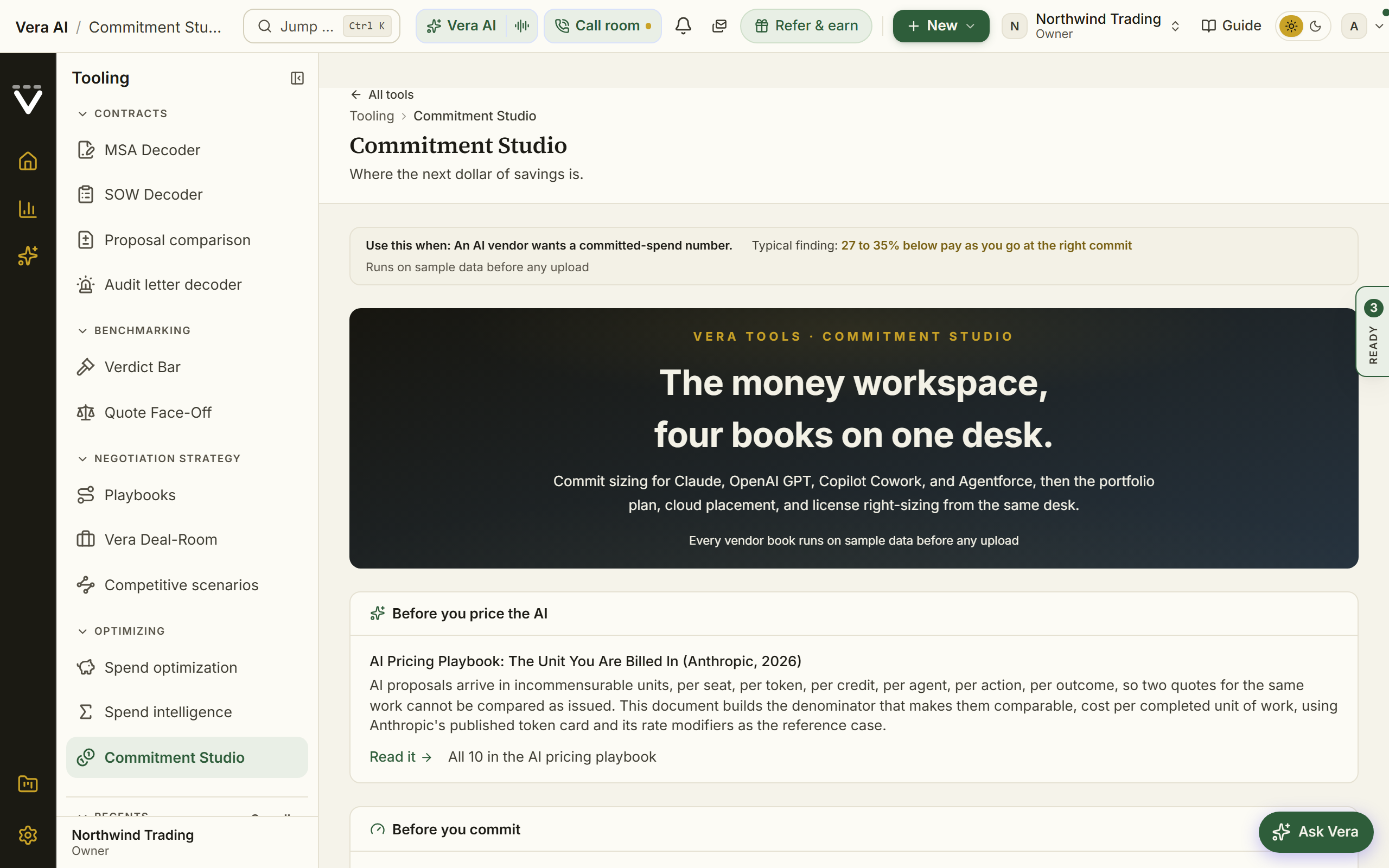
On the screen
- Five numbered steps: the model's inputs down the left, each card numbered in its step's own color with the color as a line along its top (since 27 September 2026). Consumption data takes the Digital Wallet CSV or a typed monthly credit burn; Term & growth plans sets the term, organic growth, and the planned new use cases (case deflection, a voice agent, and more), each with its monthly actions, start month, and ramp; Risk posture sets which forecasting mistake stings more; Negotiation levers holds the negotiated discount, credit rollover, and the scenario odds; and Check Salesforce's quote prices any quoted commitment and discount against your own forecast, flagging shelfware when the quote sits well above your expected burn and true-up overage when it sits below.
- Commit verdict: the recommended level, the annual commitment, expected savings versus pay as you go, expected utilization against its break-even point, and a plan robustness score: how many of roughly thirty perturbed futures still pick the same level.
- Commitment levels: minimum, medium, and growth, each with expected utilization against its break-even tick and where the expected money goes (committed spend, unused spend, overage).
- Forecast chart: credit burn drawn as an uncertainty cone from conservative to aggressive against the commit levels, with overage shading and one headroom cell per month of the term.
- Discount staircase: the three levels placed on the volume-discount ladder, with a nudge when committing slightly more costs less.
- What drives the burn: annual credits and yearly cost by source, baseline versus each planned use case.
- Total cost by scenario: every level priced across the conservative, expected, and aggressive paths, with a pay-as-you-go reference.
- Your negotiation ask: a copy-ready note with the sized number and the terms worth asking for.
- Save analysis and AI report: file the sized result into your Documents library, or generate the full commitment-sizing white paper.
- Open the workroom: opens the sizing report as a case file in the window the agents wear, with What now in the inspector beside it and Ask Vera in the same inspector, grounded on the sizing, including how each level lands under each demand scenario. What now drafts the Flex Credit commitment ask to Salesforce (the credits you will commit on your term, with rollover, the overage rate, a true-down right, and the discount as a rate per credit asked for by name), drafts the CFO commitment memo, copies the whole commitment position, books the term into your renewal calendar, and opens the Salesforce screen or Vera Deal-Room. When a commitment does not beat pay as you go, the memo says so plainly.
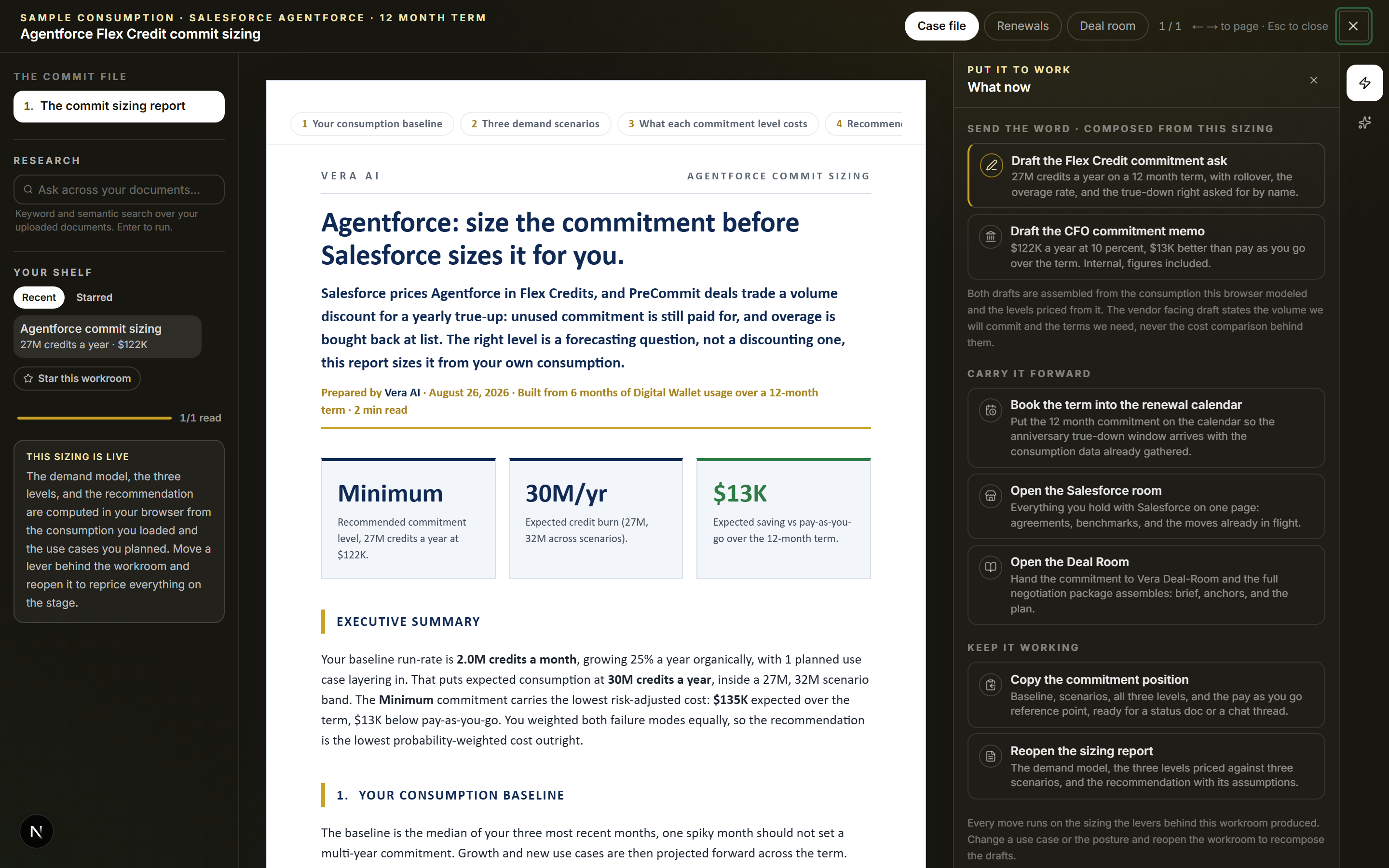
How to use it
- Upload in your POC or production Digital Wallet export, or type your monthly credit burn; the sample stays on until you do.
- Work down the steps: term, growth, and planned use cases, then the risk posture and the negotiation levers. The verdict, the three levels, and the charts update as you type.
- When Salesforce quotes you a number, paste it into Check Salesforce's quote to see how it prices against your own forecast.
- Press Open the workroom and draft the commitment ask and the CFO memo with the sizing report on screen.
- File the result with Save analysis, or generate the AI report for the full white paper.
Related: Salesforce SELA
VCF licensing
In plain words: your real billable VCF core count under Broadcom's rules, and the renewal scenarios priced.
When to reach for this
- The VMware renewal is coming and the 16-core minimum makes intuition wrong.
- You need the number before the meeting: counts are instant, in your browser, from the RVTools export you already have.
Upload your RVTools export to see exactly how many VCF cores Broadcom will bill you for under the 16-core minimum, build three pricing scenarios against real-world discount bands, and walk into the renewal with a verdict: the market curve, your leverage scored, the signing window dated, and an AI negotiation playbook.
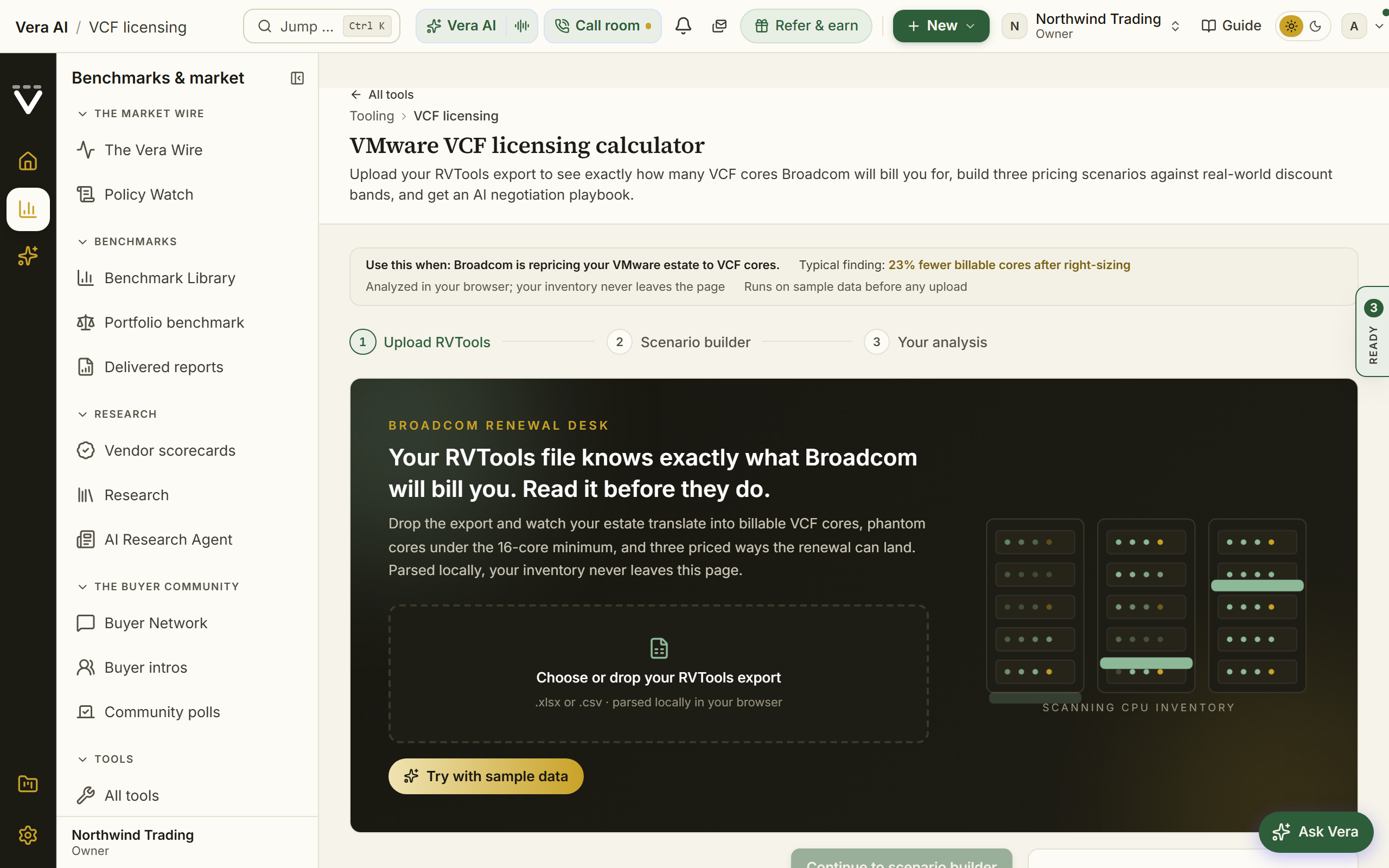
On the screen
- Upload stage: upload the RVTools export on the upload panel; it is analyzed in your browser so your inventory never leaves the page. Try with sample data loads a full 48-host estate with spend and deadline so every screen renders before you upload anything.
- Your draft is kept: the step you reached, the questionnaire answers and the lever positions are saved as you go, so leaving at step two never sends you back to step one. Reopening lands on the draft as you left it; the last five drafts wait under File, Continue where you were, and Start over (in the tool or under File) sets the current draft aside rather than deleting it.
- Estate scan: the parse narrated line by line: hosts found, sockets counted, the 16-core minimum applied, and the phantom cores it adds (cores billed that your hardware does not have) before the billable total counts up.
- Savings odometer: the savings available at your target scenario, reacting live to every change in the builder.
- Three scenarios: conservative, target, and best case, each with a committed-core count, term, and a discount slider showing the benchmarked typical range; a verdict says whether your discount sits below, inside, or above that band.
- Leverage scorecard: six negotiation levers (exit alternative, benchmark anchor, full-estate commit, multi-year term, quarter-end timing, executive sponsor) checked off into a strength score, with one click to apply the earned lift to your best case.
- When to sign: Broadcom's fiscal quarter closes plotted with your deadline, a T-minus countdown in days, and a dated four-phase plan ending at the right quarter close.
- Market curve and tier ladder: realized discounts by committed cores with your estate marked, all five volume tiers listed, and a flag when you are close enough to price the deal one band deeper.
- Cost heatmap: annual cost at every term and discount step, the typical band outlined, your scenarios plotted.
- Verdict: the analysis opens on the four numbers that matter (billable cores, list exposure, target, savings) over a deal journey from list price down to best case.
- Estate evidence: a five-year cumulative cost chart, the 16-core minimum drawn host by host with phantom cores as dashed cells, a chart of billable cores by cluster, and a sortable host explorer with the worst phantom offenders first.
- Consolidation lab: toggle keep, consolidate, or retire per cluster and watch the core count, band, and annual cost reprice.
- The walk-away, priced: your target rate against directional per-core costs of Nutanix, OpenShift, Azure Local, and Proxmox, plus the vSAN entitlement and the VVF crossover if you run compute only. It links the third-party support playbook for pricing that exit in full.
- What next: the result ends with a What next module seeded from the run's own numbers.
- Verdict and exec summary: export the verdict as a navy PNG or copy a one-paragraph exec summary for email.
- Playbook: the AI negotiation guidance for the reprice; only aggregate totals are sent, never host names.
- Save analysis: file the result into your Documents library as a durable document; host names are stripped before anything is stored.
- Open the workroom: the green button above the verdict opens the licensing analysis as a case file in the window the agents wear. Ask Vera, in the inspector, is grounded on your parsed estate: the hosts, the clusters, the billable cores, the phantom cores, the volume band, and the three priced landing zones. In the tree on the left, under the documents, sit a search over your uploaded documents and your shelf.
- The moves in What now: draft the true-down ask to Broadcom (your own core count, the phantom cores priced, and relief on the hosts under the minimum, a true-down right at each anniversary, the vSAN entitlement in writing, and price protection for the term asked for by name), draft the CFO memo, book the renewal into your calendar, export the host worksheet, copy the three landing zones, and open Vera Deal-Room or the Broadcom screen.
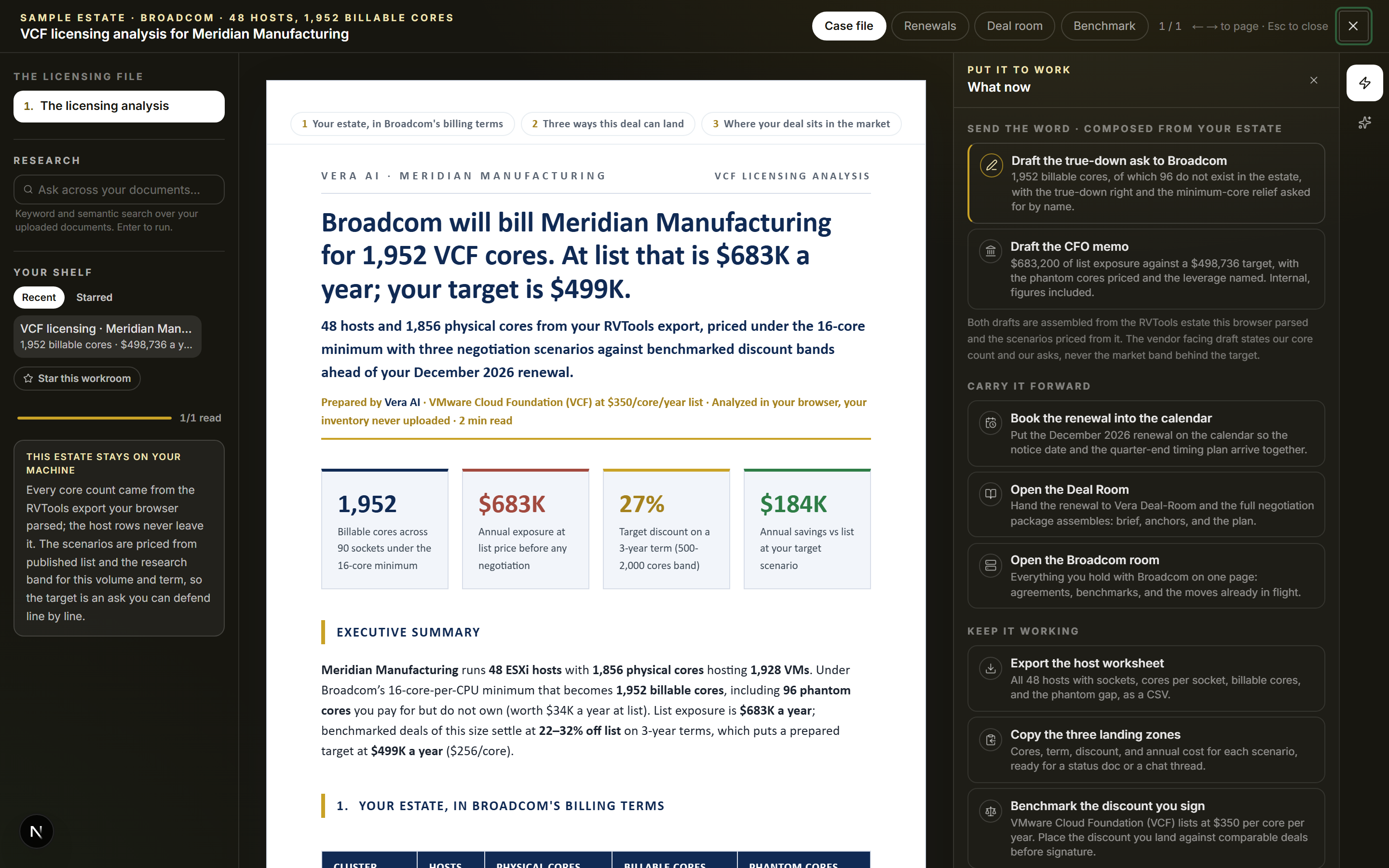
How to use it
- Upload the RVTools export (or load the sample) and watch the estate scan land on your billable core count.
- Fill in the renewal facts, check off the leverage you actually have, and tune the three scenarios against the shaded benchmark bands.
- Generate the analysis, test consolidation moves and the walk-away, then take the verdict, the exec summary, and the playbook into the negotiation.
- Press Open the workroom and draft the true-down ask with the analysis on screen, or put a question to Vera about the estate from Ask Vera in the inspector.
Related: Playbooks
Oracle ERP Cloud pricing calculator
Build the Oracle Fusion ERP order the way Oracle quotes it: pick the cloud services on your proposal, enter the quantities, and apply a discount deal wide or line by line. The calculator prices the subscription, shows what the term costs once the annual uplift compounds, and places the net annual fee on the Fusion discount ladder so you can see whether the discount is good for a deal your size.
The catalog carries Oracle's own published figures for every component: the list price, the metric it is sold on, the stated minimum quantity, and the Oracle part number, read from the Oracle Fusion Cloud Service Global Price List. A weekly job re-reads that list from Oracle and updates the prices here when Oracle republishes it, so the date printed under the catalog is the list you are actually pricing against. List is a ceiling anchor, not a price anyone pays, which is what the discount and the ladder are for. Every price stays editable, so where your own proposal differs your figure wins. No order leaves your browser unless you choose to send it.
Since 26 September 2026 it opens in the same window the agents wear: your order's services down the left with their net fee a year, three screens across the top (The order, The ladder, How it prices), the term in an inspector on the right, and a status line at the foot. As you build the order the head answers the three questions in order: the net fee a year against Oracle's printed list, the range peers at the same size land in, and where this deal ranks in plain words, with the money to the midpoint over the term. The ladder shows every size band with this order marked. The inspector prices the term, what the uplift costs, and any line under Oracle's minimum. 1 to 3 change screen, I hides the inspector, and Escape closes the window. The ERP and HCM calculators share the one window.
Since 27 September 2026 the window wears the house dress: the head is the house masthead, the open screen named in navy capitals with the tool after the hue rule, the line under it, the gold meta line (Vendor Benchmark, Tooling, the tool's group, and which screen of how many you are on), one quiet row of facts, and the one filled button at the right over the step rail. The inspector is the house inspector: its facts as rows, then the Moves, the same declared moves the What next close carries, the first one glowing in the screen's hue. On The order the three answers sit under the head: what the order costs off list, what buyers your size are offered, and where it ranks, drawn on the ladder from Poor to Top of the market.
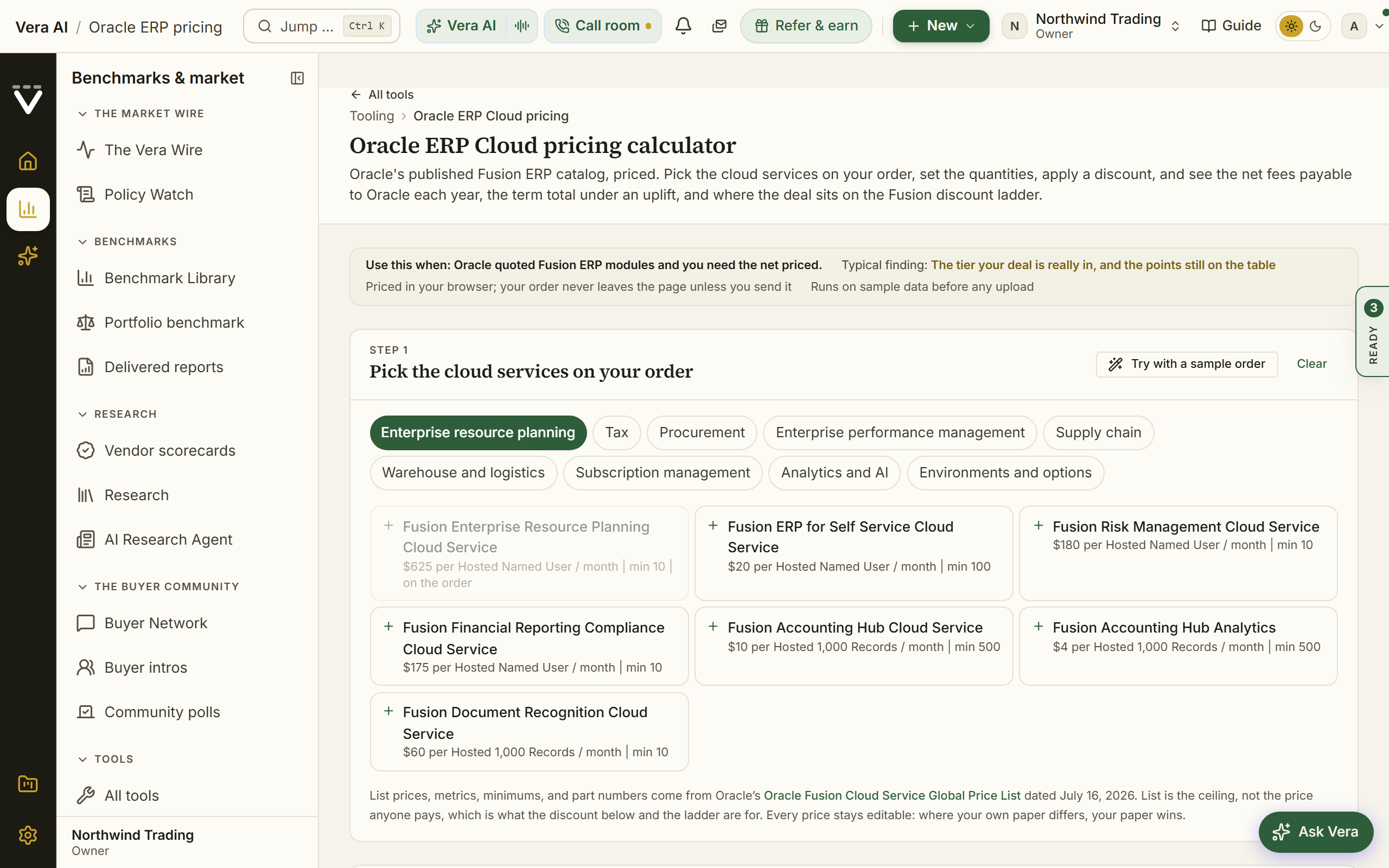
On the screen
- Pick the cloud services: the Fusion ERP catalog grouped by family (enterprise resource planning, tax, procurement, enterprise performance management, supply chain, warehouse and logistics, subscription management, analytics and AI, environments and options). Each service shows Oracle's published list price, the metric it is sold on, and the stated minimum. Click a service to put it on the order at its minimum quantity.
- Your order: one row per component with the Oracle part number, the metric, the quantity, the list price per unit, an optional per line discount that overrides the deal discount, and the resulting annual net. A quantity below Oracle's published minimum is flagged on the line, because Oracle writes the order at the minimum. Lines with no quantity yet are excluded from every total.
- Apply the discount and the term: the deal wide discount off list, the subscription term in years, and the annual uplift. Oracle's standard opening position is 8 percent uncapped, so the uplift starts there.
- The four figures: annual list, net fees to Oracle per year, the term total with the share of it that is uplift, and the range of discount buyers your size land in with its midpoint.
- Market position: the full Fusion discount ladder with your tier highlighted and your blended discount marked on it, plus a plain reading of where you stand. Tiers band on net fees payable to Oracle per year, the annual subscription value after discount, not on the list value of the components.
- The priced report: the executive brief version of the order, the line table, the ladder, the year by year term cost, and the four moves to make first. It prints and forwards as one document.
- Send the report: email the priced order to up to ten colleagues with an optional note. The email carries the figures on the page.
- Invite others to this calculator: email colleagues a link to the calculator itself. The invitation carries no figures from your order and grants no access to your workspace.
How to use it
- Open the calculator and press Try with a sample order to see every figure filled in, or start picking components straight away.
- Add each cloud service on the Oracle proposal, then set the quantity. The list price fills itself from Oracle's published list; overwrite it where your proposal quotes a different figure.
- Set the discount, the term, and the uplift. Give any line its own discount where Oracle discounted it differently, which is common on non-production environments.
- Read the market position: where the deal ranks, the range buyers your size land in, and how many points and dollars a year you are short of or past its midpoint.
- Send the report to the people who need it, or invite them to price their own order.
Related: Oracle HCM Cloud pricing calculator · Oracle ULA
Oracle HCM Cloud pricing calculator
The same instrument for the HCM side of Fusion, on the same published price list. Pick the cloud services on your proposal, enter the quantities, apply a discount deal wide or line by line, and the calculator prices the subscription and places the net annual fee on the Fusion discount ladder. ERP Cloud and HCM Cloud ride the same discount curve, so a combined subscription negotiated as one deal reaches tiers that neither pillar reaches alone.
Since 26 September 2026 it opens in the same window the agents wear: your order's services down the left with their net fee a year, three screens across the top (The order, The ladder, How it prices), the term in an inspector on the right, and a status line at the foot. As you build the order the head answers the three questions in order: the net fee a year against Oracle's printed list, the range peers at the same size land in, and where this deal ranks in plain words, with the money to the midpoint over the term. The ladder shows every size band with this order marked. The inspector prices the term, what the uplift costs, and any line under Oracle's minimum. 1 to 3 change screen, I hides the inspector, and Escape closes the window. The ERP and HCM calculators share the one window.
Since 27 September 2026 the window wears the house dress: the head is the house masthead, the open screen named in navy capitals with the tool after the hue rule, the line under it, the gold meta line (Vendor Benchmark, Tooling, the tool's group, and which screen of how many you are on), one quiet row of facts, and the one filled button at the right over the step rail. The inspector is the house inspector: its facts as rows, then the Moves, the same declared moves the What next close carries, the first one glowing in the screen's hue. On The order the three answers sit under the head: what the order costs off list, what buyers your size are offered, and where it ranks, drawn on the ladder from Poor to Top of the market.
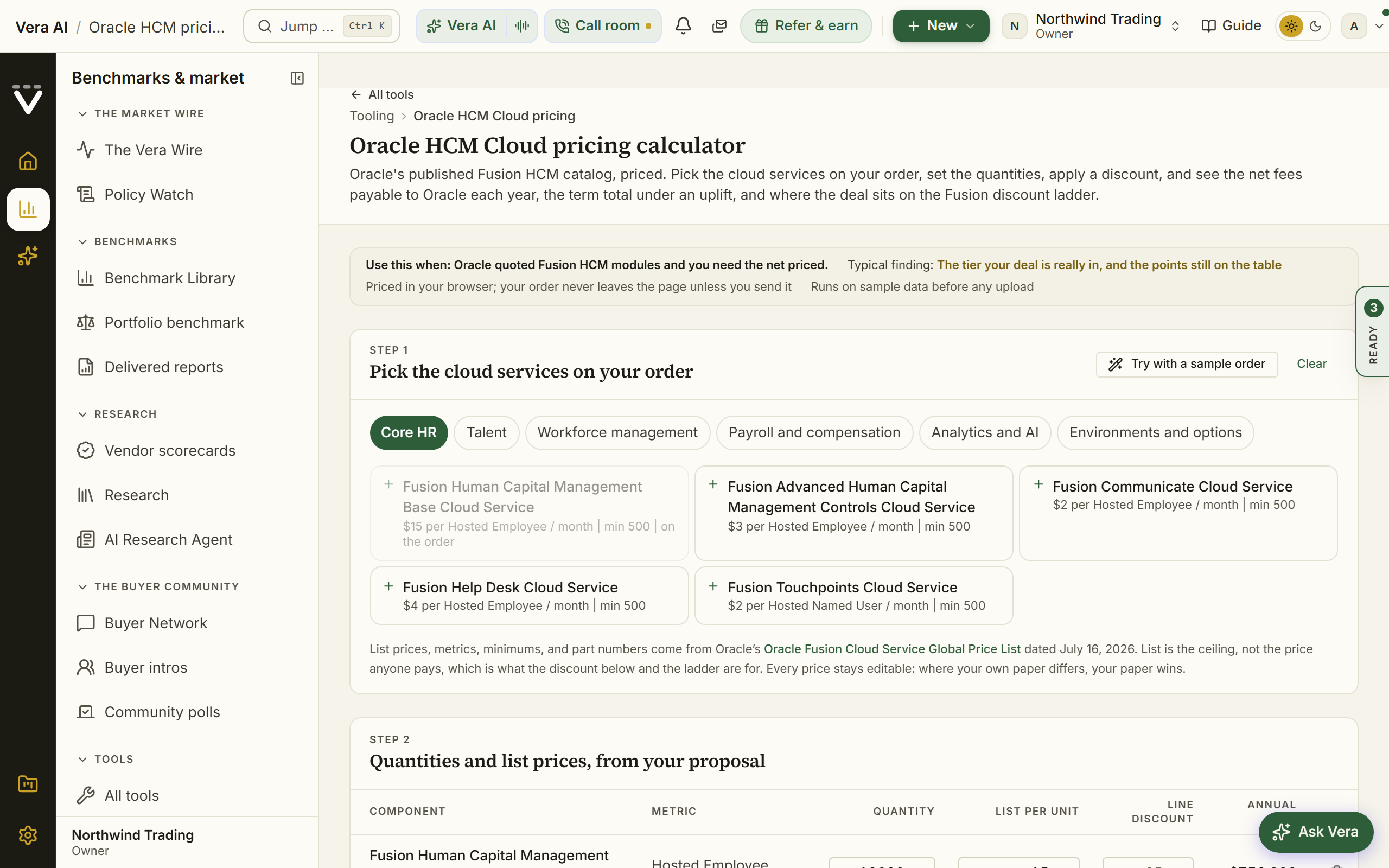
On the screen
- Pick the cloud services: the Fusion HCM catalog grouped by family (core HR, talent, workforce management, payroll and compensation, analytics and AI, environments and options), every line carrying Oracle's published list price, metric, minimum, and part number. The nine country payroll services are listed separately, as Oracle prices them.
- Your order: one row per component with the part number, the metric, the quantity in that metric, the list price per unit, an optional per line discount, and the resulting annual net.
- Apply the discount and the term: the deal wide discount off list, the subscription term, and the annual uplift.
- The four figures: annual list, net fees to Oracle per year, the term total, and the ladder tier.
- Market position: the Fusion discount ladder with your tier highlighted and your blended discount marked on it.
- The priced report, Send the report, and Invite others to this calculator work exactly as they do on the ERP calculator.
How to use it
- Open the calculator and press Try with a sample order, or start picking components.
- Add each HCM cloud service on the proposal and set the quantity in that line's metric, usually employees. The published list price fills itself; overwrite it where your proposal differs.
- Set the discount, the term, and the uplift, then read where the deal ranks and its distance to the midpoint buyers your size are offered.
- Send the report, or invite colleagues to the calculator.
Related: Oracle ERP Cloud pricing calculator · Oracle ULA
Claude optimizer
Upload your Claude Console usage export or size each workload from prompt counts, add the seat side of the contract, run the commit-readiness check, and size the committed-spend deal, minimum, medium, or maximum, before you sign. Everything is analyzed in your browser; the export never leaves the page.
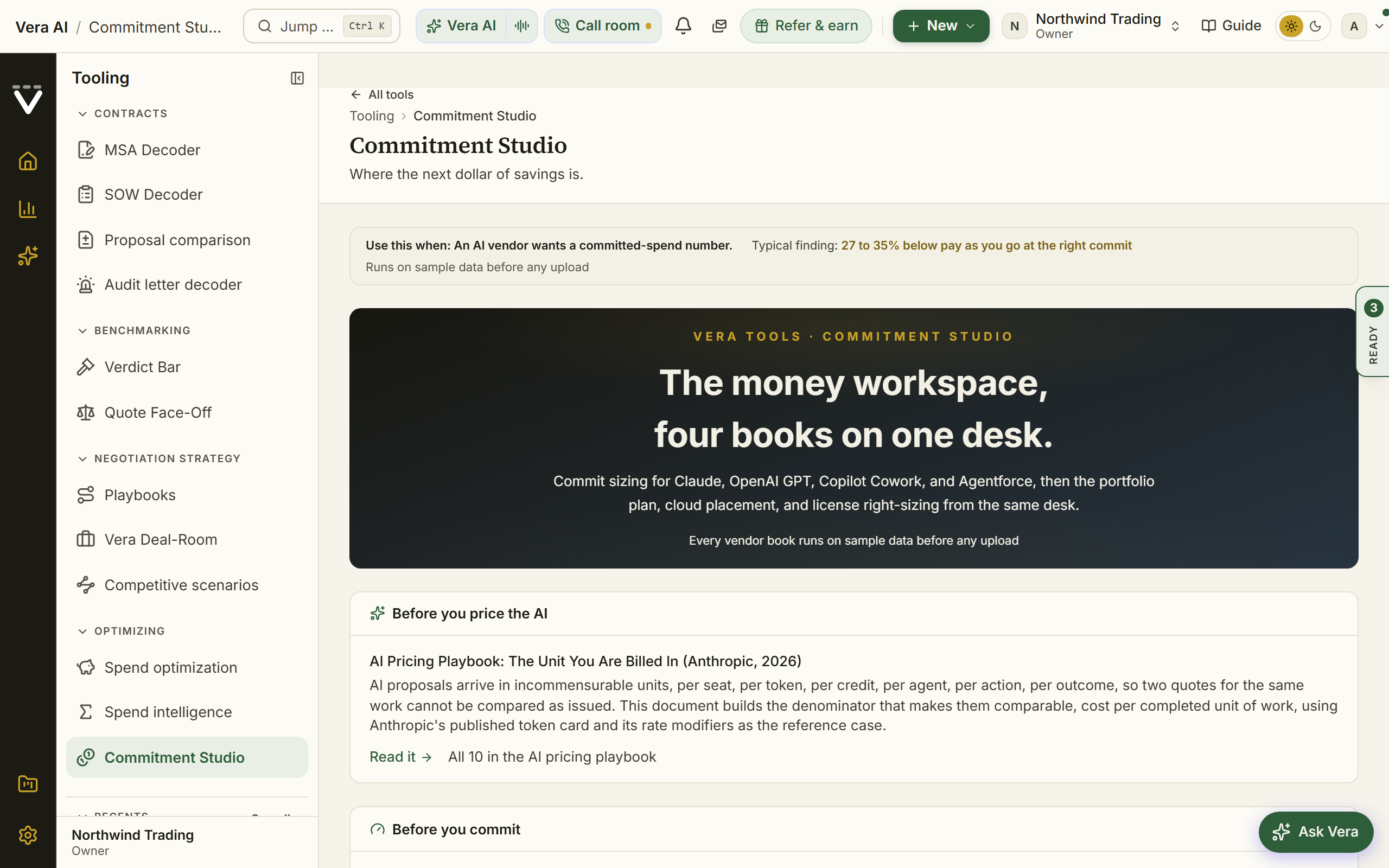
On the screen
- The numbered steps: since 27 September 2026 the five input cards (Usage data, Describe the workloads, Seats, Term, growth and posture, and the commit readiness check) are numbered in their step's own color with the color as a line along the top of each card.
- The spend scan: when an export (or the sample) lands, a full-screen reveal scans your bill: one dot per slice of monthly spend colors in under the beam (brick means a premium tier doing commodity work, gold means a cacheable prompt prefix, blue means batchable traffic, green means right-priced) while a ticker calls out findings from your file. It closes on an executive readout: the verdict, a gauge placing your optimization headroom against the Claude estates we size, the money bridge from today's run-rate to the optimized mix, and the commit podium with the level worth signing stamped. Press Escape or Skip to jump ahead; Replay the reveal brings it back.
- Live verdict: the four numbers that matter (run-rate today, optimized mix, the commit to sign, the saving vs pay-as-you-go) with a verdict, plus two what-if switches that flip prompt caching or the Batch API off so every number on the page snaps back to the unoptimized bill.
- Usage or prompt profiles: upload the Console export, or size workloads from prompt counts.
- Model right-sizing: each workload on the cheapest model that clears its quality bar, with a line attributing the saving to re-tiering, prompt caching, and the Batch API, a Sonnet 5 introductory-pricing note while the promotion runs, and a spend-flow map tracing where the traffic should move.
- The commit dial: drag across commitment sizes and watch expected cost, unused risk, and overage recompute on a cost curve with the sweet spot marked; a growth slider in step 4 re-flexes the whole forecast the same way.
- Take these to the table: the negotiation angles your numbers support (band anchoring, rollover, overage at the committed rate, a ramp), ranked by what each is worth.
- When the savings land: the realization curve: caching first, re-tiering next, batch after, and what year one captures.
- What one unit costs: each workload priced for one request, message, or run today versus on the optimized mix.
- Seats: add Team or Enterprise seats to the model.
- Commit-readiness check: whether your run rate is stable enough to commit, scored on a ring gauge with the open steps listed.
- Share, hand off, export: Share readout mints a 30-day read-only link for a CFO (aggregates only, the export never leaves your browser), Send to EA playbook opens the Anthropic EA playbook from your sized commit, Board slide downloads a one-page PPTX readout, and Save analysis files the result into your Documents library.
How to use it
- Upload the usage export (or load the sample) and watch the spend scan land on your verdict.
- Classify each workload in step 2 so the right-sizing and the levers price correctly.
- Add the seat side, scrub the growth and commit dials until the numbers hold, and run the readiness check.
- Forward the readout link or the board slide, then take the sized commitment into the agreement, or send it straight into the Anthropic EA playbook.
Related: Anthropic EA playbook · OpenAI optimizer
OpenAI optimizer
Upload your OpenAI usage export or size each workload from prompt counts, add the ChatGPT seat side of the contract, run the commit-readiness check, and size the committed-spend deal, minimum, medium, or maximum, before you sign.
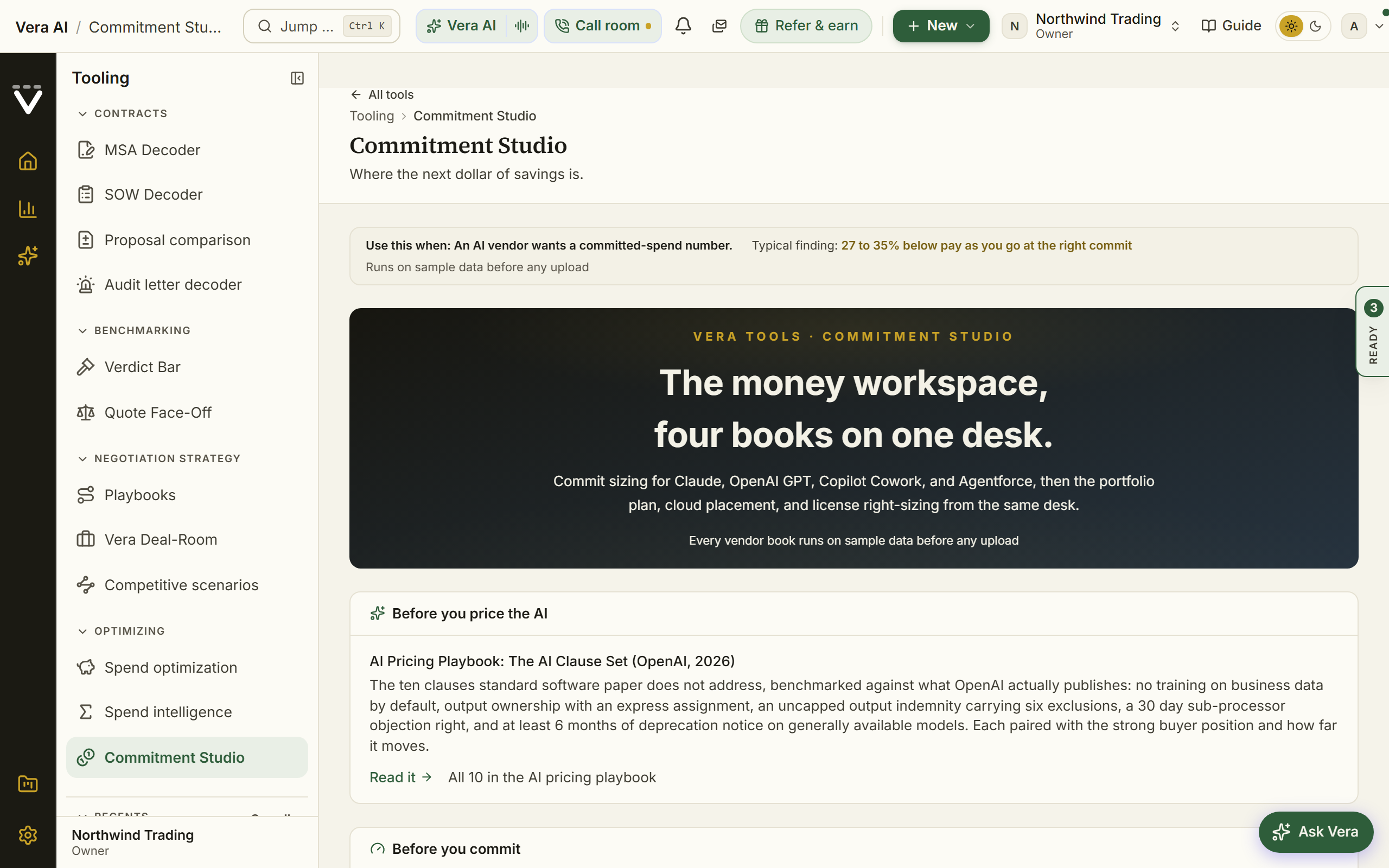
On the screen
- The numbered steps: since 27 September 2026 the five input cards (Usage data, Describe the workloads, Seats, Term, growth and posture, and the commit readiness check) are numbered in their step's own color with the color as a line along the top of each card.
- Usage or prompt profiles: upload the usage export, or size workloads from prompt counts.
- Seats: add ChatGPT Team or Enterprise seats.
- Commit-readiness check: whether your run rate is ready to commit.
- Deal sizes: the committed-spend deal at minimum, medium, and maximum.
- Save analysis: file the sized result into your Documents library as a durable document you can reopen any time.
How to use it
- Upload the usage export or build workloads from prompt profiles.
- Add the seat side and run the readiness check.
- Take the sized commitment into the deal.
Related: Claude optimizer
Copilot Cowork optimizer
Copilot Cowork, Microsoft's agent layer inside Microsoft 365 Copilot, bills metered Copilot Credits on top of every Copilot seat: the first Microsoft 365 line that behaves like cloud consumption instead of a seat. This tool models what it will actually cost before you enable it or prepay for it. Facts current as of July 2026; the live tier sheet in Azure reservations governs at purchase.
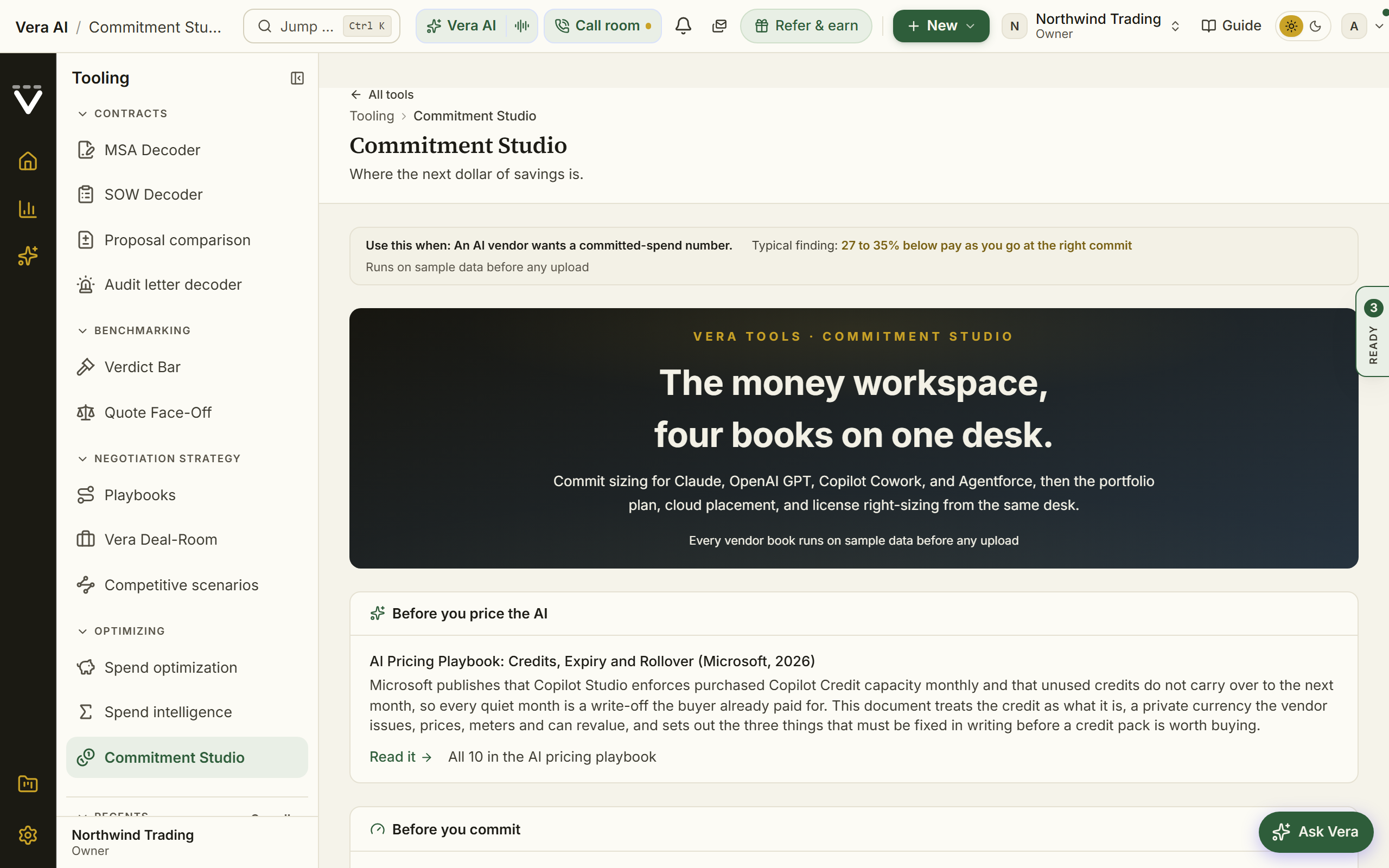
On the screen
- The numbered steps: since 27 September 2026 the six cards read in order (your Cowork plan, the twelve month burn, the commit options, the readiness checks, the seat prerequisite, and the asks), each numbered in its step's own color with the color as a line along the top.
- Your Cowork plan: enabled users, how many already hold Copilot seats, weekly active share, tasks per active user, adoption growth, and the task mix (light, medium, heavy, each with editable credits per task). Everything recalculates as you type.
- The forecast KPIs: month-one and year-one credits, the pay-as-you-go year cost at $0.01 per credit, and the all-in figure including any new Copilot seats the rollout forces.
- The twelve-month burn: monthly credit consumption with your adoption growth compounding each quarter.
- Commit options: Floor, Balanced, and Ceiling P3 pre-purchase sizes against the forecast, each with its tier discount, upfront cost, expected pay-as-you-go overflow, and the expiry risk if usage lands under forecast. Prepaid units expire at term end and purchases are final, which is why the tool sizes commits to measured burn, never ambition.
- Commit readiness, five checks: a measured pilot, spending caps configured, a named budget owner, named workloads, and the EA's Reserved Instances policy enabled. The score decides which commit option the tool recommends, including recommending none.
- The seat prerequisite and the E7 question: the incremental Copilot seats a rollout forces, and the E7 math ($99 bundles E5, Copilot, Entra Suite, and Agent 365, about $18 under the parts, with no Cowork credits included).
- The asks: rate protection, rollover or credit-back, auto-renew off, an adoption-gated second purchase, and the effective discount stated against your existing discounts.
How to use it
- Enter the pilot you actually intend to run, not the org chart, and tune the task mix.
- Read the forecast and the commit options; answer the five readiness checks honestly.
- Follow the recommendation: pay as you go until the checks pass, then commit at the floor.
- Generate the AI report and take the asks into the agreement conversation.
Tips
- Type
/costinside Cowork during the pilot to see real per-task credit costs, then replace the band defaults with your measured numbers. - The Microsoft EA playbook's Copilot Decision screen carries a compact version of this model, so the renewal case and the Cowork sizing reconcile.
Related: Microsoft EA playbook · M365 optimization
Playbooks home
In plain words: three questions pick the playbook and fill it in; every playbook on one page beneath.
Playbook names four things in the platform: the ten guided vendor playbooks, the renewal plan a contract runs on, what the research library says about a vendor, and the negotiation playbook of a spend category. This page holds all four. Since 14 October 2026 it opens on three questions.
The three questions
- Which renewal first? The ten vendors with a guided playbook, or any other vendor by name. Press 1 to 9 and 0 to pick.
- When does it renew? A window, or the exact date. It sets the notice deadline on the contract and goes into the playbook as its first answer.
- How much is it a year? A band, or the exact figure. It goes into the playbook as its second answer.
The playbook is ready. When the third answer lands: the guided playbook (it opens on question 3 of 7 with the date and the size already in), the renewal plan on the contract on file, Ask Vera, your answers with Change beside each, and the five sections as rows. Any other vendor opens its playbook in the research library. Press 0 at any time to come back to the questions; press a section number to leave them.
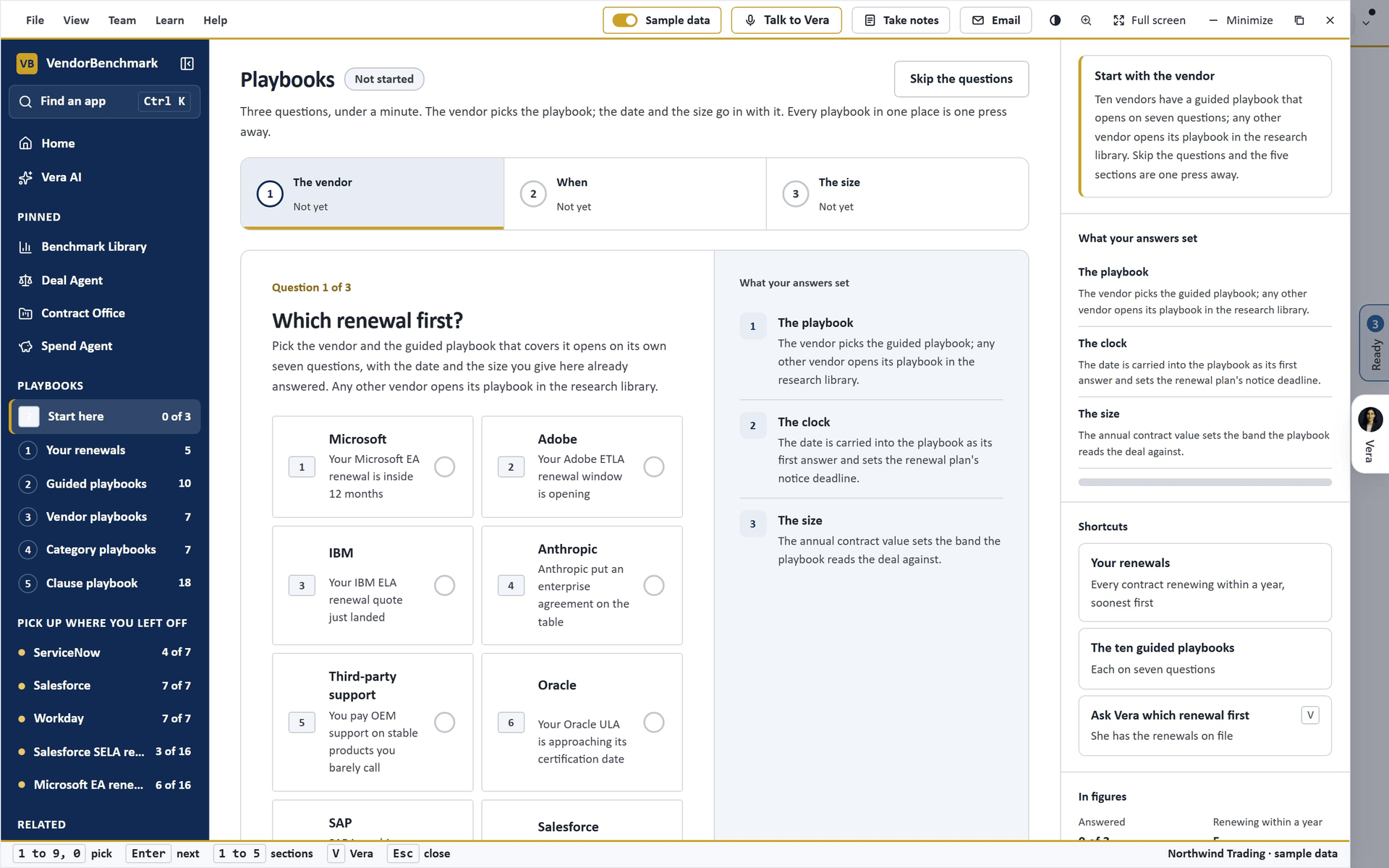
On the screen
- The window: Playbooks wears the frame every app shares. Along the title bar: the menus, Sample data, Share, light or dark, Minimize, Maximize and Close. The left column starts with Home, Vera AI and your pinned apps, then Your answers (or Start here), the five sections with their counts, Pick up where you left off, and Related.
- Your renewals: one row per contract, soonest first: when it renews, the last day for notice, the yearly value, where its plan stands, and the playbook that covers the vendor. The reports and exports beneath it are unchanged.
- Guided playbooks: the ten as a table, the ones that cover a renewal of yours first: what each opens on (seven questions, the first one named), what it answers, the typical finding, where you are (the answers given and the step open in this browser, or the team project and its steps), and Open or Resume.
- Vendor playbooks: the vendors on your contracts, largest first, each opening the vendor's page on what the research library says. The search line finds any other vendor.
- Category playbooks: one row per kind of spend outside IT, each opening its playbook in the research library.
- Clause playbook: how many clause positions you hold and how many are must haves, with the door to the clause library.
How to use it
- Answer the three questions; the playbook that fits opens with the date and the size in.
- Or press a section number: under Your renewals, press Start the plan on the row to plan first; the renewal plan opens on that contract.
- If the row names a guided playbook, open it too: it is the deeper engagement.
- For a vendor with no guided playbook, open the vendor playbook to read what the research library says before the first call.
Tips
- A guided playbook keeps its own answers on the page; the hub only reads where you are. Start a team project inside the playbook to share it.
- The renewals here are the same list the Renewal playbook page shows, so the two always agree.
Related: Vendor playbooks · Renewal playbook · The vendor record · Research · Clause positions
Vendor playbooks
In plain words: a full renewal engagement for one vendor, run yourself over days, ending in an executive report.
When to reach for this
- The big-vendor renewal (Microsoft EA, SAP RISE, Oracle ULA, and their peers) where the engagement deserves weeks, not an afternoon.
- You would have hired help for this deal: the playbook is the methodology, self-run.
- Learning a vendor's game before playing it: each playbook teaches while it works.
Full renewal and migration engagements, run yourself. The playbooks live in the tool wall's Renewal playbooks group, and the Playbooks home lists all ten beside your own renewals. Each playbook is a guided Prepare, Analyze, Execute, Deliver journey for one vendor, with live recalculation as you change inputs, work-back timelines, a negotiation screen, and an executive report at the end. Everything runs in your browser and progress saves as you go; every playbook works fully on its sample estate, and your own data runs on every plan. Every playbook ends on a What Next screen rather than the report.
Moving through a playbook. All ten navigate the same way: a phase list down the left hand side, the phases in order, each numbered in its own quiet color with its completion percentage and a thin progress bar beneath, every screen listed under its phase so you can see the whole journey and jump anywhere in one click, and the screen you are on marked with an edge in the color of its phase (since 27 September 2026). The whole playbook follows the phase you are in: the figures bar across the top sits under a gold rule, and the cards and figures carry that phase's color as a thin line. Back and Next step buttons ride at the foot of the page as you scroll, so the walk works either way. On a narrow window the list becomes the phases as numbered steps across the top, ticked when done and marked as working while under way, with the phase's screens as buttons beneath.
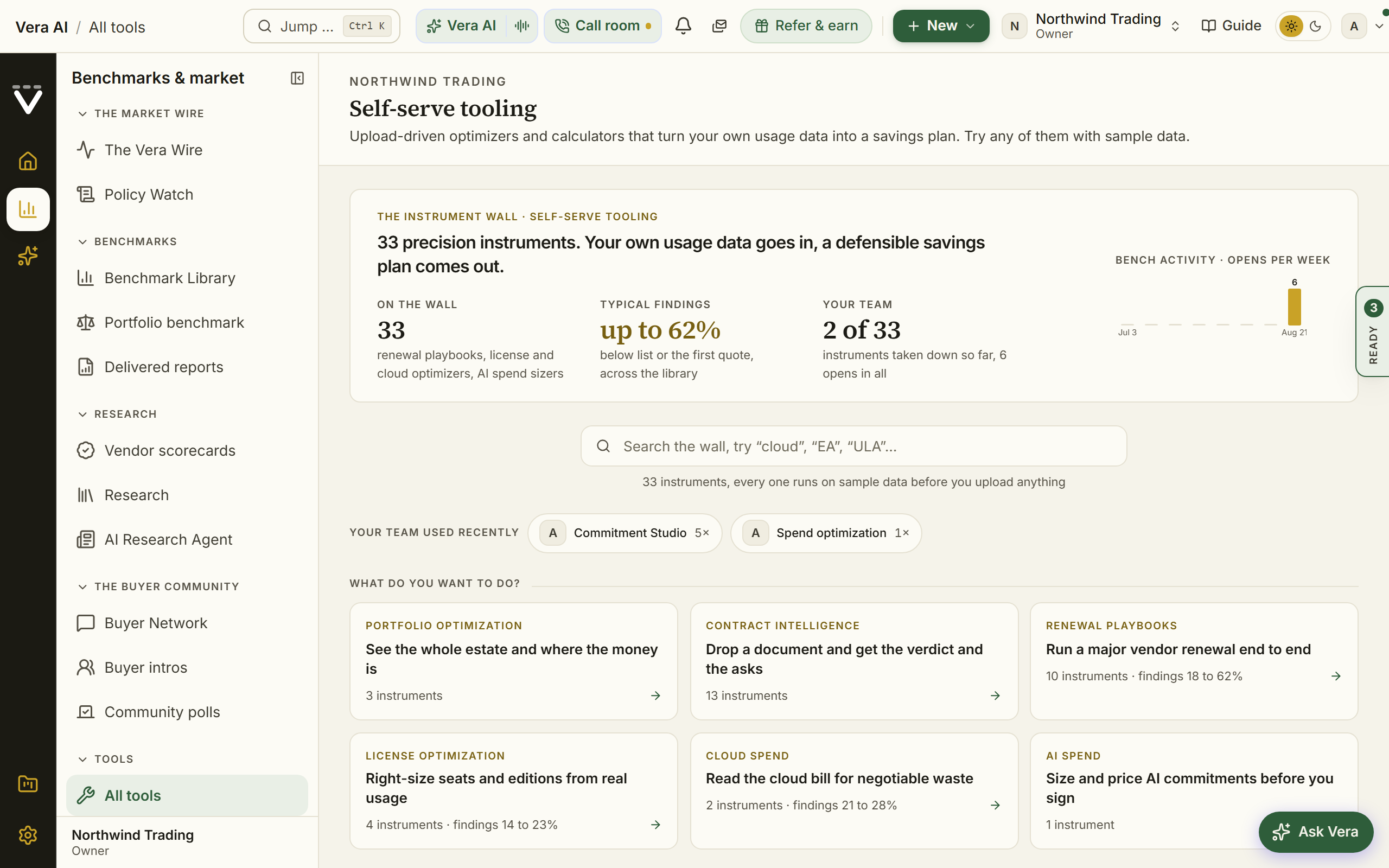
On the screen
- Playbooks: one per vendor engagement, ten in all.
- The stages: inside each, the Prepare, Analyze, Execute, Deliver path with its live models.
- The report reads the vendor's own pages while it writes: the analyst behind the executive report searches the web as it works, for the half of the argument that goes stale. The vendor's current published price list and packaging, its stated uplift, renewal and repricing policies, its licensing and metric definitions, its audit practice and its fiscal calendar, plus anything it has announced since your document was signed. Those sentences name their source and carry its date, so you can check them. Your own figures are never searched for: they come from your records and the document you handed the playbook, and where a page on the web disagrees with your contract, your contract wins. The report takes about four minutes for this reason, rather than the two it took when it wrote from memory alone.
- Executive report: the CFO business case and the exec report the journey produces. The report screen closes with the Take this forward band and its moves as cards, the first one lit: start a negotiation, open the vendor screen, or attach the report to a contract, with a copyable target line for the deal. Every result in this chapter that ends on Take this forward closes the same way.
- Your own records at the end: on the Microsoft EA, RISE with SAP, Oracle ULA certification, and IBM ELA playbooks, the closing screen reads your workspace rather than offering generic moves. If a case or negotiation is already live on that publisher, Open the live negotiation (or Open the live Vera case) says so and opens it instead of offering to start a duplicate. If a matching agreement is on file, Open the {vendor} renewal record goes to your own renewal, with the notice clock and the document of this cycle.
- File this target on the renewal: on those same four playbooks, one button writes the target the playbook just computed, and the savings behind it, into that vendor's discussion, dated and attributed to you, so the number survives the browser tab. The note lands on the shared vendor discussion, so it shows on the renewal record and the vendor page alike. It appears only where a real agreement in your workspace matches the publisher, and never on the sample walkthrough; there is no confirmation step and no undo, so read the figure before you press it.
Because every playbook shares that shape, each entry below gives its route, what the engagement is for, the key moves it walks you through, and when to reach for it.
Microsoft EA
Watch: Microsoft EA renewal playbook (5:35)
/tooling/ms-ea-renewal · Run a Microsoft Enterprise Agreement renewal from seven answers to the CFO case: the playbook opens as a window, asks seven questions, sets the plan from them, and runs five steps to the report. The full workbook of 32 screens, and a team project, stay one press away.
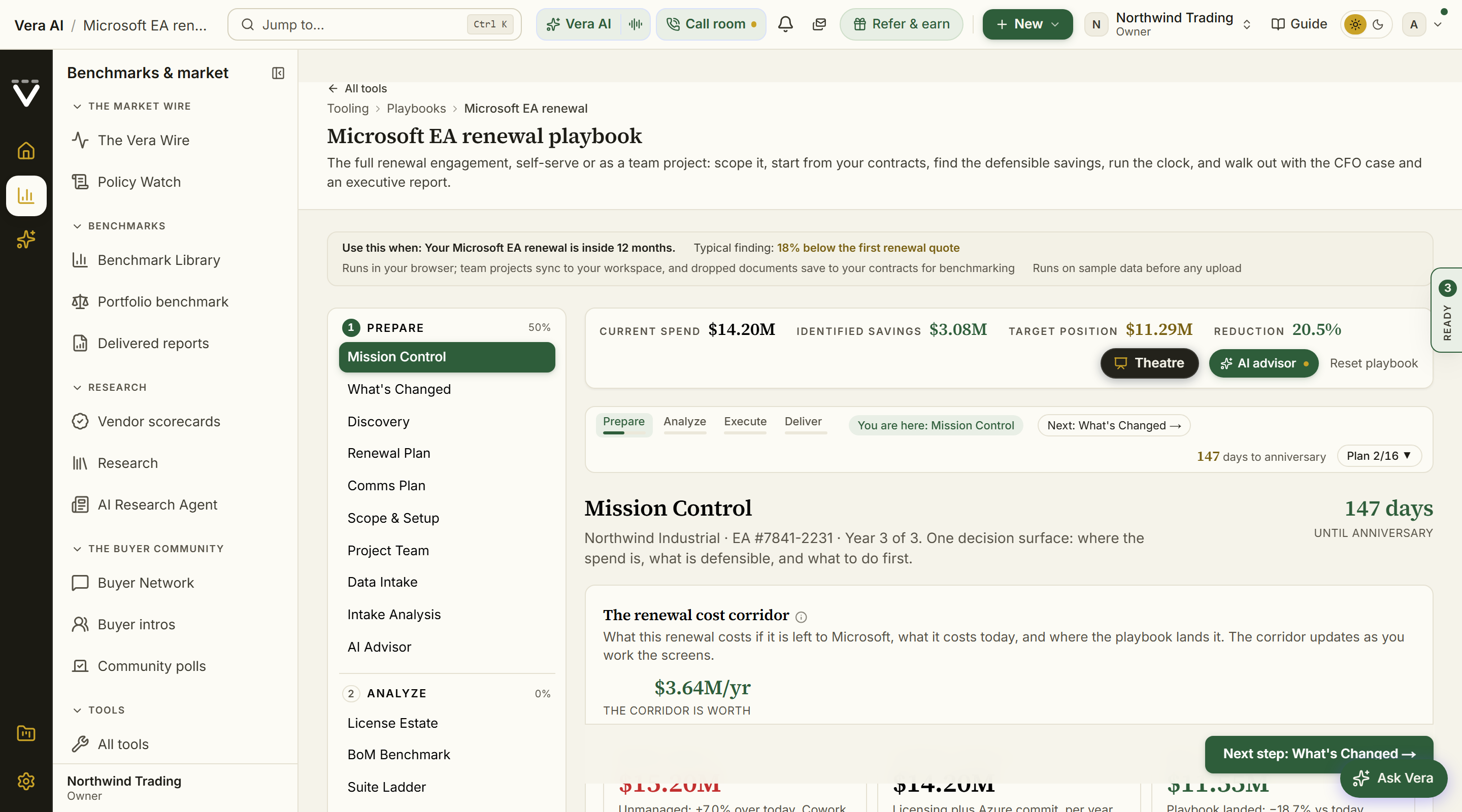
How it begins. The window opens on seven questions, one at a time, each with large option rows you pick by number (1 to 6), Enter for the next, Backspace for the one before:
- When does your Enterprise Agreement renew? A quarter, or the exact date. It sets the clock and the work back plan.
- How many people are licensed on it? A band, or the exact count. It sets your EA price level and which comparable customers you are measured against.
- What is in the agreement? Suites, Copilot, an Azure commitment, Teams Phone, the per user add-ons, server licenses. Each one adds a finding.
- What do you want from this renewal? Pay less, hold the bill flat, add Copilot without the bill rising, cut what nobody uses, change the agreement type. It sets the posture and the opening ask.
- Do you have the enrollment or the price sheet? Upload it, type the lines, or start from the sample company, Northwind Trading.
- Can you get usage reports? Yes, IT can, or not yet. It sets whether a finding reads as evidence or as an estimate, and writes the note to IT.
- Is the renewal budget set? The uplift budgeted, a cut mandated, or not yet.
Beside each question, What your answers set recomputes as you go; the seven questions run along the top with each answer under its number, and Answered so far under the question lets you change any one. Use the sample company in the head fills every screen with Northwind Industrial, 13,500 seats, marked as the sample.
The plan is ready. When the seventh answer lands: the days to the anniversary and how many milestones are already past, the comparable customer band at your price level, the findings in money, the posture; then the five steps and the report as rows with their figures, and your answers beside them with Change on each.
The five steps, each with What to do now first in the column at the right, the figures, the next moves and Ask Vera:
- Agreement: the clock as the runway from today with every milestone, Microsoft's quarter close, the reduction notice and the anniversary on it; the facts (edit them in place); what the dates mean; what is in the agreement with its lines and findings; who does what; and the enrollment or the price sheet read in, picked from your contracts or uploaded here.
- Estate: what you pay by kind, the three largest lines, and the lines with owned, assigned, active in 30 days, the unit price and a year. Edit the lines (E) turns the figures into fields; a line you do not hold stays at zero, and the Azure commitment sits under the table.
- Evidence: the findings as rows with a switch each. Leave one out and every figure after it moves. The E5 base by what each user used in 90 days, Copilot by usage band, hygiene, the Azure commit against the burn; your own counts go in above each one, and Ask IT for the reports copies the note that asks for the four admin center exports.
- Position: the three answers (what the deal costs off list, what comparable customers at your price level are offered, where the deal ranks), line by line against the band with your rate as the dot, the what if (the discount you ask for, the term, Microsoft's list uplift) that moves the money and the rank, and the business case walk from today's bill to the target.
- Plan: the clock, the eight milestone work back plan written from the anniversary (a milestone already past is late and moves to this week; Mark done), the ladder per line with the opening following your ask, Microsoft's calendar, and EA against MCA-E and CSP.
The report closes the window: the executive report on the firm document, reading the levers and the findings as you left them. Print it or save it as PDF.
Your position, in three answers. For Microsoft 365 E5, E3 and Copilot the playbook states what you pay and your discount off Microsoft's published list, what comparable customers of your size get for the same product as a range with its midpoint, and where your deal ranks, from Poor to Top of the market, with the gap in points and in money a year. Ranges are for agreements signed since November 2025, when the automatic volume discount left the EA.
Savings only from what you entered. E5 right profiling, the Copilot true down, license hygiene and the Azure commitment sizing are each worked out from the counts you enter. A finding with no count reads Not measured, adds nothing to the total, and is named as still to be measured in the report rather than estimated.
The full workbook. The earlier playbook with its 32 screens (the kickoff interview, the Cowork Cost Lab, the Feature Heatmap, the comms plan, the assessments, the Deliver phase, What Next, team projects) is one press away: The full workbook under File or in the side, or ?classic=1. A team project opens there. It reads the same estate, evidence and levers, so nothing typed in the window is lost.
Keys: 0 the start, 1 to 5 the steps, R the report, E edit the lines and the facts, I the details column, V Vera, Esc close; inside a question 1 to 6 pick, Enter next, Backspace back.
Key moves
- Answer the seven questions, or press Use the sample company, and read the plan the answers set.
- Upload the enrollment on the Agreement step and let the playbook fill the facts and the lines; or press E and type them.
- Enter the usage counts on the Evidence step, leave out any finding the business will not execute, and watch the position and the target move.
- Set the discount you ask for on the Position step and read what it is worth over the term.
- Mark milestones done on the Plan step as the renewal runs, then print the report for the CFO.
When to use it: your Microsoft EA renewal is inside 12 months.
RISE with SAP
/tooling/rise-with-sap · Rebuild the FUE count on your evidence and land the conversion with the CFO case, in a window that opens on seven questions.
What it answers
- What SAP's proposal costs against its own list: the net price per FUE a month, the subscription a year, and the discount the proposal prints. SAP publishes no list price per FUE, so the percentage rests on the proposal's own list, and a proposal that prints none is read rate against rate.
- What comparable customers at this size are offered on the same edition: the band with its midpoint, from the platform's SAP curves.
- Where the proposal ranks, in words, with the gap in points and in money over the term.
How it runs
- Answer the seven questions (the signature, the size, the lines in the proposal, where you stand, the documents, the usage profiles, the alternatives priced), or press Use the sample company. Keys 1 to 6 pick, Enter moves on. Answering that no alternative is priced keeps the discount finding at zero until one is.
- Agreement: the clock with SAP's quarter closes and the signature pinned, the facts (type over the signature, the ECC date, what you pay today, the price per FUE and SAP's discount with Edit the facts), what the dates mean, the three rules, who does what.
- Users: SAP's count by band, the three largest bands, every band with SAP's count and yours, the FUEs each way and the call. Press E to type the counts over and move the growth buffer and the shelfware share.
- Evidence: the findings with a switch each (the count rebuilt on evidence, the discount to the range, BTP sized to the roadmap, the conversion credit, the cleanup that funds the meantime); the count band by band; the cleanup lines, each a saving only where you measured it; the BTP target and the credit rate as levers.
- Position: the three answers, the lines the platform holds no range for, the what if levers (the discount, the buffer, the uplift cap, the months of parallel use), SAP's proposal walked to the target, five years with the payback year, the three roads.
- Plan: sixteen milestones dated back from the signature with the rounds into the quarter close SAP books the deal in, the ladder, SAP's calendar, what to ask SAP. Mark a milestone done and the next one moves up.
- The report: the three answers, the findings, the walk and the plan on the firm document. Print or save as PDF.
Keys: 0 the questions, 1 to 5 the steps, R the report, E edit, I details, V Vera, Esc close. The work saves itself on the page.
The full workbook. The earlier playbook of 25 screens in four phases, the kickoff, the discovery interview, the comms plan, the assessments, the heatmap and the team project are one press away under File, The full workbook (?classic=1); a team project link opens it directly. Everything below describes it.
Your position and savings. SAP's proposal is read against the discount comparable customers reach for the same edition at the same size, from the platform's SAP curves, and given a midpoint and a rank. SAP publishes no list price per FUE, so a discount is ranked only where the proposal states one. Each saving counts only when the figures behind it are entered; the others are named as not measured. The uplift cap, the conversion credit, migration funding and parallel use rights have no range on file and are argued from your own figures.
It opens like an engagement too. In the sample company, the first open is a guided kickoff in three steps: the Discovery interview (answer the questions yourself or talk it through with Vera), then Opus 5.5 drafts the project plan from your answers and your numbers, then a confirm step on the fields every date derives from (client, current platform, target signature, and the maintenance cliff) before Mission Control opens. Skip it with one click and the playbook opens on Mission Control from then on; team projects, shared view links, and screen deep links never see the kickoff. The screens are carried in a left hand list grouped by phase, each phase with its completion percentage and the active screen filled in blue (small windows keep the compact stepper), and the results ticker carries a Theatre button: pick the light or the dark stage and the whole playbook runs full screen, one screen at a time, arrow keys to move, everything still editable, Escape to step back out exactly where you were. The plan stays live on the Conversion Plan screen.
Running it as a team. The Project Team screen (Prepare phase) turns the playbook into a shared project saved to your workspace: everyone works on one live state with autosave, and a project trackboard rides under the phase stepper on every screen, the four stages with progress, a you-are-here marker, the next step, and the countdown to your target signature, expanding into a full Gantt of the 16 work-back activities with a today line. Editors need a workspace account; viewers can be anyone, invited by email with a read-only link that opens the live project as a sandbox (they can test numbers, nothing they change is saved). Every screen carries a notes and corrections box, comments and corrections sync to the whole team, and the project log holds meeting notes and decisions as the conversion runs. Any screen can be shared with a revocable view link from its notes box. The playbook's questionnaires, the discovery interview, the readiness check, and the three assessments, can be emailed to anyone, on the platform or not: the tokenized page opens pre-filled, and their answers merge back into the project under their name. When a phase completes, the project mails everyone an exec-brief formatted update (KPIs, phase table, what happens next, what is coming due); a weekly digest goes out Monday mornings, and every recipient chooses what they receive through a personal preferences link in each email footer, with the same toggles editable per person on the Project Team screen.
Starting from your contracts. The Data Intake screen opens with the contract starting point: pick agreements already uploaded to the portal or drag the license orders, the maintenance base letter, or the RISE proposal in (PDF or DOCX), and Opus 5.5 reads the document into the playbook, agreement facts, the user counts the document evidences applied as SAP's proposed classification per band, the terms that will matter with a favors-you, watch, or risk verdict on each, risks, and interview answers the document supports with a citation for each. Apply what looks right with one click and start the interview from the contract instead of a blank form; your evidence counts stay yours to set on the Users & FUE screen. Uploaded documents are kept: each saves to your workspace as a contract and joins your benchmarking queue, and the saved records are listed under the analysis for one-click open or delete.
The comms plan. The Prepare phase includes a Comms Plan screen: what to tell SAP from the first call. Five message windows counted back from your target signature, each with a goal, lines to deliver roughly verbatim, and what must stay internal; the standing principles, including the SAP-specific one, keeping the audit and measurement track strictly separate from the commercial track; six lines that cost money with their replacements (never concede the 2027 deadline as binding); and a scripted first meeting agenda. The read at the top tailors itself to your discovery answers on cliff pressure, classification evidence, and alternatives.
The assessments. The Users & FUE, RISE Offer, and Negotiation Screen screens each carry a weighted assessment bank (FUE classification, BTP commitment, and contract terms; ten, eight, and eight questions) that scores your readiness out of 100 and ranks the fixes by what they are worth at the table; every question explains on hover why a veteran asks it.
The FUE Heatmap. The Analyze phase ends with a heatmap that makes the classification argument in one picture. RISE has no suite ladder to grade the way a Microsoft agreement does; its one great price lever is how users are classified, so the grid puts the four FUE bands SAP prices against (Advanced, Core, Self-service, Developer) across the top and your user populations down the side, and colors each population by how intensely it actually works in SAP. It shows what a blanket Advanced count hides: the approvers, requisitioners, and self-service users who belong a band, or two, below where SAP proposes, with the annual value of the reclassification printed above the grid and the argument to make at the table composed live beneath it. Correct any level by hand where you know better than the derived read, and the argument, the copyable text grid, and the emails all recompose around your number.
The What Next screen. The Deliver phase carries an open screen that puts the whole position to work. Vera drafts six emails from your live numbers: the meeting request, your asks, and the FUE-activity case to SAP, plus briefs for your CFO, procurement, and your own team. The SAP-facing drafts carry only your own asks and your own usage facts, which are the argument, and never your savings target or the corridor; the internal drafts carry the full position. You edit each one and send it from your own inbox, nothing sends from the platform. Alongside the emails sit copy-ready digests (the position in five lines, or the FUE heatmap as a text grid), the management brief written on one click, and the exit ramps into a tracked negotiation, the SAP vendor screen, a market comparison, and an analyst pressure test.
The Deliver phase runs five screens: the Outcome Dashboard (KPI wall, the savings mix across FUE right-classification, discount, BTP right-size, and the conversion credit, the waterfall from SAP's proposal to your target, preparation and assessment verdicts, the five-year TCO read with the payback year, and what remains open, each one clicking through), the Business Case, the Executive Report, the What Next screen, and Updates & Sharing, where you send a project update on demand and see exactly who receives what.
Key moves
- Answer the discovery interview and let the playbook set the strategy with you, or start from your contracts and let Opus pre-fill it.
- Create a team project so the deal team, and invited outsiders, work one live state instead of a screenshot chain.
- Rebuild the FUE count from usage evidence, baseline your current run rate, and run the three assessments until the fixes list is empty.
- Follow the Comms Plan: set the frame at T minus 9 months, keep the audit track separate, and never treat the 2027 cliff as binding.
- Decompose SAP's offer, price the alternatives against it, and work the migration timeline and the commercial asks.
- Read the cost corridor on Mission Control, then open the FUE Heatmap to build the classification argument and send the FUE-activity case to SAP from the What Next screen.
- Finish on the Outcome Dashboard, the five-year TCO business case, and an executive report, and let the project send the closing update itself.
When to use it: SAP is pushing you from ECC or on-premise toward RISE.
Oracle ULA
/tooling/oracle-ula-certification · Decide renew versus certify on the numbers, then exit clean, in a window that opens on seven questions.
What it answers
- What Oracle's renewal quote costs against the three year fee comparable customers pay for the same product scope; a ULA has no list price, so the comparison is fee against fee.
- What those customers are offered: the band for your scope with its midpoint, and what a renewal of an existing ULA typically prices at against it.
- Where the quote ranks, in words, with the gap in money over the term; and the certified quantity, the buffer and the asset banked at Oracle's published list, as a reference and never money saved.
How it runs
- Answer the seven questions (the end date, the product count, the products, where you stand, the documents, the inventory, VMware), or press Use the sample company. Keys 1 to 6 pick, Enter moves on.
- Agreement: the clock with Oracle's quarter closes and the notice pinned, the facts (type over the end date, the notice days, the product count, the support and the quote with Edit the facts), what the dates mean, the three rules, who does what.
- Estate: the certified quantity of Database EE across physical, VMware and cloud, the three largest lines, every product with its count, its target, what is left to deploy and the asset at list. Press E to type the counts over and move the estate split and the VMware hosts.
- Certify: the findings with a switch each (no new fee, no support on it, the uplift held, the buffer as processors banked); what Oracle gets to see, with the stance on each request; the buffer by the lever; the three rules.
- Position: the three answers, the lines the platform holds no range for, the what if levers (the quote, the uplift, the project, the VMware lever), renewing walked to certifying, five years, the three roads.
- Plan: sixteen milestones dated back from the end date with the notice as the deadline and the VMware exit after the count, the ladder, Oracle's calendar, what to ask Oracle. Mark a milestone done and the next one moves up.
- The report: the three answers, the findings, the walk and the plan on the firm document. Print or save as PDF.
Keys: 0 the questions, 1 to 5 the steps, R the report, E edit, I details, V Vera, Esc close. The work saves itself on the page.
The full workbook. The earlier playbook of 22 screens in four phases, the kickoff, the discovery interview, the comms plan, the assessments, the heatmap and the team project are one press away under File, The full workbook (?classic=1); a team project link opens it directly. Everything below describes it.
Your position and savings. Oracle's renewal quote is read against the three year fee comparable customers pay for the same product scope, as a range with its midpoint and a rank. Database and option licenses bought after the ULA, and the annual support uplift, have no range on file. Support does not change with the quantity you certify and rises only by the uplift you enter, on both paths. A figure you have not entered adds nothing and is named as not entered.
It opens like an engagement too. In the sample company, the first open is a guided kickoff in three steps: the Discovery interview (answer the questions yourself or talk it through with Vera), then Opus 5.5 drafts the project plan from your answers and your numbers, then a confirm step on the fields every date derives from (client, agreement, the ULA end date, and the notice window) before Mission Control opens. Skip it with one click and the playbook opens on Mission Control from then on; team projects, shared view links, and screen deep links never see the kickoff. The screens are carried in a left hand list grouped by phase, each phase with its completion percentage and the active screen filled in blue (small windows keep the compact stepper), and the results ticker carries a Theatre button: pick the light or the dark stage and the whole playbook runs full screen, one screen at a time, arrow keys to move, everything still editable, Escape to step back out exactly where you were. The plan stays live on the Timeline & Activities screen.
Running it as a team. The Project Team screen (Prepare phase) turns the playbook into a shared project saved to your workspace: everyone works on one live state with autosave, and a project trackboard rides under the phase stepper on every screen, the four stages with progress, a you-are-here marker, the next step, and the countdown to the ULA end date, expanding into a full Gantt of the 16 work-back activities that runs one month past the end date to carry the post-cert VMware exit. Editors need a workspace account; viewers can be anyone, invited by email with a read-only link that opens the live project as a sandbox. Every screen carries a notes and corrections box that syncs to the team, the project log holds meeting notes and decisions, and any screen can be shared with a revocable view link. The questionnaires, the discovery interview, the readiness check, and the three assessments, can be emailed to anyone: the tokenized page opens pre-filled and their answers merge back under their name. Phase completions mail an exec-brief update; a weekly digest goes out Monday mornings; every recipient controls what they receive.
Starting from your contracts. The License Assessment screen opens with the contract starting point: pick agreements already uploaded to the portal or drag the ULA ordering document, master agreement, amendments, and support renewals in (PDF or DOCX), and Opus 5.5 reads the document into the playbook, agreement facts, the terms that will matter with a favors-you, watch, or risk verdict on each, risks, and interview answers the document supports with a citation for each. Processor counts the document evidences apply with one click; the deployment inventory ultimately owns those numbers. Uploaded documents are kept: each saves to your workspace as a contract and joins your benchmarking queue, and the saved records are listed under the analysis for one-click open or delete.
The comms plan. The Prepare phase includes a Comms Plan screen built around the ULA-specific discipline: your renew-or-certify intent is the single most valuable fact you hold, and it is spent last. Five message windows counted back from the ULA end date, from the quiet evaluation frame through absorbing the renewal push, deciding inside while holding outside, the notice and GDR window, and the close; six lines that cost money with their replacements (never volunteer deployment talk, never invite Oracle's measurement scripts, never share the VMware topology); and a scripted first meeting agenda. The read at the top tailors itself to your VMware position, audit history, and GDR readiness.
The assessments. The License Assessment, Maximize, and Certification Screen screens each carry a weighted assessment bank (certification evidence, VMware maximization, and negotiation discipline; ten, eight, and eight questions) that scores your readiness out of 100 and ranks the fixes by what they are worth; every question explains on hover why a veteran asks it.
The Deliver phase runs five screens: the Outcome Dashboard (the certified quantity composition across physical, VMware maximized, and the cloud 365-day average, the waterfall from the renewal's five-year cost down to certifying, the buffer years, preparation and assessment verdicts, and the renew-signal verdict, each one clicking through), the Business Case, the Executive Report, the What Next screen, and Updates & Sharing.
The discovery interview runs in either mode: answer the structured questions (VMware footprint, cloud evidence, audit history, and now your Oracle Java exposure, the cross-sell lever Oracle raises mid-negotiation), or talk it through with Vera by voice or typing and she fills the questionnaire live. After the interview, Mission Control carries Your project plan: one click and Opus 5.5 turns your answers and your numbers into the engagement plan, the steps in order, key dates against the certification clock, workstreams with owners, and the risks with mitigations, all on the overview.
A built-in consultant. Once the interview is answered, the playbook consults. Every working screen opens with Your consultant's read: a named posture drawn from your goal and situation, a leverage score out of 100 with the strengths and the gaps behind it, and a per-screen headline that tells you what the screen is for and what to do first, tailored to your growth outlook, your VMware footprint, and how defensible your deployment evidence is. It is rule-based and instant, not an AI call, so it updates the moment you change an answer.
The planning screens. After Discovery, a Certification Plan screen turns your answers into the project plan a firm would charge for: the default path, key dates counted back from your ULA end date, workstreams with owners, the internal questions, and the three-number position, generated rule-based immediately and rebuilt by Opus 5.5 on one click. In the Execute phase, a Commit Scenarios screen prices the ways to commit side by side (maximize-certify-exit, certify as-is, or renew) with the five-year totals and a recommendation that updates live as your answers change.
The cost corridor. Mission Control leads with a corridor: what renewing the ULA costs over five years (the new license fee plus the support that compounds on it forever), what five years of support at today's rate costs as a neutral baseline, and where certifying and exiting lands it (support unchanged, no new fee, plus the one-time certification project), as one waterfall that recomputes as you work the screens. The swing between renewing and certifying is the number the playbook exists to capture.
The Certification Heatmap. The Analyze phase ends with a heatmap that makes the certified position visible product by product. For each option the ULA covers it shows what you have deployed today, the count you can defensibly certify to, the banking headroom in between, and the perpetual license value that headroom is worth. It flags the products carrying real headroom (certify each at its maximized count, since support is fixed and the headroom is then free forever) against the upload candidates with none (stop paying 22% support on them rather than folding them into a renewal). Java and cloud sit below the products as context rows, kept off the ULA. Correct any level by hand and the argument and the emails recompose.
The What Next screen. The Deliver phase carries an open screen that puts the whole position to work. Vera drafts six emails from your live numbers: the meeting request, your asks, and the certified-position case to Oracle, plus briefs for your CFO, procurement, and your own team. The Oracle-facing drafts carry only your own deployment facts, which are the argument, and never your savings target or the corridor; the internal drafts carry the full position. You edit each and send it from your own inbox, nothing sends from the platform. Alongside the emails sit copy-ready digests (the position in five lines, or the certification heatmap as a text grid), the management brief written on one click, and the exit ramps into a tracked negotiation, the Oracle vendor screen, a market comparison, and an analyst pressure test.
Key moves
- Answer the discovery interview (form or with Vera), or start from your contracts and let Opus pre-fill it, then generate the project plan on Mission Control.
- Create a team project so SAM, DBAs, infrastructure, legal, and procurement work one live state.
- Assess the license position, review the contracts and entities in scope, and run the three assessments until the fixes list is empty.
- Follow the Comms Plan: hold the evaluation posture, keep the measurement track separate, and let the notice letter carry the decision.
- Maximize deployments on VMware before the certification count is taken, and work the cloud and certification rules.
- Read the cost corridor and the consultant's read on Mission Control, then open the Certification Heatmap to see what to certify at its maximized count and what to upload rather than renew.
- Finish on the Outcome Dashboard and the CFO case, send the certified-position case to Oracle from the What Next screen, and let the project send the closing update itself.
When to use it: your Oracle ULA is approaching its certification date.
IBM ELA
/tooling/ibm-ela · Run an IBM ELA renewal from seven answers to the CFO case: the playbook opens as a window, asks seven questions, sets the plan from them, and runs five steps to the report. The full workbook of 22 screens, and a team project, stay one press away.
How it begins. The window opens on seven questions, one at a time, each with large option rows you pick by number (1 to 6), Enter for the next, Backspace for the one before:
- When does your IBM ELA end? A quarter, or the exact date. It sets the clock against IBM's quarter closes (the ends of March, June, September and December; the fiscal year is the calendar year, and the fourth quarter adds 3 to 8 points).
- How much S&S do you pay IBM a year? A band, or the exact figure. It sets which comparable customers your discounts are read against.
- What is in the agreement? WebSphere, Db2 and MQ; DataStage; Spectrum Protect; Cognos; Maximo; Cloud Paks or watsonx in the quote. Each one adds a line and a finding.
- What do you want from this renewal? Pay less S&S on what you keep, hold the S&S flat, let the shelfware lapse, keep the perpetual licenses and refuse the Cloud Pak conversion, renew selectively line by line. It sets the posture and the opening ask.
- Do you have IBM's renewal quote and the Passport Advantage S&S base? Upload them, type the lines, or start from the sample company, Bergström Marine.
- Do you know what is deployed? Yes, the SAM team can pull it, or not yet. It sets whether the shelfware finding reads as evidence or as an estimate, and writes the note to the SAM team.
- How much of the virtualized estate does ILMT cover? All of it, most with gaps, little or none, or unknown. It sizes the audit exposure finding, or makes the ILMT health check the first milestone.
Beside each question, What your answers set recomputes as you go; the seven questions run along the top with each answer under its number, and Answered so far under the question lets you change any one. Use the sample company in the head fills every screen with Bergström Marine.
The plan is ready. When the seventh answer lands: the days to the ELA end and how it falls against IBM's year end, the comparable band at your S&S a year, the findings against IBM's ask with the right sized target and the audit exposure, the posture; then the five steps and the report as rows, with your answers beside them and Change on each.
The five steps, each with What to do now first in the column at the right, the figures, the next moves and Ask Vera:
- Agreement: the clock as the runway from today with the milestones still ahead, IBM's closes and the end on it; the facts (edit them in place); what the dates mean (the lapse notice, IBM's close, the ELA end, reinstatement); what is in the agreement with its entitlement, its deployment and its finding; who does what; and the quote and the Passport Advantage report read in.
- Products: S&S by product, the three largest lines with IBM's ask, the audit exposure and the shelfware beside them, and the products with entitled, deployed, in use, the S&S a year, the list S&S a year and the discount off it. Edit the products (E) turns the figures into fields; a product you do not hold stays at zero.
- Evidence: the findings as rows with a switch each. Leave one out and every figure after it moves. Let the S&S on undeployed entitlements lapse, cap the uplift, take the Cloud Pak and watsonx lines off the renewal, remediate ILMT and take audit peace (an exposure, not a saving). Deployed against entitled per product, ILMT as three levers (coverage, the full capacity multiplier, S&S as a share of license) with the exposure at four coverage levels, IBM's quote decomposed (the uplift and the Cloud Pak lines as levers). Ask the SAM team for the exports copies the note for Passport Advantage, ILMT and discovery.
- Position: the three answers (what the S&S costs off IBM's list, net weighted across the placed lines; what comparable customers at your S&S band are offered; where the deal ranks); line by line against the band with the buyer as the dot, the lines that carry no curve read rate against rate; the what if (the ask on the kept lines, the uplift cap, the shelfware lapsed, IBM's repricing of the kept list, the ILMT remediation); IBM's ask walked to the right sized target; five years as asked against right sized; the three roads, right sized against renewed as asked against the Cloud Pak conversion.
- Plan: the clock, the sixteen milestone work back plan written from the ELA end (a milestone already past is late and moves to this week; Mark done), the ladder per line with the opening following your ask, and IBM's calendar with its advice.
The report closes the window: the executive report on the firm document, reading the levers and the findings as you left them. Print it or save it as PDF.
Your position, in three answers. For every line where you enter both the S&S you pay and IBM's list S&S, the playbook states your discount off list, what comparable customers at your S&S a year get for the same product family as a plain range with its midpoint, and the rank word; the lines are weighted by their S&S into one position. DataStage and Spectrum Protect carry no curve and are read rate against rate and on deployment.
Savings only from what you entered. The shelfware lapse, the uplift cap and the Cloud Pak lines are each worked out from the counts and the quote you enter. A finding with no count reads Not measured and adds nothing to the total; the ILMT exposure reads Not sized until coverage, the multiplier and your S&S rate are in.
The keys. 0 the start, 1 to 5 the steps, R the report, E edit the products and the facts, I the details column, V Vera, Ctrl K find an app; inside a question 1 to 6 pick, Enter next, Backspace back.
The full workbook. The earlier playbook with its 22 screens (the discovery interview, the license position, the assessments, the heatmap, the business case, the outcome dashboard, the What Next screen) and team projects are one press away under File and in the side's Related. It reads the same products, quote, ILMT figures and levers, so a figure typed in either place is the same figure.
When to use it: your IBM ELA renewal quote just landed.
Adobe ETLA
/tooling/adobe-etla · Run an Adobe ETLA renewal from seven answers to the CFO case: the playbook opens as a window, asks seven questions, sets the plan from them, and runs five steps to the report. The full workbook of 18 screens, and a team project, stay one press away.
How it begins. The window opens on seven questions, one at a time, each with large option rows you pick by number (1 to 6), Enter for the next, Backspace for the one before:
- When does your Adobe ETLA end? A quarter, or the exact date. It sets the clock against Adobe's quarter closes (the ends of February, May and August, and the fiscal year end on the Friday nearest November 30).
- How many Creative Cloud seats are on it? All Apps plus Single App, a band or the exact count. It sets which comparable customers your prices are read against.
- What is in the agreement? All Apps, Single App, Acrobat, Stock, Sign, Substance 3D. Each one adds a line and a finding.
- What do you want from this renewal? Pay less for the seats you keep, hold the bill flat, cut what nobody uses, keep the ETLA but lose the GenAI padding, move to VIP Marketplace. It sets the posture and the opening ask.
- Do you have Adobe's renewal proposal and the order form? Upload them, type the lines, or start from the sample company, Nordkap Media Group.
- Can you get usage insights from the Admin Console? Yes, IT can, or not yet. It sets whether a seat finding reads as evidence or as an estimate, and writes the note to IT.
- Any Adobe spend outside the ETLA? Card bought Teams plans, serialized installs, both, or none. It adds the consolidation and the compliance findings.
Beside each question, What your answers set recomputes as you go; the seven questions run along the top with each answer under its number, and Answered so far under the question lets you change any one. Use the sample company in the head fills every screen with Nordkap Media Group, 12,150 seats, marked as the sample.
The plan is ready. When the seventh answer lands: the days to the ETLA end and how it falls against Adobe's year end, the comparable band at your seat count, the findings against Adobe's ask with the right sized target, the posture; then the five steps and the report as rows, and your answers beside them with Change on each.
The five steps, each with What to do now first in the column at the right, the figures, the next moves and Ask Vera:
- Agreement: the clock as the runway from today with the milestones still ahead, Adobe's closes and the end on it; the facts (edit them in place); what the dates mean (the renewal notice, Adobe's close, expiry, true up only); what is in the agreement with its seats and findings; who does what; and the proposal and the order form read in, picked from your contracts or uploaded here.
- Products: what you pay by product, the three largest lines with Adobe's ask and the spend outside the ETLA beside them, and the products with assigned, active in 90 days, used, on a smaller plan, the price a seat a year and a year. Edit the products (E) turns the figures into fields; a product you do not hold stays at zero.
- Evidence: the findings as rows with a switch each. Leave one out and every figure after it moves. Reclaim the seats nobody launches, right profile (All Apps users on one or two apps to Single App, Acrobat Pro viewers to Standard), cap the uplift, the Firefly and GenStudio lines out, the card bought Teams plans consolidated, the serialized installs retired with a release (an exposure, not a saving). Who launches what per product, the right profiling bands, Adobe's proposal and the spend outside the ETLA as levers; Ask IT for the exports copies the note for the Admin Console exports.
- Position: the three answers (what the deal costs off Adobe's published VIP list, what comparable customers at your seat band are offered, where the deal ranks) and the close against Adobe's opening number as the second measure; line by line against the band with your rate as the dot, the lines the library holds no curve for named as such; the what if (the ask on All Apps, the uplift cap, the reclaim, the right profiling executed, Adobe's recalibration) that moves the money and the rank; Adobe's ask walked to the right sized target; five years as asked against right sized; and the vehicle, the ETLA against VIP Marketplace.
- Plan: the clock, the sixteen milestone work back plan written from the ETLA end (a milestone already past is late and moves to this week; Mark done), the ladder per line with the opening following your ask, and Adobe's calendar with its advice.
The report closes the window: the executive report on the firm document, reading the levers and the findings as you left them. Print it or save it as PDF.
Your position, in three answers. For All Apps, Single App and Acrobat Pro the playbook states what you pay and your discount off Adobe's published VIP list, what comparable customers at your Creative Cloud seat count get for the same product as a range with its midpoint, and where your deal ranks, from Poor to Top of the market. Products the library holds no curve for (Acrobat Standard, Stock, Sign, Substance 3D) are read on seats and usage, not on rate.
Savings only from what you entered. The reclaim, the right profiling, the uplift cap, the GenAI lines and the consolidation are each worked out from the counts and the proposal you enter. A finding with no count reads Not measured, adds nothing to the total, and is named as still to be measured in the report rather than estimated.
The full workbook. The earlier playbook with its 18 screens (the kickoff interview, the assessments, the comms plan, the Deliver phase, What Next, team projects) is one press away: The full workbook under File or in the side, or ?classic=1. A team project opens there. It reads the same products, proposal, shadow spend and levers, so nothing typed in the window is lost.
Keys: 0 the start, 1 to 5 the steps, R the report, E edit the products and the facts, I the details column, V Vera, Esc close; inside a question 1 to 6 pick, Enter next, Backspace back.
Key moves
- Answer the seven questions, or press Use the sample company, and read the plan the answers set.
- Upload the proposal and the order form on the Agreement step and let the playbook fill the facts and the products; or press E and type them.
- Enter who launches what on the Evidence step, leave out any finding the business will not execute, and watch Adobe's ask walk to the target.
- Set the ask on All Apps and the uplift cap on the Position step, and price the VIP Marketplace path beside the ETLA.
- Mark milestones done on the Plan step as the renewal runs, then print the report for the CFO.
When to use it: your Adobe ETLA ends inside 12 months.
Salesforce SELA
/tooling/salesforce-sela · Renew the Salesforce wrap on your measured usage, not the quote, in a window that opens on seven questions.
What it answers
- What the order forms cost against Salesforce's list: the net price per user a month, the line a year, and the discount each order form prints. Each line is read on its own range, never a blended one.
- What comparable customers at this size are offered on the same line: the range with its midpoint, from the platform's Salesforce curves; a flat renewal reads on the flat renewal range, growth on the core clouds range, a platform commitment on the multi cloud range.
- Where the renewal ranks, in words, with the gap in points and in money over the term.
How it runs
- Answer the seven questions (the anniversary, the size, the lines in the renewal, where you stand, the documents, the login history, the alternatives modeled), or press Use the sample company. Keys 1 to 6 pick, Enter moves on. Answering that no alternative is modeled keeps the discount finding at zero until one is.
- Agreement: the clock with Salesforce's closes, the notice and the anniversary pinned, the facts (type over the anniversary, the notice window, the Agentforce commit, the uplift quoted and the discount per core line with Edit the facts), what the dates mean, the three rules, who does what.
- Estate: what you pay by category, the three largest lines, every line with the provisioned count, the 30 day active count, the unit price, a year, the unused seats and the call. Press E to type the seats, the active count and the unit price over; the growth buffer prints the true down at the buffer.
- Evidence: the findings with a switch each (the Unlimited base segmented, the add-on shelfware cleared, the Agentforce commit right sized, the uplift capped, the core cloud discount to the range); the Unlimited base segmented on the login history, with the two counts typed over; the add-on hygiene; the Agentforce burn against the commit, with the buffer and the per conversation rate as levers.
- Position: the three answers, every line against its own range, the terms the platform holds no range for, the what if levers (the discount asked, the uplift cap, the growth buffer, the Agentforce buffer), the quote walked to the target, the term as quoted against the target, the three frames with the five SELA signals and the verdict.
- Plan: sixteen milestones dated back from the anniversary with the rounds pinned to the weeks before January 31, the ladder, Salesforce's calendar, what to ask Salesforce. Mark a milestone done and the next one moves up.
- The report: the three answers, the findings, the walk and the plan on the firm document. Print or save as PDF.
Keys: 0 the questions, 1 to 5 the steps, R the report, E edit, I details, V Vera, Esc close. The work saves itself on the page.
The full workbook. The earlier playbook of 19 screens in four phases, the kickoff, the discovery interview, the comms plan, the assessments and the team project are one press away under File, The full workbook (?classic=1); a team project link opens it directly. Everything below describes it.
It opens like an engagement too. The first open is a guided kickoff in three steps: the Discovery interview (answer the questions yourself or talk it through with Vera), then Opus 5.5 drafts the project plan from your answers and your numbers, then a confirm step on the fields every date derives from (client, agreement, the anniversary the plan works back from, and where in the term you are) before Mission Control opens. Skip it with one click and the playbook opens on Mission Control from then on; team projects, shared view links, and screen deep links never see the kickoff. The screens are carried in a left hand list grouped by phase, each phase with its completion percentage and the active screen filled in blue (small windows keep the compact stepper), and the results ticker carries a Theatre button: pick the light or the dark stage and the whole playbook runs full screen, one screen at a time, arrow keys to move, everything still editable, Escape to step back out exactly where you were. The plan stays live on the timeline screen.
Running it as a team. The Project Team screen (Prepare phase) turns the playbook into a shared project saved to your workspace: everyone works on one live state with autosave, and a project trackboard rides under the phase stepper on every screen, expanding into a full Gantt of the work-back activities. Editors need a workspace account; viewers can be anyone, invited by email with a read-only link that opens the live project as a sandbox. Every screen carries a notes and corrections box that syncs to the team, the project log holds meeting notes and decisions, and any screen can be shared with a revocable view link. The questionnaires, the discovery interview, the readiness check, and the three assessments, can be emailed to anyone: the tokenized page opens pre-filled and their answers merge back under their name. Phase completions mail an exec-brief update; a weekly digest goes out Monday mornings; every recipient controls what they receive.
Starting from your contracts. The estate screen opens with the contract starting point: pick agreements already uploaded to the portal or drag the SELA master agreement, order forms, amendments, and Salesforce's renewal quote in (PDF or DOCX), and Opus 5.5 reads the document into the playbook, agreement facts, the seats the document evidences applied as the provisioned counts, the terms that will matter with a favors-you, watch, or risk verdict on each, risks, and interview answers the document supports with a citation for each. Thirty-day active counts stay yours to set from your own telemetry. Uploaded documents are kept: each saves to your workspace as a contract and joins your benchmarking queue, and the saved records are listed under the analysis for one-click open or delete.
The comms plan. The Prepare phase includes a Comms Plan screen built around the Salesforce disciplines: the account team reads internal champions for renewal certainty, so one voice matters double; adoption weakness is never volunteered; un-itemized bundles are returned, not discussed; and the close sequences into the January 31 fiscal year end. Five message windows counted back from the anniversary; six lines that cost money with their replacements; and a scripted first meeting agenda. The read at the top tailors itself to your edition drivers, add-on shelfware, and Agentforce intent.
The assessments. Three weighted assessment banks score the license position, the platform and AI lines, and the renewal terms out of 100 (ten, eight, and eight questions), each with a verdict and the fixes ranked by what they are worth; every question explains on hover why a veteran asks it.
The Deliver phase runs four screens: the Outcome Dashboard (current spend, the quote as uplifted, the right-sized target, the savings mix across edition right-profiling, hygiene, and the Agentforce right-size, and every assessment verdict, each one clicking through), the Business Case, the Executive Report, and Updates & Sharing.
Key moves
- Run the guided kickoff, or start from your contracts and let Opus pre-fill the interview.
- Create a team project so admins, procurement, and the business owners work one live state.
- Segment the Unlimited base against real usage, clear the add-on shelfware, and run the three assessments until the fixes list is empty.
- Follow the Comms Plan: one voice, adoption weakness never volunteered, un-itemized bundles returned.
- Right-size the Agentforce commitment to the measured conversation burn.
- Sign inside the January 31 year-end close with the CFO case, and let the project send the closing update itself.
When to use it: your Salesforce SELA renewal is on the horizon.
Anthropic EA
/tooling/anthropic-ea · Run an Anthropic enterprise agreement from seven answers to the CFO case: the playbook opens as a window, asks seven questions, sets the plan from them, and runs five steps to the report. The full workbook stays one press away.
How it begins. The window opens on seven questions, one at a time, each with large option rows you pick by number (1 to 6), Enter for the next, Backspace for the one before:
- When is the agreement anniversary? A quarter, or the exact date. It sets the clock against the vendor's quarter closes (calendar quarters, an estimate) and the first year true up.
- How much do you spend on Claude a year, at list? A band, or the exact figure. It sets which comparable customers your commit discount is read against; under $2M there is almost nothing to win on rate.
- What is in the estate? API workloads, Claude Enterprise seats, Claude Code seats, priority tier and support, a proposal on the table, the Bedrock or Vertex channel. Each one adds a line and a finding.
- What do you want from this agreement? Optimize the run rate before committing, a deeper discount on the commit, rollover and overage at the committed rate, trim the seats nobody uses, stay on pay as you go. It sets the posture and the opening ask.
- Do you have Anthropic's proposal and the Console usage export? Upload them, type the lines, or start from the sample company, Aldervik Insurance Group.
- Is spend attributed per workload? Yes, the platform team can pull it, or not yet. It sets whether the efficiency findings read as evidence or as estimates, and writes the note to the platform team.
- Are prompt caching and the Batch API wired? Neither, caching, batch, or both. It sets which efficiency findings run; a lever already wired reads as in the run rate, never as a saving.
Beside each question, What your answers set recomputes as you go; the seven questions run along the top with each answer under its number, and Answered so far under the question lets you change any one. Use the sample company in the head fills every screen with Aldervik Insurance Group.
The plan is ready. When the seventh answer lands: the days to the anniversary, the comparable band at your spend, the findings against Anthropic's ask with the optimized target and the commit sweet spot, the posture; then the five steps and the report as rows, with your answers beside them and Change on each.
The five steps, each with What to do now first in the column at the right, the figures, the next moves and Ask Vera:
- Agreement: the clock as the runway from today with the milestones still ahead, the vendor's closes and the anniversary on it; the facts (edit them in place); what the dates mean (terms mapped, the vendor's close, the anniversary, the first year true up); what is in the estate with its figure and finding; who does what.
- Workloads: at list by workload, the three largest lines with Anthropic's ask, the seats and the commit sweet spot beside them, and the workloads with their tokens in and out a month, the model today, the model the job needs, cacheable, batchable, at list a year and optimized a year. Edit the workloads (E) turns the figures into fields and the models into pickers; a workload with no tokens stays out of every figure.
- Evidence: the findings as rows with a switch each. Leave one out and every figure after it moves. The misfit workloads to the right tier behind evals, prompt caching wired, the asynchronous traffic on the Batch API, the inactive seats trimmed with true down rights, the commitment sized to your growth, the discount depth, the support line right sized. The efficiency levers workload by workload (tier, then cache, then batch), the commit curve with the sweet spot and your lever on it, Anthropic's proposal and the seats as levers. Ask the platform team for the exports copies the note for the usage export, the inventory and the seat admin.
- Position: the three answers (what the commit costs off list on the committed card, what comparable customers at your spend are offered, where the deal ranks), the seat line read on activation with its own band; the what if (the ask on the card, your growth, coverage, the seats trimmed, the support target); Anthropic's ask walked to the optimized target; five years as proposed against optimized, both carrying your growth; the three roads, optimize then commit against the proposal as written against pay as you go.
- Plan: the clock, the sixteen milestone work back plan written from the anniversary (a milestone already past is late and moves to this week; Mark done), the ladder per line following your levers, the vendor's calendar with the Sonnet 5 introductory rates, the anniversary and the first year true up, and what to ask Anthropic.
The report closes the window: the executive report on the firm document, reading the levers and the findings as you left them. Print it or save it as PDF.
Your position, in three answers. The playbook states the discount the proposal carries on the committed card, what comparable customers committing the same order of API spend a year get as a plain range with its midpoint, and the rank word. The seats are a flat fee since the April 2026 unbundling and are read on activation, with their own band noted.
Savings only from what you entered. The tier moves, caching, the Batch API, the seat trim, the growth sizing, the discount depth and the support line are each worked out from the tokens, the seats and the proposal you enter. A lever you said is wired already adds nothing to the total; a finding left out on the Evidence step is left out of the walk, the plan and the report.
The keys. 0 the start, 1 to 5 the steps, R the report, E edit the workloads and the facts, I the details column, V Vera, Ctrl K find an app; inside a question 1 to 6 pick, Enter next, Backspace back.
The full workbook. The earlier playbook with its four phases (Mission Control, Discovery, the usage and workloads, contracts and terms, the model mix, the commit screen, the business case, the executive report) is one press away under File and in the side's Related. It reads the same workloads, seats, proposal and levers, and reads the Console usage export as a CSV, so a figure typed in either place is the same figure.
When to use it: Anthropic put an enterprise agreement on the table.
Workday
/tooling/workday-renewal · Negotiate a Workday renewal against the market, not the bundle, in a window that opens on seven questions.
What it answers
- What each module costs against the list Workday's proposal states: what you pay a year, the list, and the discount off it. Each module is read on its own curve (HCM Core, Adaptive, the add-ons); Payroll, Time Tracking and Expenses carry no range and are listed as such. Workday publishes no list price, so a module with no list on file is ranged, not ranked, and nothing is derived.
- What comparable customers at this size are offered on the same module: the range with its midpoint, on six bands of annual contract value, and the uplift cap comparable customers close on.
- Where the lead module ranks, in words, with the gap in points and in money over the term.
How it runs
- Answer the seven questions (when the term ends, the size, the modules, where the workforce is going, the documents, the active counts, the leverage), or press Use the sample subscription. Keys 1 to 6 pick, Enter moves on. Answering that no leverage is real keeps the discount finding at zero until one is.
- Agreement: the clock with Workday's quarter closes, the notice deadline and the term end pinned, the facts (type over the term end, the notice period, the uplift asked and the bundle with Edit the facts), what the dates mean, the three rules, who does what.
- The subscription: what you pay by module, the three largest shelves, every module with its unit, its contracted band, its active count, the share in use, a year, the list, the discount off it and the call. Press E to type the band, the active count, what you pay and the list over.
- Evidence: four findings with a switch each (the worker bands trued down to active plus headroom, the expansion bundle out of the renewal, the uplift capped against the range comparable customers close on, each module's discount to its range); the worker bands module by module with the growth headroom and the share re-banded now as levers; Workday's ask decomposed into the base, the uplift and the bundle with the cap as a lever; the partner named and not counted, with the clean room as a switch.
- Position: the three answers, the sensitivity table on the uplift (held flat, the midpoint, the weakest cap, the ask), every module on its own range, the terms the platform holds no range for, the what if levers (the headroom, the share re-banded, the uplift cap, the discount asked), the ask walked to the target, the term compounding at the uplift against the target at the cap, the three roads.
- Plan: sixteen milestones dated back from the term end with the rounds pinned into the January 31 window, the ladder of eight levers, Workday's calendar with the notice deadline, what to ask Workday. Mark a milestone done and the next one moves up.
- The report: the three answers, the findings, the ask to the target and the plan on the firm document. Print or save as PDF.
Keys: 0 the questions, 1 to 5 the steps, R the report, E edit, I details, V Vera, Esc close. The work saves itself on the page.
The full workbook. The earlier playbook of four phases, the kickoff, the discovery interview, the comms plan, the assessments and the team project are one press away under File, The full workbook (?classic=1). Everything below describes it.
Your position and savings. A module is placed against what comparable customers of your size pay only when you enter Workday's list for it, because Workday publishes no list price; Payroll, Time Tracking and Expenses have no range on file. The uplift is read against the caps comparable customers close on. A saving is counted only when its count or target is entered; anything else is named as not measured on screen, in the report and in the AI documents.
Key moves
- Place each module against what comparable customers of your size pay.
- Decompose the ask and the expansion bundled into it.
- True the worker bands down to reality in the only window they reopen.
- Keep the Workday-loyal implementation partner out of the negotiation, and sign inside the January 31 close.
When to use it: your Workday renewal quote bundles more than you asked for.
ServiceNow
/tooling/servicenow-renewal · Renew ServiceNow on the 2026 Zurich model on your own figures, in a window that opens on seven questions.
The Zurich model it is written for. Three tiers per fulfiller (Foundation, Advanced, Prime), unrestricted users priced at a fraction of a fulfiller, subscription units for ITOM, assist pools per user a month with an overage rate, the success package as a percentage of subscription, Data Fabric credits, one renewal escalator on equal or greater quantities, and the exchange right. A Zurich order form prints net rates and no list, so the window compares rate against rate and never derives a list.
What it answers
- What each line costs per unit a month, the line a year and the order form over the term; where ServiceNow confirmed the list rate in writing and you typed it in, the percentage off it.
- What comparable Zurich proposals at this size are offered: the range with its midpoint on the SKU line, and each family's own range for its lines.
- Where the order form ranks, in words, on the list confirmed; without one it is ranged, not ranked, and the working baseline is named once as an assumption.
How it runs
- Answer the seven questions (when you sign, the size, the families on the order form, how the tiers are spread, the documents, the instance's counts, the leverage), or press Use the sample order form. Keys 1 to 6 pick, Enter moves on. Answering that ServiceNow can verify no leverage keeps the rate finding at zero until it can.
- Agreement: the clock with ServiceNow's quarter closes and the signature pinned, the facts (type over the signature, the escalator, the exchange right and whether the list is printed with Edit the facts), what the dates mean, the three rules, who does what.
- The order form: what you pay by family with the Prime and Advanced split, the three largest lines, every line with its tier, metric, units, net rate a month, a year, share and call. Press E to type the tier, the units and the net rate over.
- Evidence: six findings with a switch each (Prime held to the agent teams, the counts sized to the instance, the success package as a percentage, the credits sized to the draw, the core rate to the range, the escalator capped at the renewal); the tier fit with the share of each Prime line that builds and runs agents as a lever; the counts against the instance with the active accounts and the units discovered typed over; the success percentage, the credits the roadmap needs and the overage rate as levers.
- Position: the three answers rate against rate, the sensitivity table for the list once confirmed, every line on its own family range with the list rate typed in where ServiceNow confirmed one, the terms the platform holds no range for, the what if levers (the Prime share, the success percentage, the escalator cap, the rate asked on the core), the order form walked to the target, the term with the renewal year, the three roads.
- Plan: sixteen milestones dated back from the signature, the structural terms before the close and rate and timing held to it, the ladder of eight levers, ServiceNow's calendar, what to ask ServiceNow. Mark a milestone done and the next one moves up.
- The report: the three answers, the findings, the order form to the target and the plan on the firm document. Print or save as PDF.
Keys: 0 the questions, 1 to 5 the steps, R the report, E edit, I details, V Vera, Esc close. The work saves itself on the page.
The full workbook. The earlier playbook of four phases on the legacy SKUs, the kickoff, the discovery interview, the comms plan, the assessments and the team project are one press away under File, The full workbook (?classic=1); a team project link opens it directly. Everything below describes it.
Your position and savings. ServiceNow publishes no price list. A line is ranked (Poor, Below market, At market, Good, Top of the market) only when you enter the list your order form prints; otherwise it shows the range comparable customers of your size reach. Savings count only what you entered: shelfware from seats in use, the uplift and new products from the quote. A lever with nothing behind it reads Not measured and adds nothing.
Key moves
- Place each line against what comparable customers of your size pay.
- True down idle seats and modules in the only window one-way pricing allows.
- Cap the uplift where comparable customers land (written caps run 3 to 5%), and refuse every product without a funded owner.
- Keep the ServiceNow-loyal implementor out of the commercial negotiation, and start a year early so a credible no earns the one-time license credits.
When to use it: your ServiceNow renewal is coming and the uplift looks steep.
Third-party support
/tooling/third-party-support · Move stable OEM support to a third-party provider on your terms, in a window that opens on seven questions.
What it answers
- What third-party support costs against the OEM bill it replaces, as a percentage below it.
- What tendered customers at your estate size are offered: the anchor to 90 percent below, midpoint 62.
- Where your deal ranks, in words, with the gap in points and in money.
How it runs
- Answer the seven questions (the anniversary, the OEM bill a year, the lines, where you stand, the letters, the roadmap, the bidders), or press Use the sample company. Keys 1 to 6 pick, Enter moves on.
- Agreement: the clock with the notice pinned, the facts (type over them with Edit the facts), what the dates mean, the three rules, who does what.
- Estate: OEM support a year by vendor, the three largest lines, every line with its eligibility call. Press E to type the fees over and press Moves or Stays on a line.
- Tender: the findings with a switch each; the providers with their quotes read against the OEM bill each replaces and a switch into or out of the field; the best award tower by tower; the three rules and the incumbent's levers.
- Position: the three answers, tower by tower against the band, the what if levers (the signing price, the OEM uplift, the transition, the price lock), the OEM bill walked to the target, five years, the three roads.
- Plan: sixteen milestones dated back from the anniversary with the notice as the deadline, the ladder, the tender calendar, what to ask the providers. Mark a milestone done and the next one moves up.
- The report: the three answers, the findings, the walk and the plan on the firm document. Print or save as PDF.
Keys: 0 the questions, 1 to 5 the steps, R the report, E edit, I details, V Vera, Esc close. The work saves itself on the page; the full workbook of four phases is under File.
The What Next screen
?screen=whatnext on Adobe ETLA, Salesforce SELA, Anthropic EA, Workday, ServiceNow, and third-party support · reached from the end of the playbook or the last item in the phase list.
Where the four largest playbooks (Microsoft EA, Oracle ULA certification, RISE with SAP, IBM ELA) have always closed on a full screen, the other six used to stop at the executive report. They now close the same way, in three parts.
The screen carries each playbook's own ask, so the six read differently even though the shape is shared.
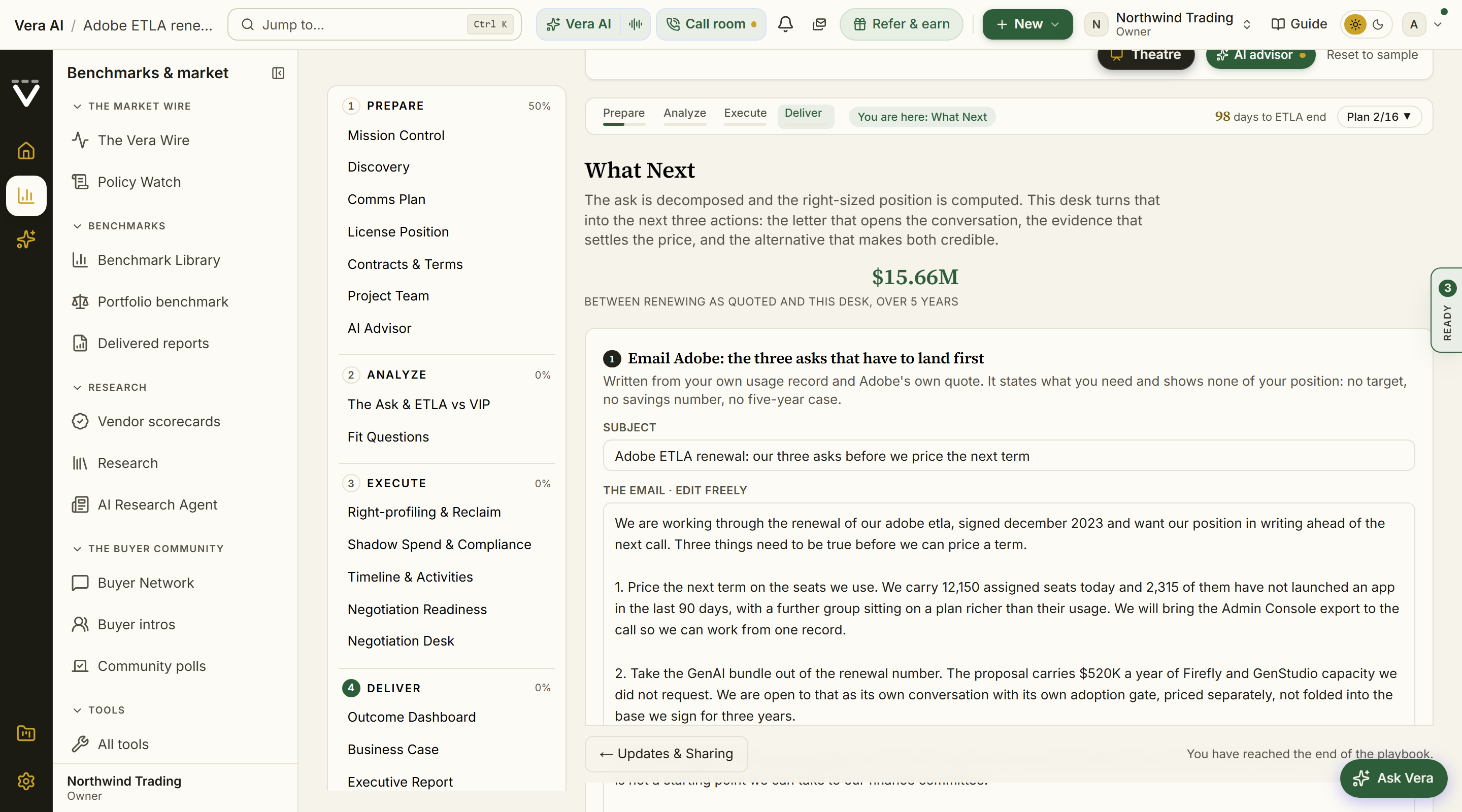
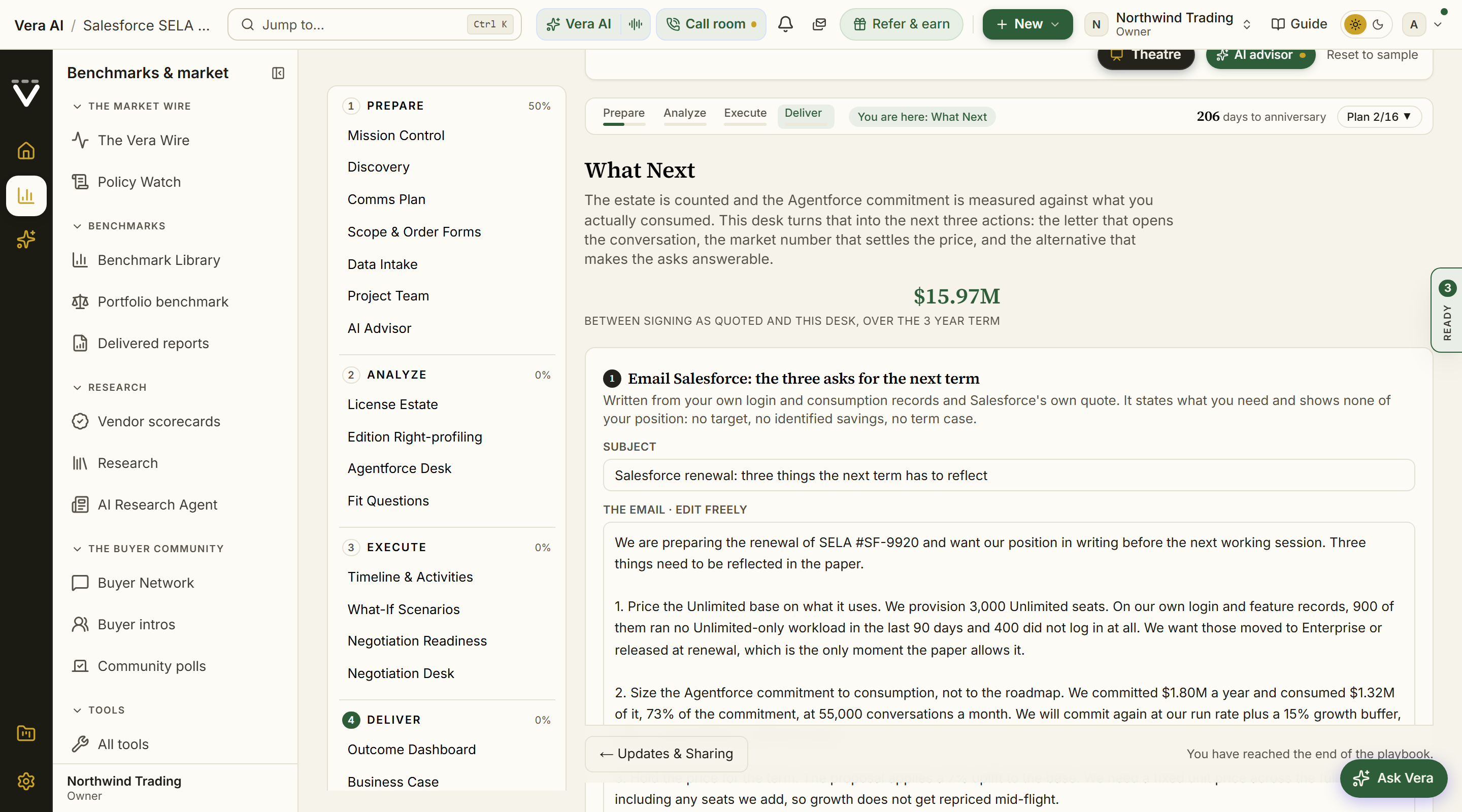
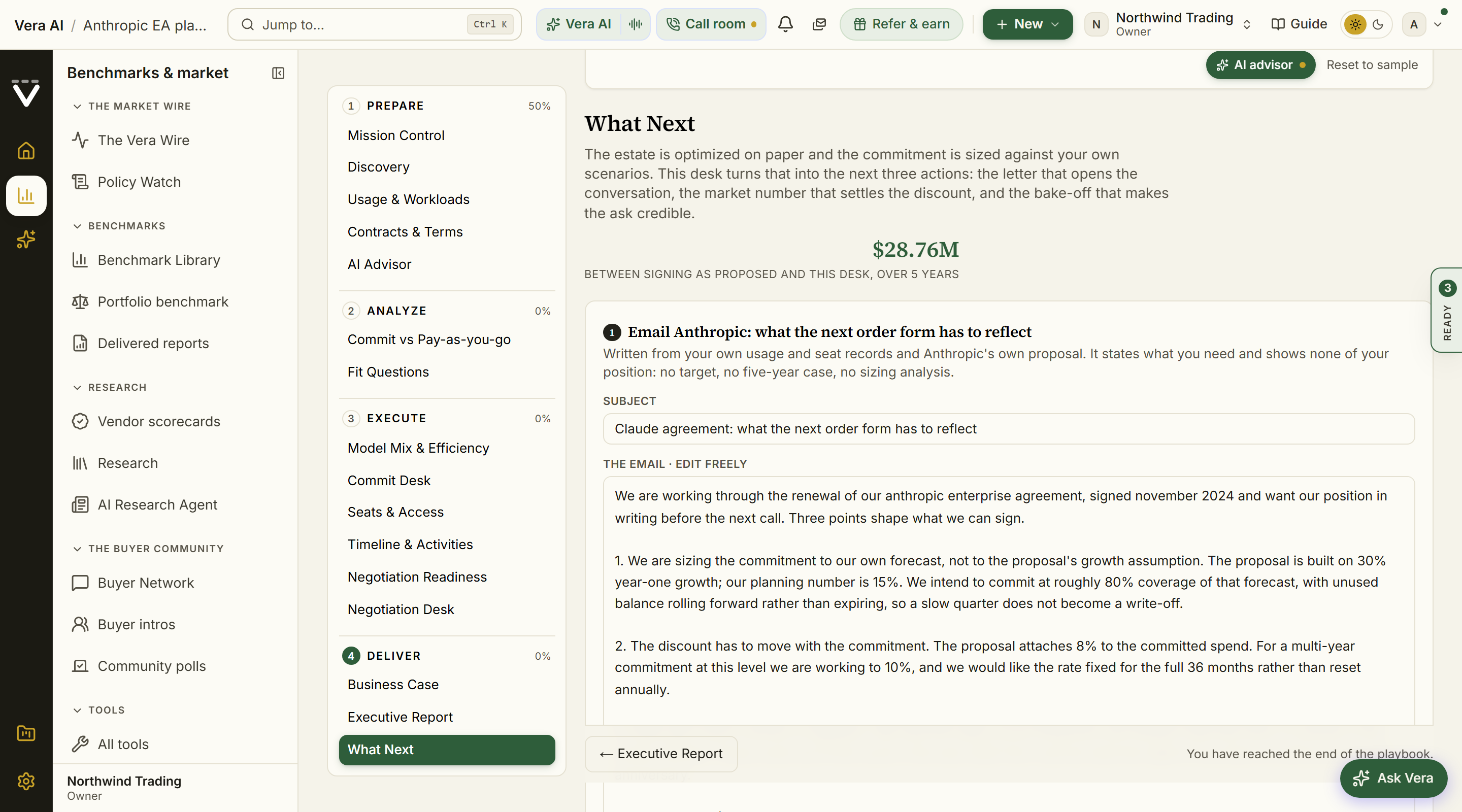
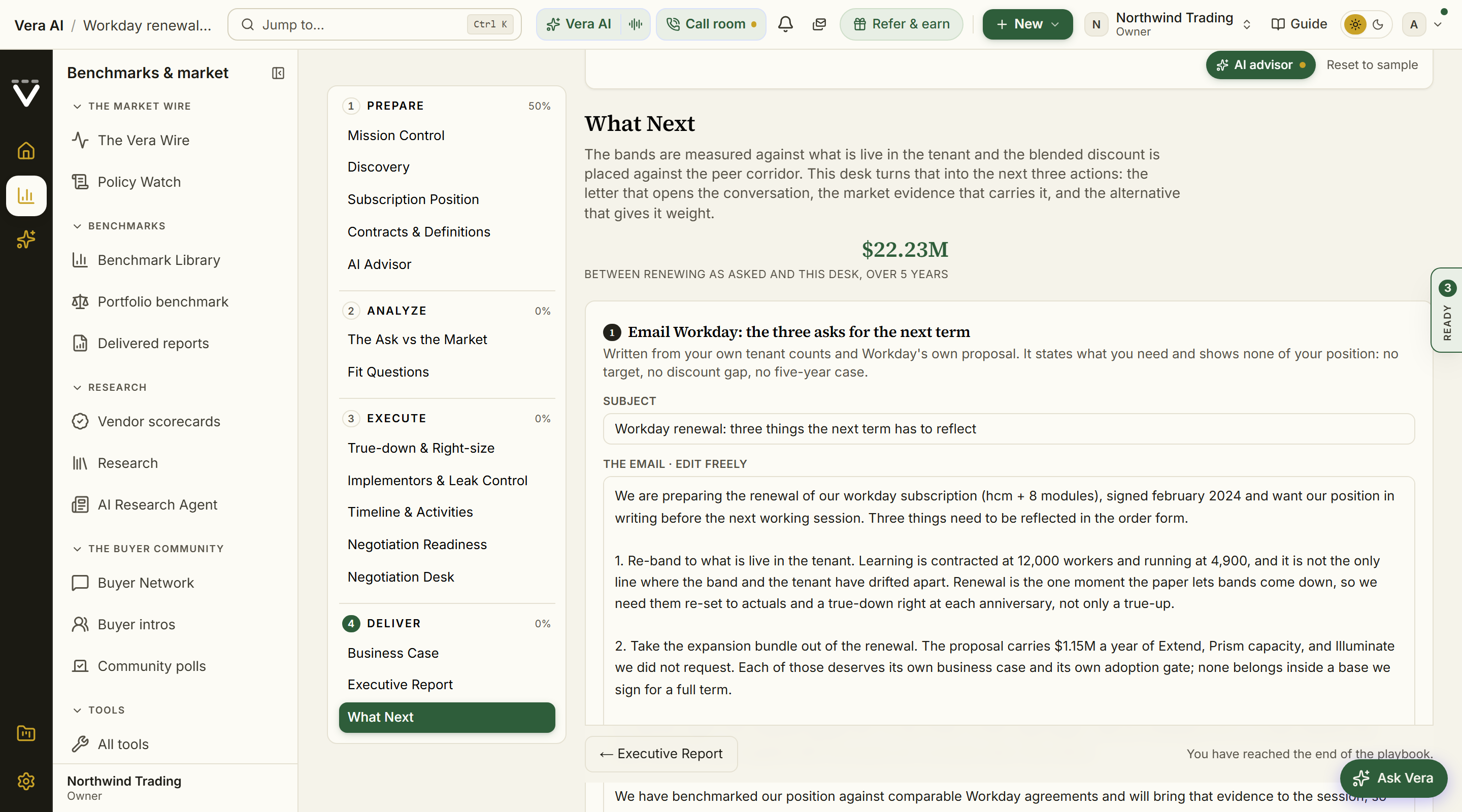
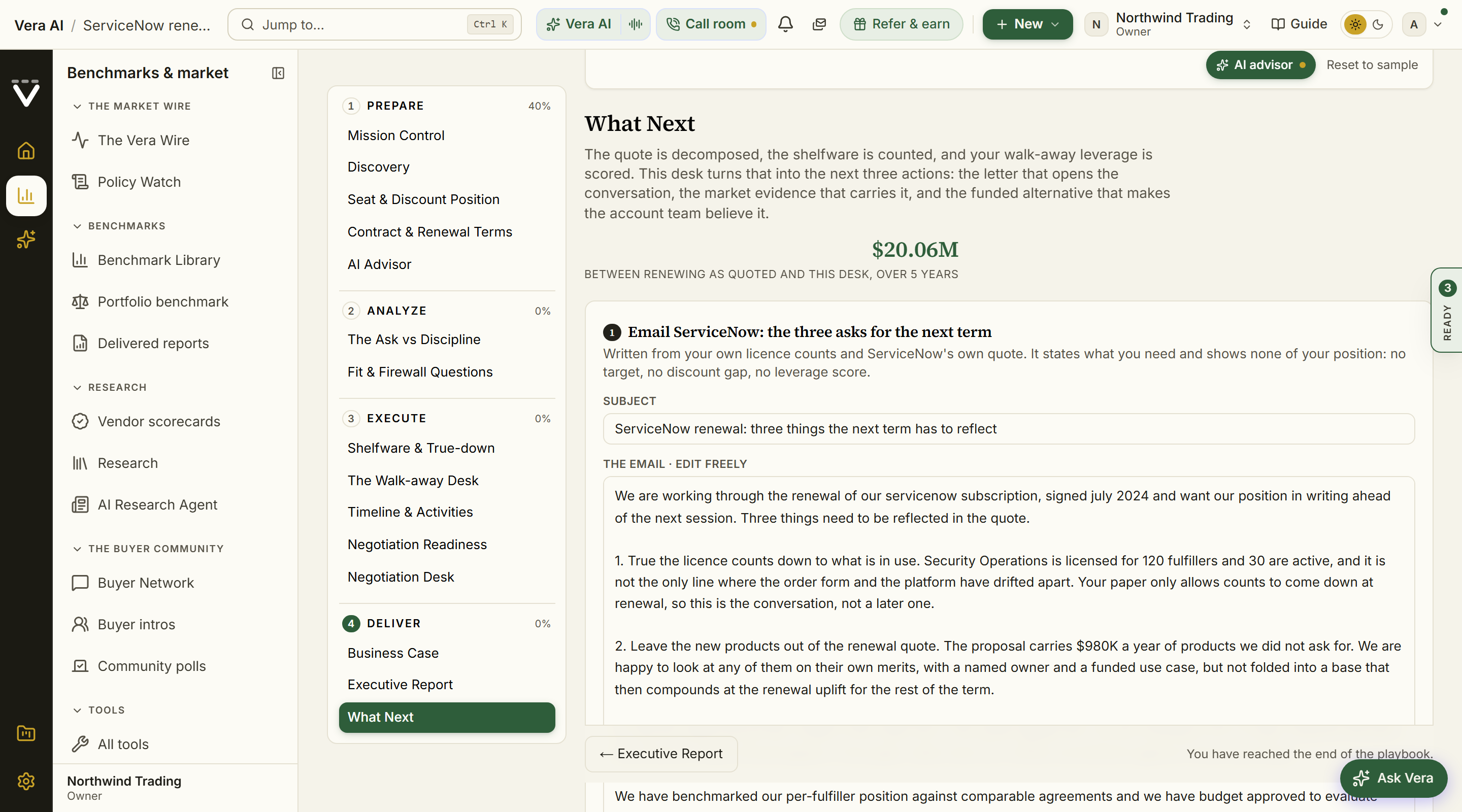
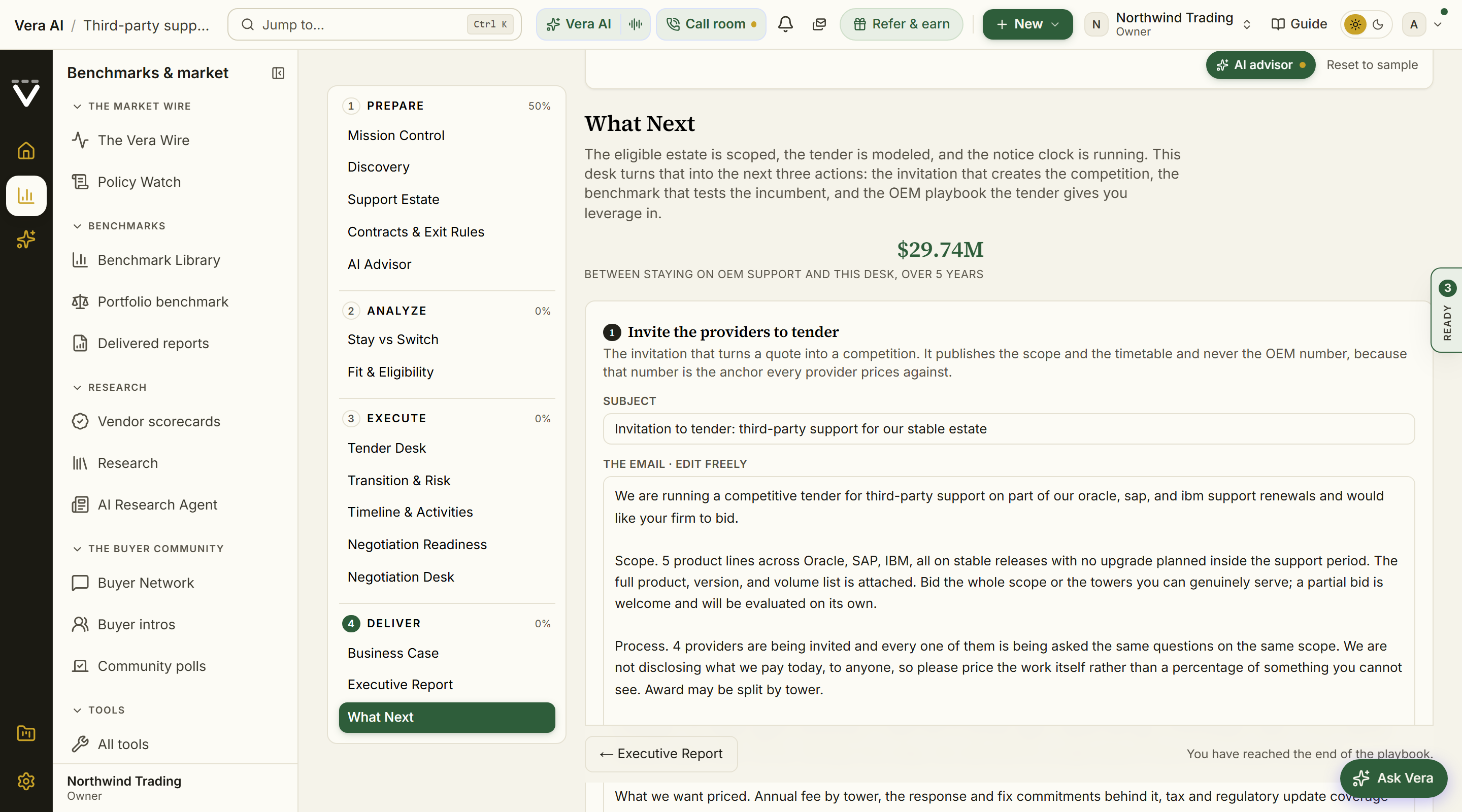
On the screen
- The drafted vendor email: the ask that playbook exists to land, composed from the figures your own run produced, in an editable subject and body. Copy it or open it in your mail app; nothing sends from the platform, and the draft carries no greeting or sign off so you add your own. Editing takes over from the computed draft, and one link restores it.
- The exit ramps: two or three moves that carry the vendor with them, the matching benchmark tool, a negotiation case seeded on that vendor, and the costed alternative or the BATNA playbook that prices your walk away.
- Ask Vera and the position digest: a question carrying your run's headline numbers, and a copyable summary of where the run landed.
Vendor-facing drafts state your asks and your own usage facts only. Your target, your corridor, and your savings estimate stay in the digest and the Ask Vera question, never in the email. The third-party support draft is a tender invitation by design: it publishes the scope and the timetable and never what you currently pay the OEM.
Next: Chapter 04 · Insight
Was this page helpful?
Thank you. Your note goes straight to the team that writes this manual.