13 · Your AI agents
The platform runs a workforce on your behalf: analysts that write documents, watchdogs that monitor your portfolio and the market, autopilots that act under a mandate you set, and the workflows your own team composes. This chapter explains the four classes, lists every agent, and walks you through building one. The one rule behind all of them: an agent must show its work. Every run is logged, every figure is grounded in your stored data, and nothing leaves the platform without a gate you chose.
The floor
The first screen of the AI agents window, and what was the Agent Center: every agent working for your organization, drawn live as what it reads, what it does and where its work lands, so you see what each one does before you put it to work. Under the drawing sit the sign offs waiting on you, the shift board beside the money ledger, then three job groups: money they catch (the watchdogs), deals they work (the autopilots), and documents they write (the analysts), with the workflows your team composes closing the page. Old links to /agents open here, and the page's former tabs (/agents?view=ledger) land on the matching section.
In plain words: the staff page for your AI workforce, drawn so every agent's job explains itself.
When to reach for this
- The weekly "what did the machines do?" pass: the shift board and the money ledger answer it with marks and receipts, not activity claims.
- Deciding what to delegate next: every agent states its job, its sources, and a labeled example of a find.
- Something automated went quiet: every agent carries its run receipt, last ran and next run, from the platform's own scheduler.
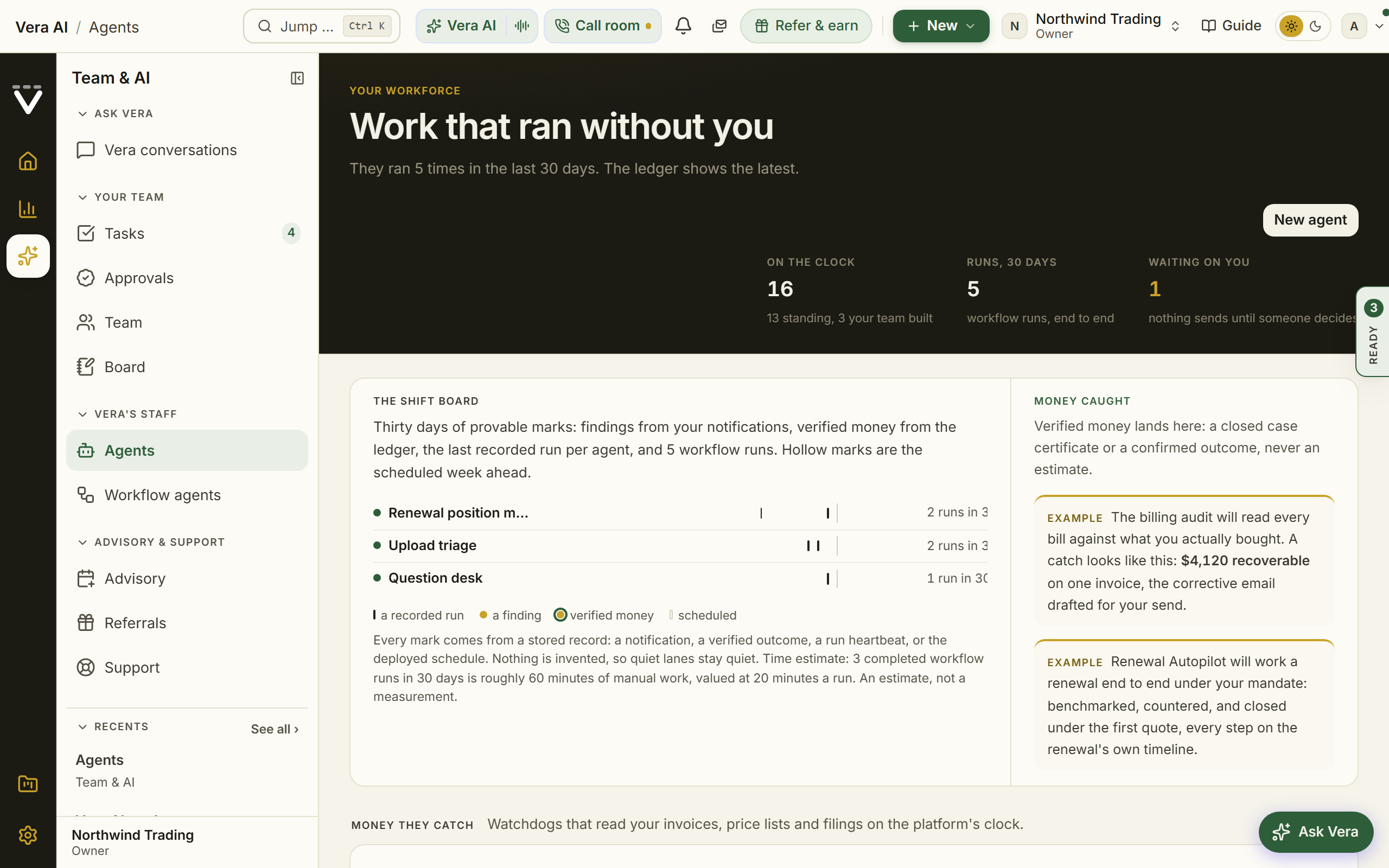
The window — the floor is one of four tabs in the AI agents window: The floor, The roster (the agents you hired by name), Decisions (the sign offs, which was Approvals) and The plan. Keys 1 to 4 switch between them. The sidebar lists the floor's sections (every agent live, the shift board, money caught, waiting on you), the three jobs and Related.
The head
- On the clock — every agent the platform runs for you, the standing watchdogs and autopilots plus the workflows your team built. Point at it for the split.
- On duty — what you rostered, and that is what decides whether an agent may tell you anything: an agent you have not put on duty is silent on every channel, in-app, email, and chat alike. Sixteen on the clock beside one on duty is not a contradiction, it is the difference between working and reporting.
- Runs, 30 days — workflow runs, end to end.
- Waiting on you — sign offs at the gate and runs paused until somebody decides. Press it to go to the panel below.
- Returned a year — shown when verified money exists: closed case certificates and confirmed outcomes your agents drafted, counted per currency and never summed across currencies. Where nothing has been verified the head shows no money figure rather than an estimate.
- The specialists and New agent sit at the right; New agent opens the wizard.
Every agent, live — three columns joined by wires: the sources the agents read (contracts and agreements, spend and invoices, renewals and dates, benchmarks and prices, vendor news, your vendor list, your inbox), the agents in their three jobs, and where the work lands (documents and briefs, findings and alerts, vendor pages, deals and threads, waiting on you, money caught). Work moves along the wires of every agent on duty; an agent off duty is drawn quiet with dashed wires, so a moving dot never claims work that is not on the clock. Green is verified money, brick is a decision waiting on you. Point at an agent to trace its path; press it to scroll to its wire and open it. Still stops the motion, and it never moves when your system asks for reduced motion.
Waiting on you — the oldest sign offs at the gate with their value and how long they have waited, and any workflow run paused for a decision. A row opens on the Decisions screen with that request highlighted; All decisions opens the whole gate.
The shift board — thirty days per agent, today at the rule, the scheduled week ahead in hollow marks. Every mark comes from a stored record: a gold dot is a finding from your notifications, a green ring around it is verified money from the ledger, a navy tick is a recorded run, and hollow marks are the deployed schedule. Nothing is invented, so quiet lanes stay quiet. Your workflow lanes draw their real run history on the same board. Beneath it, one labeled line values completed workflow runs at 20 minutes of manual work each, always printed with its own arithmetic and named an estimate, never a headline.
Money caught — the ledger beside the board: verified receipts and the latest findings, newest first, each linking to the record that proves it. The headline is the sum of the receipts, per currency. Until your first receipt, the ledger shows clearly labeled examples of what a catch looks like; a live figure always carries a timestamp, an example never does.
The details column — Today in figures (runs, finished, findings, waiting on you, the value at the gate, the time estimate), the next moves (the oldest decision first) and Ask Vera.
The three groups. Each opens with its name as a heading, its on-duty count right beside it, and one sentence, then one agent drawn at full size and the rest as rows. When an agent last ran and when it runs next sit right after its work, and the floor uses the full width of the window.
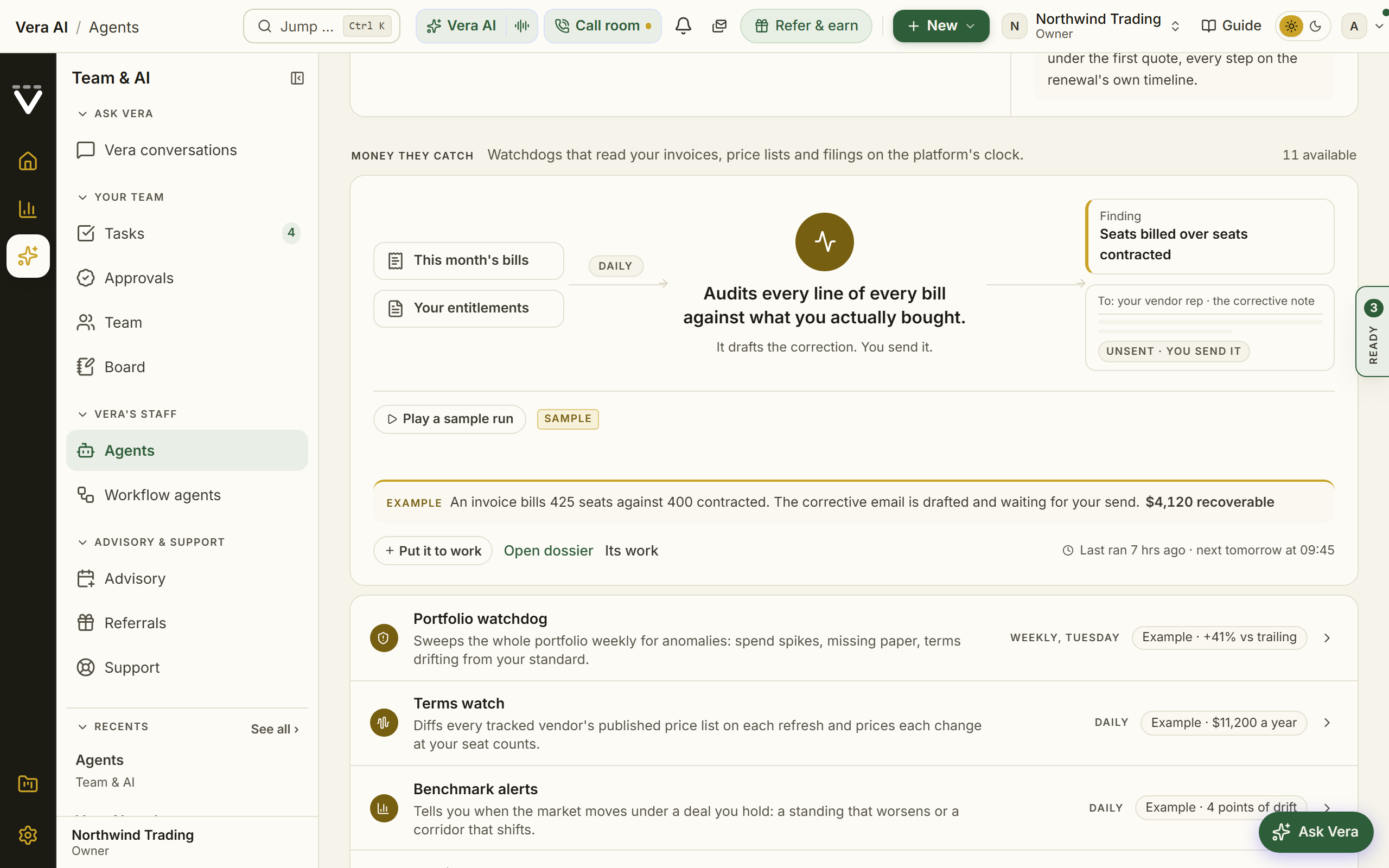
- Money they catch — the watchdogs. The billing audit leads, drawn end to end: this month's bills and your entitlements on the left, the audit in the middle, and the two artifacts it lands on the right, the finding and the corrective email that waits unsent because you send it. Play a sample run animates the pipeline, always labeled as a sample.
- Deals they work — the autopilots. The Renewal Autopilot leads with the autonomy dial on its market news: move it between Watch, Draft, and Act and the landing artifact redraws, a renewal brief in your inbox, a drafted counter waiting on you, or an outcome filed on the deal record, with a one line boundary sentence stating what it will and will not do at each setting.
- Documents they write — the analysts, on demand and on a schedule. The benchmark white paper writer leads; the miniature on its market news is the paper itself. The specialists your team built in the studio list here too, one click from running them at Ask.
The rows — every other agent is one line: its glyph, name, job sentence, cadence, and either its latest real finding (timestamped) or Example, on quiet gray. Click a row and it expands in place into the same pipeline drawing, the example or latest find, the run receipt, and its controls: Put it to work, the autonomy dial where the agent can act, the dossier, and its work.
The run receipt is every market news's proof of work: when the agent actually last ran, read from the platform's own scheduler heartbeats, and when it runs next, computed from its real schedule ("Last ran 2 hrs ago · next today at 06:00"). Event driven agents state their trigger instead ("Runs when you forward a vendor email"), and the on demand analysts say they run when you ask. When a last run cannot be derived yet, only the next run is promised; a timestamp is never invented, and an agent nothing actually runs is not advertised on the floor.
How to use it
- Read the drawing and the Waiting on you panel first; anything waiting is your queue, not the machine's.
- Open a group and read its featured market news; expand any row to see that agent's pipeline before deciding.
- Press Put it to work on the agents whose findings you want; they start reporting on their next scheduled run.
- Use New agent to add to the workforce, or Compose your own at the foot for the workflow screen.
Related: Workflow agents · Vera AI
Agent dossiers
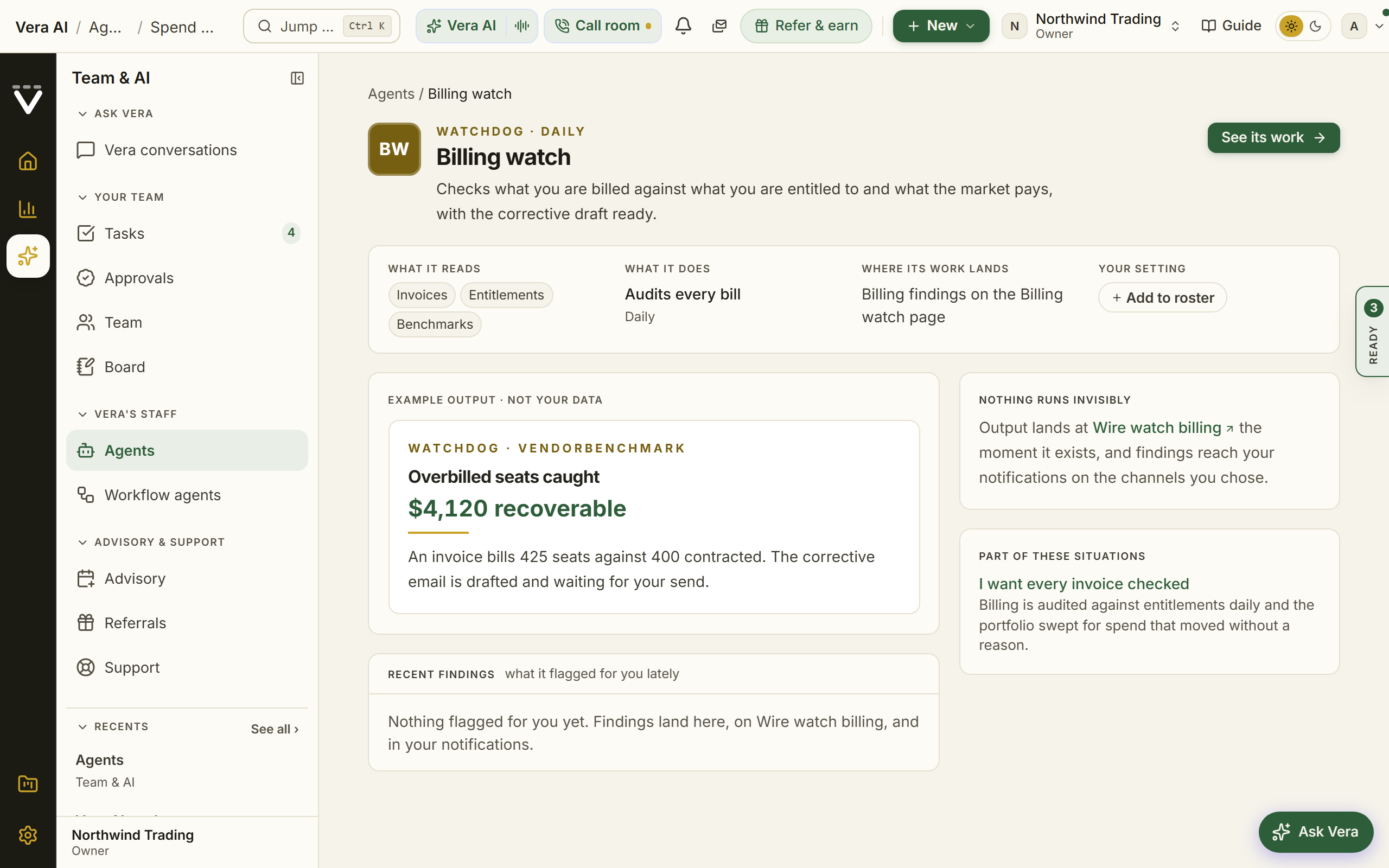
Every agent has a home page: what it reads, when it runs, what it delivers, and your settings for it, in the same record page grammar as the rest of the app.
On the screen
- The masthead — monogram, class, cadence, the agent's one line, and the See its work button.
- Highlights — what it reads (each source by name), what it does, where its work lands, and your setting: roster membership and, for agents that can act, the autonomy dial.
- Example output — a curated miniature of the agent's deliverable, always labeled as an example, never your data.
- Recent findings — for watchdogs, what the agent flagged for you lately, straight from your notifications.
- Part of these situations — the situation bundles this agent serves.
How to use it
- Open a dossier from any agent or ledger row.
- Read the example output to understand the deliverable in ten seconds.
- Add the agent to your roster, or set its autonomy, from Highlights.
Build an agent
Your draft is kept. The job you chose, the goal you wrote and the chain Vera drafted are all saved as you go, so leaving the page does not mean paying for another draft. Returning puts the draft back as it was; your last five drafts wait under File, Continue where you were, and Start a new agent sets the current one aside.
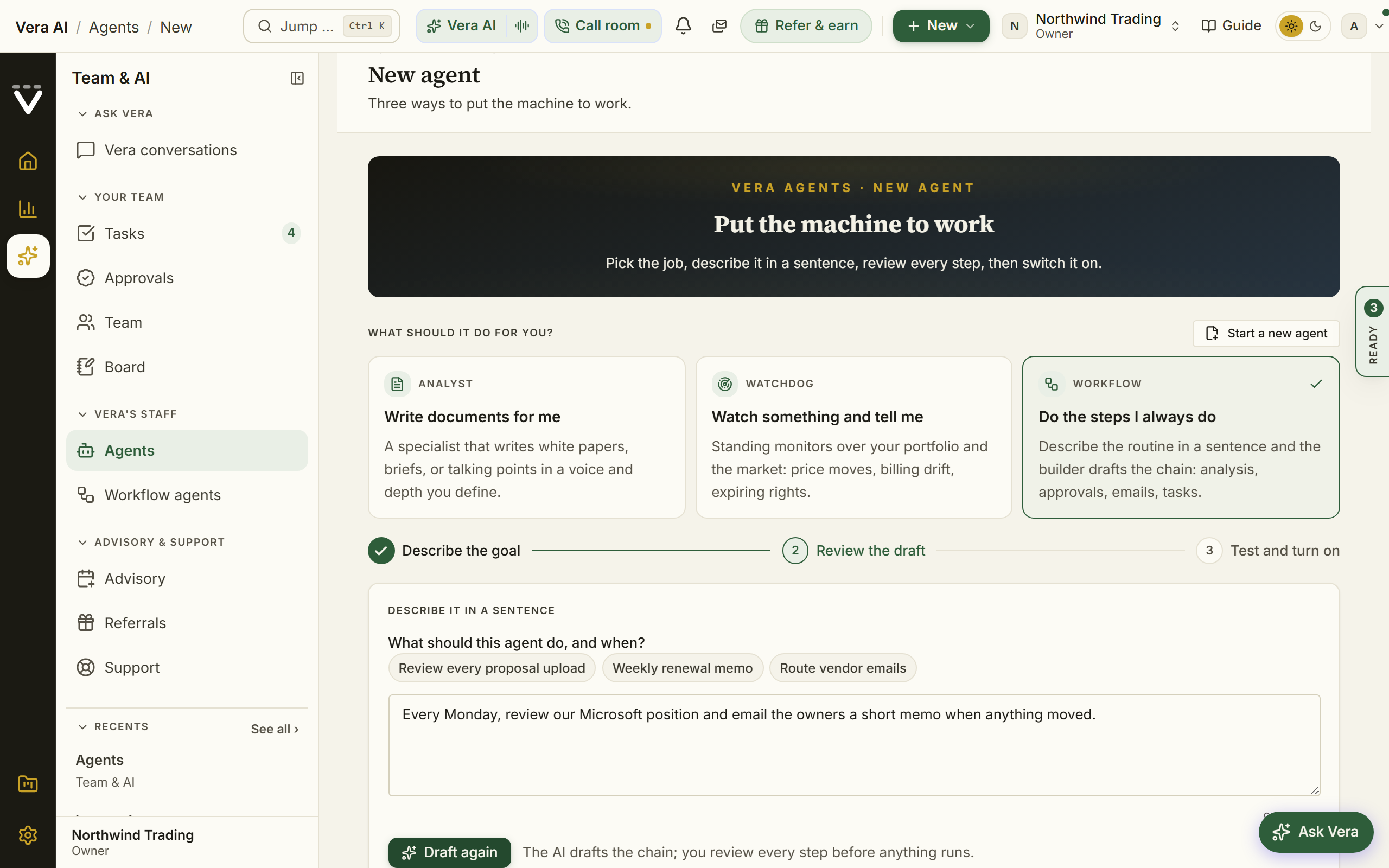
One wizard for all three buildable classes. Pick the job, and the wizard routes you: document writing goes to the custom analyst builder, monitoring shows you the watchdogs already on duty, and routine automation drafts a workflow from one sentence.
In plain words: describe the job; the wizard picks the right kind of agent and builds it.
When to reach for this
- The recurring chore worth a sentence: "every Monday, summarize what changed on our vendors and post it to Slack."
- A document you keep commissioning by hand deserves its own analyst.
- Check the roster first: the watchdog you are about to build may already be on duty.
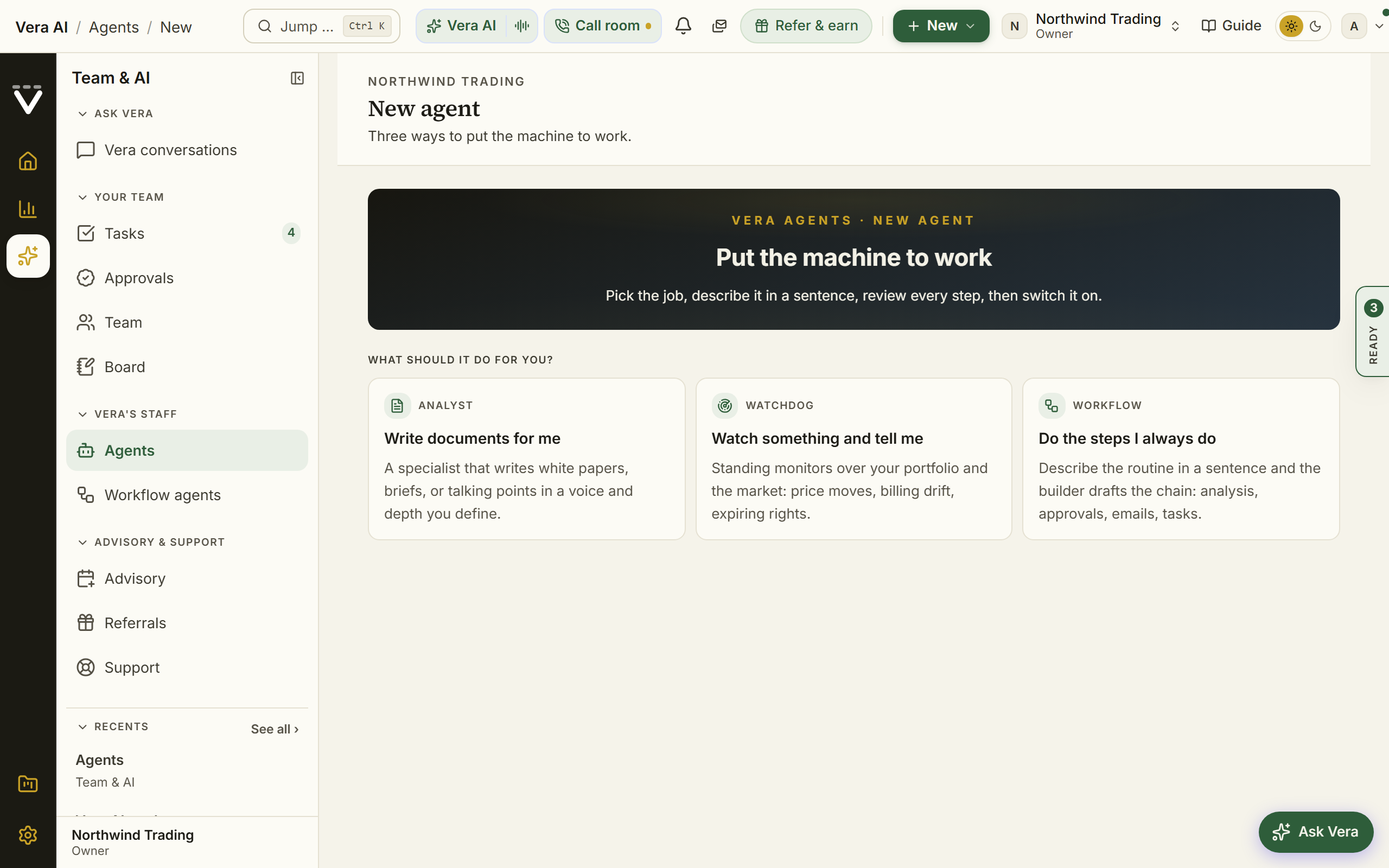
On the screen
- What should it do for you? — Write documents for me (Analyst), Watch something and tell me (Watchdog), Do the steps I always do (Workflow).
- Describe it in a sentence — for workflows: state the goal in plain language and the AI drafts the chain: trigger, steps, and the approval gate where anything would leave the platform. Three template buttons above the box (review every proposal upload, the weekly renewal memo, routing vendor emails) prefill a proven goal you can edit, so you never start from a blank box.
- Review the draft — the drafted chain as a step map and a numbered list. Rename it, change the trigger, or rewrite the goal and draft again. Full per-step settings live on the workflow screen after saving.
- Test with my data — runs the chain end to end without sending anything outside the platform, so you read the output before the agent earns a trigger.
- Turn it on — enables the agent and shows you exactly where its work will land.
How to use it
- Pick the choice that matches the job.
- For a workflow: describe the goal in one sentence. A goal that names the vendor, the cadence, and the audience drafts best.
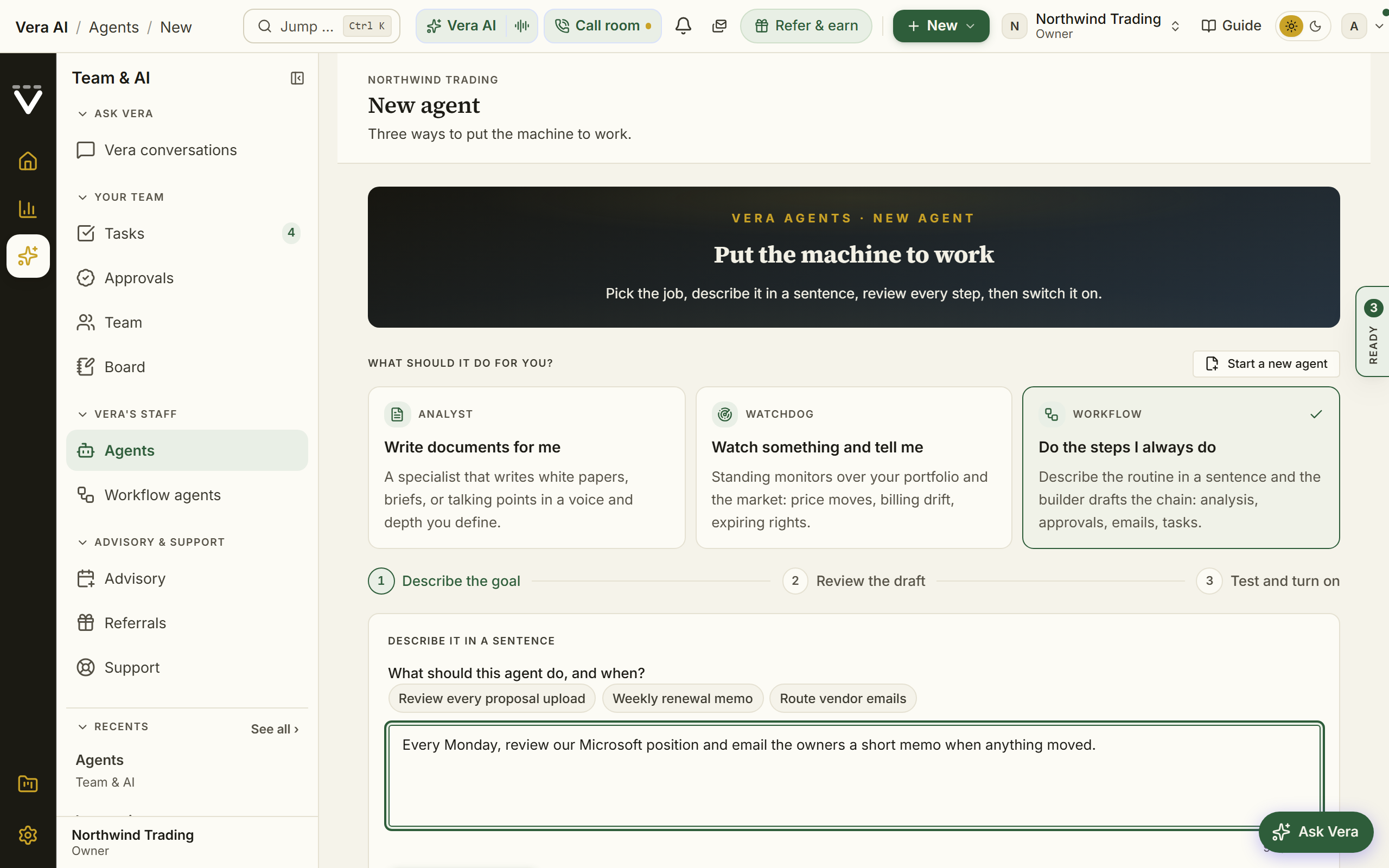
- Press Draft the agent and read the drafted chain: the name, the trigger, the step map, and where the approval gate sits. Rename it, change the trigger, or rewrite the goal and draft again.
- Save the agent, test with your data, read the run on the workflow screen, then turn it on.
Tips
- Drafts are conservative on purpose: anything that emails a person outside a pure internal note gets a Wait for approval step. Remove it on the workflow screen only when you trust the chain.
- A goal that names the vendor, the cadence, and the audience drafts best: "Every Monday, review our Microsoft position and email the owners a short memo when anything moved."
The four classes
The floor browses by job (money they catch, deals they work, documents they write), and each job maps onto a class: watchdogs catch, autopilots work deals, analysts write, and workflows are the recipes your team composes. The classes remain the platform's underlying vocabulary on dossiers and in this chapter.
Analysts write documents. On demand (the six playbook specialists plus up to six custom analysts your org defines) or on a schedule (the Monday vendor market news, the meeting pack before each vendor call, the monthly board report). Their output lands in your documents library or on the page named on their dossier.
Watchdogs monitor and flag. They run on the platform's clock, read only the data named on their dossier, and surface findings on their home pages, in My work, and by the email digests you turn on. You do not build watchdogs; you tune what each one tells you from its own page.
Autopilots act under a mandate. The Renewal Autopilot works your renewal calendar at the autonomy you choose: watch and remind, draft for your approval, or negotiate under a mandate with fees only on invoice-verified savings. The negotiation ghost writer drafts vendor replies from forwarded email threads. Every action an autopilot takes is logged on the record it touched.
Workflows are yours. A trigger plus up to eight steps: AI analysis, classification, extraction, an if then gate, a wait for approval, then email, Slack, a reply to the sender, or a task. Build them in the wizard or by hand on the workflow screen.
Email steps (since 6 October 2026). Three steps turn a workflow into a sequence of emails, each one a draft you send yourself:
- Draft an email writes an email to the vendor's sales rep, a colleague or your management from what you tell it to say and the facts on the run (the vendor, the agreement, its annual value, the notice deadline). Vera writes it where your plan includes AI; otherwise what you typed becomes the email. It goes into your Mail drafts to read, change and send. Nothing is sent by the workflow.
- Wait pauses the run for a set number of days, then carries on by itself.
- Wait for the reply pauses until you record the answer on the run page (the answers are buttons you name, such as Agreed, Countered, Refused), or until the time runs out, when the run carries on with the answer you chose for that case. The answer becomes the reply, so a later step can run only on one answer: set its "Only when" to the reply containing that word.
The Notice date guard template uses all three. When a renewal's notice window opens it asks the contract owner to renew, renegotiate or leave; on renegotiate it drafts the note to management and the opener to the vendor's sales rep, then waits ten days for the vendor; if the talks go nowhere it drafts the non renewal notice and opens a task to serve it before the deadline.
The roster
Every standing agent the platform runs for you, the clock it runs on, and where its work lands. Workflows are not listed because they are yours: the Center shows each one your team builds, with its own trigger and run history.
Watchdogs
| Watchdog | Cadence | Findings land on |
|---|---|---|
| Portfolio watchdog | Weekly, Tuesday | Anomalies |
| Terms watch | Daily | Watch |
| Billing watch | Daily | Billing watch |
| Benchmark alerts | Daily | Notifications |
| Earnings radar | Weekly, Wednesday | Vendors |
| Vendor viability | Weekly, Wednesday | Vendors |
| Ecosystem watch | Weekly, Thursday | Vendors |
| Contract hygiene | Weekly, Saturday | Data health |
| Commitment chase | Weekly, Monday | Major renewals |
| Standing answers | Daily | Vera AI |
Autopilots
| Autopilot | Runs | What it does |
|---|---|---|
| Renewal Autopilot | Daily | Works your renewal calendar at the autonomy you set (Managed renewals) |
| Negotiation ghost writer | On every forwarded email | Drafts vendor replies from forwarded threads (Workflow agents) |
Analysts
| Analyst | Runs | Output lands on |
|---|---|---|
| The six playbook specialists: Benchmarking, Contract Flexibility, Legal Terms, License Specialist, Executive Brief, Negotiation Talking Points | On demand | Your documents library |
| Your custom analysts, up to six | On demand | Your documents library |
| Weekly vendor report | Every Monday morning | Vendor Radar |
| Board reporter | Monthly, on the 1st | Delivered reports |
| Monthly briefing | Monthly, on the 2nd | Monthly briefing |
Trust and guardrails
- Grounded output. Analyst and workflow memos read your live portfolio data; figures are checked against stored records, and missing facts come back empty, never invented.
- Approval gates. A Wait for approval step pauses any workflow run until a named human decides; rejections end the run. Autopilot mandates cap what can be conceded before a human is pulled in.
- Run records. Every workflow run keeps a per-step record you can open. Watchdog findings link to the evidence behind them.
- Plan limits. AI-marked agents need the org's plan to include AI, and runs count against your plan allowance (Plans, allowances & limits).
Troubleshooting
- It did not run. Check the agent in the Center: a paused status dot means it is switched off; a workflow with a weekly trigger runs about once a week, not at a fixed hour.
- It ran but the output is wrong. Open the run record and read the step where it went wrong; tighten the instructions on the workflow screen, or for analysts, edit the custom analyst's brief.
- Too noisy. Watchdog digests have per-page switches; workflows can gain an if then gate so only significant runs notify anyone.
- Nothing sends. A run showing Waiting for approval is paused on a human; the approvers were emailed and can also decide from the run page.
Was this page helpful?
Thank you. Your note goes straight to the team that writes this manual.