02 · Benchmarks & research
This chapter covers the benchmarking half of the platform: instant self-serve price checks for hundreds of vendors, your whole portfolio scored against the market in one view, the analyst-delivered reports you get when you upload a proposal, the vendor grade book, and the research library. Reach for it whenever you need to know whether a price is fair, where the money is across your stack, or what a vendor is doing in the market.
Benchmark Library
Since 20 October 2026 the library opens on one window that reads one deal three ways: Simple (the result and the levers), Standard (the report in one scroll) and Advanced (views you build from eleven kinds of benchmark data). Since 27 October 2026 it opens on your own figures and never a sample: three fields, Vendor, Annual value and Discount offered, with Try the example as a chip; while the example is on, the head says Example and the first figure you change makes the deal yours. The earlier window is one press away: View, Classic library, or /benchmarking?classic=1.
In plain words: set the deal in the bar under the title, read the result, then open the report or build your own view. Present it, or export it to PowerPoint or Word.
When to reach for this
- A quote has landed and you want the result, the peer range and the recommended position in one sitting.
- You brief an IT leader and want the charts that make the case, in the order you choose, as slides or a document.
- You want to test an assumption (the signing month, a formal evaluation, a longer term) and see every chart move.
On the screen
The title bar. File (Add chart, New view, Duplicate view, Rename view, Export to PowerPoint, Export to Word, Draft email, Reset all views, Delete view), View (Simple, Standard, Advanced, Present, Details, Find a vendor, Classic library) and Help. On the right: Share, light or dark, Minimize, Maximize and Close.
The left column. Find a vendor (Ctrl K), Home, Vera AI and your pinned apps. Under them, since 27 October 2026, This benchmark as the deal's outline: Deal (ticked once set; a press starts a new one), then the report's sections in the order of the audience you chose (Result, Market, Drivers, Plan, Terms, Appendix, each with its figure), then Email and Export. In Advanced, Views with how many charts each holds and + for a new view. Then Contracts, your vendors with a renewal on file, soonest first, and Library: every vendor line in the library.
The head. The title (the vendor's benchmark, or the view's name in Advanced) with the market position as a tag, and Present, Export and one primary button (Draft email, or Add chart in Advanced) at the right.
The deal bar. Seven boxes under the title, each one a press away; since 25 October 2026 the line above them says Press any box to change it, every box carries a pencil, and the box under the pointer is outlined with Change beside its name: Vendor, Products (the product lines on the order; the first one is the line benchmarked), Annual value, Discount offered, Term (with the payment terms), Signing month (the twelve months ahead, darker months add more points) and Peer group (all peers, same industry, same country, or both, with the industry and the country). Since 27 October 2026 Annual value and Discount offered take a typed figure as well as the slider, the line above the boxes says where the figures came from (typed, a hand-off from a quote or the Deal Agent, or the example), and Peer group reads as a sentence: the deals on file at this size, the size band, the industry, the country and the years they span. Every chart follows a change at once.
Send it on. Since 25 October 2026 the details column carries four cards, each with a small drawing: Email the vendor (the Draft email below, with the ask in the card), Tell a colleague and Brief management (the email room for that reader), and Send a screenshot (Share's screenshot of this screen). Each opens in your own mail; nothing sends from the platform.
Draft email. Since 25 October 2026 the email starts with Why you are writing: Better price, Competitive offer (names the alternative the benchmark holds), Budget (states what the price comes to at your ask) or Benchmark (shows what comparable buyers pay). Each writes a short, plain email to the account team with one ask and a date; where the offer is already at the top of the market it holds the price and asks for the terms instead (the list price on the order form, renewal increases capped at 3%, the right to reduce quantities). The subject and the text are yours to edit. Open in mail app opens it in your own mail program; Outlook and Gmail open it in your web mailbox (use these when your computer has no mail program set up); Copy email copies it. Nothing sends from the platform.
The mode row. Simple, Standard and Advanced. In Standard the six sections sit beside it; in Advanced, the views and New view. At the right, since 27 October 2026: in Standard, For orders the report for Procurement (the plan and the concessions first), the CFO (the money first) or Legal (the terms first), and the order carries into the exports; and Dollars ($) prints on every chart the money a discount is worth against list over the term beside the points.
Simple. Result: since 25 October 2026 the market position is one range bar: the peer range as a band, the midpoint, the target and this deal as the gold marker, each value printed at its mark, and the verdict (Poor, Below market, At market, Good or Top of the market) as the tag above it. Under it one row of facts (the annual cost with the list price, the cost over the term, the savings at the target, and the deal size with the peer group) and, since 27 October 2026, the reading: where the offer sits, what a strong outcome is worth, and the first move. The figures count up to their new value and the verdict tag pulses when the word changes. What moves the price puts the six levers on the page (signing month, competitive position, term, payment, growth, reference), each with the points and the dollars it adds; move one and the result follows. Next steps continues to the full report, the Advanced view or the export. Vendor intelligence closes the page: the vendor's next quarter close and year end, the latest changes it published (each dated and linked to its page), two research notes and one analyst film, all read here.
Standard. Since 27 October 2026 the report is one scroll of six sections, each opening with the analyst reading (where the leverage is, what a strong outcome looks like, what to do first), in the order the audience sets:
- Result. The range bar and the row of facts under it.
- Market comparison. The comparable deals on file by size, with the peer range at your size shaded, this deal marked, and the deals clustered as a faint density band along the discount axis; press a dot to pin it (up to three pin, and compare in a table against this deal). Beside it the discount by deal size across the vendor's size bands. Under the charts: The nearest comparable deals, the five closest in annual value ranked by discount with Your deal placed among them; what this rests on (deals on file, deals at this size, the years they span, the date of the last read, and a confidence word with its reason); the method in four lines; and If an input is wrong, what moves with one input changed at a time (the list price 10 percent higher or lower, the peer group narrowed to your industry, a five year term). A product line with no comparable deals on file says so.
- Price drivers. The waterfall from the peer midpoint to the target, one bar per assumption, and the signing month calendar with the quarter closes and the year end marked and the best month lit in gold; press a month to plan the signature there. The six levers sit under the charts with their points and dollars.
- Negotiation plan. The opening position, target and minimum acceptable discount on the peer range, and the cost over the term at the offer, the peer midpoint, the target and the opening position; Two scenarios side by side, any two, with the difference in points and in money over the term. The approval level and Save scenario, Present and Export to Word close the section.
- Contract terms. The concessions beside the price (the renewal cap, the list price on the order form, the right to reduce, pricing on additional units, payment terms, SKU exchange, termination for convenience): what the market gives, the ask, and why. Put them in the email opens the draft.
- Data appendix. The charts of the open Advanced view, compact, with Open the Advanced view to add, swap or widen any of them.
Vendor intelligence and Do next close the report, as on Simple.
Open in Advanced on a section makes its charts a view of their own.
Advanced. Your views, five to start from: Executive summary, Negotiation, Market data, Timing and Custom view. A chart shows its finding under its title, a row of chart types (for example Scatter, Strip, Histogram and Table), and its width (one third, half or full). Drag a chart by its title to reorder. More on a chart presents from it, duplicates it, sets its width or removes it. Add chart (N) takes the last row: pick the benchmark data, then the chart type and the width, with a live preview, and Add to view. Templates add a ready set of charts to the view.
The benchmark data a chart can show. Market position; peer deals by size; discount by deal size; discount by product; industry and country adjustment; price drivers; signing month; negotiation range; cost over term; vendor approval levels; scenario comparison.
The details column. Recommended position (opening and target, the minimum acceptable and the savings at target, with Draft email and Save scenario); Assumptions (signing month, competitive position, alternative vendor, term, payment terms, growth commitment and customer reference, each with the points it adds, and the target discount); Scenarios (the current offer, three worked scenarios, and yours; Show puts a scenario on the charts as a lettered marker, a press loads it); Ask Vera.
Present. P tells the story in six chapters (the finding, the market, the drivers, the plan, the ask, the next step) or presents the open view (a slide per chart): the finding as the headline, the chart at full size, the key points and the recommended position. Since 27 October 2026 N shows the speaker note for the chapter, L turns the pointer into a laser, and the foot carries the live address of the benchmark for whoever follows along. Arrows move, Exit or Esc closes.
Export. Export or X: a PowerPoint presentation (a cover, the executive summary, the reading, a slide per chart with key points and speaker notes, then the assumptions, scenarios, comparable deals with your deal ranked among them, what the benchmark rests on with the sensitivity rows, the contract terms and the method as tables you can edit) or a Word report (the masthead, the executive summary, each chart beside its key points, recommendations, the tables, the bottom line and the method). Since 27 October 2026 a preview comes first: the first three charts as thumbnails and a tick list of what goes in, then Build. Both are drawn in the firm document style from the deal on screen, ordered for the audience chosen.
Step by step
- Type the vendor (or Ctrl K), the annual value and the discount offered on the opener, and press Benchmark it; or press Try the example.
- Press any box in the deal bar to change the deal; the figures follow.
- Read Simple, or press Standard for the report in one scroll; choose For Procurement, CFO or Legal.
- Move a lever on the page (for example the signing month) and watch the target and every chart move; Save scenario keeps it, and the plan compares any two.
- Press Advanced, pick a view, and Add chart for the data you want to show.
- Press Present for the room, or Export for PowerPoint or Word.
Keys: 1 to 6 sections (Standard) or 1 to 5 views (Advanced), N add chart, P present, X export, E draft email, S save scenario, I details, $ dollars on the charts, Ctrl K find a vendor, ? help, Esc close; while presenting, N notes and L laser.
The classic window
The library as one window that works in five numbered steps: The library, Benchmark, Benchmark details, Compare to other customers and Negotiation Strategy (renamed and reordered on 12 October 2026, when a vendor picked or searched began opening on Benchmark, the curve; since 8 October 2026 Your deal is the details column's own tab on every step, and Your estate a sheet beside the steps). One line of one vendor is open at a time, and the steps answer what every buyer asks about it, in order: what the deal costs, what comparable buyers are offered for the same deal, where it ranks, what to ask for, and when. Since 2 October 2026 every diagram in the window is drawn at the size of its own panel, with the figures printed at the marks. Since 12 October 2026 the figure is drawn before it is read: every list row carries a range bar on one shared scale, every answer card a mini scale under its number, and the ask in the details column a ladder; the five ranks read in one direction, brick, gold, steel, blue and the deep navy, on every pill, dot and legend; in the head the vendor, the figures and the band are one group labelled Deal (the scenarios another on the Advanced view), and the details column's facts stand two to a row with the label over the value. Since 13 October 2026 the window moves as a step opens: the head first, then each panel in order; every figure counts up to its value, every bar and band draws to its length, every dot lands, the charts draw, the lede reveals word by word; under the pointer a panel lights, a press ripples, and saving a scenario throws a short gold burst. View, Motion turns all of it off for the window, and a reduced motion setting on your computer turns it off everywhere.
In plain words: press a vendor, type what you pay and the percent off, and read the finding. Drag your deal on the curve to see what asking for more would be worth.
When to reach for this
- A quote has landed and you want the verdict, the range comparable buyers get, and the ask to make, in one sitting.
- You are testing an ask before the call: drag the mark on the curve and watch every figure follow.
- You want the vendor's calendar, the asks and the talking points for the call, on the same figures as the benchmark.
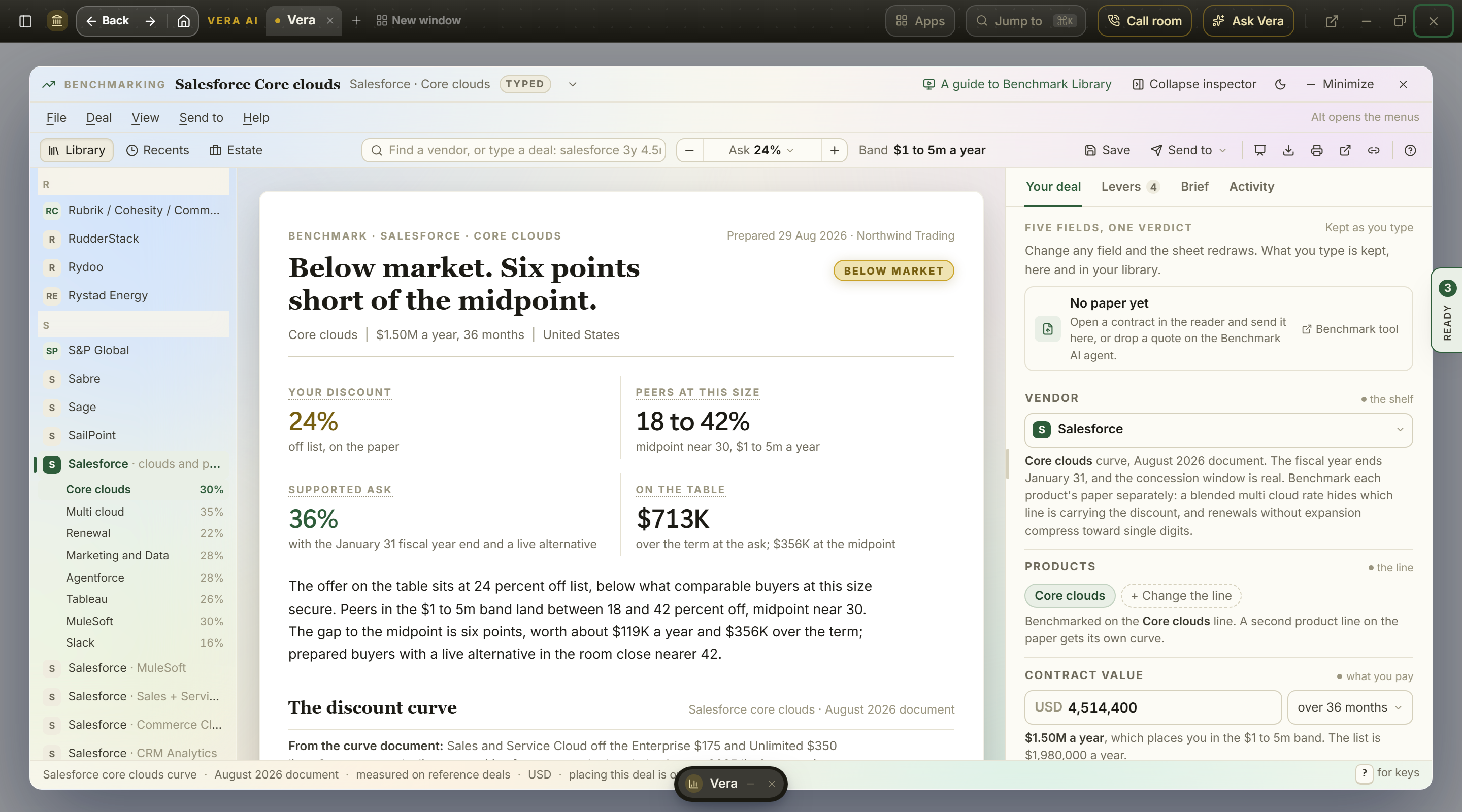
On the screen
The window. Since 5 October 2026 the library wears the same frame as every other app: the title bar across the top, the navy left column, the five numbered steps and the page in the middle, the details column on the right, and the keys along the foot. It fills the screen; Maximize in the title bar sets it back as a window over the page. Since 9 October 2026 the window wears the cut the owner chose for every main app: the five steps are rows in the left column (a numbered ring each, a tick once passed, the figure that matters beside it) and no strip of steps runs above the work; the head names the screen in sentence case with the rank beside it, one line under it states the deal once (the line, the offer, what you pay a year, the size band, the market it is read against), and the screen's one button sits at the right. Under the head a row of chips: Simple, Standard and Advanced as a switch, the vendor and line with its mark (press it to choose another), the offer and the value (press it for Your deal), and the band. The details column leads with what to do now: the ask in one line, why in one or two, and the buttons that do it, then the facts, the moves and Ask Vera. Section heads, pills and table heads read in sentence case.
The title bar. File, Deal, View, Send to and Help on the left. On the right: Sample data, Share, light or dark, Zoom (the magnifier: out, the figure, in), Full screen (F11; Esc or the same button gives the screen back), Minimize, Maximize and Close. The specialists, notifications, settings, the details column on or off and motion on or off are in View.
The left column. Search or jump to (Ctrl K: a step, a vendor, a move or a menu item), then Home, Vera AI and your pinned apps. Under them:
- This benchmark. The five steps, each with what it holds: A to Z, the rank, the offer, the size band and the vendor's quarter. A gold dot marks each step behind you.
- A vendor's offer. Self Drop Benchmark: upload the offer a vendor sent you and get the pricing benchmark report back. It opens Self Drop Benchmark; Upload an offer at the top of the library screen and the File menu open it too.
- More on the open vendor. Advanced view (
A), ServiceNow planner (when ServiceNow is the open vendor; under Related for any other), The negotiation (N), What changed with how many items are new in the last two weeks, Comments with how many the open line holds, The map (8) and Other agents (G).
The menu on the left folds out of the way. Since 7 October 2026 the library opens with the column on the left folded to its icons, so the sheet has the window. Ctrl B opens it and folds it again; the arrow at its top does the same; View, Left menu sets it open, icons only or hidden altogether, and the choice is kept for you. With the menu hidden, File, Home is the way home.
- Your estate. Saved positions (
E) with how many lines you have saved, Your library (Y) with how many contracts it holds, Reports (9), The deck (D), and Money on the table (O). - Your work. Your work (
W), then Ask Vera about this sheet (K: she answers in writing in the details column, under Brief). - Recents, the last five lines opened; Renewing inside 90 days, soonest first; and Related, the Renewal Library and the Research Library.
The steps. Across the top of the page, in capitals, numbered 1 to 5; the keys 1 to 5 open them. The step you are on carries the gold line, and a window too narrow for five numbers shows the number of that step only.
The head. The same on every step:
- the vendor and the line, then the screen's name (Benchmark on a step, the sheet's own name beside the steps), and the rank as a tag;
- one row of facts: the offer, the list a year, the net a year, the peer range with its midpoint, the supported ask, and the money to the target over the term. Rest the pointer on the offer to see where the figures came from (typed, from the document, or testing an ask);
- at the right, the screen's primary as the one filled button (press
Sto run it). The step you are on is lit in the steps, and the days to your renewal are in the details column. The primary is the screen's own next step: Open the line from the library, Take it to the supported ask on the finding, Try the supported ask on the curve, Seat my deal on the market, Talk it through with the specialist on the playbook; beside the steps, Save the position on your estate, Ask Vera about it on the map, Put it in the deck on Reports, Negotiate on Money on the table, Rehearse all on the negotiation, Ask the specialist on What changed, Write a report on Your work and Present on the deck.
The specialists. At the foot of the page: Talk to Vera and the specialists on this vendor, its benchmark analyst, contract counsel and vendor intelligence. Press a face to talk to them; the number opens every specialist.
1 The library. Since 13 October 2026 the screen is the prototype's: one panel and one table.
- Find a vendor. One wide find field (type a vendor, a product, or a whole deal line such as
salesforce 3y 4.5m at 24and press Enter), Discount offered (required to run) and Annual value at the offer. Every vendor in the table is read at these two figures. Under the fields, the chips narrow the table: All vendors, On contract, Comparable customers on file, then each category. At the foot of the panel: Run benchmark, Deal and Send to, Save, the term, Try a sample deal and the icons (boardroom, PDF, print, new tab, copy link, keys). Upload an offer at the panel's head opens Self Drop Benchmark. - Every vendor in the library. One full width table, its head stating how many vendors and the two figures they are read at. A row carries the vendor's mark and name with its lead line, the category, the range comparable buyers land in drawn as a bar on one scale shared by the whole list (the band, the midpoint tick, your offer as a dot in its rank's colour, then the figures), the midpoint, your offer's rank as a pill, the renewal date when the vendor is on contract (or "not on contract") with a gold comparable customers tag when a real order form is on file, and Open at the right. Every header sorts (figures best first, dates nearest first); the arrow keys walk the rows and Enter opens one. Press a row and the benchmark opens on that vendor at your offer; with no offer typed, the vendor goes into the field and the offer is asked for. A line your plan does not carry says so.
- Below the table. Your Recents and your Saved positions as two small tables, only when they have rows; the estate itself is the On contract chip and the Renews column.
Your deal. Not a step since 8 October 2026: the deal's fields are the Your deal tab of the details column, there on every step (Shift 2). The six fields every benchmark reads, kept as you type: the vendor, the product line, the contract value with the term, the offer with the list over the term, the industry and the country you benchmark against; the document the figures were read from, with Upload a quote beneath (drag a PDF or Word quote, or browse for one, and it is read end to end into a brief); and Save to keep the position. Every button that says Your deal elsewhere in the window (on the finding before an offer is typed, on the curve, the market and the Advanced view) opens this tab on the finding.
2 Benchmark. Since 13 October 2026, four parts, top to bottom:
- The discount curve by deal size. One column per size band: the band comparable buyers land in shaded between its low and top figures, the midpoint line through them with its figure at each band, your band shaded gold and named, your offer as the brick cross and the supported target as the gold ring on your band, a dashed lead between them. A bigger deal lands deeper.
- The range by deal size and Your market. The figures behind the curve, band by band, with your band's row marked; beside it, Industry and Country, which move the whole window's peer mix, and one line on how far the range moved against the all market curve.
- Products on the quote. Every line of the vendor at your band with a check for the lines on the quote, comparable buyers, the midpoint and each line's share of the deal; press a line to put it on or take it off.
- Move the deal. The offer, the term, the uplift and the cap beside the price walk, the sensitivity grid and your positions on one scale, as before.
3 Benchmark details. Since 13 October 2026, six parts, top to bottom:
- The three answers. Three equal cards: what you are offered (the percent off list, the list and the net, a mini scale of the offer on the band), what comparable buyers get (the range with its midpoint and the mix), and where it ranks (the rank word, the points behind or ahead of the midpoint, the money over the term).
- The supported target. One strip: the target with the opening ask and the floor, what it is worth over the term and a year, and the net at the target. Take it to the target sits at its right.
- Where the offer sits. The scale with the five ranks as its axis, the comparable buyers' band over it, the offer, the target and the opening ask marked, and the legend under it. Since 25 October 2026, when a vendor or a product is placed, the scale draws in order from its own figures: the band, then the target and the opening ask, and the offer last with one ring, inside a second and a half.
- What the gap is worth and the vendor's year. The offer, the midpoint, the supported target and the opening ask as net a year and over the term; beside it, the vendor's four quarters with the leverage each carries, the quarter you are in and the year end marked, and the timing line.
- How this was reached. The curve, your market, the rule the finding rests on, and what the Advanced view adds.
- The sheet. The benchmark as one page beside the line's specialist, as before.
On a rate or an uplift, lower is better, and every sentence turns with it.
4 Compare to other customers. Since 13 October 2026, two parts, top to bottom:
- Comparable deals by size. The industry and country pickers at the left, the key at the right, then the scatter: annual value across on a log scale, the percent off up, the range by size as a stepped band with the midpoint line through it, every comparable deal as a ring (hollow outside your region, blue in your industry), your offer as the brick cross and the target as the gold ring at your size. Point at a deal for its detail; press it to keep its mark lit.
- The nearest comparables and the range by deal size. The eight deals closest to yours in size ranked with your deal placed among them (industry, region, a year, signed, off list, against you), beside the range band by band with your band marked.
5 Negotiation Strategy. Since 13 October 2026, seven parts, top to bottom:
- The asks. Four cards in the order to table them: the discount (ask, settle, walk), the renewal (the cap on the uplift, on the order form), the order form (the list stated, the discount as a percentage of it, the right to reduce), and the timing (the signing month and what it is worth).
- The first email to the vendor and Send it on. To, Subject and the body written from the figures on screen, with Open the draft and Copy; beside it, where to carry the deal: the Advanced view, the Negotiation Agent, a human benchmark, and the comparable customers' order form or the PDF.
- Talk to. Vera and the specialists on this vendor; press a face to talk to them.
- The vendor's year. The quarters as a ring with the leverage each carries and the counts from today.
- What moves the number. The vendor's Negotiator's Guide: three things to know first, then its chapters as tabs.
- Read further and Watch. The dossier, the curve document, the call scripts and the latest news as rows; the films and recorded sessions beside them.
- More in the research library. Everything the library holds on the vendor, with a filter.
Your estate. A sheet beside the steps since 8 October 2026, not a step of its own: press Saved positions under Your estate in the left column, press E, or choose View, Your estate. Four parts, top to bottom:
- Your estate. Four counts (open a year, lines below At market, the nearest renewal, lines held) over every saved line priced against today's curve and ranked by the money still open; the line on the sheet rides along until it is saved. Boardroom (
B) is on the band. Press Open on a row to reopen it. - The bottom line. The rank, the bottom line in a sentence, the six figures it rests on and the doors: copy the verdict, start the negotiation, a second opinion, the Deal Agent and the specialist. Beside it, the fall from the list to the figure at the ask. A saved position carries the Position saved seal.
- Send to. The five places to carry the deal, each marked once it is sent, and the pack: the verdict as an email, the brief, the call opener and the talking points, each to copy or open as an email. The brief, the benchmark as a document with Word and PDF, sits under the pack. Nothing sends itself.
- What next. The Deal Agent with this position, the vendor's renewal guide, and your estate or the library.
The map. Since 2 October 2026, beside the steps: press The map in the left column, press 8, or choose View, The map. This benchmark and Your book sit on the band, the map fills the panel under it with its key, and Your book adds its five facts and the same vendors as a list.
- This benchmark. The open line in the middle. On the left: the vendor's other product lines with their midpoint at your deal size, the document the figures were read from, and your leverage. On the right: the nearest reference deals, the vendor's year and the asks.
- Your book. Every vendor you hold a contract with, grouped by how soon it renews and colored by where its saved position stands.
- A box. Press one and what it is, its figures and what can be done with it stand where the inspector does. Press it twice, or press Enter on it, to open it. A dashed box is something named that is not there yet.
Your library. Since 3 October 2026: press Your library under Your estate in the left column, press y, or choose View, Your library. It reads the last estate benchmark your workspace ran (the Benchmark Agent's estate step) and shows every contract placed against what comparable customers get. A strip of five facts leads: the contracts and their vendors, the net a year, how many sit behind the market, how many ahead of it, and the money to the midpoints a year. Four views, as tabs:
- Where they land. One column a standing, worst first, Poor to Top of the market, then the contracts the run could not place. A card a contract: the vendor, the product, its figure against the range, the money to the midpoint a year, and the days to its renewal when it is inside 90.
- The map. Every contract around your organization, grouped by where they land or by category.
- Good and bad. Two tallies, where you are behind the market and where you are ahead of it, on the two things every placed contract states: the price (its standing) and the runway (the days to its date). Under them, every contract as a row with both marks and the money to the midpoint, and Open the benchmark on each.
- The run and the report. The Benchmark Agent's estate step, whole: the contracts in scope and how each will be placed, Run the estate benchmark, and the report as a document with the board deck, the Excel workbook, print and a read only link.
- A card, a box or a row. Press one and what it is and what can be done with it stand where the inspector does: open its benchmark on the steps with the figures the run read, open the document, negotiate it (the playbook on its line), hand it to the Deal Agent, have a person check the numbers, or open the contract's record. Press a card, a box or a row twice and its document opens in the reader (on a sample estate, which has no documents, its benchmark).
- Deck and Email. Once a run is stored, Deck on the band saves its board deck as PowerPoint, and Email drafts a note to management from the result in your email client; nothing is sent.
- Before a run. The sheet says what loading does, how many vendors on your book are already benchmarked, and the ways in: Load all your contracts (the import), the places contracts are kept that connect under Settings, Integrations (SharePoint, OneDrive, Google Drive, Box, DocuSign and SAP Ariba, each with Connect), and Load the sample estate, which brings a sample in contract by contract, read, matched and placed, then shows every view on it.
Reports. Since 3 October 2026: press Reports under Your estate in the left column, press 9, or choose View, Reports. Your estate and your book, drawn. A strip leads with the money on the table across the contracts your last estate benchmark placed, and Open the mind map; before the estate is loaded it offers Open your library. Then:
- Where to act first. Every saved line by its net a year and by how many points it sits over or under its own midpoint. The larger lines under their midpoint, at the bottom right, are where to act first.
- The offer, the midpoint and the ask. A row a line priced as a discount: the offer, the midpoint, the supported ask, and the points still to win.
- Renewals on one line. Every vendor on contract on its renewal date, the next 90 days shaded, each mark colored by its standing.
- Money still open, standing on the book and the library by category. The money a year between each offer and its ask, the vendors on the book by standing, and the library's lines and your contracts by spend category.
- Exports. Charts, an Excel workbook, a Word report and an email from your saved lines.
Press any mark or row to open its benchmark. Email it to management drafts an email to your management from these figures in the email window; nothing is sent until you send it. Put it in the deck opens the deck.
Your work. Since 3 October 2026, when the Benchmark Agent became part of the library: press Your work in the left column, press w, or choose View, Your work. Five facts lead: the reports, the case files, the renewals, the requests with an analyst, and the analyst credits your plan has left. Then everything under way from the library, newest first: the benchmark reports and the briefs written from the sheet, each with Open and Send to a human analyst; the quotes and contracts still being read, with the stage each is at; the requests to an analyst; the case files; the renewal playbooks; the quotes asked for from the Vendor Benchmark team; and the money plans saved from Money on the table. Press a row to open it; Open the benchmark opens its line on the steps. Remove stops tracking a read that stopped, lets a saved plan go, or takes any other row off this list, and Show them again puts them back. Start something has six ways: write a benchmark report, send it to a human benchmark, request a negotiation quote, hand it to another agent, create a renewal, and start a case. The Benchmark Agent's old address opens here.
The deck. Since 3 October 2026: press The deck under Your estate, press d, or choose View, The deck. Two decks, chosen on the band. This benchmark, nine slides drawn with the same charts as the steps: the cover, the three answers with the range, the discount curve, the market scatter, the map, the vendor's year, the asks, your estate and the bottom line. Your estate, twelve slides from your last estate benchmark: the cover, the estate in numbers, the map, where to act first, the dates, bad and good, the five to act on, the money on the table, where the money is, how to go and get it, what changed, and the decision. Clear a slide's checkbox to leave it out; press one to present from it. Present (or P) plays the kept slides over the window with a solid red way out, PowerPoint saves them, and Email it drafts the note in the email window. Put it in the deck on Your library opens the deck on Your estate.
Money on the table. Press Money on the table under Your estate, press o, or choose View, Money on the table. The same contracts, priced to a target you choose with Negotiate to: The midpoint comparable customers get, The supported ask, or Prepared buyers. Five figures open the sheet: the total on the table a year and what each lever holds of it, Price, Uplift caps, Additions and Payment terms. Price is the estate run's own figure. The other three are priced only where the platform holds both the contract's term and a market figure for it (the Software Price Index's median uplift cap for the vendor, or the gap an analyst priced in a published human benchmark); where it does not, the figure says not read or not priced, and the total counts only what is priced. Under them, Negotiate to sets the target, and the line beside Negotiate better deals says how many are picked and what they are worth a year and over three years. The head names the sheet Money map.
- The map. By vendor draws a branch a category and a box a vendor, each box shaded by its share of the largest; By lever draws a branch a lever and a box a contract. A wider branch carries more of the money; an outlined box is picked. Press a box to pick it or take it out (a vendor's box, all its contracts); press it twice to open the contract's document.
- Pick what to negotiate. The same contracts as rows, the most on the table first: a checkbox, the contract, the net a year, the money on the table a year, its standing, the date and Open the benchmark. Press a row to see it in the inspector, press it twice to open its document. The five with the most on the table stand picked when the sheet opens; The top five, All and Clear above the list pick them again, pick every one, or clear them, and Show all lists past the first twelve. Contracts at or past the target are counted on the line above the list and never picked. Four notes under it say what each target means and what is counted: the price only, not caps or payment terms.
- Negotiate better deals. With contracts picked, Negotiate in the head or Negotiate better deals under the figures lists the picked with what each is worth a year and its date, then the ways to go and get it, each opened on the largest picked with the rest still picked on the sheet: Negotiate it yourself (the playbook on its line), Hand it to the Deal Agent (the deal, the figures and the dates go over; it takes one deal at a time), Have a person check the numbers first (a human benchmark with the brief filled in from the run), and Ask Vendor Benchmark to negotiate for you (the quote, below).
- Save it to Your work. On the band: the picked contracts and the target are kept as a plan in Your work, and pressing it there brings Money on the table back with those picks.
- The quote. Ask Vendor Benchmark to negotiate for you lists what is asked about (the contracts, the net a year, what is on the table, the first date), then the service (a full negotiation the team leads, second chair while you lead, or one renewal only), where to reply (your account email unless you type another) and a note for the team. Send the request files it with the Vendor Benchmark team, who reply with a quote by email; asking commits you to nothing.
The landing page. Since 7 October 2026, pressing Benchmark Library anywhere opens a landing page with three doors: Simple (Is this a good deal?), Standard (the library window, opened on The library tab, every vendor A to Z) and Advanced (the Advanced view). Keys 1, 2 and 3 open them, and a side by side table under the doors says what you type and what you get; every answer comes back in a second. Since 9 October 2026 the landing is a window on the same frame as the library: the left column lists the three views with their keys and the vendors you hold a contract with (the days to renewal in red inside ninety), the head carries one line and Is this a good deal? and Advanced view, the three doors each say what they are best for, and under the comparison On contract lists your vendors nearest renewal first, each opening the finding on that line. The details column leads with the next renewal and the two buttons that open it, then the library's counts, the three views as moves, and Ask Vera. A deep link from another app, a vendor's line or a contract, still opens the window on that line. Inside the window the head's chip row carries the Simple, Standard and Advanced switch on every step, every size of type is one step larger than before, and the search field on The library tab is the tall navy edged field on the first row of its bar, with the ask, the band, Save and Send to on the row under it. The window opens at actual size; Ctrl with + and − zooms, and Ctrl 0 returns to it. Since 12 October 2026 the three doors stay three across on a 1440 screen with the details column open, and stack only on a genuinely narrow window.
Is this a good deal? The Simple view. Since 14 October 2026 the check is the Simple view of the Benchmark Library window, a room beside Standard and Advanced: open it from Is this a good deal? under Benchmarks in the apps, from the landing page's Simple door, from Simple on the view switch under the window's title, or from the Is this a good deal? row in the left column. The three views read one deal, so a quote checked here is the deal Standard and Advanced open on. Check a quote is one row: Vendor (type a name and the field suggests vendors from the library as you type; Enter takes the first), What you pay a year (1.2M, 750K and 1,200,000 all read), Discount offered as a percent off list, or tick I don't know when the quote shows no list price, then Check or Enter; under the row, Try an example offers five quotes the library carries. Before a check the page is never empty: Or pick a vendor lists every vendor in the library as a tile, the ones on contract first with their renewal days, and a press puts the vendor in the field and the cursor in the value; How the check reads says in three steps what you type, what the library reads and what comes back. After a check, The answer is one line, Not a good deal yet, A fair deal or A good deal, with the rank, a sentence on the gap to the midpoint in points and money over the term and the range comparable buyers land in, the supported target, and a green band with what is saved over the term if the vendor meets the ask. Beside it stand three figures: You are offered on its scale, Others get (the range and the midpoint) and Ask for (or Hold at when the offer already sits at the top). Under both, What companies like yours pay the vendor is the scatter of comparable deals by size, the band of the usual range, the midpoint line, your offer as the cross and the ask as the ring; then Go further to the Standard view, the Advanced view, the research library and the boardroom deck. Ask for a better price (also the head's primary) opens the email the window writes from the figures on screen; See the full benchmark opens Benchmark details; Check another deal clears the form. When the quote shows no list price the answer says what others get and the email asks for the list price. The figures shimmer for half a second and count up as the answer lands; with reduced motion they show at once. The one bar check of 7 October is kept at /benchmarking?check=simple.
Advanced view. Since 7 October 2026: press Advanced view under More on the open vendor in the left column, press a, or choose View, Advanced view. The library's data as an instrument: it reads the open line's range at your deal's size, your offer, the net and the list a year and the term from Your deal, and adds the levers a benchmarker moves. Six screens as chips at the top of the page, with How to use (hover it for the six steps), Expand, Present and Save as a scenario beside them. Expand hides the menu on the left and the details column so the charts take the whole window, with the title bar and the steps still there; Esc or Restore brings both back as they were. Everything on the page says what it does when you point at it: the chips, the levers, the marks on the scale, the gauge, the rungs, the table heads and the buttons. Where a panel header says Chart, pick another drawing of the same figures; the choice is kept. Opened before a line is picked, the view offers six lines to start on (press one and it opens on it) and the six steps of how to use it, with The library and Your deal beside them. Since 8 October 2026 the view takes the window as its own instrument: its seven screens (Finding, What if, Timing, Alternatives, Market, Comparable customers, Report) are the rows of the left column while it is open, numbered and ticked as you pass them (since 9 October 2026; they ran as a strip across the top the day before), the levers stand in the details column on every screen, under the what to do now card (the signing month, what the vendor knows, the alternative, the term, the payment, the growth, the products on one order, the reference, the discount offered and the annual value; Reset and Save as a scenario under them), so a slider moved on Timing or Market moves every figure; the scenario slots A to D and Now sit at the right of the head's chip row (press an empty one to save the deal there, a full one to load it, Now to compare on Report); Expand hides the column and the What if screen draws the levers on its panel instead; and the vendor chip in the head (or L) takes you back to The library to choose another. Since 12 October 2026 the discount scale's axis is made of the five rank zones, Poor to Top of the market in their own tints, with the band of comparable buyers drawn see through over them and the rank names as the legend beneath; the gauge that repeated the offer and the target under the scale is that legend now. The three answers draw their figure on a mini scale under the number, and the scenarios sit in one group labelled Scenarios in the head. Since 14 October 2026 the seven screens follow the prototype panel for panel. Finding: the three answers and the supported target, the scale (its count names the band the deal is read at), then What the gap is worth beside Who at the vendor has to approve the target, then the vendor's year (each close named on the vendor's own calendar, Q3 FY27 and so on, the year end on a gold edge) beside How this was reached. Timing: the head says how many days to the year end, The month on the deal lists the signing month, its place in their calendar, what it is worth, their year end, the quarter they are in with the days to close and the best month ahead, The midpoint by signing month draws the year end, a quarter end and the other months as three bars, and The closes ahead sits as a row under The cost of waiting. Market: Comparable deals by size, with the industry and the country beside the legend in one row above the chart, The nearest comparables and The range by deal size beneath. Report: the brief is the one page firm document.
Comparable customers. Since 8 October 2026, the Advanced view's sixth screen (step 6, or Comparable customers under More on the open vendor in the left column, which says how many contracts the vendor holds). A comparable customer is a real order form on the vendor, read by hand and masked: the industry, a region on another continent and a size cue, never a name, an order number or a person. At the top, three plates: what the comparable customer pays (the blended discount off the printed list, or the annual where no list is printed), what comparable buyers get on the line at that size, and what to request. Then The contract on file (a year, over the term, the lines, the term, the renewal price rule, the channel, when it was signed, whether a list is printed), Discount by line family (this contract against the library's range at its size, or against the contract's own peer set, with the request marked), Discount by SKU (every line: the units and the metric, net a unit a month, net a year, the discount against the printed list, "no list" where none is printed, "included" where a line is free, "above list" where a fixed price sits over it, what comparable buyers at that size get, what to request and what it is worth a year; what each SKU includes under its name, the whole note on hover), The terms to request (every clause that moves money: what the contract says, what to request, why, tagged Must win, Worth asking or Keep; Copy and Email on each, Copy the asks for the list), and Comparable customers (where a peer set exists, the customers around the contract ranked by blended discount with their line discounts, renewal caps and competitive pressure). A vendor with several contracts shows them as chips above the plates, the biggest first. A vendor with none lists what is on file for every vendor, with Open on each and Send a contract to have yours read. Twenty two contracts across AWS, Broadcom, DocuSign, Google, Microsoft, Oracle, Salesforce, SAP, ServiceNow and Workday to start; the three Salesforce contracts include a US bank's 48 month renewal of May 2026 with 53,000 partner community members, read against the published AUD and USD price lists.
ServiceNow planner. Since 8 October 2026: press ServiceNow planner under More on ServiceNow in the left column (under Related when another vendor is open), or choose View, ServiceNow planner. A calculator for the 2026 Zurich tiers. The estate is one row per workflow (IT Service Management, IT Operations Management, HR Service Delivery, Integrated Risk and Security, Customer Service Management, App Engine): switch it on, pick the metric (fulfiller, unrestricted user, subscription unit, HR user, operator or agent), type the count, pick Foundation, Advanced or Prime, and read the list and net a year and the assists the line carries in its pool. The list rates are 2026 advisory envelopes; type the vendor's rate over any of them. Now Assist forecast takes the people who will use Now Assist, prompts and agentic actions per person a month, autonomous runs a month and the development share, and draws the need against the pool, the overage and what it costs at your top up rate; it also says what Prime everywhere or Advanced everywhere would do to the bill. The cost carries the discount (blank reads the ServiceNow SKU curve's midpoint at your size), the success package (none, Guided, Advanced or Total as a share of subscription), the term, the total a year and over the term, and the renewal escalator with what the first renewal opens at. Where it benchmarks places the net spend on the ServiceNow SKU curve with the rank. What to buy is the bill of materials, one line per SKU with the rate, the net a year and what to ask for; Copy as a table and Download CSV take it to a request for quote, Ask Vera which tier each team needs sends the plan to Vera, and Take it to the negotiation opens The negotiation with the plan. The plan is kept per workspace and is there when you come back. Rooms, the first screen and where the planner lands. A room is a project: press Open the room after naming it, setting when the ServiceNow paper renews and one line of scope, and pasting the addresses of the people who will plan it. The room opens with a plan of its own, shared by everyone in it and saved as you work (the bar says when and by whom). Your rooms and the rooms that serve your workspace are listed with Go in; Manage under a row lists its people, invites by email, changes a role, sends a password reset, removes a person and sets two-factor for the room. An organization sees only its own rooms. A platform admin sees All rooms, by organization and can open a room for any organization. A room's people sign in on the planner's own page and see the room and their account settings, nothing else. How it works, the sixth screen, is the planner's own manual: one chapter per screen with a picture of it, what each part means and the steps, and Open the screen on each. The window's View menu lists the six screens with the one in view checked, and File carries Download the bill of materials as CSV and Copy the bill of materials as a table while the planner is open; a link can open a screen directly, for example /benchmarking?sheet=snow&snow=cost.
- Finding. The three answers in order: what you are offered, what comparable buyers get (low to top, midpoint), where it ranks with the gap in points and in money over the term. Under them the supported target with what it is worth and the net at that price; the discount scale with the band, the midpoint, the offer, the target and the opening ask, or the same figures as a curve of comparable outcomes (Chart: Scale or Curve); the rank gauge; what the gap is worth at the midpoint, the target and the ask; the vendor's year with its quarter ends; and how the figure was reached. Without an offer on Your deal, the range, the target, the calendar and the alternatives still read, and the rank waits.
- What if. Every lever on one panel: the signing month, what the vendor knows, the alternative, the term, the payment terms, the growth committed, the products on one order (set on Your deal), a reference and case study, the discount offered and the annual value. Move one and everything follows. Under them, from the midpoint to the target as a waterfall (each lever a step), a stack (one bar, each lever a segment) or a radar (each lever a spoke, on its own and after the others); what each outcome is worth (the offer, the floor, the supported target, the opening ask) as net a year and over the term; the assumptions table; and the four scenario slots. The assumptions are yours to set: type a figure in the On its own column of any row and every screen, the brief and the PowerPoint read it; Every assumption opens the whole table (each kind of month, each step of what the vendor knows, the share an alternative keeps by how hard it is to leave, the term, the payment, the growth, the bundle, the reference, what each lever after the first counts of the one before, and the cap above the top of the range); Reset puts the house table back. The term, the offer and the value move the whole window: they are the deal's own fields.
- Timing. The twelve months ahead on the vendor's published fiscal year as a curve of what each is worth, with the quarter ends and the year end marked, or as columns, or around a ring with today at the top (Chart); the month strip to pick one; the closes ahead with their dates; and the cost of waiting, which prices a bridge on the current contract against the points a later month buys and says whether it is worth it. Where a vendor's fiscal year is not on file a calendar year is assumed and the panel says so.
- Alternatives. The ladder of what the vendor knows, from nothing to a funded plan to switch, each step worth points scaled by how hard the chosen alternative is to leave; the credible alternatives to the vendor with that difficulty; who at the vendor has to approve the target, from the account executive's own authority to a CFO exception; and what makes a threat credible.
- Market. The reference deals the window has loaded for the line (never more than 70 drawn, spread evenly by size), by size, with the range at your size as a band, the midpoint, your offer and the target placed (Chart: Scatter), or how many deals land at each discount (Spread), or the nearest comparables as ranked bars with your deal among them (Ranked), or the range at each deal size as floating bars with your band in navy (Bands); a filter by industry and country that moves the whole window's peer range; the eight comparables nearest yours in size with your deal ranked among them; and the range by band for the line. Before the deals are loaded for the line the panels say so and point to The market step.
- Report. The saved scenarios compared as bars, as a slope from the offer to the target to the ask, or as bubbles by target and what each is worth (Chart), and as a table with Load on each; the one page brief in the firm document design; the first email to the vendor written from the figures on screen, with Open the draft (the window's own email), Your email app (a new message in Outlook, Apple Mail or whichever app handles email on your computer, with the subject and the text filled in; nothing is sent until you press send there) and Copy; and under Send it on, Boardroom PowerPoint (eight slides in the firm's deck design, to your downloads: the benchmark, where the offer sits, the rank, the levers, the vendor's year, the alternatives and who must approve, the scenarios, the asks), Send to the Negotiation workflow, Ask a human benchmark and Present.
Present shows eight slides: the three answers, where the offer sits, the waterfall, the vendor's year, what the vendor knows, the scenarios, the asks and the brief; the arrow keys move, Esc or the red Exit leaves. The details column on this sheet holds the figures as they stand (offer, midpoint, levers, supported target, opening ask, over the term, rank at the target), the next moves (Save as a scenario, Boardroom PowerPoint, the email as a draft or in your email app, the Negotiation workflow, a human benchmark) and Ask Vera. Press S on the sheet, or Save as a scenario, to keep the deal and its levers in the first free slot of four; a scenario on another vendor compares beside this one on Report, and Load brings it back. The levers, the scenarios, your assumptions and the chart you chose on each screen are kept for you per workspace.
The negotiation. Since 3 October 2026: press The negotiation under More on the open vendor in the left column, press n, or choose View, The negotiation. Read from the research library's notes on the vendor, in four parts:
- The negotiation. The vendors of your book as chips with their days to renewal, and a select for any other vendor. Each line the notes record the vendor using is a chip; the vendor's side and your answer stand face to face, with why they say it, what backs your answer and what the answer is worth. Back, Next and the arrow keys move through them; Rehearse all types them in turn when you press it. Draft the email opens your answer in the email window; Ask opens the line with the specialist.
- The negotiation on one page. Their moves and their year on the left, your levers, asks and clauses on the right. Press a box to go to its part of the sheet.
- When. The twelve months before the date on the vendor's own quarters, the steps placed on it and today marked; and your leverage on six factors, as a radar and as bars.
- Before you sign. The ten step playbook (press the step you are on), the clauses to check, the questions to ask and what buyers miss.
A vendor the notes hold no such lines for still shows its runway and its leverage, and says what is missing.
Other agents. Since 3 October 2026: press Other agents under More on the open vendor in the left column, press g, or choose View, Other agents. The platform's agents around the vendor, and what each already holds on it in your workspace. Five facts lead: how many agents hold work on it, how many came back, where a human benchmark stands, the specialist negotiators on the line, and when anything last moved. Read again on the band reads them again, and Hand it to all six (the head's primary too) hands the vendor to every agent that holds nothing on it yet, each starting its own work: the Contract Agent reads the contract on file, What you own opens a case, the Research Library asks the research team for a note, the Deal Agent opens the negotiation, the Renewals Agent puts the vendor on the renewal book when the contract states its term end, and Sourcing opens a challenge to the incumbent once the renewal is on the book. A note says what each did, or why one could not start, and the map and the cards show what each holds as it comes back. The specialists' card also has Ask for a quote: the quote above, on the open line.
- The map. The open vendor in the middle; the Contract Agent, What you own and the Research Library on the left as the agents that read it, with a human benchmark beneath as the person who checks it; the Deal Agent, the Renewals Agent and Sourcing on the right as the agents that act on it, with the specialist negotiators beneath as the people who negotiate it. Each box says what that agent holds on the vendor, for example how many reads are on file and when the latest finished, or when the next agreement ends and its stage. A dashed box holds nothing on the vendor yet.
- A box. Press one and what the agent does, what goes over when you hand it the vendor, and what it holds stand where the inspector does, with its door. Press it twice to open that agent on the vendor (the Deal Agent on the contract, the Renewals Agent on the agreement ending next).
- What each one does with it. A card an agent: its state (not started, working, came back), what it does, what goes over when you hand it the vendor, what it holds, and its door: Hand it over, See where it is or See what came back. The specialists' card has Talk to the line's own specialist and the lead negotiator.
- Nothing on the sheet is estimated: an agent that holds nothing says so.
What changed. Press What changed under More on the open vendor in the left column, or choose View, What changed. The market news on the vendor and what each item means for your renewal; Ask and the specialist's name in the head puts the question to the specialist on the line.
- The vendor or your book. The vendor's name on the band reads its own news; Your book reads the newest across every vendor you hold a contract with, each item tagged with its vendor (press the name to open that vendor here).
- The timeline. Every item as a dot from its date to today, and a chip a kind (Pricing, Licensing, Vendor news, Research); press a chip to show only that kind.
- The list. Newest first: the date, New inside 14 days, the kind and whether the source confirmed it, the headline, What it means for you, What was reported behind a press, and its button: the benchmark it moves, the page it came from, the source, or a question to the specialist.
- Read further. The vendor's negotiation dossier, curve document and call scripts open in the reader, with the Learn articles that name the vendor and The research library on the band; then the playbook from the research notes with Open the playbook and Open the notes.
- Watch. The films and recorded sessions that name the vendor, four at a time and played in place, with All of them and The film library.
- The vendor's year with its quarters and your renewal, and Before the call: the specialist with the figures they are handed and Talk, and a person to check the benchmark by hand.
Comments. Since 3 October 2026: press Comments under More on the open vendor in the left column, choose View, Comments, or right click and choose Create, A comment on the benchmark. Your workspace's thread on the open line opens in the right hand column, in place of the inspector:
- The thread. Each comment with who wrote it (You for your own) and when, oldest first; Remove stands on your own.
- Add the comment. Type it and press the button, or Ctrl Enter. Type @ and a colleague's name to tell them: they are notified as for any other mention. Commenting follows the vendor, so you hear when a colleague adds to the thread.
- Email a link opens the email window with a link to the line.
- A comment stays with the line, for everyone in your workspace; a share link carries none. A role that can only view reads the thread and cannot add to it.
- Back to the inspector, or Esc, closes it.
Right click. Since 3 October 2026: right click any product line, vendor or contract in the window (a row in the library, a box on a map, a card or a row in Your library or Money on the table), or press Shift F10 on the one in focus. The menu names the thing at its head, then:
- Open the benchmark, Open the document (a contract on file; a double press does the same) and Add to saved, which files it in the collection Saved from the Benchmark Library on Saved.
- Show it: on the map, in the negotiation, with the other agents, in your library, in money on the table, what changed at the vendor, or in boardroom mode.
- Draft with Vera: the first email to the vendor, talking points for the call, a note to your CFO or a note to your team. Each opens in the email window beside what you were looking at; Vera writes it and you send it.
- Create: a renewal playbook (on a contract), a case file for the vendor (the same one Ask Vera files into), a benchmark report, or a comment on the benchmark.
- Send to: the same places as the Send to menu.
- Talk to Vera about it, Ask the specialist on the vendor, and Copy the finding on the line that is open.
- An action that reads a line opens that line first. A sample contract offers no document, no saving and no renewal.
The details column. On the right, headed with the step you are on: the line, the offer, the net a year, the standing, the money to the midpoint and the renewal date with its days, one to a row, then five tabs. Moves lists the real next steps for the step you are on, the first on S, and under them Documents: the document the figures were read from, the line's curve document in the Research Library, and the brief. Your deal holds the fields, and Levers, Brief (where Vera answers in writing) and Activity follow. ] folds it, as does Details in View.
The boardroom. B plays the benchmark as slides, with PowerPoint to download them and a solid red Exit. The reference deals behind the curve never go on a slide.
Save and share. In File, and on Ctrl S.
- Save keeps the position once the value and the offer are in, so it joins your estate and the portfolio roll up. A position saved earlier reopens from its row on Your estate.
- Copy link (and Send to teammates in Send to) makes a read only link, to named people or anyone with the link, that ends on the date you set. Everyone it reaches can view, never change a figure.
The menus. File saves, downloads the PDF and the PowerPoint, prints, opens the deal in a new tab, copies a link, lists the last five sessions with Start a new one, and closes. Deal holds the quick asks (the document, the midpoint, the supported ask, prepared buyers), raises or lowers the ask a point, and copies the verdict. View opens the library, recents and your estate, holds the details column, the left menu (open, icons only or hidden; Ctrl B toggles it), dark mode, boardroom mode, settings, motion, the specialists and notifications, then Full screen and the zoom (in, out, actual size), and lists what is new in this window: Advanced view, The map, The negotiation, What changed, Other agents, Your library, Money on the table, Reports, Your work, The deck, Comments and Ask Vera about this sheet. Send to takes the deal to a human analyst, the negotiation workflow, a Second opinion, the Deal Agent or Vera AI, to teammates, or to an email Vera drafts. Help holds the guide, the films, How it works, the keys and About.
The contract file. A document you drop here is filed as a contract, private to your organization, and the brief written from it is in that contract's file. The line under the brief says so and carries Open the contract file (see The contract file). If your organization keeps no tool documents, the document is read once and nothing is filed.
The status bar. The keys of the work in hand: 1 to 7 the steps, / find, + and − the offer, T M P 0 the asks, E your estate, K ask Vera, V the specialist on the vendor, ? every key. Each sheet's own key is printed on its row in the left column. Then, in gold, what the open line rests on. The page's zoom is the magnifier in the title bar: − and + step it from 80 to 150 percent (Ctrl − and Ctrl +), and the figure between them sets actual size (Ctrl 0); the frame, the left column and the details column keep their size.
How to use it
- Open the Benchmark Library. It opens on step 1, The library.
- 1 Find a vendor: type the vendor in the highlighted field, or press it in the A to Z. The vendor is picked, not opened, and the field shows a tick.
- 2 Discount offered: type the percent off list on the offer (on a rate line, the rate). It is required and starts empty: the grey italic "for example 24" is only a hint, and Run benchmark stays off until you type a figure. Value a year and Term are optional and keep the deal's own figures when left as they are.
- 3 Run benchmark: press it, or Enter in any field. The run plays over the deal, then Benchmark opens. Typing the whole line (
salesforce 3y 4.5m at 24) and pressing Enter runs in one move. - On Benchmark, drag your deal to the figure you would ask for and read what it is worth on the ladder beside it. The browser's Back button returns to The library, and each step after it, so Back walks the steps you took.
- Open Benchmark details for the rank, the peer range and the money on the table.
- Open Negotiation Strategy for the vendor's calendar and the asks, then Saved positions under Your estate in the left column (or press
E) for the bottom line, the email and the report. - Press Save at the top right (or Ctrl S) to keep the position, and Share to send it.
The sheet on Benchmark details. The verdict leads, one sentence with Copy beside it. Under it the offer, the peers and the gap sit side by side, each under its own label, then What the finding rests on (the list, the net, the band and the curve). How to read the numbers is folded under them; press it to open the notes. The specialist's briefing beside the sheet is numbered, with four questions two across under it.
Lines priced as a rate
Seven vendors do not quote a discount off a list price. They quote a percentage of your own money, and on those lines the low end of the range is the good outcome, not the high end.
| Vendor | What the percentage is | What good looks like |
|---|---|---|
| athenahealth | percent of collections | the lowest rate you can hold |
| accesso | percent of gross ticket value | the lowest fee you can hold |
| Xsolla | percent of gross player spend | the lowest fee you can hold |
| Pushpay | percent of giving volume, subscription plus processing | the lowest all in cost you can hold |
| Web Travel Group | percent of transaction value | the lowest contracted margin you can hold |
| Citrix | percent increase against prior spend | the smallest renewal increase you can hold |
| TIBCO | percent increase against prior spend | the smallest renewal increase you can hold |
Every step turns with these lines: the worst rate ranks Poor and the best ranks Top of the market, the supported figure is a lower number than the one on your contract, and the wording is the vendor's own, so a collections rate is described as a percent of collections and never as a percent off. The value you type is the base the rate is charged on.
Keys
1to5open the steps (1to7the Advanced view's screens while it is open),8opens the map,9Reports,athe Advanced view,lThe library,wYour work,dthe deck,yYour library,oMoney on the table,nthe negotiation andgthe other agents.Ctrl Bopens the menu on the left or folds it again. Shift with1to5switches the inspector's tabs, and Shift F10 opens the right click's menu on the line, vendor or contract in focus./puts you in the find field.+and−move the offer under test a point;0,M,TandPjump to the document's offer, the midpoint, the supported ask and where prepared buyers land.[opens the whole vendor list beside the steps, and]folds the inspector.Bopens the boardroom,Ccopies the verdict,Vcalls the specialist,Sruns the screen's primary, Ctrl S saves, and on the deckPpresents.?lists the keys; Escape closes whatever is open.
Tips
- Nothing typed is lost: close the window, come back tomorrow, and the deal is where you left it. File, Start a new benchmark shelves the old one, and File, Continue where you were brings it back.
- A deep link carries the whole deal: File, Copy a link to this benchmark, and a colleague in your organization opens exactly what you see.
/benchmarking?family=salesforce&line=core-clouds&value=3477600&term=36&discount=54is the shape. - The deep link opens the live library for someone in your workspace; Share is for everyone else. A shared link freezes the benchmark as it stood when you made it, ends on the date you set, and is on your audit log each time it opens.
- A vendor's own address opens this same window on that vendor's line, and Close returns to the library.
- The Motion switch on the status bar stops every drawing animation; with it off, each diagram is simply there.
A worked example. A Salesforce Sales Cloud order form offers 1,200 Enterprise seats at 54 percent off the $175 list, $3,477,600 over 36 months. Type salesforce 3y 3.48m at 54 in the find field and press Enter. The finding reads Below market: peers at $1 to 5m a year land between 50 and 70 percent off, midpoint near 60, so the gap is six points, worth about $454K over the term, and the supported target is 65. Open The curve and drag the mark up to the gold ring at 65: the rank reads Good, and the ladder shows what the next rung is worth.
If something looks wrong
- A line says "Not offered at this size". The curve document carries no cell at the size you picked; pick another size under Midpoints at, or the line the document is really on.
- A line shows a lock. Your plan does not carry it; pressing it says so, and it opens on a paid plan.
- The curve draws with no dots. The line carries its curve and no reference deals yet, or they are still loading; the curve is the guide either way.
- Save, Copy the verdict or the boardroom answers "Type the annual value and the offer first". The deal is not priced yet: type both on the details column's Your deal tab.
- The person you shared with sees "This link was shared with someone else". They are signed in with a different address from the one you added. Add the address they sign in with, or make the link for anyone with the link.
Related: Upload a quote · The benchmark library · Portfolio benchmark
Upload a quote
The fastest route to a benchmark: hand over the vendor's own document instead of typing the deal in. Upload the order form onto step 1 of the Negotiation Workflow and Vera reads it end to end: the deal lands on its range with the three answers, and every clause lands on the pressure test, priced against the market position, in about a minute. The deal pricing screens your workspace has already built open from Recent reviews on the same step.
In plain words: upload the vendor's quote and get back the negotiation brief.
When to reach for this
- The renewal quote just arrived and you want your position before you reply.
- You are walking into a pricing call this week with the order form on file.
- Someone asks "is this quote fine?" and you would rather answer with a brief than an opinion.
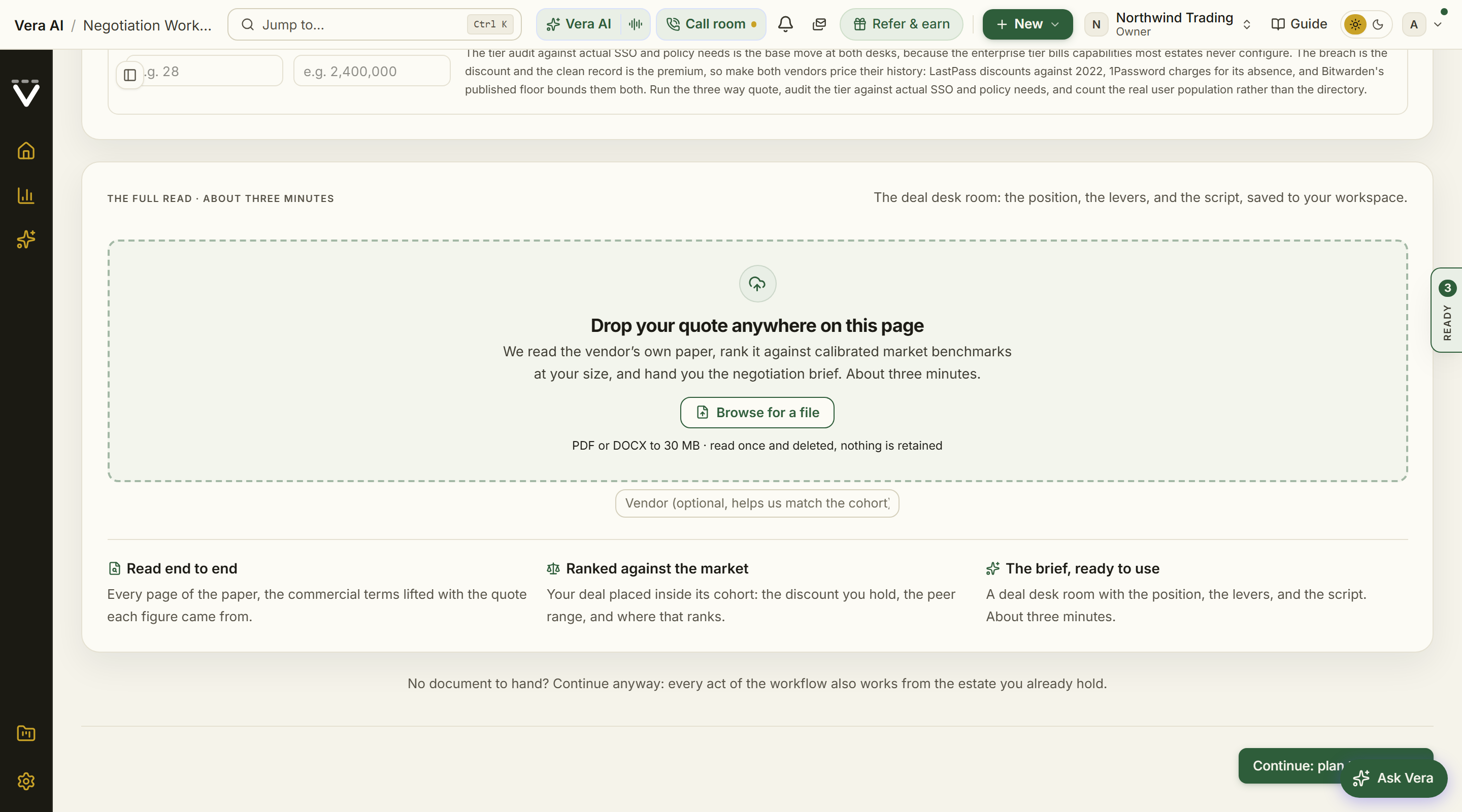
On the screen
- The upload lane — under "The full read", where it says Upload your quote anywhere on this page. Click it to browse, or drag a file onto it. The line beneath states the terms: PDF or DOCX to 200 MB, read once and deleted, nothing retained.
- Upload anywhere — the whole page is the target. The moment a file enters the browser window the page dims behind an upload veil, so you never have to aim.
- Vendor field — optional, directly under the lane. Naming the vendor helps us match the right cohort when the document is ambiguous, but we read the vendor off the document either way.
- Your last brief is saved — the row below the field once this workspace has run one, naming the deal and when it ran. Continue to your benchmark takes you straight back to it.
- The run theatre — the lane becomes the run, and the number on it is a real percentage rather than a spinner. Uploading your bytes drives the first tenth and the rest moves as each step of the analysis completes. The ring, the file name and the progress bar sit together on the left, with the eight beats in two columns beside them, reading down each column in the order they run and lighting up as they happen: uploading your document, reading the document end to end, pulling out the commercial terms, matching comparable closed deals, ranking this deal inside its cohort, writing the position and its levers and script, checking every figure against the data, and setting the deal pricing screen.
- Continue to your benchmark — the button the finished run leaves behind, beside Run another document. The deal pricing screen renders on this act, one scroll under the lane, so the press moves you down to it rather than to another page.
How to use it
- Open step 1 of the Negotiation Workflow and go to The full read. Drag your quote or order form onto the lane, or anywhere on the page, or click the lane and browse. PDF or DOCX, up to 200 MB.
- Optionally type the vendor name in the field below the lane.
- Watch the percentage. You can leave the page while it runs: the run follows you, the brief keeps building, and we tell you the moment it is ready.
- Press Continue to your benchmark. The finished deal pricing screen is already on the act, one scroll down, with the three answers, the six page case and the share actions. Copy link hands a colleague the screen on its own page.
Tips
- Upload the document that carries the pricing. A master agreement with no figures gives us nothing to benchmark, and the run will tell you so rather than guessing.
- A new upload is a new deal. The working figures clear and the previous screen steps aside while the new document reads, and the outgoing review is saved under Recent reviews first, so starting over never loses work.
- Your discount is measured against a real list price wherever one exists: the one on your document, our published price book, or one we find and cite from the vendor. Where none of those can be verified, no discount percentage is printed at all, because a percentage off a list you cannot find on your own document reads as a measurement and is not one. The benchmark argues on the rates your document does state, per user or per unit and the totals, against what comparable customers pay for the same product at the same size, says so plainly, and names what to have the vendor confirm in writing. The same deal returns the same figures to everyone.
- We benchmark against calibrated market benchmarks for that vendor. If the library does not hold a cohort for the vendor on your document, the run says so plainly instead of ranking you against a near miss.
- Your file is read once and deleted. Nothing about the document is retained.
- The lane sat on the benchmarking page until 25 August 2026, when the Benchmark Library became a window with no page behind it. The upload moved to step 1 of the workflow, where the brief it produces is already the first step of the deal. To hand a document to an analyst persona instead and get the forwardable benchmark document back, use the Benchmark Agent; it is a different read with a different deliverable.
If something looks wrong
- The upload lane is replaced by a sentence saying it needs AI switched on for this workspace. The full read needs a plan that includes AI; the instant benchmark above it answers on your typed figures without one.
- The upload is refused: the lane takes PDF and DOCX up to 200 MB, verified by contents, and Troubleshooting covers the rejection reasons.
- The run says it cannot benchmark the document: a master agreement with no figures gives it nothing to price. Upload the document that carries the money, usually the order form or the quote.
Related: The deal pricing screen · The deal (workflow step 1) · Benchmark Agent · Benchmark Library
The deal pricing screen
Where a finished benchmark lands, and the surface you take into the pricing round.
In plain words: the finished brief, plus the next moves that turn it into a negotiation.
When to reach for this
- Reading the result of an uploaded quote, which renders on the step as soon as it is ready.
- Coming back before the vendor call: the screen stays in your workspace, so the brief is where you left it.
- Handing the position to whoever negotiates: the screen is the thing to share, not a screenshot of it.
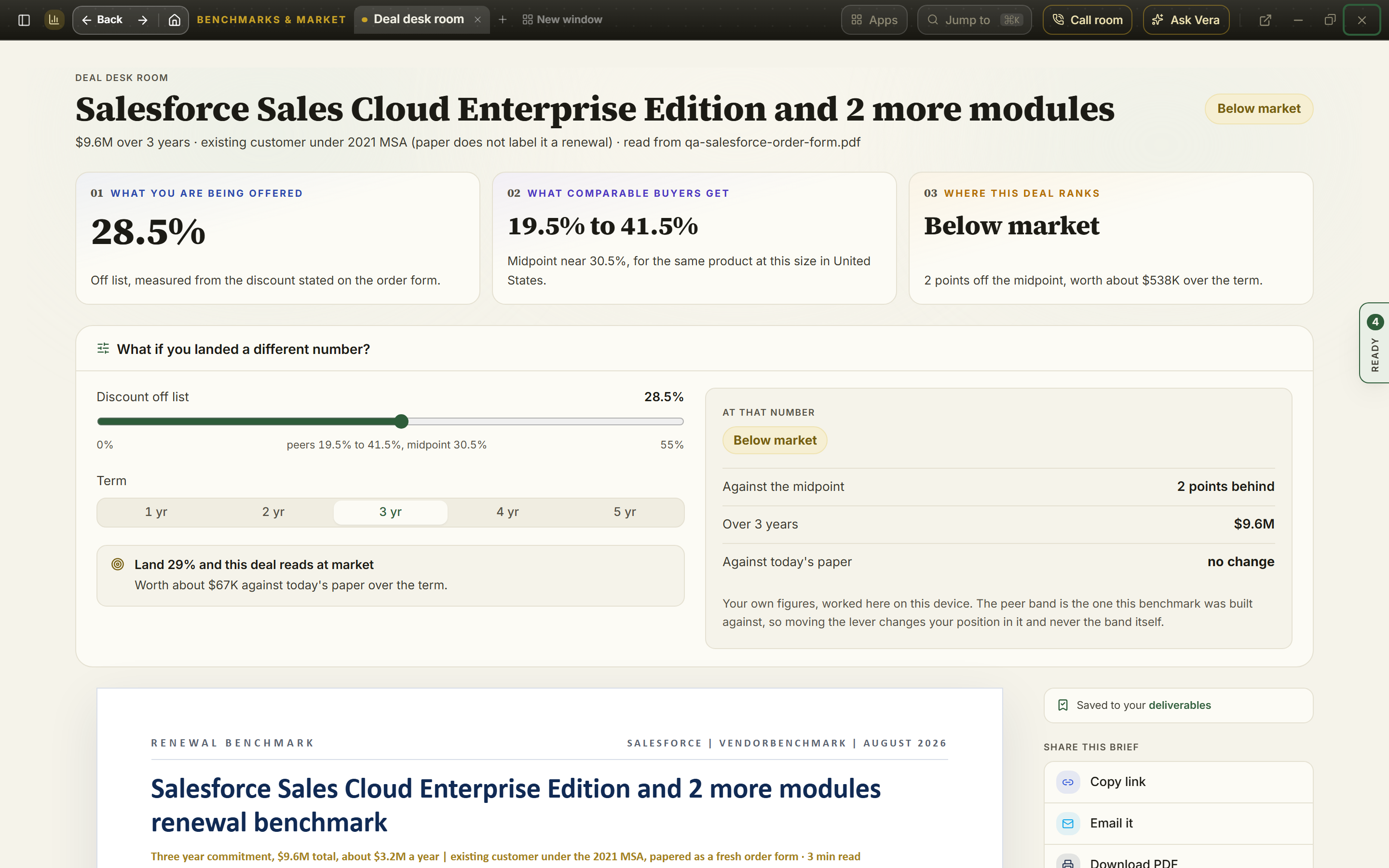
On the screen
- The finding, first — on its own page the screen opens under the Vendors and market steps with Benchmark lit: the deal named in the house masthead, one line stating the deal size, the term, your posture and the file the figures were read from, and one row with the rank (Poor, Below market, At market, Good, or Top of the market), your discount or rate, the peer midpoint and the opportunity over the term.
- The three answers — in order, what the rest of the screen argues: what you are being offered, what comparable buyers get as a range with its midpoint, and where this deal ranks, with the gap in points and in money over the term and the rank ladder lit on the rung the deal sits on. Inside the negotiation workflow the same answers keep the workflow's own look.
- What if you landed a different number? — the instrument under the three answers, and the part most people use. Drag Discount off list (or, on a benchmark measured per unit, the net rate) and the rank word moves with it: At that number, on the right, restates where that number would put you, how far it sits from the peer midpoint, what the term costs at it, and whether that saves or costs against the document you hold today. The peer range and midpoint are marked along the slider, so you can see what you are aiming at. Term switches the run between one and five years. Under the levers sits the ask, already worked out: for example Land 32.5% and this deal reads at market, with what reaching it is worth over the term; pressing it moves the slider there. Everything is computed on your own figures in your own browser, with no AI involved, so the same inputs always give the same answer and you can quote it in a call. Where you leave the lever is where you find it when you come back, and Back to this deal's figures returns it to the number you actually signed.
- The brief — six pages in the delivered executive brief format: executive summary, the deal snapshot against your vendor's proposal, a twelve row peer table with your own deal placed inside it by rank, cohort statistics, a sensitivity table, the market evidence behind the bands, the discount ladder, the size against rate chart, the rate alignment bridge, four levers with the order to play them, four talking points with lines you can say out loud, and the verdict.
- Next moves — three ways out of the screen, each in its own color: model the deal in the vendor's own tool, open a negotiation case, or ask Vera how to open the conversation. Above them sit the share actions: copy the screen's link, email it, or download the brief as a PDF, which prints the document alone without the screen around it.
How to use it
- Read the three answers at the top first. That is the finding; everything below argues it.
- Work down the brief to the levers and the sequencing note, which tells you which lever opens and which closes last.
- Before the call, set the what if slider to the number you intend to ask for, so you know what it is worth and what it makes the deal read as. The Land … line gives you the smallest ask that changes the verdict.
- Take the talking points into the call. Two of the four carry a script line in quotes.
- Use Open a negotiation case to carry the position into tracked work with a timeline and owners.
Tips
- Every peer row is a reference deal for a comparable commitment, shown by generic sub sector. No counterparty is ever named, and neither are you.
- If the brief says the rate case is closed, that is a genuine result: your rate is already at or above the market and the remaining value is in the structural terms. Play the last three levers and protect the rate.
- The what if slider never moves the peer band, only your position inside it. The band is the one this benchmark was built against, so a number you drag to is still being judged against the same market.
- A negotiation belongs to the workspace it was made in. If you belong to more than one organization and open a negotiation link from the other one, the page names the workspace the brief lives in and offers a one press switch; the brief then opens in place.
Related: Upload a quote · Delivered reports
Portfolio benchmark
Your whole software stack compared with the market in one view: which vendors look expensive, which look fair, and where the money is. Pressing it starts the app: the Portfolio benchmark opens as its own window with nothing behind it.
In plain words: every vendor you hold, ranked by how far off the market it sits.
When to reach for this
- "Where should this quarter's negotiation effort go?" answered by money rather than instinct.
- Before budget season, when the savings prize number frames the plan.
- After loading the estate, as the first read of what the document says in aggregate.
A worked example. The sample portfolio carries four vendors worth $331,200 a year together. The roll-up shows one clearly above market, the Northwind CRM subscription with $28,650 a year in reach across its seat price and discount gaps, and one clearly market-leading, the Fabrikam cloud commit, where the work is defending the position rather than repairing it. That contrast is the point of the page: it separates the deals worth a fight from the deals worth a thank-you.
The head, since 25 September 2026: one sentence says how many saved positions you hold across how many vendors, how many sit behind what comparable customers pay, and what closing the gap is worth a year. A year to the midpoint is the one large figure, with the vendor carrying the largest gap under it, and Price a deal sits on the same row. Under it one row of facts: positions, vendors, good or top of the market, at market, below market or poor, and the gap a year.
On the screen
- The screens — four tabs, Overview, Positions, Compare and Coverage. Press a position on the Overview or in Compare and the position panel opens on the right.
- The market line — every placed position on one line from Poor through Below market, At market and Good to Top of the market, placed by where your deal sits between the weakest and the strongest comparable deals at the same size. The size of each dot is the deal's annual value, so the expensive problems are the big dots on the left. Press a dot for its panel.
- Where the money is — the positions behind the midpoint, ranked by the gap a year, each with its bar.
- Move first — the largest gap in full: what you pay, what comparable customers pay (the middle half of their deals and the midpoint), where it ranks and what the gap is worth, the spread drawn, and Take it into a negotiation.
- What if you close part of the gap — two levers, how many of the largest gaps to work and how much of each to close, and what comes back a year and over three years. Three years is labeled as an assumption, because a saved scenario carries no term. The settings stay put when you leave.
- Positions — every saved scenario in one table: your value, the market median, the rank word, the trend since it was saved, the change since saved, the annual headroom, and Open tool. Small peer cohorts that move a few points read as about unchanged.
- Compare — vendors with two or more saved positions side by side, with Open the comparison; where one position is strong and the other weak, it says the strong one is the argument for the weak one.
- Coverage — the tools you use with no saved position yet, and the analyst check on the headroom.
- The position panel — the rank word and whether it moved since you saved it, the spread with your deal on it, what you pay, the middle half of comparable deals, the midpoint, the annual value, the gap a year and the data date, then the moves: take it into a negotiation, open the tool, compare the vendor's positions, have an analyst verify it, and Ask Vera.
- The seeded start — with agreements on file but no saved scenario yet, the table is not empty. It opens seeded from your own records: a row for each of your ten largest agreements whose vendor has a self-serve tool, carrying the annual value you already store, each row marked From your {vendor} agreement with the renewal month where one is held.
- The one missing figure — each seeded row states the single number its tool still needs, and why: the list value where the vendor is ranked on discount off list, or the unit count (seats, users, cores) where it is ranked on net fee per unit. A row with no stored annual value asks for that instead.
- What is not seeded — agreements beyond the ten largest, and agreements whose vendor has no self-serve tool, are counted and named under the table rather than uploaded in silence. Every vendor tool stays open from the benchmark library.
- Nothing runs until you press Run — seeded rows are a draft. They are editable and removable, and no row is placed, saved, or benchmarked until you press Run the benchmark. Removing them all says so and leaves your workspace untouched.
- What next — the roll-up ends with its next moves: rework the largest-headroom position in its vendor tool, start the negotiation, open the savings plan, copy the one line verdict, or take the numbers to Vera or a booked analyst.
How to use it
- On a fresh workspace, fill in the one missing figure on the rows you care about and press Run the benchmark for a quick placement of each.
- Open a vendor that looks above market to see the detail behind its standing.
- To keep a position in the roll-up rather than just placing it once, open that vendor's tool and save the scenario there.
- See ranked savings opportunities on the Savings step of the Spend Agent.
Tips
- A run from the seeded table is a quick placement against reference data, not a saved position. Saving a scenario inside the vendor tool is what adds a lasting row to this roll-up.
- An Oracle Technology position is ranked on discount off list, and the fee a discount gap moves is a one-time license charge rather than a yearly one, so it contributes no annual headroom to the total above.
Related: Spend Agent · Benchmark all my vendors
Benchmark all my vendors
A three page portfolio benchmark generated from every agreement you have uploaded: spend per vendor, market position where our reference data defends one, and an explicit insufficient-data note where it does not.
In plain words: the Portfolio benchmark screen as a document you can forward.
When to reach for this
- The estate read needs to leave the platform: a Word document for finance, not a screen share.
- You want the honest coverage map: page three names exactly which vendors cannot be benchmarked yet and the one step that fixes each.
On the screen
- The masthead — since 27 September 2026 the page opens on the house masthead: the report named with the portfolio under it (your workspace, the vendors and agreements, how many carry a benchmark signal, and when the report was last generated), the gold meta line, and once a report exists one row of facts from it: spend a year, agreements, vendors with a signal, the share of spend covered, the gap to the peer midpoint and the vendors with insufficient data.
- Generate report button — scans your agreements, places each vendor in its peer cohort, writes the report, and checks every figure against your stored data. Takes 1 to 3 minutes.
- Verification — like every AI-generated report, it opens with its grounding state ("Figures verified against your data", or a review notice when a figure needs one), the source count, the generation date, and feedback thumbs.
- Spend per vendor — page one: portfolio vitals and an overview of annual spend by vendor, largest first.
- Market position table — page two: each vendor's position and the basis for it, a delivered analyst score, a cohort percentile with a ± range, market reference data, or insufficient data.
- Data coverage — page three names the vendors we cannot benchmark yet and the one step that closes each gap. We never estimate a position without data.
- Before the first report — What the report will read and Renewals it will inform: your latest contracts with their status and annual value, and the renewals coming up with the days out, the notice date and the annual value, in US dollars, then How the portfolio benchmark is built in four short facts. Under them, Vendors on file lists your largest vendors by the annual value their contracts state: the contracts on file, each vendor's share of that stated spend and its next renewal date. Each row opens the vendor.
- What next — the report ends with its next moves, built from its own totals: turn the positions into the savings plan, start a negotiation on the largest headroom vendor, copy the one line verdict, ask Vera which vendor to take to the table first, or book the analyst. Send it on drafts the CFO, CIO, vendor, or colleague email from the report itself.
How to use it
- Generate or regenerate the report.
- Download as Word; the export matches the on-screen brief.
- Close a data gap by adding a list price or seat count in the vendor's benchmark tool, which moves it from reference to ranked.
Tips
- This report reads from agreements, not one-off instant checks. The more complete your Agreements list, the more of your stack it can place.
Related: Portfolio benchmark · Delivered reports
Delivered reports
Benchmark reports our analysts delivered for your proposals, plus anything still in flight with its estimated delivery date. This page is also your documents library: everything the platform has ever written for your organization lives in the All documents section below the library. Report covers in the library lead with the annual value found; the overall score sits as a small corner mark. The whole library opens as its own window, landing on the Delivered to you folder its name promises, and the Library, Reports, Generate, Drafts, Lessons and Reader tabs all move inside the same frame; Esc closes back to Home.
In plain words: the reports the analysts wrote for you, and the library of everything else the platform has ever written.
When to reach for this
- A proposal you uploaded reads Delivered and you want the finding.
- You are hunting for something the platform wrote weeks ago: a memo, a decode, a face-off.
- The renewal is near and the delivered report's levers need to become the ask list.
A worked example. The sample portfolio's delivered report on the Northwind CRM subscription shows the shape every report follows. The finding: the deal is above market, with $28,650 a year in reach. The evidence: the seat price at $571 against a market median of $504, worth $16,750 a year, and a 12 percent discount off list against a 22 percent median, worth $11,900. The structure: a 7 percent uplift cap against a 5 percent median means the premium widens every year it is left alone. The levers follow in order, priced, with the talking points scripted. Read your own reports the same way: finding, evidence, structure, then the play.
On the screen
- Report tab — a metrics table with percentile bars, market low, median and high, an overall score, and the analyst summary. Reports generated from August 2026 lead with a paged executive brief: the headline figures, the executive summary, a deal snapshot of your current position against the benchmark supported position, your terms against the market band with a standing verdict per metric, the headline metric drawn against its band, a savings bridge priced from the stored metrics, numbered negotiation levers with a sequencing note, and scripted talking points; earlier reports keep the layout they were delivered in. Since 27 October 2026 the brief opens like the reference report: What this report answers (the three questions it settles), the headline figures, then the executive summary as a short list, each line led by the figure in bold, for example your rate against the market median and where the deal ranks (Poor, Below market, At market, Good or Top of the market). Every section carries its finding as a sentence over its name, read off your metrics. The decision for you comes before the levers, and the report closes on the decisions to take, the terms the paper leaves unstated to confirm in writing, and the firm line. Word, Slides and PDF above the report are written from the same brief, so the files you forward say what the screen says; the deck runs long passages and lists on to a continued slide rather than shrinking them. Long reports show a thin gold reading-progress line at the top of the window, a reading-time estimate in the byline, numbered figures with their sources, and a Top button once you scroll.
- Open the workroom — on a delivered report, the button beside "The report workroom" on the proposal's Report tab opens the benchmark as a full screen case: numbered executive brief documents grouped in the tree on the left, paged with the arrow keys, with a read meter and Esc to close. Six documents: the cover, the source proposal record, the analyst brief, a metrics atlas with the market ranges and the verdict table, an ask sheet priced from the stored figures, and a What now sheet with a drafted CFO brief, a vendor safe meeting request, chat ready copies, and the PDF. Drafts open in your own inbox, nothing sends from a case, and every figure is read from the report itself.
- The folders — Inbox, Flagged, Delivered to you, Drafts, Archive and In production down the left. The folder you are in and the document you have open are marked in a quiet gray, an unread document carries a small dark dot and sits in bold, and a gold flag marks one you flagged.
- In-flight benchmarks — proposals still in review, with an estimated delivery date.
- All documents — every brief, memo, and report your organization has generated. The library opens as a shelf of document covers, hued by type, with the vendor, title, and date on each spine; a Covers | Table toggle switches to the dense table (sortable, searchable, pageable, CSV export) and remembers your choice. The library also lists your saved drafts, contract decodes, and quote face-offs alongside the AI deliverables. A cover or row opens the document itself, with the owning record one click away in the table's Context column.
- Origin filter — beside the type filter, narrow the library by where a document came from: All origins, AI report, Tool run, or Draft.
- Boardroom Brief, presented — after writing a Boardroom Brief from this page, Present beside its download actions opens it full screen as a four movement show: the posture, renewals and risk, savings and leverage, then the asks, with the brief's KPI figures in the show's ticker and a printable leave-behind of the screens you walked.
- Boardroom Brief, as a case file — once a brief is written, Open as a case file in the dialog and preview footers expands it into the same full screen case reader: a cover sheet with the headline numbers and the bottom line, one exhibit per section of the brief, and a What now sheet carrying the same Word and PowerPoint downloads, a team circulation draft, and the apps to open next.
- Word downloads — a document whose type supports it shows a Word button beside Read it when you select its row, so you can export straight from the list. Most document types export to Word, including vendor dossiers, QBR prep packs, deal handoff memos, audit exposure reports, clause coverage reports, consolidation memos, position trajectory reports, diligence reports, SOW rate reviews, vendor relationship analyses, and saved tool analyses.
- Put an analyst on it — in the report's moves, one press sends the document to a VendorBenchmark analyst through the same request the record page's button makes, and says the day the benchmark is due. A document already with the analysts says so instead of queuing twice. Say it to the specialist by name and the same move is pressed for you.
- The specialist reads the report with you — a specialist on the line sees the delivered report whenever this tab is open: the executive summary, where you stand, every term against its range, the asks, the clause risks, the recommendations and the bottom line. Say walk me through it and the answer comes from the report itself; say open my Salesforce report at the recommendations and the tab lands on that section with a ring on it (the clause risks, where you stand, the levers and the executive summary answer the same way). Once you have kept a target on the agreement (below), the report carries Your target and the specialist says where the deal stands against it.
How to use it
- Open a report and walk the metrics.
- Download the report as a PDF.
- When you are hunting for something the platform wrote earlier, sort or search All documents instead of revisiting the record that produced it; the row opens the document itself, and the Word button beside Read it downloads it directly.
- Bookmark a report for later, and find it again in Saved.
Tips
- A delivered report comes from uploading a proposal for expert review, not from an instant check. Start one on the Contract Office screen.
If something looks wrong
- The library is empty: no proposal has reached Delivered yet. The in-flight benchmarks show what is coming and when; an instant benchmark fills the gap today.
- A report you expect is missing from All documents: check the Origin filter first; it may be narrowed to one origin.
Related: Contract Office · Saved
My gallery
Every document you asked Vera or one of the specialists to make, and only yours. Ask out loud on any call (put this in a document, make me a sheet of the peer set, turn it into a deck, send me the minutes) or in a typed conversation, and the result lands here.
On the screen
- The head — how many documents Vera has made you and how many this week, with the count of documents, sheets, decks and minutes, and how many were emailed to you.
- Format filters — All, Document, Sheet, Deck and Minutes, each with its count.
- The cards — one per document: its type, title, the opening of its executive summary, what you asked for in your words, when it was made, whether it was emailed, and download links for Word, Excel and Slides (the format it was sent in comes first).
- Other documents you made — the other reports and briefs you created yourself, each opening where it lives.
- A document — opens in the firm document style: the type strip, the title, the gold meta line, up to four headline figures, the executive summary, the numbered sections with their tables, the actions agreed (minutes), the recommendations and the bottom line.
How to use it
- On a call with Vera or any seat, say what you want and what it is about.
- The first time, Vera asks whether you want it in your gallery only or emailed to you with the file as well. Say always and she stops asking; you can change the answer on Vera and you.
- Open My gallery to read it, or download it as Word, Excel or slides.
- For minutes, say send me the minutes during the call. On your own line, the phone line included, they arrive when the call ends; the seat in a Zoom, Teams, Meet or Webex meeting sends them when she leaves.
- In a meeting, ask the seat for a document, a sheet or a deck and she starts it straight away, from the meeting so far and your records; it reaches you in a few minutes, while the meeting is still on. Three per meeting.
Tips
- Minutes and documents from a meeting seat go only to the person who sent the seat in, never to anyone else in the meeting, whoever asks.
- Every figure is argued in USD from your own records; where your records do not hold something, the document says so rather than guessing.
Related: Delivered reports · Vera and you · What she remembers
Send it on: the follow up email, drafted
In plain words: the follow-up email, already written, for whichever reader you have in mind.
A report is rarely the last step; someone has to act on it. Send it on, at the foot of every report, drafts that email for you. Pick the reader and the email opens over the whole screen (since 2 October 2026): what you were looking at on the left, the email on the right, on a page you type on. Minimize folds it to a bar at the foot of the screen with the draft kept, and a press on the bar brings it back (since 7 October 2026). Vera writes it only from the report, never from figures the report does not carry. Nothing sends from the platform: you copy the finished email or open it in your own mailbox.
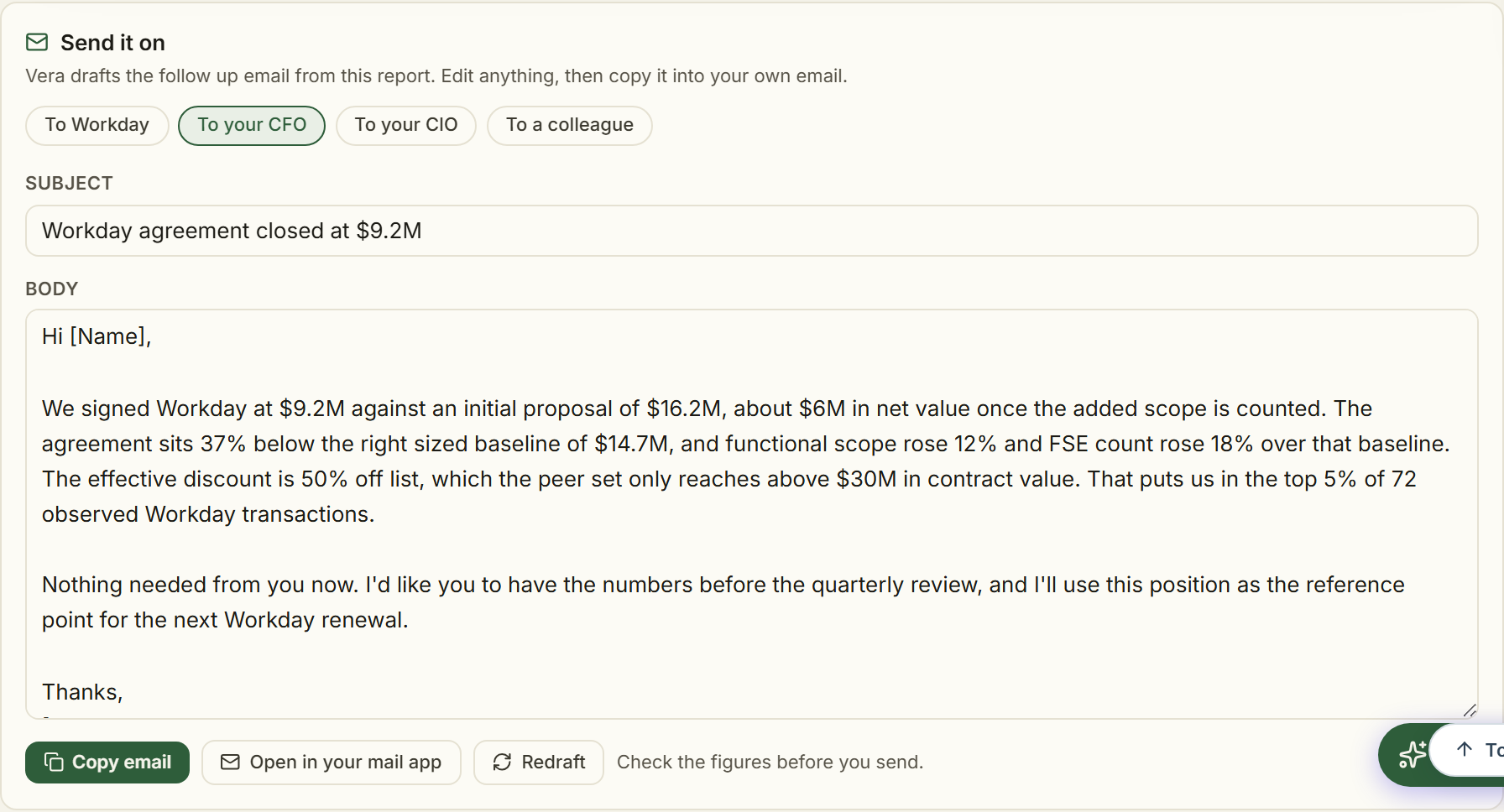
On the screen
- Reader buttons — To the vendor's sales rep (named when the report knows the vendor), To a colleague, To your management, To your CIO. Each reader gets its own draft: the vendor note is friendly but firm and careful about what it reveals, the CFO note leads with the money, the CIO note frames the platform decision, the colleague note is a quick heads up. A reader whose draft is kept carries a tick.
- The left side — What you were looking at: the report the email is written from, as you read it, which folds to one line. Under it, the thread with Vera, the follow ups she offers, and a box to tell her what to change or to ask a question.
- The right side — the email: the subject and the body as a page you type on, under a toolbar: a paragraph style (Paragraph, three headings and Quote), bold, italic, underline, strike through, the two lists, left, center and right alignment, a link, and undo and redo (since 3 October 2026 for the styles, the alignment and the links). Each button shows the style the words under the caret carry.
- Links — select the words, press the link button or Ctrl K, and type the address. A plain address such as vendorbenchmark.com becomes a web link and an email address a mail link; with the caret in a link the same box shows its address and offers Remove link. A web address Vera writes into a draft is already a link. Ctrl click a link to open it while you type. Copy email keeps the headings, the alignment and the links for Outlook and Gmail; in the plain text copy a link reads as its words with the address after them in brackets.
- Versions — every change Vera makes is a new version and the one before is kept. Pick one from the list on the toolbar; Bring this version back adds an older one as the newest.
- Show edits — marks what went in and what came out, word by word, with the count.
- Where the figures come from (since 3 October 2026): under the page, every figure, date, percentage and named clause in the draft with the sentence of the result it was read from, word for word, numbered. A figure the result does not state does not go into the email. The list belongs to the version you are looking at, so an older version brought back carries its own.
- Copy email, Open in Outlook, Open in Gmail, Your mail app — at the top of the window. Copy keeps the formatting. A draft too long for a link opens with its subject, and the body is copied for you to paste. Nothing is sent for you.
- Close, or Esc, comes back to the report. From a report read in a pop up, the pop up is still open behind it.
- Your draft is kept — leave and come back, and the draft is there with your edits and its versions. A draft you kept in the earlier box under the same report is brought across.
- Email, on every title bar (since 5 October 2026) — every app window has Email (a row of the Share menu on the title bar since 25 October 2026). Press it for the same three readers in every app, the vendor, your CFO and a colleague, and this window opens with that reader's email being written from what the screen shows. In the Benchmark Library, once a deal is priced, it is written from that deal and is the same draft the line under the finding keeps. A reader whose draft is kept is marked. On sample data the three are grayed, with one line saying why. Home, All apps and every other page without a window have the same button in the top bar, beside Vera AI; on Home it is written from the renewal due first.
- Shall I draft the email? — in the Benchmark Library, Vendors and the Document Agent, a finished result ends with this one line and three buttons: the vendor, your CFO, a colleague. Press one and the same window opens with that reader's email being written. In the Negotiation Agent, the Benchmark Agent, Vera AI, Renewals and the Contract Office the same place holds Follow ups, which lists the next questions under the result as well.
- Confidentiality check — vendor drafts pass the same scan as negotiation language; if a draft carries an internal figure or a name it should not, a warning lists exactly what to remove.
- On the dashboard — the dashboard carries Send it on, listing your newest documents; Draft email opens the same window without leaving the dashboard.
- In theatre mode — presenting a brief adds an envelope button to the presentation controls; it opens the readers over the show, built from the document on stage, so the follow up is written before the meeting room empties.
How to use it
- Open any report and scroll past the document to Send it on.
- Press the button for the reader you have in mind. The window opens and Vera writes the email in a few seconds.
- Type on the page until it sounds like you, or tell Vera what to change in the box on the left.
- Press Open in Outlook or Open in Gmail to start the message in your mailbox, or press Copy email and paste it into a new message.
Tips
- Drafts only state figures that appear in the report itself. If a number is missing, the email speaks in direction instead; add specifics in your edit if you want them.
- Each reader has a draft of its own; with more than one they sit as tabs over the page.
Related: Delivered reports · Renewals · Follow ups
Follow ups: the next question, and the email drafted side by side
In plain words: what you are likely to want next, one press away, and the email that follows written beside you.
A finished result is where the work starts. Follow ups lists what a buyer usually does next with it, takes any question of your own, and writes the email that follows. The draft is an email you can type on, and it opens side by side with the thread so you can tell Vera what to change and see each change. Vera answers and writes only from the result above it. Nothing is sent by the platform.
On the screen
- Draft the email. Three buttons at the top, the same under every result: the vendor, your CFO, a colleague. Press one and Vera writes that reader's email in the thread; a reader whose draft is kept opens it instead.
- Follow ups. Up to four rows, each a whole instruction. An envelope marks a row that writes an email, an arrow a row that answers a question. The first rows come from the result itself (the vendor, the notice date, the gap). After Vera's first reply the rows are hers, offered with every answer and every draft.
- The box. Type any question, or ask for an email. Enter sends, Shift Enter adds a line.
- The thread. Your asks and Vera's replies, newest last. An answer has Copy. While Vera works, the wait shows the step it is on and its own clock.
- The draft. An email in the thread: the subject, the body as a page you type on, a toolbar (bold, italic, underline, strike through, the two lists, undo and redo), and under it Copy email, Open in Outlook, Open in Gmail and Your mail app.
- Edit side by side with Vera. Opens the room: on the left what you were looking at (it folds to one line) over the thread, on the right the draft, Close or Esc to come back. Since 25 October 2026 it opens as a panel on the right with the screen still in view beside it, Minimize, Full screen (and back to Side panel) and Close sit beside its title, and on a narrow screen it fills the screen as before. Minimize (since 7 October 2026) folds the room to one bar at the foot of the screen with everything kept: Vera keeps writing while it is down and the bar shows the clock, then the reader and the subject when she is done; press the bar, or its Open, to bring the room back where it was, and the bar's close is the room's Close. With a draft open the box gains three settings: Auto (Vera decides whether to change the draft or answer you), Edit (she changes the draft) and Answer (she answers and leaves the draft as it is).
- Versions. Every change Vera makes is a new version, and the one before it is kept. Pick a version from the list on the toolbar. An older version is read only; Bring this version back adds it as the newest and writes over nothing.
- Show edits. Marks what went in and what came out against the version before, word by word, with the count. On the first version it shows your own hand edits.
- More than one reader. An email for a different reader (the vendor, then your CFO) is its own draft with its own versions. In the room they sit as tabs over the page.
- Confidentiality check. A draft for the vendor passes the same scan as negotiation language; a warning lists exactly what to remove.
- In Vera AI. In a finished brief's details, Email it to a colleague takes you to the follow ups under the brief, where the email is drafted. Each reader has a draft of its own.
- Kept. The thread, the drafts and every version stay with the record on this browser. Leave and come back and they are as you left them. A draft you kept under the earlier one line offer on the same record is brought across.
- Where it sits. In the Negotiation Agent, under each written document. In the Benchmark Agent, at the foot of a report on the Simple page, and under the price benchmark and Negotiate in Advanced. In Vera AI, under a finished brief. In Renewals, at the foot of a renewal's file. In the Contract Office, under the Plan and Benchmark tabs of a contract's case file.
How to use it
- Finish the result: write a document in the Negotiation Agent, open the price benchmark in the Benchmark Agent, open a brief in Vera AI, open a renewal's file, or open a contract's plan in the Contract Office.
- Press a follow up, or type your own.
- When the draft appears, type on it, or press Edit side by side with Vera and tell her what to change.
- Turn on Show edits to check what moved, then press Copy email or open it in your mailbox and send it yourself.
Tips
- Vera states only figures the result carries. Where a figure is missing the email speaks in direction; add it by hand if you hold it.
- The Negotiation Agent's sample deal and the Benchmark Agent's sample book show no follow ups, because they are not your deals.
Related: Send it on · Negotiation Agent · Renewals
Report Studio
One window, eight tabs: Start, the 80 reports, Views, Build, the report written in front of you, the finished report, every run and the standing reports. Every report is written from your stored agreements only, for the reader you choose, and every figure is checked against your data before it is filed. Where the data cannot support a number, the report says not on file instead of estimating.
In plain words: say who the report is for and what it is about, press Create it, then read it as a document, a dashboard or slides, or export it.
When to reach for this
- The board, the CFO or the CIO asked for something and the deck building afternoon is not available.
- The recurring reports (the run rate, the ninety day window, the quarterly review) should come from live data every time, without anyone remembering to run them.
- You need several reports together: a pack runs three or four in one press and files them side by side.
- You need a report the catalog does not have: Build makes one from the findings and views you pick.
On the screen
- The head — Report Studio with its state, Views, Open the last report and the blue New report, then one line of the estate's facts. On the Report tab the head is the report's: its title, how many figures are grounded, for whom and which version, with Boardroom, Export, Forward and Regenerate.
- The tabs — eight numbered chips under the head and the same eight rows in the left column, each with one figure: Start, Catalog (80), Views (the saved views), Build (the findings chosen), Writing, Report, Runs and Standing. Keys 1 to 8 move between them; N opens Start.
- Start — since 25 October 2026 one row of labeled fields: Report, Reader, Scope (the whole estate or one vendor), Depth and Form (a dashboard or a boardroom deck), with Create it at the end of the row. Under the row, the preview is the real dashboard or first slide at a readable size, drawn from your record (from the sample until your agreements are in). Beside it, Or ask in your own words: the closest reports are listed with how well each fits, Enter takes the best, and Build it as your own report turns your words into the question of a new report. Then the reports picked for the reader you chose, in the same table and preview pane as the catalog, and Ready made packs: Board pack, CFO month end, Renewal season, Vendor review, Audit and risk, and New CIO, first 90 days, each with the reports it holds and Run the pack.
- Catalog — Before you run sets the reader, the length and the scope once; Vera suggests for today offers three reports the estate calls for, each with the why; The reports are grouped by family, as a List or a Gallery of their dashboards. Since 25 October 2026 the list is a table (report, reader, pages, last run, exports) with the selected report shown large in the pane on the right, with its reader, pages, scope and last run, Run it and Open the last run. Press a row, or move with Up and Down once the table has focus; double press a row to run it. A report already run carries Excel, Word and PowerPoint in its row, which open that run with the export. Search filters by title and topic; the family chips narrow it.
- Views — pick a figure (annual spend, agreements, renewing in 12 months, value with no cap, benchmark score), a cut (vendor, agreement, agreement type, renewal quarter, owner, currency, benchmark status, uplift cap) and a chart (bars, columns, a donut or a table), and narrow it to agreements renewing in 12 months, with no uplift cap, with no benchmark evidence or over USD 100K. The chart opens with one line on what it shows, and the agreements behind it are listed below. Save view names and keeps it, Present shows it full screen, Put it in a report adds it to Build, and Excel downloads the view as a workbook: the rows with live shares and a total (an average for benchmark scores), then the agreements behind it.
- Build — your own report: a title, the question it answers and the reader; then Findings, in order, which you drag (or move with Up and Down) into the order you want; Add findings offers every finding the catalog's reports are made of, in six groups, plus your saved views, or copies the findings of any catalog report. As it will show draws the top of the dashboard on the right as you choose. Create it writes it.
- Writing — the report written in front of you: the agreements opened one by one, the vitals, the findings as they land, then every figure checked against the record. When a pack is running, a strip above shows each report of the pack and which one is being written.
- Report — the finished report opens as the Document since 25 October 2026: the pages of the firm document at page width on a grey ground, with the page you are on, the page count and the zoom (out, in and Fit width). Dashboard and Boardroom beside it show the same report as a dashboard or as slides; a run asked for as a boardroom deck opens on the slides. The dashboard opens with the title and whether every figure is grounded, the headline figures in one strip, the answer in two sentences, one panel for each finding with its figure, its first line and its chart (press The detail for the rest), What to do as a checklist, the bottom line, and the agreements table. Above it the Export buttons (Excel, Word, PowerPoint) and the versions as chips. A pack's reports are listed in a strip above so you can step between them; a finished pack is kept as a binder, so the strip is there whenever you open one of its reports.
- Boardroom (key B) — the slides full screen: the title slide, the numbers, the spend chart, one slide for each finding with its figure and chart, What to do and the bottom line. Left and Right move, Esc closes, PowerPoint exports the deck.
- Export (key E) — previews the file, then downloads it. Excel workbook: six sheets (Summary, Agreements, Renewals, Vendors, Findings, Checks) with live formulas, filters and frozen headers, renewals inside ninety days in red, gaps in gold, data bars in the cells, and one Uplift input on Summary that moves every exposure figure. In the preview, press a sheet tab to open that sheet, and press a cell to see its formula. Word document: the firm's document design with real headings (Word builds the navigation and a contents page from them), each finding with the table of figures behind it, the moves, the bottom line, where the figures come from, and the agreements as an appendix; every sentence that prints a figure carries a footnote with its source and the day it was read, and wherever the record holds nothing a Word comment on the words says what to add. PowerPoint deck: 16 by 9 in the house design, native charts you can restyle and the full finding in the speaker notes.
- Runs — Binders first when a pack has run: each binder with its reports as chips, its reader, how it shows and when it was filed, Remove at the end. Then every run filed with its reader, its length, its scope, when it was written, whether it is grounded and its version, Forward on each row.
- Standing — the reports that run by themselves: each with its cadence (weekly on Monday, monthly on the 1st, quarterly on the first day, overnight), its next date, who receives it, a switch to pause it, Run now and Remove. Add a standing report picks the report, the cadence, the reader (the board included), the length and the colleague who receives it as a 30 day link.
- The details column — what to do now (the run in progress with Stop, the open report with Forward, Boardroom and Export, the selected report with Run, or the first need), what the selected report examines, this studio's figures, the estate every report reads, Needs you, Recent and Ask Vera.
- Forward — emails the open report to a colleague with your own note and a 30 day read only link. No account needed on their side.
- Regenerate — another reader or length, or the same again on today's record; the new version sits beside the old.
- The Sample data switch — Northwind Trading's estate of 15 agreements across 12 vendors, seven reports already filed and three standing; any of the 80 is written in fifteen seconds, and the exports download, so you can see the whole studio before your own agreements are in.
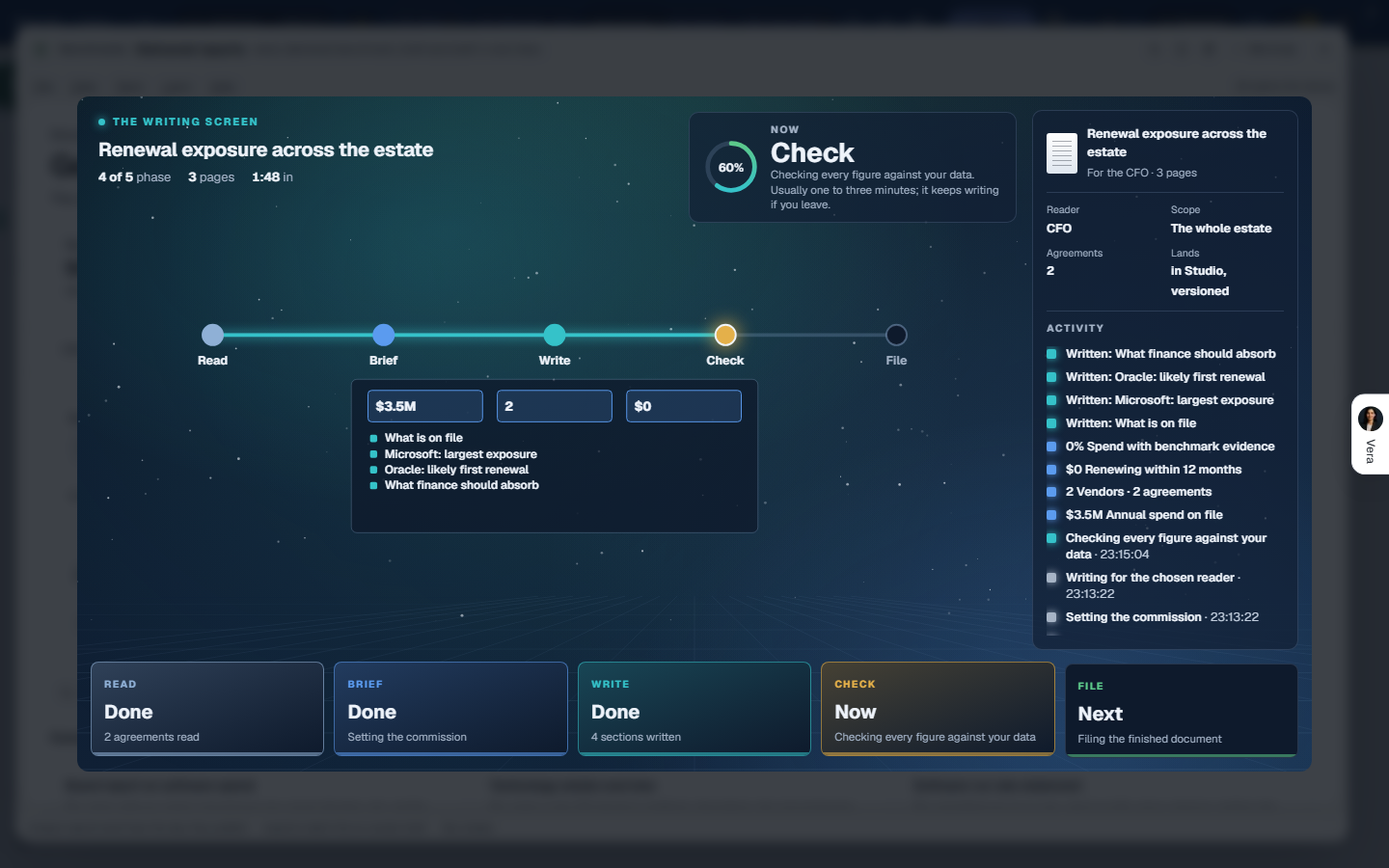
How to use it
- Open Report Studio from Home. On Start, set the report, the reader, the scope, the depth and the form in the row of fields, or type what you need in the box and press Enter.
- Press Create it. The Writing tab opens and the report is written in front of you; it takes 1 to 3 minutes and keeps writing if you leave.
- When it is filed the Report tab opens on the document. Press Boardroom to present it, Export for Excel, Word or PowerPoint, Forward to send a colleague a 30 day link, or Regenerate for another reader or length.
- For several reports at once, press Run the pack on one of the ready made packs. The reports are written one after another and filed together.
- For a report the catalog does not have, open Build, give it a title and the question, add the findings and views you want in order, and press Create it.
- To have a report written by itself, open Standing, pick the report, the cadence, the reader and who receives it, and press Add it. It runs overnight on its day; Run now writes it today.
Tips
- The same report reads differently per reader: the board version leads with what the board must decide, the CFO version leads every finding with the number, the CIO version reads the estate as platform strategy, the procurement version is an ordered work list.
- Change the Uplift cell on the workbook's Summary sheet to test another price rise: every exposure figure in the workbook follows.
- Every run files into All documents on Delivered reports with its versions, so a monthly standing run never overwrites last month's edition.
- A report is only as complete as the record: the Data gaps report tells you which missing values and dates to fix first.
Related: Delivered reports · Benchmark all my vendors · Contract Office
Vendor scorecards
Twenty software vendors graded A to F on how their renewals land: how far a renewal usually rises against the term before, from the best prepared deals to a renewal signed as sent. Against what you spend with each, it shows what a typical renewal adds to your bill, what a price increase cap would keep, and what other buyers say. Since 22 October 2026 it opens on the frame every app shares, in four steps; the earlier window stays at /scorecards?classic=1.
In plain words: which of your vendors will raise prices most at renewal, by how much, and what a cap would save.
When to reach for this
- Before a renewal: the grade and the typical rise tell you what the vendor will ask for.
- When shortlisting: two similar products with different renewal habits are not similar purchases.
The grades
- A: renewals land flat or lower.
- B: small rises a prepared buyer can hold.
- C: rises of about 5 to 8% are normal.
- D: double digit asks are common.
- F: the steepest renewals we grade.
On the screen
- The head — the step's name with one status tag (how many of yours renew in 90 days), and one row of facts: vendors graded, yours, what you spend a year with them, what a typical renewal adds (press it to open the vendor that adds most), what renews in 90 days (press it to open the first), and the steepest vendor in the book. Hover a figure for its detail. On Cap your renewals the row is the cap's result instead: the typical rises a year without a cap, with the cap, and what you keep. The primary button moves you on.
- 1 Your vendors — the vendors in your contracts appear on their own. With none yet, the step asks which of the twenty you buy from: press a vendor to add it, or press Use the sample for eight vendors filled in. Each of yours shows its grade, where its renewals land on one shared axis (the band is the range, the tick is typical, the line is a flat renewal), the typical rise, your spend a year, what a typical renewal adds, and when it renews. For a vendor not in your contracts, type the spend in the row; it is kept for the workspace. The table starts at the top of the step; its totals are the head's figures.
- 2 All vendors — every graded vendor, steepest first. Press a grade in the legend to see only that grade, or search by name; Add makes a vendor yours.
- 3 Cap your renewals — one lever, the cap you would write into each renewal, 0 to 15%. A vendor that usually rises less is unchanged; one that rises more is held to the cap. The head's figures show the typical rises a year, the same with the cap, and what you keep, and move as you move the lever; the table shows it vendor by vendor. Open the Fair Renewal Rider writes the cap into an order form. Without spend, the step reads in points.
- 4 Reviews — what buyers say about each vendor on renewal fairness, audit fairness and commercial flexibility, shown only as averages once three organizations have rated it. Rate a vendor files your own review: one per organization, with an optional line others may read and a note only our analysts see.
- A vendor — press any vendor to open it on the right: its grade, where its renewals land with the best deal, typical and no preparation marked, your spend and what a typical renewal adds, what your cap keeps, how buyers rate it, and the next moves: benchmark it, write a cap in, plan the renewal, or open everything you hold with it. The address carries the vendor (
/scorecards?vendor=salesforce), so a link opens it directly; the old/scorecards/<vendor>addresses open the same view. - Sample data — the switch in the title bar shows Northwind Trading's eight vendors with their spend and renewal dates in place of your own, for you only.
- Keys — 1 to 4 move between the steps, / finds a vendor, I shows or hides the details column, V talks to Vera, Esc closes the vendor and then the window.
How to use it
- Open Your vendors and add the vendors you buy from, with what you spend a year.
- Press the vendor whose typical renewal adds the most and read where its renewals land.
- Open Cap your renewals, set the cap you would ask for, then Open the Fair Renewal Rider.
- Rate a vendor you renewed this year.
Research
Our latest white papers and market notes: vendor pricing moves, licensing changes, and negotiation guidance, opened in the library's own window.
Since 9 October 2026 the Research Library's four screens are the numbered rows at the top of the left menu, and each screen's head states its numbers in one sentence. The details column opens with what to do now and one button that does it, then the facts, the next moves and Ask Vera.
In plain words: the library in four screens. The Library asks what you are working on, shows the note to read first and holds the whole shelf as one table. Vendors shows what the library holds on each vendor you hold, and where it is thin. Read and watch holds the films and briefings. My reading keeps what you opened, set aside, saved and clipped. Press a note and it opens in place with five tabs; press a vendor and it opens with three. Closing the window returns you to Home.
The library wears the frame every app shares. Since 5 October 2026 the library opens in the same window as the Deal Agent, Contract Office and the Monday brief: the menus, Share and the window buttons in the title bar; one navy column on the left, which opens with the four screens as numbered rows; a compact head; the work on panels; the details on the right; and the keys along the foot. Nothing you kept was reset: your reading progress, read later, clips and the documents you asked for all carried over.
- The screens. Library, Vendors, Read and watch and My reading, numbered 1 to 4 at the top of the left column; press the number to move. Library carries the count of notes new since your last visit, My reading the notes you have open.
- The head. The screen's name, one status tag, one sentence of figures and one blue button. On the Library the figures are the documents, the vendors with research and the documents on vendors you hold; the button is Ask Vera what to read.
- The left column. Home, Vera AI and your pinned apps; the four screens with their figures; Continue reading, the two notes you left open with how far you got; Your vendors, the five whose terms end soonest with the date; and Related.
- The details column. It opens with what to do now and one button that does it. Then, on a screen: your reading in four figures, the next moves, the renewals ahead and three questions for Vera. On a note: its facts, its contents (press a section to land there) and the next moves. On a vendor: its facts, the topics covered and the next moves. I shows and hides it.
- Find. Ctrl K finds a note, a vendor or a screen. / puts the cursor in the shelf's search.
- Right click. A right click on any note lists what can be done with it: open it at any depth, read later, save, like, open its vendor, ask Vera, forward it, copy a link. A right click on a vendor opens Vera's own menu.
- Opening. Since 25 October 2026 the library opens on the first 50 notes of the shelf, and the rest of the shelf arrives behind them a moment later; the status bar reads Loading the shelf until it has. The counts that need the whole shelf (Your vendors, New, the topics, the documents on vendors you hold) show once it lands. A link that searches or filters the shelf waits for the whole shelf. The PDF reader loads when you open a note that is a PDF.
- The earlier window. The numbered steps, with the tour, How it works and reading mode, are on View › Earlier window.
The notes themselves are unchanged: every document still opens as the designed file in the note reader.
Ask Vera what to read. The box at the top of the Library, and the blue button in its head. The library holds thousands of documents and only a handful are yours this week, so name the vendor, the renewal or the question and Vera picks from your shelf. Two to five notes come back, best first, each with a line on why it earns your time; press one to open it. A note on a vendor you actually hold outranks a better note on one you do not, and the answer says so when that is the reason.
- It picks, it does not answer. The notes carry the argument. Vera says which one to read and why, which is a different job from a written answer.
- It can only name documents we hold. Every suggestion is checked back against your own shelf before it reaches you, so nothing it offers is a document you cannot open.
- Openers from your renewals. Before you type, the first openers name your nearest renewals by vendor and date. Press one and the picks arrive.
- Fit it to your time. Move Time you have and the picks refit to the minutes you have, from each note's own reading time. A line under the picks says how many more would not fit.
- The shelf answers first. The closest notes on your shelf appear at once, in the shelf's own order; Vera's ranking and her reasons replace them a moment later. If Vera cannot answer, the shelf's picks stay and a line says so.
- Keep going. Each reply carries two or three follow ups; press one to ask again.
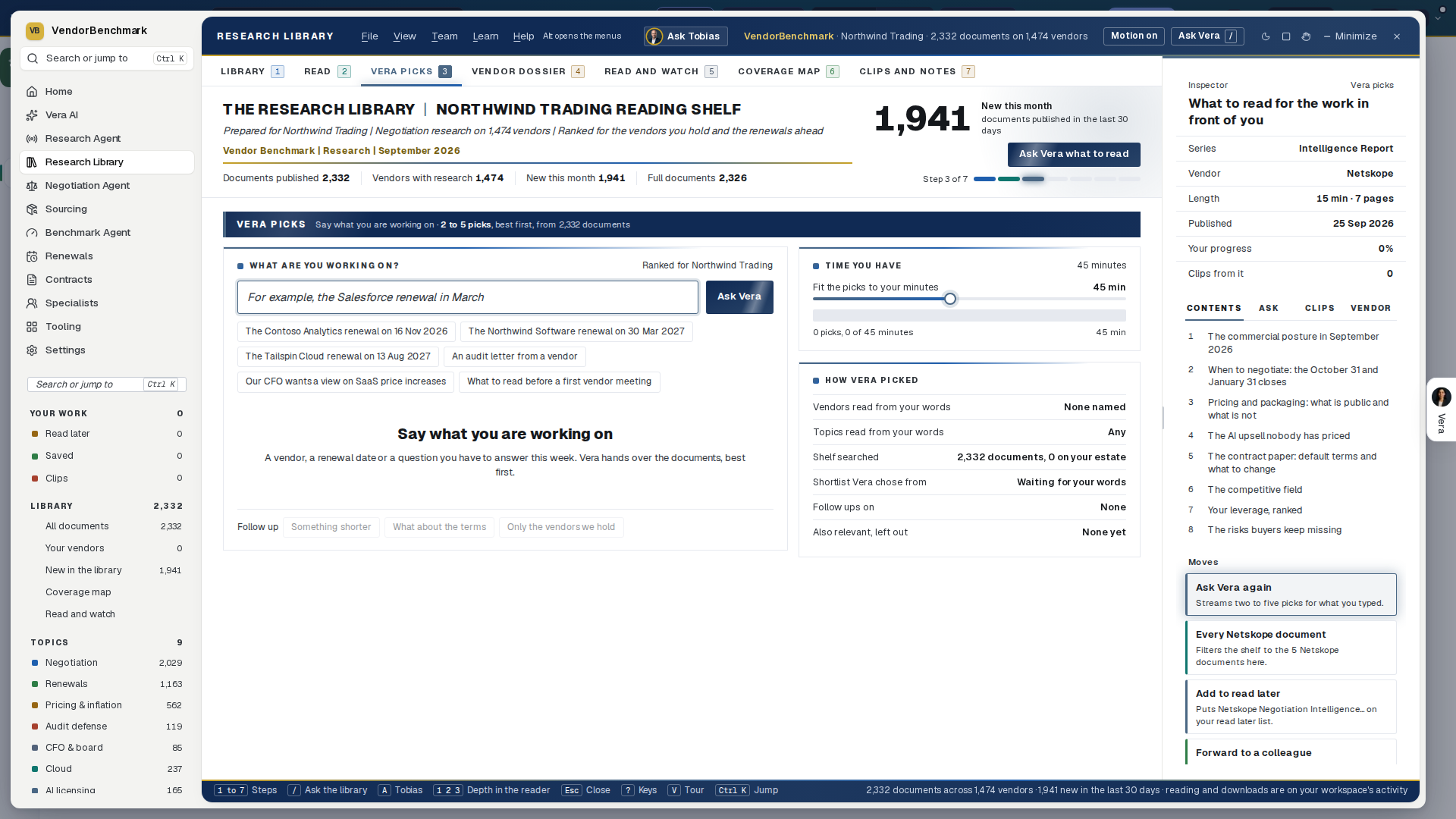
What the wall counts. The figures in the head's sentence state your whole shelf, not the part of it on screen: every document your workspace can reach, the vendors those documents cover, how many arrived in the last 30 days, and either the documents on vendors your workspace holds or the documents that render in full. They count your spend category, which is what the library below them carries, so on Information Technology and Software the wall counts that category's documents and vendors, fewer than the library holds in total, and it changes when you change category in the header. Every figure is counted in the database rather than measured off the documents already loaded, so the number over the library and the documents on it can never disagree.
The library opens on your spend category. The library carries the documents written for the category you are working in and switches when you switch category in the header: 587 on Information Technology and Software, 75 on Travel and Entertainment, 54 on Professional Services, 51 each on Facilities and Office Services, Marketing and Workforce, and 26 each on MRO and Logistics. A document we cannot place to a category stays on every shelf, because general reading about negotiation or funding a case with the CFO belongs to everybody. Looking a vendor up by name, a specialist's own reading pack and the staff view are not filtered: there the subject is already chosen.
Every supplier we benchmark has a paper behind it. The curve document that sets a supplier's benchmark is itself a research paper, and all 324 of the indirect ones are in the library: how the commercial model works, the structural anchors with their published sources, the curve with the evidence grade for each line, how to read it, the adjustment factors, the plays to run and where every figure came from. Read it on the page like any other paper (Enterprise workspaces download it as a Word document), or open the supplier's benchmark from it.
When to reach for this
- A renewal is coming and the vendor's Negotiation Toolkit and Renewal Outlook are the homework.
- Something moved in the market (an audit campaign, a licensing change) and you want the considered read, not the headlines.
- Ten spare minutes: the Most liked shelf is reliably worth them.
Open a note and the details column lists its contents; press a section and the note opens there. Where the note is its original PDF, the section opens in The read, which is drawn from the note's text, and the PDF keeps its own contents.
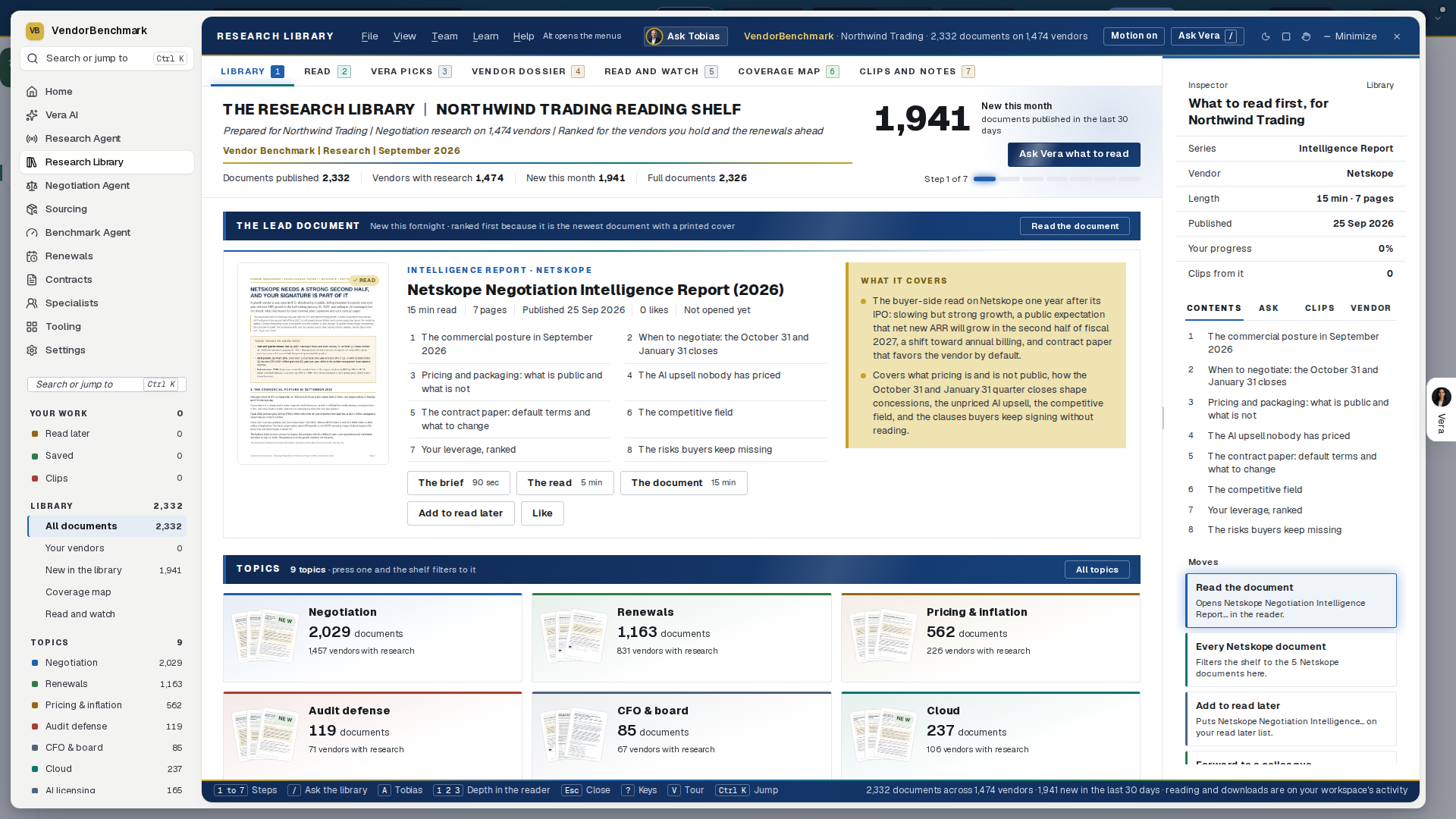
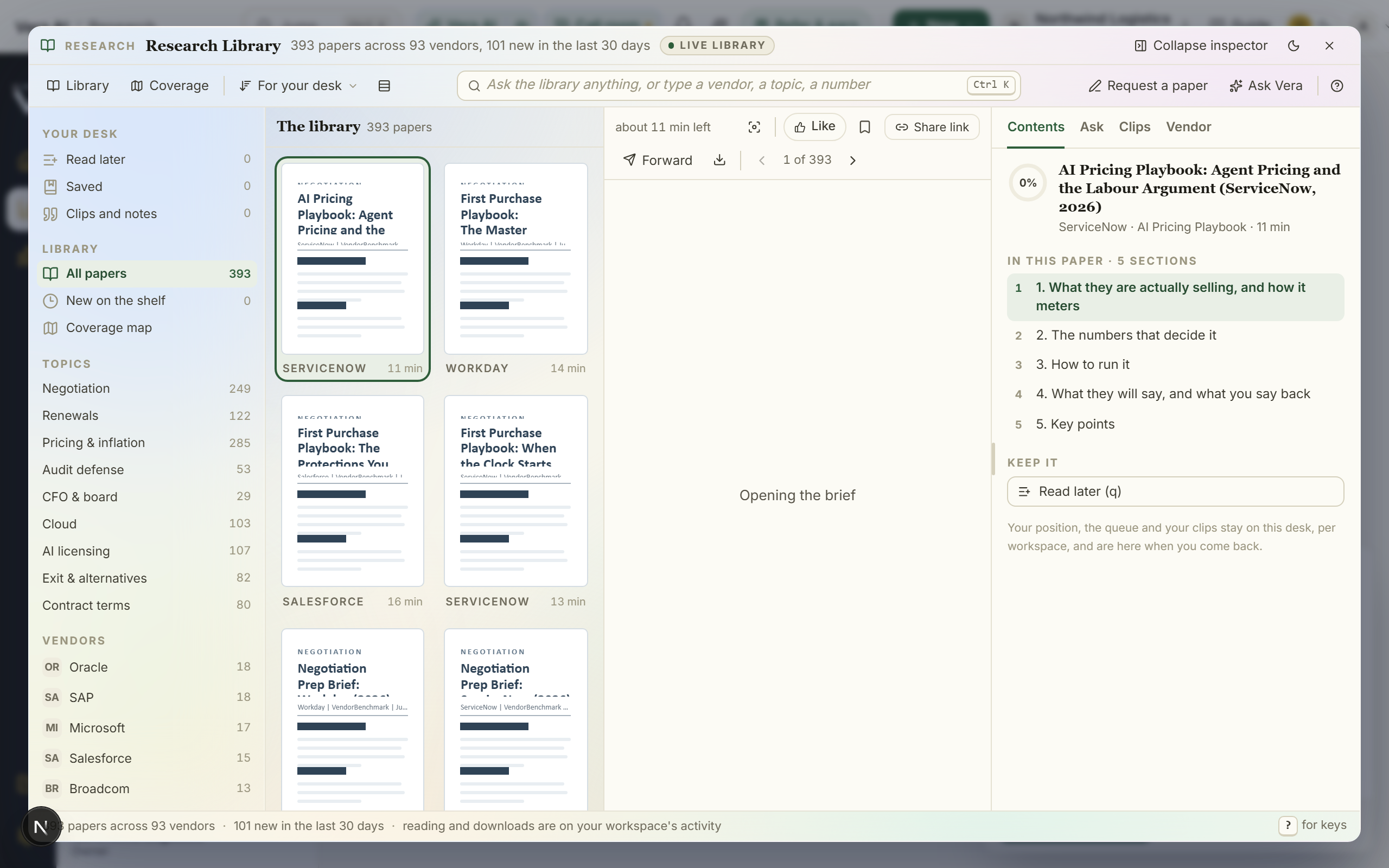
What you have chosen is navy: the screen you are on, the tab of a note or a vendor, the filter and the topic on the shelf.
The series you will find here
- Negotiation Toolkit — one per covered vendor: the levers, the counters, and how to run the deal.
- Negotiation Intelligence Report — for the major vendors: the seller's calendar, comp plan, and tactics decoded.
- Renewal Outlook (quarterly, top 10 vendors) — what your renewal will cost in the next 12 months and what to lock in now: announced price changes with dates, uplift corridors, and a month-by-month timing calendar.
- Vendor Strategy & Viability Assessment (annual, top 10 vendors) — where the vendor is taking pricing, packaging, and product, what that does to your cost curve, and a closing posture recommendation.
- Negotiation Playbook — the long form preparation document, one per vendor or category: what changed since you signed, the renewal runway month by month, the position to build, the give and get table, the vendor's own plays with your counters, the concessions a good close contains, and the mistakes that cost the most.
- Category negotiation playbook — one for each of the seven categories that are not software, written from that category's own curve set: where the money actually moves, which clauses carry it, which suppliers are in a position to concede at all, which arguments reliably fail, and how to read the playbook beside the curves. Each sits on its own category's shelf, carries its version and next review date, and is one press away from the category's home and from every indirect supplier's benchmark sheet.
- Call Scripts — the three call brief: word for word openings, the counters to the answers you will get, and the close for the first, second and third call, plus what to assemble before you dial and the one page to bring to every call.
- Discount Curve Benchmark — one per covered vendor: the full discount curve by deal size, what comparable buyers are offered at each size, the levers worth points, the contract terms that decide the next renewal, and every source named. It is the evidence behind that vendor's benchmark tool, and it stands on the research shelf that closes the tool page.
- Negotiation Dossier — one per vendor we hold a dossier on, 93 since 3 September 2026, the same eight sections every time: how the vendor sells and who is on the account team, how the field is paid, the fiscal calendar with its pressure windows drawn month by month, this year's push list, the contract vehicles, the discount mechanics beyond the curve, the renewal and audit traps, and the recommended asks. Every claim carries its grade, published, reported or typical practice, and the dossier states no discount figure, because the benchmark sheet owns every number. It is the same document the vendor's specialist argues from, so what the seat knows and what you read are one document.
- Negotiator's Guide — one per vendor we have published a guide for, 1,412 since 9 September 2026: the three things that decide the outcome before the quote arrives, the six factors that set the number, the vendor's fiscal calendar and where the leverage sits in it, the runway week by week, the benchmarks line by line, the tactics that work, the ten step playbook with what to say and what to hold out for, what most buyers miss, and the clauses to check before you sign. It is the same document the Benchmark Library sheet renders under What moves this vendor's number, opened here as the designed file itself, page for page.
- Topical documents on specific market events, such as licensing policy changes and audit campaigns.
Ask where a figure comes from, and the document opens there. When a specialist on the line, or a typed answer, rests a range or a claim on our research, ask where it comes from and the specialist names the document and the section and opens the document scrolled to that section; a passage the research could not place opens the document at the top and the specialist says so rather than pretending. Under a typed answer, every research citation in What Vera checked is a link to the document at its passage. With a document open in the window, say section four, the sell motion, next section or scroll down and the page moves, the specialist confirms what landed, and the specialist knows which document and which section is in front of you.
A vendor, opened in place. Press a vendor on the Vendors screen, in the left column, or the vendor's name on a note. Dossier shows what you hold with the vendor (each agreement with its value a year in USD, its term end and the days left, and your own documents with them), when to open the talk, the parts of the vendor's dossier (press one to open the dossier there) and the topics the library covers. Documents lists every note on the vendor. Calendar draws the vendor's quarter closes and fiscal year end over your own term ends, twelve months from today: the Notice period lever (30 to 120 days, a planning figure, since the agreement states its own) moves the notice mark, and the close to open the talk before moves with it. Where the library holds no fiscal calendar for a vendor, the calendar shows your own dates and says so.
For covered vendors, the newest Renewal Outlook also appears automatically on that vendor's renewal, contract, and negotiation pages, and the assessment on the vendor's page, so the right document is at hand where you work the deal.
On the screen
- 1 Library — What are you working on: the ask box, the openers from your renewals, and Time you have. Read first: the note the shelf leads on for your workspace, with its cover, its sections (press one to open the note there), The brief, The read, The document and Read later. Continue reading: the notes you have open with the minutes left, then what is new. The shelf: one table of every note, with four filters (All, Your vendors, New, Read later), the topics with their counts, a search box, and headings that sort (document, vendor, length, published, likes). 50 rows at a time, with Show 50 more.
- 2 Vendors — Coverage: each vendor you hold against the topics, darker where the library holds more; press a vendor to open it. A topic with no note is outlined, in red when that vendor's term ends within 180 days. A gap is sets how many documents a topic needs; With the deepest shelves adds the vendors with the most notes. Thin spots on your vendors lists the gaps nearest term first, each with Ask for it. Before each renewal names the note to read for each term that ends next.
- 3 Read and watch — pick a vendor; the films, analyst briefings and documents the library holds on it are listed in one table with one filter by kind. A film opens in the chapter player; a document opens as a note.
- 4 My reading — Continue (what is open, with the minutes left), Read later, Clips (each passage with its citation, a note that saves as you type, Copy with citation, Open at the passage and Remove), Saved, kept for the team, and Documents you asked for. Email a reading pack writes your clips and saved notes as text to copy into an email; Copy every clip copies them all with their citations.
- A note — opens in place, with the way back above its name and on Esc. The brief (90 seconds): the things to know first, the bottom line, and what the note covers, section by section. The read (5 minutes): every section's opening paragraph and its table. The document: the note as published; a note that is a PDF opens in the note reader with its own contents, pages, zoom and find, and nothing is re-typeset. The vendor: what you hold with the vendor and when to open the talk. Clips: your passages from this note. The head carries Read later, Save, the like count, and Read the document; on the document it becomes Mark as read.
- Clips — on The read, and on The document where the note is drawn from its text, select a sentence and Clip with its citation appears beside it. The clip lands in the note's Clips tab and in My reading.
- Forward by email — in a note's details column and on the right click menu: a link to the note, to up to five people.
- Shall I draft the email? (since 2 October 2026): under The brief. It is written from the note's key figures, its points and its bottom line. Press a reader and the email opens beside what you were looking at; see Send it on.
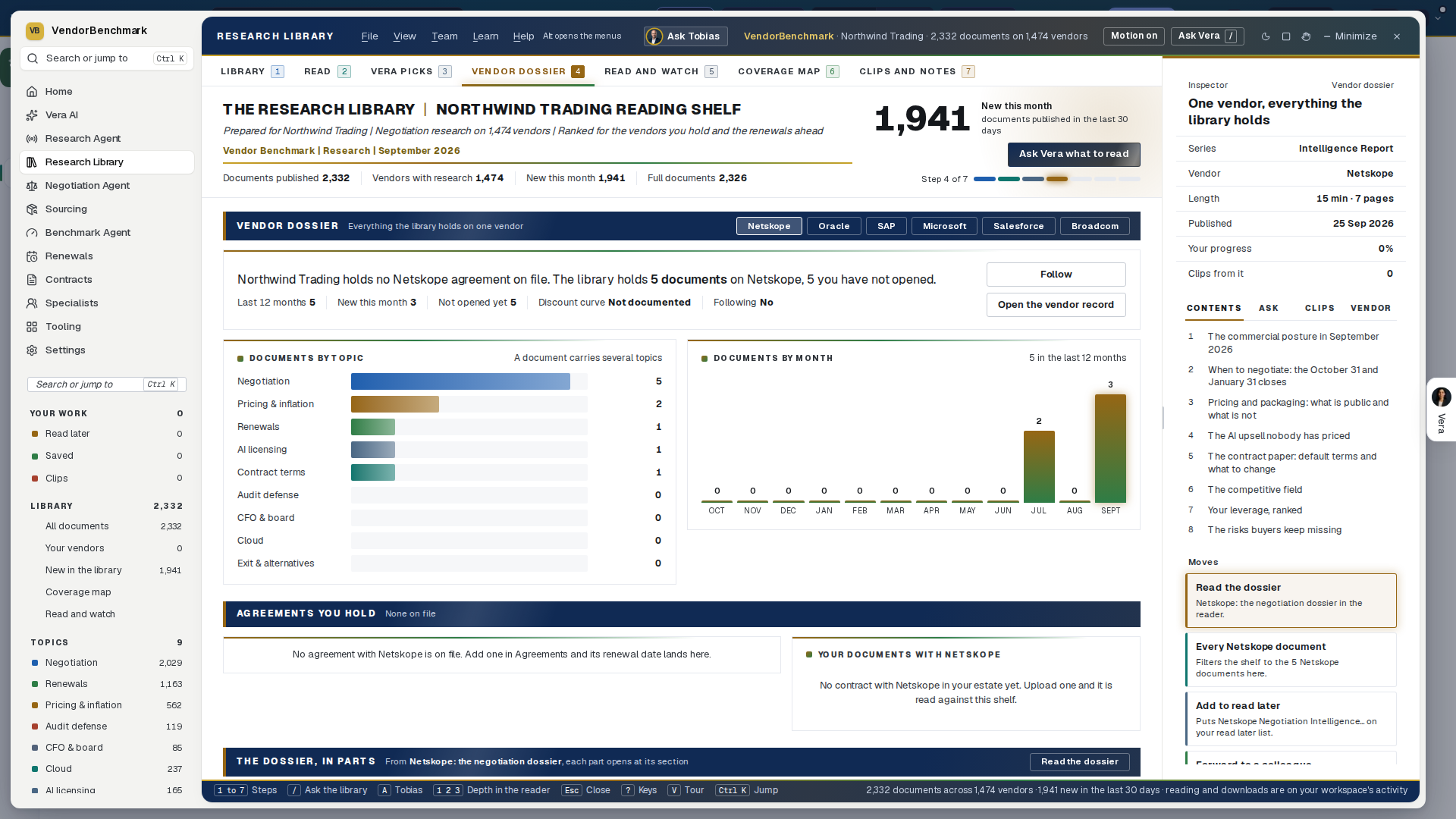
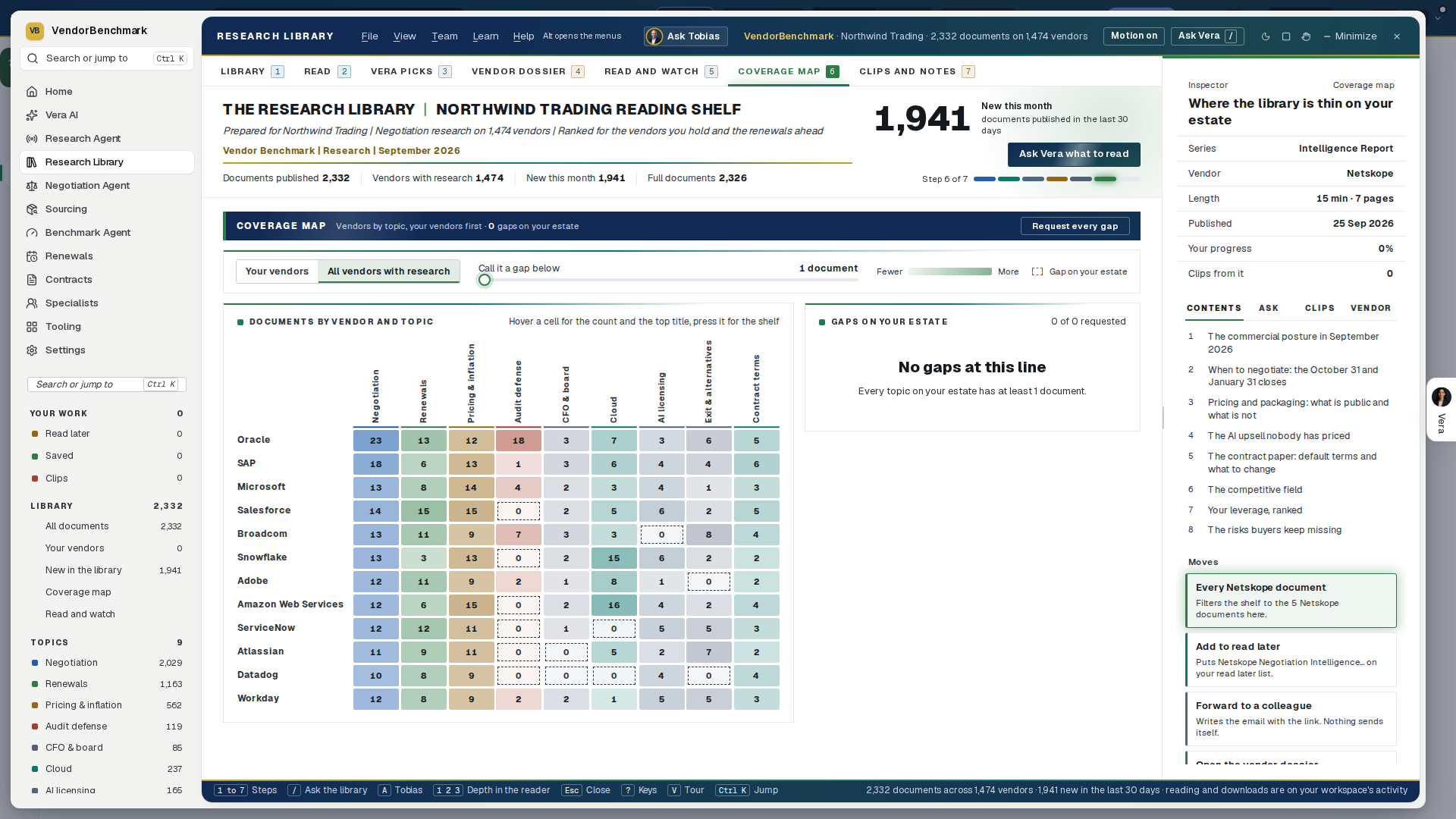
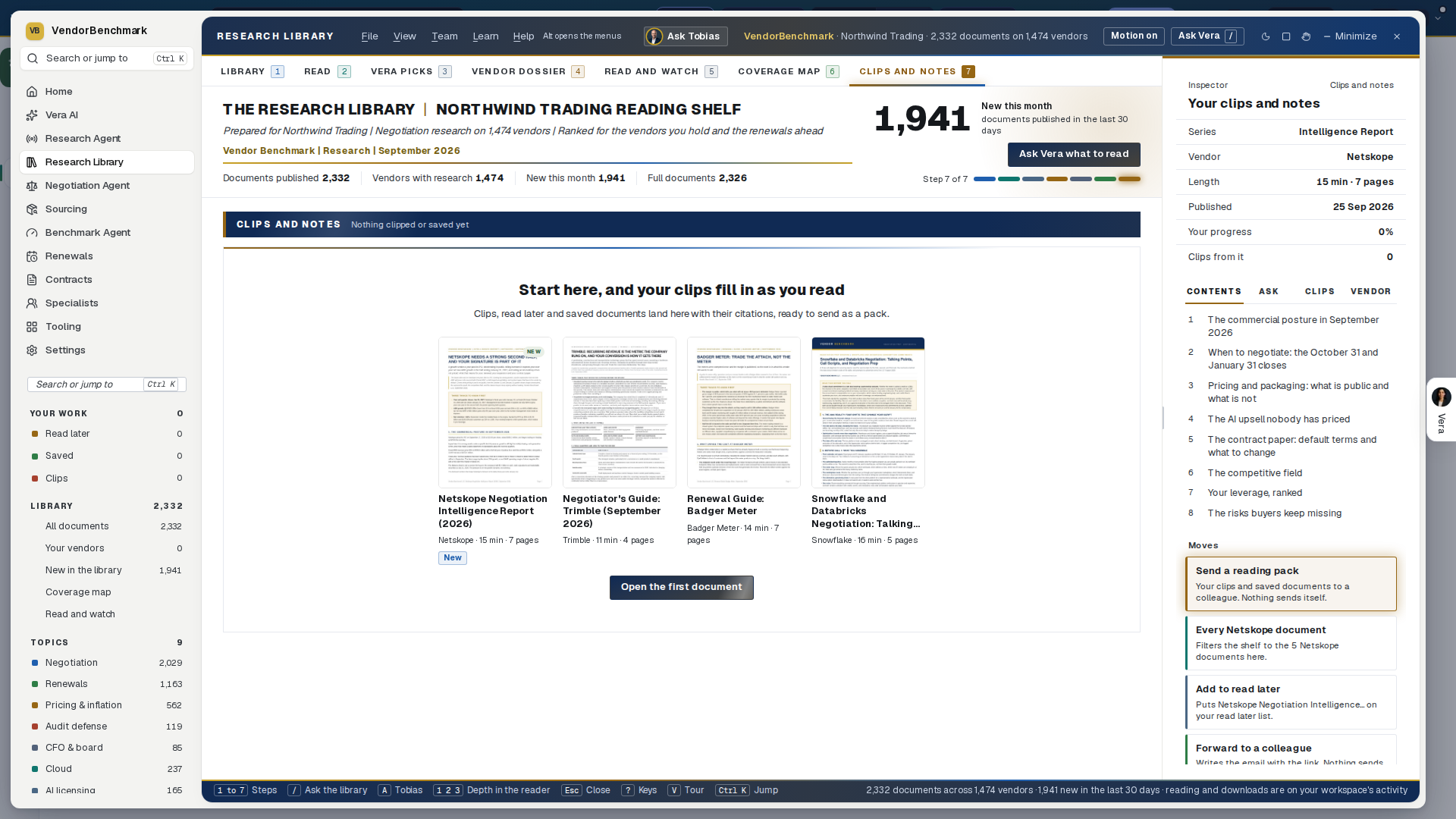
How to use it
- Type what you are working on in the box at the top of the Library, or press an opener, and set the minutes you have. Open the first pick.
- Short on time? The note opens on The brief; press 2 for the read and 3 for the document. Your place is kept, and the note is listed under Continue reading with the minutes left.
- While you read, select the sentences worth keeping and clip them; they wait in My reading with their citations, ready to copy or to send as a reading pack.
- Press 2 for Vendors and open the vendor whose term ends next: what you hold, its dossier, and on Calendar the close to open the talk before.
- Where a topic is outlined on a vendor you hold, press Ask for it and our analysts write the document.
Downloads are an Enterprise feature. Every plan reads every document on the page, at all three depths, with no cap on reading; the Word and PDF files leave the library on Enterprise only. On Growth and Professional the action row shows Downloads on Enterprise where the Download button would be, and pressing it says what to do instead: keep reading here, Share link a public copy, or Forward the document by email. The PDF viewer on those plans reads without its save toolbar, and Open in tab is an Enterprise control too. On Enterprise, file downloads are capped at ten per day and thirty per week per person so access stays fair across organizations; the allowance frees up on its own as your recent downloads age out, and if you need more before then a VendorBenchmark admin can reset it for you right away. All platform limits are collected in Plans, allowances & limits.
On a trial: the library reads but does not download. A trial workspace opens 10 documents, in full and online. Documents you have already opened stay open, and reopening one never costs another, so the 10 is 10 documents rather than 10 clicks. Partner-program firms read online without downloads too, per program terms, whatever their plan. See What the trial includes.
Related: Saved · Vendor scorecards
The benchmark library
In plain words: every vendor opens the Benchmark Library on its benchmark, on that vendor's line. The advanced view under it holds the instruments: the levers, your saved scenarios, the comparison cut by size, industry and region, the case file, and the research behind the vendor.
One vendor is different, on purpose. The Oracle ULA benchmark keeps this reading as its page rather than the sheet. A ULA has no list price and no discount to rank: it is priced on the fee per product, so the three questions the sheet answers have no honest answer there. Everything else in the library opens the sheet.
The library is not only software. 324 indirect suppliers carry their own curves alongside the software vendors: 50 in facilities and office services, 50 in professional services, 50 in marketing and advertising, 50 in HR and workforce, 74 in travel and entertainment, and 25 each in MRO and consumables and in logistics and fleet. Sodexo, ISS Facility Services, CBRE and Compass sit beside Kuehne+Nagel, DHL and Maersk, beside WPP, Omnicom, Publicis, Ogilvy and Kantar, beside Randstad, Adecco, Mercer and Korn Ferry, beside Marriott, Hertz, Ryanair and Eurostar, beside Grainger and Fastenal. Each states the median outcome with the p05 to p95 range across four contract size bands, on the commercial lines that supplier actually sells.
Some curves measure a rate, not a discount, and lower is better. Most indirect money is a management fee, an overhead and profit percentage or a markup rather than a reduction off a list price, so 66 of these suppliers are benchmarked on the rate they charge. On those the sheet inverts: the low end of the band is the good end, a quote at the top of the range is the weak one, and the fee falls as the contract grows rather than the discount deepening. The page says which of the two you are reading, because reading a fee rate as a discount would rank the worst quote as the best. Twelve of them are quoted in basis points, where 210 means 2.1 percent, and the page says bps rather than printing a fee of 210 percent.
Where the evidence is thin, the curve says so. Indirect suppliers publish no price lists, so many of these lines are graded on adjacent evidence and carry a deliberately wider band. That is stated on the line rather than hidden, and each curve names the date it is next due for review.
The library is scoped to your workspace. The A to Z lists the suppliers of the spend category you are working in, not all of them at once: 52 on Facilities and Office Services, 84 on Human Resources and Workforce, 58 on Professional Services, 81 on Travel and Entertainment, 55 on Marketing and Advertising, 30 on Logistics and Fleet, 28 on MRO and Consumables. A category keeps the software it genuinely licenses, so Planon and Accruent stay on the facilities shelf and Workday on the workforce shelf, because the category's own vendor lists name them. Information Technology and Software lists the whole software estate exactly as it always did. Switch category in the header and the library switches with you, and the find field searches the library you are on.
323 of the 324 have a benchmark page of their own. Since 31 August 2026 every indirect supplier in the library opens at its own address the way a software vendor does, with the advanced view and the instant check: 50 in facilities, 50 in professional services, 50 in marketing, 50 in workforce, 73 in travel, 25 in MRO and 25 in logistics. The one exception is Robert Half, whose markup line sits above the ceiling the curve gate allows a peer set, so it stays in the library as a curve without a page and the library says so. They arrive on three meters, because indirect spend is not bought one way. Most state a discount off a rate card, a list or an opening quote. Forty eight state a rate, where a lower number is the better outcome and the fee falls as the contract grows: ABM Industries, Aramark, Compass Group and G4S on the management fee, DSV and Flexport on the share of freight spend placed. Ninety band on a count rather than on money, because that is where their leverage sits: Otis, KONE and Schindler on lifts under maintenance, IWG on workstations, Marriott, Hilton and Hyatt on room nights, Maersk and CMA CGM on containers, Xerox on pages printed, Ryanair and easyJet on annual sectors flown. Two buyers spending the same amount can sit in different bands on those, which is the point. Eighty three band in the currency the supplier quotes, and those keep the document's own currency on the band while your figures are compared in dollars at a rate printed on the page: a European buyer with a three million euro contract sees a band that says euros. You can enter euros, pounds, Swiss francs and Swedish, Norwegian or Danish kronor directly. The peer set behind every page is modeled to the curve its own document states rather than drawn from observed deals, and the page says so. Four suppliers carry two tools on purpose, because Magnit, Beeline, SAP Fieldglass and TravelPerk are benchmarked both on discount off their contract value and on the program fee itself, which are different numbers.
Two views, one address. Opening a vendor gives you the benchmark sheet described under Benchmark Library: your discount, what comparable buyers get at your size, where the deal ranks, the curve with your deal on it, the ranked comparables, and the bottom line. Every vendor in the library opens that same sheet, whether an analyst has written its curve up as a document or the range is measured on the vendor's own reference deals, and the sheet always says which of the two you are reading. The advanced view, one press away under View, Advanced view, or the a key, is everything on this page: the deal structure levers, saved scenarios, the comparison suite, the benchmark case with its screens, the email dialog, and the research shelf. Press Back to the benchmark at the top of it to return.
When to reach for this
- The vendor you are negotiating has its own page here; this is the deep tool the hub's search lands you on.
- The deal prices on an unusual meter (cores, FUE, endpoints, trader seats): the page names the unit that actually bills you.
- You want the full case treatment: the placed verdict opens as a four document benchmark case with the ask sheet scripted.
The Benchmark Library is the way into roughly 1,600 individual vendor tools, one page per vendor and product line, from Microsoft EA and RISE with SAP to Snowflake, CrowdStrike, and Autodesk, including the AI tool stack (AI coding assistants, model and inference APIs, GPU cloud, data labeling, voice, and video) and the Google estate (Google Ads, YouTube, Marketing Platform, Analytics 360, Maps Platform, Mandiant, Cloud Support). Each page is a self-serve price check: you enter your own numbers and see where your deal lands against a cohort of comparable transactions, with no upload and no wait.
Real estate and staffing are covered as industries rather than as a handful of names. On the property side, alongside Yardi, RealPage and MRI Software the library prices CRE data and marketplaces (CoStar Group, Cotality, Altus Group), property management platforms (AppFolio, Entrata, Storable), leasing, deal and investment management (VTS, Dealpath, Juniper Square), and worktech, lease accounting and residential brokerage (Eptura, FinQuery, HqO, Lone Wolf). On the staffing side, alongside Bullhorn, Beeline and iCIMS it prices the agency front and back office (Avionté, TempWorks, Crelate, Loxo, Daxtra), talent engagement and experience (Sense, Phenom), recruitment marketing and job advertising (Radancy, Appcast, ZipRecruiter, DHI Group), and the PEO and staffing payroll platform underneath (PrismHR). Neither industry meters per employee, so each page names the unit that actually bills you: per unit under management, per facility, per building, per lease, per recruiter seat, per active job slot, per worksite employee. Four of these pages are built on a published rate card, and two of those tell you the escalator matters more than the discount, because Crelate publishes a 7 percent annual price rise and Loxo is reported at 5 percent.
Retail and commerce has its own category on the hub. It covers the enterprise store estate (Aptos ONE, Cegid Retail, Diebold Nixdorf Vynamic, Toshiba ELERA, Zebra Workcloud), the library and the shrink stack (VusionGroup electronic shelf labels, Nedap iD Cloud RFID, Sensormatic, Everseen checkout vision AI, Scandit smart data capture), merchandising, planning and shopper data (SymphonyAI Retail CPG, ToolsGroup, Impact Analytics, dunnhumby, Placer.ai, alongside Blue Yonder and Oracle Retail), digital commerce, marketplace and channel (VTEX, Spryker, Mirakl, Rithum, alongside Shopify Plus, BigCommerce, commercetools and Salesforce Commerce Cloud), product and customer content (Syndigo, Akeneo, Bazaarvoice), and fulfillment, post-purchase and the frontline workforce (Fluent Commerce, Narvar, WorkJam). Retail almost never prices per employee, so each page names the meter that actually decides the bill: per terminal or per store, per lane, per shelf label, per RFID tag, per named planner, per seat, per order, per SKU and recipient, as a share of gross merchandise value, or per frontline employee. Several of these pages say plainly that the discount is not the lever and explain what is, because the money in a retail contract is usually somewhere else: the consumable tag schedule behind an electronic article surveillance install, the year-seven shelf label replacement price, the double-run between an old point of sale maintenance line and its cloud replacement, the take rate rather than the subscription, and the seasonal headcount a frontline license is struck against.
Energy and utilities is a category of its own, and it is the largest single build in the library. It runs from the operating estate of a utility (ADMS and SCADA, DERMS and virtual power plants, metering and the grid edge, vegetation and asset inspection, crew and field service, retail energy platforms, water data) through oil, gas and industrial operations (subsurface and drilling, production and upstream ERP, pipeline and terminal, industrial analytics, machine health, maintenance management) into energy trading and markets (E/CTRM, trade surveillance, market data and price reporting, power forecasting) and the clean energy transition (storage optimization and battery analytics, electric vehicle charging, solar and wind design and performance, carbon accounting, utility data access, environment and safety, environmental commodity markets). Several of these are not license deals and the pages say so rather than forcing them into a discount frame: an efficiency provider that installs equipment at no up-front cost and earns from your energy saving is a financing agreement, where the measurement baseline and the early buyout decide the cost, and a charging network that earns per kilowatt hour turns on who carries the demand charges when a fleet plugs in at once.
ITSM and ops covers the estate around ServiceNow rather than only ServiceNow, because the alternatives are what give a ServiceNow renewal any tension at all. Security is built the same way, covering the shortlist a buyer actually runs a platform against instead of only the platforms themselves. In both categories the page tells you where a credible alternative exists and where one does not, since a renewal with no second quote is a different negotiation from one with three.
Open source vendors that sell commercial support are covered as their own kind of deal, because the software is free and what you are buying is support, indemnification, certified builds, and long term security maintenance. Your genuine alternative is not a competitor, it is running the same software unsupported for nothing, so each page says where the community edition is already sufficient and where the subscription earns its place. The library covers databases and data platforms, Java runtimes, Linux and operating systems, private cloud, middleware and developer tools, content and collaboration, monitoring, and security tooling. Some are unusually clear cut: one monitoring vendor gates no features at all and sells only response time, one hypervisor is free to run in production with published per socket tiers, and one community platform has no paid tier to unlock, which makes a self host threat unusually credible. Two carry a specific threshold worth knowing before you open a quote: MySQL Enterprise does not discount below roughly $100,000 of annual value and then moves from 10 to 60 percent as the deal grows, and Azul runs 30 to 60 percent off list.
Advertising and media has its own category on the hub. Fifty vendors cover the stack a brand, an agency or a publisher actually signs for: the exchanges and supply platforms (Magnite, PubMatic, Index Exchange, OpenX, Equativ, Yieldmo, GumGum), native and content recommendation (Taboola, Teads, MGID), demand side platforms and media buying software (StackAdapt, Viant, Basis Technologies, Zeta Global, Adform, Moloco, MiQ, Smartly, Skai, alongside The Trade Desk and Criteo), verification and fraud (HUMAN Security, Zefr, Pixalate, alongside DoubleVerify and Integral Ad Science), audience measurement and the television currencies (Nielsen, Comscore, Kantar Media, VideoAmp, iSpot.tv, EDO, Samba TV), marketing effectiveness (Measured), mobile and app attribution (Adjust, Branch, Kochava, alongside AppsFlyer), shared advertising identity (ID5), agency ad operations (Mediaocean, which now owns Flashtalking and Innovid), out of home and audio (Vistar Media, Broadsign, AdsWizz, Triton Digital), search and AI visibility (BrightEdge, Conductor), affiliate and partnerships (impact.com, Awin), creators, social and communications (CreatorIQ, Later, Cision), creative production (Celtra, VidMob), supply path curation (Scope3) and consent management (Didomi). Advertising almost never meters per employee, so each page names the unit that actually decides the bill: a percentage of media spend for a demand side platform, a percentage of publisher revenue for an exchange, a cost per thousand impressions for verification and identity, a cost per attributed event for mobile measurement, a percentage of tracked sales for an affiliate network, and a price per screen for out of home. The published anchors sit on the pages: platform fees run about 15 to 20 percent of media and compress toward 7 to 13 percent above roughly $3m of annual spend, sell side take rates average about 14 percent of publisher revenue, and verification runs about $0.05 to $0.10 per thousand impressions. Several pages say plainly that the discount is not the lever and explain what is, because a measurement currency your television deals settle against and the workflow your agency bills through do not negotiate on rate. Ownership matters more here than in any other category, so each page names it: your mobile measurement partner may belong to a company that also sells you media, your audio technology may belong to one of the largest audio sellers, and your television data vendor may be part owned by the broadcasters it measures.
The library also covers professional services under its own category. Twenty services providers, from the strategy houses (McKinsey, BCG, Bain) and the Big 4 (Deloitte, PwC, EY, KPMG) through the global SIs (Accenture, IBM Consulting, Capgemini, NTT DATA), Booz Allen Hamilton, Slalom, Kyndryl, and the offshore majors (Cognizant, Infosys, TCS, Wipro, HCLTech, Tech Mahindra), are benchmarked on blended hourly rate per consultant rather than discount off list: enter your total fees and hours and see where your effective rate lands for that firm and engagement size, with your onshore/offshore delivery mix and commercial leverage as the levers.
Alongside those firms, the library benchmarks the four software vendors that also sell the services to implement their own software, one tool per practice rather than one per firm: ten Microsoft Industry Solutions Delivery practices (Azure infrastructure and migration, data and AI on Fabric, Copilot deployment, Dynamics 365 finance and operations, Dynamics 365 customer engagement, Microsoft 365 and modern work, security, Power Platform, app innovation, and industry cloud solutions), ten Oracle Consulting practices (Fusion Cloud ERP and EPM, HCM, SCM and CX, NetSuite, OCI migration, E-Business Suite, database and Exadata, Oracle Health, and managed services), twenty IBM Consulting practices split across its Strategy and Technology line (strategy, hybrid cloud and Red Hat, application modernization, data and AI, cybersecurity, the SAP, Oracle, Salesforce, Microsoft and AWS practices, IBM iX, finance, supply chain, talent, sustainability, quantum and mainframe) and its Intelligent Operations line (application managed services, business process operations, and cloud platform operations), and ten SAP Services practices (RISE adoption, S/4HANA brownfield conversion and greenfield implementation, premium engagement, SuccessFactors, Ariba, BTP, analytics, Signavio, and custom development). All fifty use the same blended hourly rate metric as the firm-level tools. The point each page makes is the same one: a vendor's own consulting arm can defend a premium for the work only it can credibly do, such as an SAP brownfield conversion or an Oracle database architecture with licensing consequences, and cannot defend one for the work a systems integrator delivers just as well, which is why the rates inside one vendor range so widely.
The largest publishers are covered by product line rather than as one tool, because they do not price as one vendor. Oracle has its own deep set: the Fusion cloud applications (SCM, EPM, and the CX suite of Sales, Service, Marketing, CPQ, and Commerce), Analytics Cloud, the industry clouds (Health, Retail, Hospitality, Financial Services, Utilities, Communications, Transportation Management, Field Service, Primavera Cloud), and the on-prem license and ULA-family estates (E-Business Suite, Siebel, JD Edwards, PeopleSoft, Hyperion, Primavera P6, Pool of Funds, and Perpetual ULA). Salesforce is broken out into Sales, Service, Commerce, Experience, Revenue (CPQ), Field Service, Platform, Agentforce, CRM Analytics, and the Health, Financial Services, and Nonprofit clouds. ServiceNow covers ITSM, ITOM, CSM, HRSD, SPM, Security Operations, IRM, App Engine, Field Service Management, and the Now Assist AI add-on, and since October 2026 the ServiceNow SKU line, which benchmarks a proposal on the 2026 Zurich pricing model (Foundation, Advanced and Prime tiers) against 120 proposals signed since April 2026, where the top 30 percent carry 30 percent or deeper off list. SAP covers S/4HANA (on-prem and RISE, with RISE Base and RISE Premium benchmarked on separate curves), GROW, Analytics Cloud, Datasphere, Integrated Business Planning, Fieldglass, Commerce Cloud, Sales & Service Cloud, Signavio, LeanIX, SuccessFactors, Ariba, Concur, and BTP (CPEA and BTPEA as separate tools). Pick the exact product line you are negotiating.
A further hundred and twenty five vendors joined the curve library on 30 August 2026, five in each of twenty five markets: supply chain and logistics, retail and hospitality, energy and utilities, real estate and construction, legal tax and insurance, manufacturing, agriculture and food, automotive and mobility, trust and physical security, marketing and creative production, the European and Nordic champions, Asia Pacific, IT services, pharma commercial and health data, gaming sport and venues, Latin America and the Middle East, data infrastructure and commercial open source, field service and equipment, information services and standards, nonprofit and philanthropy, cloud and cryptographic security, AI assisted software development, wholesale distribution, specialty and ancillary care, and travel and transport. They follow the same rule as the twelve above: the bands are the meter the vendor actually bills, licensed rooftops for a dealer management system, concurrent screening lanes for weapons detection, managed machine identities for certificate lifecycle, connected suppliers for food traceability, annual passengers boarded for airline retailing, and each commercial line carries the median with its p05 to p95 range and the grade of the evidence behind it. Twenty six of them are measured against a published list, thirteen against a published rate card, and the remaining eighty six against the vendor's opening quote, which the line says on its face rather than implying a list that does not exist. Four are priced as a rate rather than a discount, so their curves read lower as better and rank the way the uplift curves do: accesso on the ticketing fee, Xsolla on the platform fee, Pushpay on the all in cost of digital giving, and Web Travel Group on contracted margin. Where a document says a line is not offered at a given size, the curve says so and stays put.
Twelve vendors joined in August 2026, each with its curve document behind it, and each banded on the meter its vendor actually bills rather than on a dollar ladder: Anthology Blackboard by enrolled FTE students, Bitwarden by licensed users, Celigo by annual platform spend, Crusoe by committed GPU spend, Decagon by annual agent spend, DigitalOcean by committed cloud spend, Dremio by committed compute spend, Druva by committed credits, eClinicalWorks by provider count, EcoVadis by suppliers assessed a year, Equinix by committed power, and eSentire by protected assets. Five of them publish a real list price, so their curves are a discount off list: Bitwarden at $4 and $6 per user per month, eClinicalWorks at $449 and $599 per provider per month, DigitalOcean and Crusoe on their published cards, and Dremio on its published compute rate. The other seven publish nothing, so the curve is measured against the initial quote and the page says so rather than implying a list that does not exist. Two of the pages make a point the discount cannot: on eClinicalWorks the 2.9 percent of collections dwarfs the software line, and on Bitwarden the published ladder already undercuts the category by 25 to 50 percent, so a signature at list below a few hundred seats is simply the market.
The Microsoft EA tool models the November 2025 licensing change directly. Microsoft removed the EA volume discount levels for online services on November 1, 2025, so the tool carries a pricing era control: deals under the new rules benchmark roughly 10 points less discount than the legacy price sheet, unless the deal commits Copilot on an E5 (or E7) estate, which restores pre 2025 discount levels. Set the era to match your agreement; renewals still on a legacy price sheet keep it until they renew.
The SAP tools follow the August 2026 curve guideline: median discount off list with a p05 to p95 range, banded by ACV of the SAP component (under $500k, $500k to 2m, $2 to 10m, $10m and up). RISE Private Cloud has separate Base and Premium curves and separate tools, BTP has separate CPEA and BTPEA curves and tools, GROW carries the shallowest cloud curve, and S/4HANA on premises perpetual is shown as a reference curve only, because cloud and perpetual percentages are not comparable: a 55 percent RISE discount can beat a 70 percent perpetual discount once bundled infrastructure, support and managed services are counted. SAP ECC remains the exception: new ECC purchases price at list, with value delivered only through RISE conversion credits.
The Oracle applications estates (E-Business Suite, JD Edwards, and Siebel) share one discount curve, from the August 2026 curve documents: 50 percent off list is the median at the $100K deal minimum, climbing to 78 percent at $2m and above, so any offer under 50 percent reads as an opening position rather than a market price. The pages say why the discounts run this deep: they are nearly free for Oracle to give, because the commercial objective is the 22 percent support annuity on the net fee, which is why the escalation cap and repricing protection belong in the same negotiation as the rate. Oracle Java SE is the opposite: the published employee tiers already pre discount the rate, so negotiated discounts are thin by design (2 to 4 percent median below $2m of annual spend, 20 percent at $2 to 5m, 40 percent at $5m and above), and the tool carries a documented OpenJDK exit checkbox because the exit alternative, not the rate conversation, is what moves Oracle on Java.
The Oracle ULA benchmark is a deliberate exception to reading the discount at all. It opens with the fee curve by product scope: a focused 2 to 4 product technology ULA lands near $2m for a three year term, 5 to 8 products near $6m, 9 to 14 near $14m, and a 15 plus product estate near $30m, with your own scope and fee placed on the curve live. Beside it sits the signing reason multiplier, the largest hidden pricing variable in the deal: growth driven signings pay the baseline, renewals 1.1 to 1.3x, M&A driven deals 1.1 to 1.4x, and audit settlements 1.3 to 2.0x, because Oracle prices audit driven agreements to the exposure rather than the value. The how Oracle actually prices a ULA note carries the negotiation guidance: keep growth estimates conservative because they are not contractual, always signal you may not renew, start your clock at least 12 months out (Oracle forecasts your pricing up to 11 months before expiration), sweep cloud and DR instances early because late sweeps came in 1.5 to 2.5x over expectations, and negotiate the terms that outlast the price (the certification clause, public cloud deployment rights, a support fee cap after the ULA ends, coverage for every legal entity, and merger and acquisition rights). A line under the play links the Oracle ULA certification playbook for the renew or certify decision itself.
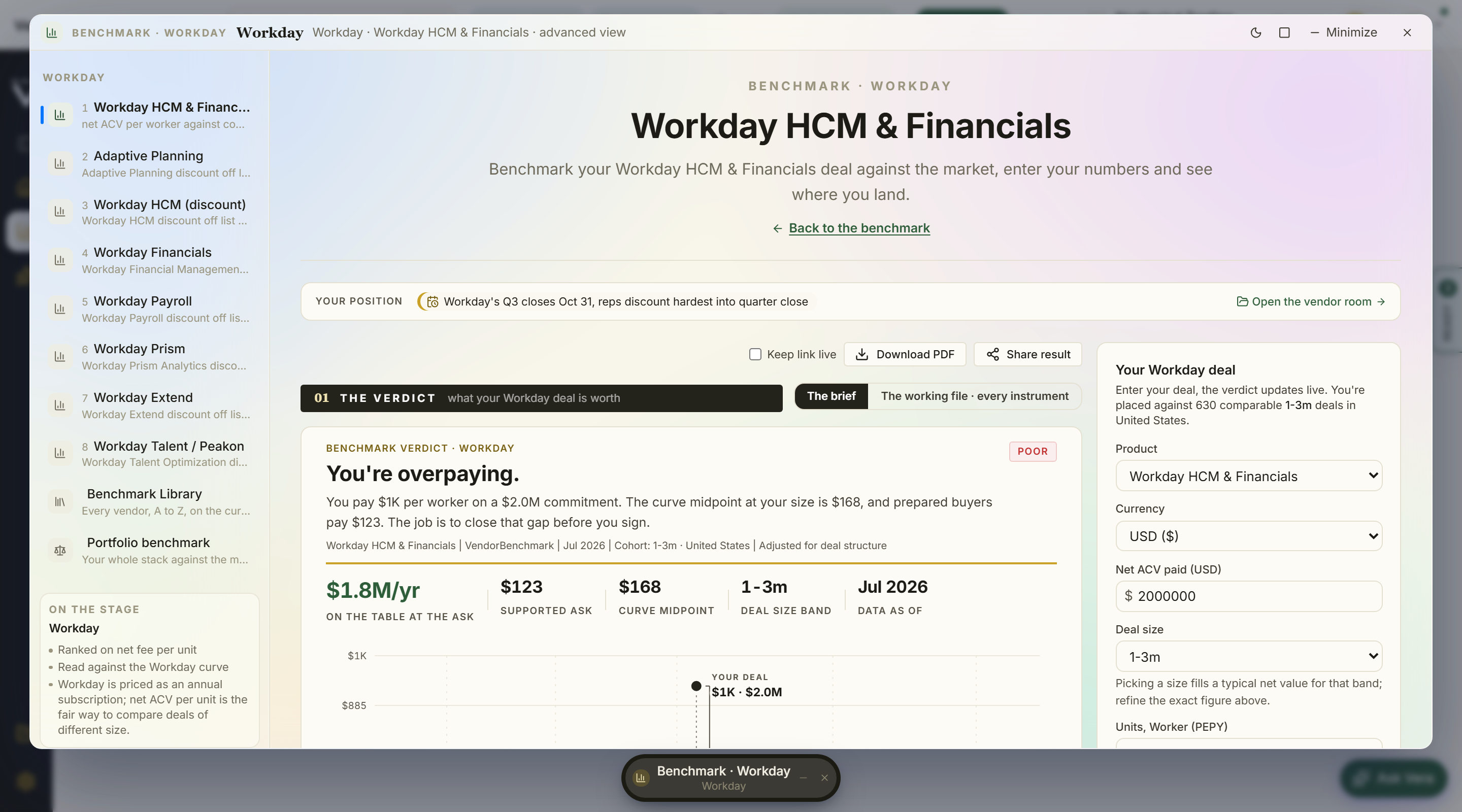
On the screen
- The window — the advanced view opens as its own window, the same dress the Benchmark Library wears, rather than as a page inside the workspace. The titlebar names the vendor, the product line and the view, and Back to the benchmark under the heading returns you to the sheet. The list on the left holds that vendor's other product lines, so you can move from Nonprofit Cloud to Sales Cloud to Tableau without going back to the library, with the Benchmark Library, the Portfolio benchmark and Spend Agent under them and a short summary of what the figures rest on at the foot. The sun and moon flips the workspace between light and dark, and the × or Esc closes the window and returns you to the library.
- The curve dock — on vendors covered by an August 2026 curve document (SAP, SAP Ariba, SAP Concur, SAP SuccessFactors, IBM, Microsoft EA, Workday (on the October 2026 revision of its document: six size bands, from under $250k to $10m and over), ServiceNow, the Oracle applications estates of E-Business Suite, JD Edwards, Siebel, PeopleSoft and Hyperion, Oracle Java SE, Oracle Fusion Cloud SaaS across ERP and SCM, HCM, EPM and CX, NetSuite, Salesforce across the core clouds, Marketing and Data Cloud, Agentforce, Tableau, MuleSoft and Slack (its core clouds and multi cloud lines on the September 2026 revision of that document), Google Workspace and Google Cloud with BigQuery and Gemini, AWS EDP, Adobe across Creative Cloud, Acrobat and Experience Cloud, Atlassian, Docusign, Zoom, CrowdStrike, Palo Alto Networks, Databricks, Snowflake, Informatica, Okta, Coupa, Veeam and the backup platforms Rubrik, Cohesity and Commvault, Autodesk, Datadog, Twilio, Citrix, Cloudflare, the contact center trio of Genesys, NICE CXone and Five9, Check Point, F5, Akamai, BMC, OpenText, IFS, Infor, SAS, Qlik, Alteryx, OneStream, Anaplan, Celonis, UiPath, Pegasystems, Procore, Epicor, Deltek, Tyler Technologies, Palantir, Freshworks, HubSpot, Sprinklr, Sage, Zendesk, UKG and ADP, Teradata, Nutanix, Wiz, CyberArk, SentinelOne, Zscaler, MongoDB Atlas, Confluent, Elastic, GitLab, JFrog, TIBCO, Boomi, Gong, Box, MuleSoft on its own vCore document, the financial services platforms FIS, Guidewire and Temenos, the market data vendors Bloomberg, FactSet, LSEG, S&P Global Capital IQ and Moody's Analytics, the healthcare records vendors Epic, Oracle Health and Veeva, and the experience management pair Medallia and Qualtrics, and the finance and legal platforms Kyriba, BlackLine, Workiva, Vertex, Avalara, Ironclad and Icertis CLM, iManage, Relativity, LexisNexis and Thomson Reuters Westlaw, the collaboration, security and mid market ERP platforms Notion, Miro, Figma, Fortinet, Sophos, Darktrace, KnowBe4, QAD, Acumatica and Unit4, the Cisco estate re benchmarked across hardware and the Enterprise Agreement with Meraki, Webex and Splunk beside them, the information and data platforms Nvidia AI Enterprise, Kaseya, ZoomInfo, Wolters Kluwer, CoStar, IQVIA, Gartner and LinkedIn, the PE owned tool portfolios Quest and One Identity, Flexera, Perforce and ConnectWise, the HR stack Deel, Paycom and Paylocity as one negotiation, iCIMS, Cornerstone and Dayforce, the GRC set AuditBoard, Diligent, Mitratech, Archer and NAVEX, the consolidators Precisely, Rocket Software, Progress, Aptean and the Constellation Software operating businesses, the PAM duopoly Delinea and BeyondTrust on one shared curve, the security mid tier Ivanti, Tenable, Barracuda and Mimecast, the healthcare operations set Meditech, Waystar, R1 RCM and symplr, the education pair PowerSchool and Ellucian on one shared curve, the property manager RealPage with the DOJ settlement repricing line, the AP automation pairs Tipalti and BILL by monthly payment volume and Basware by annual invoice volume, the procurement challenger JAGGAER, the subscription billing vendor Zuora, the legal drafting roll up Litera, the insurance pair Duck Creek and Applied Systems on one shared curve, the ambulatory EHR pair athenahealth and NextGen by practice size, the nonprofit platform Blackbaud, the AEC conversion pair Nemetschek and Bluebeam on one seat banded curve against the December 2026 Revu deadline, Trimble with its published 40 to 80 percent trade in tiers shown as a reference line, and the Hexagon divisions, the insurance utility Verisk negotiated per layer, the data stack Domo, dbt Labs and Fivetran, the Equifax Work Number met with the verification waterfall, the BI challengers Sigma and ThoughtSpot on one shared displacement curve, and the developer tools set Snyk, Dun & Bradstreet, Docker, GitHub with Copilot and Advanced Security priced as one negotiation on both the GitHub and Copilot tools, HashiCorp, Redis, Postman and JetBrains, the library’s buyer friendly counter example whose nearly flat curve is the honest reading of a transparent vendor, MSCI with the fund launch basis point line beside the contested Analytics and ESG curve, Clarivate against its documented mandatory uplift posture, Ideagen in the revalidation moat’s consolidation window, Conga anchored at its documented 36 to 59 percent list to landed gap, Nintex on the workflow count meter, Hyland against its own public OMNIA pricelist, Morningstar and PitchBook on one shared curve negotiated with the vendor’s own investor relations statements, the observability pipeline Cribl by daily data processed, RingCentral by seats in the deflating UCaaS market, Sumo Logic by daily ingest with its printed renewal uplift struck at signature, PagerDuty and its add on ladder, Shopify Plus by annual GMV against the unpublished revenue share conversion, the travel and expense set Navan and Emburse, the interchange pair Brex and Ramp by annual card volume, and the consumption storage pair Pure Storage and NetApp by committed capacity, the supply chain set SPS Commerce by trading partners, E2open, the planning duopoly Kinaxis and o9 on one shared curve, Manhattan Associates and Blue Yonder, six ERP curves re benchmarked on annual contract value, NetSuite, Deltek, IFS, Epicor, Infor and OpenText, the core banking pair Fiserv and Jack Henry on one shared curve, Oracle MySQL by subscribed servers, the proxy advisory duopoly ISS and Glass Lewis on one shared curve, Nasdaq Adenza, Broadridge's unregulated services layer, nCino, and the open source repricing set: SUSE benchmarked by deal posture, Red Hat with its estate engineering line, MongoDB re benchmarked on its documented commit bands, Azul by Java server estate with the metric negotiated before the price, Grafana Labs with the OSS self host path as the structural leverage, GitLab in the Ultimate and Duo era with three meters on one developer, the revenue stack pairs Outreach and Salesloft, Gong and Clari, and Braze and Iterable each on its own documented line, Yardi completing the property duopoly by portfolio units, Jamf by managed devices against the Intune shadow, Intercom and Fin by monthly resolutions on the purest per outcome AI meter, the governance duopoly Collibra and Alation, Workato at its documented 35 to 50 percent list to landed gap, and the superseded Informatica and MuleSoft calibrations re benchmarked onto the IPU and Salesforce estate era, the industrial token meters AspenTech and AVEVA, the password duopoly 1Password and LastPass on one shared curve, and Akamai, Wiz, Medallia and F5 re benchmarked on annual contract value, and the wave twenty seven money meters: Stripe by annual card volume with the Adyen counter quote as the upper line, Adyen by processing volume with the 0.60 percent markup as the only line that negotiates, Experian and TransUnion on one shared bureau curve by annual pull volume with the 2026 FICO repricing and the VantageScore counter in the file, LexisNexis Risk Solutions by transaction volume split between the contested identity lines and the claims data monopoly, the publishing duopoly Springer Nature and Elsevier priced against the published DEAL benchmark and the documented UC, SUNY and DEAL exits, Plaid on the per login item meter with dormancy hygiene as the free discount, MathWorks with the toolbox prerequisite chain audit, Cotality decomposed per dataset under PE ownership, ICE Mortgage Technology by annual loan volume with the FTC mandated alternatives, Addepar by assets on platform against its documented rival gaps, Clearwater Analytics by assets under administration where the breakpoint schedule is the negotiation, SS&C on the per heritage roll up map, and the superseded SAS calibration re benchmarked onto contract value bands with renewal and migration event lines, and the AI coding tools, Cursor, Windsurf, GitHub Copilot with its three purchasing pathways, Replit banded by monthly agent spend, v0 by Vercel, and Lovable banded by monthly credits, and the wave twenty nine consolidation files: Verint and Calabrio on one agent count curve now that Calabrio operates inside Verint's platform, Seismic and Highspot on one seat curve carrying the two paddle era's transacted medians ahead of the February 2026 Permira merger, the enterprise low code tier of Appian, OutSystems and Mendix on one curve with the Power Apps shadow as the structural frame, Everbridge by contact count where the roster is the meter, UserTesting on its credit bundle economics, Grammarly on the shadow IT to enterprise conversion, Canva carrying the reversed 2024 shock repricing and its referenceable Pricing Promise, Airtable with the 84 percent seat architecture case, and the superseded Box calibration re benchmarked onto the AI repricing era's wider seat bands, and the wave thirty AI model provider set on one shared set of contract value bands: Microsoft 365 Copilot against its documented $18 to 22 landed band, Google Gemini and Vertex AI as one Google AI estate with the deepest curve in the provider set (the Gemini tool moves off the Workspace family onto its own curve), xAI Grok as the youngest and most volatile document in the library, Perplexity with its 8x tier gap read as a negotiation signal, Cohere where the deployment tier decision moves costs 10x before any rate conversation, and Mistral AI whose own open weights cap its managed pricing, and the wave thirty one addition Abridge, ambient clinical documentation for health systems, banded by licensed clinicians and measured against the initial quote because the vendor publishes no list price at all), a picker above the tool where you choose the commercial model or product (for SAP: RISE Base, RISE Premium, BTP CPEA, BTP BTPEA, GROW, or the on premises reference; for Oracle Java: the standard line or the documented OpenJDK exit line; for Salesforce: the core clouds, the multi cloud commitment, or the flat renewal line) and the deal size band, and type the discount you are offered. The bands follow how each vendor actually prices: contract value for most, seat counts for Adobe Creative Cloud, Zoom, Google Workspace, GitLab, Gong and Box, protected endpoints for CrowdStrike and SentinelOne, protected workloads for Veeam and Wiz, protected capacity in TB for Rubrik, Cohesity and Commvault, agent counts for the contact center platforms, construction volume for Procore, user counts for Epicor and Deltek, platform fee for Palantir, privileged accounts for CyberArk, employee counts for UKG and ADP, production vCores for MuleSoft, hospital bed count for Epic, Oracle Health and Meditech, monthly claim volume for Waystar, net patient revenue for R1 RCM, annual verification volume for the Equifax Work Number, licensed seats for Sigma and ThoughtSpot, trading partner connections for SPS Commerce, subscribed servers for Oracle MySQL, licensed user count for Veeva, transaction volume for Vertex and Avalara, seat counts for Notion, Miro and Figma, licensed seats for ZoomInfo, workers on platform for Deel, employee headcount for Paycom, Paylocity, iCIMS, Cornerstone and Dayforce, monthly invoice and payment volume for Tipalti and BILL, annual invoice volume for Basware, practice size in providers for athenahealth and NextGen, user counts for BlackLine, QAD, Unit4 and Aptean, annual committed spend for AWS, Databricks, Snowflake and MongoDB Atlas, committed spend per contract year for the Google Cloud private pricing agreement, whose bands run from under $5m to $100m and more a year and whose curve climbs slowly, 5 to 10 percent up to $10m, about 20 percent near $50m and 25 to 30 percent at $100m, committed spend per contract year for the Anthropic API, whose cohort carries deals signed since the April 2026 seat unbundling only and whose corridor tops out near 20 percent however large the commitment, licensed seats for Nemetschek, Bluebeam and Trimble, daily data volume for Cribl and Sumo Logic, Java server estate for Azul, portfolio units for Yardi, managed devices for Jamf, monthly Fin resolutions for Intercom, annual GMV for Shopify Plus, annual card volume for Brex, Ramp and Stripe, annual processing volume for Adyen, annual pull volume for Experian and TransUnion, annual transaction volume for LexisNexis Risk Solutions, annual loan volume for ICE Mortgage Technology, assets on platform for Addepar, assets under administration for Clearwater Analytics, contact counts for Everbridge, agent counts for Verint and Calabrio, seat counts for Seismic, Highspot, Grammarly, Canva, Airtable and the re banded Box, committed capacity in TiB for Pure Storage and NetApp, seat counts for RingCentral, licensed clinicians for Abridge, years since migration for the Atlassian loyalty decay curve, and estate size for Citrix and TIBCO, the program's two uplift curves under Cloud Software Group: their docks read the renewal increase on your quote rather than a discount, lower is better, and the rank inverts accordingly. The athenahealth dock is the library’s first rate curve: it reads the negotiated percent of collections by practice size, lower is better like the uplift curves, and prices every point of the rate against your own annual collections. It answers the three questions in order: your discount, the p05 to p95 range comparable customers land with its midpoint, and the rank in words (Poor, Below market, At market, Good, or Top of the market), priced per year when you give the deal value. The full curve for the chosen product renders underneath, and the Microsoft and Google Workspace docks add a pricing era switch, covering the November 2025 removal of programmatic EA discounts and the January 2025 Gemini repricing.
- The verdict masthead — the advanced view opens as a document, not a dashboard. A kicker names the verdict, a bold headline calls it in plain words (A good deal, A fair deal, You are paying above market, You are overpaying), two or three sentences state what you pay, the curve midpoint at your size, and what prepared buyers land, and a meta line records the product, the data month, and your cohort. A rank beside the kicker grades the deal in one of five words, Poor, Below market, At market, Good, or Top of the market, in a color that agrees with the headline. Under the thin rule sit the figures: the savings available at the ask (or your edge on the median when you are ahead), the supported ask, the curve midpoint, your deal size band, and the days to renewal once your date is set. When a read cannot be right, a claimed edge larger than the commitment itself, or a unit price far outside everything the cohort holds, the masthead says Check the inputs, names the suspect field, and the rank reads Unverified until the figures make sense. Vendors covered by a curve document close the chart with the curve guideline as its caption, two lines visible and the full text one press away.
- The market curve, with your deal on it — the hero chart. The median discount runs as a navy line across the deal size bands, the prepared buyer line runs dashed gold above it, and the middle of the market is the pale band between the quartiles. Your deal is the navy dot: drag it up to test an ask, drag it right to see what a larger commitment earns, and the form follows the dot, so the dot, the form, and every figure below stay one state. Arrow keys move it too. The gap bracket beside the dot prices the distance to the supported ask per year.
- Your deal form — the inputs on the right: currency, your net fee, unit count, an optional list value for the discount reading, region, industry, and any deal-structure levers such as term length or competitive presence. The verdict updates live as you type. The unit is the one the vendor actually licenses, named on the page throughout: FUE for SAP S/4HANA and RISE, named users for SAP ECC, cores for VMware, consultant hours for a rate benchmark. When your workspace holds exactly one agreement for the tool's vendor, a line above the form offers its stored annual value and renewal date: one click fills the matching fields, everything stays editable, and sample data never prefills. The strike clock goes one step further and reads the renewal date from that agreement automatically when you have not set one, so the roadmap on your own vendors never opens empty.
- Product — where a vendor sells several product lines with genuinely different economics, a Product selector sits at the top of the form: OpenAI splits into API committed spend and ChatGPT Enterprise seats, Anthropic into the API and Claude Enterprise seats, Cisco into EA software, hardware off the Global Price List, Meraki, Webex, and Splunk, and the Broadcom estate into VCF, VVF, standalone vSphere subscriptions, and CA mainframe. Switching products opens that product's own calibrated dataset; it is never a filter on the current one.
- Deal size — a one-click way to read the market for a size before you have a quote. Picking a band (for example $250k to 1m) fills a typical net value for that size into the form; you can refine the exact figure at any time, and everything downstream updates as if you had typed it.
- The market discount curve — on every discount benchmark, a small table under the inputs shows the median discount and the typical range for each deal size band, your band highlighted in gold. Once your deal is entered, your own discount is placed inside your band's row, so the first read is always the three answers in order: what you are offered, what comparable customers get at your size, and where that ranks.
- Open the case — the green button at the top of the results. It opens your placed verdict as a full screen benchmark case of four executive brief documents, every figure computed from your live position. The figures across the top of the case state the position in the order a buyer asks: your rate, or your discount off list, then the peer midpoint for deals your size, your rank in one of five words (Poor, Below market, At market, Good, or Top of the market), the gap to the midpoint in percent or points and in money a year, and the strong target the ask sheet closes at. The cover sheet leads with the same rank. Your deal sheet is two pages: the order form facsimile with Vera's markings and margin pins on every placed term (risk pins in brick), then a reading ledger (field, what the document says, what it means for you, a verdict) and the deep dives on the clauses that decide the deal. The verdict brief runs three pages: the position summary, a commercial journey chart from list document to your document to the close target, a peer scatter drawn from the real cohort with your gold ringed dot called out, section by section verdict words (Ahead, At market, Behind, Exposed), a numbered How the target gets achieved sequence, a pull quote, and the bottom line. The field atlas shows all four instruments in sequence: the range bars, the percentile ladder with your YOU cell placed among the cohort's quantiles, the captured versus defended dollar stack whose totals reconcile with the verdict line, and the full verdict table. The ask sheet carries eight to ten sequenced asks (anchors first, protections second, the rate once the table is set, timing last), each with its clause anchor, its priced value, a Say this script line, and an If they push back counter. Press any figure, tag, or clause reference inside the case and it jumps to the exact clause the number was read from; Play the read walks the deal sheet one lit term at a time. The case recomposes from your live position every time you open it, levers included.
- The inspector, search and shelf — the panels on the case's right and the searches and the shelf in the tree on the left. What now opens in the inspector beside the document, so you can read the verdict brief and fire the moves at the same time; press Ask Vera at the top of the inspector and it opens in the same place, grounded on the whole case, with one button per document. Click one and the cited document opens in the middle. Questions asked here land in the same saved conversation every time you reopen this case. Press I to hide or show the inspector. Esc unwinds one layer at a time: the open screen, then the case. Below the documents in the tree sit Find a case (search every vendor benchmark by name, recent cases first; a recent reopens with its case open and your numbers prefilled, and a vendor you have not benchmarked yet lands on its page so you can enter your deal, because a case is only ever built on figures you supplied), a Research search over your own uploaded documents, and your shelf: the last benchmark cases you worked, under Recent and Starred tabs, each reopening its page with your numbers prefilled, plus a Star this workroom button for the open case.
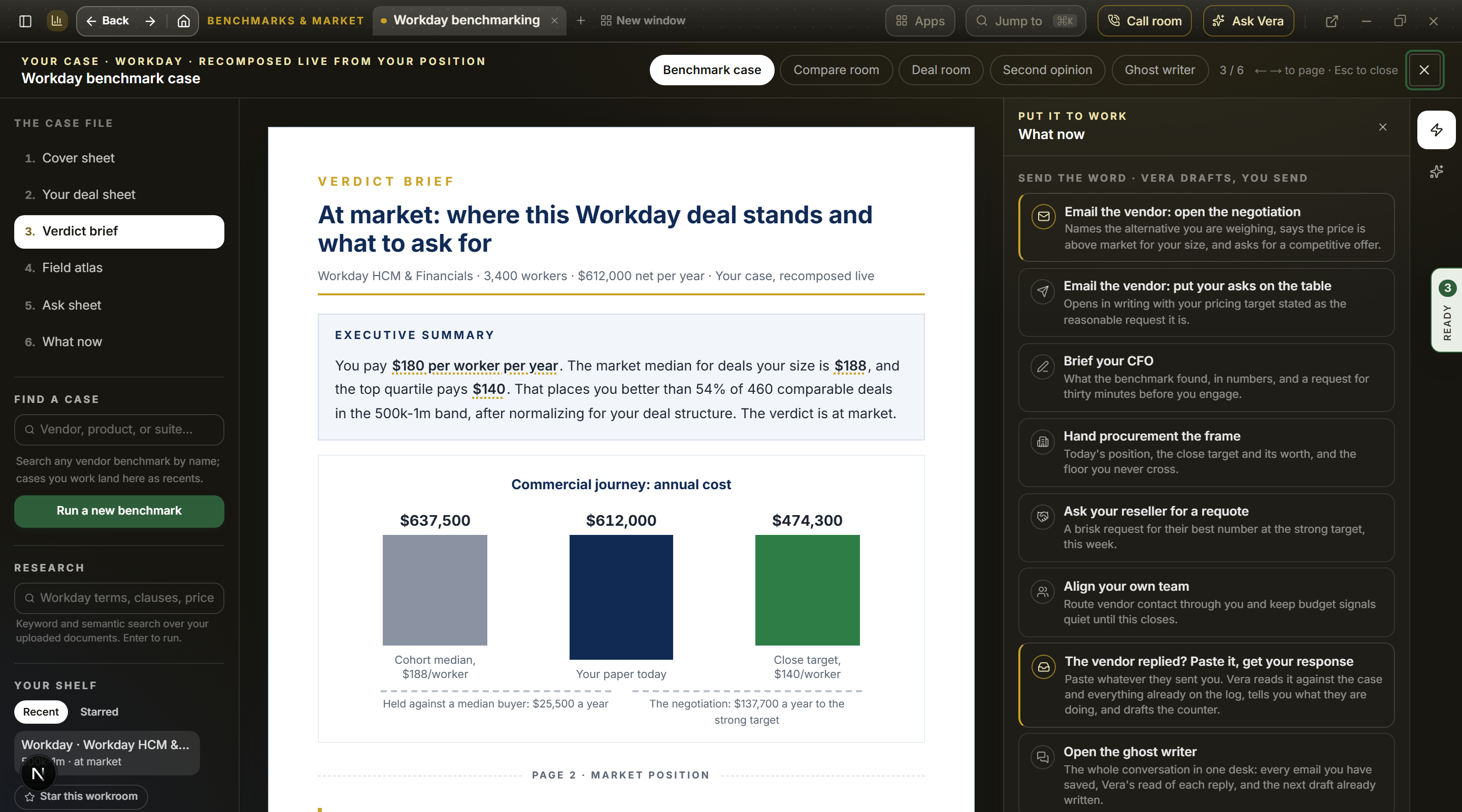
- The case screens — the tabs across the top of the page, above the case title: Benchmark case, Compare screen, Negotiation, Second opinion. They swap the open document for that screen without closing the case. The title bar, the tree, the inspector and every figure stay where they are, so nothing is lost and the way back is the Benchmark case tab, any document in the tree, the back button at the foot of the screen, or Esc. On a window under 1024 pixels wide the tree and the inspector fold away, and the documents and the inspector's panel buttons ride a strip at the top of the page.
- Compare screen (in the case) — your saved positions for this vendor, listed newest first. Tick up to three and press Replay them together: each one is replayed alongside the position on the page now, through the same peer-cohort math against today's data rather than the standing stored at save time. You get the scenario verdict (which position is strongest, the gap in discount points or fee per unit, and what that gap is worth per year at your volume), a standing band with every position dotted on it and the strongest in gold, and the table underneath: metric value, standing, cohort median, top-quartile target, annual headroom to median, and the save date. With no saved positions yet, the screen offers to save the one on the page so the next quote has something to land against.
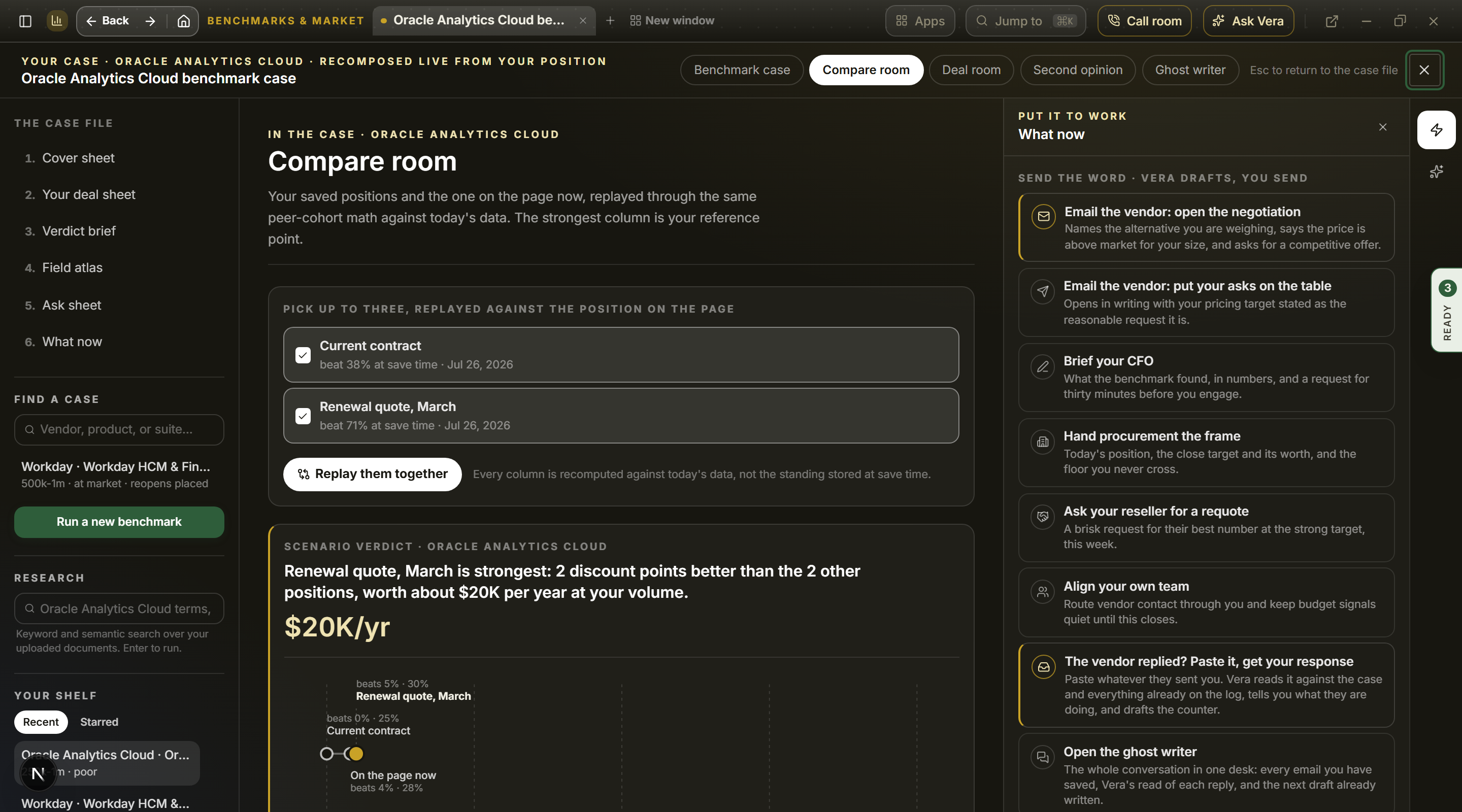
- Negotiation (in the case) — what the Vera Deal-Room adds to this benchmark: it reads the contract itself and assembles the decode, the vendor intel, a credible alternative, the brief and the playbook around it. Below that sit your existing negotiations, this vendor's first and flagged, each opening at its own stage, and one control to hand in a contract and start a new one.
- Second opinion (in the case) — the same shape for the four page verdict brief: what a second opinion adds to this benchmark, your existing opinions with their verdict lines and this vendor's first, and one control to run a new one. Both of these read a contract and take a few minutes, so they run as their own jobs; this case stays on your shelf, one click from where you left it.
- What now — the case file's sixth document, and the answer to "what do I do next with this benchmark?". The same moves also ride the What now panel in the inspector beside every document of the case. Twenty plus moves in five families, every one running on the case's own numbers. Send the word: Vera drafts six emails you edit and send from your own inbox, to the vendor account team (opening the negotiation, or putting your asks on the table), your CFO, procurement, your reseller, and your own team; the vendor facing drafts never reveal your percentile, your cohort, or where the numbers come from. Every draft is written against what is known about how that particular publisher negotiates, where it concedes, and where its fiscal year sits, so an Oracle email and a Salesforce email do not read the same. Put it in front of people: copy a chat ready summary or the one line verdict, mint a 30 day share link that recomputes as the market moves, or copy a prefilled page link for a workspace colleague. Turn it into document: generate the three negotiation toolkit briefs as executive brief PDFs, or download the one page position snapshot. A brief is written from scratch against your position and takes about three minutes, so the move shows a progress meter with the seconds elapsed and the usual duration while it works; the estimate tightens against your own past runs, and you can keep reading the case while it finishes. Keep it working: save the position as a named scenario, with or without market alerts, set the renewal date, or jump back to the levers. Go deeper: Ask Vera with the case loaded as the question, compare vendors side by side, open a full negotiation workup, or book an analyst review with the agenda prefilled.
- The research shelf — the reading closes with what stands behind the vendor, live on the platform: documents from the research library and analyst briefings, each opening the real thing in the app. Only those two sources appear here, and the count links to the vendor's shelf at /research.
- The email dialog — what opens when you pick one of the six drafts. Three controls sit around the draft. The angle is a row of buttons across the top: the reason the email is making its case. The vendor facing drafts offer competitive pressure (the default, which names an alternative you could credibly move to, says the price is above market for a customer your size, and asks for a competitive offer before you go further), budget pressure (the line is capped and today's number does not fit, no alternative named and no target stated), and market price (you know what this goes for at your size and the next term has to reflect it). The internal drafts have their own three: your CFO email can ask for the decision, lead with the money, or lead with the risk of renewing untouched; procurement can take the frame, the money, or the timing; your team note can route contact through you, be a light heads up, or ask for the usage evidence. Pressing an angle rewrites the whole email around that premise. Ask Vera for a rewrite is the field under the draft: say what to change in your own words ("shorter and firmer", "name our March renewal", "upload the last paragraph") and she rewrites what is on screen, so edits you already made by hand survive; leave it empty for a fresh take on the same angle. The alternative named in a competitive draft is researched rather than assumed, from your own alternatives analysis when you have one and a live search when you do not, and when nothing can be verified the email refers to your alternatives in general terms rather than naming a company. Nothing sends from here; you copy it or open it in your own email app.
- The conversation log — under every vendor facing draft: save this email and it becomes the opening move on a negotiation track for that vendor, which is where their reply will land. If a track is already open the log says how many messages are on it and the draft files onto the same thread rather than starting a second one. Closing the window with an unsaved draft asks once before it lets the ask go. When they answer, paste their reply into the reply dialog (The vendor replied? Paste it, get your response): Vera reads the message against your position and against everything already on the log, so a number they are quietly repeating or a concession they are walking back is visible, then tells you what the account team is doing, what to hold, and drafts the response, which never reveals your percentile, your cohort, or where the numbers come from. Save it to the log keeps the whole round: their message, your response, and her read of it. The conversation log move opens the tracks themselves. If you would rather work the thread from your own inbox, the Ghost writer button in the same dialog opens the ghost writer, where you forward vendor mail to a private agent address instead of pasting.
- Where this lands — a percentile band pinned under the inputs showing the middle 50% of your peer set with your deal marked, and the verdict (favorable, mid, or above market).
- The brief — a placed deal reads as a five chapter decision brief. 01 The verdict: the document masthead opens with the plain call in one colored line and a one-sentence reading, then the judgment sentence, the figures, and the market curve carrying your deal as a draggable point; drag the dot and the form follows. Beneath it, the recommendation: the play in one bold line followed by the moves as a short numbered list, all written from the same targets and clock every instrument runs on, then Ask Vera and the Take it forward console side by side. 02 The ask, when the market holds better deals than yours: the three targets (defensible floor, strong close, stretch anchor), each priced from the cohort. When your deal is ahead of the market the chapter becomes The protection instead: the 3 year cost of your commitment under a typical 8 percent uplift against a written 5 or 3 percent cap, priced in dollars, because a buyer who beats the market should never be handed repair targets worse than the rate they hold. 03 Timing and the plan: the engagement roadmap, which opens with the four numbers on the clock (the vendor's quarter close, the open window, your notice deadline, and the renewal, each with its days remaining), then three phase lanes (prepare, engage, document it) on a month ruled time axis with every deadline uploaded through the lanes, and closes with the three moves in the same phase colors, each composed from your own figures. 04 The research: the library documents and analyst briefings standing behind the vendor. 05 The working file. Every instrument carries a short "what this is, how to read it" note, and hovering any figure offers an enlarged view with the same reading.
- The brief and the working file — the toggle beside the verdict chapter. The brief (the default) is the ninety second read above. The working file restores the field (every comparable deal as a dot, with the list value dial on discount benchmarks) and the deal snapshot table between the verdict and the ask, and adds every remaining instrument at the end of the page: the peer comparison suite, the deal played forward, region and signing-year medians, the deal-structure levers, the savings bridge, the should-cost waterfall, your leverage scorecard, the pushback counters, and the scenario theatre where you drag seats, term, and price and the totals reflow. The working file only adds; nothing in the brief changes.
- Saved scenarios — name a position and save it to track it over time, feed the Portfolio benchmark roll-up, and get alerted when that vendor's market moves. Two or more saved positions on the same tool compare side by side on one standing band. Comparison is per tool: a Microsoft EA position and an Oracle ULA position are measured on different metrics and are never placed on the same band.
- The five flagship tools save the same way — Microsoft EA, Oracle ULA, Oracle Technology, Sales and Service Cloud, and Oracle Java SE each carry their own dataset and their own math, and each now carries the same Saved scenarios list. Name the position, press Save, and it joins the roll-up like every other vendor. The figures are re-run on the server when you save, so a saved position is the tool's own math rather than a number a browser sent. Saving is only offered once the tool has placed your deal against a large enough peer cohort, and a workspace can hold up to 200 saved scenarios.
- The money still on the table — the flagship tools close on the annual gap between your position and the market median, then the moves that go after it: start the negotiation carrying these numbers, compare your saved positions, open the roll-up, open the vendor screen, get a second opinion on the actual order form, copy the one line verdict, ask Vera what she would do, or book the analyst walkthrough.
- Download and share — download the placement as a PDF, or create a share link (valid 30 days, optionally kept live so it recomputes against current data each time it is opened).
- The deal room head — on the five flagship tools the right column opens on the deal room: a kicker naming the verdict and the live cohort, the plain call on your deal, then the savings at stake (or your edge on the median), the savings at your selected target, and the three year opportunity. Move a lever or change the target and every figure in the head moves with it.
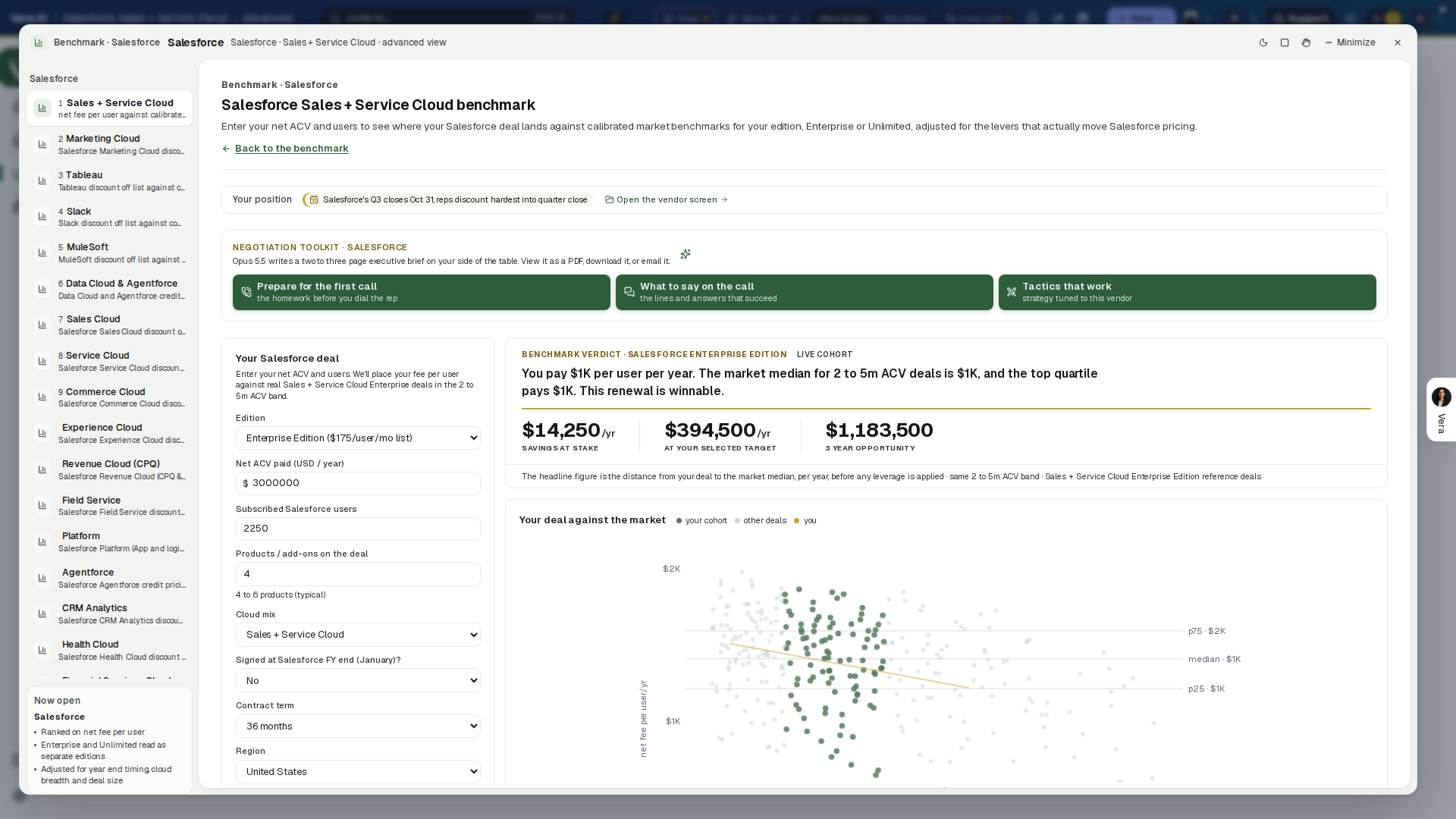
How to use it
- Find your vendor from the library, the search box, or the Ctrl/⌘ K palette, and open it. The benchmark sheet is what opens; read the verdict there first.
- Press
a, or View, Advanced view, when you want the instruments: the levers, the comparison cut several ways, the case file, or the research behind the vendor. - Enter your deal on the left. The verdict, targets, and play light up as soon as your deal is placed against a deep enough cohort.
- Read the play and take the target and counters into the negotiation. Save the scenario or share the result with your team.
Tips
- When too few comparable deals match your position to rank it honestly, the page says so instead of showing a noisy percentile. Widen the region to all regions, or check the deal size.
- Pick your currency at the top of the deal form and the whole page follows it: you enter euros or pounds and every figure on the page, in the case documents, and in the PDF export reads back in the same currency. The reference deals are held in US dollars and converted at a fixed rate, printed under the selector with the date it was set, so a saved position replays identically rather than drifting with a live feed.
- For vendors whose discount scales with deal size, such as Oracle cloud, your deal is ranked inside its own value tier, so a small deal is not judged against whale discounts and a large deal is held to the deeper discount its size should command.
- An instant check is a fast read you run yourself. For a full, hand-verified analysis of a specific quote or contract, upload it for analyst benchmarking; Upload the contract for a clause X-ray on the vendor page opens the upload wizard with your vendor and deal value prefilled.
Related: Benchmark Library · Contract Office · Portfolio benchmark
Next: Chapter 03 · Tooling & playbooks
Was this page helpful?
Thank you. Your note goes straight to the team that writes this manual.