12 · Integrations, clients & deployment
The technical chapter, written for the IT, security, and procurement-ops people who market news Vera AI into an estate. It answers three questions: how data gets in and out (the integration catalog), what runs on your machines (thin and thick clients), and where the platform itself can run (the three deployment methods). Nothing here is required to use the platform; everything here makes it stronger.
How the platform is delivered
Vera AI is delivered as a managed cloud platform (SaaS). The application, database, storage, and backups are operated by us; your team signs in from a browser and maintains nothing. The technical posture, in the terms a security review asks about:
- Tenant isolation — every organization's rows are isolated at the database layer with row-level security, tested with real cross-organization attempts, not filtered in application code.
- File handling — contract files live in private encrypted storage. There are no public URLs; every download uses a signed link that expires in about a minute, and every view and download lands on the audit trail.
- Encryption — TLS in transit, encryption at rest for the database and file storage.
- Identity — SAML and OIDC single sign-on, SCIM provisioning, and TOTP multi-factor are available on the standard service (see Sign in policy).
- Auditability — an exportable audit log records who did what, including file views and downloads, and can stream to your SIEM.
- Updates — continuous. Features, security fixes, and fresh benchmark data ship without any action from you.
The Trust center tells this story with live numbers, and the Security posture shows your own workspace's posture against it.
Clients: what runs on your machines
The platform is thin-client first: the browser is the primary interface and nothing needs to be installed. Around it sit a thick-client desktop app and several headless surfaces.
The browser (thin client)
Who: everyone
Any modern browser is a full client. All processing happens server side, with one deliberate exception: the browser-local calculators. Several tools (Cloud cost optimizer, VCF licensing, M365 optimization) parse your usage export as a file in the page itself, so raw usage data never leaves your machine unless a step explicitly sends approved figures for analysis; each tool states which side of that line it works on. Files sent to the AI tools follow the document keeping rule in Tooling: contract-family documents save to your workspace as contracts, private to your organization, while phone captures, XLSX rate cards, invoices, audit letters, and spend exports are read in memory and never stored. Owners can turn the saving off under Data controls.
The desktop apps (thick client)
Who: everyone · install is per user, no admin rights
VendorBenchmark Desk is the whole platform as a native application around the same account and data, for teams that live in it daily: its own window and taskbar identity, every app opening inside that window as a screen, drag a contract from Explorer straight onto it, your contracts and renewals held on the machine for reading with no network, native Windows notifications for deliveries and notice windows, Vera summonable over any app, Windows Hello lock, and automatic updates. Install it from Settings › Connections › Desktop and Office apps. It is a client, not a data store: uninstalling it touches nothing in your workspace. Two apps live on that page, the Desk and Second Chair for the meetings themselves, each for Windows and for macOS 13 and later as one universal build.
Chat clients: Vera in Slack and Microsoft Teams
Who: connected by an org owner
Vera answers inside your own Slack workspace or Teams tenant: ask about a price, a clause, or a renewal without leaving chat, with every figure tagged to its source exactly as in the app. Connected under Integrations.
Ask to buy something from chat (since 3 October 2026). Start a message with request (or buy, purchase, new request), or write "we need to buy ...": in Slack, /vera request 50 Miro seats for the design team or @Vera in a channel; in Teams, a message to Vera. The request is filed in Sourcing, New requests, in your name (Vera matches your chat profile's email to your Vera AI account, so you must be a member), and triage runs at once: what you already hold from that vendor, the licenses already held and how many are idle, and whether it needs an approver. The reply says what was filed, the verdict and why, with a link to New requests; in Slack it is visible only to you. Org owners are told a request arrived, as with the intake email address.
Microsoft Office: Vera in Word, Excel, Outlook and PowerPoint
A pane beside your document. It reads what you have open, answers from your contracts and benchmarks, and puts the answer back into the document as real formatting: a table arrives in Word as a table, in Excel as cells, in Outlook as the body of the message.
No add-in needed to copy. Copy anywhere in the web app already pastes into Word, Outlook and Excel with its formatting; see Copy into Word, Outlook and Excel. The pane is for working inside the document: reading what is open and placing the answer where your cursor is.
On the screen
- The box at the top — type a question or an instruction. Ask answers a question about what is open. Edit returns text to place: a rewritten clause in Word, a table in Excel, the body of an email in Outlook.
- Sources — what Vera reads beside the open document: up to two contracts you have on file, and in Outlook up to three attachments of the open email (PDF and Word, 3 MB together). What is open, and your workspace's contracts and benchmarks, are always read.
- Workflows — the one press jobs for the application you are in, listed below.
- An answer — shown as the document will show it, with a Read line naming what it was drawn from, and the buttons that place it. A chart, a trend or a clause comparison in an answer is shown and placed as the table of its figures, because a drawing cannot go into a document: a real table in Word and Outlook, rows and columns with numbers kept as numbers in Excel. Copy beside the insert buttons puts the answer on the clipboard with the same formatting, for a document other than the one open.
- Settings (the cog) — who is signed in, the workspace in use if you belong to more than one, and Sign out of this pane.
What each application does
| Application | Workflows | Placing an answer |
|---|---|---|
| Word | Summarize this document, Review the commercial terms, Benchmark the pricing, Redline this document, Compare against your playbook, Rewrite the selection in your favor | Insert after the selection, or Replace selection; a redline's changes are written as tracked changes |
| Excel | Explain these cells, Benchmark these prices, Check the figures, Insert your contracts | Insert at the selected cell: a table becomes rows and columns, numbers stay numbers |
| Outlook | Summarize this email, Read the attachments, Draft a reply, File the attachments as contracts | Open as a reply or Reply all when reading, Insert into the draft when writing |
| PowerPoint | Tighten the selected text, Check the selected figures | Insert at the selection |
The Contract Agent in Word: Redline this document
The whole Contract Agent reads the document you have open, the same first pass the Contract Agent shows in its window while the deep read runs, usually inside two minutes. The pane lists every change worth asking for, worst first by what it is worth a year, and each one carries the clause as written, the wording to put in (or Strike the clause), one line on why, the money a year, a High, Medium or Low tag, and where the term sits against the market: your figure on a bar between what comparable customers sign, with the midpoint marked. The head says how many changes, what they are worth a year together, and where the deal stands among comparable deals.
- Apply as tracked change finds the clause in the document by its words, turns on Track Changes, and writes the wording over it, so the document carries a real tracked change under your name, exactly as if you had typed it. The vendor's lawyer accepts or rejects it in Word as usual.
- Apply all N writes every open change in turn. A clause the pane cannot find as the read quoted it (a scanned original, or a line rewritten since) is left alone and named, so you place it by hand.
- Nothing is stored: the document stays in Word, and the read is recorded in the audit log as a redline from Office with its size and its count, never its text.
- The same read inside the app, with the deep pass, the vendor round and the template verdicts, is the Contract Agent; forward the document to your contracts address or upload it there when you want the full file.
How to use it
- Download the two files from Desktop and Office apps: one for Word, Excel and PowerPoint, one for Outlook.
- Install them. The steps differ by application and by where Office runs, and each route is walked in the Microsoft Office add-in recipe. In short: Outlook takes the Outlook file at
aka.ms/olksideloadunder My add-ins, Custom Addins. Word and Excel on the web take the Office file under Home, Add-ins, More Settings, Upload My Add-in. Word and Excel installed on Windows have no upload button, so a Microsoft 365 administrator deploys each file once under Integrated apps, Upload custom apps, which is also the route for a whole company. - Press Vera on the Home tab, then Sign in. The pane shows a short code; press Approve in the browser and approve it where you are already signed in. The pane signs in by itself. An owner can connect with an API key from Settings › Connections › API keys instead.
- Ask, or press a workflow. In Word, tick Read only the selected text to keep the question to one clause.
- Press the insert button on the answer you want. Nothing is written into your document until you do.
Tips
- Draft a reply opens Outlook's own reply with the draft in it, so you read and edit it before anything is sent. The pane never sends an email.
- File the attachments as contracts puts each PDF or Word attachment under Contracts, through the same checks as an upload in the app, and says when a file is already on file.
- In Excel, selecting one cell reads the whole sheet; selecting a range reads only that range.
- The pane reads your document only when you ask, and stores none of it. Each question is recorded in the audit log as a question from Office, without its text.
- An attachment over 3 MB is not read in the pane: upload it in the app, then choose it under Sources as a contract on file.
- The pane runs in the Microsoft 365 desktop applications and in Office on the web. The older one time purchase versions (Office 2016 and 2019) draw add-ins with a browser engine the platform does not run on.
Related: Desktop and Office apps, The API, MCP, and agent-to-agent, Contract Office
Copy into Word, Outlook and Excel
You do not need the add-in to take Vera's work into Office. Copy in the web app puts two versions on the clipboard at once: the formatted one, which Word, Outlook and Excel paste, and plain text for anything that only takes text. A table arrives as a real table with its head row, headings as headings, lists as lists, in the same Calibri and navy as the platform's Word exports.
What pastes how
| What you copy | How it pastes |
|---|---|
| An answer: Copy under it in a Vera conversation, the Ask panel over any page, a row's Ask, an AI agent's thread, a workflow run | Formatted: headings, lists and tables. A chart is copied as the table of its figures, a clause comparison as the two wordings side by side, and the source tags are left out |
| A document Vera wrote beside the conversation, or a written brief | Formatted: headings, lists, tables, and the sources as links |
| A part of a brief: right click it, then Copy the text | The part as you see it: its heading, its table, its bullets |
| An email draft, a letter, a memo or a debrief, talking points, a position, an ask list, a summary, your notes | Formatted: paragraphs, line breaks and lists |
| Clause wording and redline text (the clause library, key clauses, the language drafter, the Policy tab, a decode report, the Contract Agent, the Contract Office) | Formatted, one line or many |
| A link, a code, an address, one sentence, a script or a config | Plain text, exactly as shown |
How to use it
- Press Copy on what you want. The button says Copied, or says the clipboard is blocked if the browser refused it.
- Paste into Word, Outlook or Excel with Ctrl V (Cmd V on a Mac).
- In Excel, click the cell where the table's top left corner should go before you paste: the table fills rows and columns, and figures arrive as numbers you can sum.
Tips
- To make pasted clause wording take your contract's own font and spacing, choose Keep Text Only from the paste options in Word (Ctrl V, then Ctrl, then T).
- A chart does not travel through the clipboard; the table of its figures does. For the chart itself, download the document as Word from its own Download button.
- If the clipboard is blocked (some company browsers block it), select the text on screen and copy it with the keyboard. It pastes as the browser renders it, without the platform's formatting.
- Inside Word, Excel or Outlook, the add-in's own Copy does the same for an answer from the pane.
Related: Microsoft Office: Vera in Word, Excel, Outlook and PowerPoint, Vera conversations
Email as an interface
Who: addresses are provisioned by an org owner
Five inbound routes give every teammate an integration that needs zero training, because it is just email:
- Contract email-in — forward a vendor proposal to your intake address and it lands in Contract Office.
- Deal email-in — forward a live vendor thread onto the deal record, where the negotiation ghost writer can draft the reply.
- Invoice email-in — forward invoices and they reconcile billed against contracted on Invoices.
- Purchase request email-in — teammates raise Requests by mail, straight into triage.
- Ask an agent by email — send a question plus a document and the answer comes back to your inbox.
- A quote, checked before anyone opens it (since 3 October 2026) — forward a vendor's quote, order form or proposal to the agent address, as an attachment or pasted into the email. Before the agent answers, each quoted line is read and set against the same product on the contract you hold with that vendor, and the whole quote against comparable buyers. The reply opens with the finding (how many lines are above what you pay today and what that adds up to a year), a table of every line with its quoted rate, today's rate and the difference, and a draft counter you can send: one numbered ask per line above today's rate, the discount comparable buyers get when the quote falls short of it, and the high risk terms to remove. Only a member who emails the address gets this; a quote mailed in by anyone else is answered as before. Needs a plan that includes AI, up to 40 quotes a workspace a day.
The API, MCP, and agent-to-agent
Who: org owners only (keys)
- REST API — create keys under Settings › Connections › API keys; keys expire within a year and are shown once.
- MCP connector — point Claude, ChatGPT, or any MCP-capable tool at your workspace so your own AI assistants can query your benchmark data with your permissions. Connected tools can also work the agreement estate: list every agreement record with its lifecycle state, read one record with its version chain and legal next moves, and move a file along the guarded lifecycle (illegal moves are refused, every move is audited).
- Microsoft Office add-in — the Vera pane inside Word, Excel, Outlook and PowerPoint, described in Microsoft Office above. Each member signs it in with a short code; an org API key from Settings › Connections › API keys also connects it, and the two manifest addresses are listed there for a Microsoft 365 administrator.
- E-signature sending — three services. VendorBenchmark Sign is built in and needs no connection: the signing studio on an agreement record places the signature, initials, date and text areas on the stored PDF, routes up to ten signers in order, and each signer signs in the browser through a personal link; completion stamps the areas, appends a certificate of completion, and files the executed copy onto the record. DocuSign and Adobe Acrobat Sign connect under Settings › Integrations for orgs that sign there; the agreement record sends the newest version through either service, Word documents get their signature fields placed automatically, and the executed copy files itself the same way when signing completes.
- Agent Negotiation Protocol — the open, published protocol for structured buyer-agent-to-vendor-agent negotiation, with a hash-chained transcript; the spec and artifacts are public at
app.vendorbenchmark.com/agent-protocol.
Vera OS, the autonomous procurement companion
Vera OS (beta) has retired from the platform: /vera-os and every screen under it (the Control Tower, Negotiations, Agreements, Vendors, Benchmarks and Market news) open the Monday brief, which reads the week's work across renewals, credits owed, invoices and benchmarks.
The integration catalog
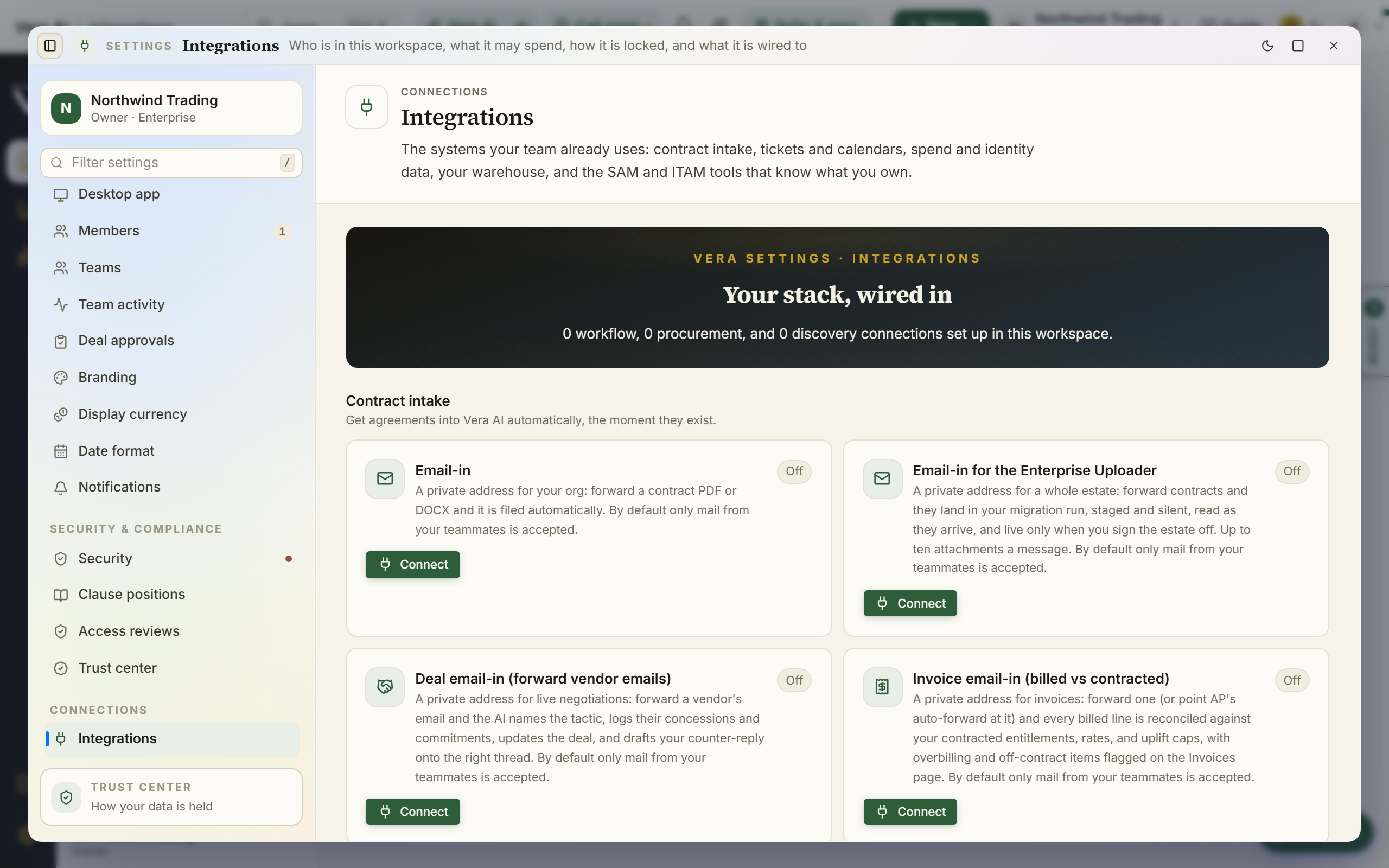
The page is one calm scroll, arranged the way this section is: contract intake first, then renewal workflow, spend and usage data, data out, and automation, with the two deep estates, procurement (P2P) and license discovery (SAM / ITAM), at the foot. Every connector ships with the same operating rules: credentials are stored encrypted and used only server side, read-only scopes are requested wherever the source system offers them, every sync is logged under Recent syncs, and connector-reported entitlement figures are held for human confirmation before they can drive an alert (you will see them marked "confirm" on Billing watch). Disconnecting a source stops its syncs immediately.
Contract intake
Get the document in without anyone uploading by hand. Half of these connectors are just private email addresses, provisioned in one click and shared with your whole team.
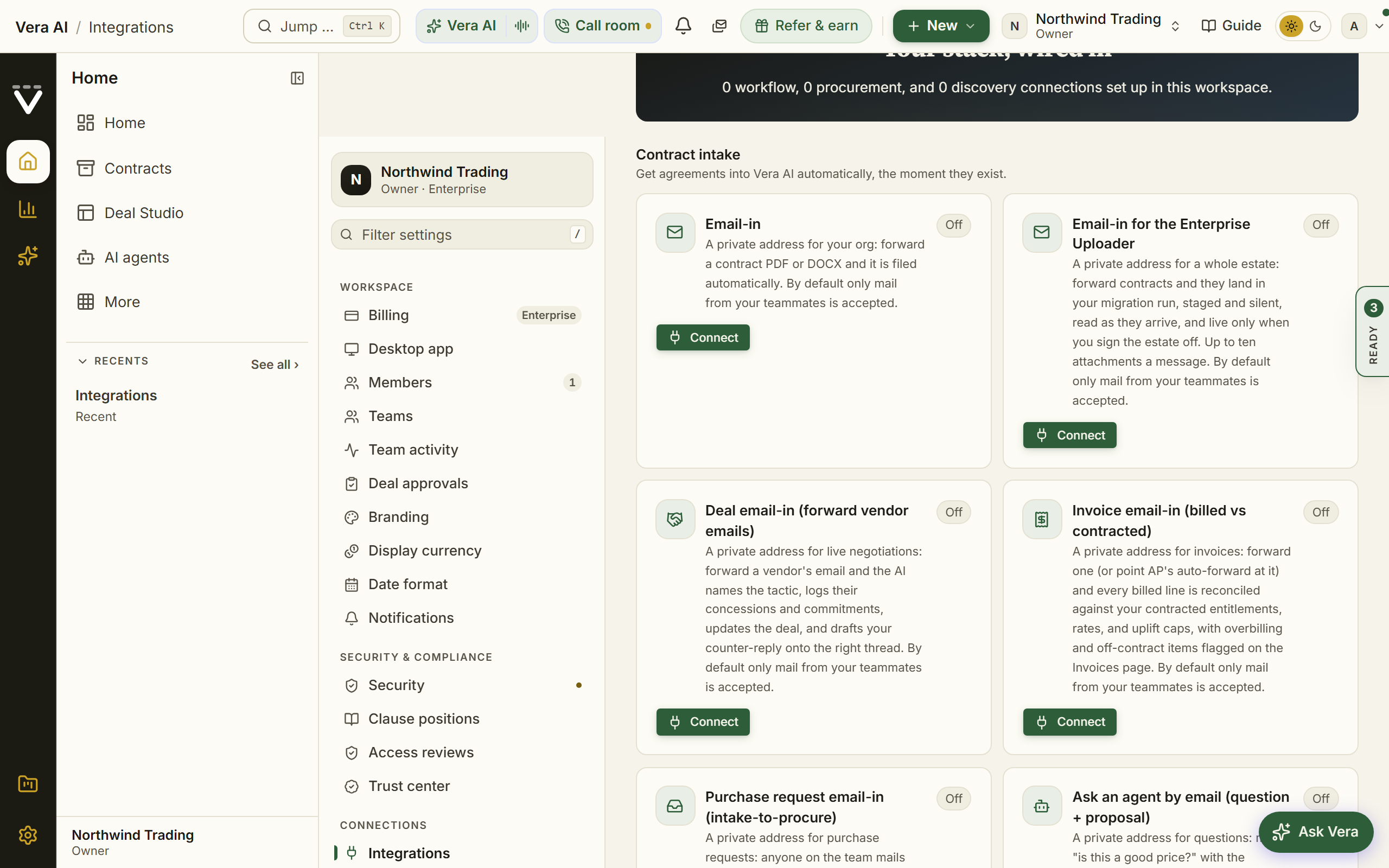
| Connector | What it does |
|---|---|
| Email-in | A private intake address; forwarded proposals become tracked contracts, and the reply tells you what was read, with only the doubtful fields left to confirm in one tap |
| The vera@ prefix | The same address with vera in front of the plus sign is the concierge address: contracts file, invoice looking attachments go through the line item check instead, and a plain question with no attachment is answered by email, with follow ups in the same thread remembering what came before |
| Deal email-in | Forward a live vendor thread onto the deal record; the ghost writer can draft the reply |
| Invoice email-in | Forwarded invoices reconcile billed against contracted on Invoices |
| Purchase request email-in | Teammates raise Requests by mail, straight into triage |
| Ask an agent by email | Send a question plus a document; the answer returns to your inbox. A forwarded quote comes back checked line by line against your contract and comparable buyers, with a draft counter |
| DocuSign | Completed envelopes flow in as signed agreements |
| Ironclad | Executed contracts sync from your CLM |
| Google Drive folder watch | Upload files in a folder, they arrive here |
| SharePoint folder watch | Same, for Microsoft estates |
| Box folder import | Bulk import from a Box folder |
| OneDrive folder watch | A folder in a OneDrive for Business account, through the same Microsoft app registration as SharePoint |
| Dropbox folder watch | A Dropbox folder, through a Dropbox app with a refresh token |
| SFTP folder watch | A folder on a server, with a password or a private key, for the systems that can only write files to a server |
| Coupa contract attachments | The documents attached to your contracts in Coupa; separate from the Coupa spend connection |
| SAP Ariba contract workspaces | The documents in your SAP Ariba contract workspaces; separate from the SAP Ariba spend connection |
Renewal and deal workflow
Push the work to where your team already lives.
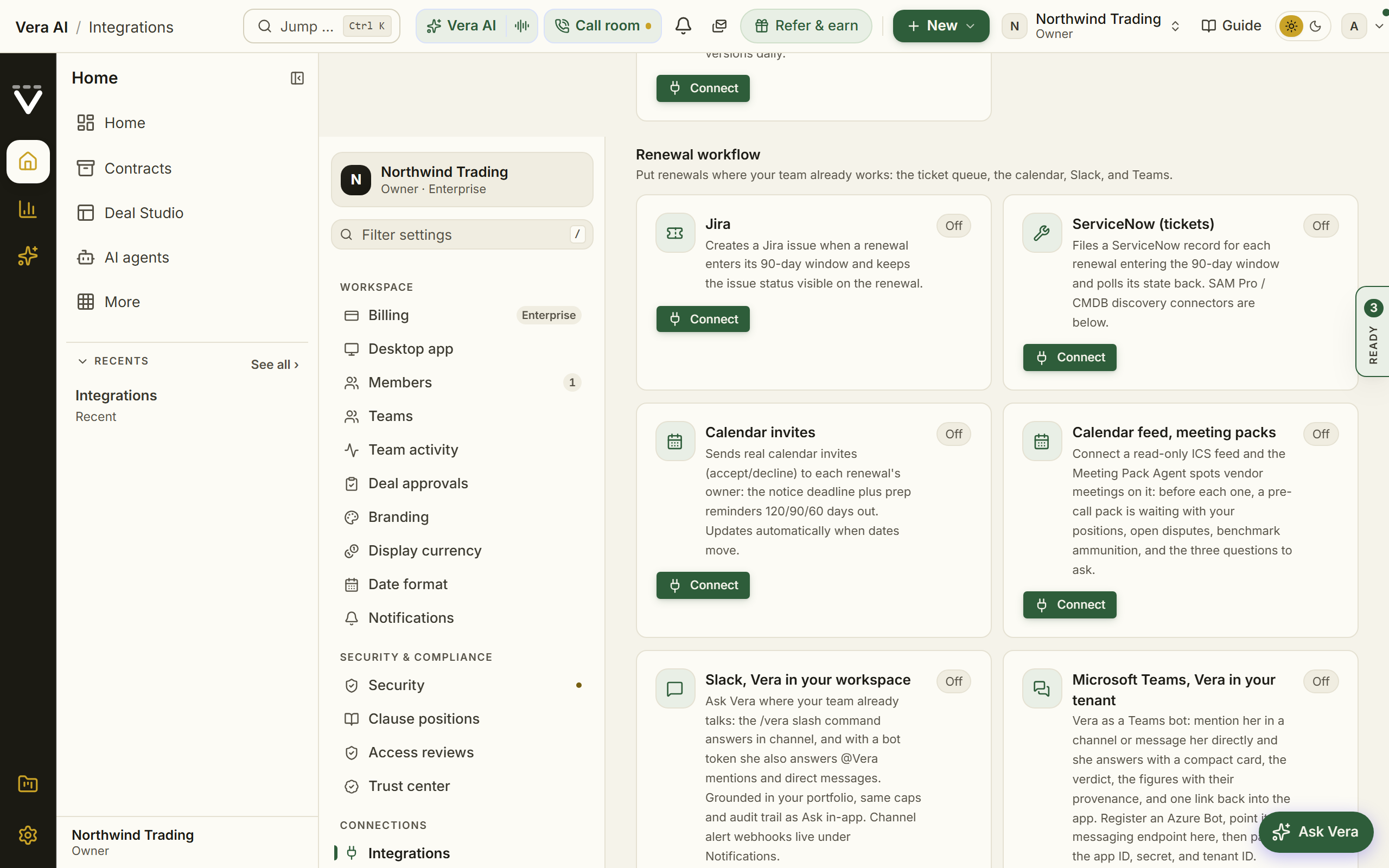
| Connector | What it does |
|---|---|
| Jira | Renewal tasks and findings as issues in your project |
| ServiceNow (tickets) | The same, as ServiceNow tickets |
| Calendar invites | Notice windows and renewal deadlines as calendar events |
| Calendar feed | A read-only ICS feed of your vendor meetings and renewal deadlines |
| Slack | Alerts to a channel, plus Vera in your workspace |
| Microsoft Teams | Alerts to a channel, plus Vera in your tenant |
Spend and usage data
The money and the activity behind it: what you pay, and who actually uses what you pay for.
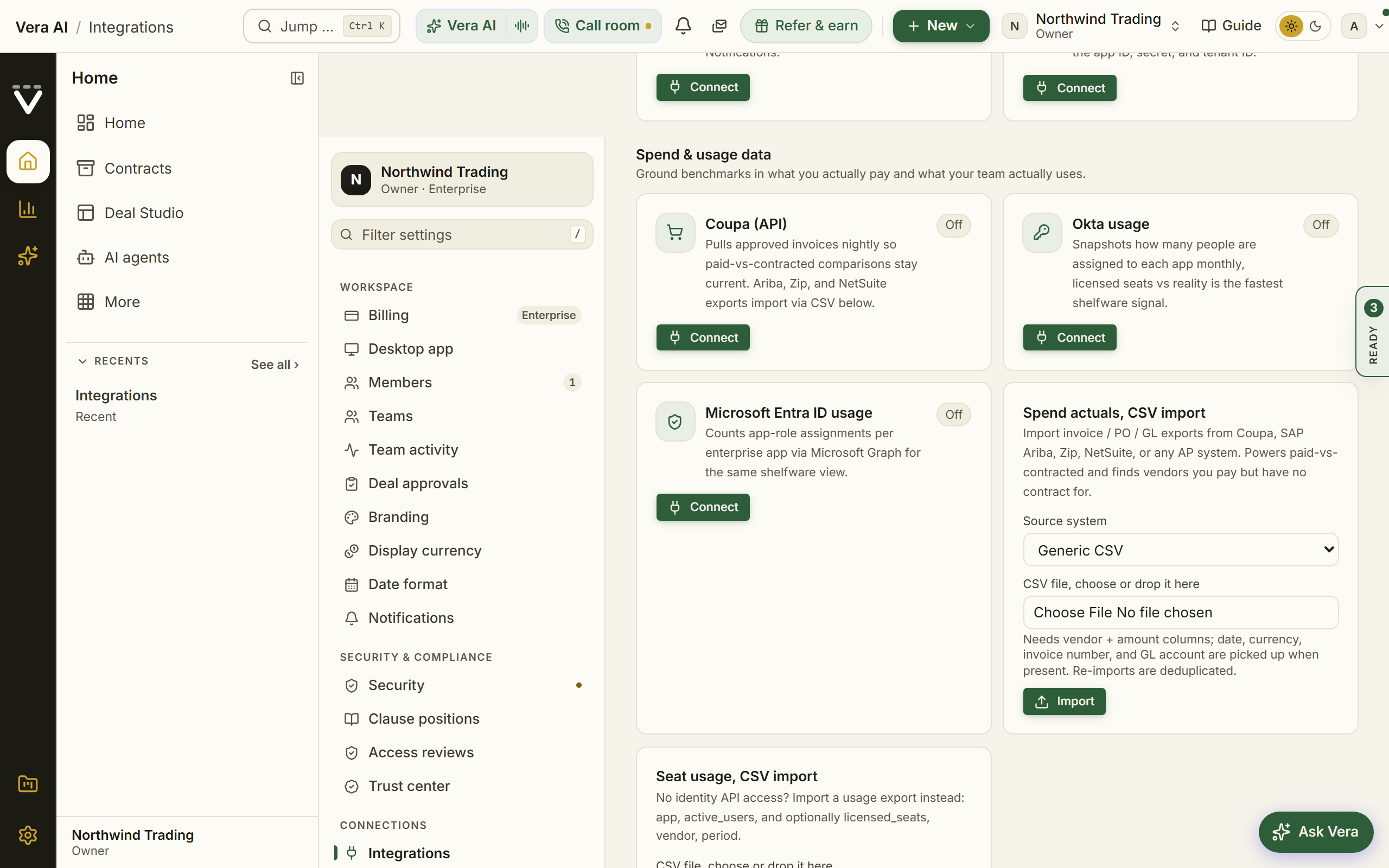
| Connector | What it does |
|---|---|
| Coupa | Spend actuals by API |
| Okta usage | Who actually signs in to which app: since 3 October 2026 the count is the people who signed in to each app through Okta in the last 30 days, read from the Okta System Log, not the people assigned to it (the API token needs read access to the System Log; without it, assignments stand) |
| Microsoft Entra ID usage | The same, for Microsoft estates: the people assigned to each app, and since 20 October 2026 who signed in over 30 days where the tenant has Entra ID P1 or P2 and the app registration has AuditLog.Read.All (without them, assignments stand) |
| Ramp card spend | A year of card transactions every night, software lines only (by merchant category), with the cardholder's email and department; shown as apps bought on a card in the SaaS Manager. Needs a client ID and secret with transactions:read and users:read |
| Brex card spend | The same from Brex, with a user token that reads card transactions, cards and users |
| Spend actuals import | A CSV from Coupa, SAP Ariba, Zip, or a NetSuite GL export, or any generic spend CSV |
| Seat usage import | A CSV of per-app seat activity |
| Smart import | One-off bulk loads: the AI reads whatever columns your export has and maps them for you. Since 3 October 2026 a card or expense export can carry the cardholder's or requester's email, read as Card or expense owner: when that vendor has no contract on file, the upload request goes to that person (Anomalies) |
Data out and automation
Your data is yours to take with you, continuously.
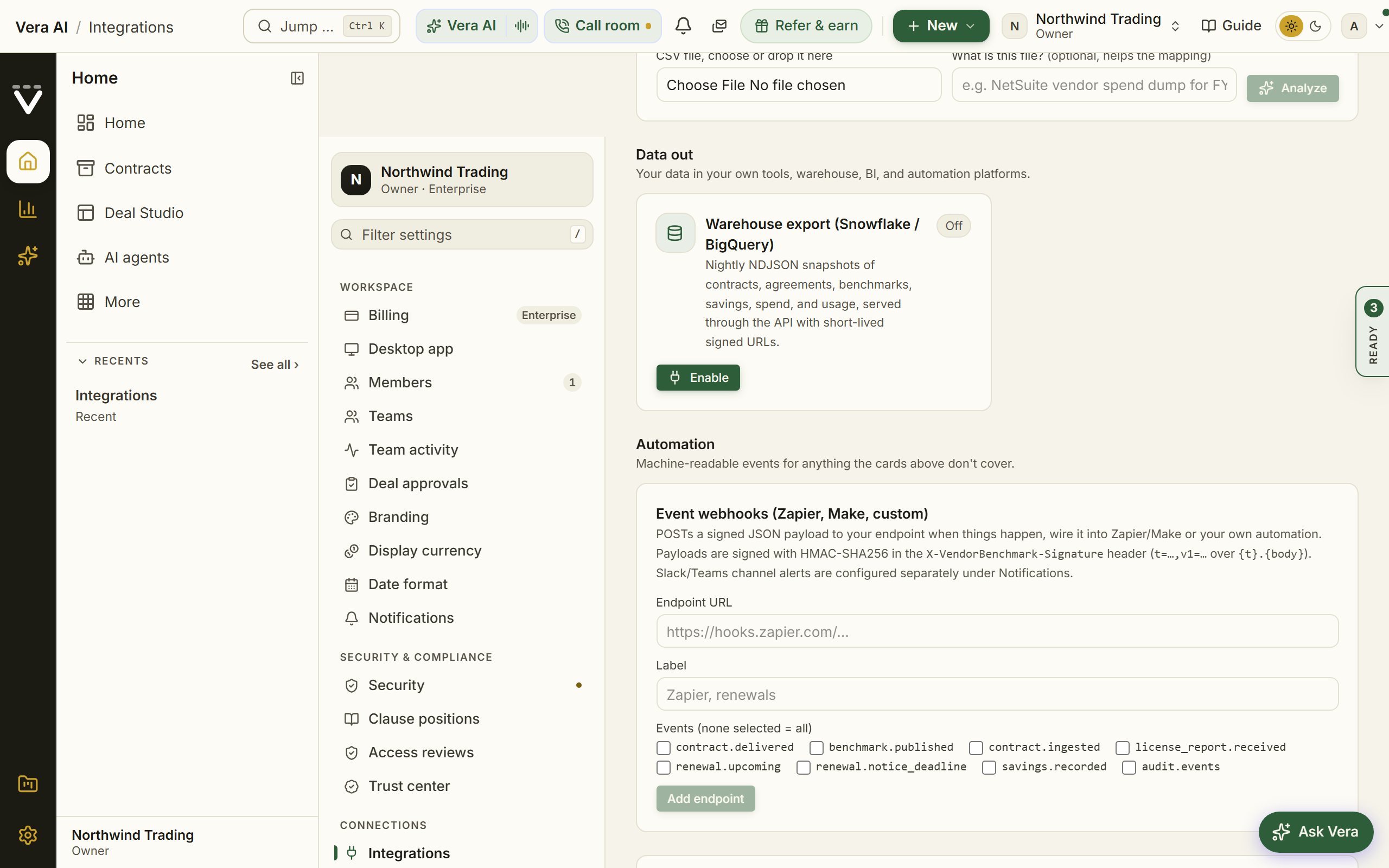
| Channel | What it carries |
|---|---|
| Warehouse export | Contracts, renewals, savings, and spend tables to Snowflake or BigQuery |
| Event webhooks | Signed JSON events (deliveries, status changes, findings) to any endpoint, including Zapier or Make; verify the signature before trusting a payload |
| Audit webhook | The audit log streamed to your SIEM |
| File exports | Every report as PDF, Word, or PowerPoint; ledgers and tables as CSV or Excel |
The integrations page also carries the Agent Negotiation Protocol: an org owner opts your workspace into structured agent-to-agent negotiation there, and the public spec lives at app.vendorbenchmark.com/agent-protocol (see The API, MCP, and agent-to-agent).
Procurement and ERP (P2P)
Purchase orders, requisitions, and supplier records, so spend that never touched a contract still shows up, with maverick spend flagged. Beneath the connectors, the Procurement intelligence table turns the synced records into a supplier-by-supplier read.
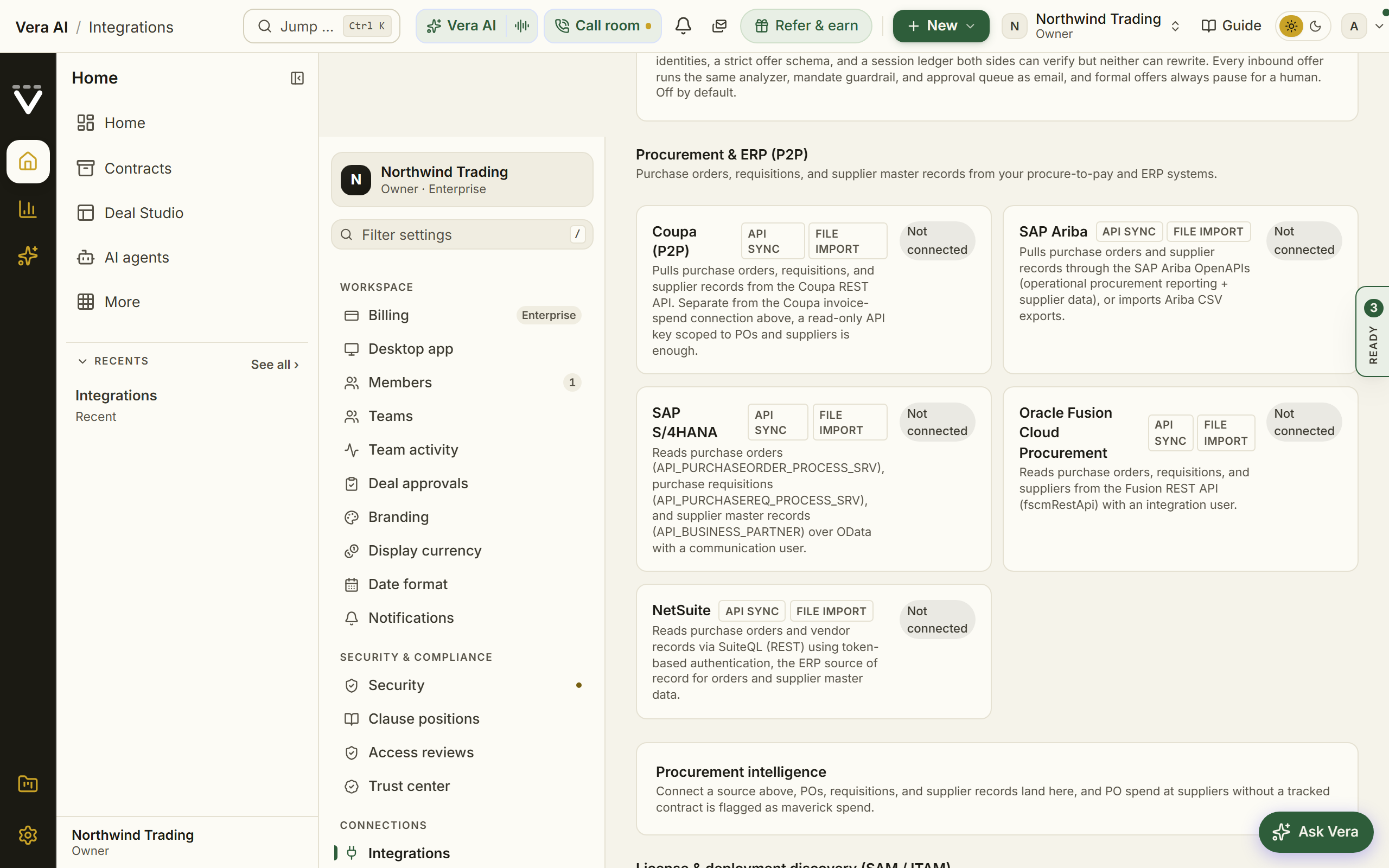
| Connector | Source |
|---|---|
| Coupa | API connection |
| SAP Ariba | API connection (US, EU, APAC endpoints) |
| NetSuite | Token-based API connection |
| Oracle Fusion Cloud Procurement | API connection |
| SAP S/4HANA | API connection |
| File exports | Coupa, NetSuite GL, Ariba, Zip, or CSV when an API connection is not approved |
License and deployment discovery (SAM / ITAM)
Connect the systems that know what you own and what is deployed; the License intelligence table beneath the connectors then shows entitled against deployed against active per vendor, with estimated shelfware. This is the data that powers Data health, Billing watch, and audit exposure. Each connector opens on a click to show its credential form and names how it connects: API sync, file import, or both.
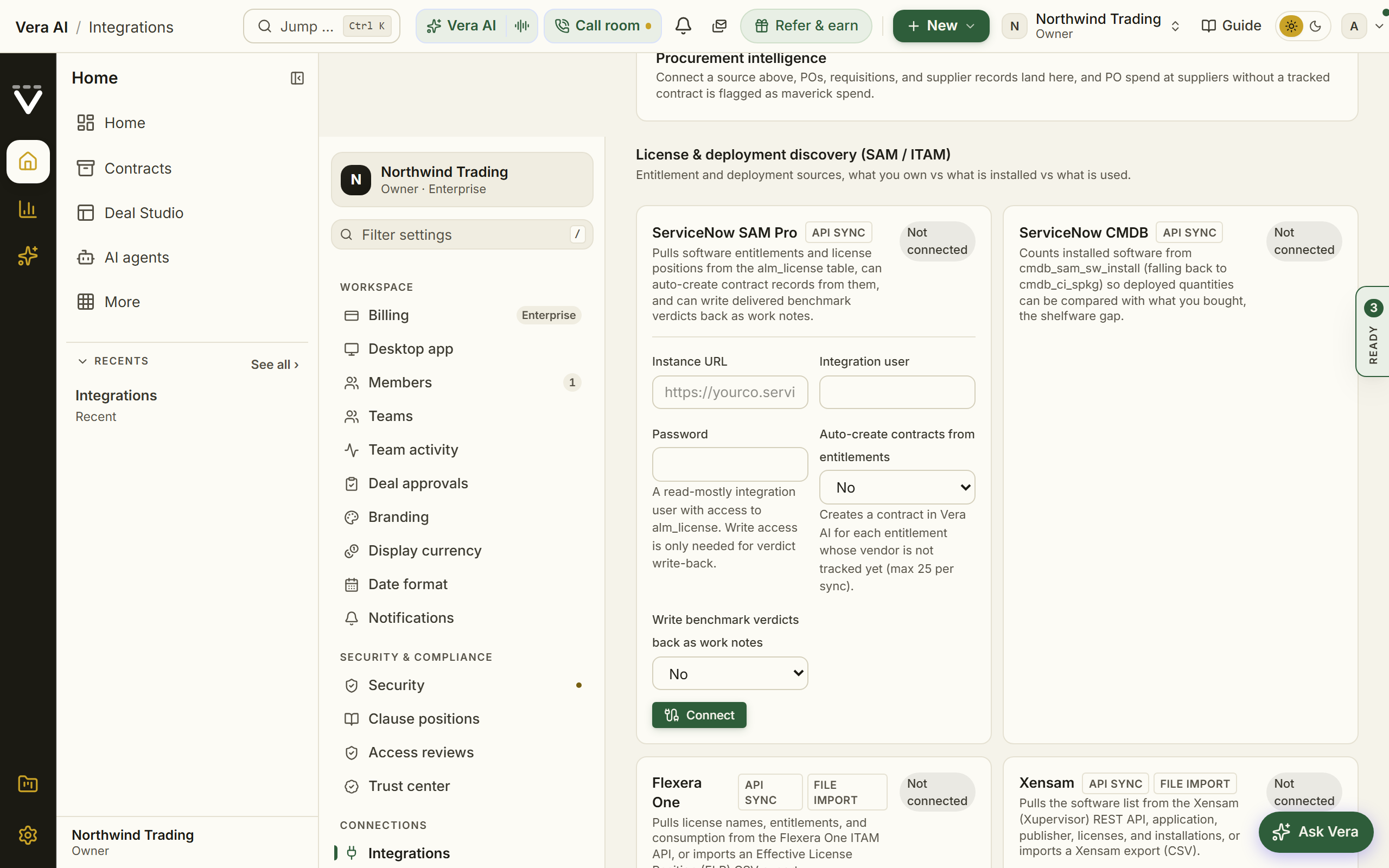
| Connector | Source |
|---|---|
| ServiceNow SAM Pro | Entitlements and license positions |
| Flexera One | Entitlements and deployments (US, EU, APAC endpoints) |
| Snow License Manager / Snow Atlas | Entitlements and usage |
| USU / Aspera SmartTrack | Entitlements |
| Microsoft 365 | Seats bought and assigned via Microsoft Graph, and since 3 October 2026 the people active in the last 30 days per product, read from the Microsoft 365 active user report (add Reports.Read.All to the app registration) |
| Salesforce usage | Since 3 October 2026: per Salesforce license type, the licenses bought, the ones assigned, and the people who signed in in the last 30 days. Connects with a connected app using the client credentials flow; its run-as user needs View Setup and Configuration, and View All Users for the sign-ins |
| Microsoft Intune | Device and app inventory |
| Jamf Pro | Apple estate inventory |
| ServiceNow CMDB | Deployed software inventory |
| Oracle LMS / ULA position | Your measured Oracle deployment position |
| SaaS management platforms | Zylo, Zluri, Torii, or Productiv, via their CSV exports |
| Cloud billing | AWS Cost & Usage Report, Azure cost export, or Google Cloud billing export, feeding the Spend Agent and the Cloud cost optimizer |
How to use it
Every connection named in this catalog has a step-by-step setup recipe, with a verification line and a teardown, in Chapter 19 · Integration recipes. The order that pays best:
- Start with identity: SSO and SCIM first, so access is governed from day one.
- Open the cheapest intake routes: email-in addresses and a folder watch cost minutes and remove the manual-upload habit.
- Connect one SAM or usage source and one spend source, then follow Data health, which ranks every remaining gap by the feature it enables.
- Turn on data out last: the warehouse export and the audit webhook make the platform a citizen of your data estate rather than an island.
Related: Integrations (settings reference) · API keys · Connect your data and close the gaps
Vera AI with your SAM tool
Who: owners connect the sources · everyone benefits from the joined data
Your SAM or ITAM platform and Vera AI know different halves of the same estate. Flexera One, ServiceNow SAM, Snow License Manager, USU, and Xensam know what you own and what is deployed: entitlements, installations, active users, license positions. Vera AI knows what it all costs and what it should cost: the contracts themselves, the prices against the market, the renewal mechanics, and the negotiation. Connect the two and each side covers the other's blind spot.
Data flows in. Under Settings › Integrations, the discovery connectors pull license positions from your SAM tool, live over its API where one is exposed (ServiceNow, Flexera One, Xensam, Microsoft 365, Intune, Jamf) or from its standard export file (Snow, USU, the SaaS management platforms). Every source lands in the same License intelligence table: entitled versus deployed versus active per vendor, priced where a unit rate is known. That is where shelfware stops being a suspicion and becomes a number. Every sync and import also files as a report in Vera Licensing, the ledger where license reports land and where Vera reads them.
Or the tool pushes. When the integration runs from the SAM side (a scheduled job, an iPaaS flow, or a script), point it at the license report push API instead of connecting a pull:
POST /api/v1/license-reports
Authorization: Bearer vbk_your_key
Content-Type: application/json

{ "title": "Weekly license position", "source_label": "Flexera One",
  "rows": [ { "vendor": "Microsoft", "product": "Visio Plan 2",
              "entitled": 400, "deployed": 310, "active": 210,
              "unit_cost": 180, "currency": "USD", "metric": "seats" } ] }
Row fields take the common synonyms a SAM export uses (purchased, installed, used, unit price and so on), snake_case or camelCase, up to 5,000 rows per report and 12 pushes an hour per key. Keys are created by an owner at Settings › Connections › API keys. Every push files into the Vera Licensing ledger, updates the live license position, raises the license_report.received webhook event for your connected channels, and can be listed back with GET /api/v1/license-reports or fetched row by row with GET /api/v1/license-reports/{id}.
Data flows out. Report extract writes your contract register back the other way, in the agreement layout your tool imports: one workbook shaped for Xensam, Flexera One, ServiceNow, Snow, or USU, or your own template filled under its own headers. The ServiceNow connector goes further on its own: it can create contract records here from entitlements it discovers, and write delivered benchmark verdicts back onto the source records as work notes.
| Tool | What flows in | What flows out |
|---|---|---|
| Flexera One | License names, entitlements, and consumption over the API, or an ELP export | The contract register in the Flexera One contract layout |
| ServiceNow SAM | Entitlements from alm_license, installs from the CMDB, optional auto created contracts | The register in the ast_contract layout, plus benchmark verdicts as work notes |
| Snow License Manager | Compliance report exports | The register in the Snow agreement layout |
| USU (Aspera) | License position exports | The register in the USU contract layout |
| Xensam | The software list over the Xupervisor REST API, or a CSV export | The register in the Xensam agreement layout |
The goal when both are connected. One closed loop instead of two half informed systems.
- Shelfware gets priced, then negotiated. The SAM side proves 1,500 seats entitled and 900 active; the Vera side knows the unit price and the renewal date. Together that is a true down argument with a number on it, delivered before the notice deadline rather than after the auto renewal.
- Renewals argue from usage evidence. A benchmark says where the price should land; the deployment data says how much of the product you actually consume. A vendor hears both at once, and the second one is the harder to argue with.
- Neither register goes stale. The SAM tool stays the operational system of record for the estate; Vera stays the commercial one for what it costs. The connectors keep the first flowing in, Report extract keeps the second flowing out, and nobody re keys agreements by hand in either direction.
Start with whichever direction closes your bigger gap: pull the inventory in if you negotiate blind on usage, push the register out if your SAM tool's agreement list is empty. Most workspaces end up running both.
Related: Vera Licensing · Report extract · The integration catalog · Integrations (settings reference)
Deployment methods
Three ways to run Vera AI, the same three the public deployment page describes: SaaS on our shared cloud, live the same day; SaaS on your own dedicated instance; or your own customized environment, connected to your systems and shaped to your workflows and layout. Same platform, same reports, different boundaries. The Deployment page in Settings sets them side by side and marks the one your workspace runs on.
01 · SaaS, shared (available today, every plan)
How nearly every customer runs Vera AI, and the service described at the top of this chapter. We operate the application, the database, storage and backups; your data is isolated in the database with row level security, contract files live in private encrypted storage behind short lived signed links, and every view and download lands on the audit trail. The trade-offs come with shared infrastructure: isolation is enforced in the database rather than by separate hardware, the hosting region is US or EU, chosen at onboarding, and the layout and workflows are the platform's standard ones.
02 · SaaS, your own (Enterprise agreements)
A single tenant deployment we provision and operate only for you: a dedicated database, dedicated file storage, dedicated encryption keys and your own subdomain or custom domain, hosted in the region your policy requires. It meets data residency mandates and policies that rule out a shared database however it is isolated. Your team still runs nothing; provisioning takes days, and updates arrive on an agreed maintenance cadence rather than continuously.
03 · Your own customized environment (by arrangement)
The platform inside your own boundary, in your cloud account or data center, or as a hybrid where contract files never leave your network. Because the environment is yours, it can be shaped: integrations with your own systems, your workflows and approval rules, your layout, branding and report templates, and your own rules and data beside the market data.
- Fully inside your boundary: we deliver versioned releases your team deploys into your own cloud account or data center, with our runbooks and support. Nothing crosses the perimeter, and market data ships as periodic snapshots.
- Hybrid, files stay home: a lightweight connector reads contracts inside your network and sends only the commercial figures your team approves to our cloud for benchmarking. The documents never cross your boundary.
It is scoped as a joint engagement: the highest total cost and the longest rollout, with operations owned by your team when it runs fully inside your boundary.
The three, side by side
| SaaS, shared | SaaS, your own | Your own customized environment | |
|---|---|---|---|
| Best for | Most teams | Residency mandates, no shared infrastructure | Sovereign, air gapped or deeply integrated estates |
| Who operates it | Us | Us, on infrastructure only you use | Your team with our support, or us on the hybrid cloud side |
| Where contract files live | Our cloud, private and encrypted | Your dedicated instance, region of your choice | Your infrastructure or your network |
| Integrations | Standard integrations, API and MCP | Standard integrations, API and MCP | Built to your own systems |
| Workflows and layout | The platform's standard ones | The platform's standard ones | Yours |
| Updates | Continuous | Managed, agreed cadence | Versioned releases on your schedule |
| Benchmark network | Full | Full | Snapshots inside your boundary, live for approved figures on the hybrid route |
| Typical time to first benchmark | Same day | Days | Weeks to months |
| Availability | Every plan, today | Enterprise agreements | By arrangement |
Related: Deployment · Services · Trust center · Plans, allowances & limits
Next: Chapter 19 · Integration recipes for the step-by-step setup of everything cataloged here, or back to the manual index.
Was this page helpful?
Thank you. Your note goes straight to the team that writes this manual.